
01Who this is for
- Sales reps who need to retrieve order details quickly from chat histories.
- Customer support agents looking for specific client instructions in multi channel conversations.
- Marketing managers searching for promotional codes or campaign references across messages.
02Keyword search in mobile conversations, explained
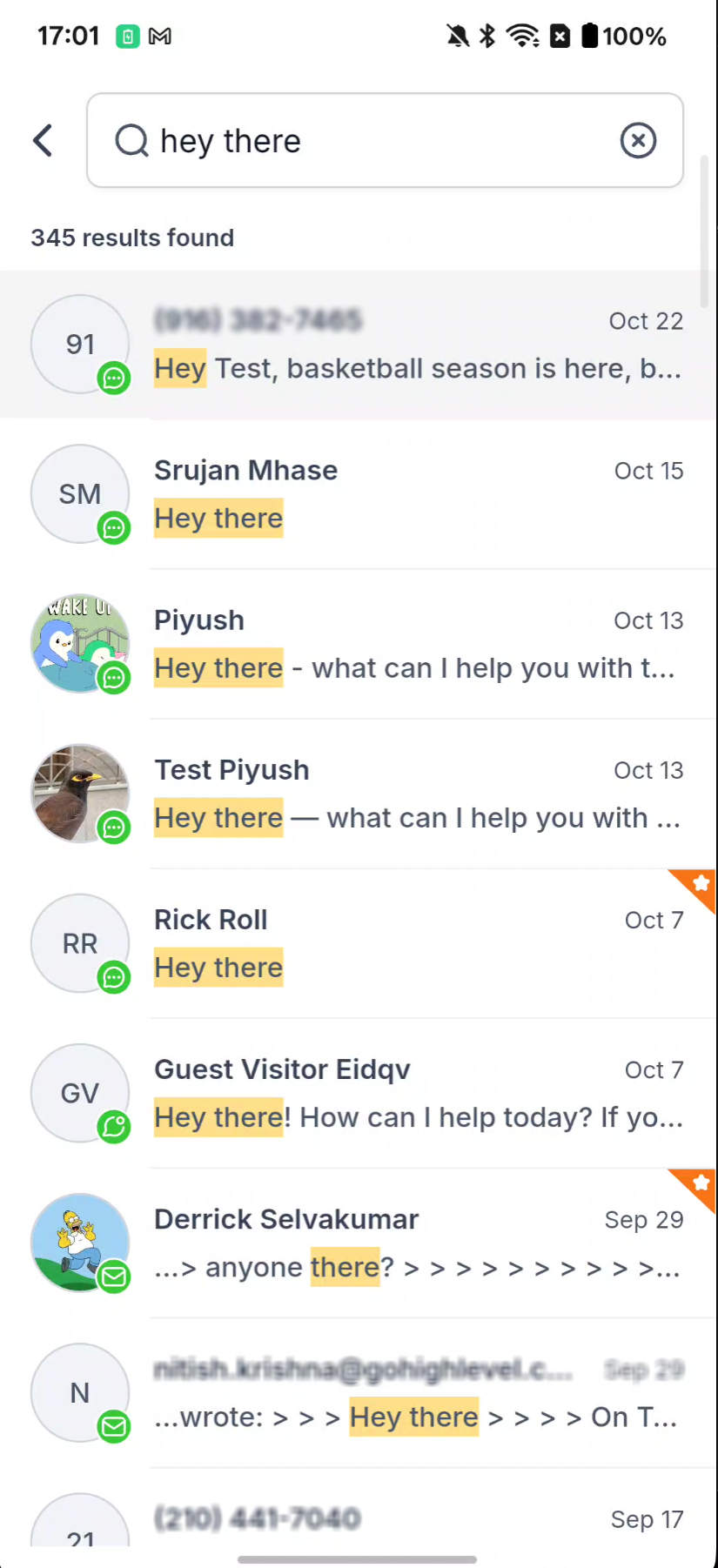
Keyword Search adds a text based lookup tool to the Conversations inbox on the HighLevel mobile app. Users can enter at least three characters and the system scans SMS, email, WhatsApp, Facebook, Instagram, Live Chat, internal comments and activity for matching content. Each result shows the contact, channel icon and a preview with the keyword highlighted.
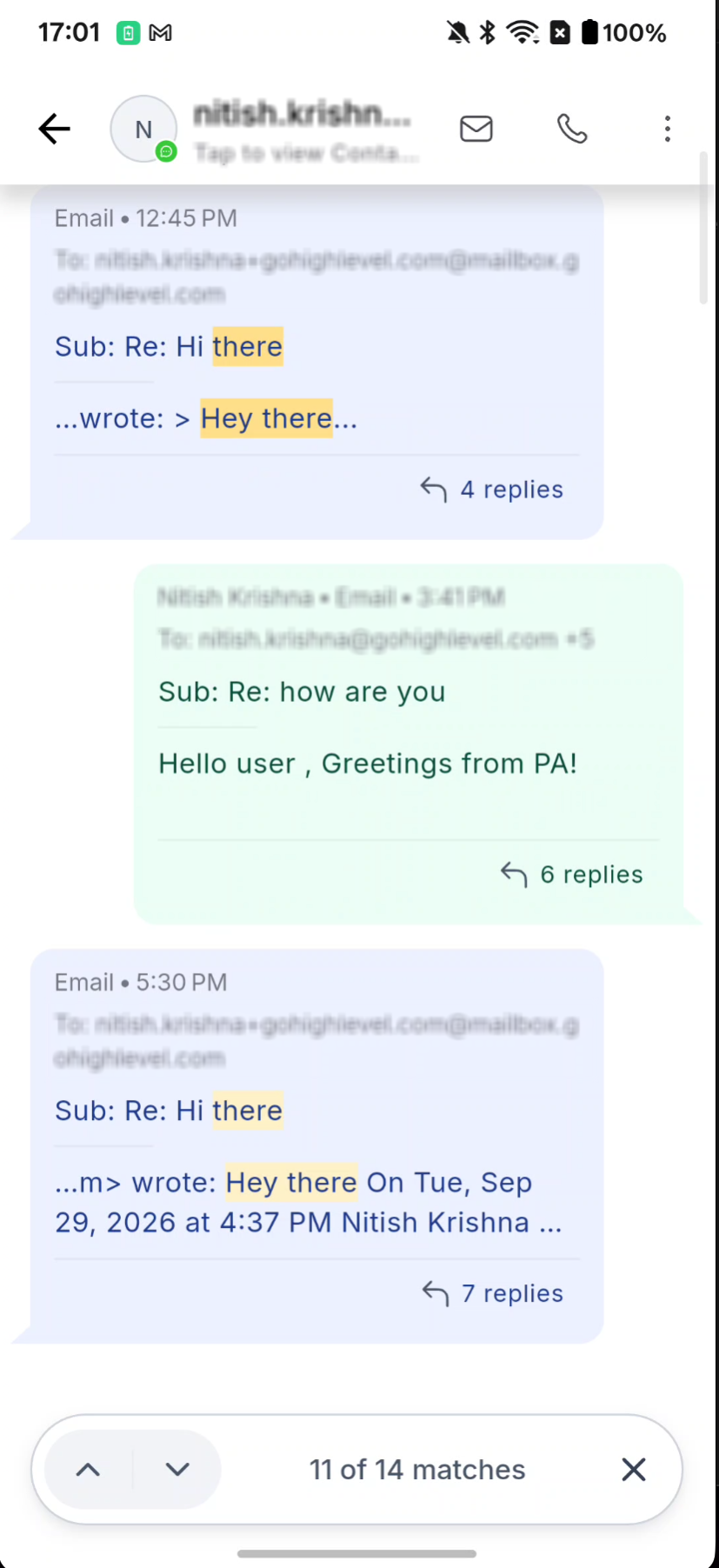
The feature lives under Labs settings and must be turned on per subaccount. When a result is tapped, the app opens the conversation at the exact point where the term appears, highlights it, and provides up and down arrows plus a match counter to move through all occurrences within that thread.
03How businesses use keyword search in mobile conversations
- Real estate agency. Agents enter part of a property address or client instruction in the mobile search field. The results list the relevant conversations, and tapping a result jumps straight to the highlighted message, saving time reviewing long chats.
- Ecommerce store. Staff search for order numbers or price mentions across WhatsApp and Instagram messages. After typing a fragment of the order ID, they open the matching conversation and navigate through each occurrence using the provided arrows.
- Healthcare clinic. Clinicians look up patient IDs or appointment details in internal notes or Live Chat threads. By entering part of the ID, they right away locate the correct message and can step through any additional matches in the same conversation.
04The numbers and rules that matter
- Mobile app version: 4.27.0 or later.
- Minimum query length: Three characters.
- Up to five recent searches per subaccount.
05Before you start
- Mobile app version 4.27.0 or later must be installed.
- The Search Conversations by Keyword (Location) Labs feature must be enabled for the subaccount.
06How to set up and use keyword search in mobile conversations in HighLevel
Enable keyword search in Labs
- Sign in to HighLevel and switch to Agency View.
- Navigate to Settings > Labs > Subaccounts.
- Locate the card named Search Conversations by Keyword (Location).
- Activate the toggle for the target subaccount.
- If a Manage button appears, select the subaccount and save the changes.
Search conversations
- Open the HighLevel mobile app.
- Select the subaccount you wish to search.
- Tap the Conversations section.
- Tap the Search conversations button.
- Enter a query of at least three characters and view the highlighted results.
Open a match and navigate results
- Tap a conversation entry from the search list.
- The thread opens at the matching message with the term highlighted.
- Observe the match counter displayed above the message input box.
- Use the up and down arrows to move to previous or next matches.
- Tap the X icon to exit match navigation.
Use recent searches
- Return to the Conversations list.
- Tap the Search conversations icon again.
- Select a recent search entry to run it again.
- Tap X on an entry to delete it or choose Clear all to remove all recent searches.
07What it looks like in HighLevel

08Settings that matter
- Search Conversations by Keyword (Location). Controls whether the mobile app can search across messages and contacts for keywords within the selected subaccount.
09Things to know before you rely on it
- Feature works only on mobile app versions 4.27.0 or newer.
- Search is available only after enabling the Labs feature for the subaccount.
- Queries must contain at least three characters.
- Search scope is limited to the currently selected subaccount.
- Filters for date, channel, contact, direction, owner and followers are not yet available.
- Starting a new search from inside an open conversation is a future enhancement.
- Recent searches are saved locally on the device and disappear when you log out.
10If something goes wrong
- Keyword Search does not appear in the mobile app.. Verify the app is version 4.27.0 or later and that Search Conversations by Keyword (Location) is turned on in Labs for the active subaccount.
11How it connects to the rest of HighLevel
- Review every feature available in the mobile and desktop apps. All mobile features
- Check HighLevel pricing and plan details. Pricing
- Start a free 30 day trial to test keyword search. Start trial
Michael's take

Keyword Search is handy when you need to pull a detail out of a long chat without scrolling. Teams that never dig through messages will find it useful, but if you only handle a handful of short conversations, you can skip it.