
01Who this is for
- Founders who rely on instant client alerts to manage leads and appointments.
- Small business owners who need to ensure team members receive calendar and task notifications.
- Service providers who depend on push notifications for order or support updates.
02Notification diagnosis, explained
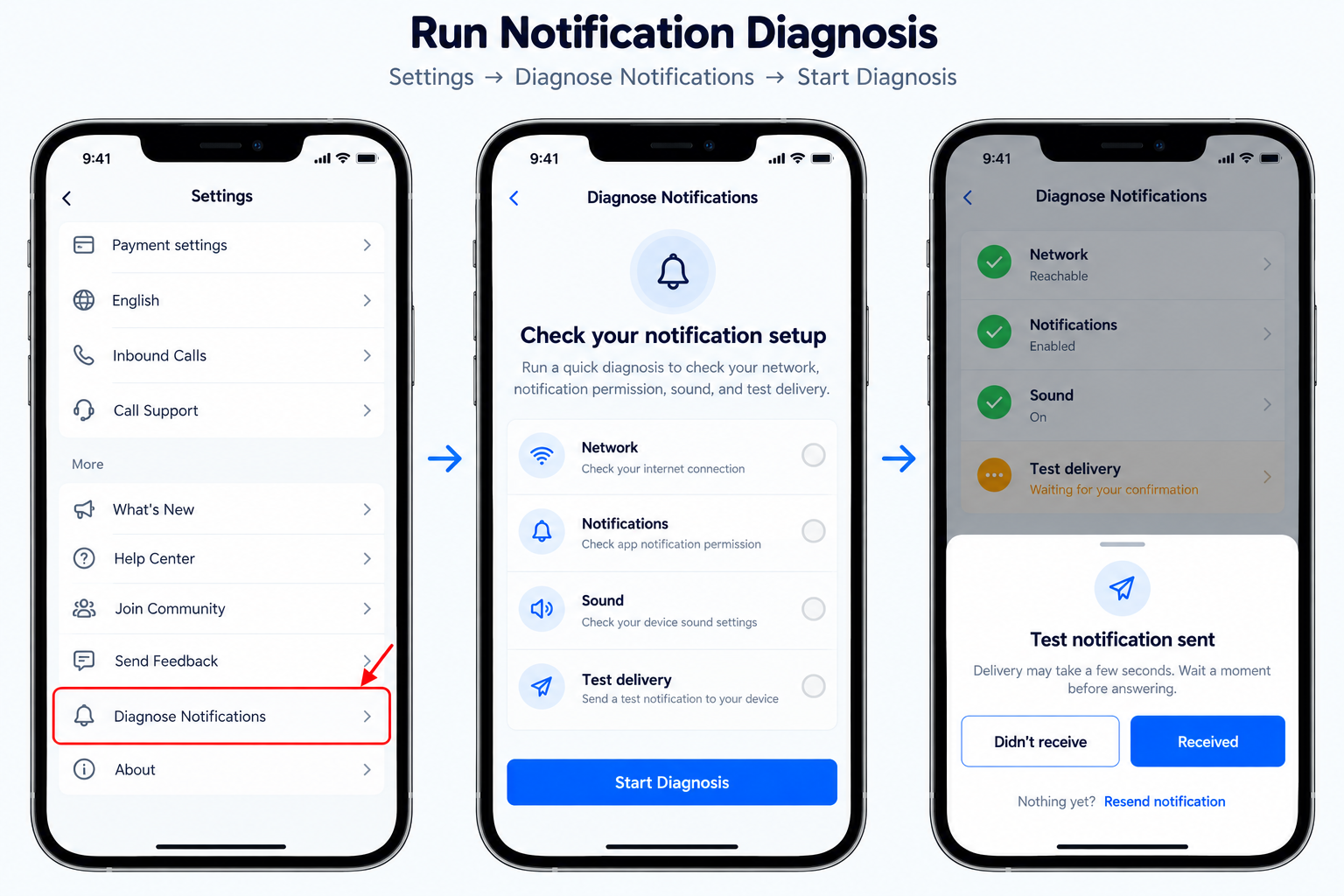
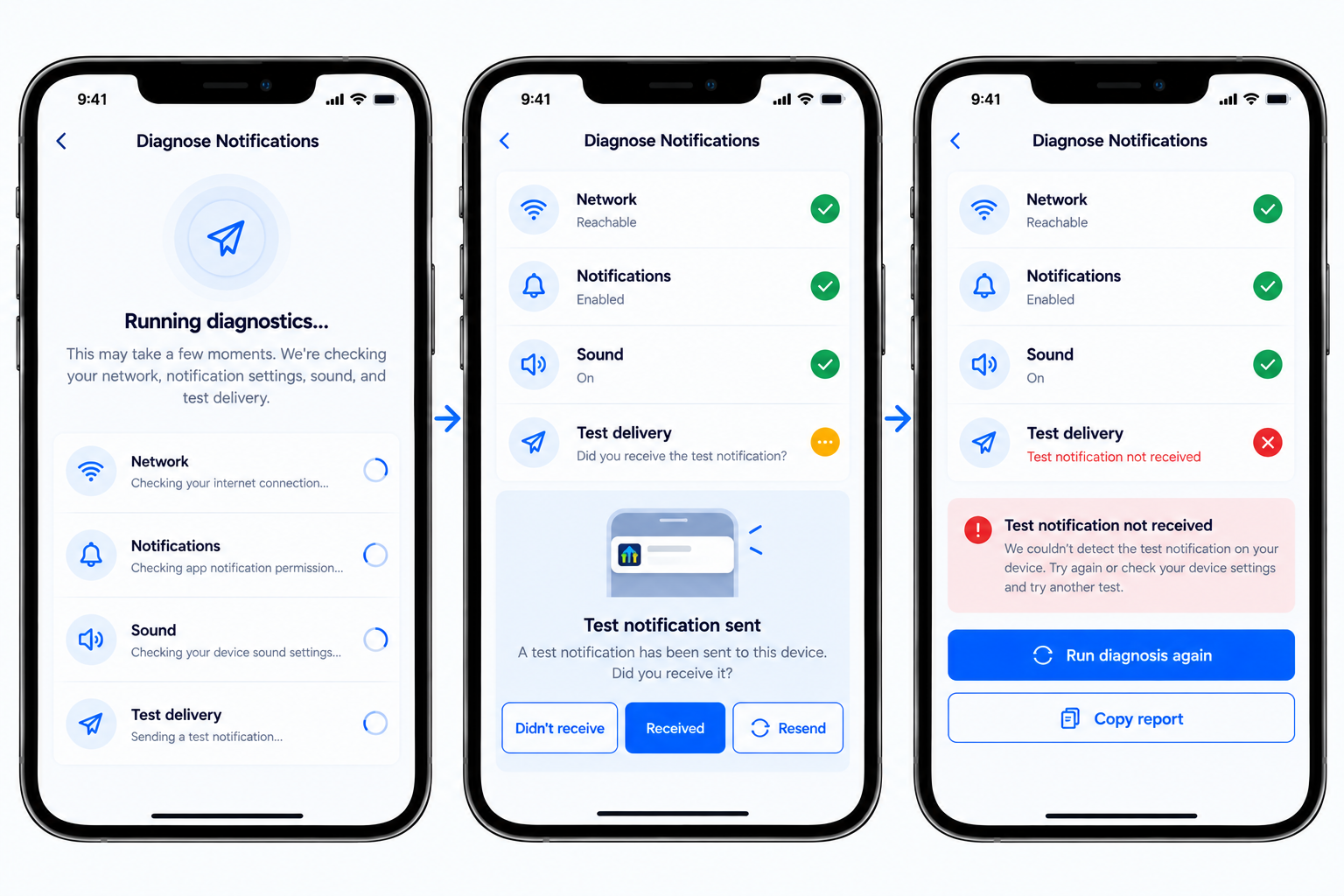
Notification Diagnosis lives inside the Settings area of the HighLevel mobile app. When you start the tool, it runs four automated checks, Network, Notifications, Sound, and Test delivery, to evaluate the path a push notification follows to your device. The Test delivery step actually sends a live notification so you can see whether it arrives.
The results appear for each check, showing either a pass or guidance for what to fix. You can act on the guidance, then run the diagnosis again to see if the problem is resolved. If the issue persists after all checks pass, the tool lets you copy a diagnostic report for Support.
This feature is available in the standard HighLevel mobile app version 4.25.0 or later, as well as in LeadConnector and white label mobile apps that meet the same version requirement.
03How businesses use notification diagnosis
- Fitness studio. The studio runs Notification Diagnosis to verify that class schedule alerts reach trainers' phones. After adjusting any flagged network or sound settings, they resend a test notification to confirm delivery before the day’s classes begin.
- Real estate agency. Agents use the tool to ensure new lead notifications appear promptly. They follow the app’s guidance for any permission issues, make the recommended changes, and then run the diagnosis again to validate the fix.
- Consulting firm. Consultants check that project deadline reminders are delivered by running the diagnosis, fixing any sound or notification permission warnings, and copying the report to Support if reminders still fail.
04The numbers and rules that matter
- Supported mobile app version: 4.25.0 or higher.
05Before you start
- Install HighLevel Mobile App version 4.25.0 or higher.
- Use a supported LeadConnector or white label mobile app version.
06How to set up and use notification diagnosis in HighLevel
Run Notification Diagnosis
- Open the HighLevel Mobile App.
- Open Settings.
- Select Diagnose Notifications.
- Tap Start Diagnosis.
- Allow the app to perform the Network, Notifications, Sound, and Test delivery checks.
- Review the result shown for each check.
- Tap Received if the test notification arrived.
- Tap Didn't receive if the test notification did not arrive.
- Tap Resend to request another test notification.
- Follow any guidance displayed for checks that need attention.
- Make the recommended change to the device or connection setting.
- Return to Notification Diagnosis and tap Run diagnosis again.
- Review the updated results.
- Tap Copy report if notifications still do not work as expected.
- Paste the copied diagnostic report into a Support request.
07What it looks like in HighLevel
08Settings that matter
- Diagnose Notifications. Launches the built in troubleshooting flow that runs the four notification checks.
- Copy report. Copies the full diagnostic results to the clipboard so they can be shared with Support.
09Things to know before you rely on it
- Requires HighLevel Mobile App version 4.25.0 or higher.
- Supported in LeadConnector and white label mobile apps when running an applicable version.
- If all checks pass but notifications still fail, further investigation by Support is needed.
10If something goes wrong
- Test notification does not arrive. Select Didn't receive or use Resend, then follow any guidance for the checks that need attention and run the diagnosis again.
- All checks pass but notifications still missing. Tap Copy report and include the diagnostic results in a Support request.
11How it connects to the rest of HighLevel
- Explore all Mobile & Desktop App features Mobile & Desktop App features
- View HighLevel pricing and plans Pricing
- Start a 30 day HighLevel trial 30 day trial
Michael's take

Notification diagnosis can help streamline troubleshooting by providing a guided flow to identify potential issues with network, permissions, sound, or delivery, and lets you share a report with Support if needed.
If you already have a separate troubleshooting process, you might prefer to skip it and go straight to Support.