
01Who this is for
- Agency admins who need to restrict internal dashboards to admin users only, keeping the navigation uncluttered for staff.
- Franchise owners who want each location to see its own resource links while hiding them from other sites.
- Support managers who must expose troubleshooting documents to the whole team but keep sensitive tools visible to supervisors.
02Custom module links, explained
The feature adds clickable items to the app’s side menu. Each link points to a URL you provide and can display an icon you choose. The links are stored in the Whitelabel Customizer and appear in the mobile or desktop app navigation.
Visibility is controlled by two dimensions. Role based visibility lets you pick between All Users or Admin Only. Account based targeting lets you select one or many accounts (locations) where the link should be shown. If no accounts are chosen, the link does not appear anywhere.
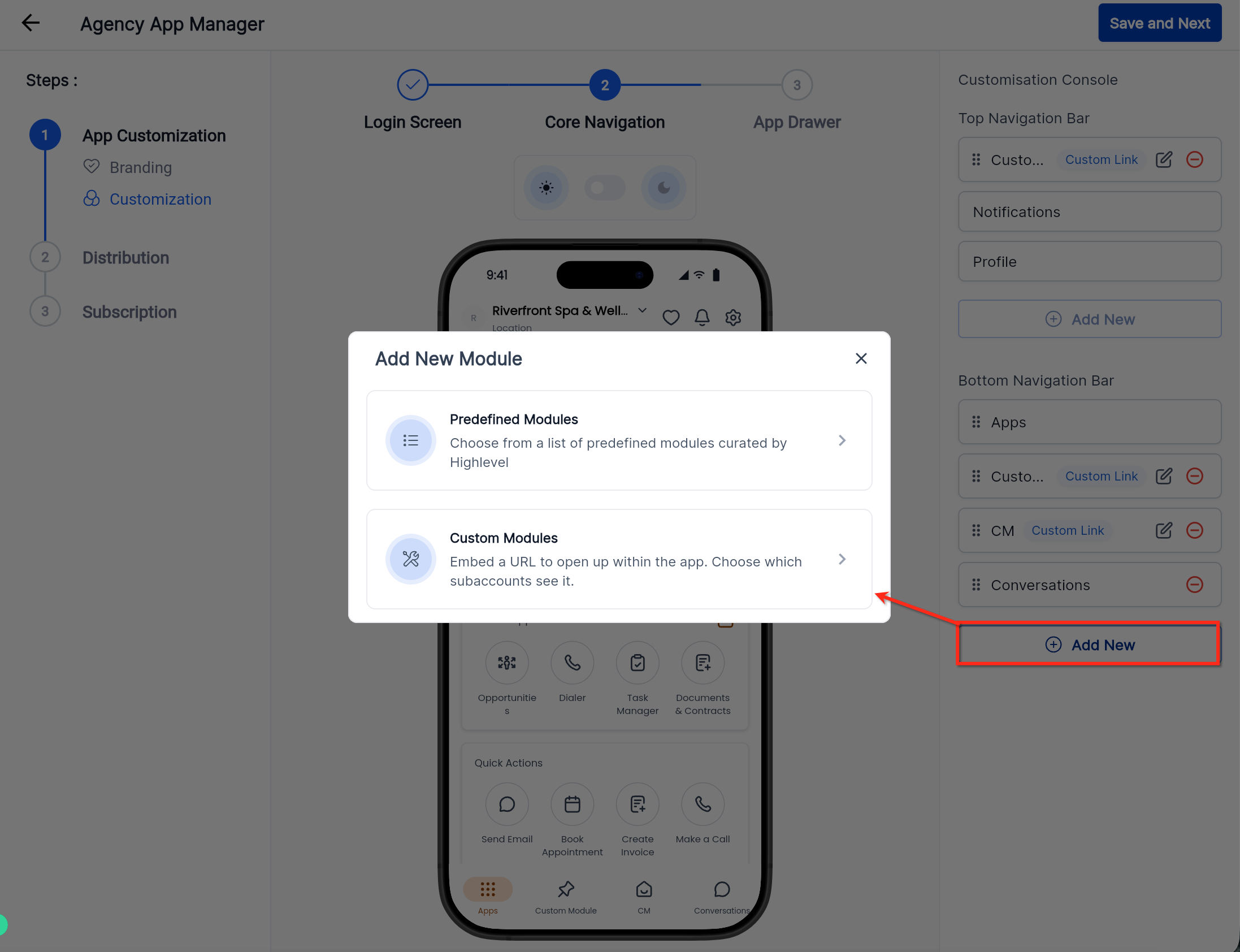
All configuration fields, title, URL, icon, account selection, and role visibility, are accessed in a single Add Edit Module window. After setting the values, you save the module and the navigation updates in real time.
03How businesses use custom module links with role & account based visibility
- Dental practice. The practice adds a link to its patient portal that only admin staff can see, preventing front desk users from accessing sensitive records. The link is assigned to the specific office location so only that site’s team sees it.
- Marketing agency. The agency creates a link to an internal reporting dashboard and makes it visible to all users in the accounts that handle that client. Other client accounts do not see the link, keeping each client’s view clean.
- Retail chain. Each store location receives a link to its own inventory management tool. The link is set for the store’s account only, so regional managers see only the links that correspond to their stores.
04How to set up and use custom module links with role & account based visibility in HighLevel
Set up custom module links with role and account based visibility
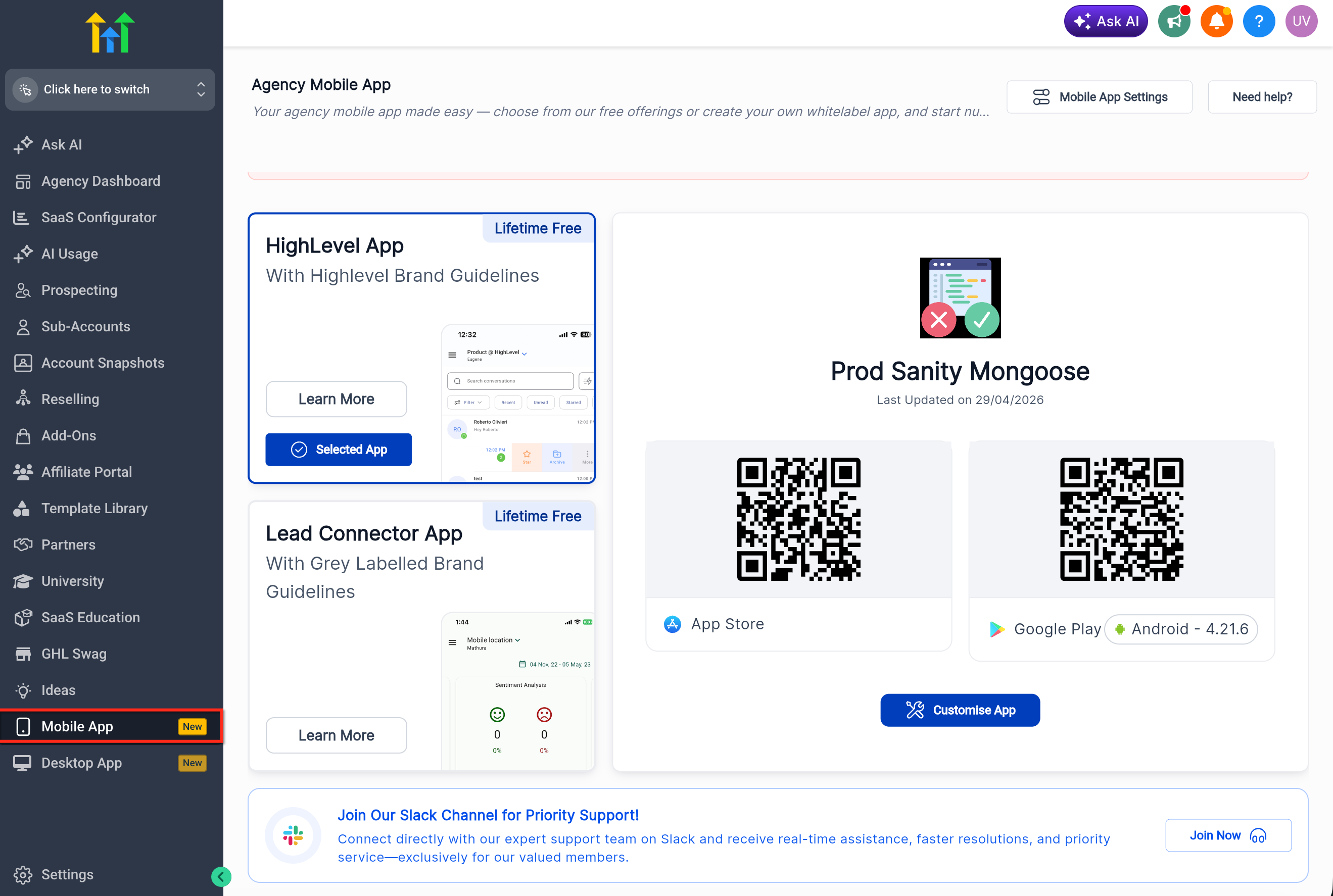
- Navigate to Mobile App in the agency left pane.
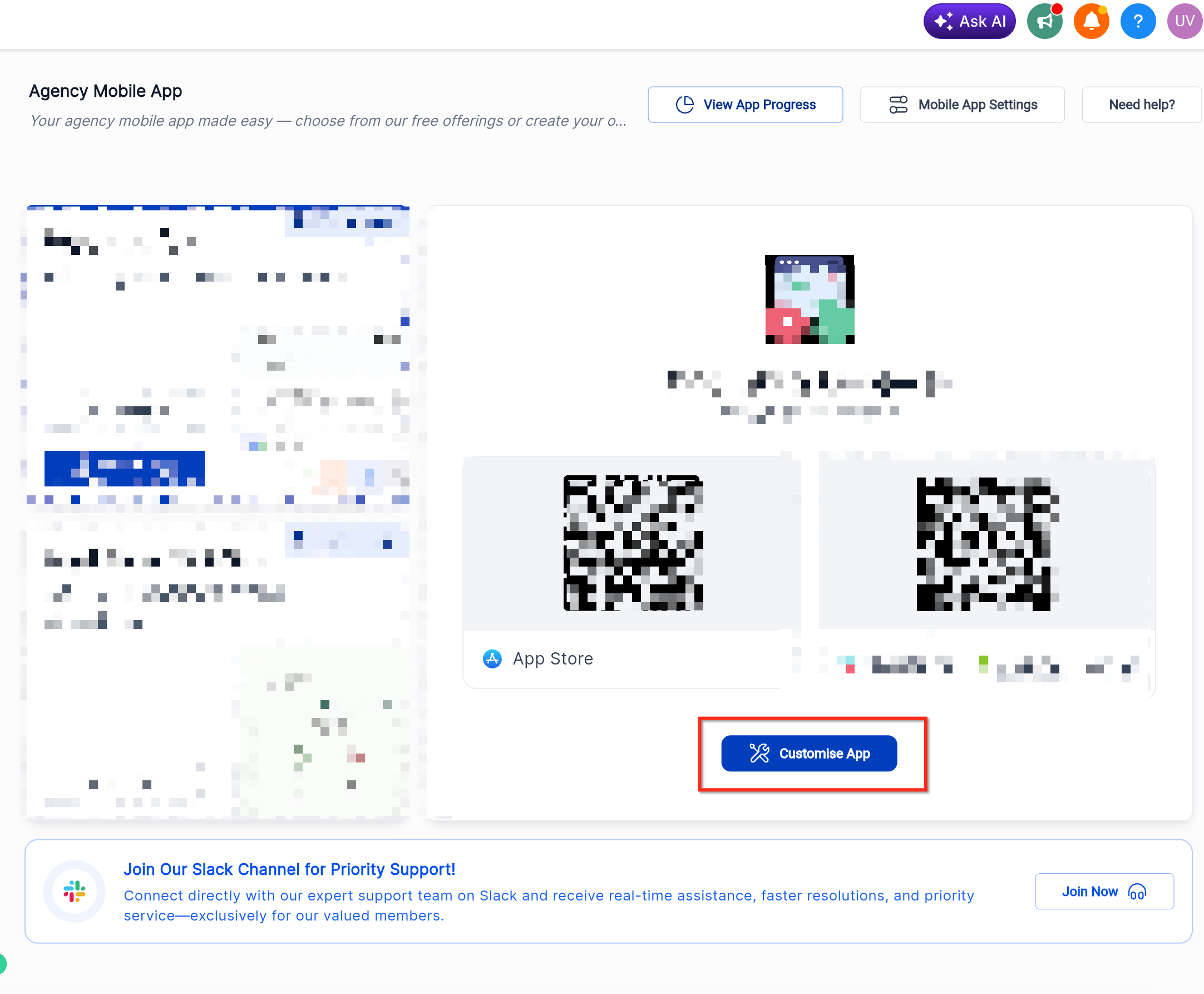
- Select Customize App to open the customizer.
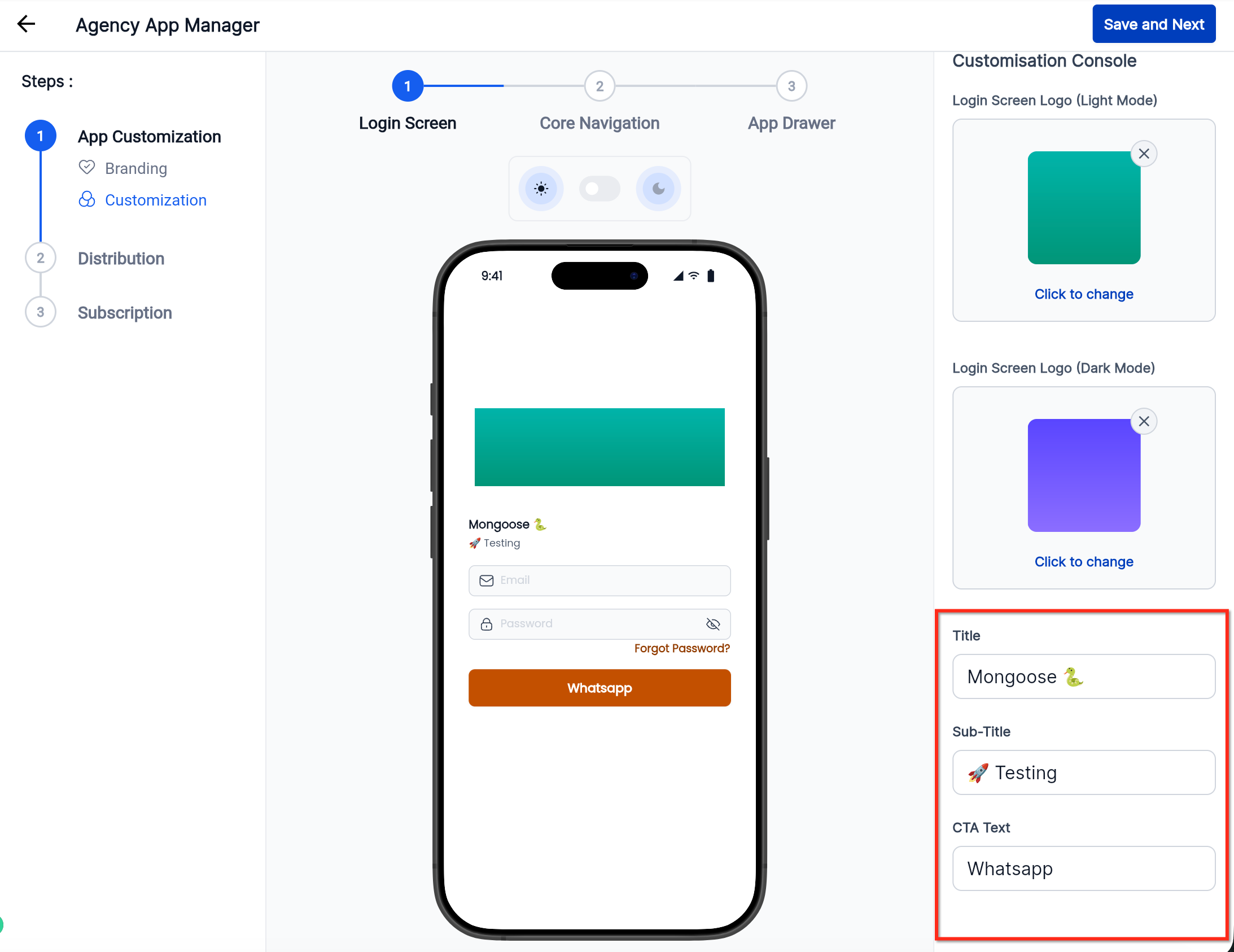
- Enter the link title and the destination URL.
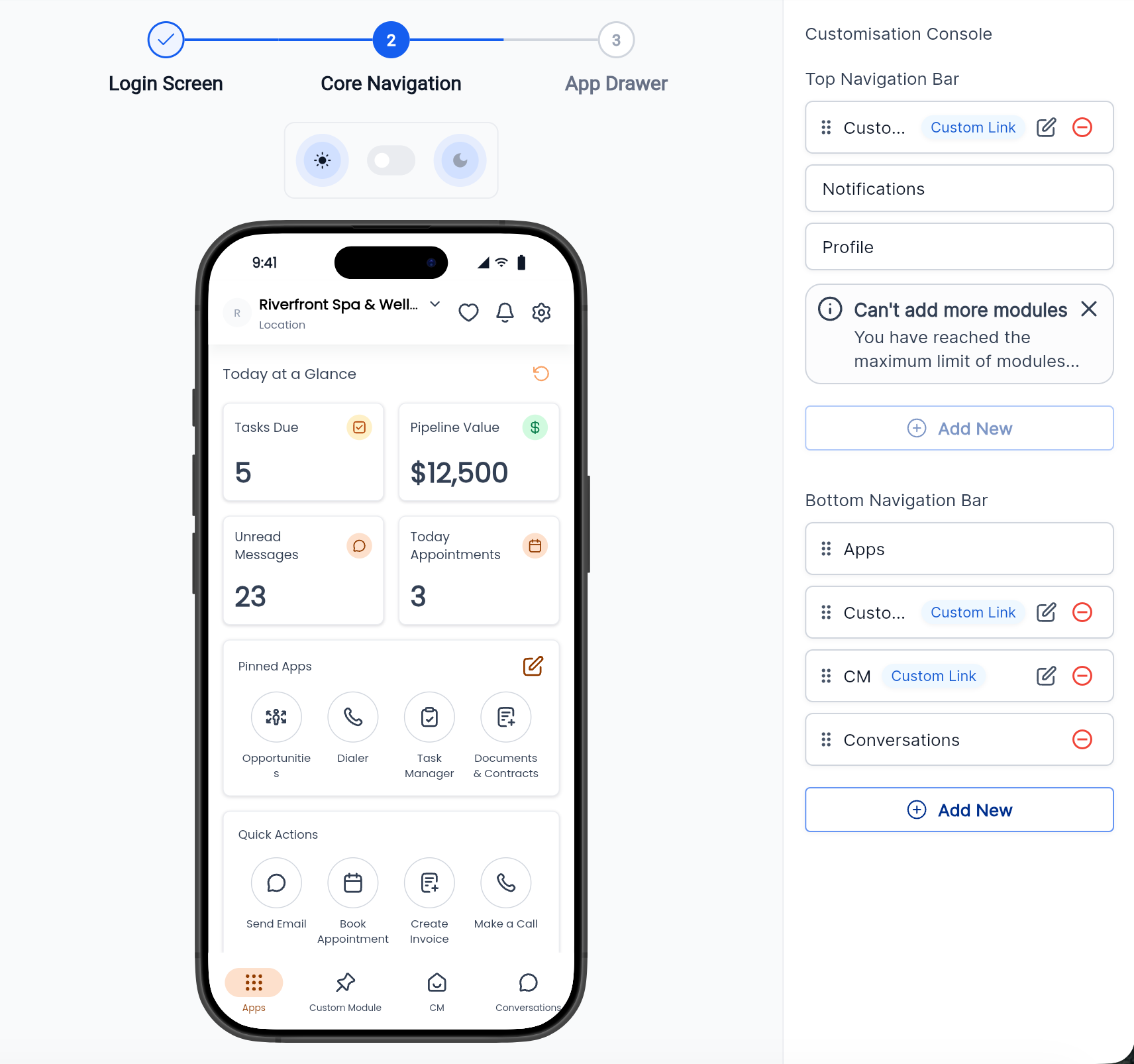
- Choose an icon for the link through the Branding options.
- Press Add New to create the module and set account and role visibility.
- Save the changes to apply the new navigation link.
05What it looks like in HighLevel
06Settings that matter
- Title. The text that appears for the navigation link.
- URL. The web address the link points to when clicked.
- Icon. A visual symbol shown next to the link title.
- Accounts (Locations). One or more accounts where the link will be displayed.
- Role Based Visibility. Determines whether the link shows to all users or only Admin users.
07Things to know before you rely on it
- Visibility can only be set to All Users or Admin Only; other role options are not available.
- If no accounts are selected, the link will not appear in any location.
08If something goes wrong
- Link does not appear after saving. Confirm that at least one account is selected and that the chosen role matches the current user's role.
- Admins cannot see a link set to All Users. Check that the link’s role visibility is set to All Users, not Admin Only.
09How it connects to the rest of HighLevel
- Learn how to add custom conversation providers in the mobile app Custom conversation providers
- Explore the HighLevel pricing and plan options Pricing
- Start a 30 day trial of HighLevel Free trial
Michael's take

Adding a small convenience like role and account visibility to custom module links feels like a modest upgrade, but for agencies managing many locations it can shift how clean and secure the app feels. When each user only sees the links that matter, the navigation stays focused and the risk of exposing internal tools is reduced.
A franchise business with multiple restaurant locations can use this feature to push a regional ordering system only to the locations that need it, while keeping corporate dashboards hidden from staff. I would first set up a link for the new ordering page, assign it to the relevant accounts, and restrict it to Admin Only until the rollout is proven.