
01Who this is for
- Sales teams can finalize contracts during client meetings without printing.
- Event organizers can collect attendee acknowledgments on the spot at registration.
02In person signatures, explained
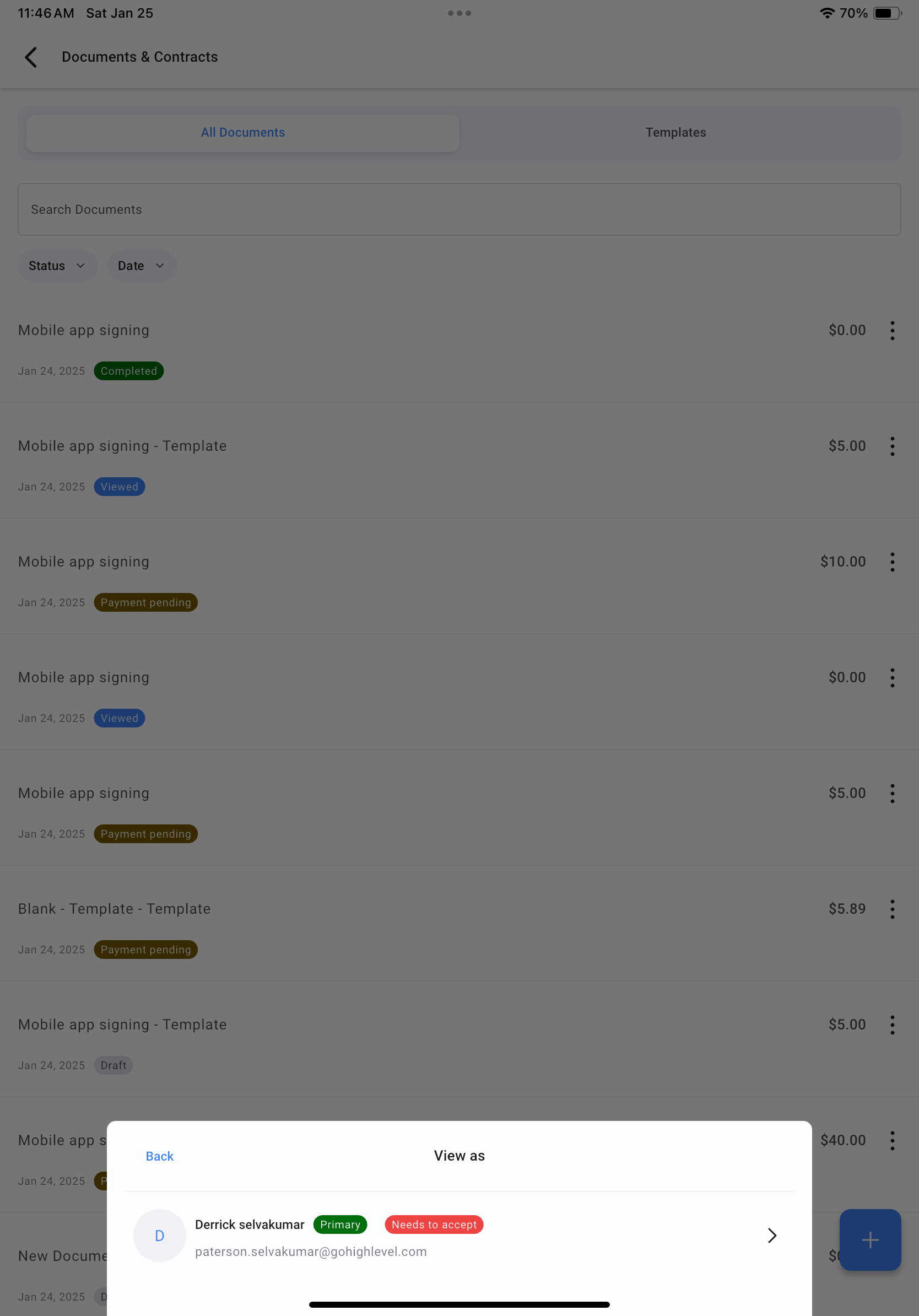
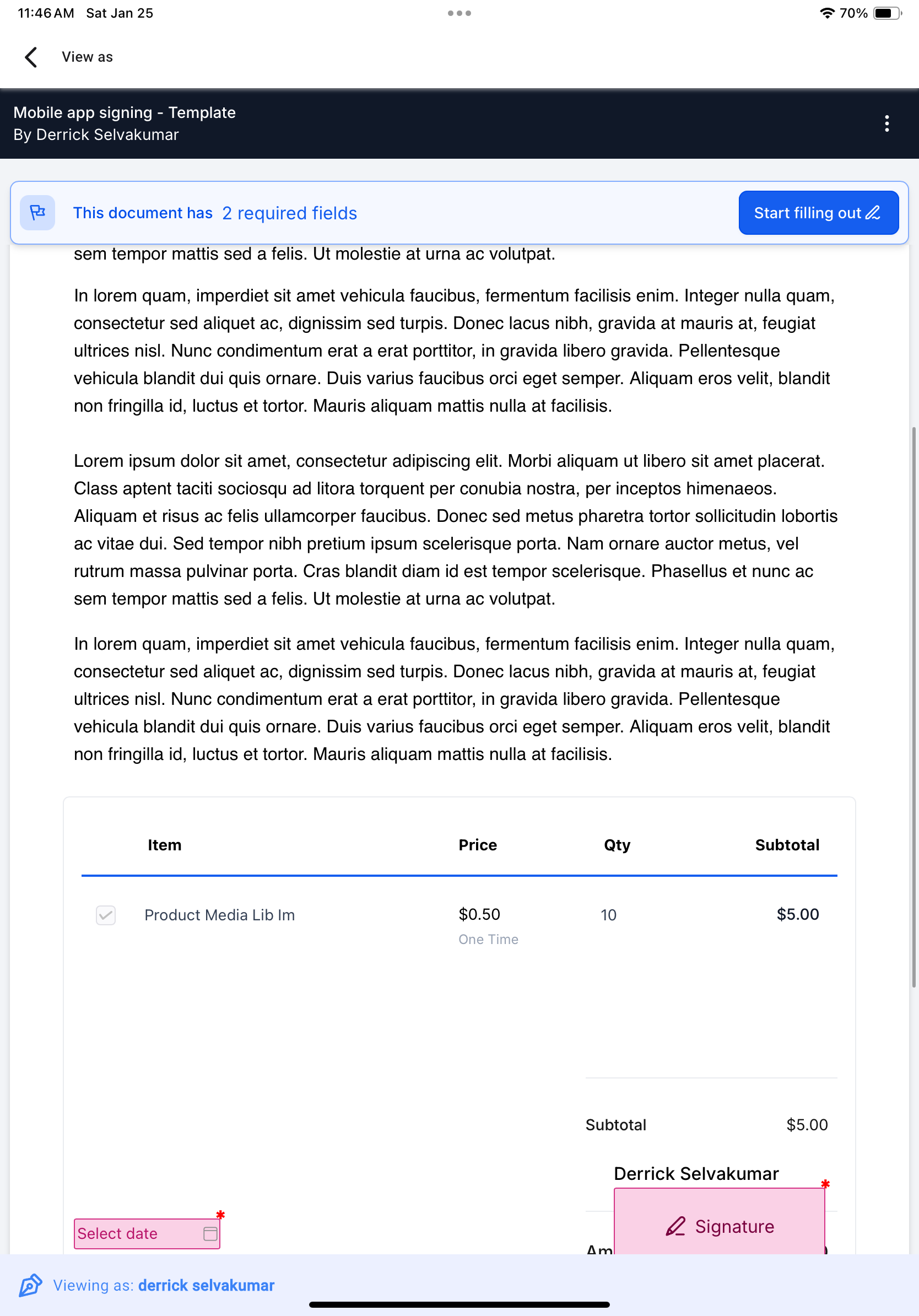
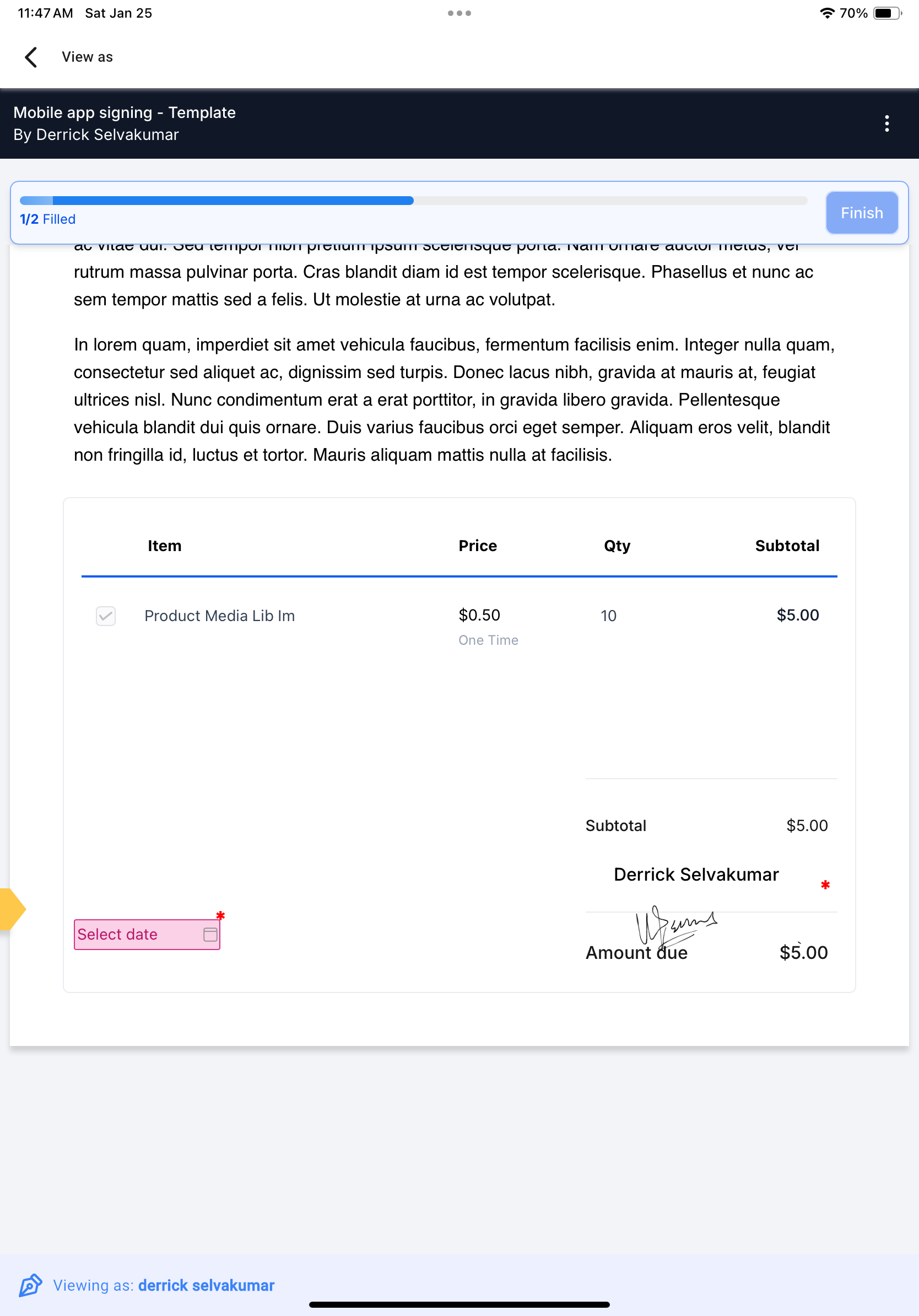
The feature adds an in person signing option to the mobile and whitelabeled versions of HighLevel. It works inside the Documents and Contracts area of the app. Users open a published document, choose a recipient with the view as function, and let that person sign using typed text or free hand drawing.
Signatures are stored with the document in the platform, so the record is complete without needing external scanning or emailing. The capability is only available after the document reaches Sent status and when the template contains the required signature fields.
03How businesses use in person signatures
- Real estate agency. An agent opens a purchase agreement from a template, publishes it, and then selects the buyer with view as. The buyer signs on the tablet, and the agent repeats the process for the seller before leaving the property.
- Fitness studio. At the front desk, staff launches a waiver document, switches to view as for the member, and the member signs by drawing their name. The signed waiver is saved right away for that membership record.
- Consulting firm. A consultant shares a proposal draft, taps view as for the client, and the client types their signature and fills any required fields on the spot. The consultant then repeats the step for any additional signers.
04The numbers and rules that matter
- Available in the HighLevel, LeadConnector, and whitelabeled mobile apps.
05Before you start
- A document template must contain a signature field for each expected signer.
- The document must be published and reach Sent status before view as becomes available.
- If using a whitelabeled app, ensure it is updated to the version that supports in person signing.
06How to set up and use in person signatures in HighLevel
Collect in person signatures via the mobile app
- Log in to the mobile app with your subaccount.
- Navigate to Documents and Contracts using the left navigation drawer.
- Start a new document from a template that contains signature fields.
- Publish the document by tapping the Share icon and copying the link.
- Open the All Documents tab and refresh until the document appears as Sent.
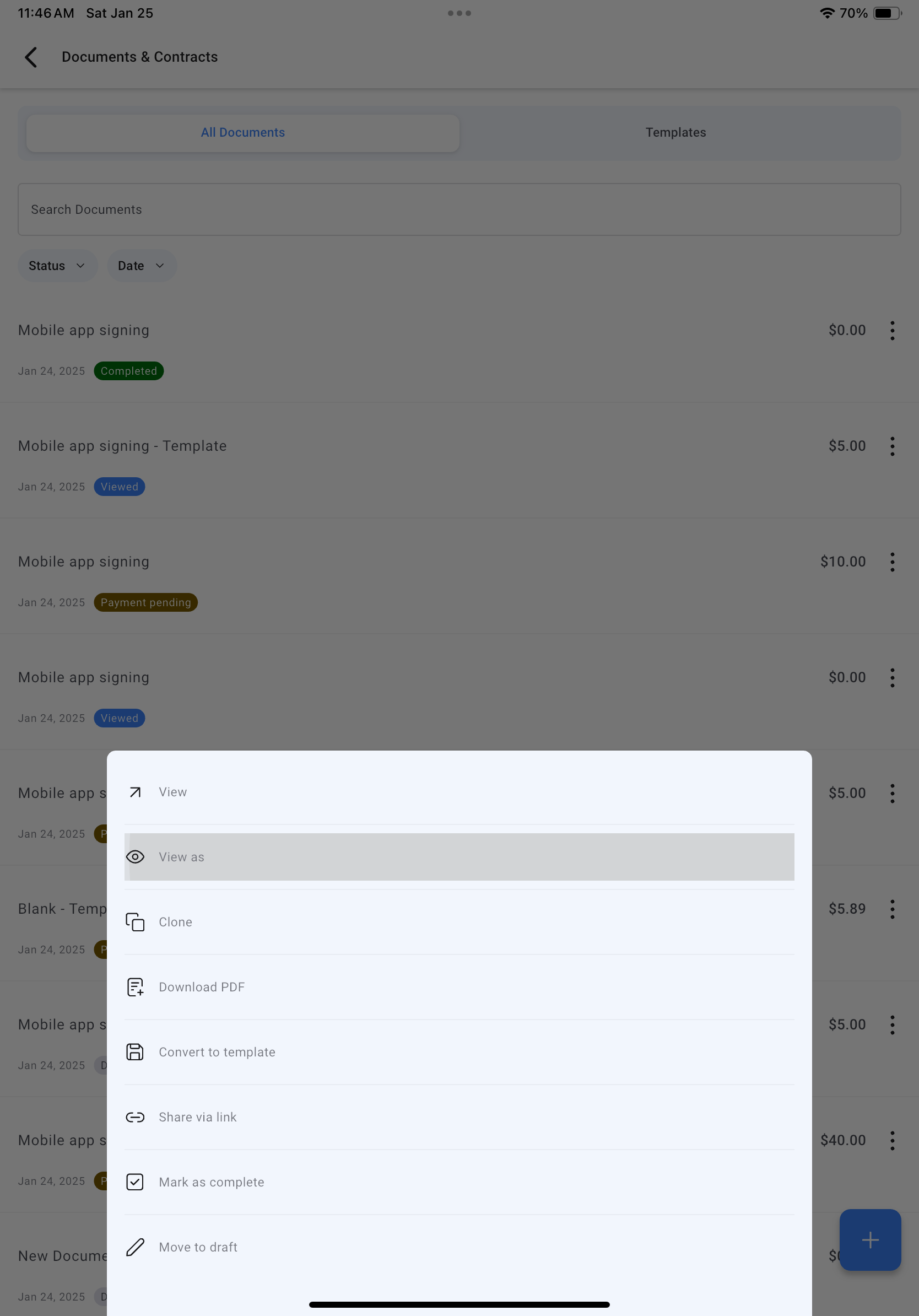
- Select View as for the desired signer via the three dot menu on the document row.
- Hand the device to the signer so they can add a typed or drawn signature and complete any other fields.
- Repeat the View as step for each remaining recipient.
- Confirm that every signer’s signature is present.
- The document is saved as fully executed with all captured signatures.
07What it looks like in HighLevel
08Things to know before you rely on it
- The View as option appears only after the document status changes to Sent.
- Templates must include the correct number of signature fields for all signers.
- White labeled apps need to be updated to the version that includes this capability.
09If something goes wrong
- View as does not appear for a document. Make sure the document status is Sent and refresh the All Documents view.
- Feature missing in a white labeled app. Request an app update from your support team to enable in person signing.
10How it connects to the rest of HighLevel
- See how to enable service calendar payments in the mobile app. Service calendar payments
- Explore the mobile estimate dashboard and builder for related document work. Mobile estimates
- Review HighLevel pricing and plan options if you need to upgrade for white label features. Pricing
Michael's take

In person signatures feel like a straightforward way to close deals when you’re on the go.
I think this feature can reduce the back and forth of printing contracts and keep the paperwork digital.