
01Who this is for
- Small business owners who take customer payments on the go, because the feature lets them finish sales without returning to a desktop.
- Service providers with scheduled appointments, since appointment invoices appear alongside other due items for quick collection.
- Contractors who issue estimates and need to edit details before payment, allowing on site adjustments before finalizing the sale.
02Active transactions, explained
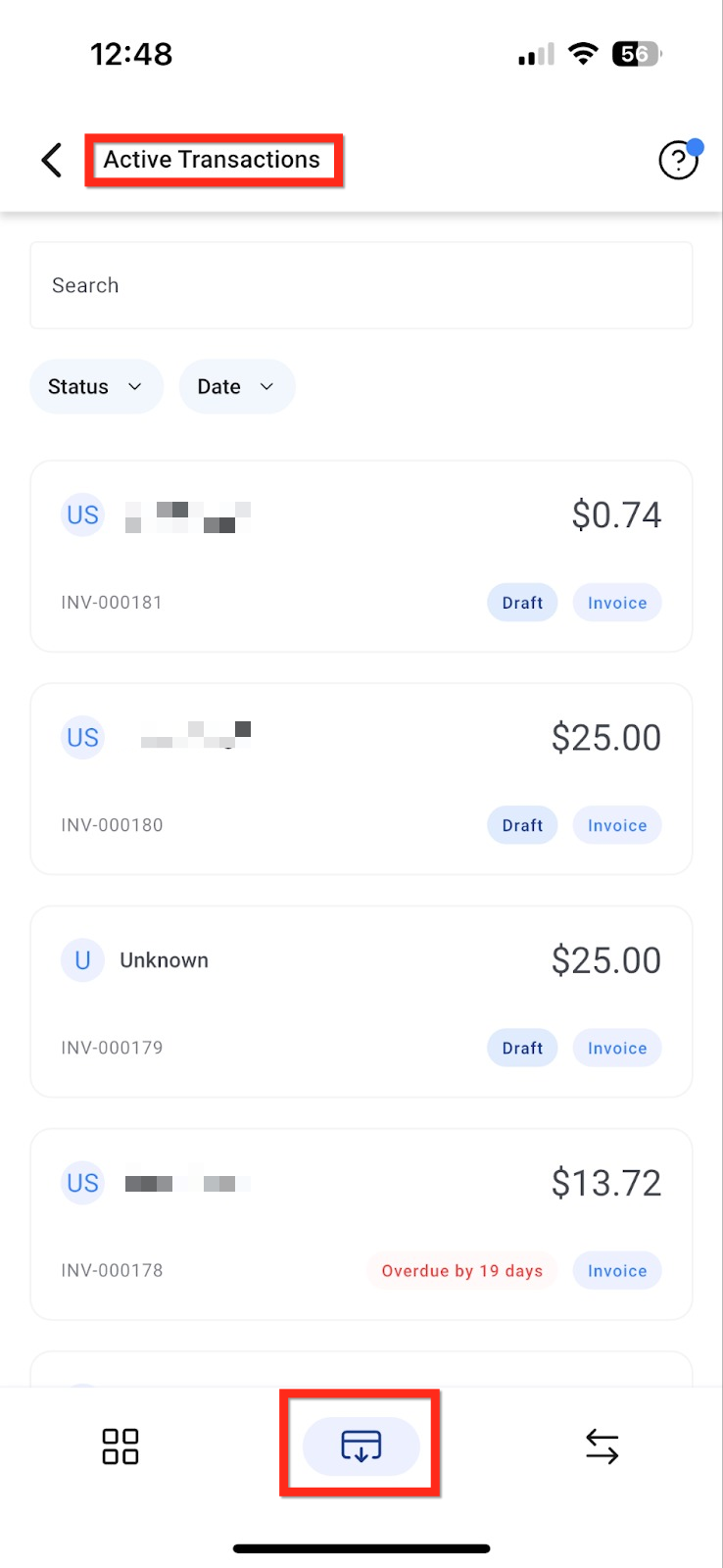
The Active Transactions feature lives inside the mobile app POS. It combines all due and overdue invoices, estimates, documents, contracts, and appointment invoices into a single screen accessed from the POS bottom bar.
Users can open any invoice, make changes, and then record a payment using a variety of methods. The payment is processed immediately and the invoice status updates to paid. This feature is available in the HighLevel mobile app version 3.102.0 and later, as well as in LeadConnector and whitelabel mobile apps that receive the update.
03How businesses use Active Transactions
- Dental practice. A dental office can open the Active Transactions list while at the front desk, tap a patient’s invoice, edit any missing procedure codes, and record the payment with a card reader or cash. The invoice then shows as paid in the system.
- Home remodeling contractor. A contractor can view pending estimates on a job site, adjust line items directly in the invoice tile, swipe to reveal payment options, and accept a Tap to Pay transaction. The updated payment status syncs back to the mobile app.
- Fitness studio. The studio can access appointment invoices for class bookings, edit the session details if needed, and collect cash or card payments right after the class using the mobile POS. The invoice is marked as paid right away.
04The numbers and rules that matter
- HighLevel mobile app v3.102.0 and above.
- LeadConnector v3.102.0 and above.
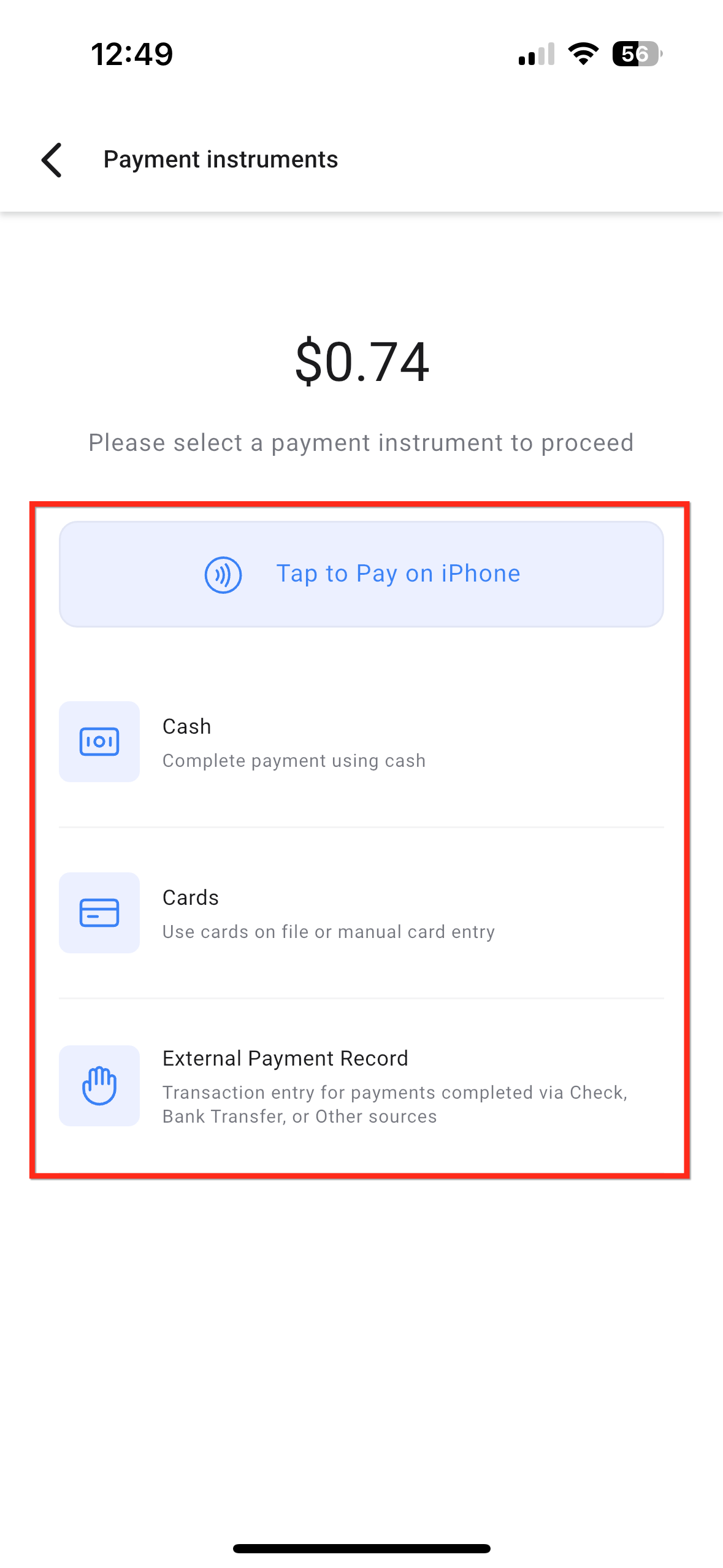
- Supported payment methods: Tap to Pay, Stripe, Square readers, direct card payments, cash.
05Before you start
- Make sure you are using the HighLevel mobile app version 3.102.0 or later.
- Log in with subaccount credentials that have POS access.
- If using a whitelabel app, request the update to include Active Transactions.
06How to set up and use Active Transactions in HighLevel
Collect payment from an active transaction
- Log in to the HighLevel mobile app with your subaccount credentials.
- Tap the POS icon on the bottom navigation bar.
- Open the Active Transactions menu located in the POS bottom bar.
- Tap an invoice tile to open it for review or editing.
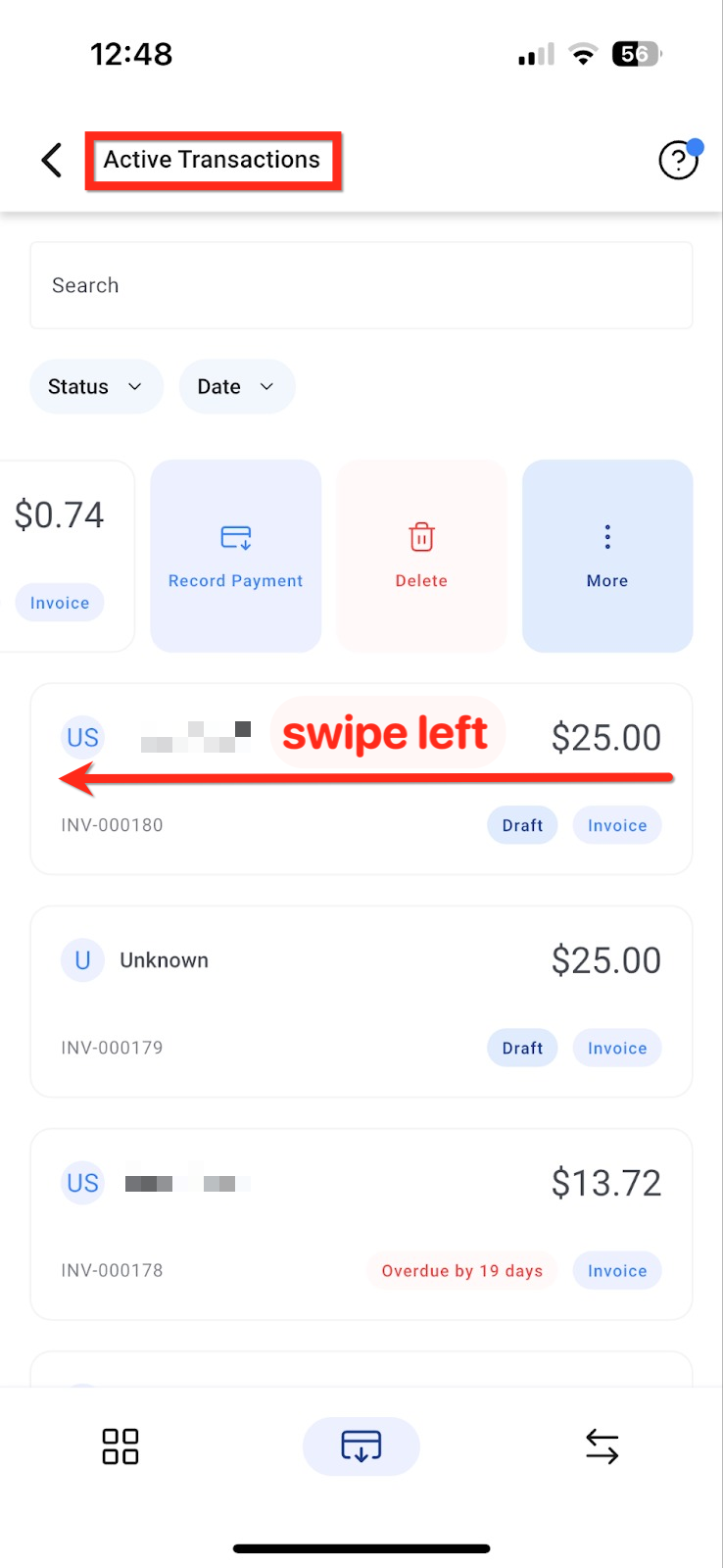
- Swipe left on the invoice card or long press it to show more options.
- Tap Record Payment.
- Choose a payment method such as Tap to Pay, Stripe reader, Square reader, card payment, or cash.
- Complete the transaction and confirm the invoice as paid.
07What it looks like in HighLevel
08Things to know before you rely on it
- The feature works only in app versions v3.102.0 and newer.
- All subaccount users with POS permissions can use Active Transactions.
- Whitelabel mobile apps need a requested update before the feature becomes available.
09How it connects to the rest of HighLevel
- See how the mobile app consolidates all payment sources. Consolidated payment hub
- Learn to record service calendar payments directly in the app. Service calendar payments
- Edit product details on the fly during a mobile transaction. Dynamic products
Michael's take

Active Transactions puts every unpaid invoice, estimate, contract or appointment payment right at your fingertips on the phone, so you can settle it while you’re out in the field.
The first thing I would get right is making sure the app is on version 3.102.0 or later. Without that update the whole menu is hidden, and you end up chasing invoices in the desktop view instead of closing them on the spot.