
01Who this is for
- Marketing agency owners, they can distribute reusable email designs without rebuilding each client’s template.
- Consultants who manage multiple client accounts, they can provide a single branded link for quick template imports.
- SaaS Founders with agency style partner portals, they keep the partner experience on their own domain while sharing email assets.
02White labeled email template sharing, explained
The feature creates a shareable URL that points to an existing email template. The URL contains the template’s Share ID and uses the agency’s white label desktop application domain, so recipients see a branded address. When a user opens the link, HighLevel shows a screen that lets the user add a copy of the template to an eligible subaccount.
The process lives in the Marketing section of the platform. Templates are found under Marketing > Emails > Templates. The Share option in the template’s three dot menu generates a standard link, which is then transformed into the white labeled version. Recipients must have permission to import templates into a destination subaccount, after which they can edit the copied design in the normal email editor.
03How businesses use white labeled email template sharing
- Marketing agency. The agency generates a share link for a client approved email design, converts it to a branded URL, and sends it to the client. The client opens the link and clones the template into their own subaccount, where they can edit content for upcoming campaigns.
- Consultancy firm. A consultant creates a template for a standard onboarding sequence, builds a white labeled link, and shares it with each client’s subaccount. Each client imports the template and customizes the wording to match their brand.
- SaaS partner program. The SaaS provider sets up a white label domain for its partner portal, then shares email templates for product announcements via branded links. Partners click the link, add the template to their subaccounts, and schedule email campaigns.
04Before you start
- A white label application domain must be configured and verified for the agency.
- The user creating the link must have a role that includes email template sharing permissions.
- The recipient must have access to an eligible destination subaccount.
05How to set up and use white labeled email template sharing in HighLevel
Set up white labeled email template sharing
- Open the appropriate subaccount in HighLevel.
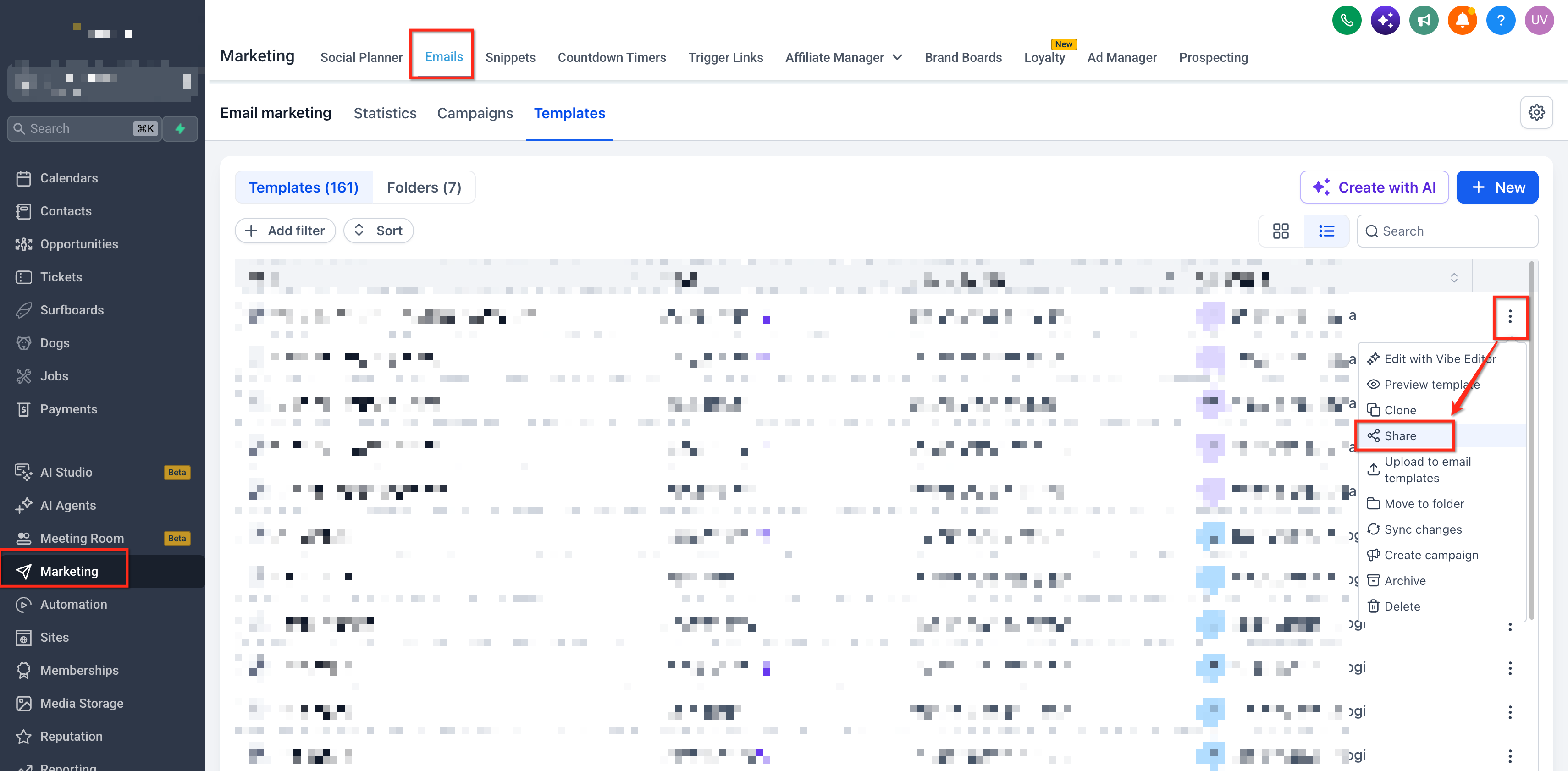
- Navigate to Marketing > Emails > Templates.
- Locate the email template you want to share.
- Click the three dot menu next to that template.
- Select Share.
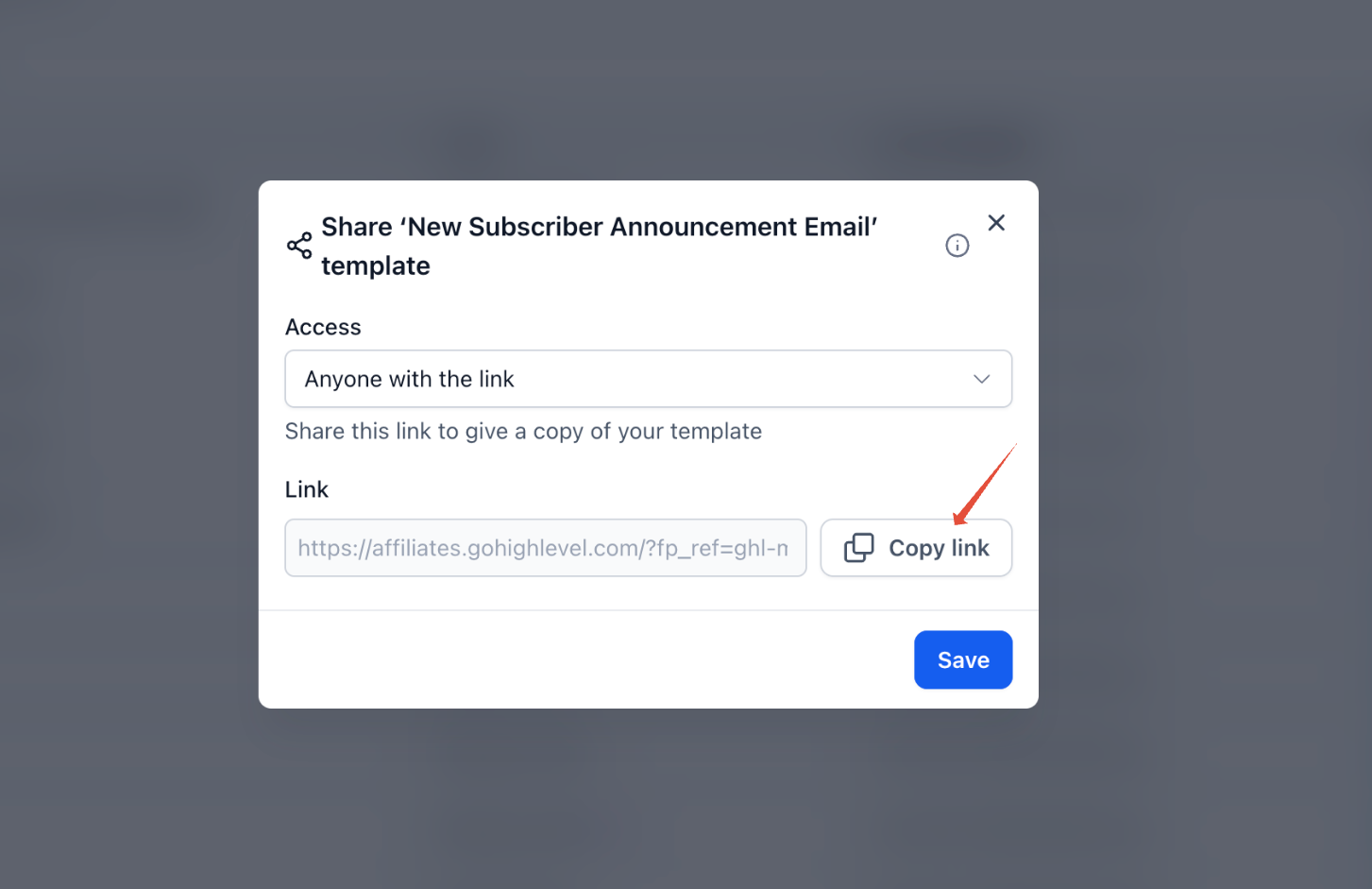
- Choose the sharing access option in the Share Template dialog.
- Copy the generated template share link.
- Paste the copied URL into a text editor.
- Find the parameter email_template_share= in the link.
- Copy the identifier that follows the equals sign.
- Do not copy any additional URL parameters.
- Copy the URL structure https://YOUR WHITELABEL DOMAIN/emails/share/SHAREID.
- Replace YOUR WHITELABEL DOMAIN with your configured application hostname.
- Replace SHAREID with the identifier you copied earlier.
- Confirm the final URL includes your custom domain, the /emails/share/ path, and the Share ID.
- Verify that the hostname matches the domain configured for your agency’s white label application; do not add an extra app. prefix if it is already present.
- Copy the completed white labeled URL.
- Open the link in a browser to verify it displays the template sharing page.
- Share the URL with the intended recipient using your preferred communication channel.
- Ask the recipient to open the link and follow the import steps.
- Open the shared email template link as the recipient.
- Select Add Template.
- Enter or edit the template name if needed.
- Choose the destination subaccount or location for the cloned template.
- Click Clone Template.
- Open the destination subaccount.
- Navigate to Marketing > Emails > Templates and locate the imported template.
06What it looks like in HighLevel
07Settings that matter
- Sharing access option. Determines which users or groups can open the share link and import the template.
08Things to know before you rely on it
- A white label domain must be configured for the agency; without it only the standard link can be used.
- The branded link works only for eligible destination subaccounts.
- When cloning, up to three locations can be selected according to cross agency sharing rules.
- The API/Branded Links domain cannot be used for this feature.
- Countdown timers become placeholders after the template is copied; a new timer must be added in the destination account.
09If something goes wrong
- User cannot see the Share option for a template.. Check the user’s assigned role and ensure it includes permission for email template sharing.
- Imported email template does not contain a working countdown timer.. Create or select a countdown timer in the destination subaccount before using the imported template.
10How it connects to the rest of HighLevel
- Sharing email templates across agencies Agency template sharing guide
- Editing an email template in HighLevel Edit email templates
- Setting up the HighLevel template library Template library overview
Michael's take

White labeled email template sharing is handy for agencies that want to keep their branding front and center when handing off email designs.
If you rarely share templates outside your own team, skip it.