
01Who this is for
- Founders who run email campaigns; default values keep their messages professional when contact records are incomplete.
- Marketing managers responsible for bulk email blasts; defaults prevent empty placeholders that could confuse recipients.
- Agency owners who share templates across clients; defaults ensure each client’s messages remain polished regardless of data gaps.
02Default values for Custom Values, explained
The feature lets you attach a fallback string to any custom merge tag used in an email. The fallback displays only when the linked contact field has no value, so the email never shows an empty gap.
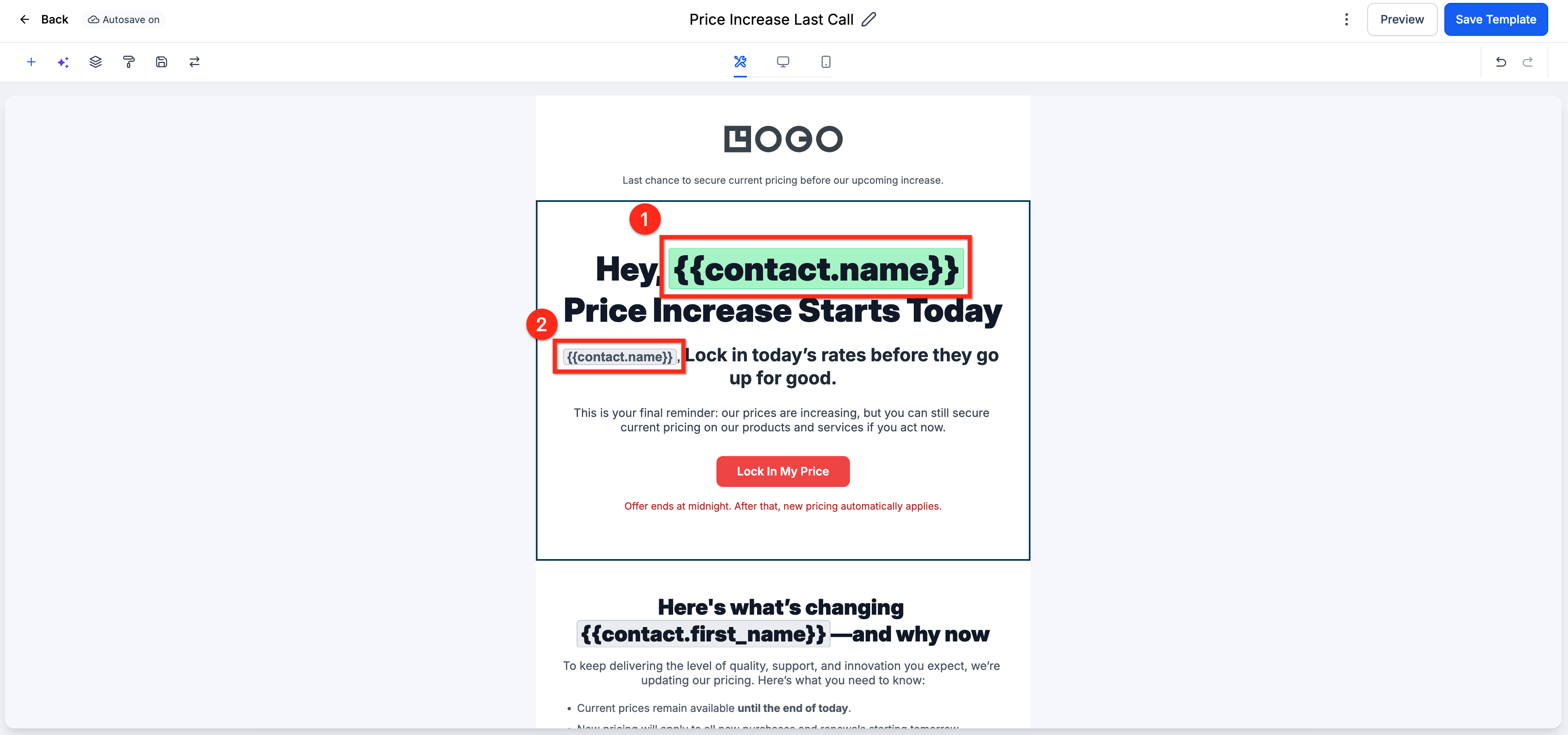
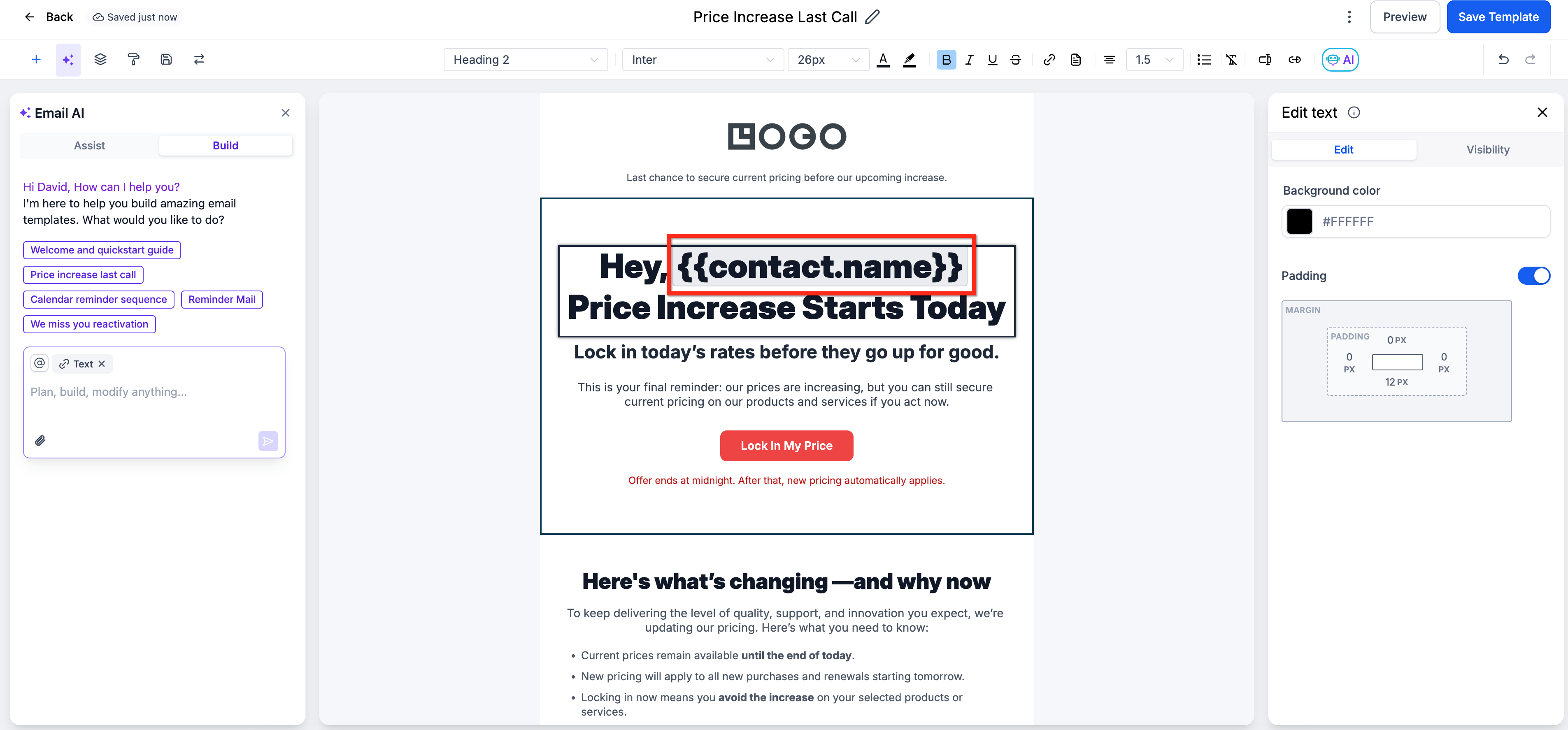
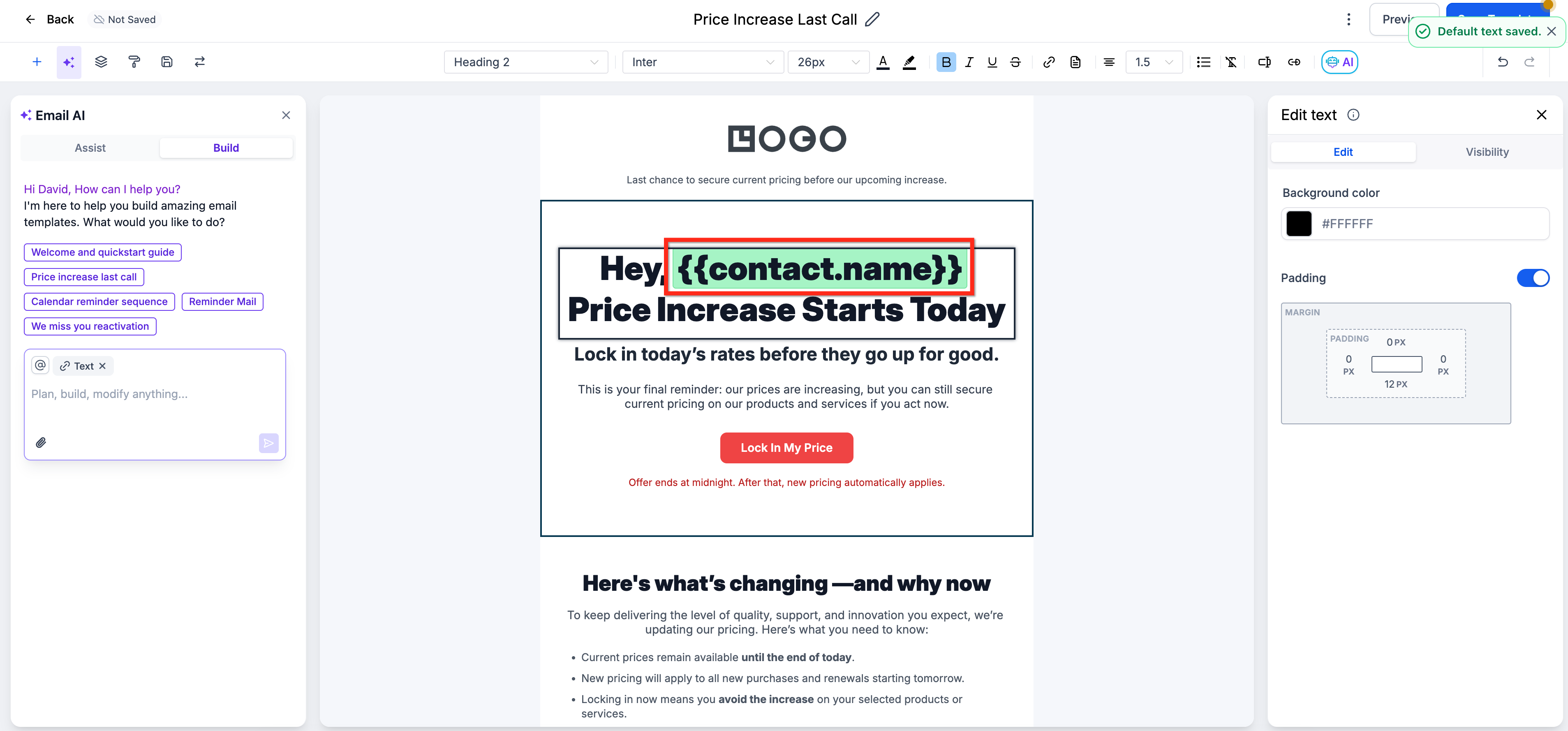
When a fallback is set, the tag turns green in the editor, while tags without a fallback stay grey. Hovering the tag shows a tooltip with the default text.
You can apply this to subject lines, preview snippets, and the body of workflow emails, campaign emails, bulk actions and saved templates. Each occurrence of a tag can have its own fallback, giving you full control over how each message reads.
03How businesses use default values for Custom Values
- Ecommerce store. Insert the {{contact.first_name}} tag in order confirmation emails, open the default text editor, type a fallback such as "valued customer", and save. The email will show the fallback if the buyer’s first name is missing.
- Real estate agency. Add the {{contact.property_address}} tag to workflow emails that send listing updates. Click the tag, enter a default like "your property", and save. The email will display the default when a listing address is not recorded.
- Fitness studio. Place the {{contact.class_time}} variable in a bulk promotion. Select the variable, provide a fallback such as "upcoming class", and confirm. The promotion stays readable even when a member’s preferred class time is unknown.
04How to set up and use default values for Custom Values in HighLevel
Set default values for a custom value in an email
- Open the editor for the email, template, workflow email, bulk action or campaign you want to modify.
- Insert or locate the custom merge tag you wish to personalize, for example {{contact.first_name}}.
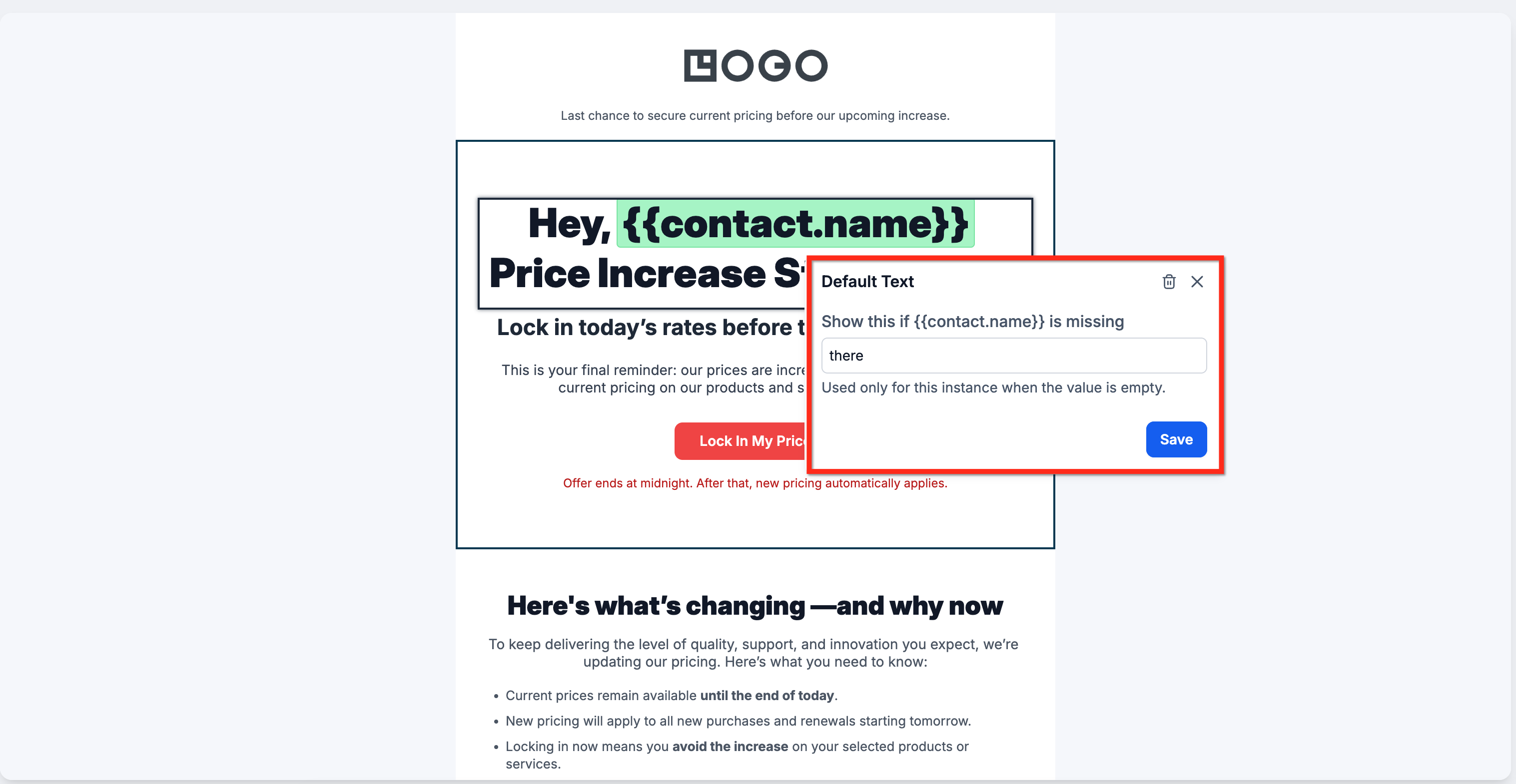
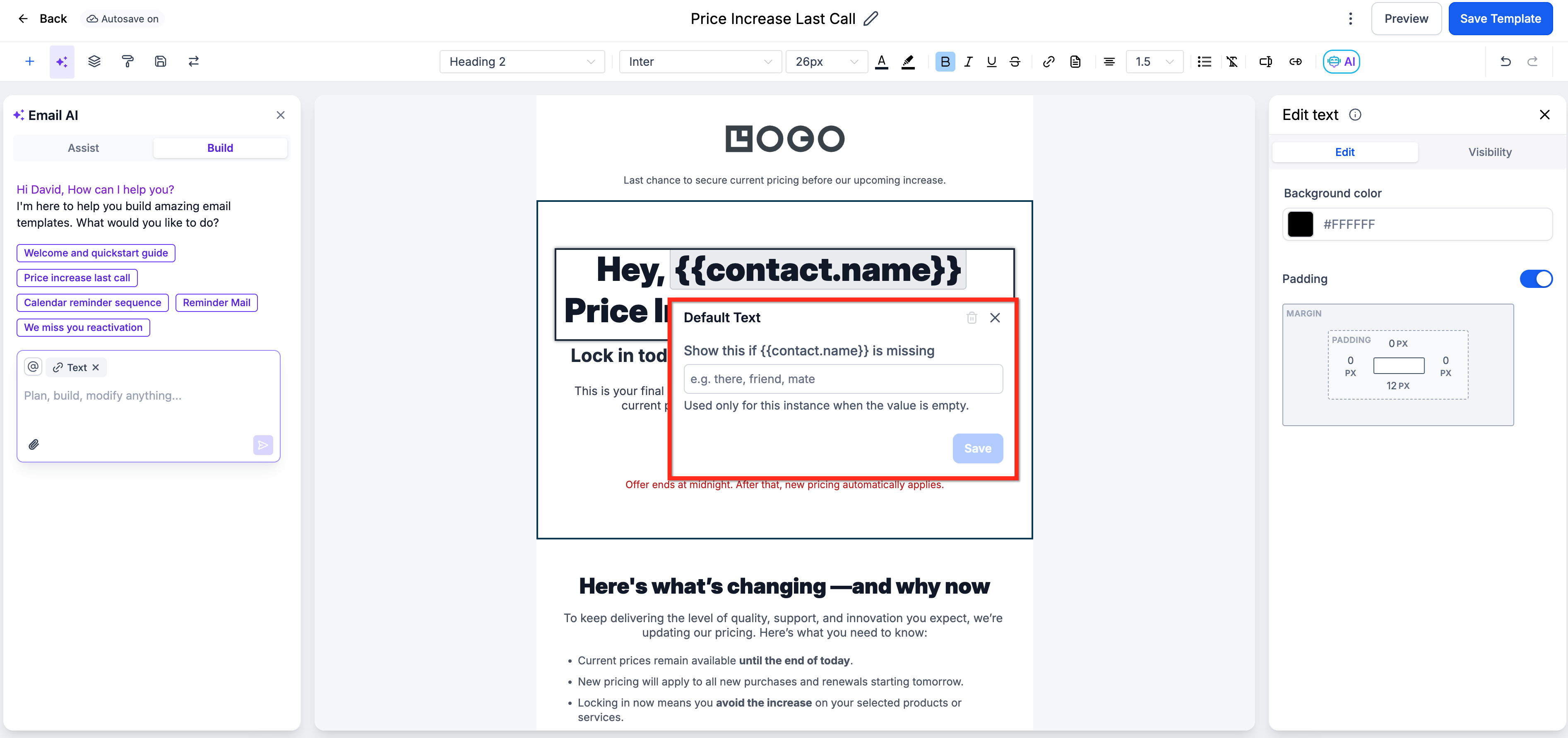
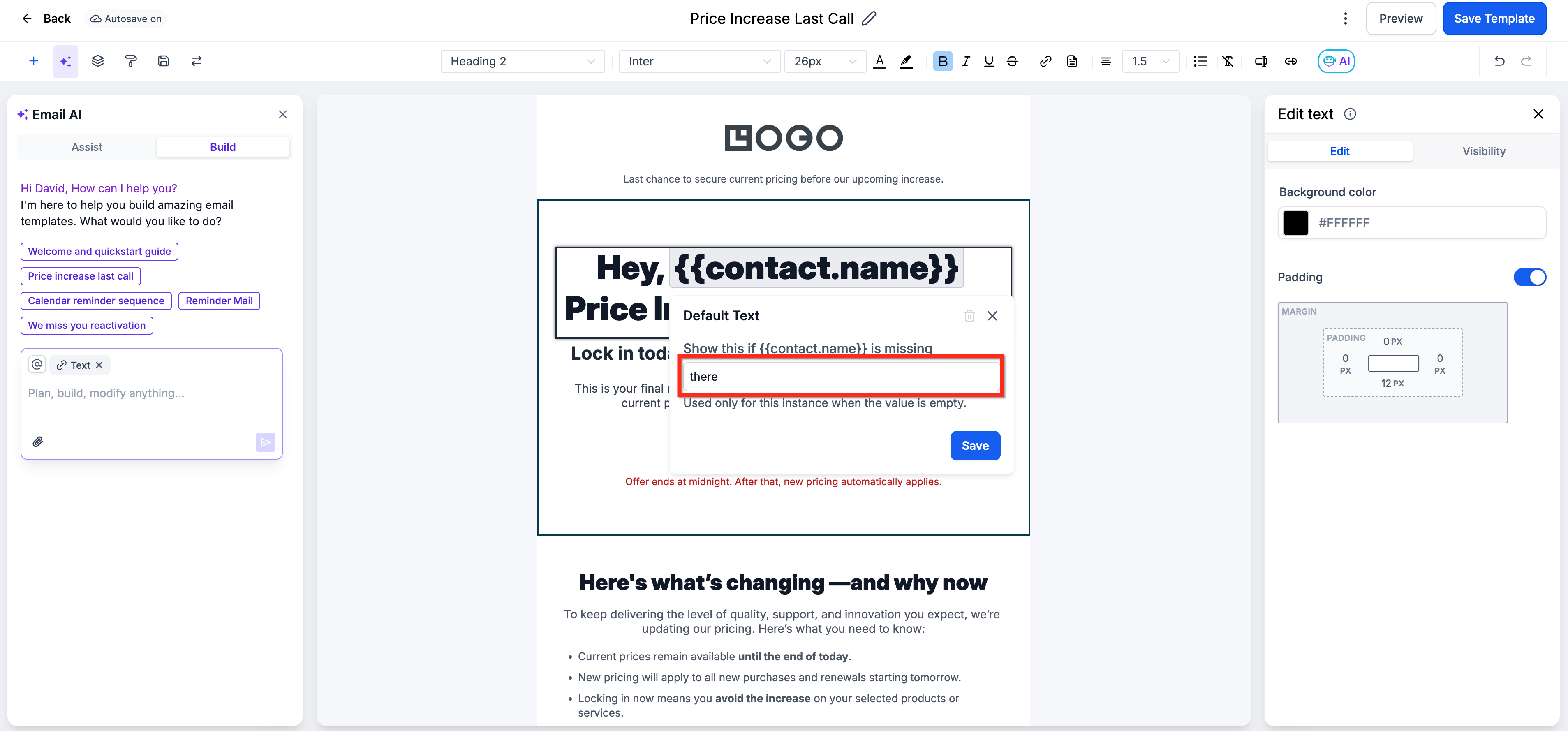
- Click on the tag to launch the Default Text Editor.
- In the editor, type the text that should appear when the contact field is empty.
- Press Save to store the fallback text.
- Check that the tag now appears with a green highlight, confirming the default is active.
05What it looks like in HighLevel
06Settings that matter
- Default Text Editor. Defines the fallback text that appears for a specific custom value when the associated contact field has no data.
07Things to know before you rely on it
- Defaults must be configured for each individual custom value usage; a single global default is not supported.
- If no default is set and the contact field is empty, the email will display a blank space where the tag appears.
08If something goes wrong
- The custom tag remains grey after setting a default.. Open the tag again, verify the fallback text was saved, and ensure you clicked Save. The tag should turn green.
- Blank space appears where a custom value should be.. Add a default value for that tag using the Default Text Editor.
09How it connects to the rest of HighLevel
- Understand the difference between email templates and campaigns. Email templates vs campaigns
- Learn to edit an existing email template in HighLevel. Edit email template
- Explore the full range of marketing features available in HighLevel. All marketing features
Michael's take

Most people forget to add a fallback for a name field and end up sending "Hi," to a list. That looks sloppy and hurts credibility. Instead, set a default like "there" or "friend" so every greeting reads naturally, even when the data is missing.
If I were setting up a new campaign, I would open the Email Builder, click each merge tag, and add a short default. A quick preview confirms the green highlights, giving me confidence the email won’t show blank spots before it hits inboxes.