
01Who this is for
- Marketing managers who need to reuse custom coded newsletters without rebuilding them.
- Founders of small businesses that want a quick way to launch a one off promotional email.
- Agency owners who create multiple client email designs and require a central library of templates.
02HTML email templates and campaigns, explained
The feature enables you to import raw HTML code into HighLevel’s Email Builder. When you select the Code Editor, the platform displays a plain editing area where you can paste the full HTML of an email. After pasting, a live preview shows how the email will render within HighLevel.
The imported content can be saved either as an Email Template or as an Email Campaign. Templates become reusable layouts for future messages, while campaigns are ready to send email drafts that you can schedule or send immediately. All imported items live under Marketing > Emails, inside the Templates or Campaigns sections of your subaccount.
03How businesses use importing HTML email templates and campaigns
- Fitness studio. The studio copies the HTML of its monthly class schedule newsletter, pastes it into a new template via the Code Editor, saves the template, and then reuses it each month with updated class details.
- Ecommerce store. The store imports a promotional sale email’s HTML directly into a new campaign, tests the preview, and then configures the recipient list and send schedule without creating a separate template.
- Consulting firm. The firm imports a client specific proposal email HTML into a campaign, adjusts links and personalization tags in the Code Editor, and sends a test email before delivering it to the prospect.
04The numbers and rules that matter
- Code Editor, Design Editor, Code Element, Plain Text Editor are available editing options.
- Preview views include Desktop, Tablet, Mobile.
05Before you start
- Log in to a HighLevel subaccount.
- Have the full HTML source code for the email you want to import.
06How to set up and use importing HTML email templates and campaigns in HighLevel
Import an HTML email as a reusable template
- Sign in to your HighLevel subaccount.
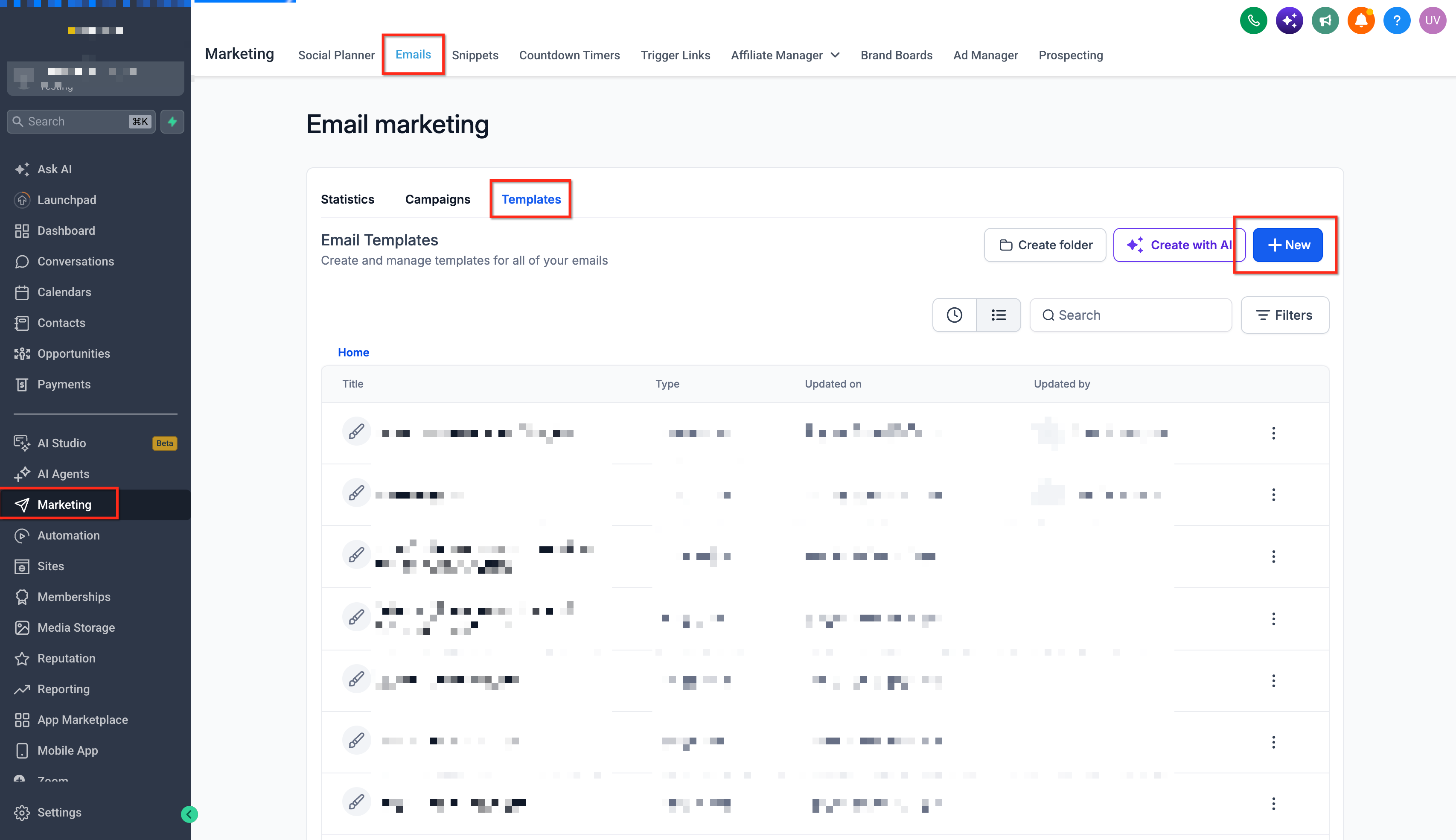
- Go to Marketing > Emails > Templates.
- Press the + New button to start a new template.
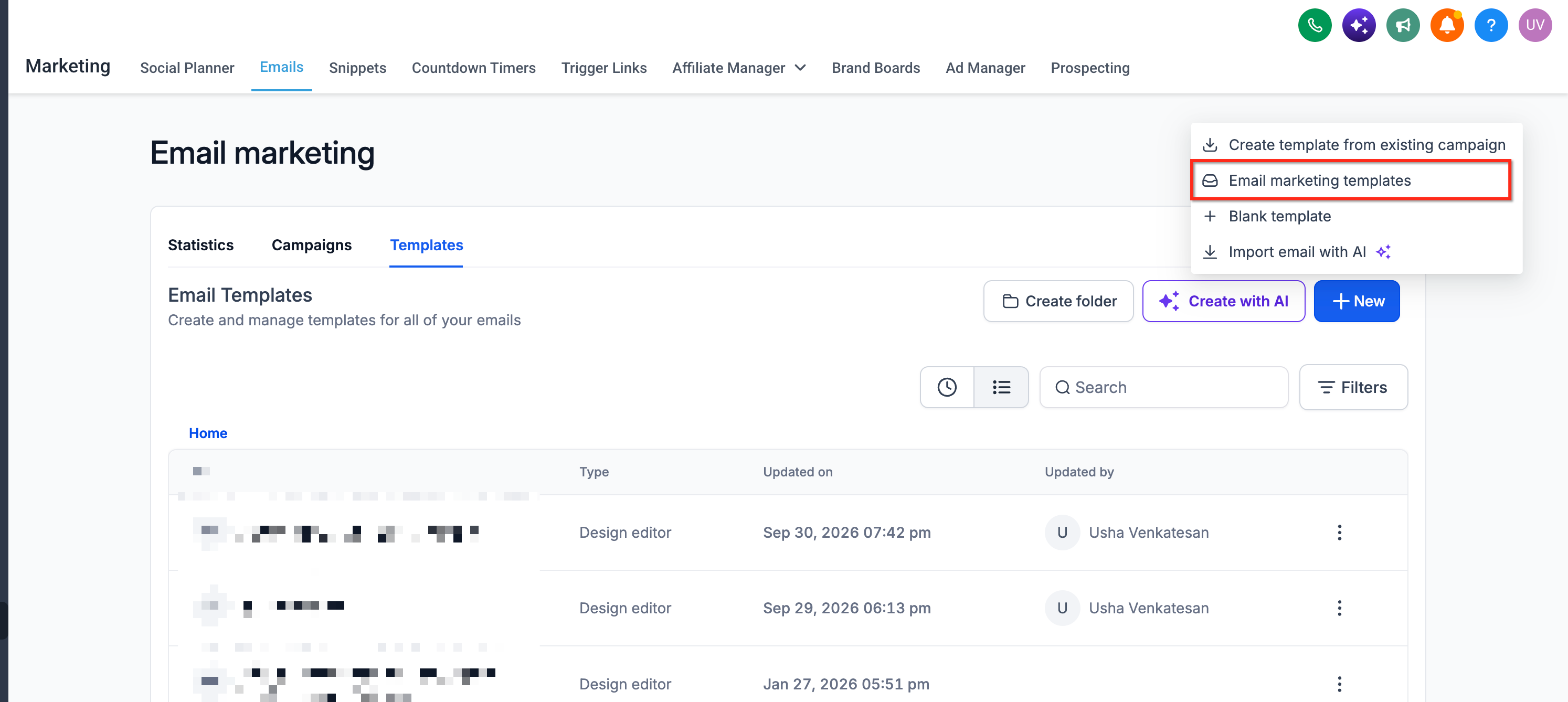
- Select the blank template option if a template screen appears.
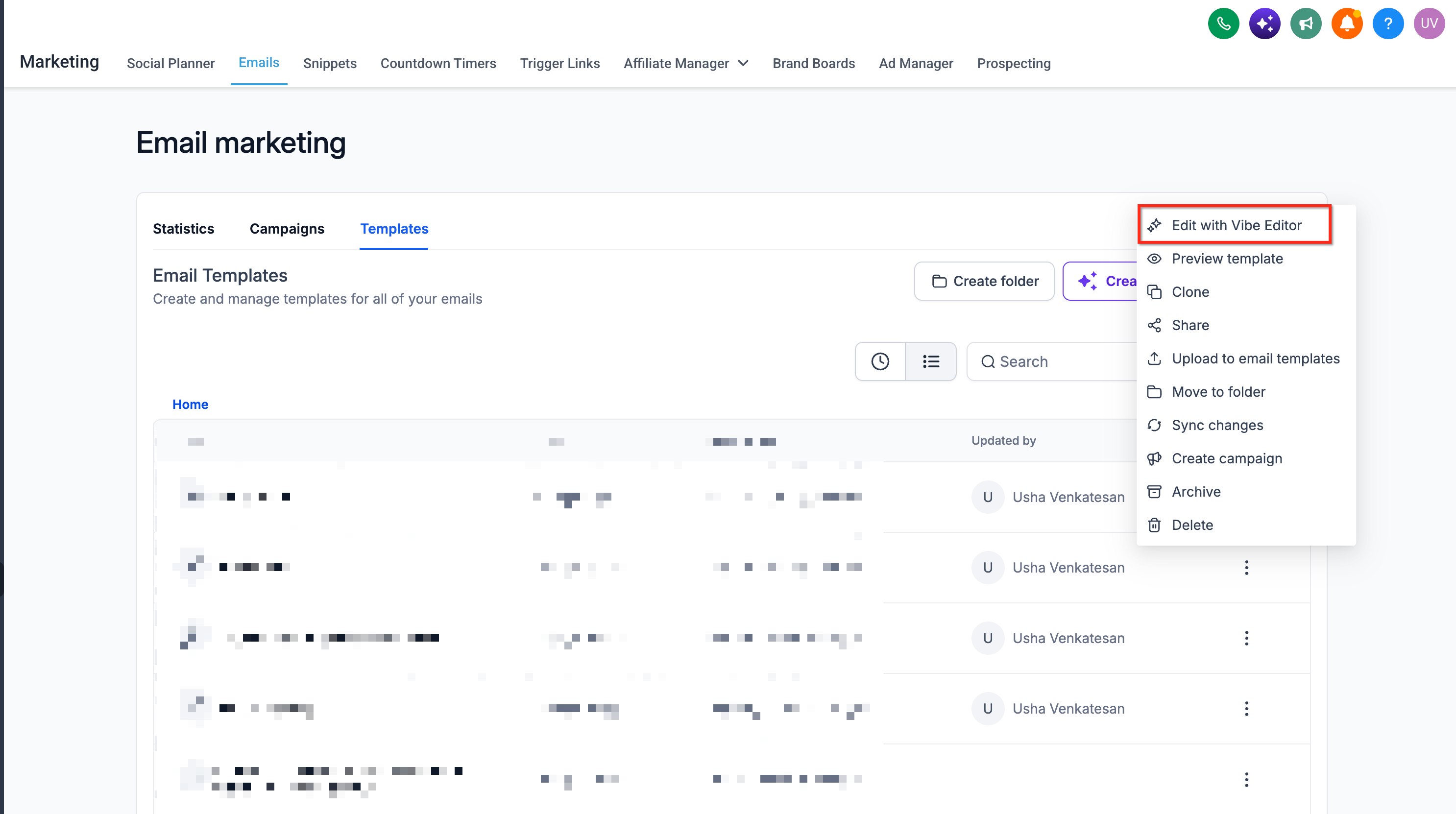
- Choose Edit with Vibe Editor when asked for an editor.
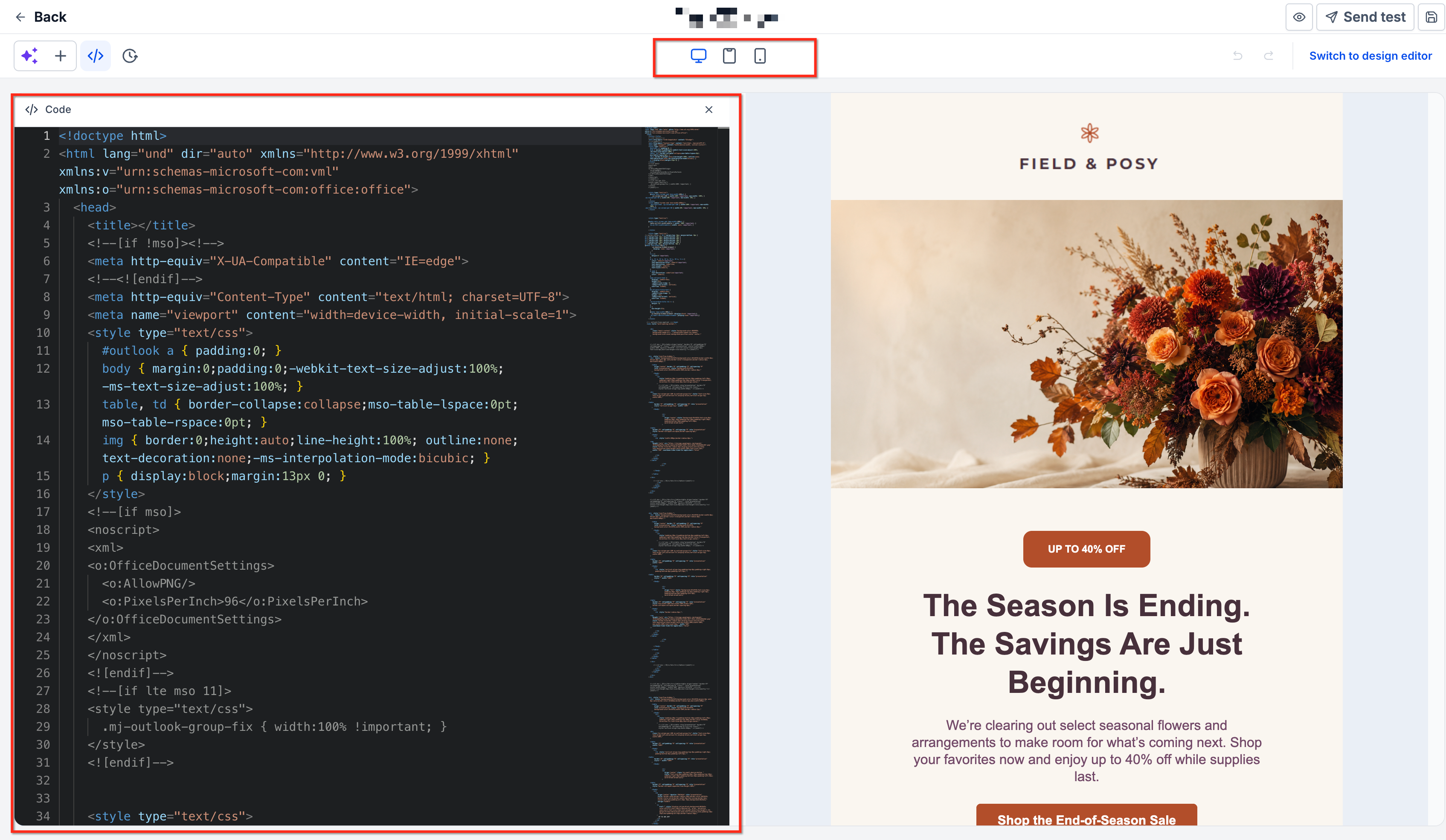
- When the Code Editor opens, paste the entire HTML code into the editing window.
- Check the preview to verify layout, images, and styling appear as expected.
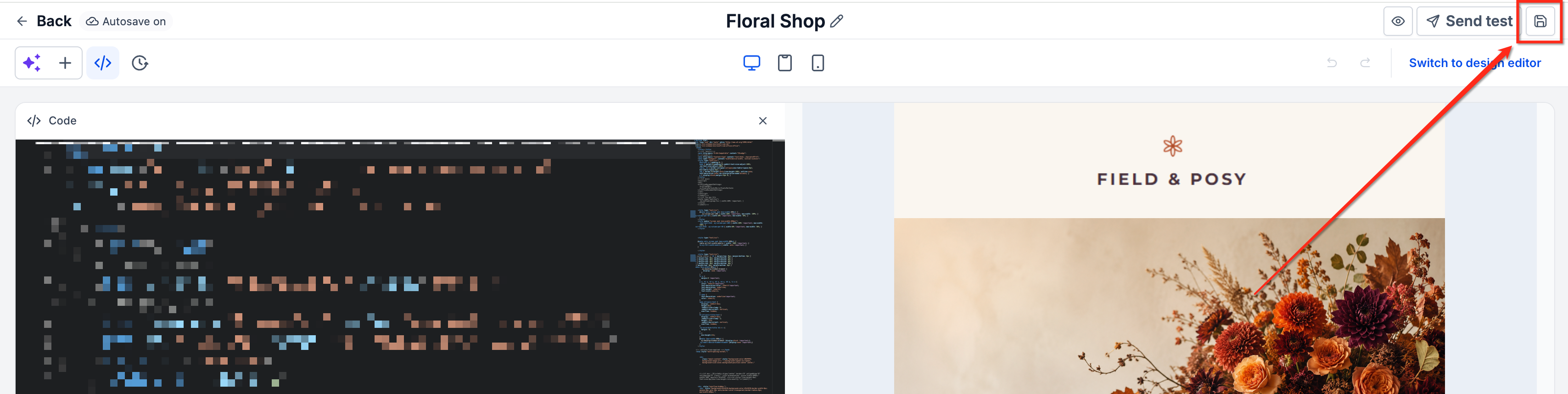
- Save the work by clicking Save Template.
Import an HTML email directly into a campaign
- Sign in to your HighLevel subaccount.
- Navigate to Marketing > Emails > Campaigns.
- Click the + New button to create a new campaign.
- Pick the blank campaign option instead of a saved template.
- Select Code Editor when prompted for an editor.
- Paste the full HTML content into the Code Editor area.
- Review the rendered preview to confirm proper appearance.
- Edit the HTML as needed, updating text, links, images, or styles.
- Save the campaign using the provided save control.
- Before sending, preview and test the email, then configure sender details, recipients, and delivery settings.
Preview and test an imported HTML email
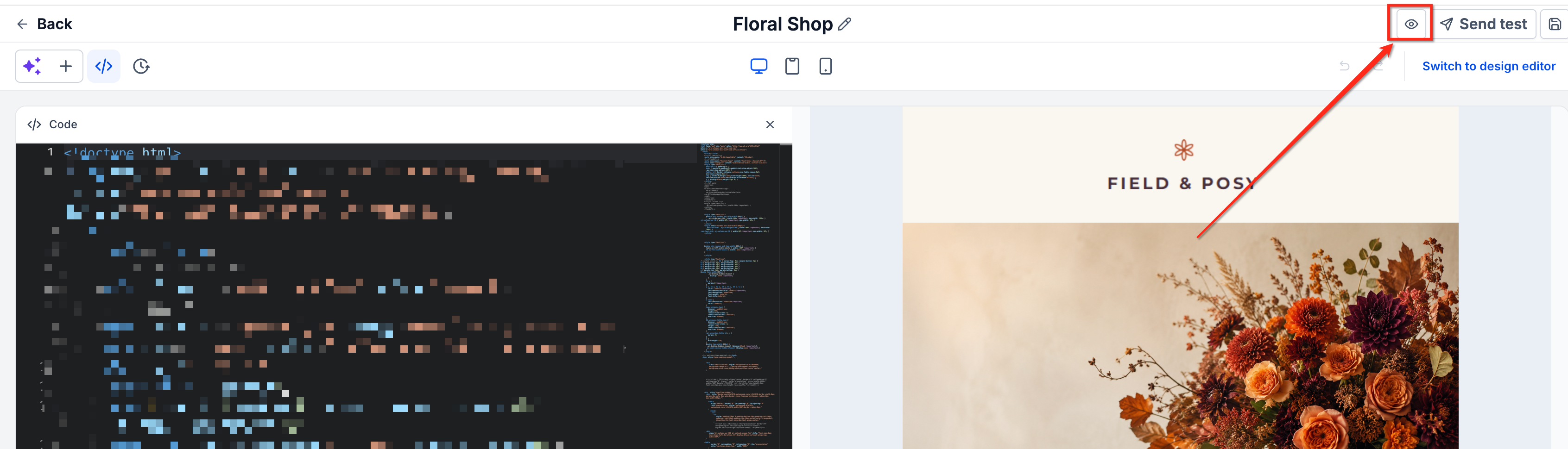
- Click Preview in the upper right area of the Email Builder.
- Switch between Desktop, Tablet, and Mobile views to review the layout.
- Check formatting, images, buttons, text alignment, and spacing.
- Open the three dot menu beside Preview and select Test Email.
- Enter required test email details (sender email, sender name, receiver email, preview text, subject).
- Click Send Test Email and review the message in your inbox.
07What it looks like in HighLevel
08Settings that matter
- Edit with Vibe Editor. Opens the full Code Editor so you can paste and edit raw HTML for a template.
- Code Editor. Provides a plain text area for entering complete HTML when creating a campaign.
09Things to know before you rely on it
- Imported HTML may not render identically across all email clients due to differing HTML/CSS support.
- Changing the original external HTML does not update the imported version automatically.
- Importing HTML into a campaign does not send the email; you must complete the send or schedule steps separately.
10If something goes wrong
- Images are not displaying. Verify that image URLs are correct, publicly accessible, and use HTTPS.
- Email layout appears broken. Check the HTML for missing or improperly nested tags and ensure CSS is compatible with common email clients.
- Fonts or styling look different. Confirm that the CSS used is supported by the receiving email client and add suitable fallback fonts.
- Links or buttons are not working. Make sure each hyperlink includes the full URL, including the https:// prefix.
- Personalization fields are not displaying correctly. Replace any platform specific merge tags with HighLevel custom value tags.
- HTML preview does not match delivered email. Test the email in multiple inbox providers and remove unsupported HTML or CSS elements.
11How it connects to the rest of HighLevel
- Email templates vs. campaigns overview Template vs Campaign
- Import email templates from ActiveCampaign ActiveCampaign import
- HighLevel pricing and plans Pricing
Michael's take

Importing HTML emails is a handy shortcut for anyone with existing code.
If you rely on drag and drop editors and have no HTML to import, you can skip this feature.