
01Who this is for
- Agency admins who need to distribute standardized emails across client accounts, saving redesign time.
- Agency users who collaborate with other teams and require a quick way to reuse approved templates.
- Account admins who want to import shared templates into specific locations for their own branding.
02Email templates sharing, explained
The feature creates a link that represents an existing email template. When the link is opened, the platform shows an import option that copies the design into the viewer’s account. The copy appears in the Templates list of the selected subaccount(s) and can be edited there.
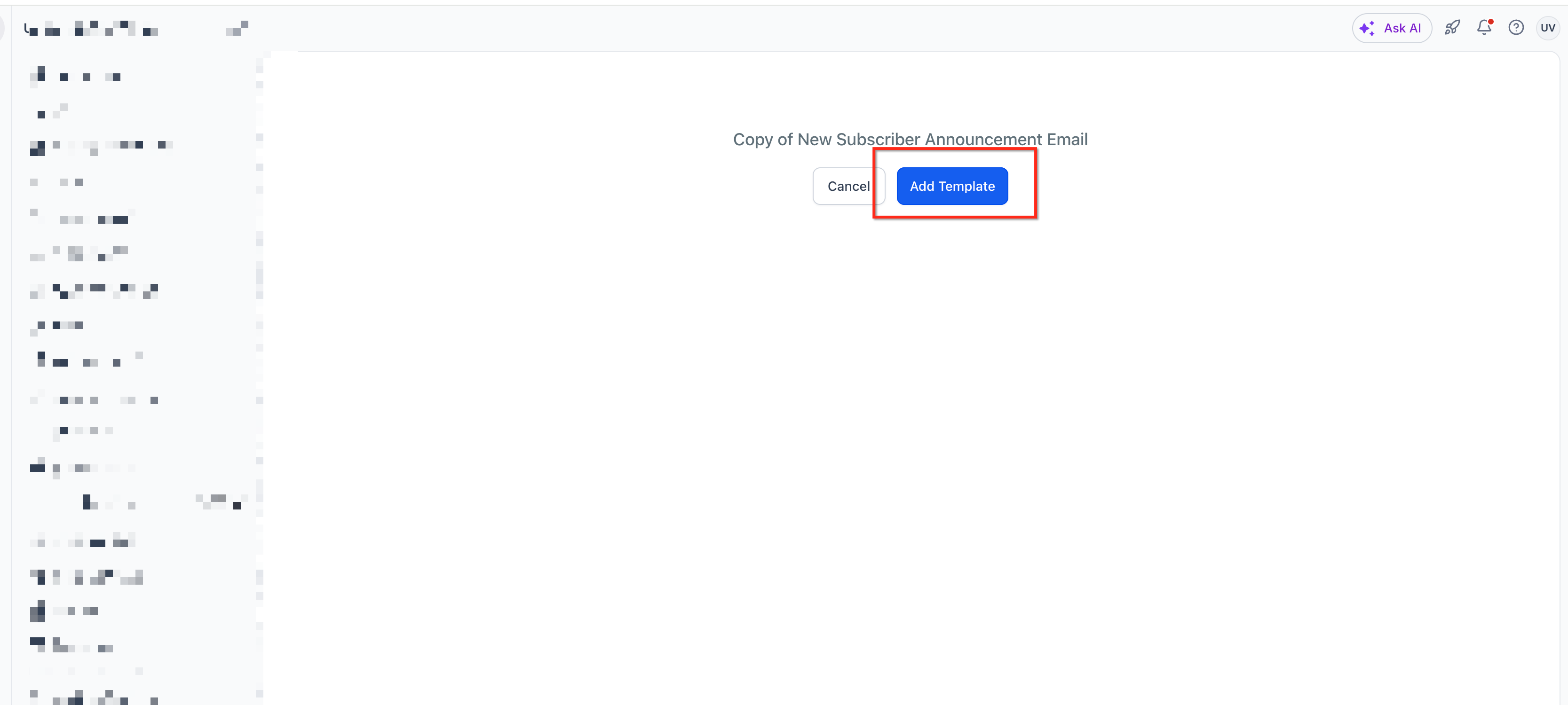
The sharing workflow lives in the Email Marketing section under Templates. Users with the appropriate role select a template, choose an access option, and copy the generated URL. Recipients paste the URL in a browser, sign in if needed, and use the Add Template button to clone the design.
Note that Email Marketing template sharing is separate from the agency’s Admin Template Library and the ability to generate a link does not guarantee that a recipient can import the template; import rights depend on the recipient’s role and the chosen sharing option.
03How businesses use email templates sharing
- Digital marketing agency. An agency admin selects a high performing newsletter template, generates a shareable link, and sends it to the agency’s client managers. Each manager opens the link and clones the template into the client’s subaccount, then customizes content for the specific campaign.
- Real estate brokerage. A brokerage user creates a branded open house announcement template, shares the link with regional office users, and those users import the template into their local accounts, updating property details while keeping the design consistent.
- Health care clinic chain. The network’s marketing lead shares a patient welcome email template with each clinic’s admin. The clinic admins import the template into their location’s account, rename it, and adjust the copy to match local services.
04The numbers and rules that matter
- Limit: Up to three locations can be selected when cloning a shared template.
05Before you start
- An email template must already exist in the Email Marketing Templates list.
- The user must be logged in with a role that can share templates (Agency Admin or Agency User).
06How to set up and use email templates sharing in HighLevel
Share an email template
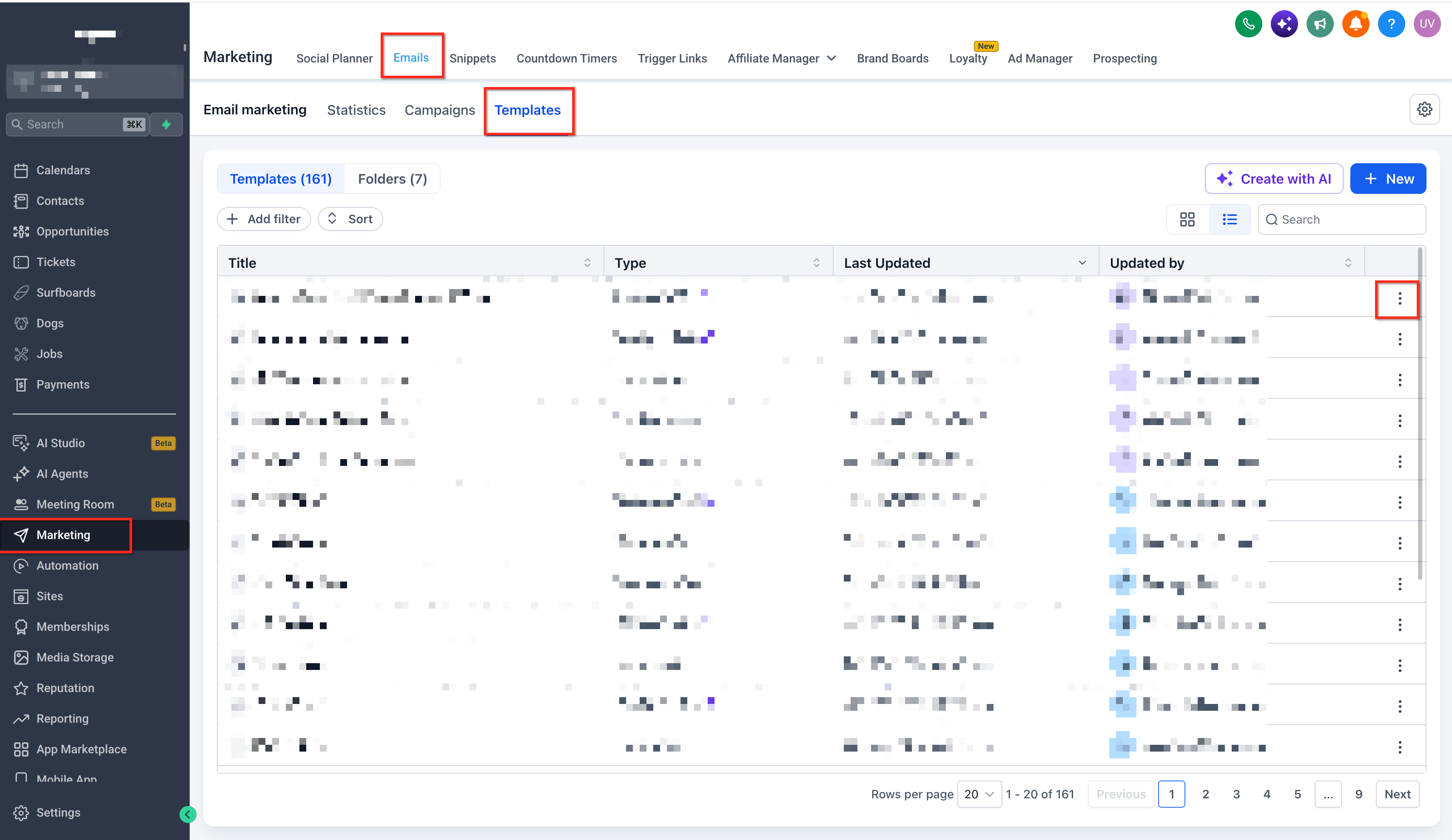
- Open the desired account and go to Marketing > Emails (Email Marketing) > Templates.
- Find the email template you want to share.
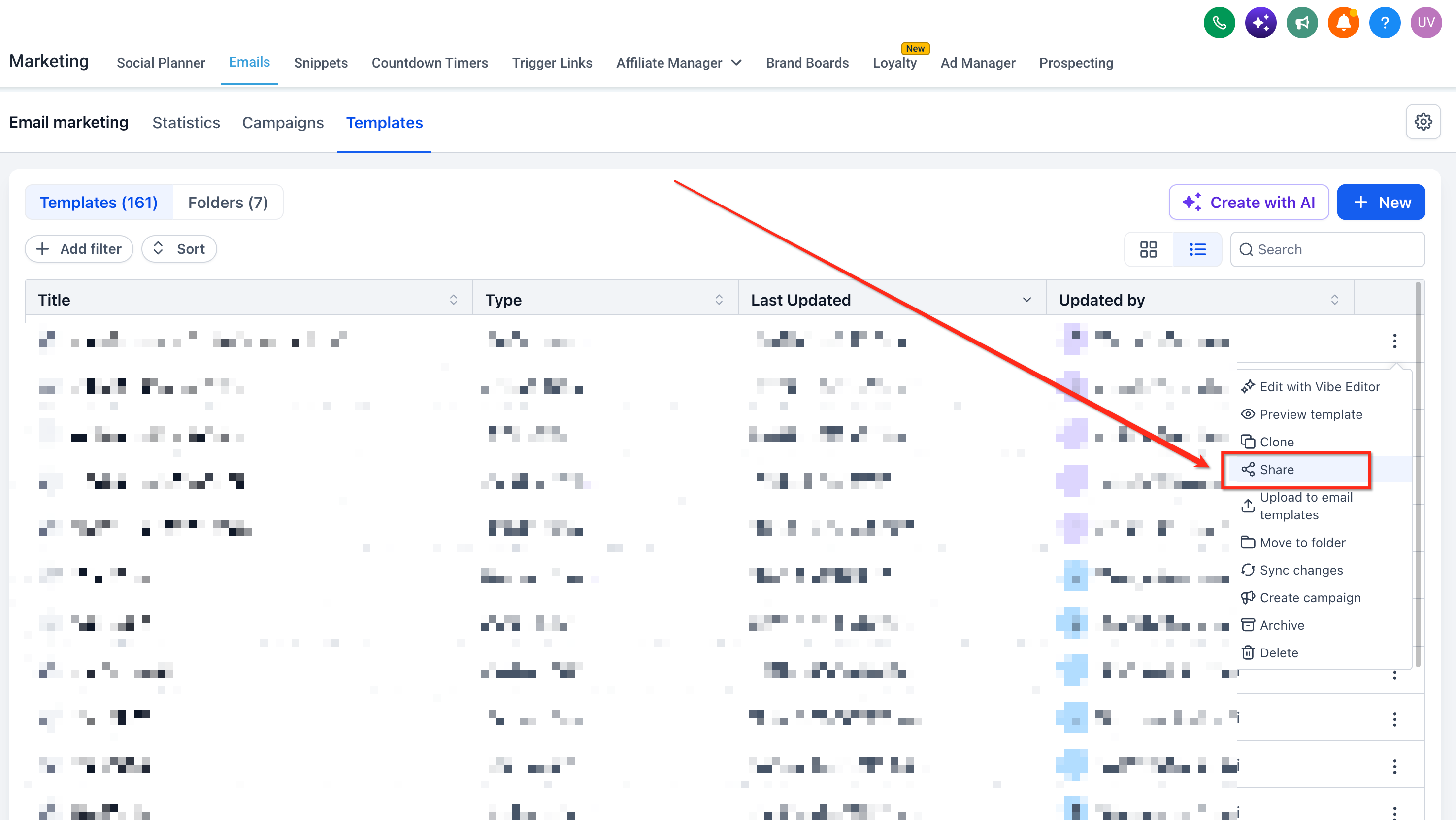
- Click the three dot menu next to the template and choose Share.
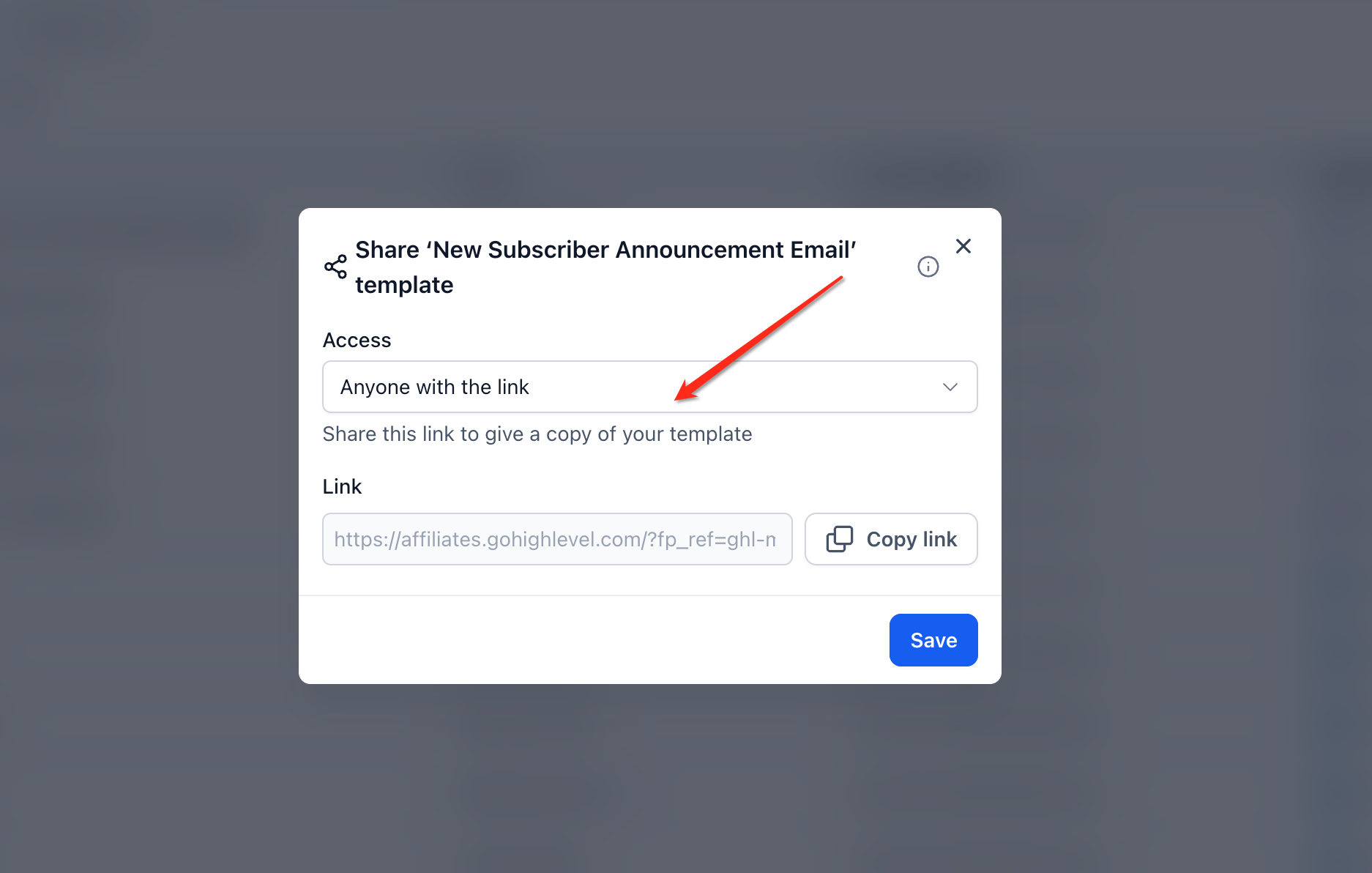
- Set the Sharing Access option to either Anyone within the agency or Anyone with the link.
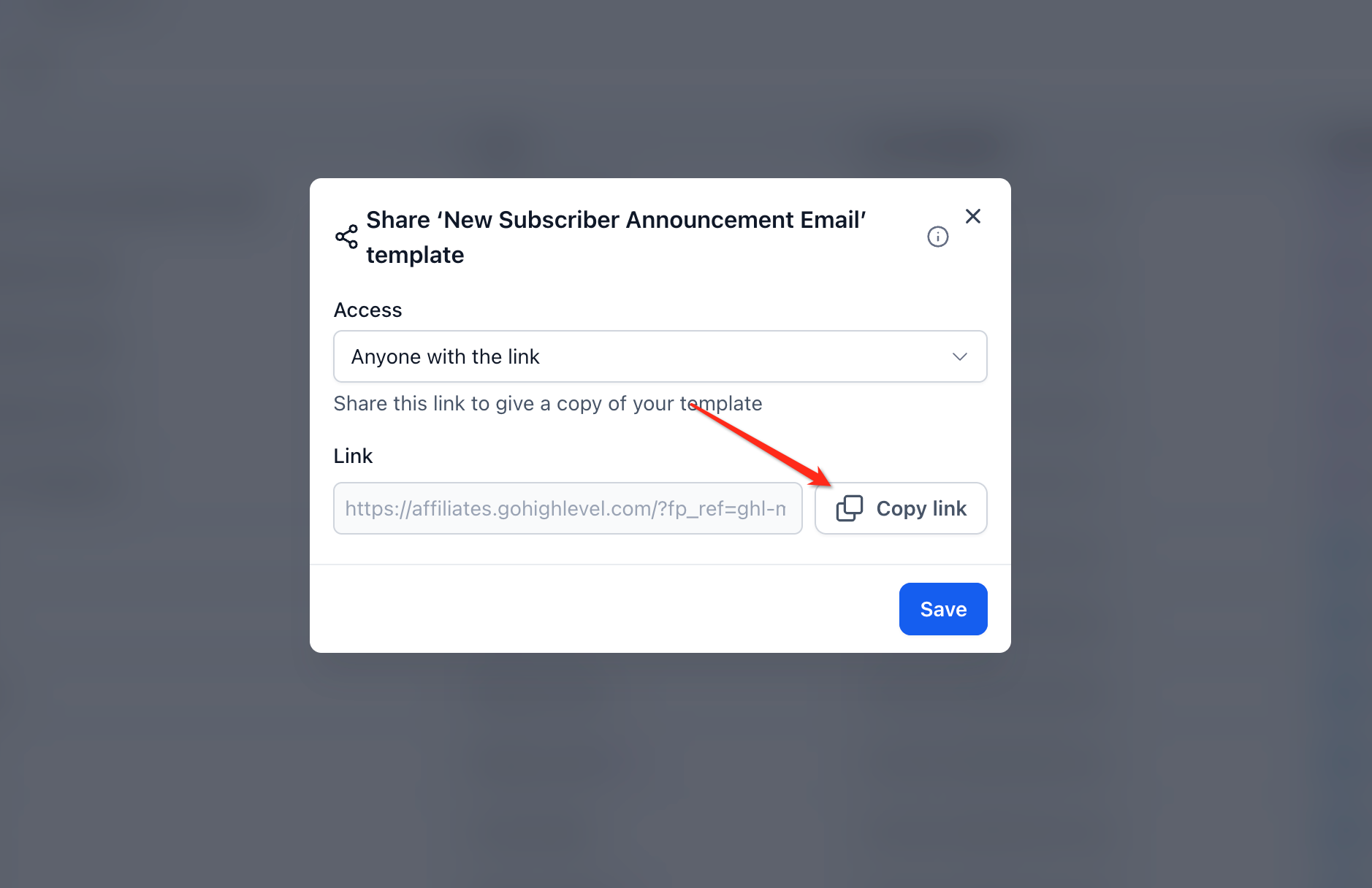
- Copy the generated template link.
- Send the link to the intended recipient via email, messaging, or another channel.
Import a shared email template
- Open the shared template link in a browser and sign in if prompted.
- Click the Add Template button on the shared page.
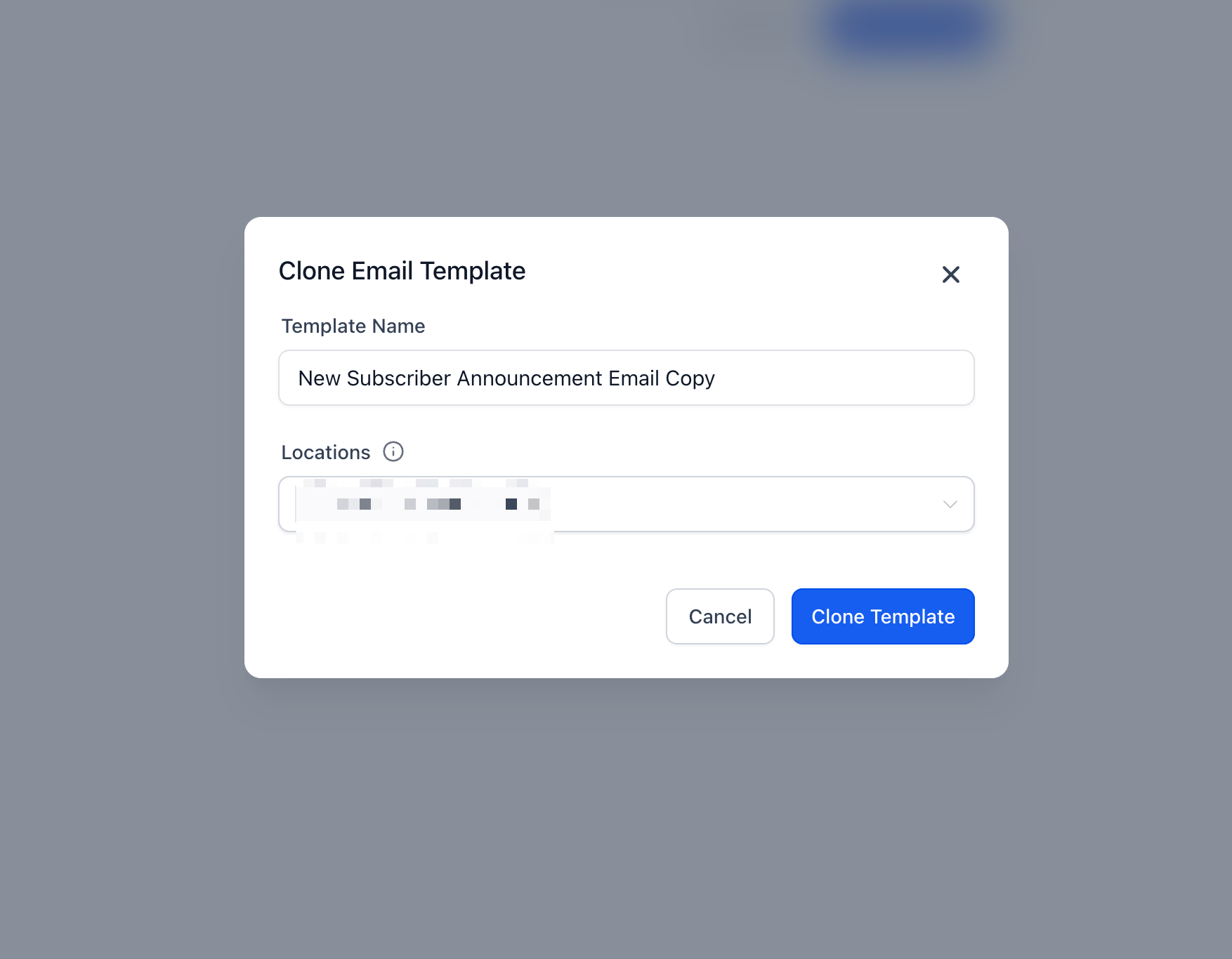
- In the cloning dialog, edit the template name as needed.
- Choose up to three target locations or subaccounts for the cloned template.
- After cloning, go to the Templates area of the first selected location to find the imported design.
- Verify the template appears in each selected location when cloning to multiple accounts.
07What it looks like in HighLevel
08Settings that matter
- Sharing Access. Controls who can open the share link, either only users inside the agency or anyone who possesses the link.
- Template Name (cloning dialog). Allows the user to rename the cloned template before it is saved in the destination account.
- Location selection (cloning dialog). Determines which subaccount(s) receive the cloned template, with a limit of three locations per operation.
09Things to know before you rely on it
- A shared template can be cloned into a maximum of three locations at one time.
- Only users with Agency Admin or Agency User roles see the Share option.
- Import access depends on the recipient’s role and the sharing option chosen for the link.
10If something goes wrong
- Share option does not appear for a template. Check the assigned user role; only Agency Admins and Agency Users are authorized to share templates.
11How it connects to the rest of HighLevel
- How to set up and use the HighLevel template library Template library overview
- HighLevel email templates and campaigns explained Templates vs campaigns
- Whitelabel Email Template Sharing: Step by Step Guide White label sharing guide
Michael's take

Wondering if sharing email templates will actually save my agency time? It lets you build a design once, hand out a link, and let each client pull the same polished layout into their own account without recreating it.
If I were setting this up, I’d start by sharing a core welcome email, then have each subaccount clone it and tweak the copy for their audience. That way the look stays on brand while the messaging stays flexible.