
01Who this is for
- Marketing agencies can reuse client Mailchimp designs and customize them quickly inside HighLevel.
- Small business owners save time by importing their existing newsletters rather than rebuilding them.
- Founders who manage multiple brands keep consistent visuals by editing imported templates centrally.
02Mailchimp email templates, explained
The import feature pulls a public Mailchimp campaign URL and recreates its structure inside HighLevel’s Design Editor. HighLevel parses the HTML, identifies sections such as headers, images and text, and turns them into editable blocks. You then work with those blocks using the platform’s visual drag and drop tools.
The process lives under the Email Templates area of the Marketing module. After import, the template appears in your template list and can be opened for further editing, saved, or used in campaigns. No Mailchimp credentials are required; the system only reads the public campaign URL.
03How businesses use mailchimp email templates
- Ecommerce store. The store copies a promotional Mailchimp campaign URL and imports it into HighLevel. Once in the Design Editor, the owner drags new product images into the image blocks and updates pricing text, then saves the template for future newsletters.
- Real estate brokerage. The brokerage imports a Mailchimp listing showcase template. In the editor, agents replace placeholder property photos, edit descriptions, and add custom contact buttons using the drag and drop interface.
- Fitness studio. The studio brings a Mailchimp class schedule template into HighLevel, swaps out class names and times in the text blocks, and adjusts the color scheme to match its branding, all without touching code.
04Before you start
- A public Mailchimp campaign URL that contains the design you want to import must be ready.
05How to set up and use mailchimp email templates in HighLevel
Import a Mailchimp template into HighLevel
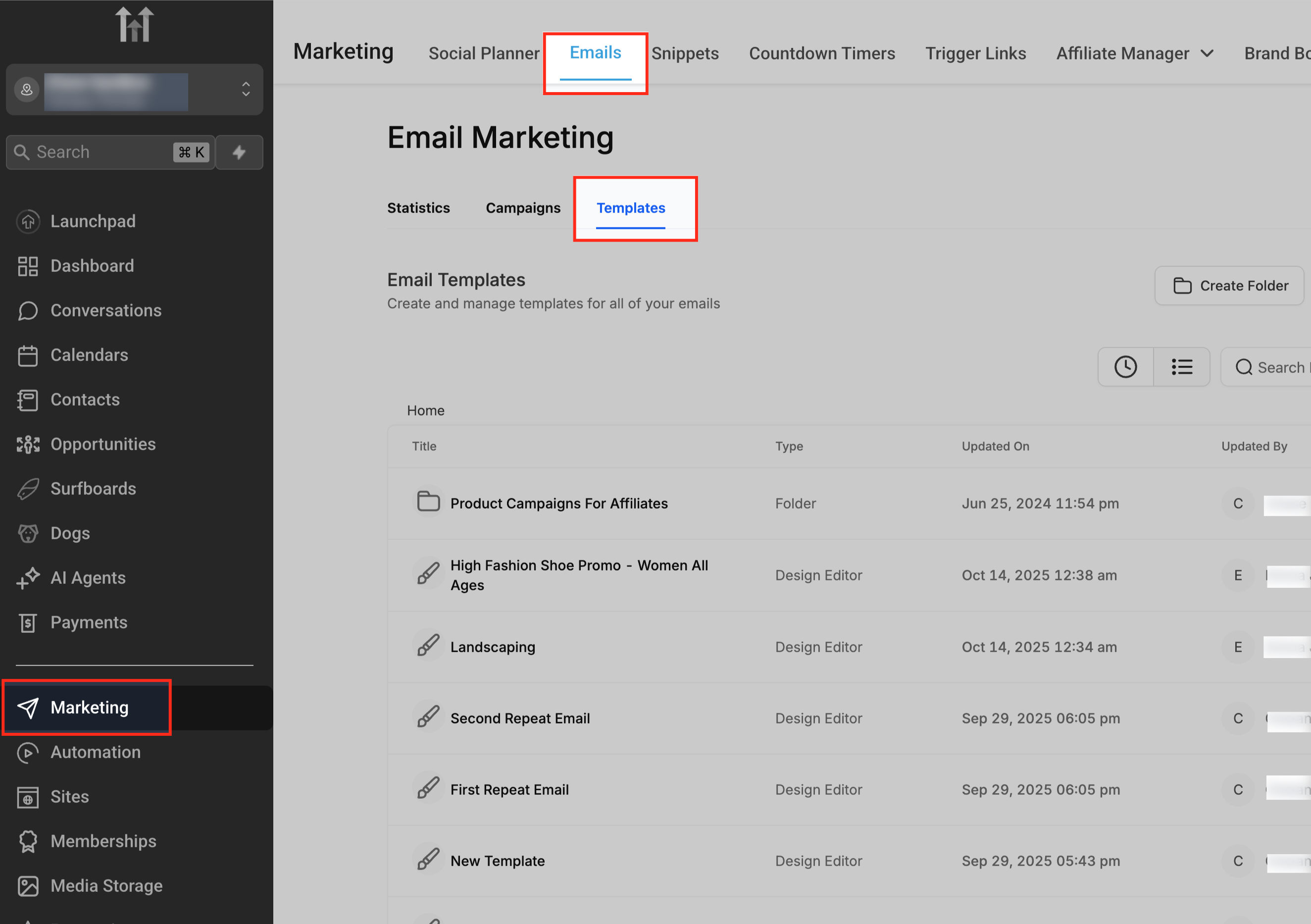
- Navigate to Marketing > Emails > Templates in the left navigation menu.
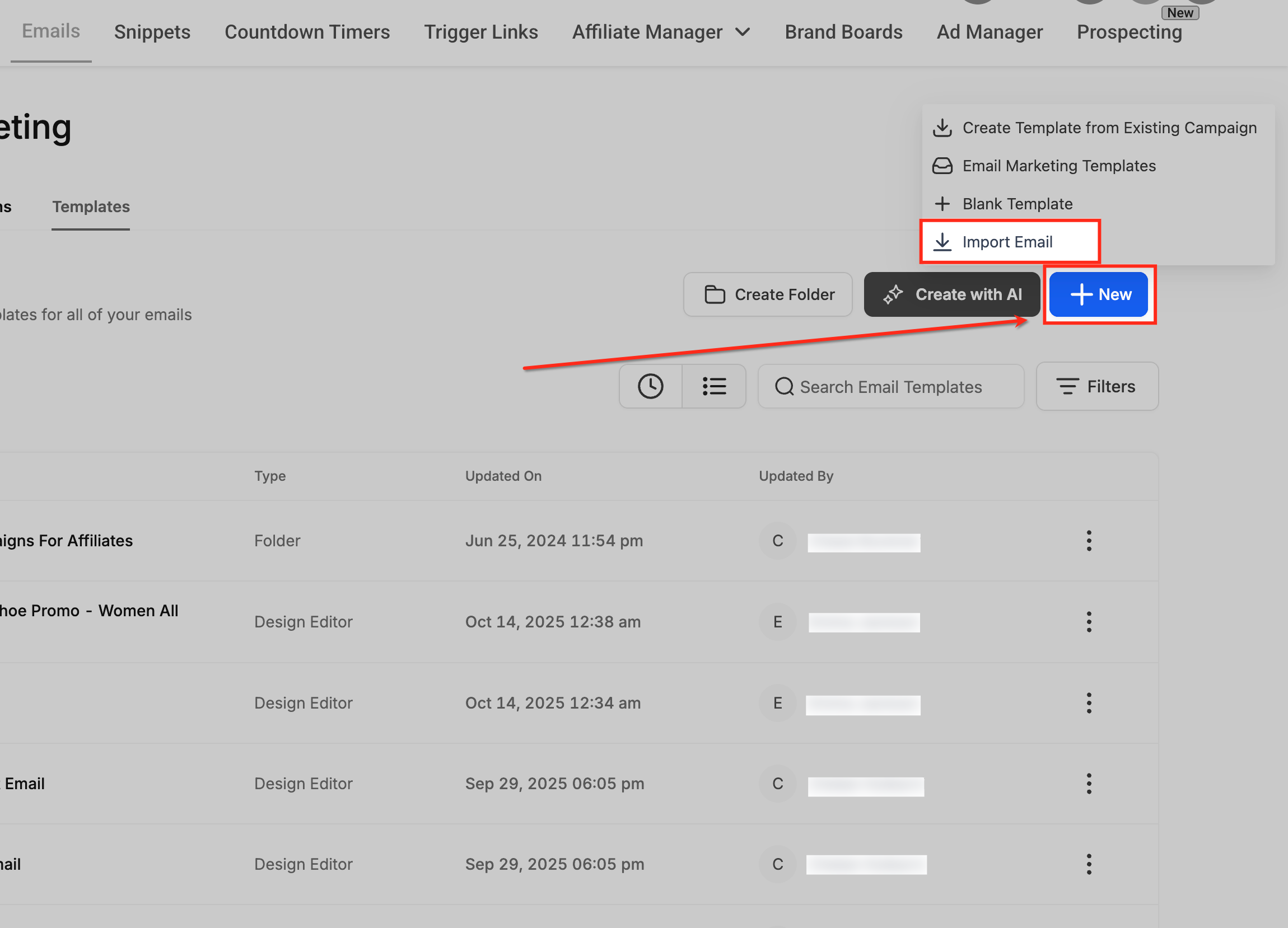
- Click the New button at the top right and select Import Email from the dropdown.
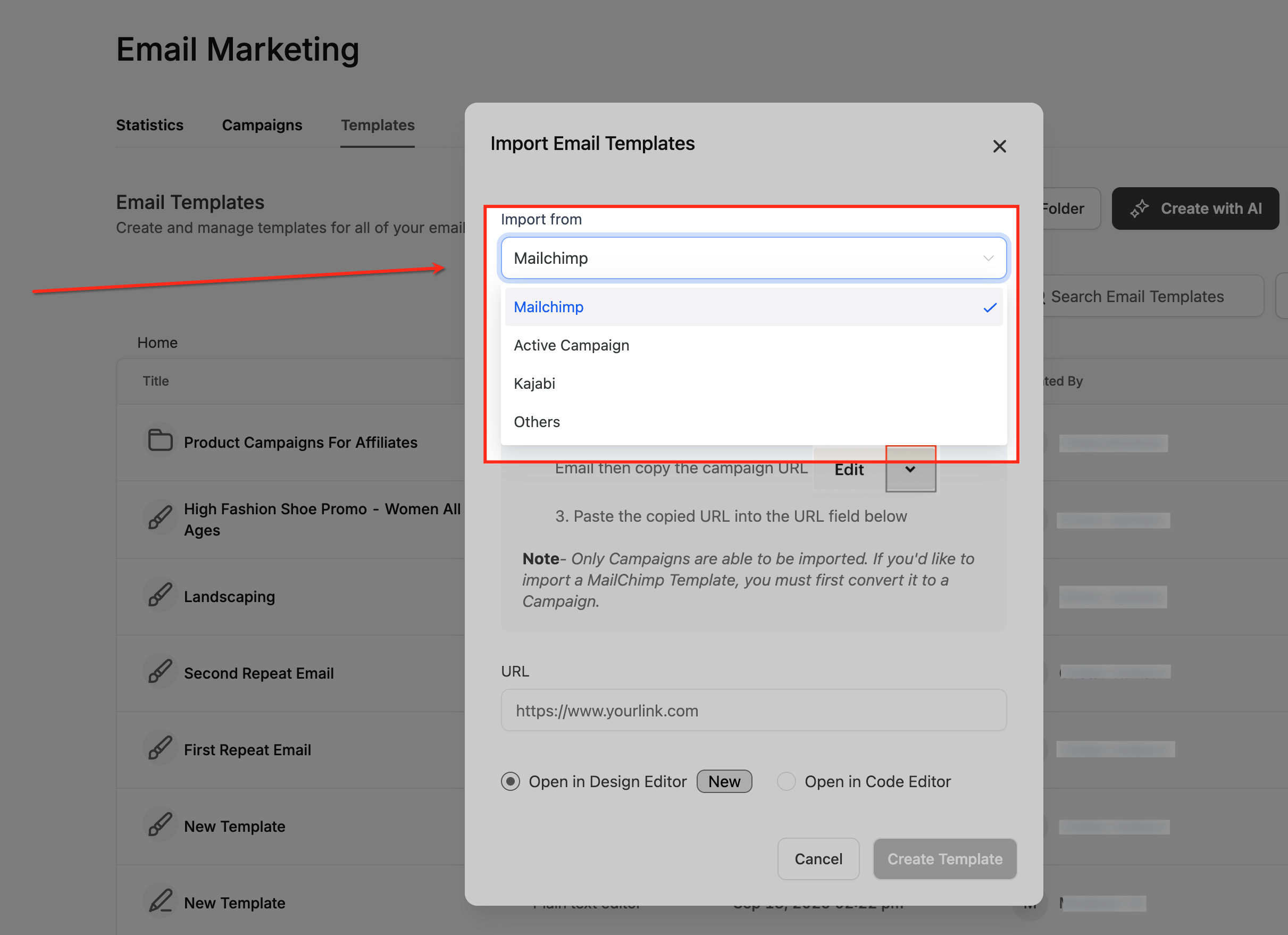
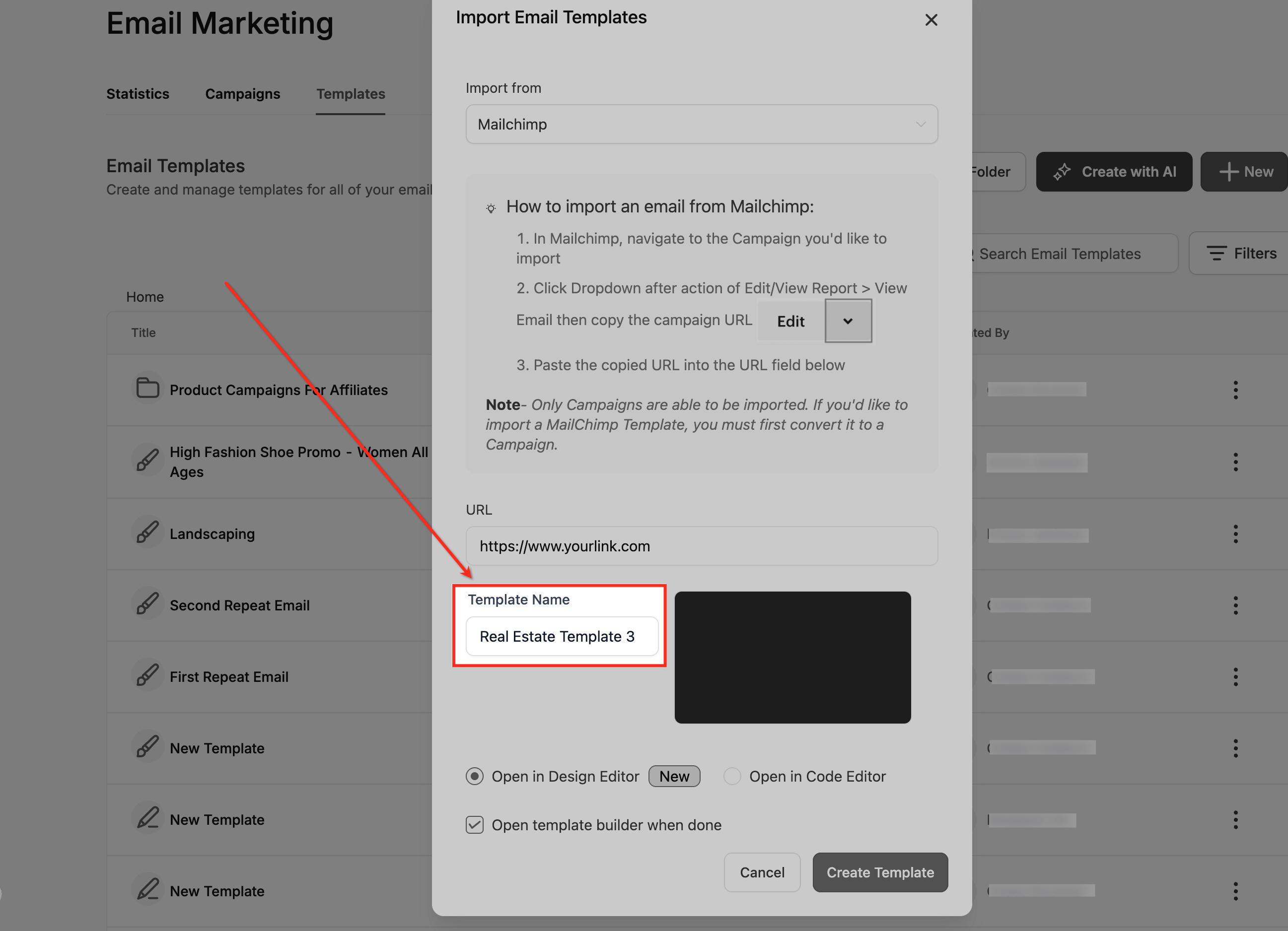
- In the Import Email Templates popup, open the Import from dropdown and choose Mailchimp.
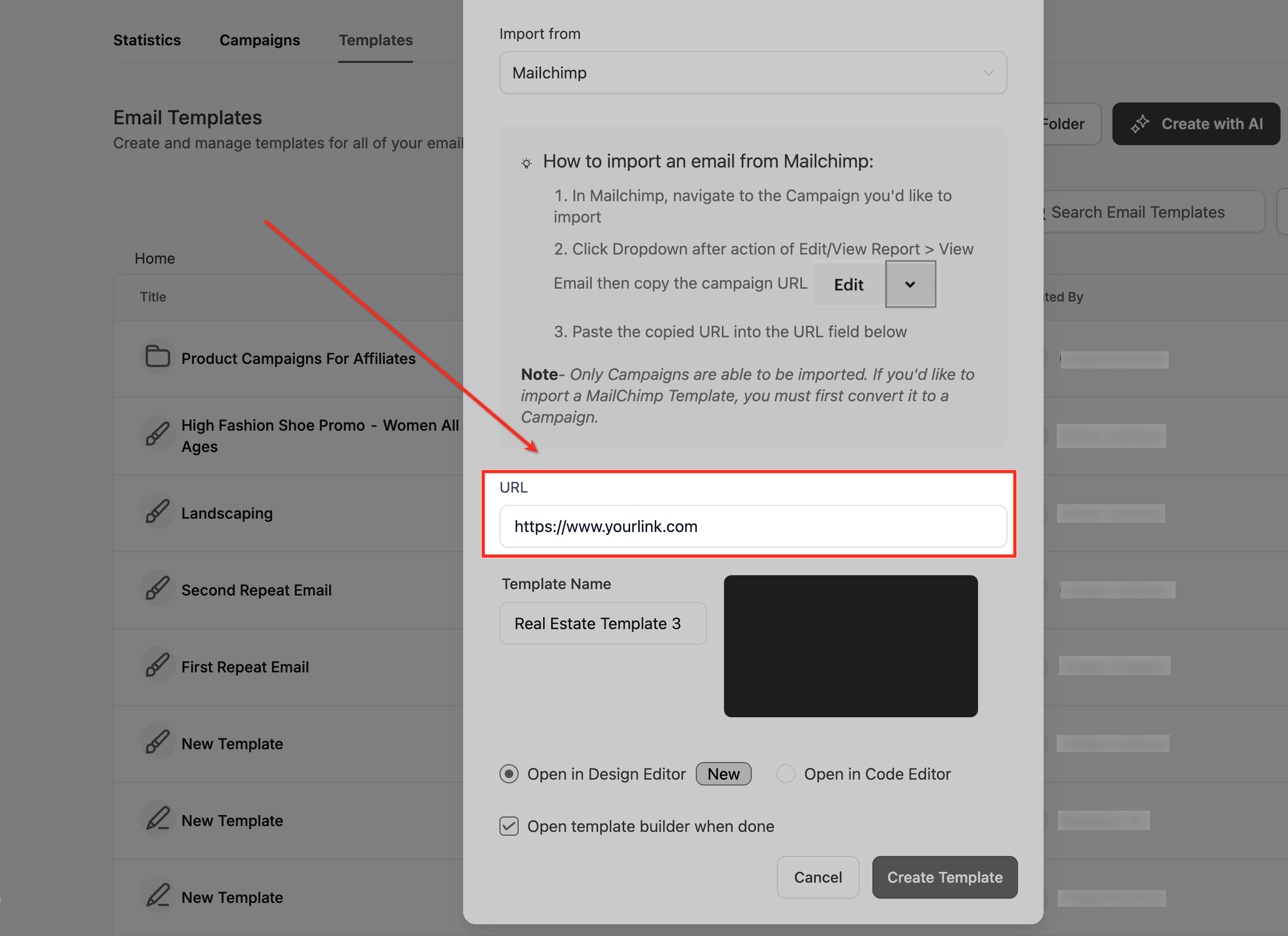
- Paste the Mailchimp campaign URL into the URL field.
- Enter a recognizable name for the template in the Template Name field.
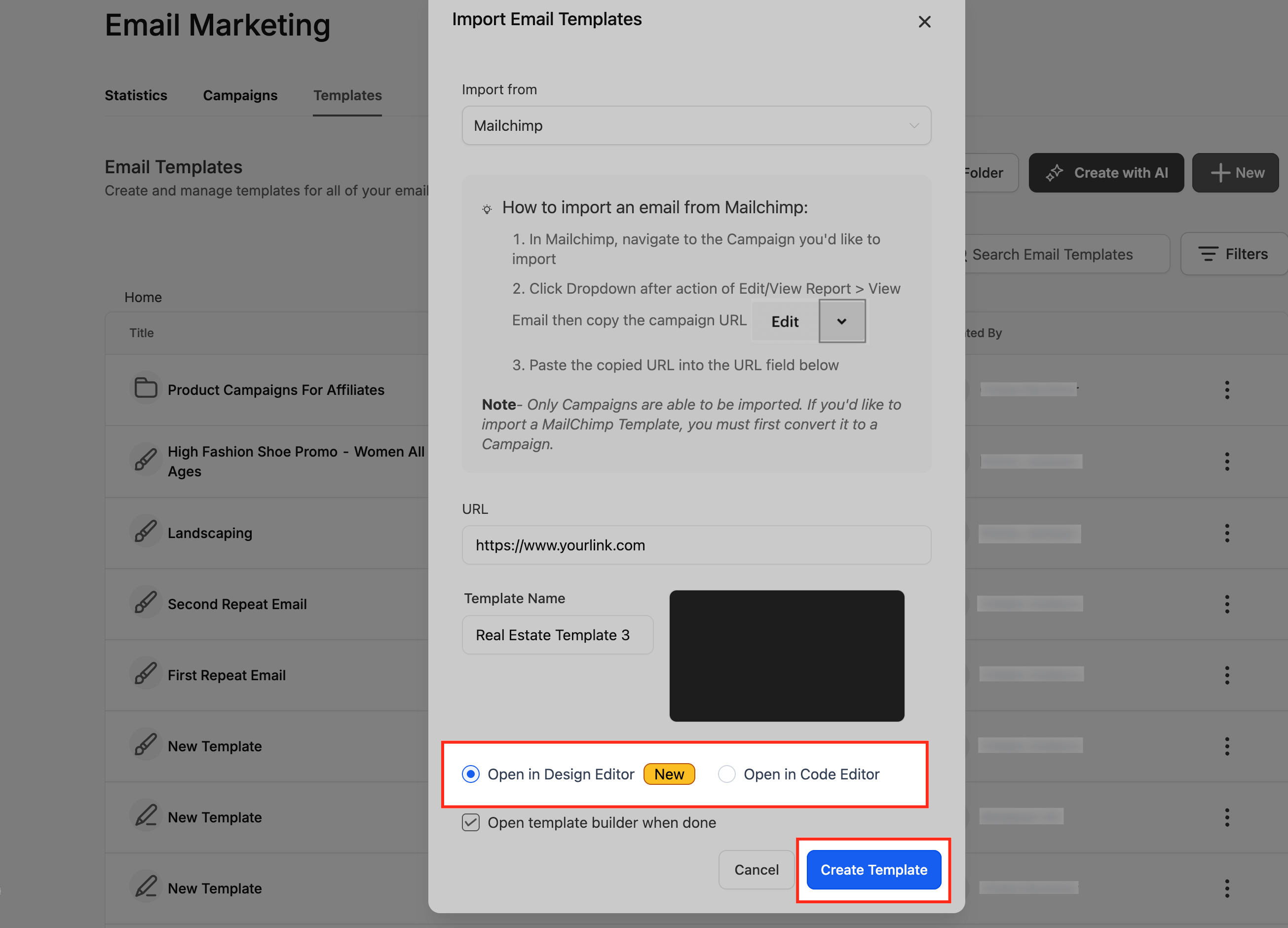
- Check Open in Design Editor and click Create Template to open the imported design.
06What it looks like in HighLevel
07Settings that matter
- Import from. Selects the source provider for the import, such as Mailchimp.
- URL. Holds the public Mailchimp campaign URL that HighLevel will fetch.
- Template Name. Defines the name shown in the template list for easy identification.
- Open in Design Editor. Determines whether the imported template opens automatically for visual editing.
08Things to know before you rely on it
- Only Mailchimp campaign URLs are accepted; saved Mailchimp templates must first be used in a campaign to generate a URL.
- Mailchimp specific merge tags and conditional logic are not converted automatically and must be recreated with HighLevel custom values.
- Complex Mailchimp HTML structures may not map perfectly and can appear misaligned after import.
09If something goes wrong
- Imported template looks misaligned or missing sections. Switch to the Code Editor inside the Design Editor, review the HTML and make manual adjustments.
- Dynamic content from Mailchimp does not appear. Recreate the dynamic logic using HighLevel’s Custom Values or Dynamic Fields after the template is imported.
10How it connects to the rest of HighLevel
- How to import HTML email templates and campaigns in HighLevel HTML import guide
- How to edit an email template in HighLevel Edit template guide
- HighLevel email templates and campaigns explained Template vs campaign
Michael's take

You have a library of Mailchimp designs that you keep reaching for, but rebuilding each one in HighLevel feels wasteful. Importing those templates straight into the Design Editor lets you keep the look you love while gaining the flexibility of drag and drop editing.
The first setting I’d lock in is the correct Mailchimp campaign URL. Without a proper shareable link the import can’t pull the layout. Once that’s in place, the visual blocks appear and you can start swapping out copy and images right away.