
01Who this is for
- Founders who need to keep branding uniform across all client communications can quickly update templates instead of redesigning each email.
- Marketing managers can adjust text and images to match different promotions while using the same underlying design.
- Agency team members can reuse and tweak shared templates for multiple client accounts, reducing repetitive work.
02Email templates, explained
The Email Builder in HighLevel stores reusable email layouts. When you edit a template, you open it from the Marketing > Emails > Templates section. The visual editor lets you click any element, text, images, buttons, and change its content, styling or link.
All edits happen inside the Design Editor. You can drag new elements onto the canvas, rearrange existing blocks, and adjust spacing or appearance settings. When you are satisfied, you save the template so the revised version is available for any future email campaign.
The feature lives in the Marketing area of the platform and works alongside other email tools such as campaigns, version history and autosave, giving you a single place to maintain consistent email designs.
03How businesses use email templates
- Ecommerce store. Open a product announcement template, replace the header image with the new product photo, edit the description text, and update the “Shop Now” button link. Save the template and reuse it for each new launch.
- Real estate agency. Load a property highlight template, swap the featured property image, modify the address and price details in the text block, and change the call to action button to a scheduling link. Save the changes for future listings.
- Health clinic. Access a patient reminder template, update the logo, edit the appointment reminder wording, and adjust the button that links to the booking portal. Save the updated version for upcoming reminder campaigns.
04How to set up and use email templates in HighLevel
Edit an existing email template
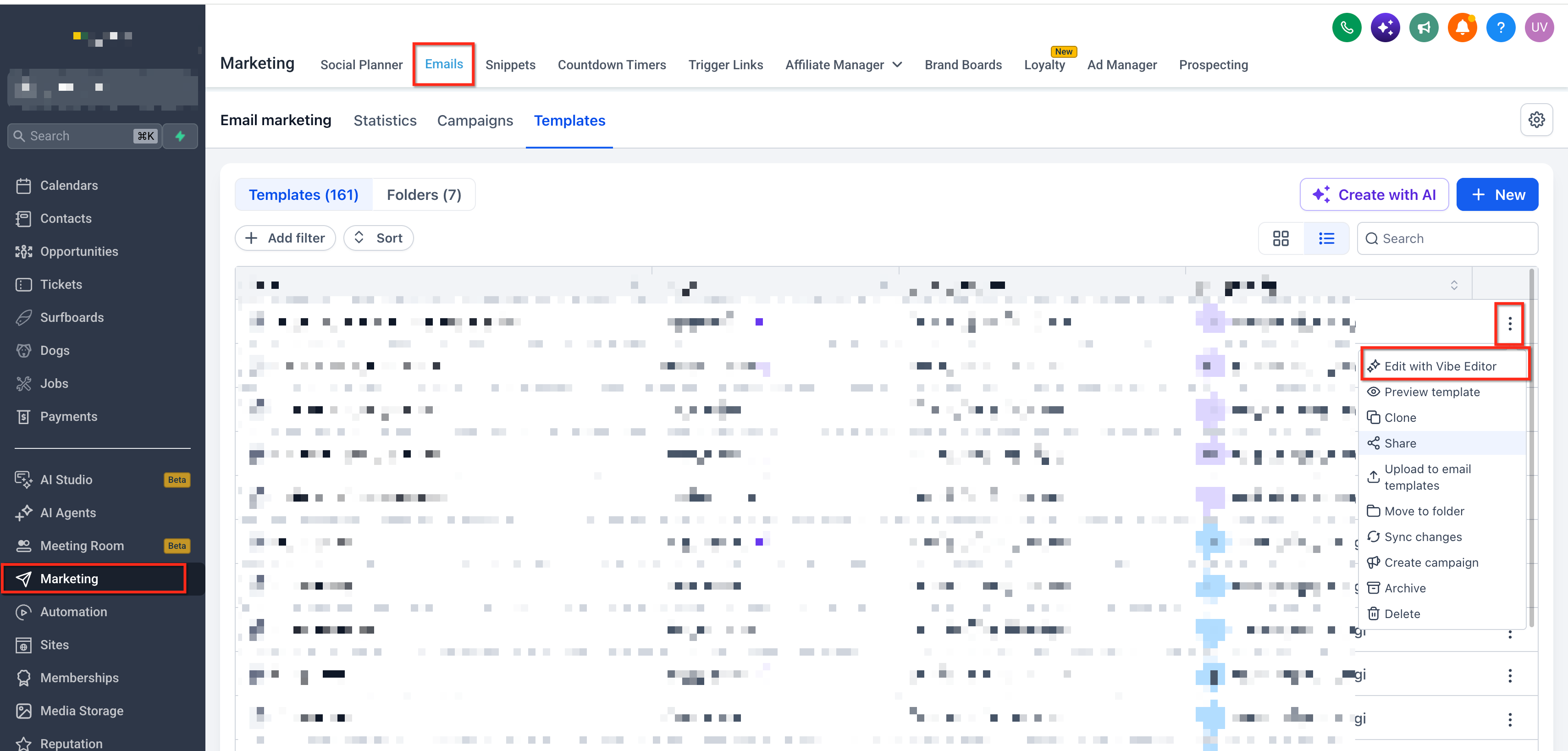
- Open the left menu, click Marketing, then choose Emails.
- Select the Templates tab and find the template you want to edit.
- Use the list or search box to locate the specific template.
- When the template loads in the Email Builder, pick the elements you plan to change.
- Open the template in the Email Builder by clicking it.
- Select a Text block and edit its wording and formatting.
- Click an Image block to replace the picture or adjust its display options.
- Choose a Button block to change its label, link, or style.
- Make any additional content updates needed for the email.
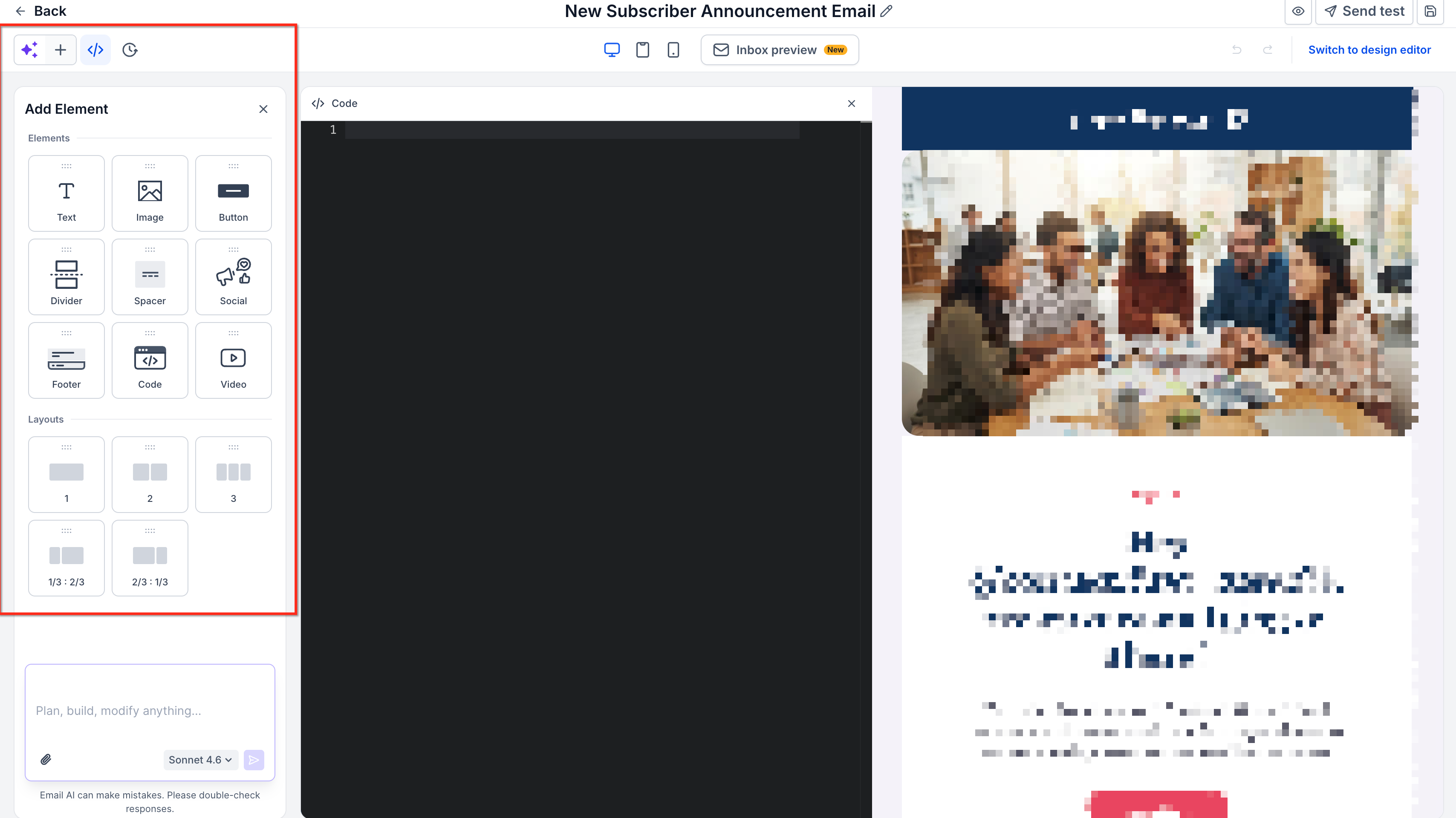
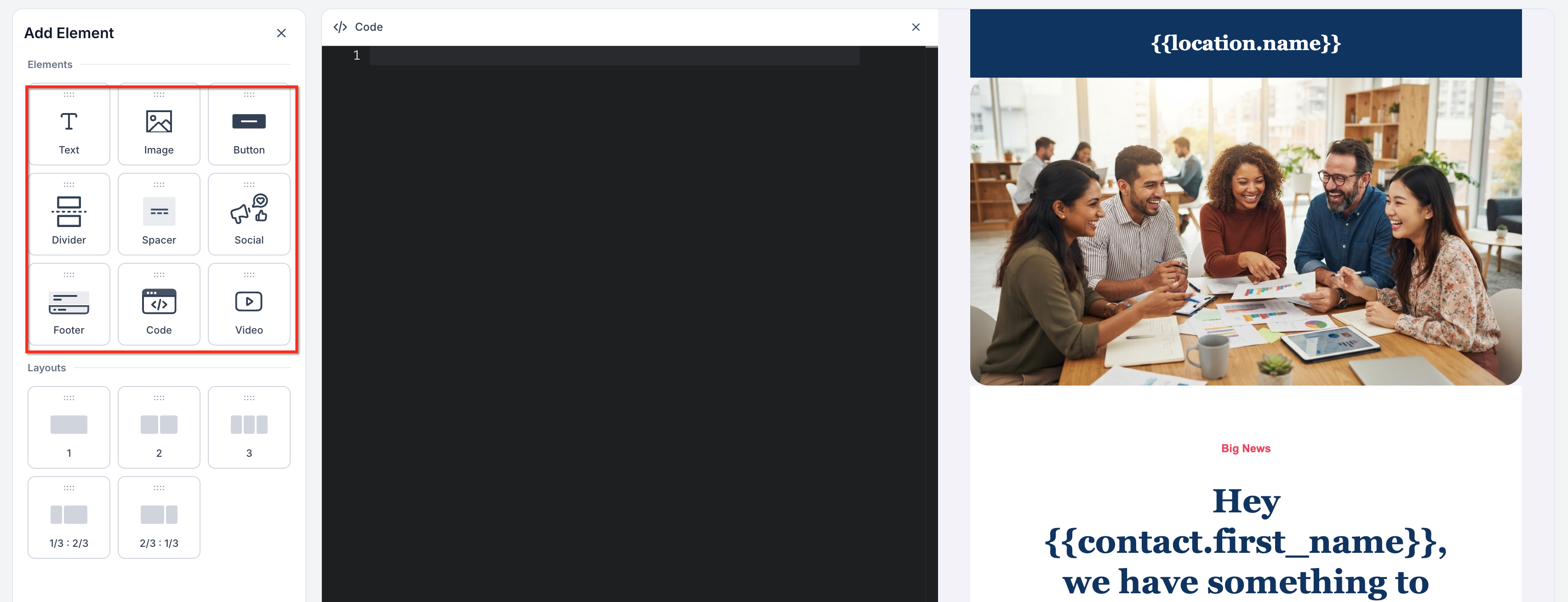
- Open the Add Elements panel to view extra content blocks.
- Drag the chosen element onto the email canvas.
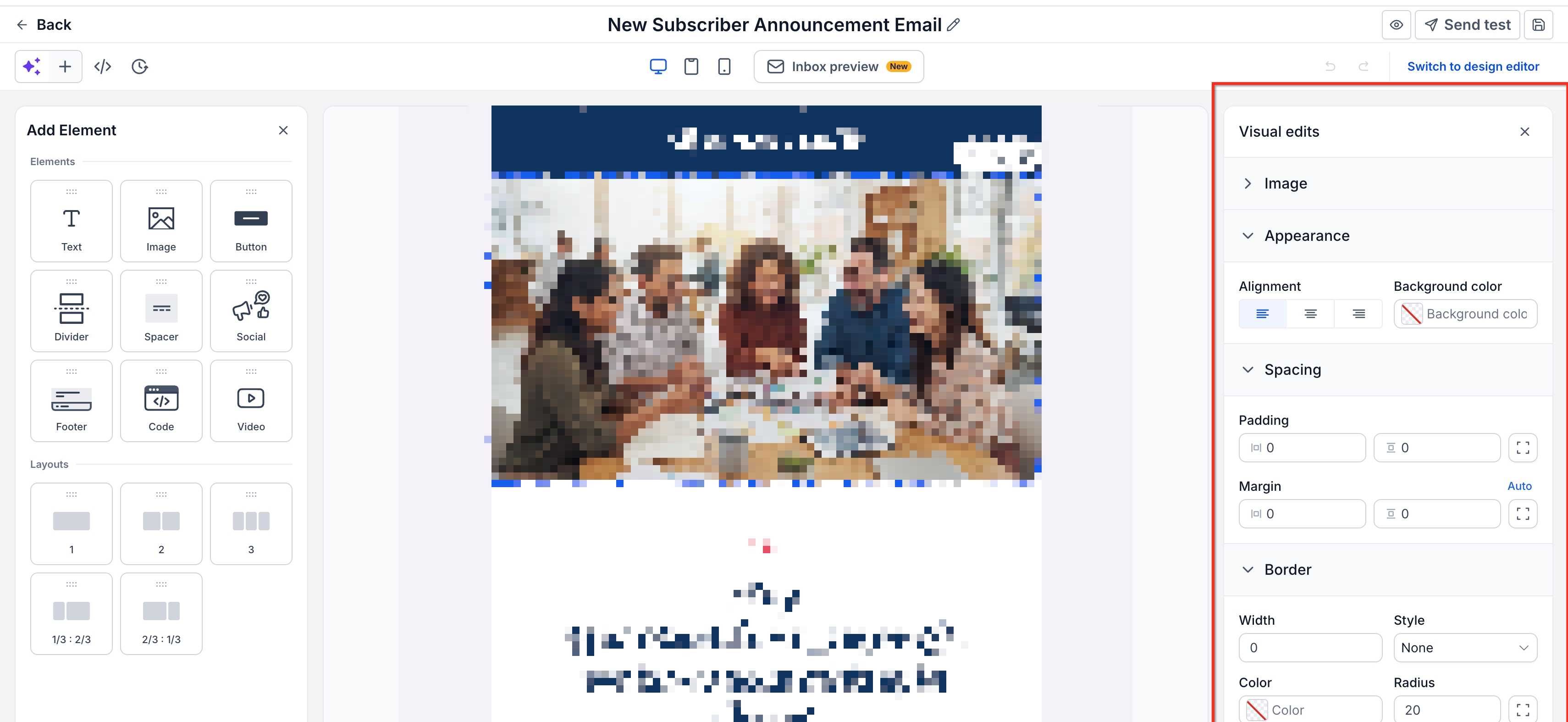
- Click the new element to set its content, style, and options.
- Rearrange existing blocks by dragging them to new positions.
- Adjust overall styling using the Appearance settings where they appear.
- Review the changes made to the template.
- Press Save Template if the manual save option is shown.
05What it looks like in HighLevel
06Settings that matter
- Manual save option. Controls whether a Save Template button appears for the user to store changes to the template.
07Things to know before you rely on it
- The Save Template button appears only when the manual save option is available.
- Version History can be used only if the feature is enabled for the account.
- Available editing controls vary depending on the element selected in the editor.
08How it connects to the rest of HighLevel
- Difference between email templates and campaigns Email templates vs campaigns
- How to set up the HighLevel template library Template library overview
- Importing Mailchimp email templates into the Design Editor Import Mailchimp templates
Michael's take

A small convenience that can feel like a real shift for anyone juggling multiple campaigns. Updating a single template instead of rebuilding each email saves time and keeps your brand looking sharp across every message.
Editing a template can be a quick way to stay consistent without reinventing the wheel each time.