
01Who this is for
- Marketing managers who run limited time promotions need a single timer to avoid mismatched deadlines.
- Product launch teams can keep the launch countdown identical in announcement emails and landing pages.
- Event coordinators benefit from a unified timer that shows the same remaining time in registration emails and the event site.
02Countdown timers, explained
A countdown timer in HighLevel is a saved timer object that can be placed in emails, funnels, or website pages. The timer can be Fixed, Recurring, or Dynamic, each suited to a different campaign scenario. Once saved, the timer can be reused without recreating it, and any edits to the saved timer propagate to every location where it is used.
The timer includes an Active Link that points to the page contacts should reach while the timer is running and an Expired Link for the destination after the timer ends. Design options such as colors, font, size, background, and displayed units let you match the timer to your branding. When enabled, the Adapt to Contact Time Zone setting lets the timer show local time for each viewer.
All timer settings are managed under Marketing > Countdown Timers. The timer can then be added to an email via the email template builder or to a funnel step via the funnel builder. The same saved timer must be selected in each location to keep the experience synchronized.
03How businesses use countdown timers
- Ecommerce store. Create a Dynamic timer that starts when a promotional email is opened. Add the saved timer to the email and to the checkout funnel page. The timer counts down for each shopper based on when they opened the email.
- Online course provider. Set up a Fixed timer for a course enrollment deadline. Insert the timer into the enrollment reminder email and the enrollment landing page. Both places show the same time left until the deadline.
- Software SaaS business. Configure a Recurring timer for a weekly discount window. Place the timer in the weekly offer email and on the pricing page of the website. The timer restarts on the defined schedule across all views.
04Before you start
- Create the funnel or website pages that contacts will visit.
- Decide where contacts should go while the timer is active.
- Define what occurs after the timer expires.
- Create a countdown timer under Marketing > Countdown Timers.
- Select the timer type that matches the campaign.
- Configure timing, timezone, links, and design.
- Save the timer before adding it to the email and the funnel.
05How to set up and use countdown timers in HighLevel
Create a countdown timer
- Open Marketing > Countdown Timers in the platform navigation.
- Click the New button and choose a timer template.
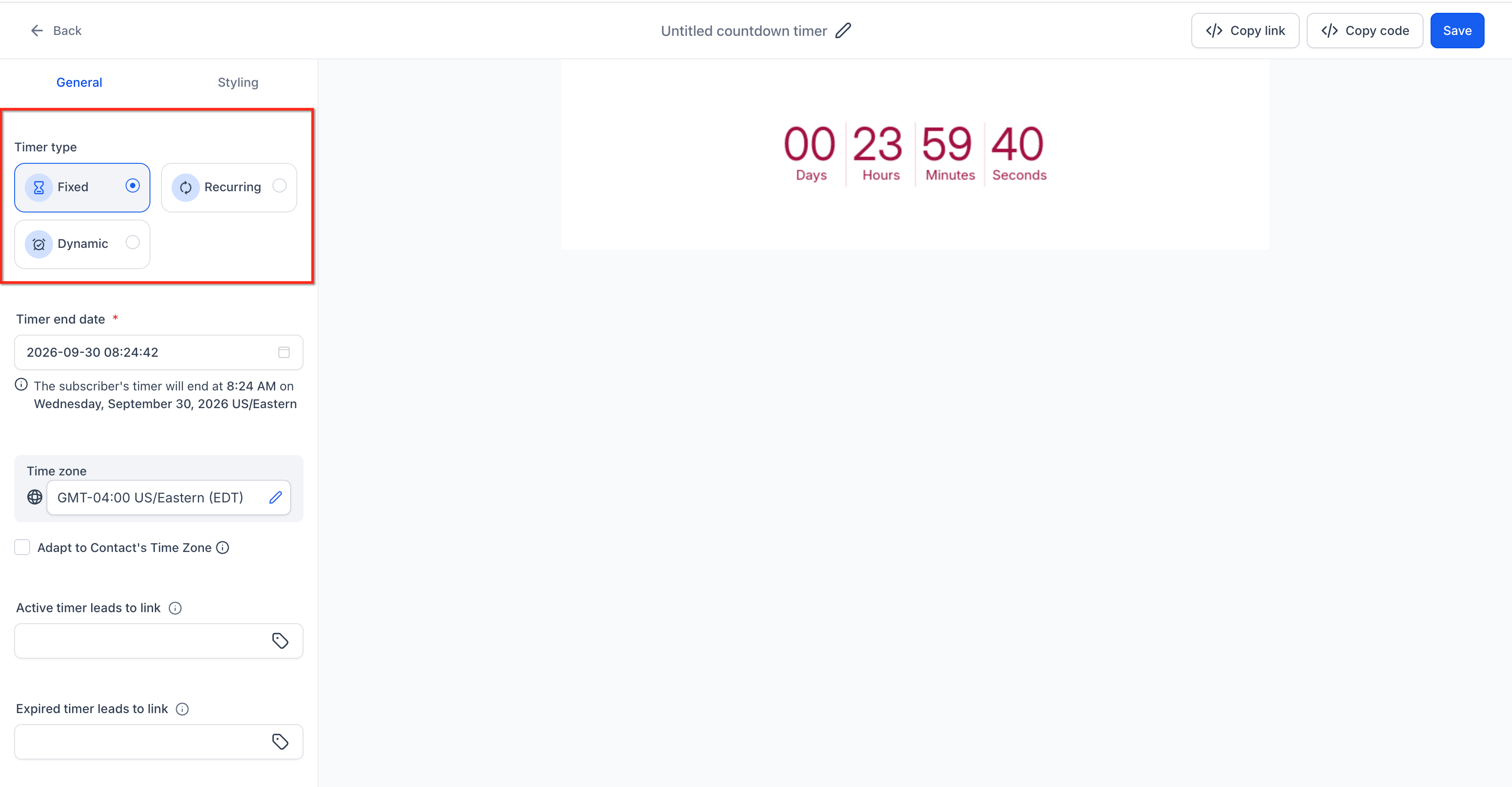
- Select the timer type, Fixed, Recurring, or Dynamic.
- Enter the required timing values for the chosen type.
- Confirm the initial configuration before proceeding.
Customize and save the timer
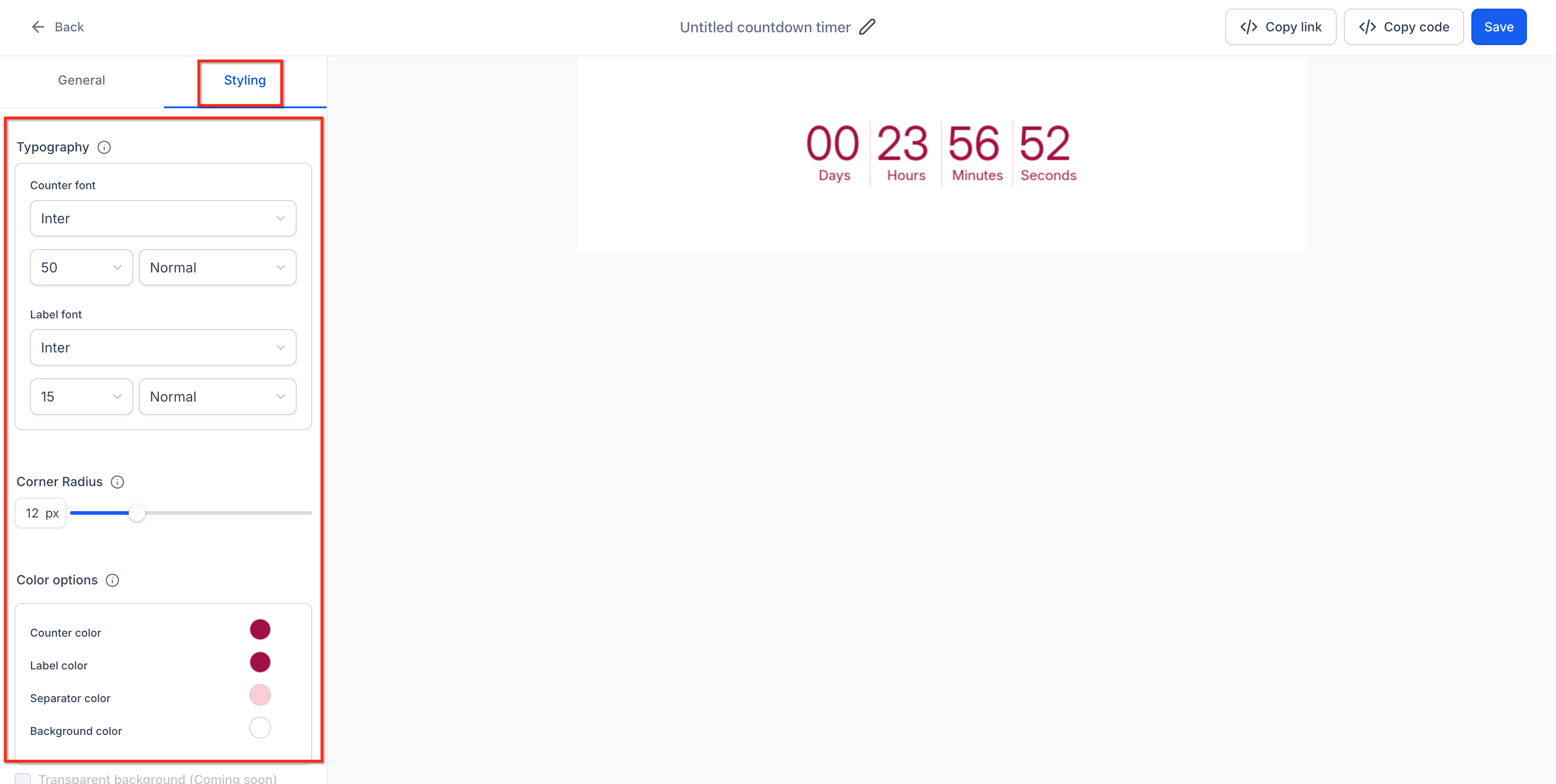
- Adjust visual options such as colors, font, size, background, and displayed time units.
- Enter a clear, descriptive name for the timer.
- Press Save to store the timer for later use.
Add the timer to an email
- Navigate to Marketing > Emails > Templates.
- Create a new email template or open an existing one for editing.
- Launch the email in the Design Editor.
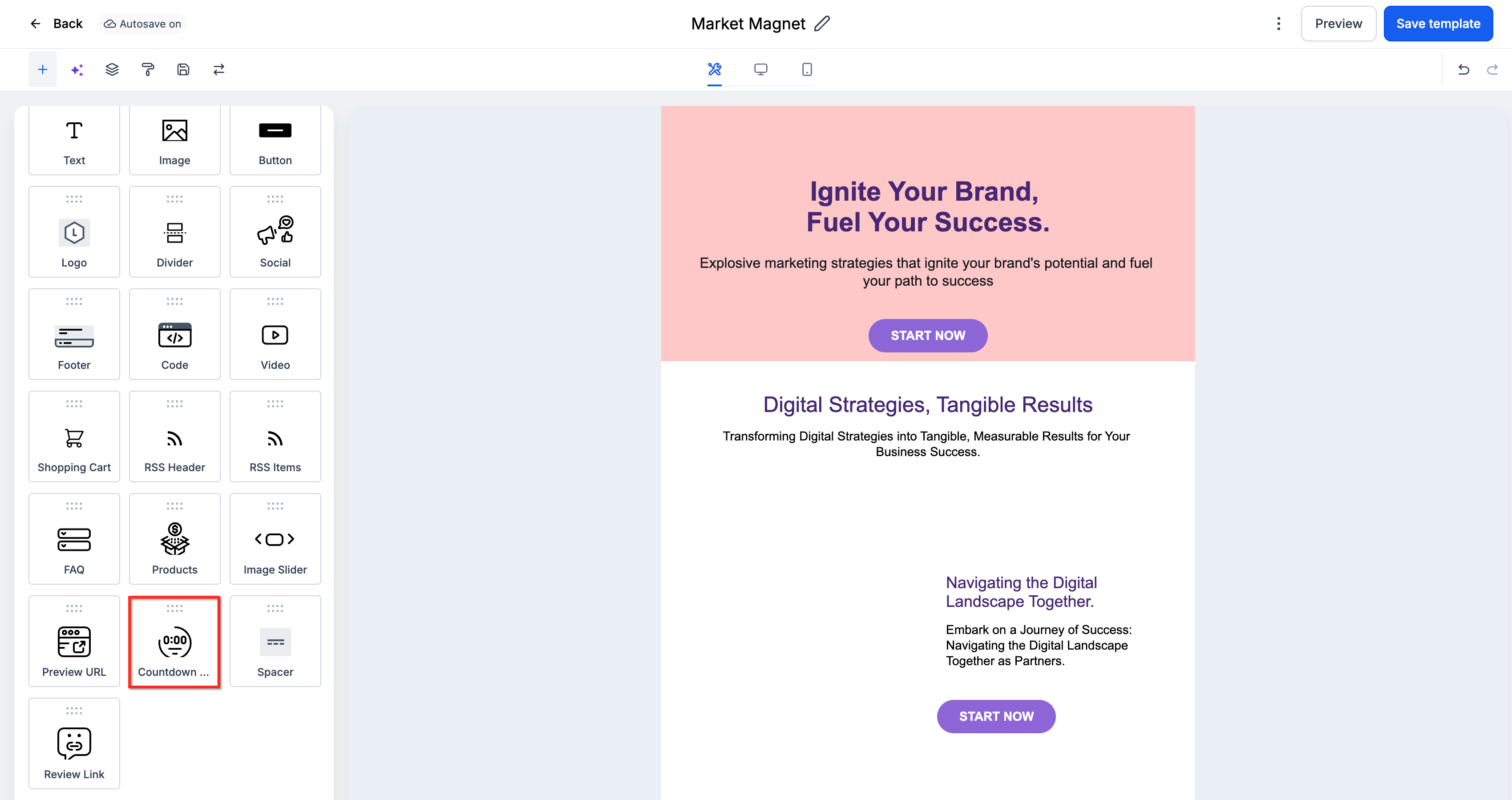
- Drag the Countdown Timer element onto the email canvas.
- Select the saved timer and position it where desired.
Add the timer to a funnel
- Go to Sites > Funnels and open the target funnel.
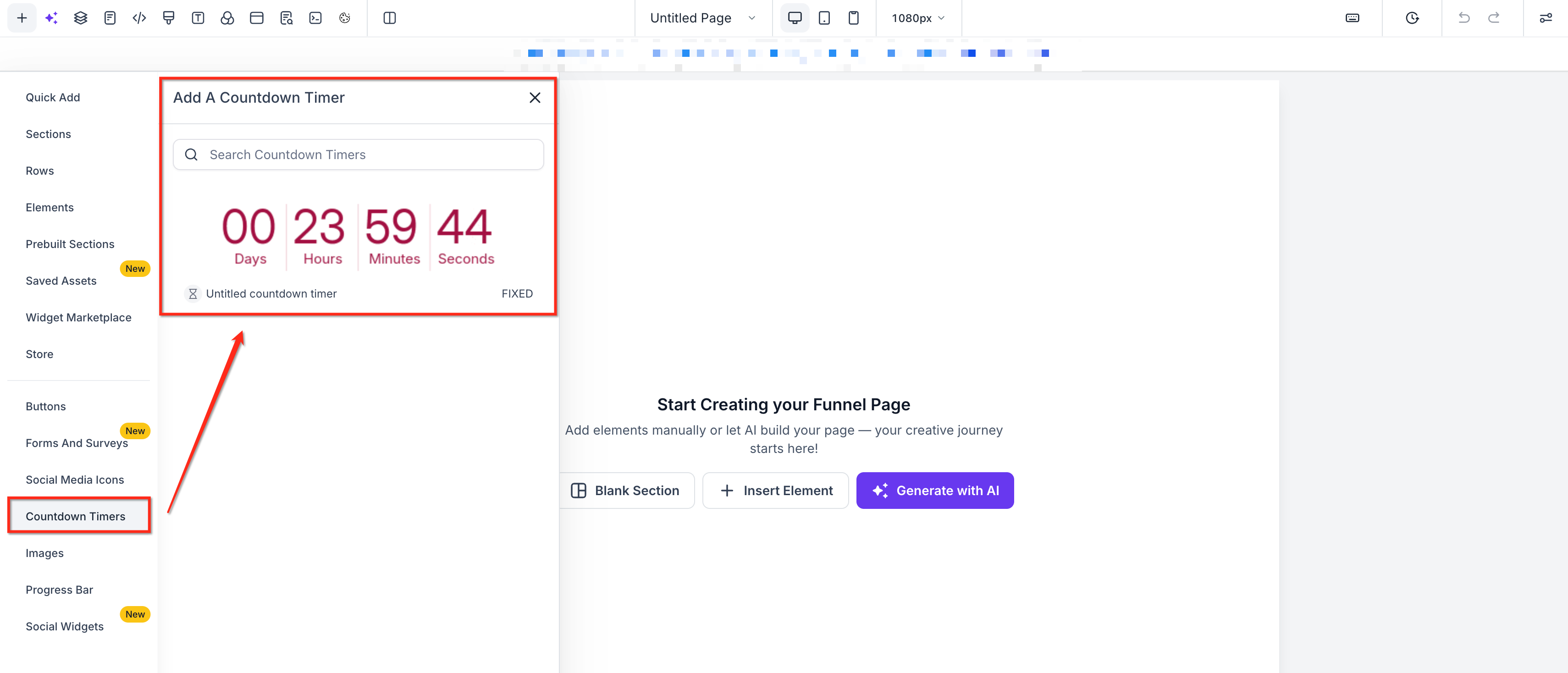
- Enter the funnel step you want to edit and click Edit Page.
- Click the + icon to open the element panel.
- Choose the Countdown Timers element from the list.
- Pick the saved timer and place it in the desired section of the page.
Enable timezone adaptation
- Navigate to Marketing > Countdown Timers.
- Open an existing timer or create a new one.
- Select the fallback timezone to use when a viewer’s zone cannot be detected.
- Turn on the Adapt to Contact Time Zone option and save the timer.
06What it looks like in HighLevel
07Settings that matter
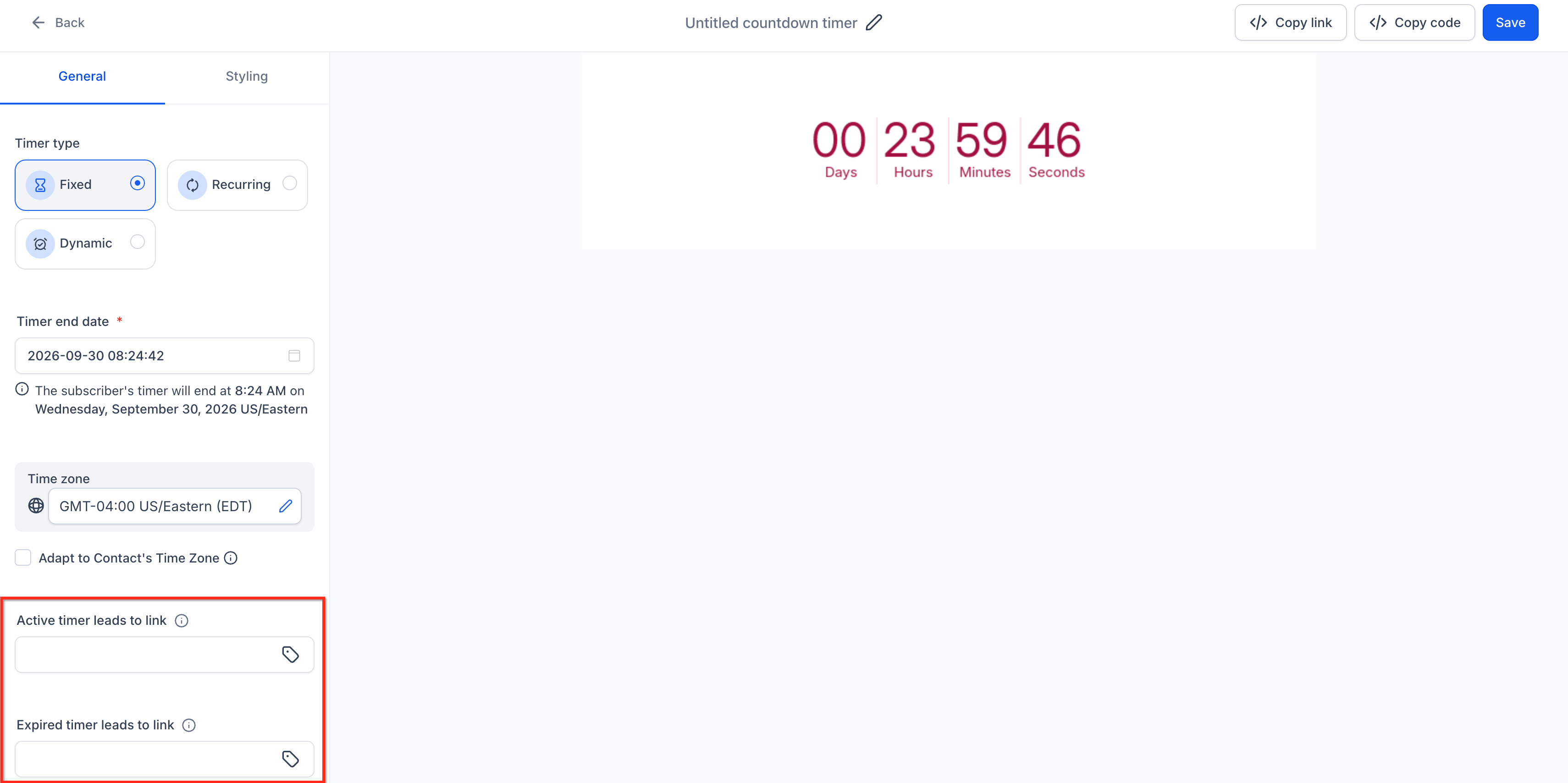
- Active Link. The destination URL contacts are sent to while the timer is still counting down.
- Expired Link. The destination URL contacts are sent to after the timer reaches zero.
- Adapt to Contact Time Zone. When enabled, the timer adjusts its display to each viewer’s local timezone, using the fallback timezone if the viewer’s zone cannot be determined.
08Things to know before you rely on it
- Only three timer types exist: Fixed, Recurring, and Dynamic.
- In emails the timer renders as an animated image, so display can vary by email client.
- Some email clients cache images or limit animation refresh, which may cause the timer image to appear static.
- When Adapt to Contact Time Zone is on, funnels use IP detected timezones while emails use the contact’s stored timezone.
09If something goes wrong
- The Email and Funnel Appear to Show Different Times. Verify the same saved timer is selected, check the timer type, confirm the configured timezone, ensure Adapt to Contact Time Zone is set as intended, and test with a known contact timezone.
- The Timer in My Email Stops Updating. Recognize that email timers are animated images that some clients cache. Reopen the email to see if the timer refreshes, and test across supported clients before a large send.
- The Funnel Shows a Different Timezone. Remember that funnels use the visitor’s IP detected timezone when available; emails use the contact’s stored timezone. If neither can be determined, the fallback timezone is applied.
- The Timer Does Not Appear in the Funnel Builder. Confirm the timer has been saved, ensure you are selecting the Countdown Timers element, verify you are in the correct subaccount, and check that the saved timer is available for selection.
- The Timer Has Expired but the Email Still Shows Time Remaining. Email clients may cache the timer image. Review the live funnel page and timer settings, then retest the email in the client to confirm the image refreshes.
- The CTA Opens the Wrong Page. Check the Active and Expired Links set on the timer and make sure the email’s call to action uses the intended Active Link. Also verify that the destination page is published.
10How it connects to the rest of HighLevel
- How to use countdown timers in emails Email timer guide
- How to use countdown timers in funnels Funnel timer guide
- Dynamic countdown timer guide Dynamic timer guide
- Copy code feature for countdown timers Copy code option
Michael's take

When a promotion depends on a tight deadline, recipients can get confused if the countdown they see in the email doesn’t match the one on the landing page. The first thing I align is the saved timer itself. Making sure the same object is used in both the email and the funnel step. That way any change to the deadline, design, or links is reflected wherever the timer is used.
I’d also flip on Adapt to Contact Time Zone if the offer should end at a local hour for each viewer. It’s easy to overlook, but it prevents a scenario where a subscriber in a different region sees a timer that’s already expired while the email still shows time left.