
01Who this is for
- Marketers who need to highlight limited time offers and want a visual cue that drives faster clicks.
- Event organizers who must show exactly how much time remains before registration closes.
- Sales teams that want each prospect to see a personalized deadline based on when they open the email.
02Countdown timers in emails, explained
Countdown timers are animated images that generate dynamically each time an email is opened. The timer reflects the configuration set in the Countdown Timer tool and can adapt to the recipient’s local time zone. Because the image may be cached by some clients, the countdown may pause until the email is reopened.
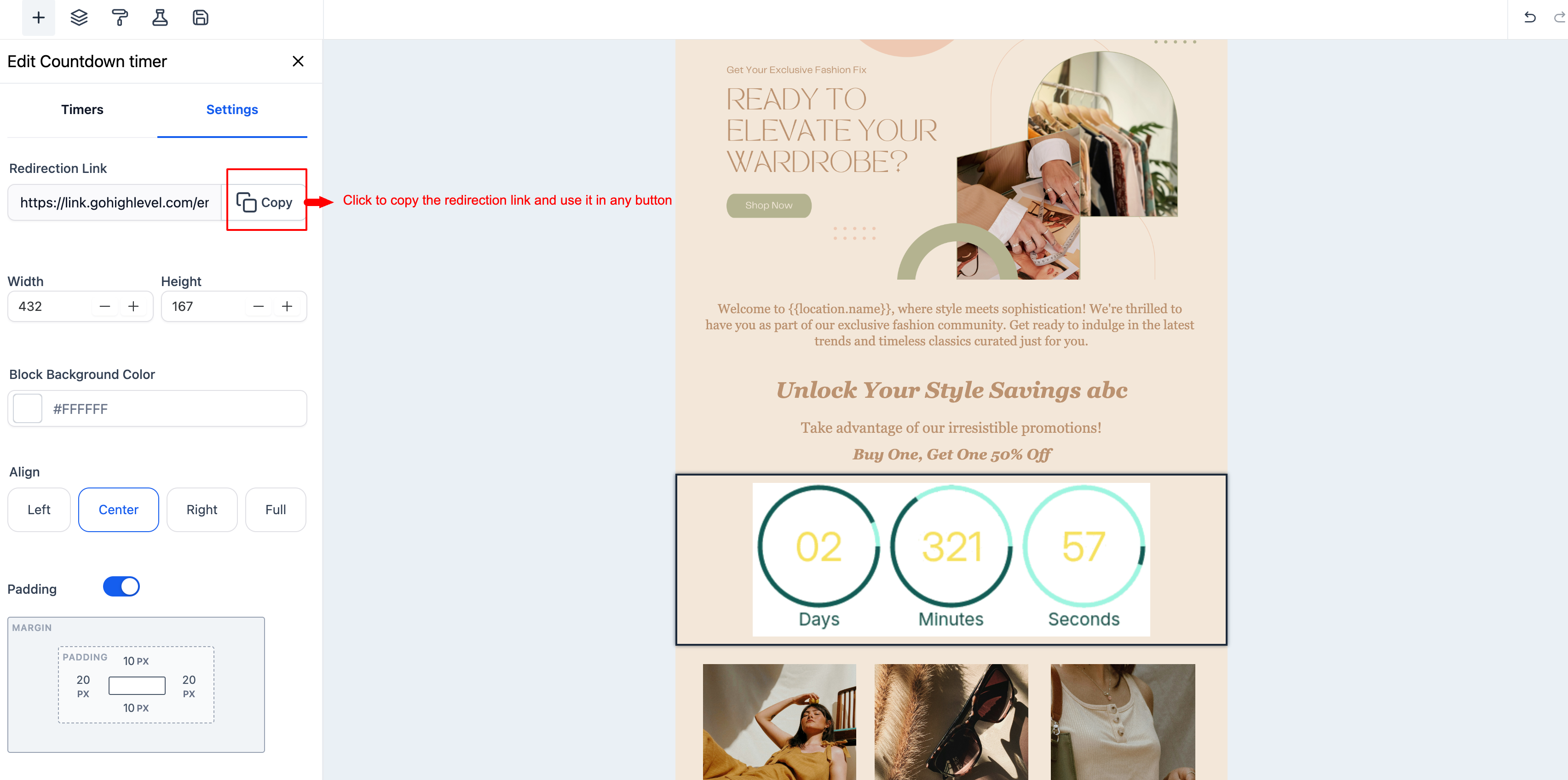
The feature lives under Marketing in the left navigation. First you create a timer in the Countdown Timer section, then you insert the timer element while editing an email template in the Email Builder. After insertion you can align it, adjust its look, and attach a destination URL that your buttons or calls to action will use.
03How businesses use countdown timers in emails
- Ecommerce store. Create a timer that ends when a flash sale expires, enable Adapt to Contact Time Zone, and attach the timer’s link to the "Shop Now" button. Each shopper sees the exact time left in their own zone, encouraging quicker purchases.
- Webinar host. Build a timer that counts down to the webinar start, embed it in the invitation email, and connect the timer’s redirection link to the registration page. Recipients see a live countdown, reinforcing the event’s start time.
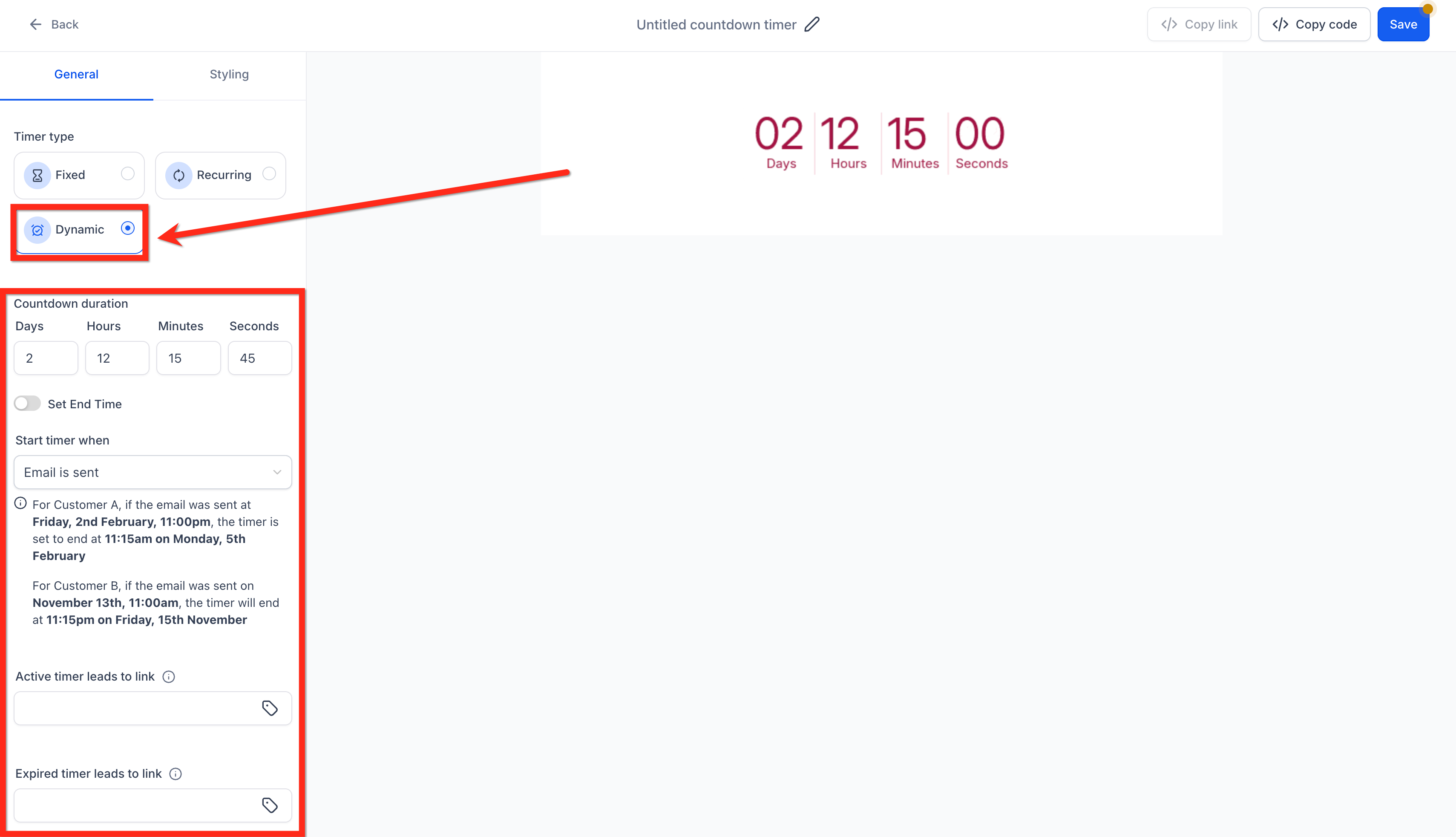
- Service agency. Set up a dynamic timer that begins when the proposal email is opened, customize its background and padding to match branding, and link the timer to a contract signing page. Prospects see a personal deadline that updates each time they view the email.
04Before you start
- A countdown timer must be created in Marketing > Countdown Timer before adding it to an email.
- The email must be opened in the design editor to insert the timer element.
05How to set up and use countdown timers in emails in HighLevel
Create and add a countdown timer to an email
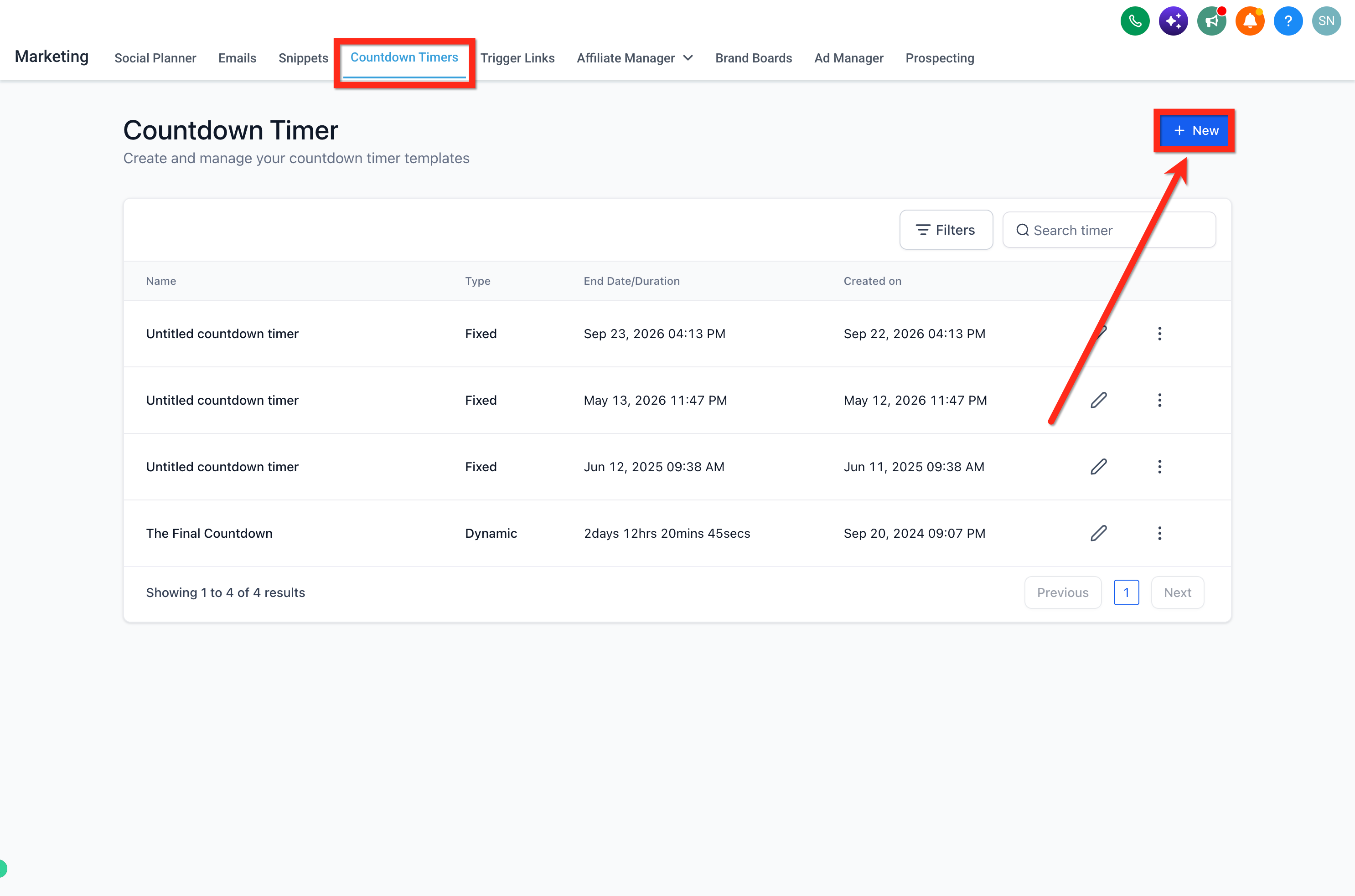
- Open Marketing from the left navigation and select Countdown Timer, then create a new timer.
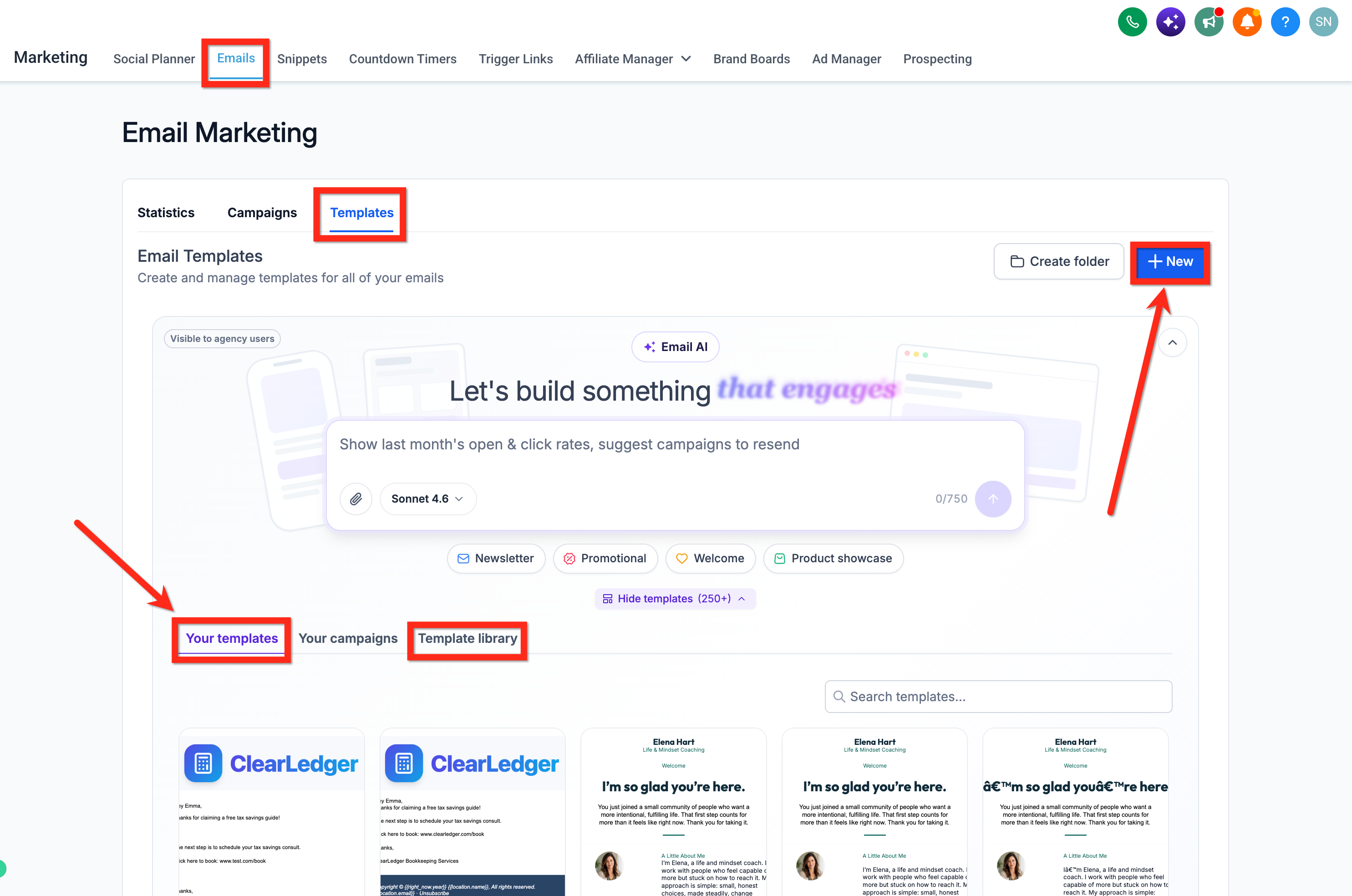
- Navigate to Marketing > Emails > Templates.
- Start a new template or open an existing one for editing.
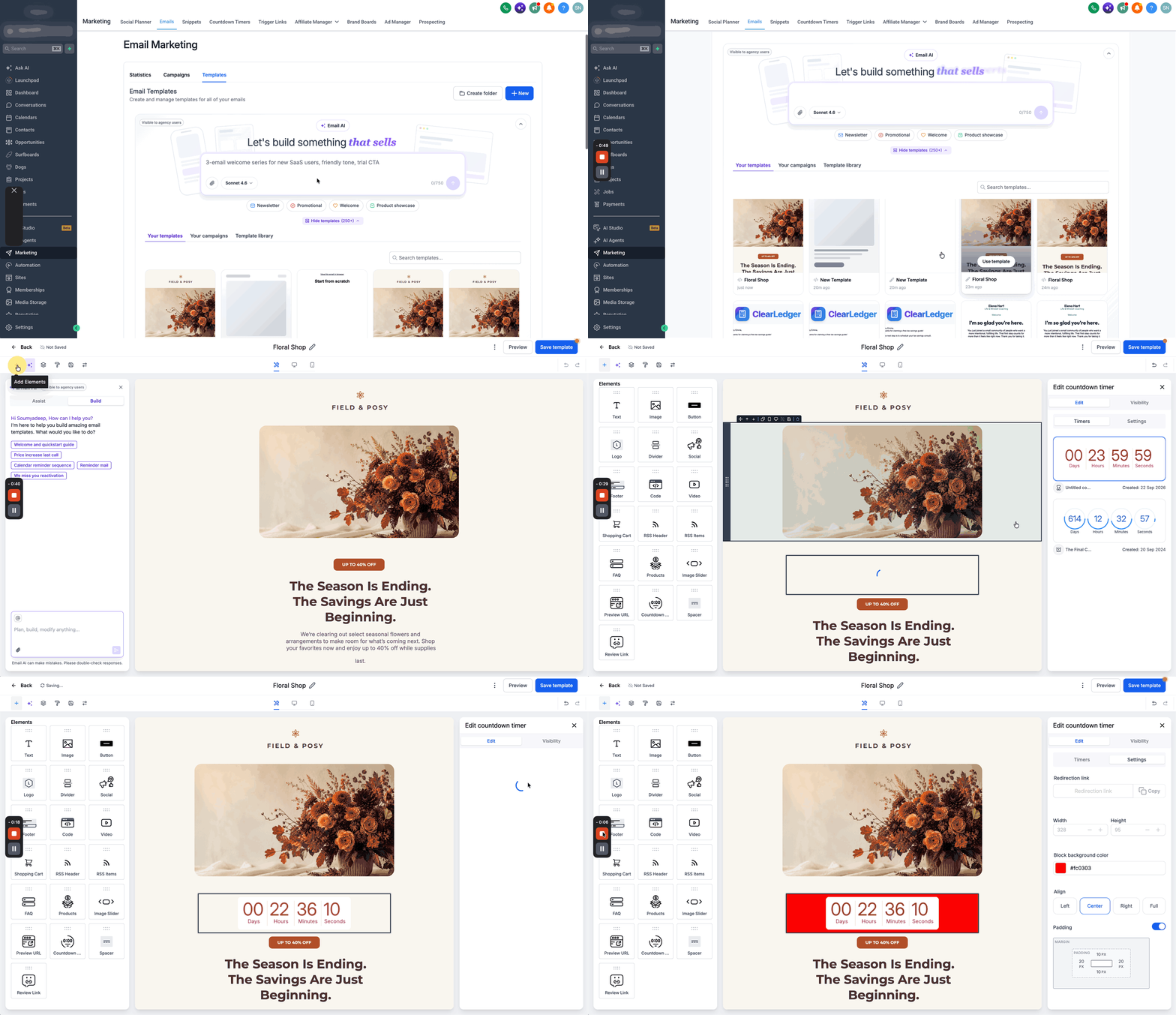
- Switch to the design editor if you are not already there.
- Drag the countdown timer element into the email layout.
- Pick the timer you created, enable Adapt to Contact Time Zone, and confirm the selection.
- Click Settings on the timer element and adjust its alignment within the email.
- Set the background color and modify the padding to fit the design.
- Copy the timer’s redirection link and assign it to any buttons or calls to action in the email.
- Always preview and test the email in multiple clients before sending it to a larger audience.
06What it looks like in HighLevel
07Settings that matter
- Adapt to Contact Time Zone. Ensures each recipient sees the countdown based on their local time.
- Background color. Changes the timer’s background to match the email’s visual theme.
- Padding. Adds space around the timer for better layout control.
- Timer alignment. Positions the timer inside the email (left, center, right).
08Things to know before you rely on it
- Timers are generated only when the email is opened; they do not run continuously in the background.
- Some email clients cache the timer image, so the countdown may pause until the email is reopened.
- Apple Mail is known to show a cached version of the timer, which can prevent live updates.
09If something goes wrong
- Timer does not update in Apple Mail. Preview the email in multiple clients and be aware that Apple Mail may cache the image, causing a static display.
- Timer appears frozen after the email stays open. Close and reopen the email to force the timer to refresh with the latest timestamp.
- Timer preview looks incorrect. Use the preview function and test the email in various email clients before sending to a larger audience.
10How it connects to the rest of HighLevel
- Getting started with Countdown Timer Countdown Timer basics
- Sync your timer in emails and funnels Timer synchronization
- How to set up a recurring countdown timer in HighLevel Recurring timers
- Add a HighLevel countdown timer button to a WhatsApp template WhatsApp timer button
- HighLevel pricing and plans Pricing page
Michael's take

Most people drop the timer into an email and then assume it will tick down forever, forgetting that many email clients cache images. That can leave prospects staring at a static picture that no longer reflects the real deadline.
Testing helps ensure the campaign appears as intended.