
01Who this is for
- Ecommerce owners running weekly promotions, because the timer keeps urgency fresh without recreating it.
- Subscription service Founders managing monthly renewals, as the timer reminds members of upcoming billing cycles.
- Event organizers hosting recurring webinars, because the timer shows time left until the next session.
02Recurring timers, explained
A recurring timer repeatedly counts down for a chosen period, then restarts for a set number of loops. It moves through three states, wait before the countdown starts, active while the numbers run, and expired when the cycle ends, optionally redirecting or hiding content.
The timer is built inside HighLevel under Marketing > Countdown Timers. After choosing the Recurring timer type, you define start date, duration, loop count, wait behavior and links, then style it and save. All pages that embed the timer will display the same cycle to every visitor.
03How businesses use recurring timer
- Ecommerce store. Create a weekly recurring timer, set a seven day countdown and add an active link to the sale page. The timer will restart each week, showing the same urgency without rebuilding the element.
- SaaS subscription business. Configure a monthly recurring timer with a 30 day duration and a loop count matching the subscription period. Add an active link to the renewal portal and an expired link to a thank you page.
- Online education platform. Set up a recurring timer for a weekly webinar series, define the start time for the next session, and embed the timer on the registration page. The timer resets after each class, keeping attendees aware of the next event.
04The numbers and rules that matter
- Countdown Duration sets the length of each cycle (for example, 7 days).
05How to set up and use recurring timer in HighLevel
Create a recurring timer
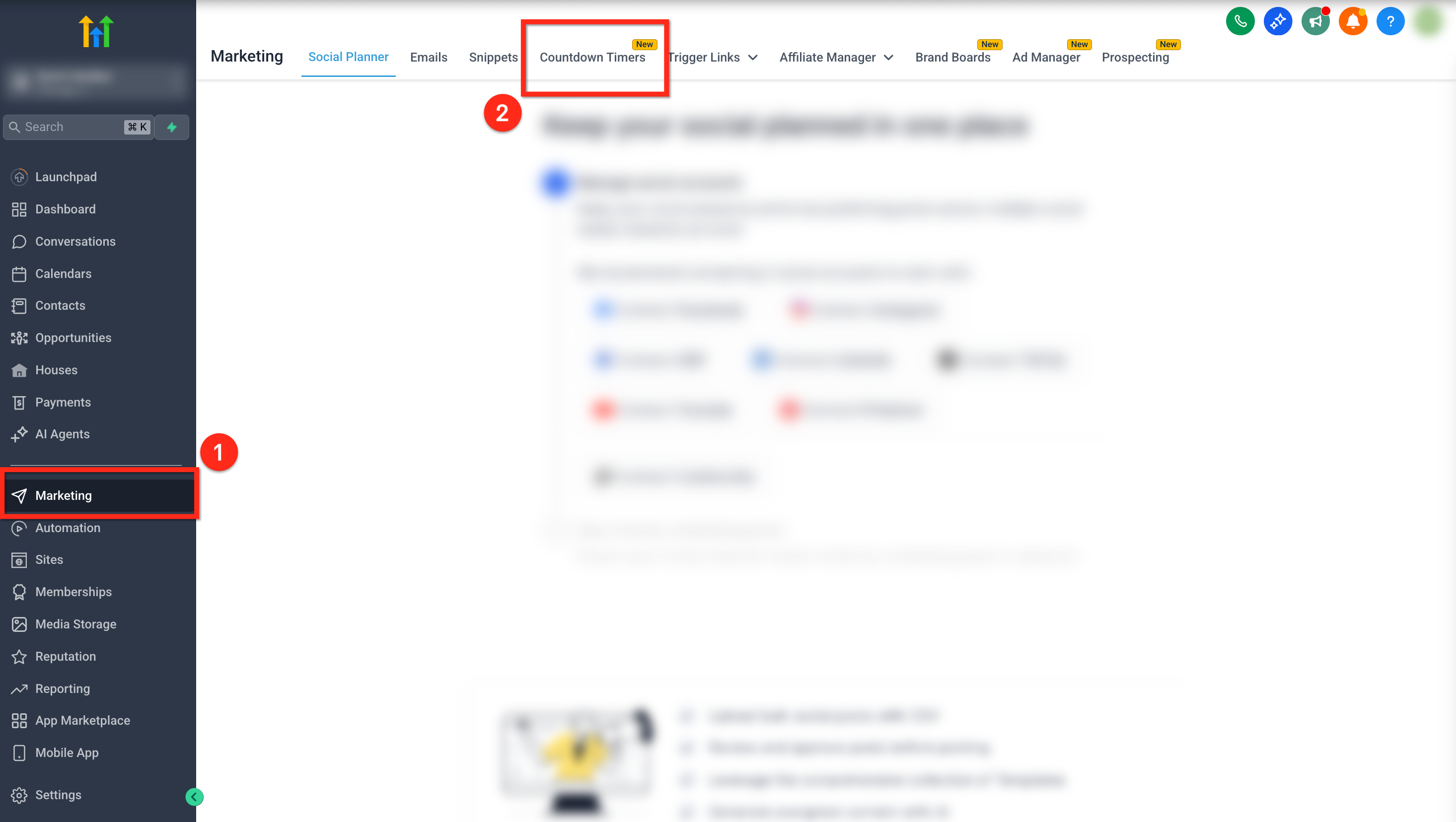
- Open the left navigation, click Marketing, then choose Countdown Timers from the top ribbon.
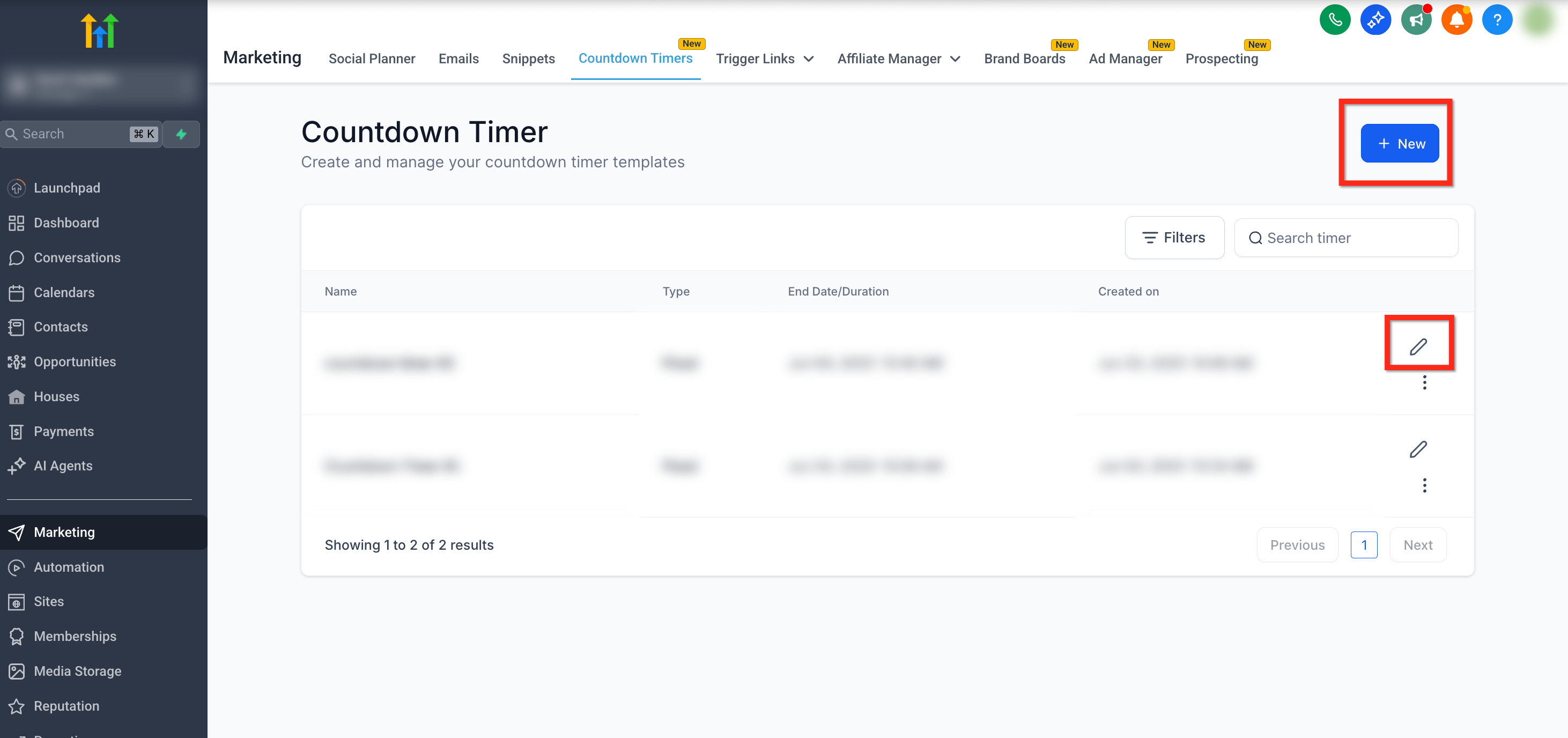
- Press the blue New button to start a fresh timer or click the pencil icon to modify an existing one.
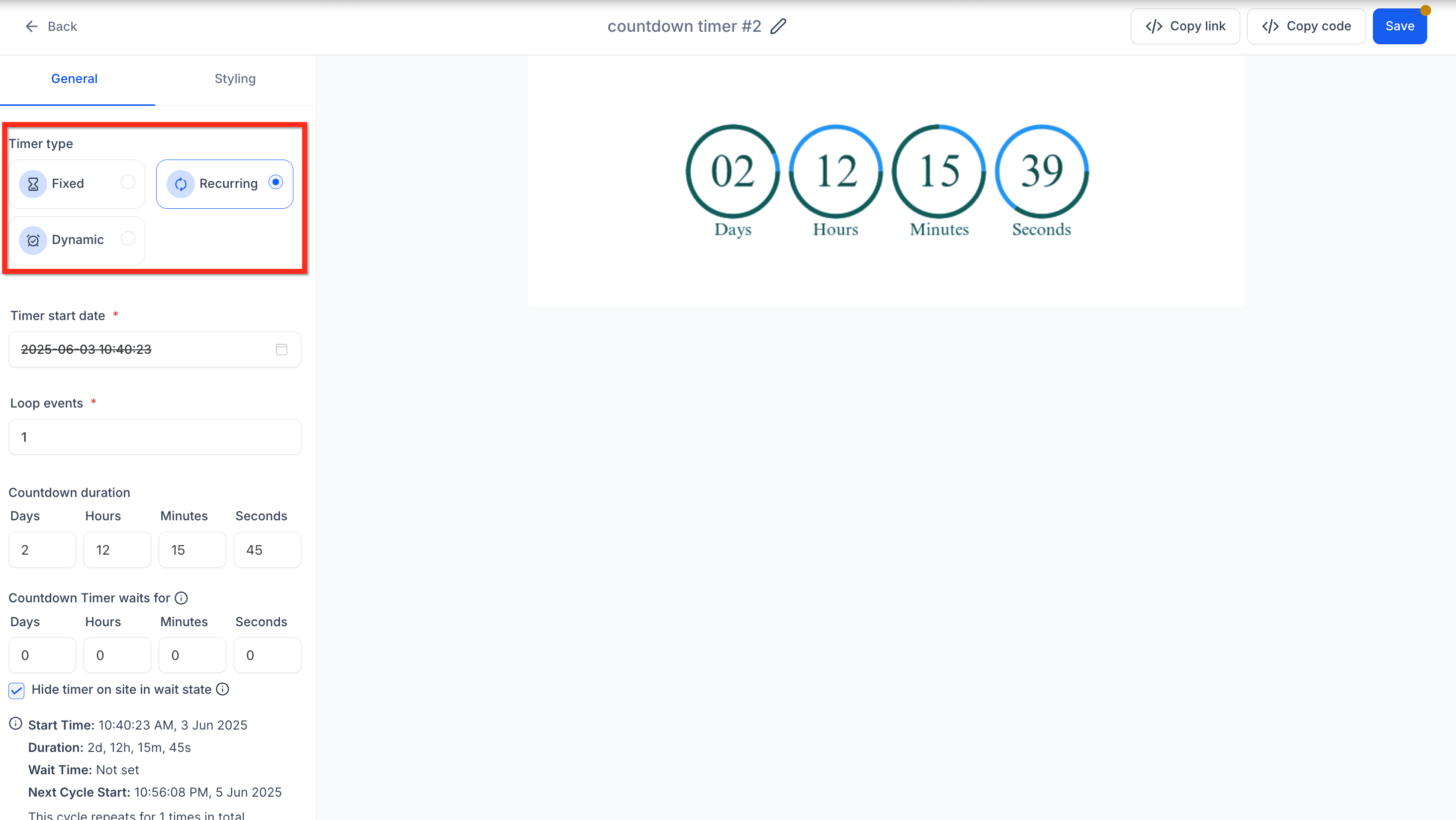
- In the General tab of the settings panel, set Timer Type to Recurring.
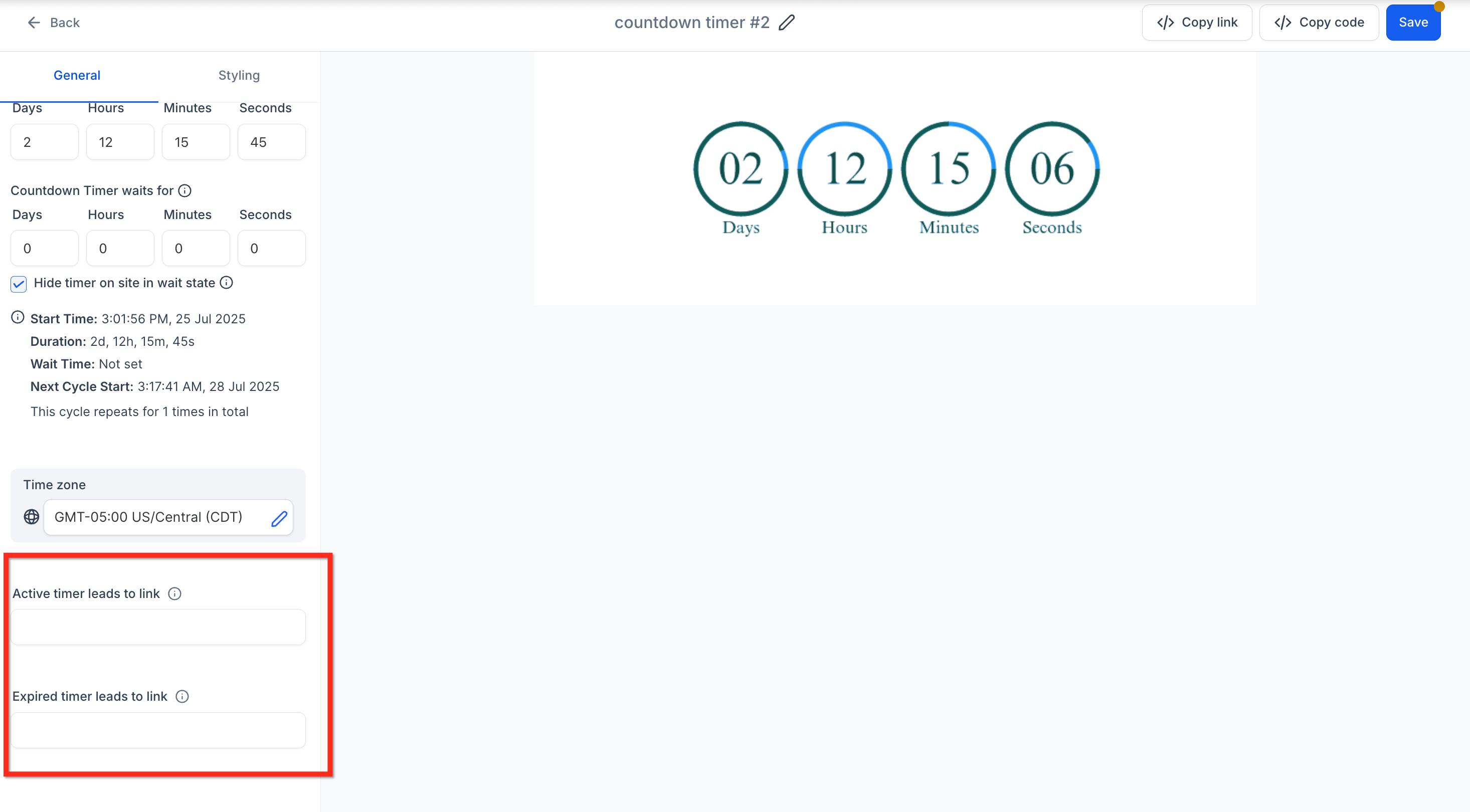
- Enter the Start Date/Time, specify Loop Events, set the Countdown Duration, adjust Countdown Timer Waits For, and decide whether to Hide Timer on Site in Wait State.
- Provide the URL for the Active Link and the URL for the Expired Link.
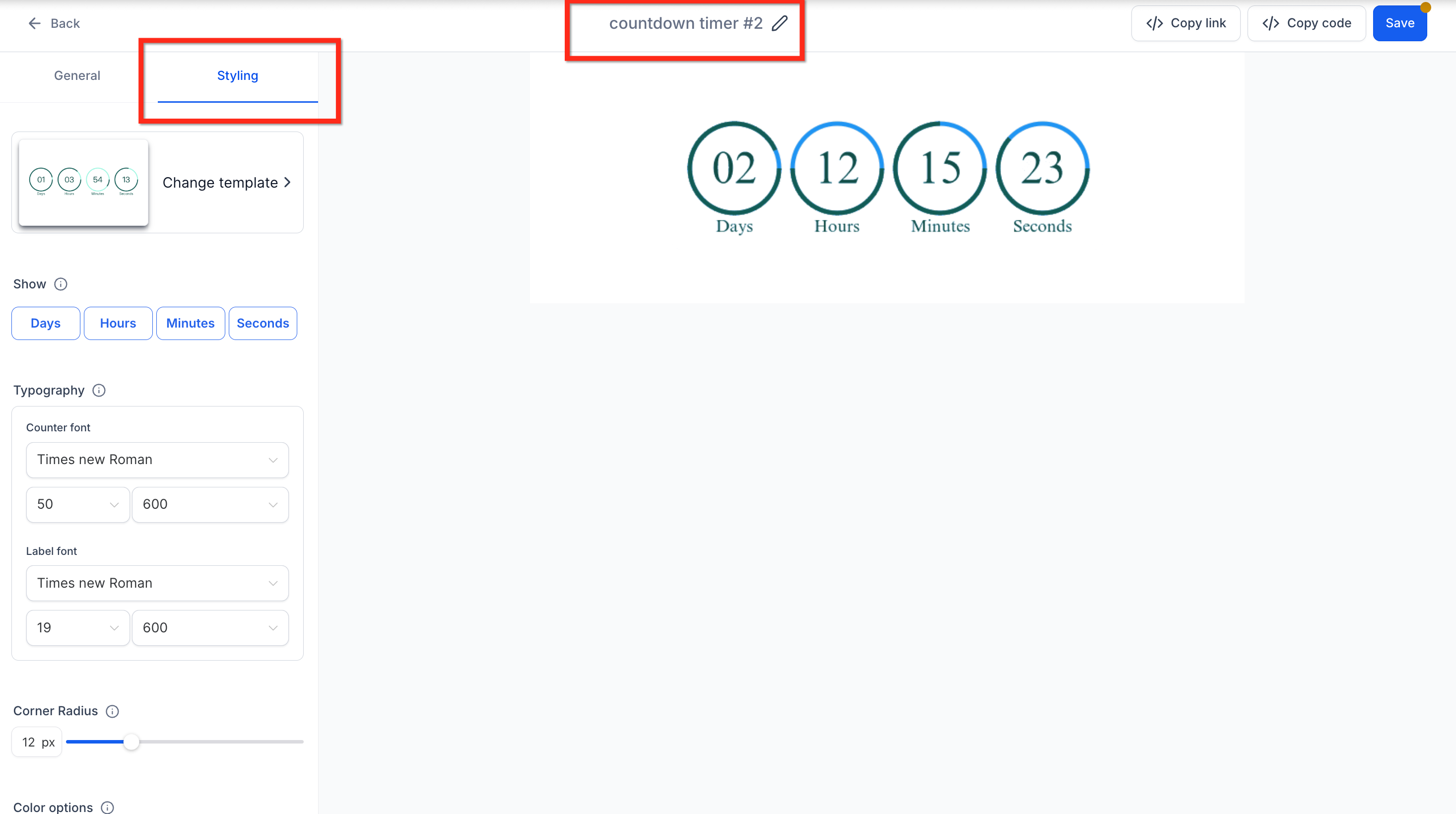
- Modify colors, fonts, expiry image and time display format, give the timer a name, and click the blue Save button.
06What it looks like in HighLevel
07Settings that matter
- Timer Type. Selects whether the timer runs once or repeats; choose Recurring for looped behavior.
- Start Date/Time. Defines when the first countdown cycle begins.
- Loop Events. Sets how many times the timer will reset after completing a countdown.
- Countdown Duration. Controls the length of each individual countdown cycle.
- Countdown Timer Waits For. Specifies an optional pause period between cycles before the timer restarts.
- Hide Timer on Site in Wait State. Determines whether the timer is visible during the wait period.
- Active Link. URL where visitors are sent while the timer is counting down.
- Expired Link. URL where visitors are sent after the timer reaches zero.
- Appearance settings (colors, fonts, expiry image, time display format). Customize the visual style of the timer to match branding.
08Things to know before you rely on it
- HighLevel does not impose a hard limit on the number of recurring timers you can have active.
- Each timer generates image assets when displayed; remove unused timers to keep performance optimal.
- The timer uses the time zone set during configuration; visitor locations do not alter the clock.
- Loops only restart after the full countdown duration; a daily restart requires a 1 day duration.
09How it connects to the rest of HighLevel
- Get started with basic countdown timers to understand core features. Getting started
- Learn how to place countdown timers inside funnels for campaign pages. Timers in funnels
- See how countdown timers are displayed and linked inside marketing emails. Timers in emails
Michael's take

A recurring timer feels like a small convenience that can become a real shift for any business that runs regular offers. The automatic reset saves you the hassle of rebuilding a countdown every week or month, and it keeps the urgency signal always on for your audience.
If I were a subscription based service, I’d drop a recurring timer on the renewal reminder email and on the account dashboard. The timer would show members exactly how much time they have left before their plan renews, nudging them to upgrade or change their plan before the deadline.