
01Who this is for
- Founders launching limited time promotions need a clear deadline in WhatsApp to push quick decisions.
- Small ecommerce shops can add urgency to product launch messages and guide shoppers to checkout before the offer closes.
- Service based businesses can route prospects to booking pages while a special slot remains available.
02Countdown timers in WhatsApp templates, explained
The feature places any HighLevel countdown timer, fixed, recurring, or dynamic, inside a WhatsApp template button. When a recipient taps the button, the platform checks the timer’s live status and sends the user to the active URL while the timer is running, or to the expired URL after the deadline passes. This routing happens automatically without any extra coding.
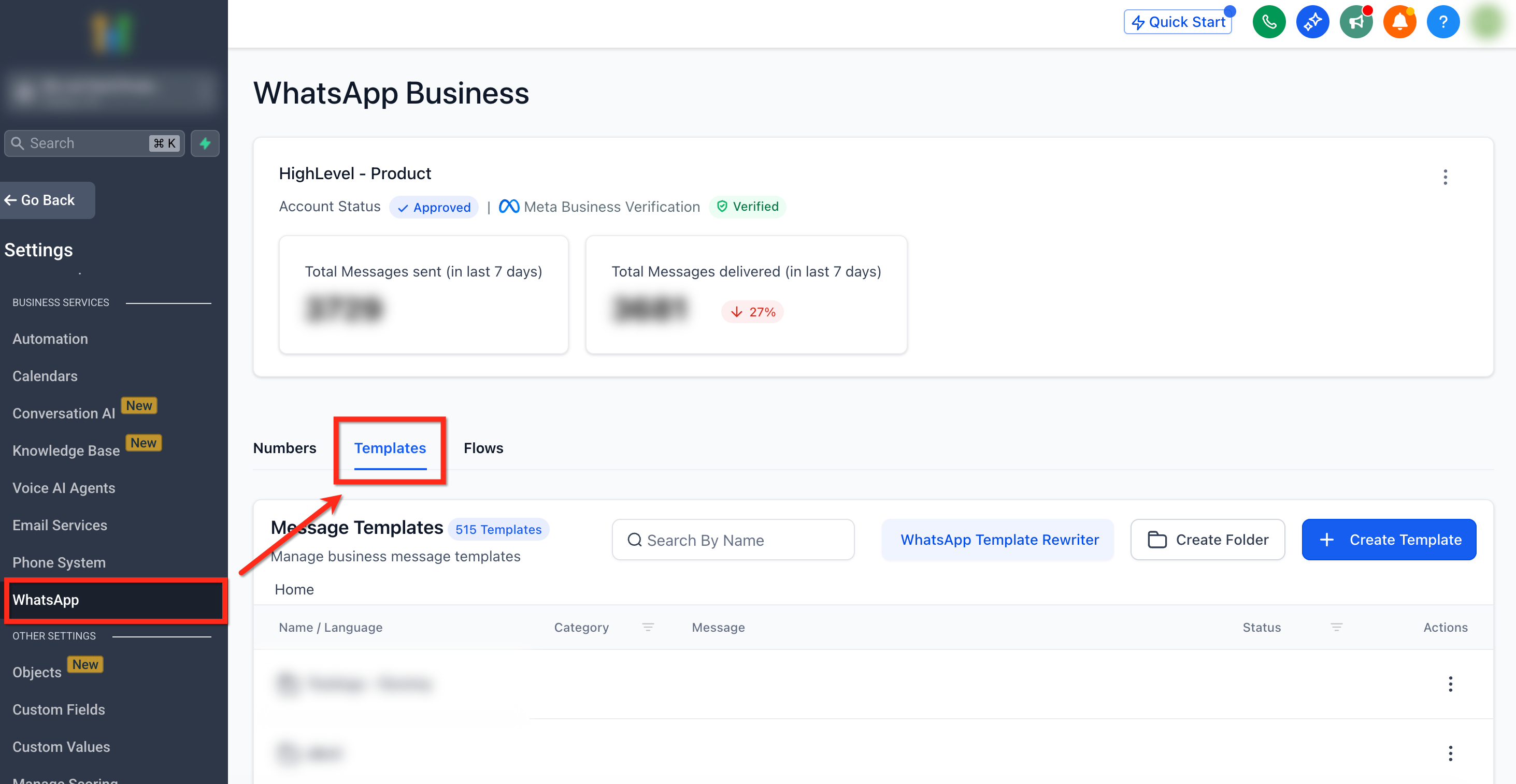
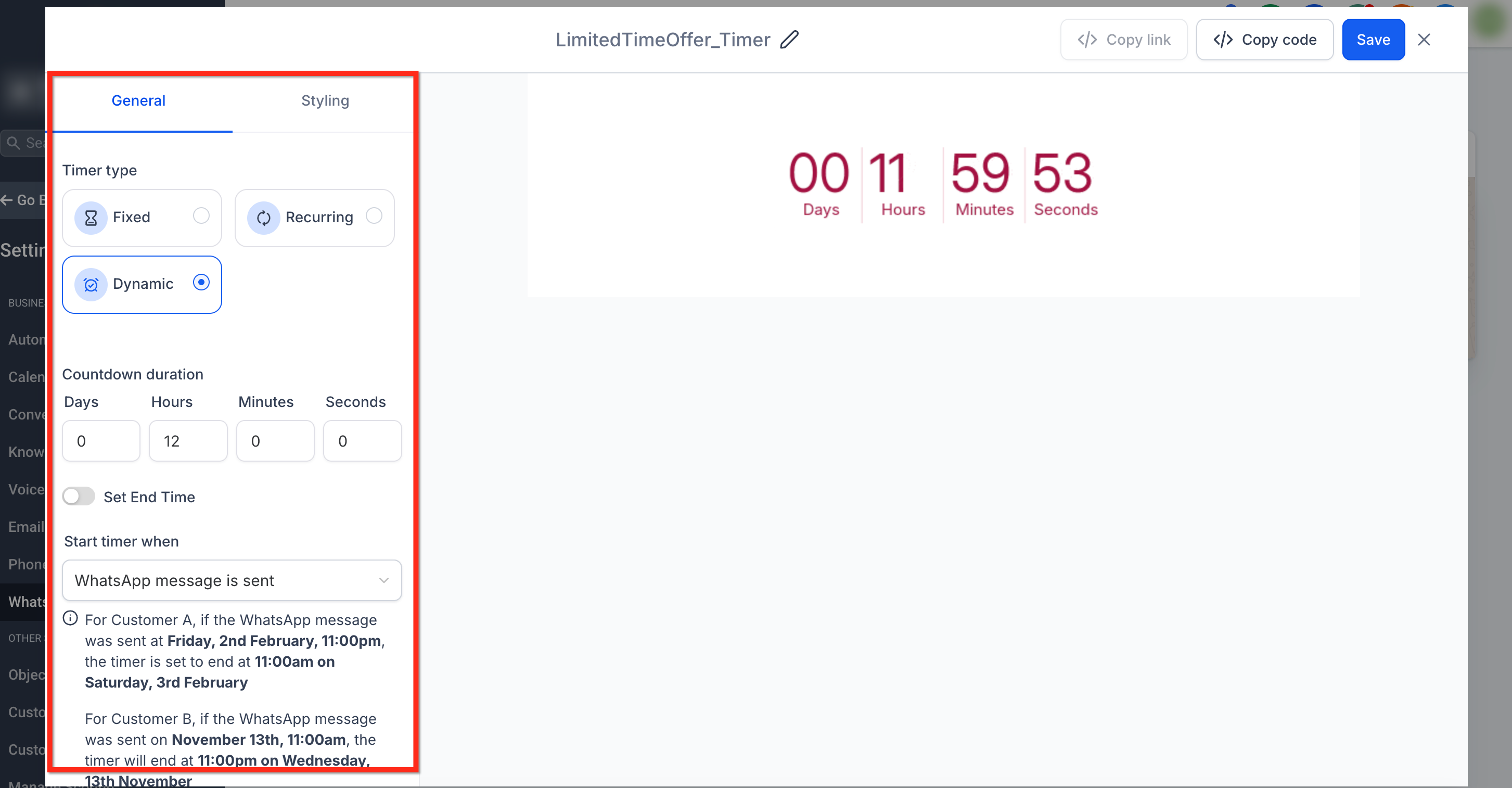
Countdown timers are managed from Settings > WhatsApp > Templates. The timer button appears in the template’s Button section and can be combined with a regular “Visit Website” or “Trackable Website” button. Each timer can be configured with its type, duration, start trigger (for dynamic timers), and the active and expired redirect URLs.
The timers work across time zones and send times, and workflow branches can listen for clicks on the timer button if a Trigger Link is used as the URL. Up to two countdown timer buttons are allowed in a single WhatsApp template.
03How businesses use countdown timers in WhatsApp templates
- Ecommerce store. Create a dynamic timer that starts when the WhatsApp promotion is sent. Set the active link to the product checkout page and the expired link to a wait list page. When customers click the button, they see the live countdown and are taken to the correct page based on the timer.
- SaaS subscription business. Add a recurring weekly timer to a WhatsApp template that promotes a limited time discount. Configure the active link to the subscription sign up page and the expired link to a page offering a smaller discount. The button updates automatically each week.
- Event organizer. Use a fixed date timer for a ticket sale deadline. Set the timer to end at the sale close time, link the active URL to the ticket purchase page, and point the expired URL to an event update page. The button shows a real time countdown for each recipient.
04The numbers and rules that matter
- Supported timer types: Fixed, Recurring, Dynamic.
- You can add up to two Countdown Timer buttons per message.
05How to set up and use countdown timers in WhatsApp templates in HighLevel
Add a countdown timer to a WhatsApp template
- Open Settings, choose WhatsApp, and open the Templates tab.
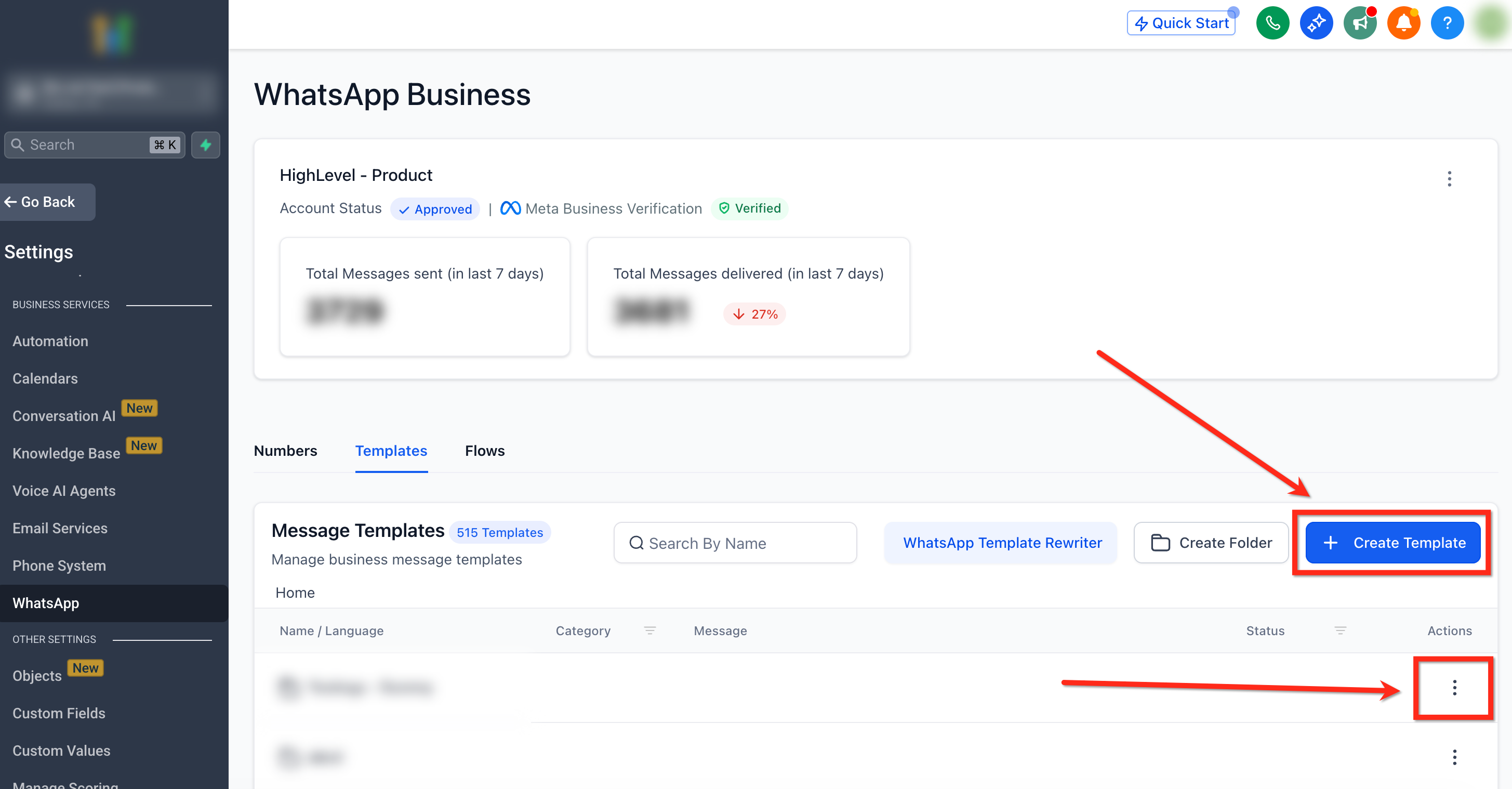
- Click the blue + Create Template button or select an existing template to edit, then fill in the template details.
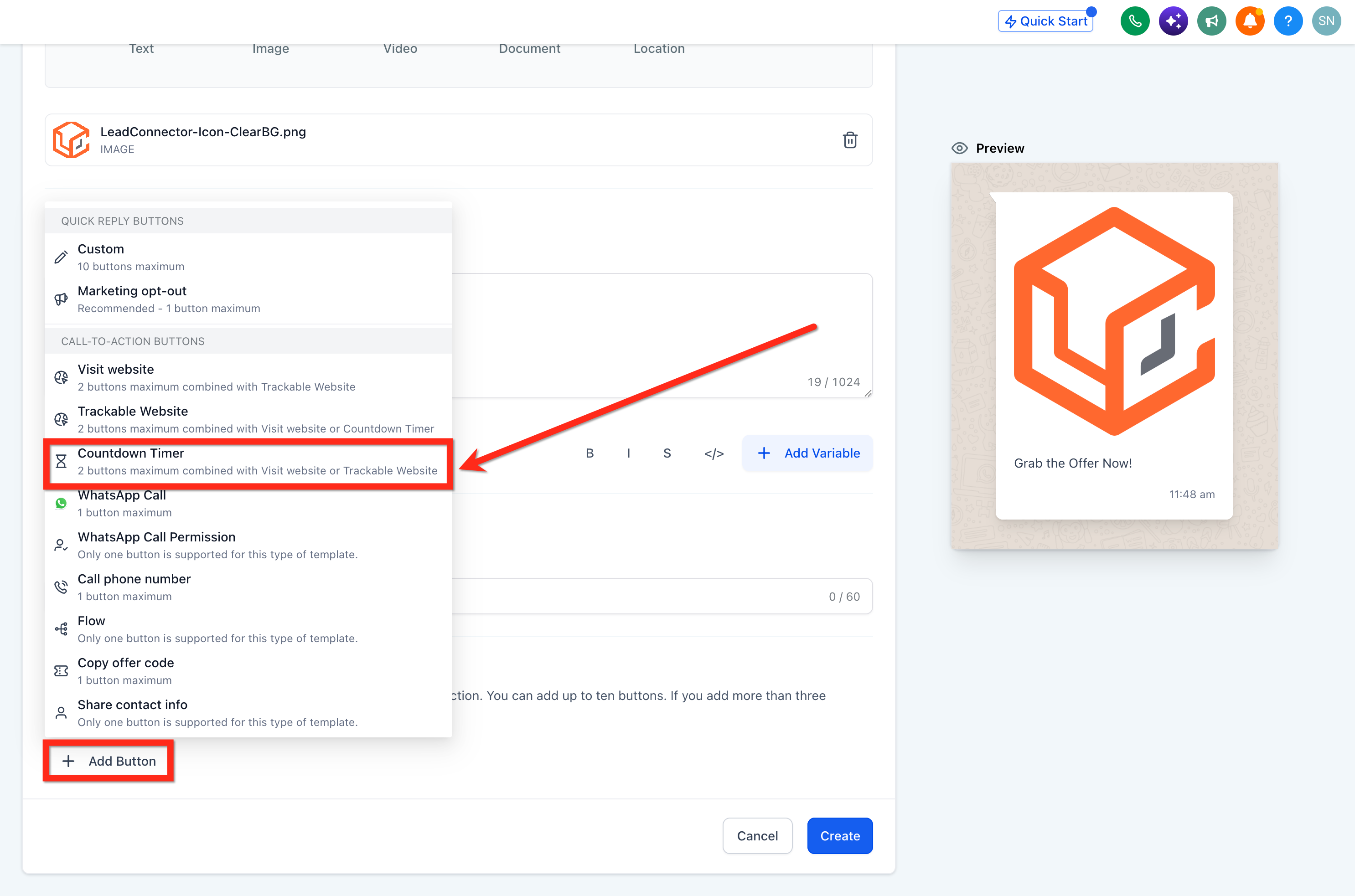
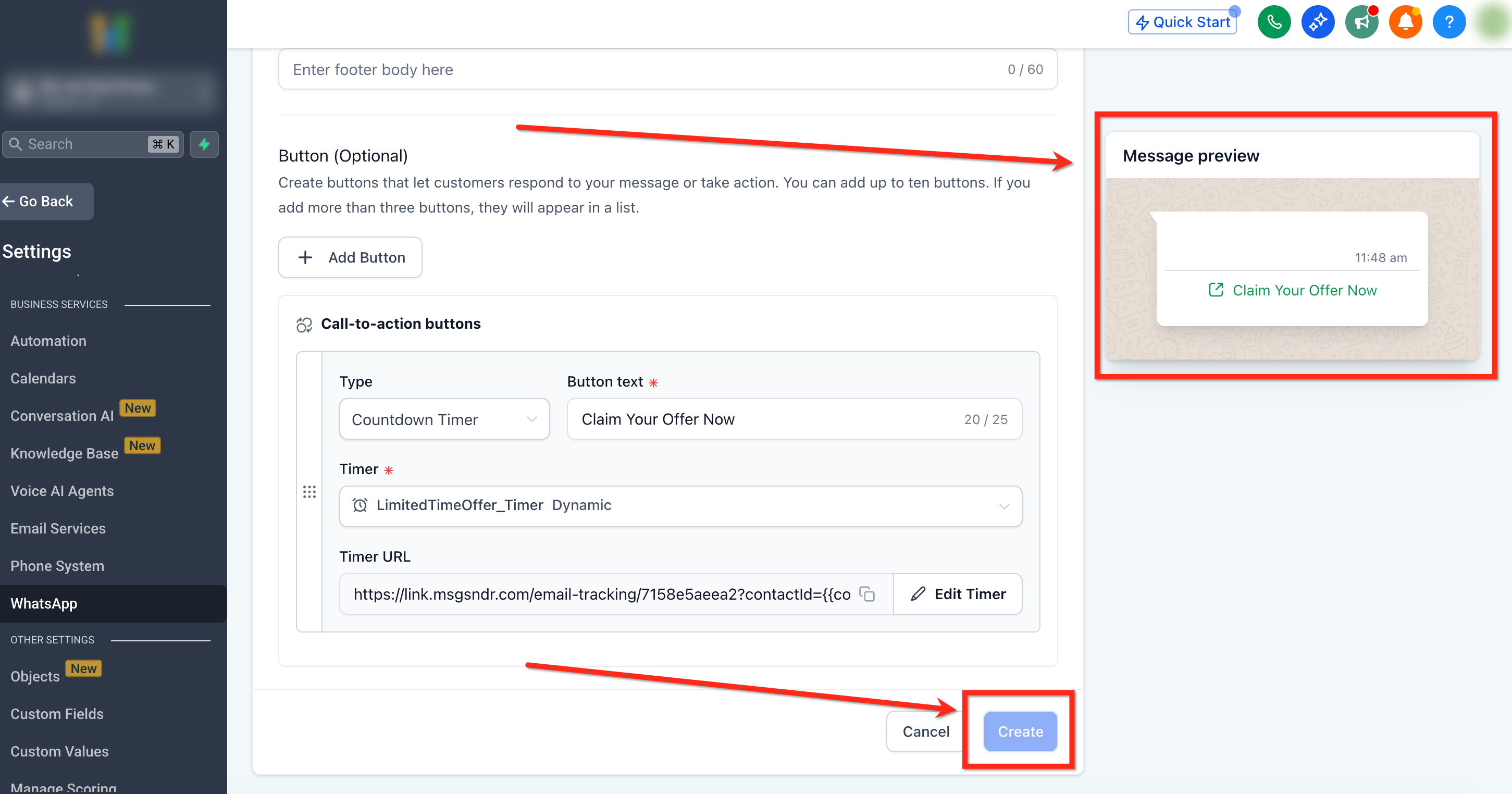
- In the Button section, press + Add Button and pick Countdown Timer from the drop down list.
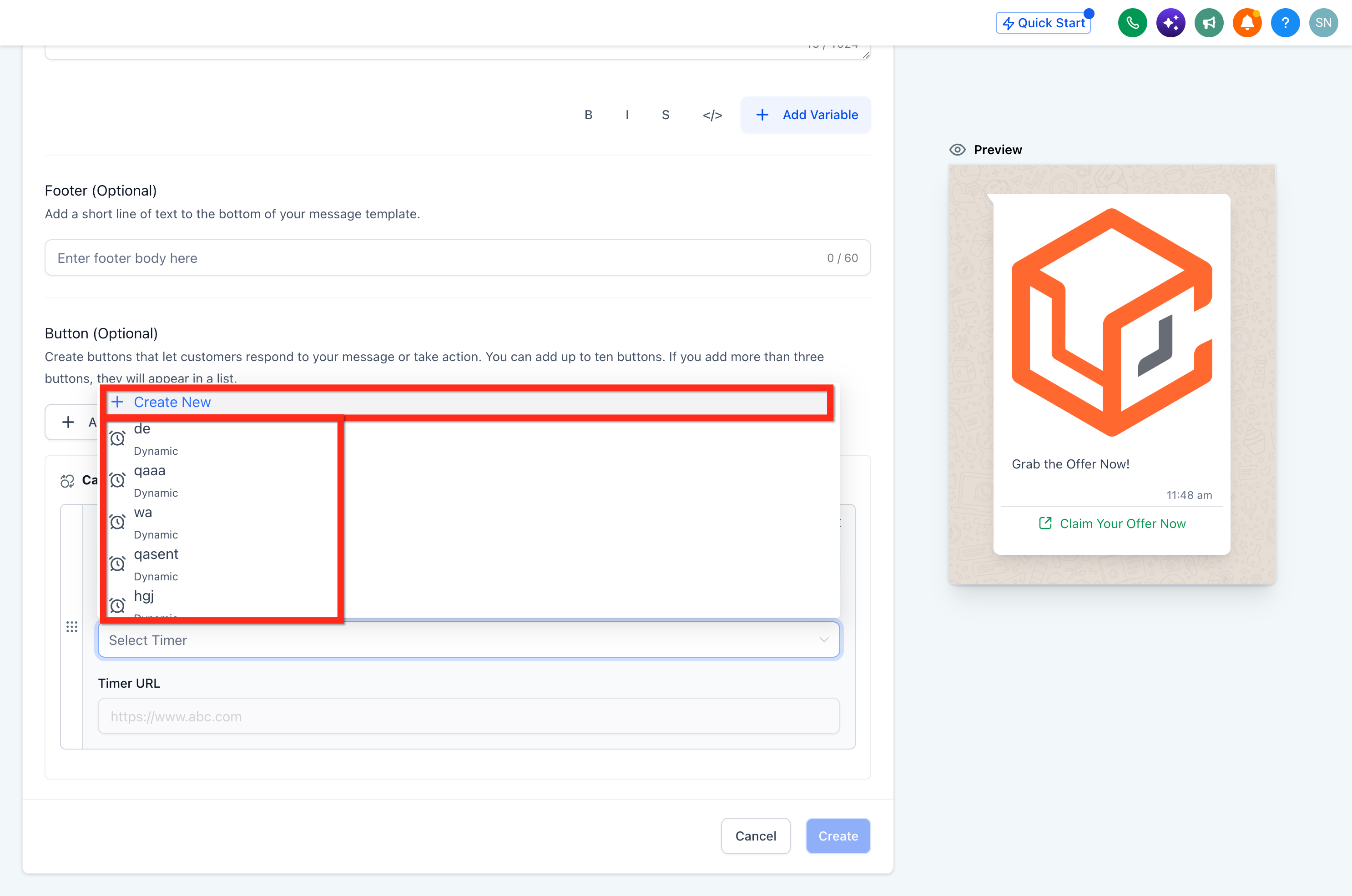
- Open the Timer drop down and either select an existing timer or click + Create New.
- After the timer appears, click Edit Timer under Timer URL and set the Timer Type, duration or end time, start trigger for dynamic timers, and the active and expired links.
- Save the timer configuration and return to the template builder.
- Review the message preview to confirm the button appears as expected.
- Press the blue Create button to publish the WhatsApp template.
- Test the template by sending it to a contact to verify the active and expired routing works.
06What it looks like in HighLevel
07Settings that matter
- Timer Type. Selects whether the timer ends at a fixed date, repeats on a schedule, or starts individually for each contact.
- Countdown duration. Defines the length of the timer or the exact end date and time.
- Start timer when. For dynamic timers, chooses the trigger event such as when the WhatsApp message is sent or delivered.
- Active link. The URL that contacts are sent to while the timer is still running.
- Expired link. The URL that contacts are sent to after the timer has finished.
08Things to know before you rely on it
- A single WhatsApp message can contain up to two Countdown Timer buttons.
- Dynamic timers generate a unique countdown for each contact based on the selected trigger.
- If a timer lacks an active or expired URL, the template will display “No link found” under Timer URL.
09If something goes wrong
- “No link found” appears under Timer URL. Open Edit Timer and add a valid active or expired link, then save the timer.
10How it connects to the rest of HighLevel
- Learn the basics of countdown timers in HighLevel. Getting started
- Explore how to set up dynamic timers that start per contact. Dynamic timer guide
- See how countdown timers can be used inside funnels. Timers in funnels
Michael's take

Running a timer inside a WhatsApp message can feel risky if you don’t watch the links. A mismatched active or expired URL will send prospects to the wrong page, and the “No link found” warning is a clear sign something isn’t wired up yet. Double check that the timer URL points to a page that also carries the same timer so expiration stays in sync.
When it works, the real urgency can help increase click throughs, and the built in routing means you don’t have to build separate follow up messages.