
01Who this is for
- Marketing managers can run evergreen promotions that need a personal deadline for each recipient.
- Email campaign creators benefit from timers that start on the first open, ensuring fairness across time zones.
02Dynamic countdown timers, explained
Dynamic Countdown Timers generate a unique countdown for each contact based on an email trigger. The timer can begin when the email is sent or when the contact first opens it, and it counts down for a defined duration or until a chosen clock time.
If the timer is set to adapt to the contact’s time zone, HighLevel uses the contact’s stored zone for emails or the visitor’s IP detected zone for funnels and websites. When no zone is available, the timer falls back to the zone selected during setup.
The timer is created in the Marketing > Countdown Timers section, saved, and then placed in supported emails, funnels, or website pages. Active and expired links determine where contacts are sent while the timer runs or after it ends.
03How businesses use dynamic countdown timer
- Ecommerce store. Create a timer that starts when a promotional email is opened, set a two hour duration, and link the active state to a checkout page. After the timer ends, the expired link redirects to a “offer expired” page.
- Online course platform. Configure a timer that begins when the enrollment email is sent, enable Set End Time to finish at midnight, and activate time zone adaptation so students in any region see a countdown that matches their local time.
- Consulting firm. Set up a timer that triggers on email open, choose a 24 hour duration, and provide an active link to a scheduling page. After expiration, the expired link leads to a “request a new slot” page.
04The numbers and rules that matter
- One time trigger per contact: Reopening the same email does not restart the timer.
05How to set up and use dynamic countdown timer in HighLevel
Set up a dynamic countdown timer
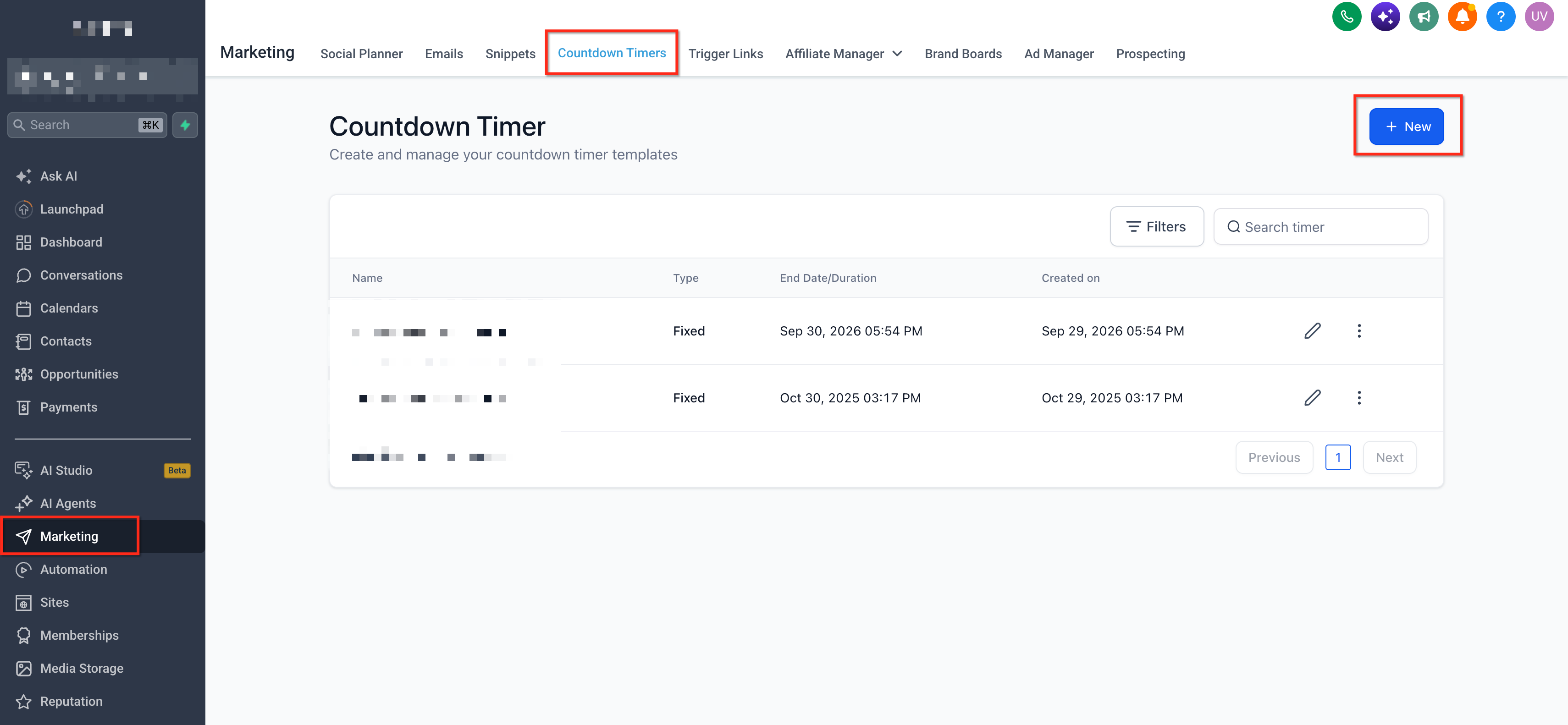
- Open the Marketing menu and select Countdown Timers.
- Press the + New button to start a new timer.
- Pick a visual design for the timer and proceed to its settings.
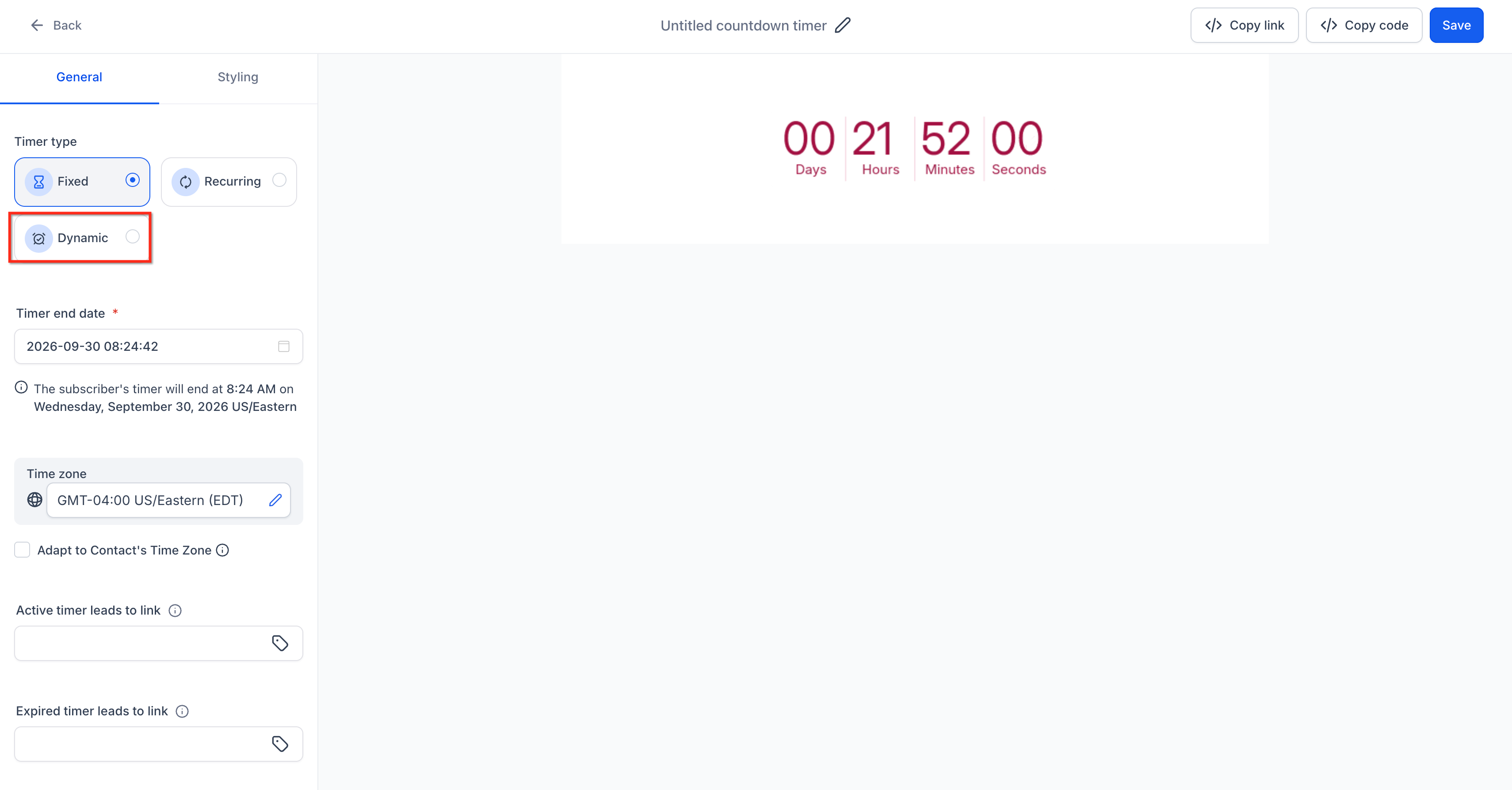
- Choose Dynamic for the timer type.
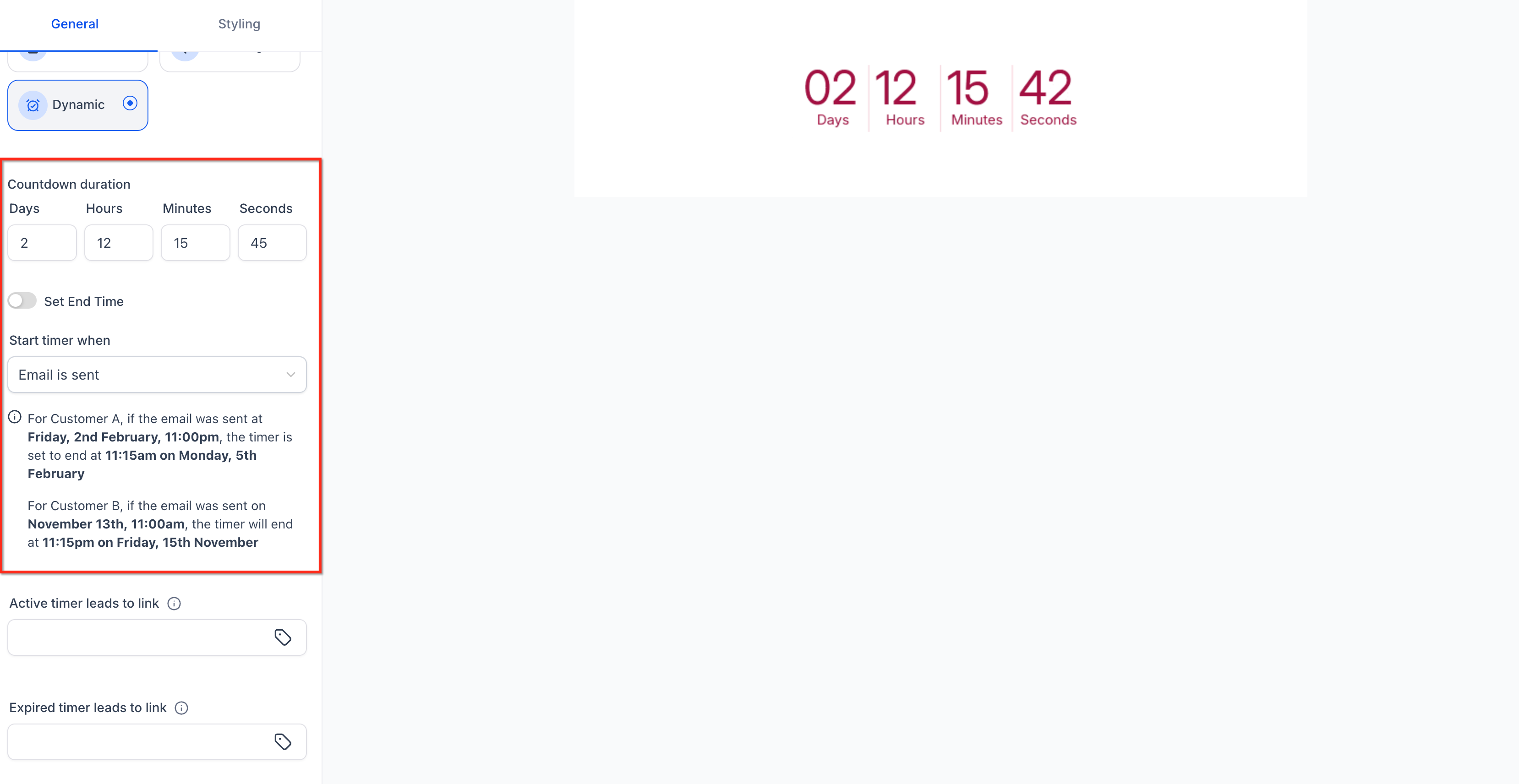
- Select the trigger: either Email Sent or Email Opened.
- Enter the desired duration for the countdown.
- Decide on end time behavior: turn off Set End Time for a pure duration or turn it on to align with a specific clock time.
- Choose the time zone that will be used if no viewer zone is detected.
- Activate Adapt to Contact Time Zone if the timer should adjust to each viewer’s local zone.
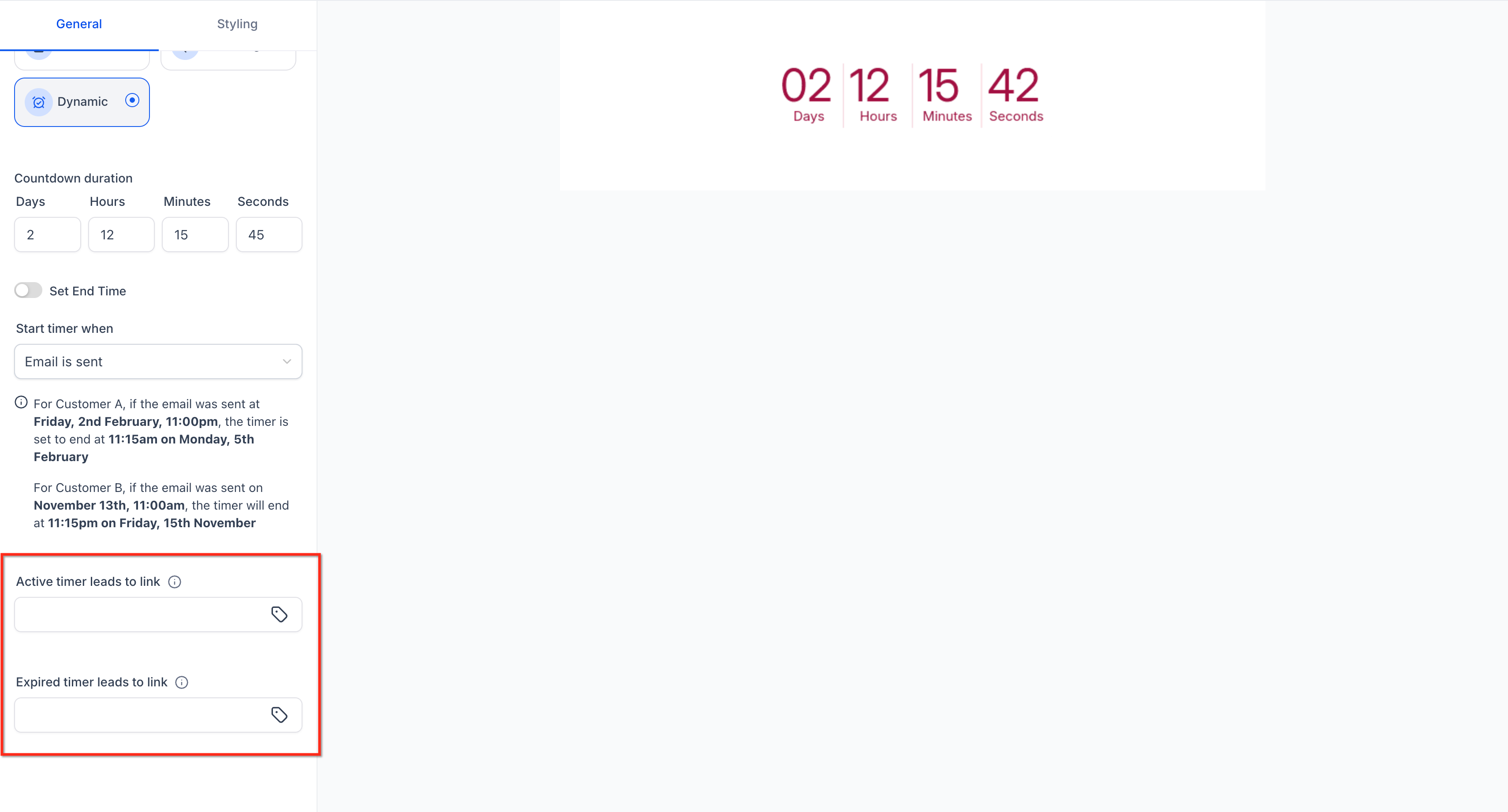
- Set the Active Link for when the timer is running and the Expired Link for after it ends.
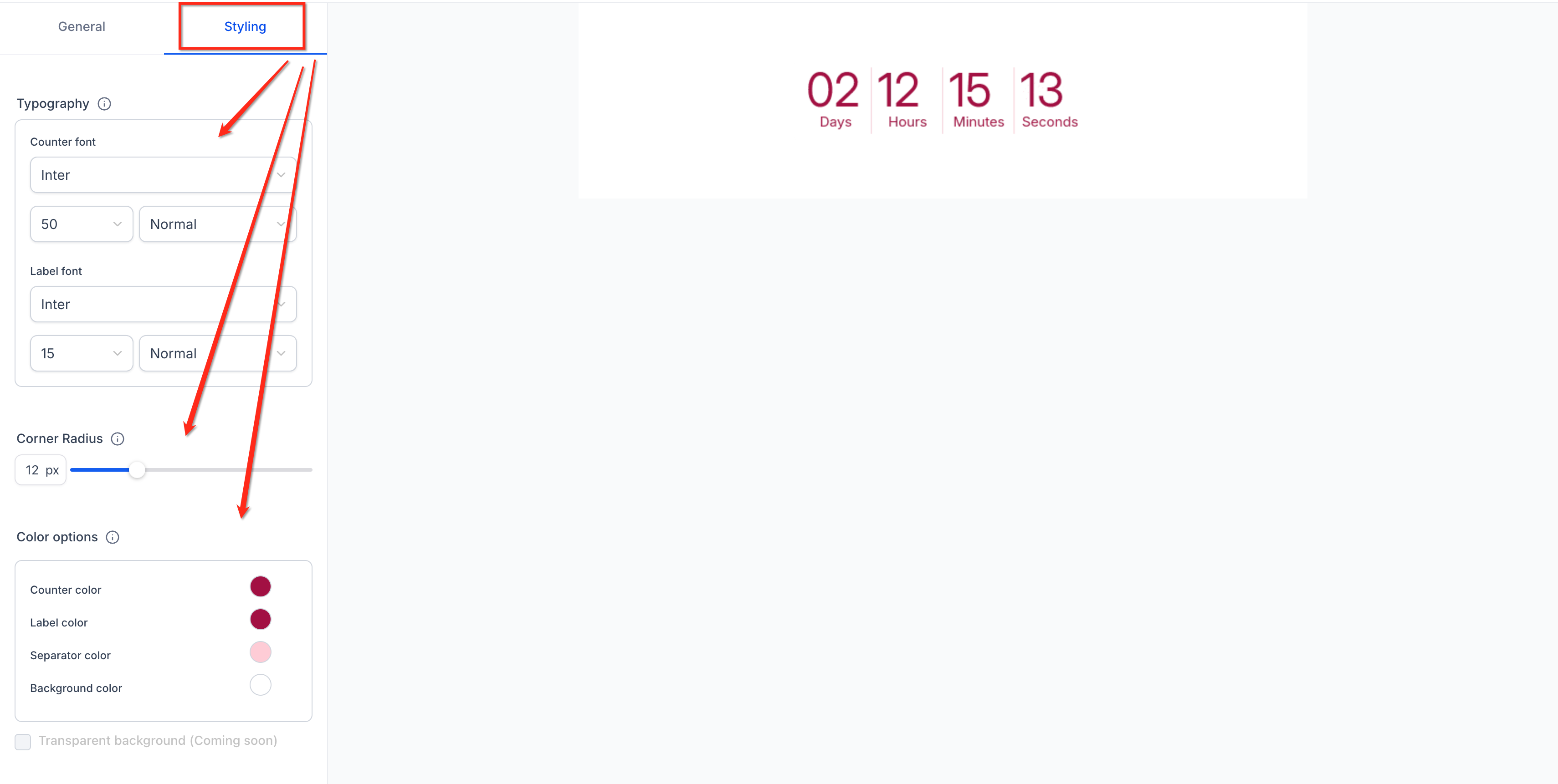
- Adjust the appearance using the design options.
- Give the timer a clear name and save it.
- Insert the saved timer into the relevant email, funnel, or website page.
- Run a test to verify trigger, duration, end time setting, time zone handling, and link destinations before publishing.
06What it looks like in HighLevel
07Settings that matter
- Timer Type. Selects Dynamic to enable contact specific countdowns.
- Trigger. Determines whether the countdown starts when the email is sent or when the contact first opens it.
- Duration. Specifies how long the countdown runs from the trigger moment.
- Set End Time. When enabled, aligns the countdown to end at a chosen clock time; when disabled, the timer expires strictly after the set duration.
- Time Zone. Defines the fallback zone used if the contact or visitor time zone cannot be detected.
- Adapt to Contact Time Zone. Adjusts the displayed countdown to the viewer’s local time zone based on contact data or IP detection.
- Active Link. URL that contacts follow while the timer is still counting down.
- Expired Link. URL that contacts follow after the timer reaches zero.
08Things to know before you rely on it
- An Email Opened trigger fires only once per contact; reopening the same email does not restart the countdown.
- If the duration cannot finish before the selected end time, the timer rolls over to the next occurrence of that end time.
- When no time zone data is available, the timer uses the Time Zone set during configuration as a fallback.
09How it connects to the rest of HighLevel
- Add a Dynamic Countdown Timer to email templates Add timer to emails
- Sync a Dynamic Timer across emails and funnels Sync timer
- Use Dynamic Timers inside funnels Timer in funnels
Michael's take

Dynamic timers give each prospect a fresh countdown window based on their own activity; testing the trigger and time zone settings helps ensure the timer behaves as expected.