
01Who this is for
- Ecommerce owners who need to highlight flash sale deadlines and motivate quick purchases.
- Event planners who want to show a ticking clock for registration cut offs.
- Marketing agencies that build client funnels and need a reusable timer component.
02Countdown timers, explained
A countdown timer tracks time left until a specified moment and displays it visually on a page. The timer can be set to end at a fixed date, reset on a regular interval, or start when a contact interacts with an email or page. All timers are saved in the Marketing > Countdown Timers area and can be edited later, with changes right away reflected wherever the timer appears. After creation, the timer can be inserted into a funnel by dragging the built in Countdown Timers element or by pasting a code snippet into a Code element.
03How businesses use countdown timers
- Online retail store. The store creates a fixed timer for a weekend sale, styles it to match the site, and drags the Countdown Timers element onto the checkout page to show shoppers how much time remains.
- Conference organizer. A recurring timer is set to reset each day at 9 am, then the organizer copies the timer code and pastes it into a custom landing page built outside of HighLevel.
- Digital marketing agency. The agency builds a dynamic timer that starts when a contact opens an email, then adds the same timer to client funnels using the HTML element to create urgency across campaigns.
04The numbers and rules that matter
- Dynamic timers adjust per contact interaction.
- Styling controls include font, size, color, and visible time units.
05Before you start
- Access to the Marketing section and permission to create countdown timers.
06How to set up and use countdown timers in HighLevel
Create a countdown timer
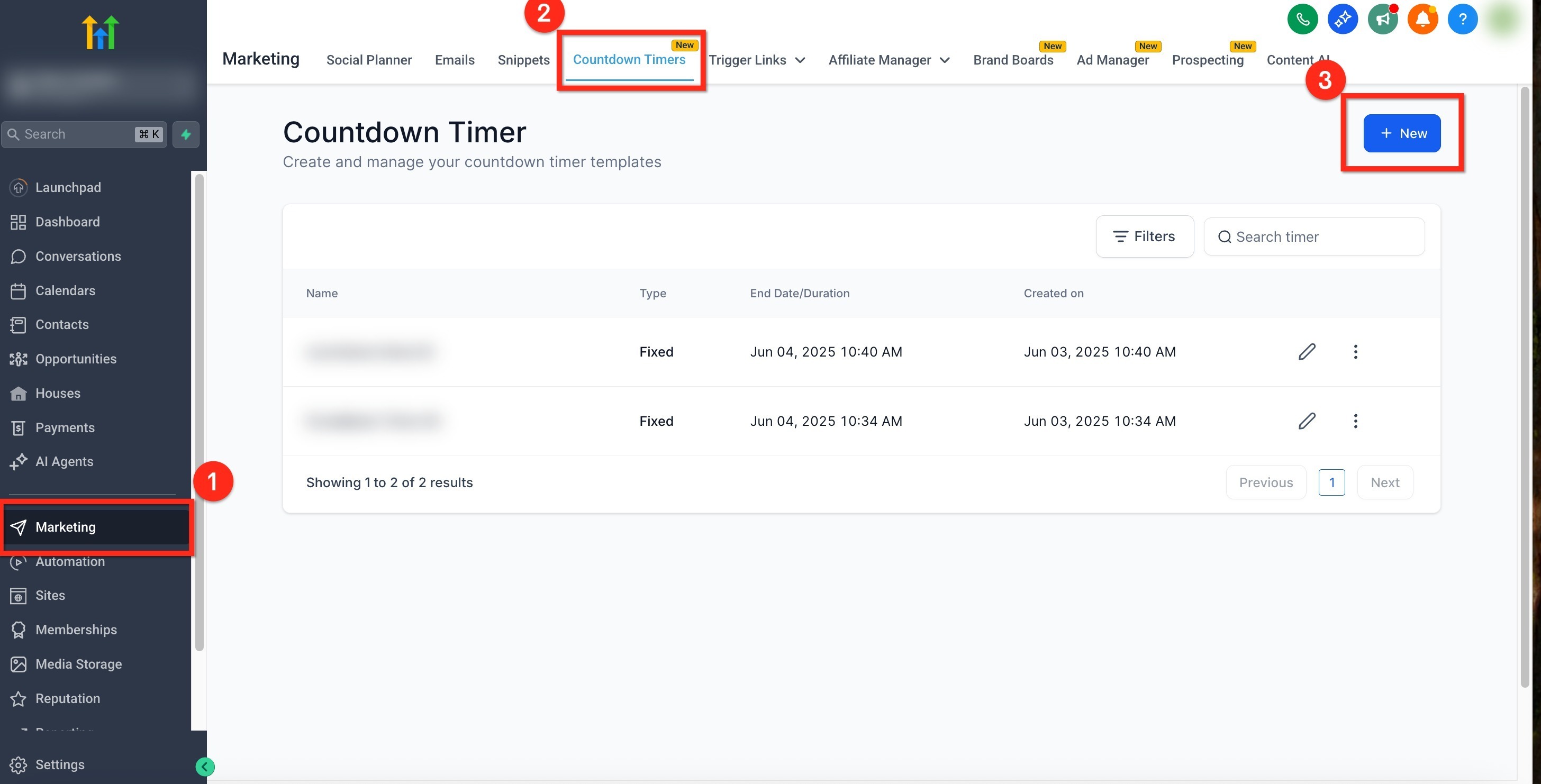
- Open Marketing > Countdown Timers and click the blue + New button.
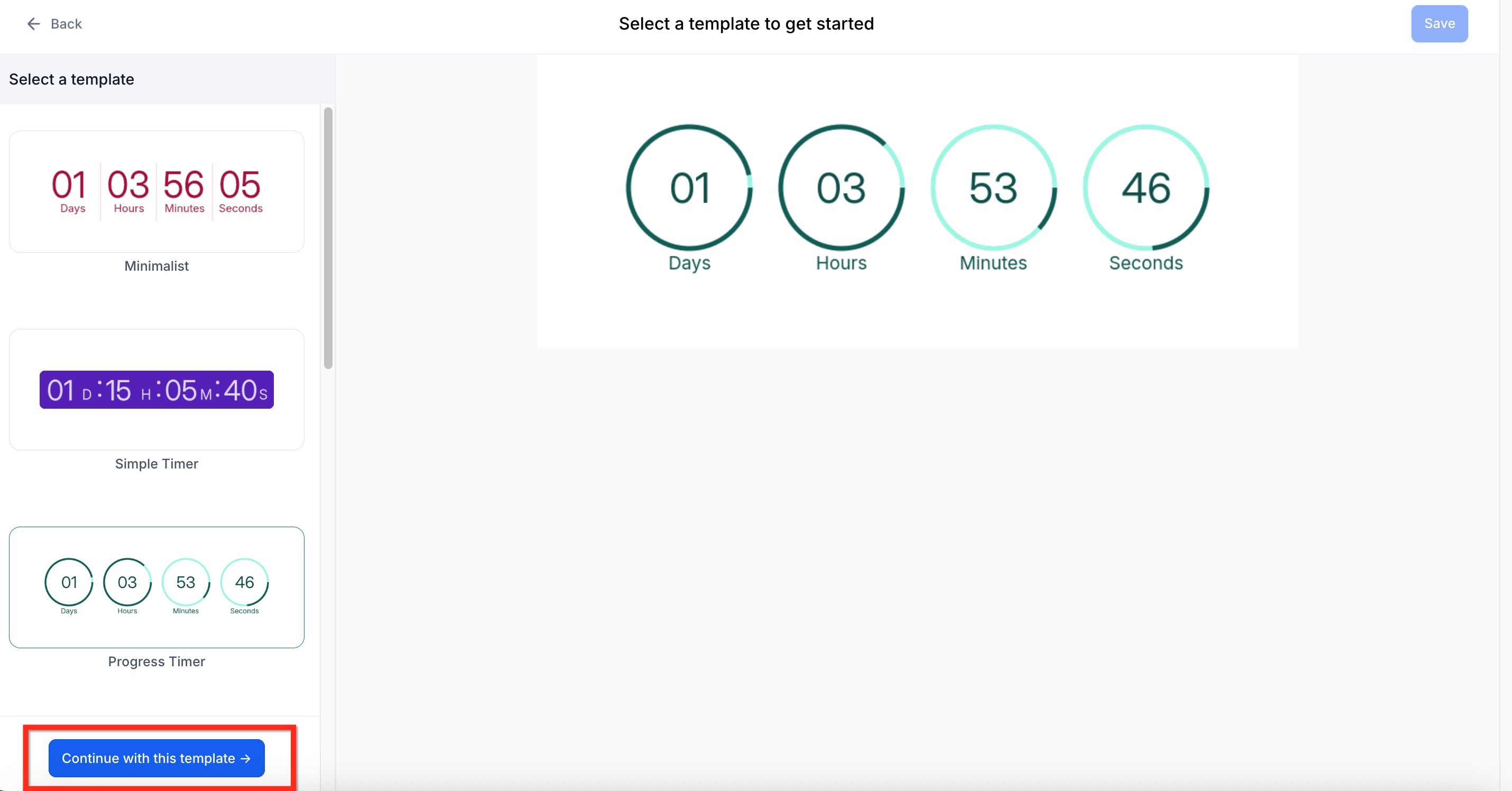
- Select a Countdown Time template and click Continue with Template.
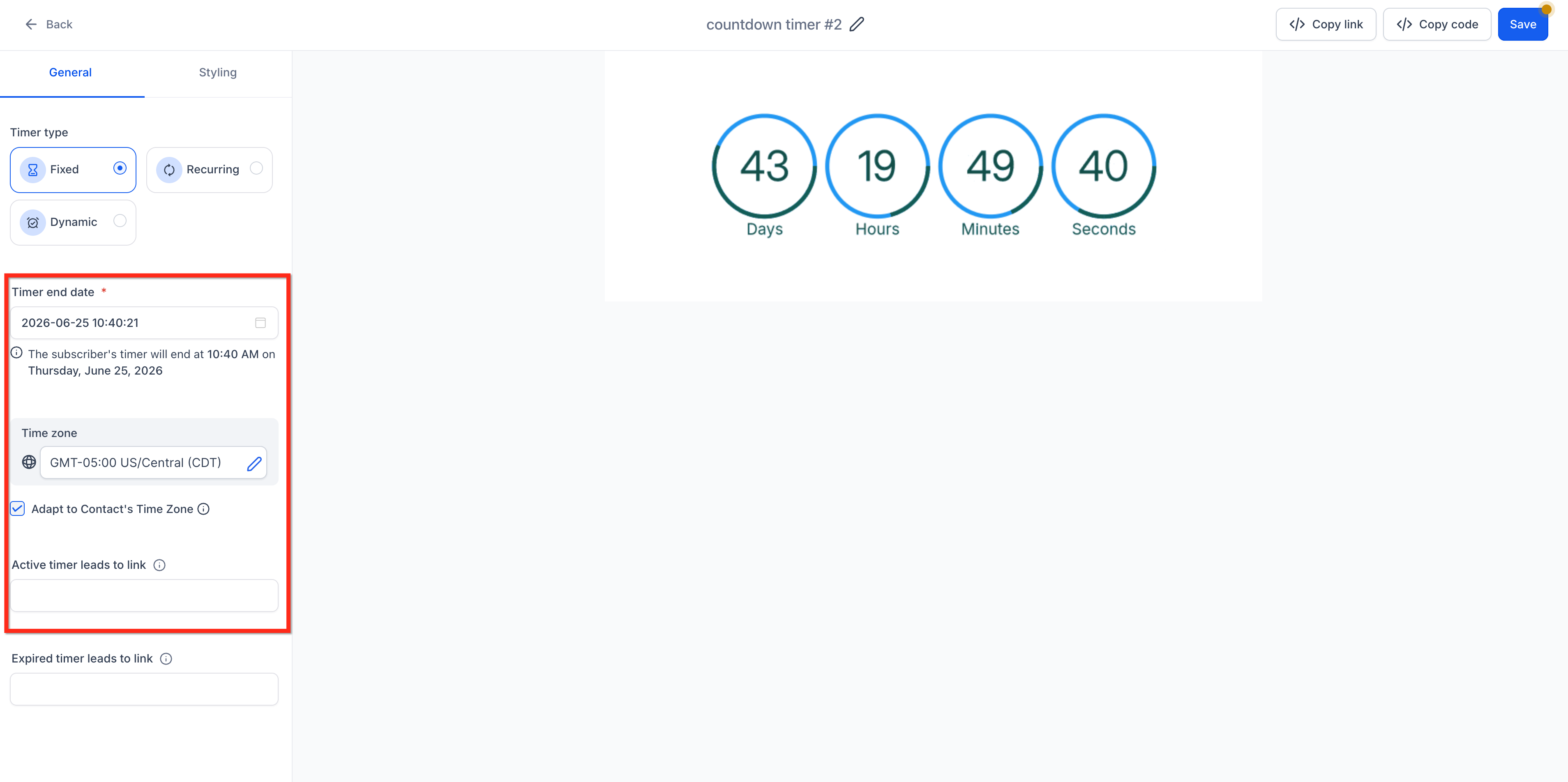
- In the General tab, choose the Timer Type (Fixed, Recurring, or Dynamic).
- Enter the Timer End Date and select a Time Zone.
- Define the Redirect URL and, if needed, enable Adapt to Contact Time Zone.
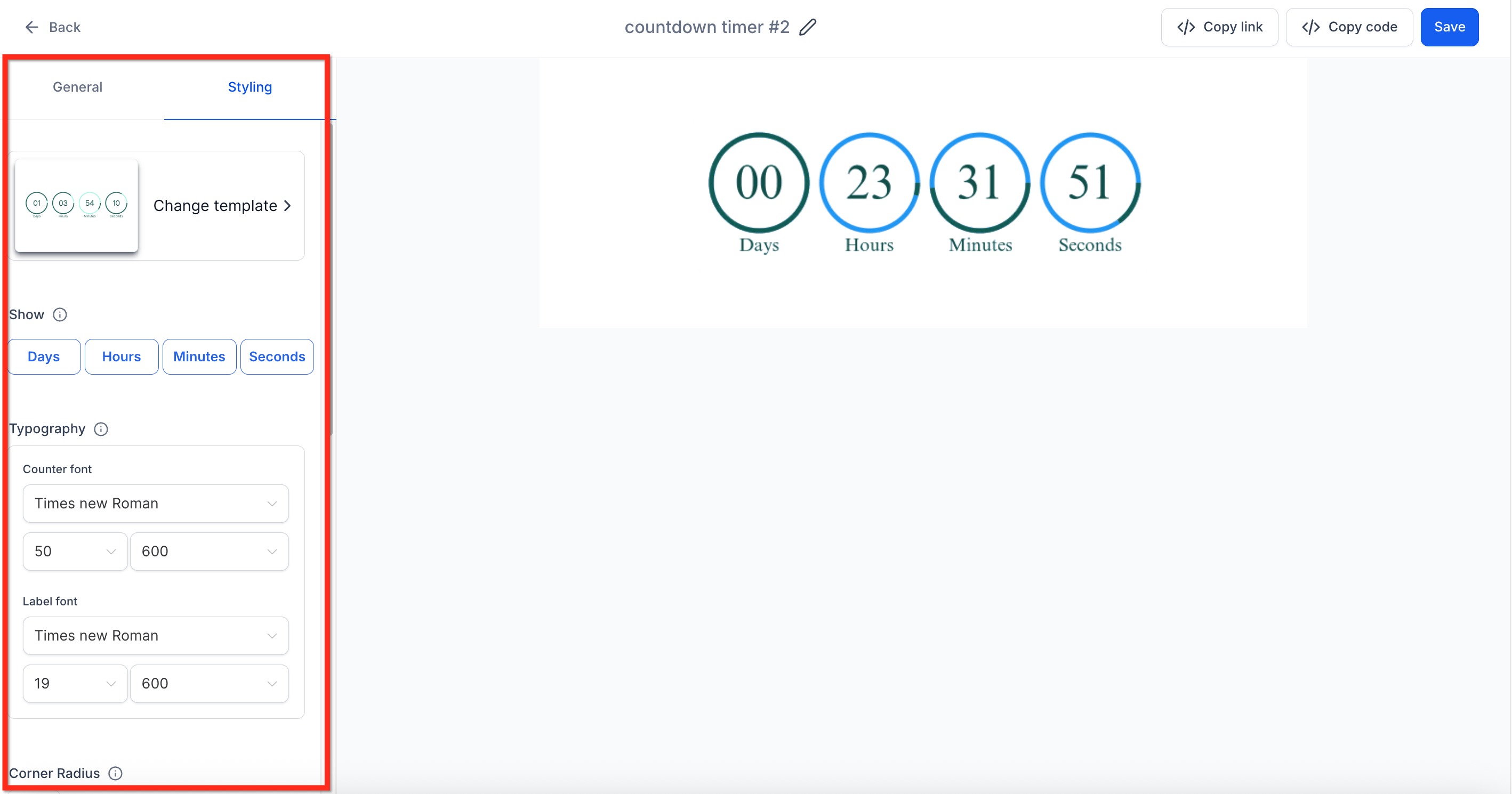
- In the Style tab, toggle the time units to display and adjust font, size, and color.
Add timer with HTML element
- Go to Sites > Funnels and open the funnel you want to edit.
- Click Edit Page on the specific funnel step.
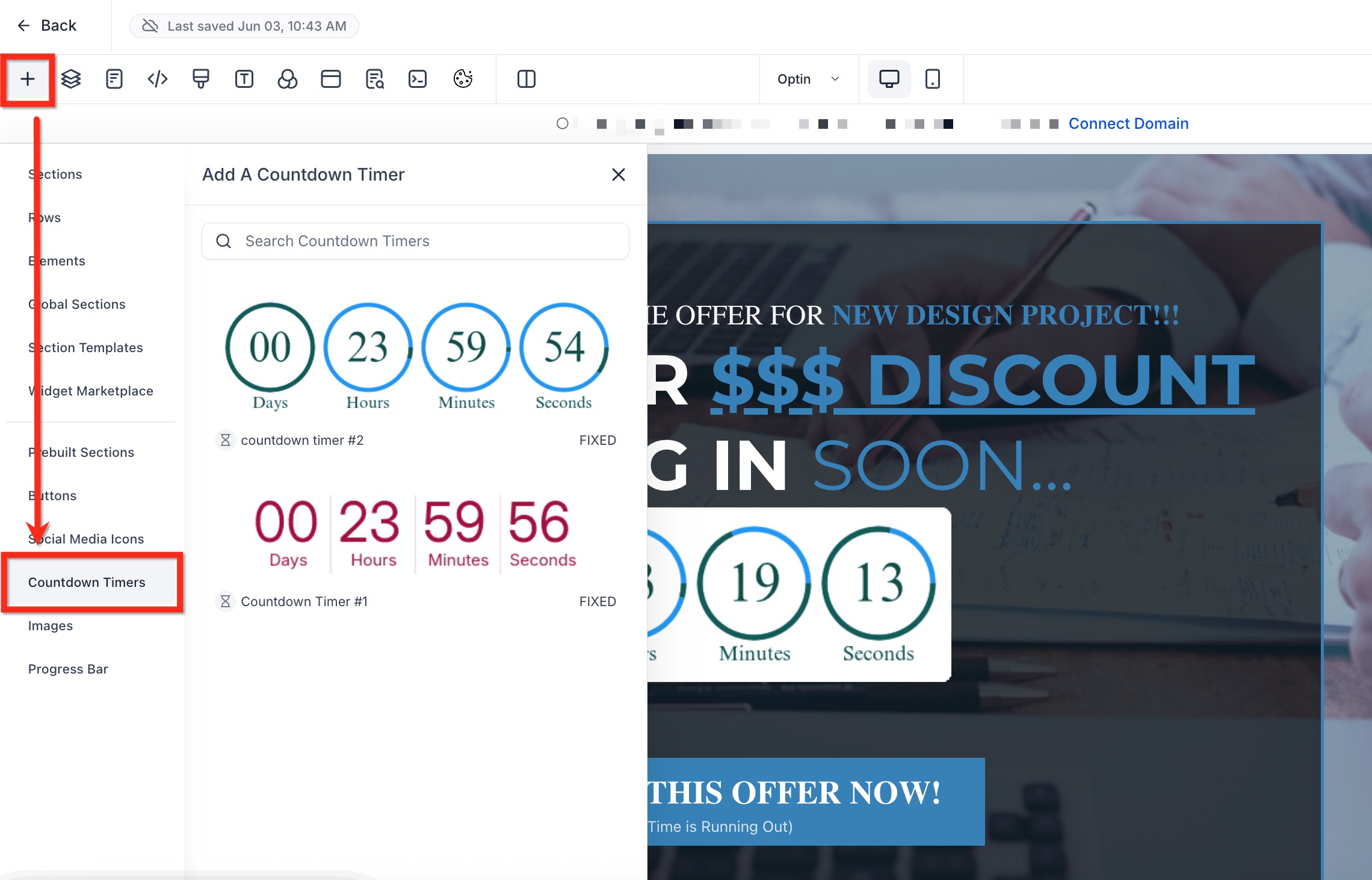
- Press the plus (+) icon in the builder to open the Add Element panel.
- Select the Countdown Timers element from the list.
- Pick the timer you created and drag it onto the page section.
Add timer with code block
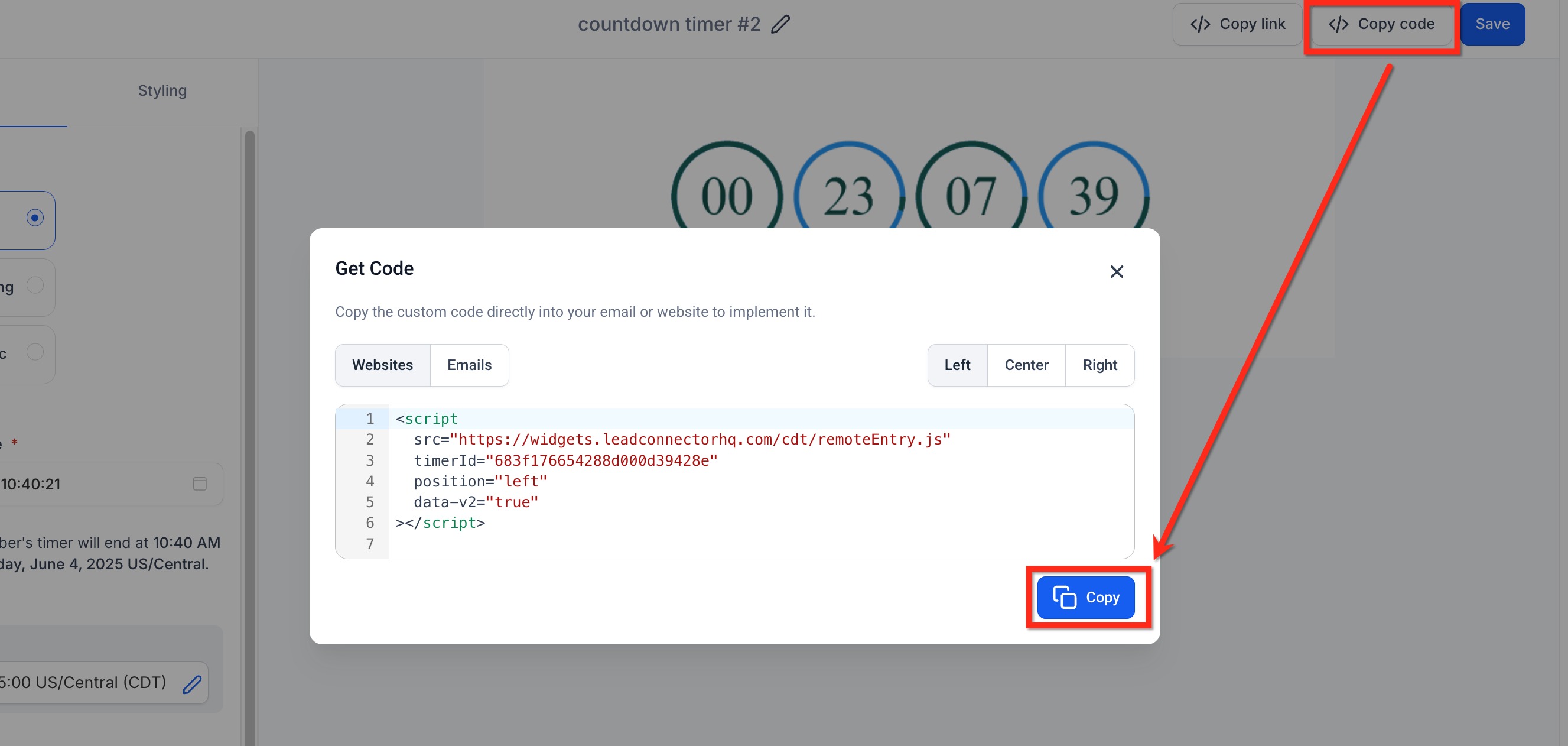
- In Marketing > Countdown Timers, open the timer and click Copy Code, then click the blue Copy button on the popup.
- Open the desired funnel under Sites > Funnels.
- Click the plus (+) icon to open the element panel.
- Choose the Code element and place it where you want the timer.
- Open the code block editor and paste the copied timer code.
07What it looks like in HighLevel
08Settings that matter
- Timer Type. Determines whether the timer ends at a fixed date, resets on a schedule, or starts per contact interaction.
- Timer End Date. Specifies the exact date and time when a fixed timer stops counting down.
- Time Zone. Defines the time zone used for the countdown calculation.
- Redirect URL. The web address visitors are sent to when the timer reaches zero.
- Adapt to Contact Time Zone. When enabled, the countdown automatically adjusts to each visitor’s local time zone.
- Time Units. Controls which units, hours, minutes, seconds, are displayed in the timer.
- Font. Sets the typeface used for the timer’s numbers and labels.
- Size. Adjusts the visual size of the timer text.
- Color. Chooses the color of the timer text and background.
09Things to know before you rely on it
- Only three timer types are offered: Fixed, Recurring, and Dynamic.
- Timers can be reused across any funnel or website, but they must be created first in the Marketing > Countdown Timers area.
10How it connects to the rest of HighLevel
- Set up a recurring timer that automatically restarts on a schedule. Recurring timer guide
- Sync the same countdown timer in both emails and funnel pages for consistent urgency. Sync timer article
- Copy the timer code to embed it in external website builders. Copy code feature
Michael's take

Michael ReimerFounder of CRM Pros, HighLevel Commander and Certified Admin
Countdown timers add a visual cue that can encourage prospects to act before a deadline.
They’re a low effort way to add urgency without changing the core offer.
Get More InformationOpens on HighLevelPublished November 2, 2026 · Updated November 16, 2026