
01Who this is for
- Ecommerce owners, embed timers on product pages to highlight limited time offers.
- Agency marketers, supply clients with ready to paste snippets for landing pages and email campaigns.
- Event planners, add urgency to registration pages or announcement emails by inserting a countdown.
02Copy code feature, explained
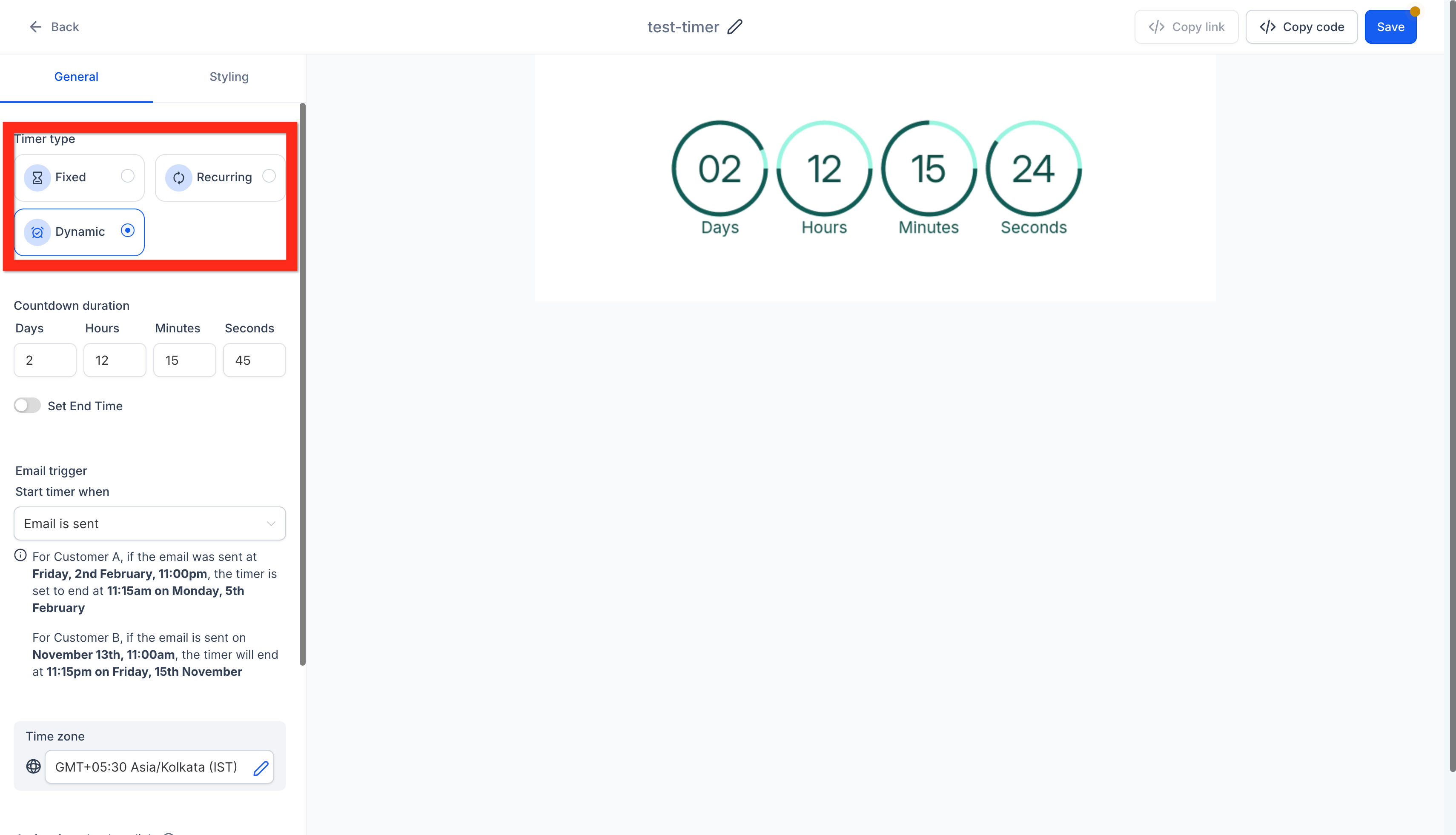
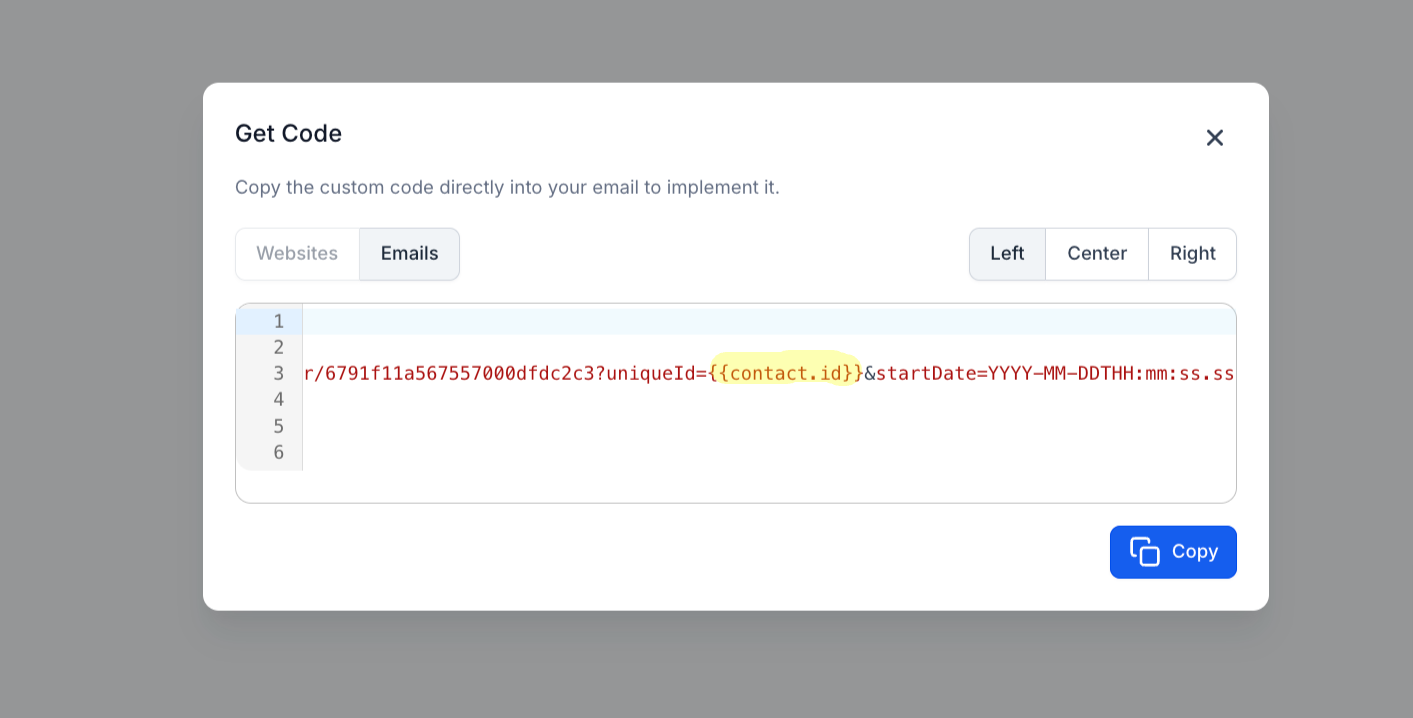
The Copy Code function creates a ready made HTML snippet that represents a countdown timer configured in HighLevel. The snippet can be placed on any external website or email platform, letting visitors see a live timer. Depending on the timer type, fixed, recurring or dynamic, the code may need additional parameters such as a startDate or uniqueID.
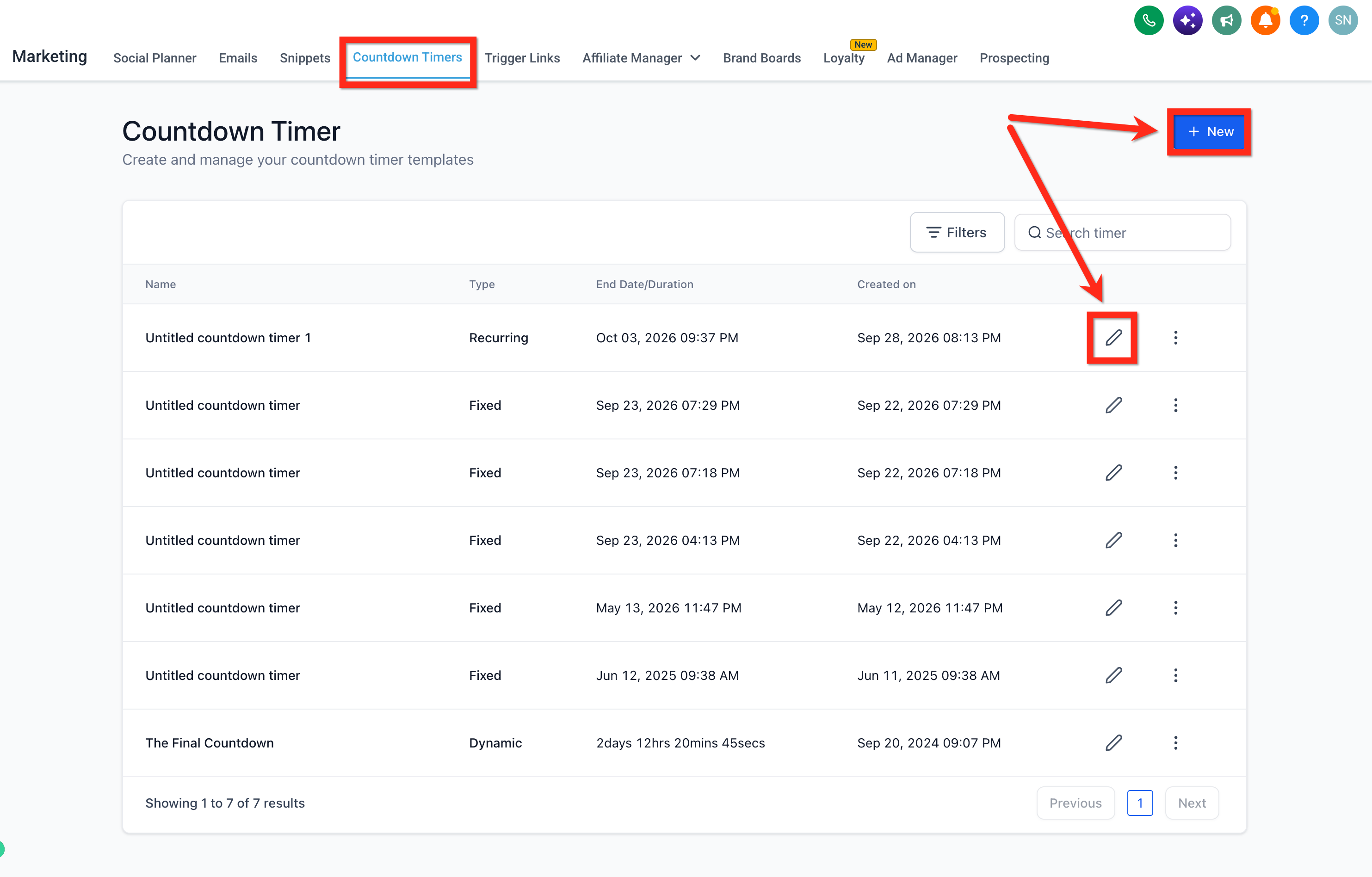
The feature lives inside the Countdown Timers area under Marketing. After you build a timer, a button generates the snippet, and you select whether the code will be used on a website or in an email. Alignment options let you match the timer’s visual placement. For dynamic timers you replace placeholder merge tags with the appropriate unique identifier and startDate value.
03How businesses use copy code feature
- Ecommerce store. Create a fixed timer for a flash sale, copy the code, and paste it into the storefront’s HTML. The timer will show the same deadline to every visitor, adding urgency to the product page.
- Marketing agency. Build a recurring timer for a client’s weekly promotion, copy the snippet, and embed it in the client’s external landing pages. Choose the alignment that fits the page layout and deliver the same rotating countdown to all visitors.
- Email campaign manager. Set up a dynamic timer, replace the contact.id placeholder with a merge tag that identifies each recipient, and adjust the startDate to use {{right_now.date_time_iso}}. Paste the code into an email’s HTML to give every subscriber a personal countdown.
04How to set up and use copy code feature in HighLevel
Copy timer code
- Open Marketing > Countdown Timers and create a new timer or edit an existing one.
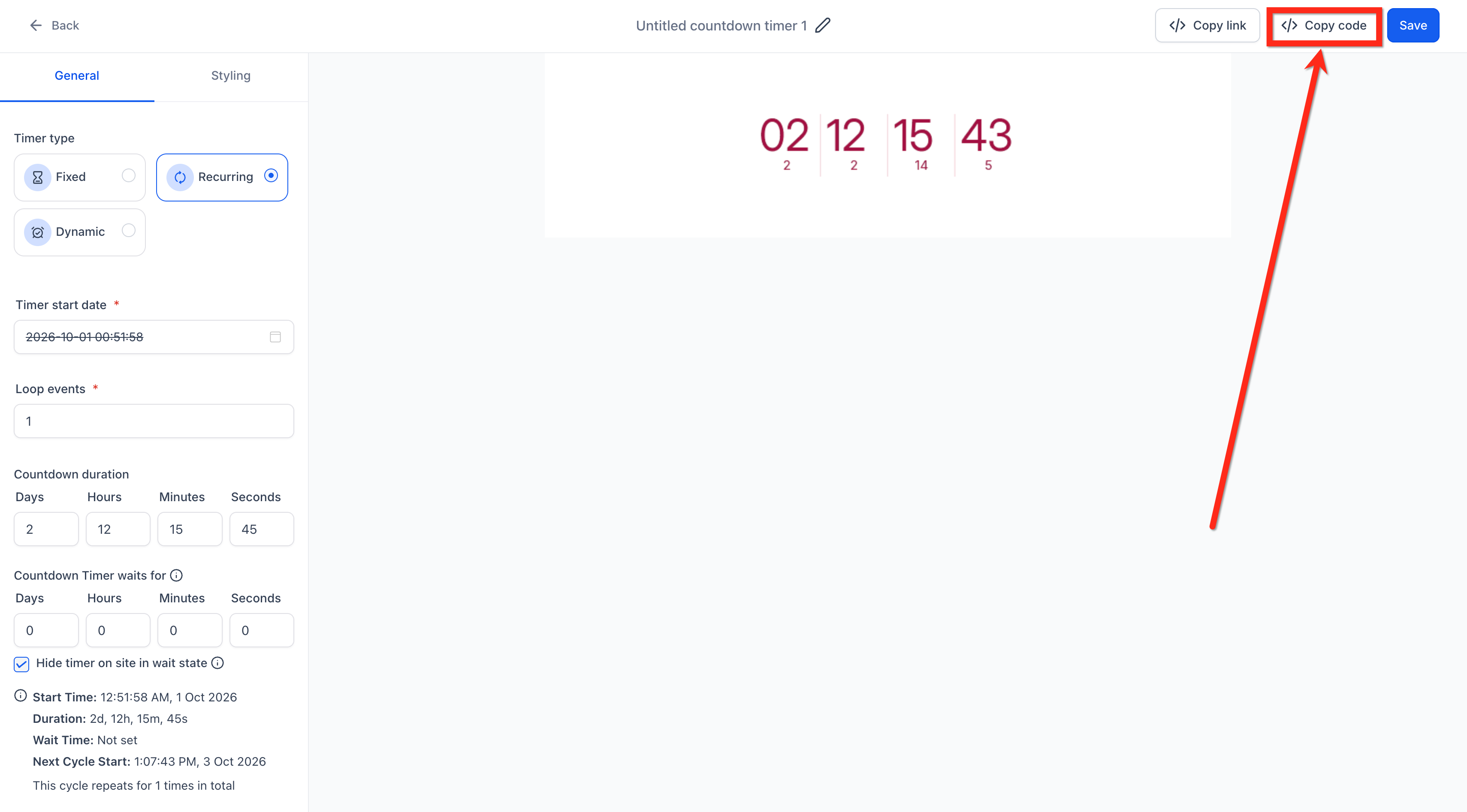
- Configure the timer’s end date, time, appearance, and format such as days, hours, minutes, and seconds.
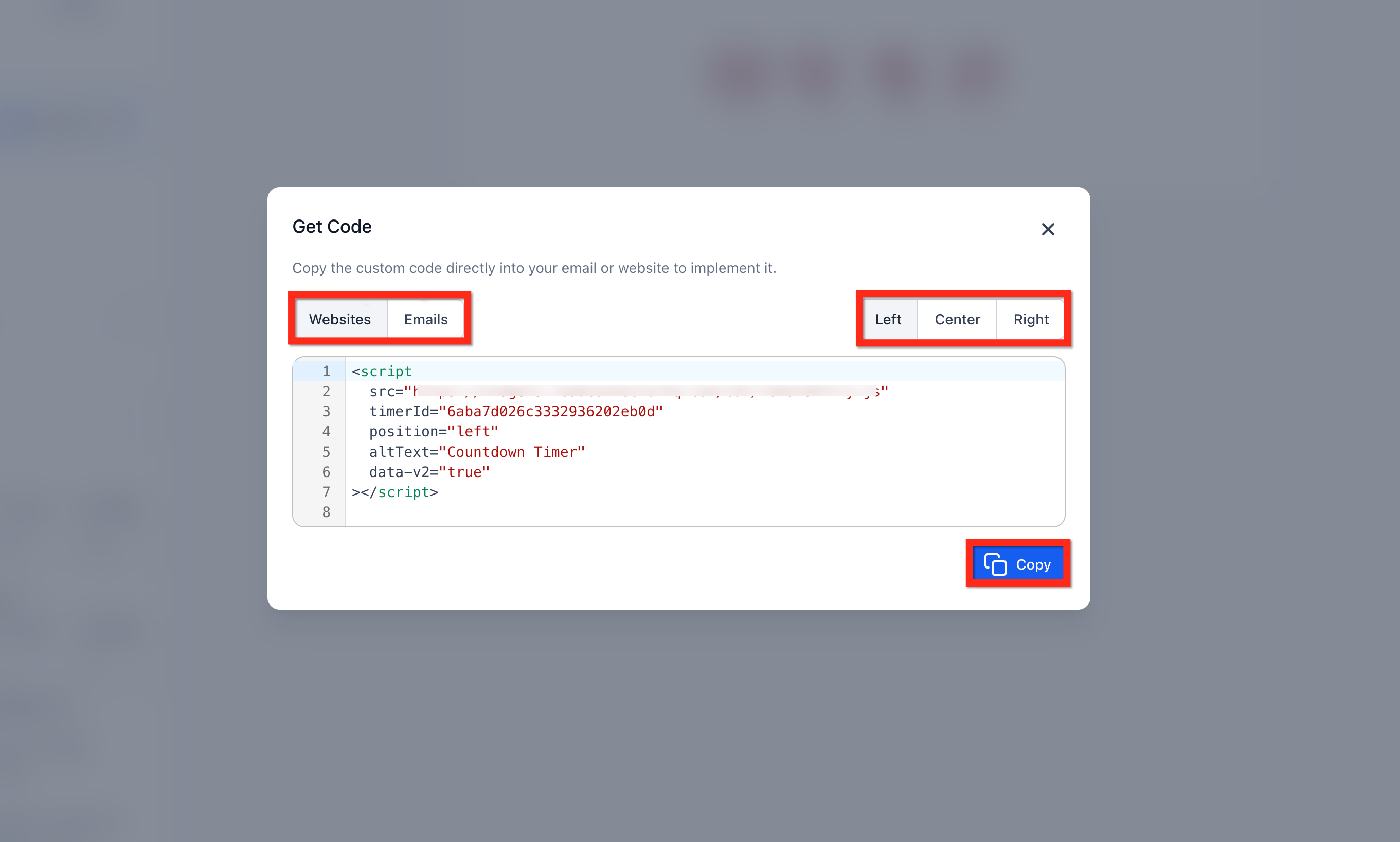
- Press the Copy Code button to generate the HTML snippet.
- Select whether the snippet will be used in an email or on a website.
- Choose the alignment option that matches the destination layout.
- If the timer is dynamic, replace the placeholder contact.id with the appropriate unique ID merge tag.
- Insert the correct startDate value: a fixed ISO timestamp for static email, {{right_now.date_time_iso}} for dynamic email in HighLevel, or the actual send time for external email platforms.
05What it looks like in HighLevel
06Settings that matter
- endDate. Defines the exact moment when a fixed timer stops counting down.
- startDate. Provides the timer’s start point; required when the code runs in a builder or when sending static or dynamic emails.
- uniqueID. Identifies each timer instance; needed for dynamic timers to prevent caching and give each recipient a personalized countdown.
07Things to know before you rely on it
- Static timers share a single deadline across all viewers; no code edits are needed for website embeds.
- Dynamic timers require both a custom startDate and a uniqueID to generate individual countdowns.
- When embedding in external platforms, you must replace placeholders with the platform’s own merge tags.
08If something goes wrong
- Timer never starts. Ensure the startDate field contains a valid ISO date string or a supported merge tag such as {{right_now.date_time_iso}}.
- Everyone sees the same time. Provide a uniqueID that varies per recipient, using a merge tag rather than a hard coded value.
- Wrong timezone. Confirm that the inserted date ends with a "Z" for UTC or includes the correct timezone offset like -05:00.
09How it connects to the rest of HighLevel
- Set up a countdown timer in HighLevel Countdown timer basics
- Use countdown timers in emails Email timer guide
- Add a countdown timer button to a WhatsApp template WhatsApp timer
Michael's take

Embedding a timer sounds simple, but forgetting to swap the startDate or uniqueID can leave you with a static image that never updates.
When the placeholders are set correctly, the copy code feature provides a live countdown on any landing page or email.