
01Who this is for
- Ecommerce owners benefit because the timer highlights limited time sales and can raise urgency for shoppers.
- Event organizers gain from showing the exact time left before ticket sales close, prompting faster registrations.
- Non profit leaders can use a timer to emphasize matching donation windows, encouraging donors to give quickly.
02Countdown timers, explained
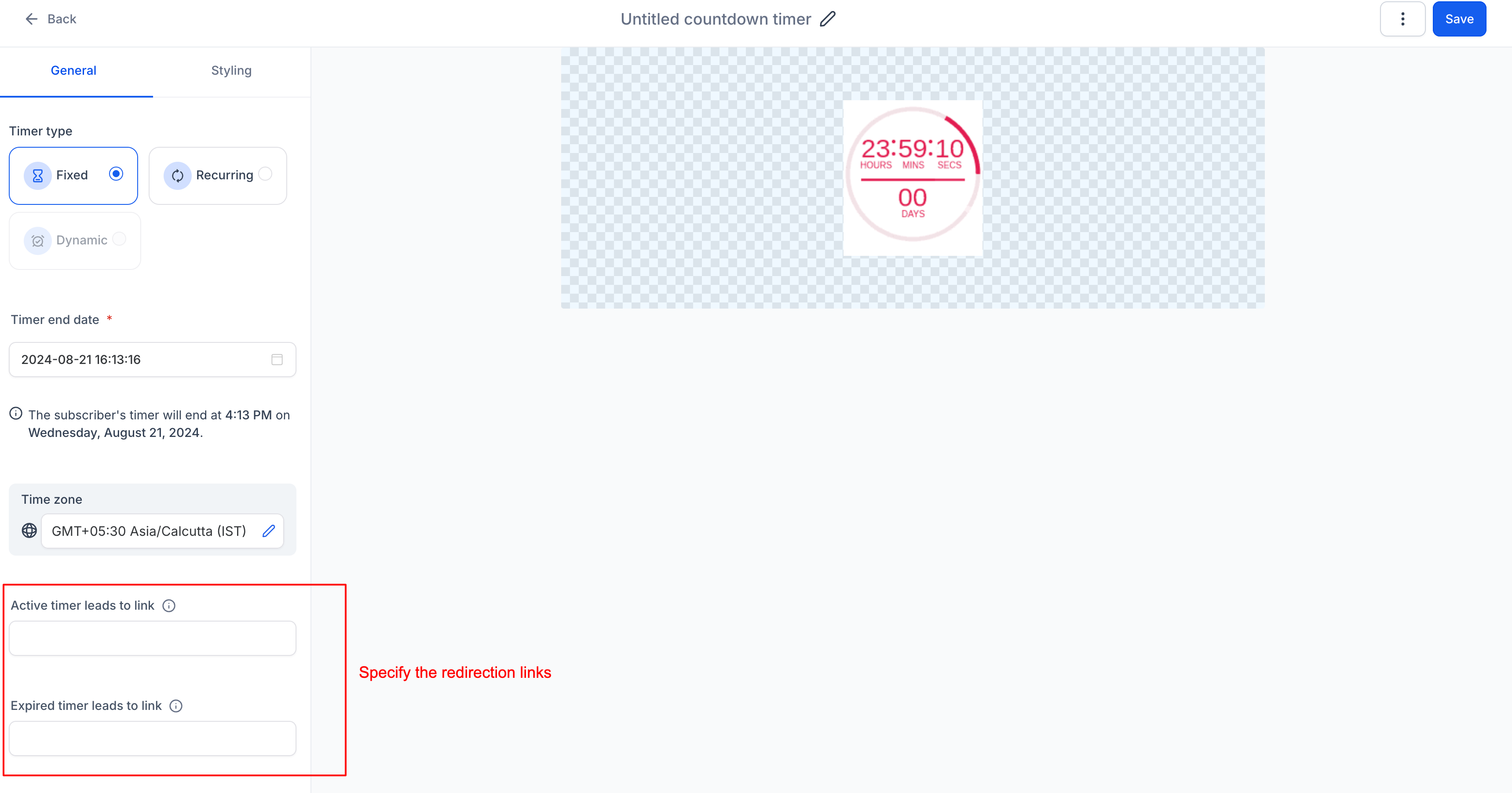
The countdown timer feature lets you build a visual clock that counts down to a fixed, recurring, or dynamic deadline. You choose the type, set the dates or loops, and add links for both the active and expired states. The timer can be styled with custom colors, fonts, expiry images, and time display formats.
The timer lives under the Marketing section of the platform. After creation, it can be inserted into emails, WhatsApp templates, or funnel pages. When the countdown reaches zero, the active link is replaced by the expired link, and any expiry image you defined appears.
03How businesses use countdown timers
- Ecommerce store. Create a fixed timer for a holiday sale, add the storefront URL as the active link, and set a checkout page as the expired link. The styled timer is then placed in promotional emails and on the sales landing page.
- Online education provider. Build a recurring timer that restarts each week for class sign ups. Define the class registration page as the active link and a full capacity notice page as the expired link. Insert the timer in weekly reminder emails.
- Non profit fundraiser. Set up a dynamic timer that personalizes the deadline based on when a donor opens an email. Use the donation page as the active link and a thank you page as the expired link. Add the timer to the fundraising email template.
04The numbers and rules that matter
- Timers can boost conversion rates by up to 27%, according to VWO.
05How to set up and use countdown timers in HighLevel
Create a countdown timer
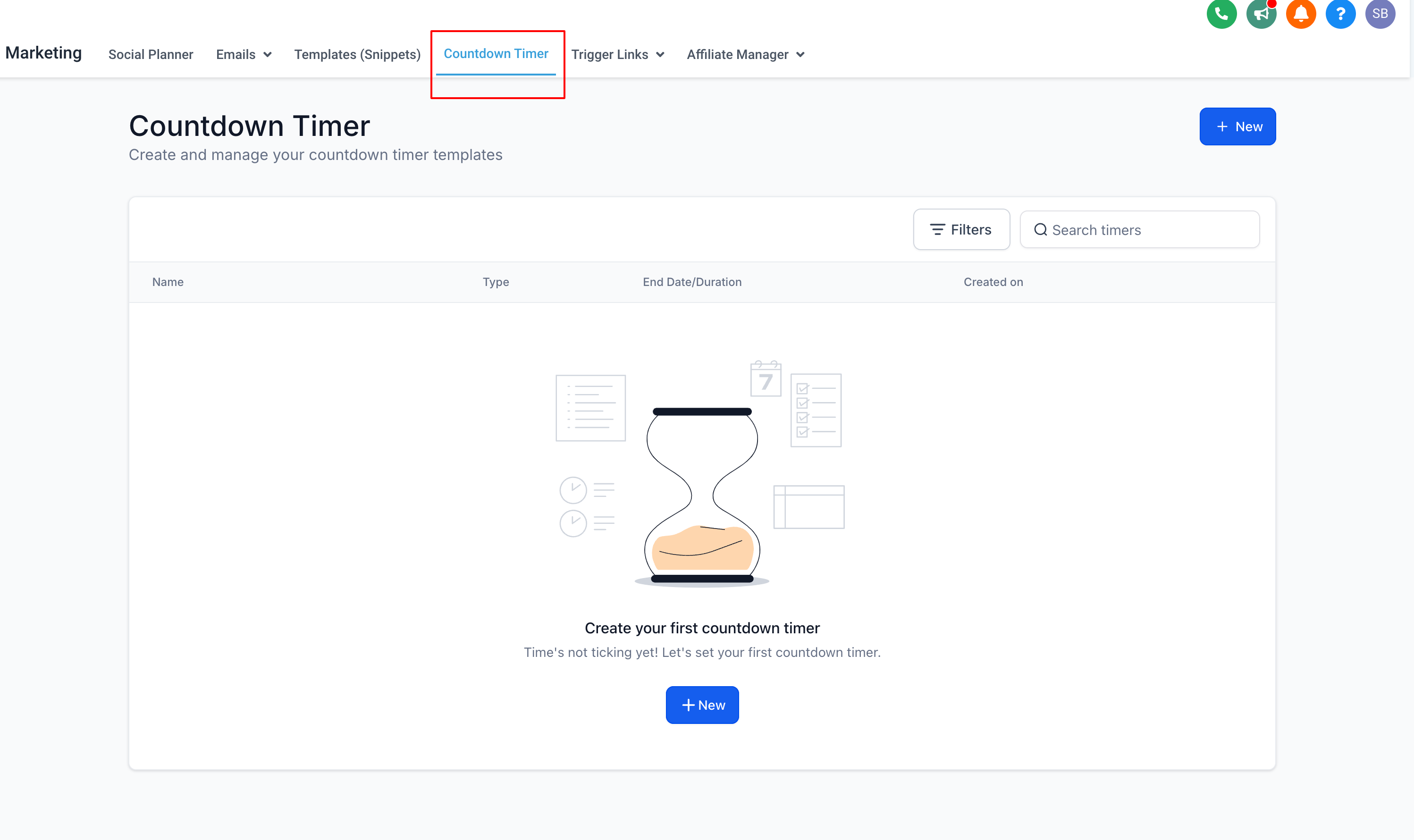
- Open the Marketing menu and select Countdown Timer.
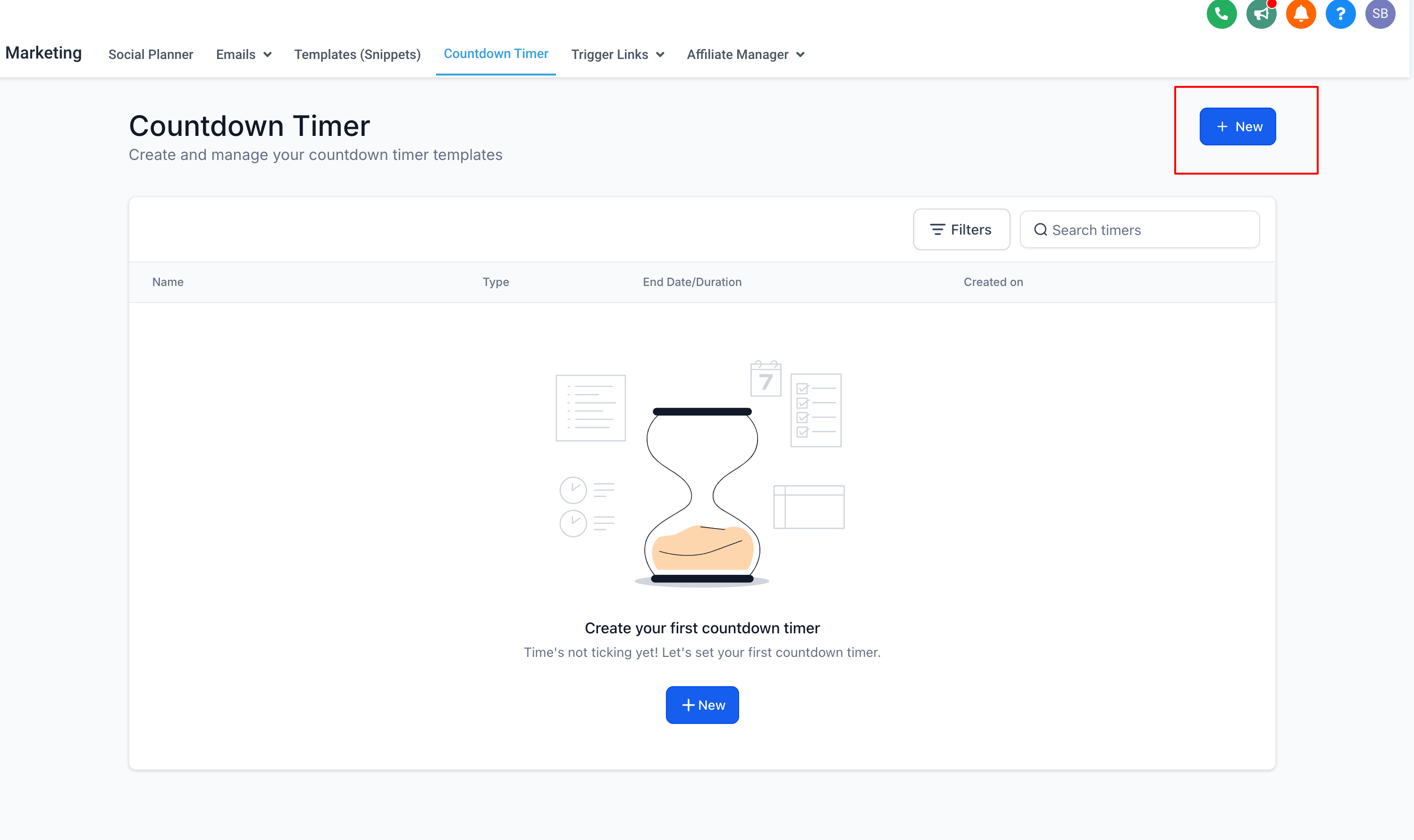
- Click the New button to start a new timer.
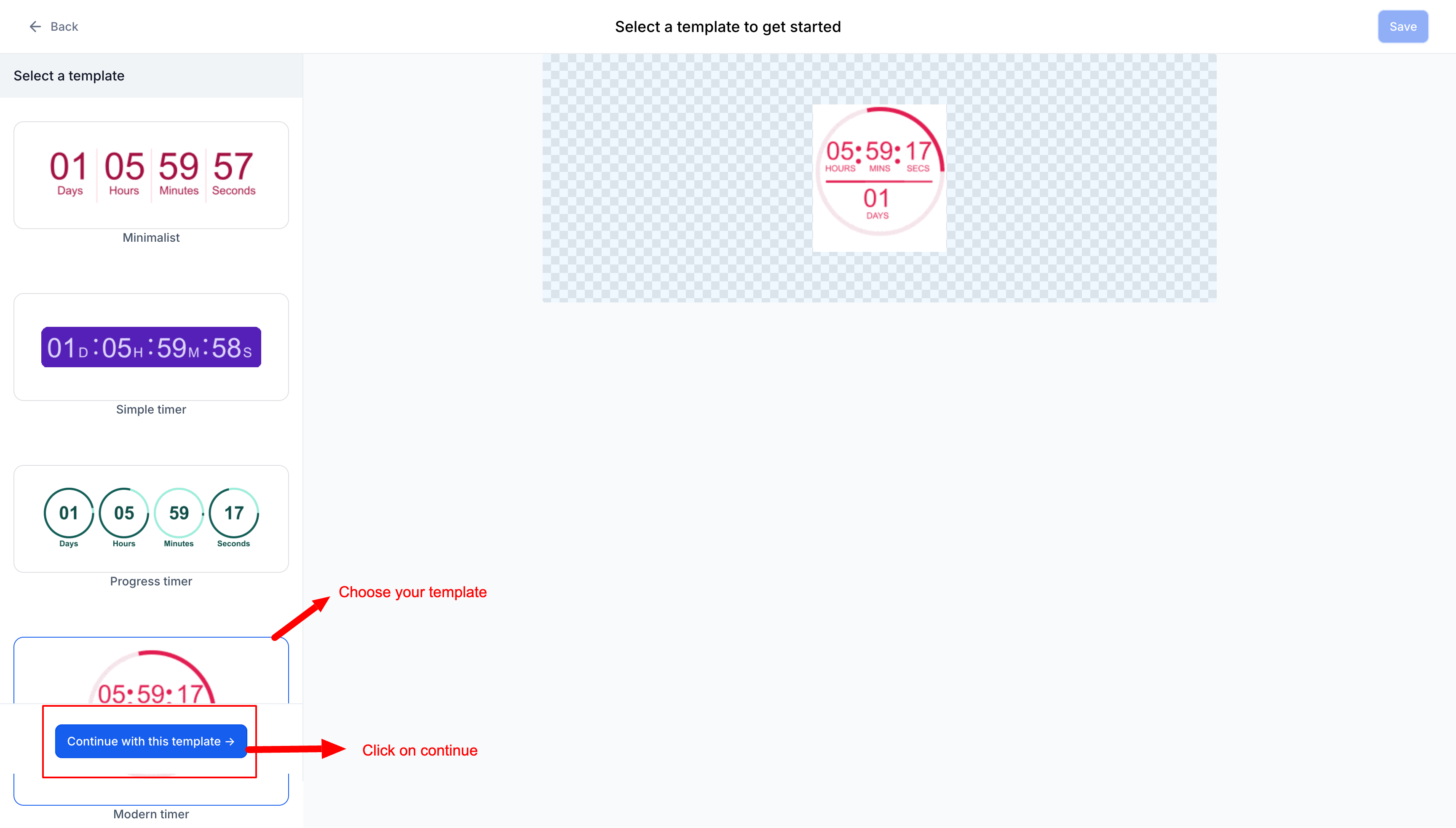
- Pick a design template and choose Continue with this template.
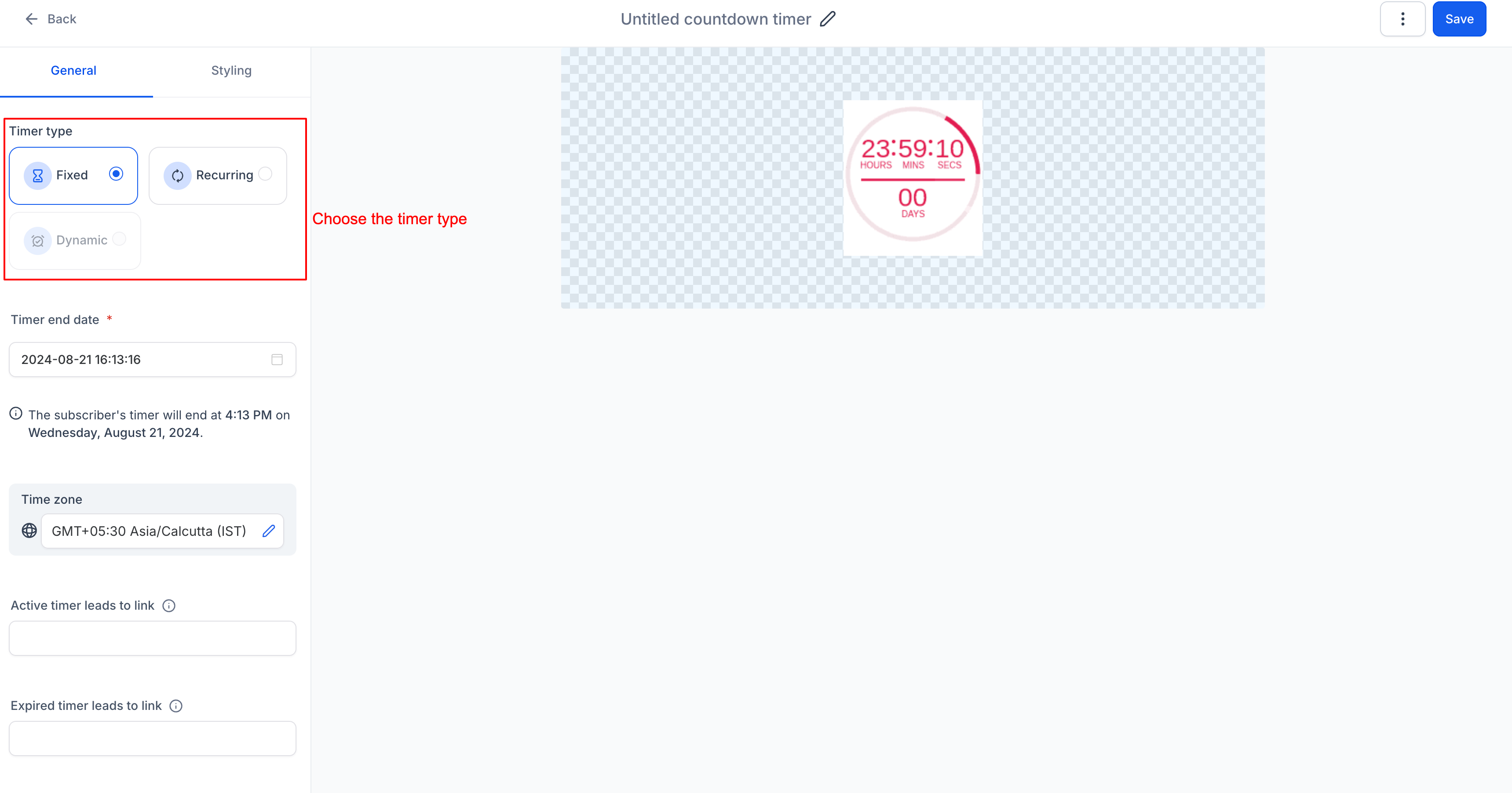
- Select Fixed, Recurring, or Dynamic as the timer type.
- For a Fixed timer, set the end date and time.
- For a Recurring timer, enter the countdown length and number of loops.
- Enter the URL for the active timer link.
- Enter the URL for the expired timer link.
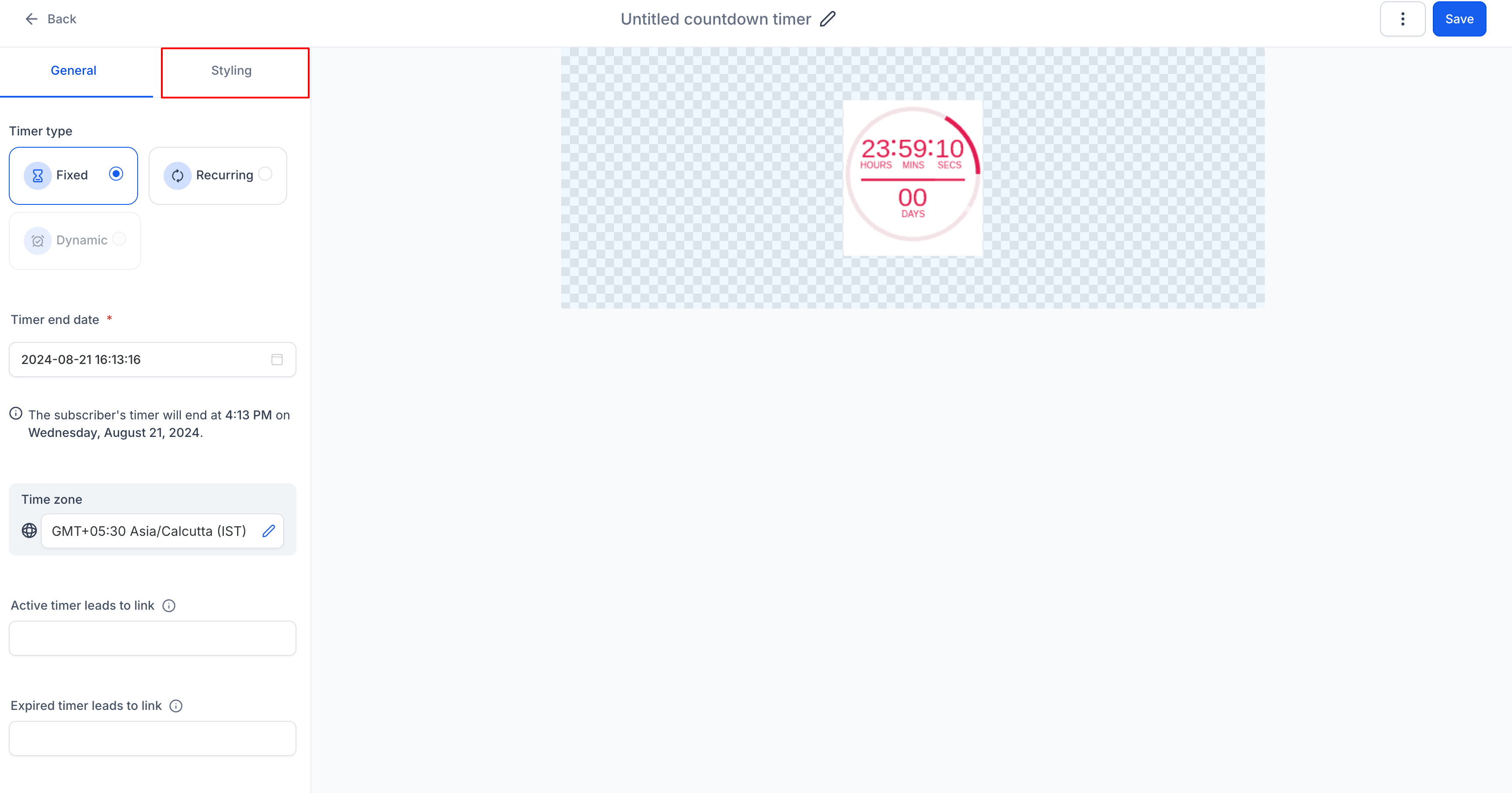
- Adjust colors, fonts, expiry image, and time display format.
- Click the name field at the top and type a descriptive timer name.
- Press Save to finish and activate the timer.
06What it looks like in HighLevel
07Settings that matter
- Timer Type. Chooses between Fixed, Recurring, or Dynamic behavior for the countdown.
- End Date and Time. Specifies the exact moment a Fixed timer stops counting.
- Countdown Duration. Defines how long a Recurring timer runs before resetting.
- Number of Loops. Sets how many times a Recurring timer repeats after reaching zero.
- Active Link. URL users are sent to while the timer is still counting down.
- Expired Link. URL users are sent to after the countdown reaches zero.
- Styling. Controls colors, fonts, expiry image, and the format of the time display.
- Timer Name. Provides a descriptive label for the timer within the platform.
08How it connects to the rest of HighLevel
- How to use countdown timers in emails Countdown timers in emails
- Sync your countdown timer in websites and funnels Sync timer in funnels
- How to use the "Copy Code" feature in countdown timers Copy timer code
Michael's take

Michael ReimerFounder of CRM Pros, HighLevel Commander and Certified Admin
Countdown timers are a clear win for any campaign that relies on limited time offers.
If you don’t run time sensitive promotions, you can skip this feature.
Get More InformationOpens on HighLevelPublished November 2, 2026 · Updated November 16, 2026