
01Who this is for
- Marketers who run weekly flash sales and need the timer to reset without rebuilding each week.
- Email campaign managers who want a consistent zero state display across messages.
- Webinar hosts who schedule recurring sessions and require automatic countdown restarts.
02Custom wait times, explained
The feature lets a recurring countdown timer pause for a defined duration after it hits zero. During the pause, called the Wait state, the timer can either stay visible at 00:00 or be hidden in funnels, while emails always show the zero state.
When the wait period ends, the timer restarts automatically and begins the next active cycle. This loop repeats indefinitely unless the timer is archived or deleted.
The configuration lives under Marketing ▸ Countdown Timer. After creating or editing a timer, you embed the timer block in funnels and/or email templates.
03How businesses use custom wait time for recurring timers
- Ecommerce store. Set up a weekly flash sale timer that pauses after each sale, hides during off hours, and redirects visitors to a sale expired landing page when they click the timer.
- Online education platform. Create a recurring webinar countdown that restarts every Monday, shows a zero state banner in reminder emails, and directs users to the registration page during the wait period.
- Membership site. Configure a monthly content drop timer that runs for the first three days of each month, hides in the member portal during the wait, and links to a “next drop” page once the period expires.
04The numbers and rules that matter
- Max wait duration: 365 days.
- Min wait duration: 1 minute.
- Unlimited cycles; timer runs until archived or deleted.
- Email zero state is unstyled “00: 00: 00”.
05How to set up and use custom wait time for recurring timers in HighLevel
Configure recurring timer with custom wait time
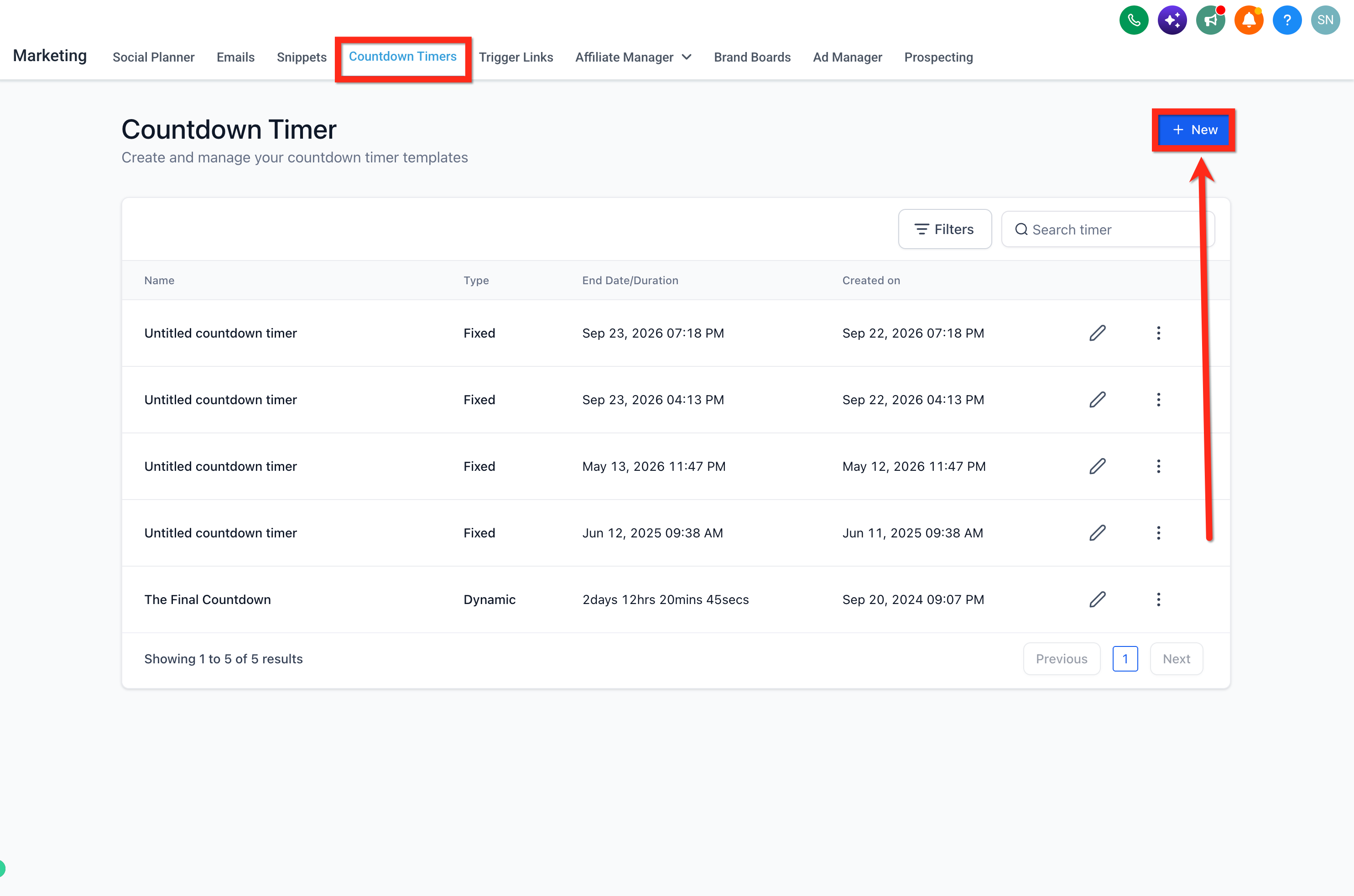
- Open Marketing ▸ Countdown Timer ▸ + New.
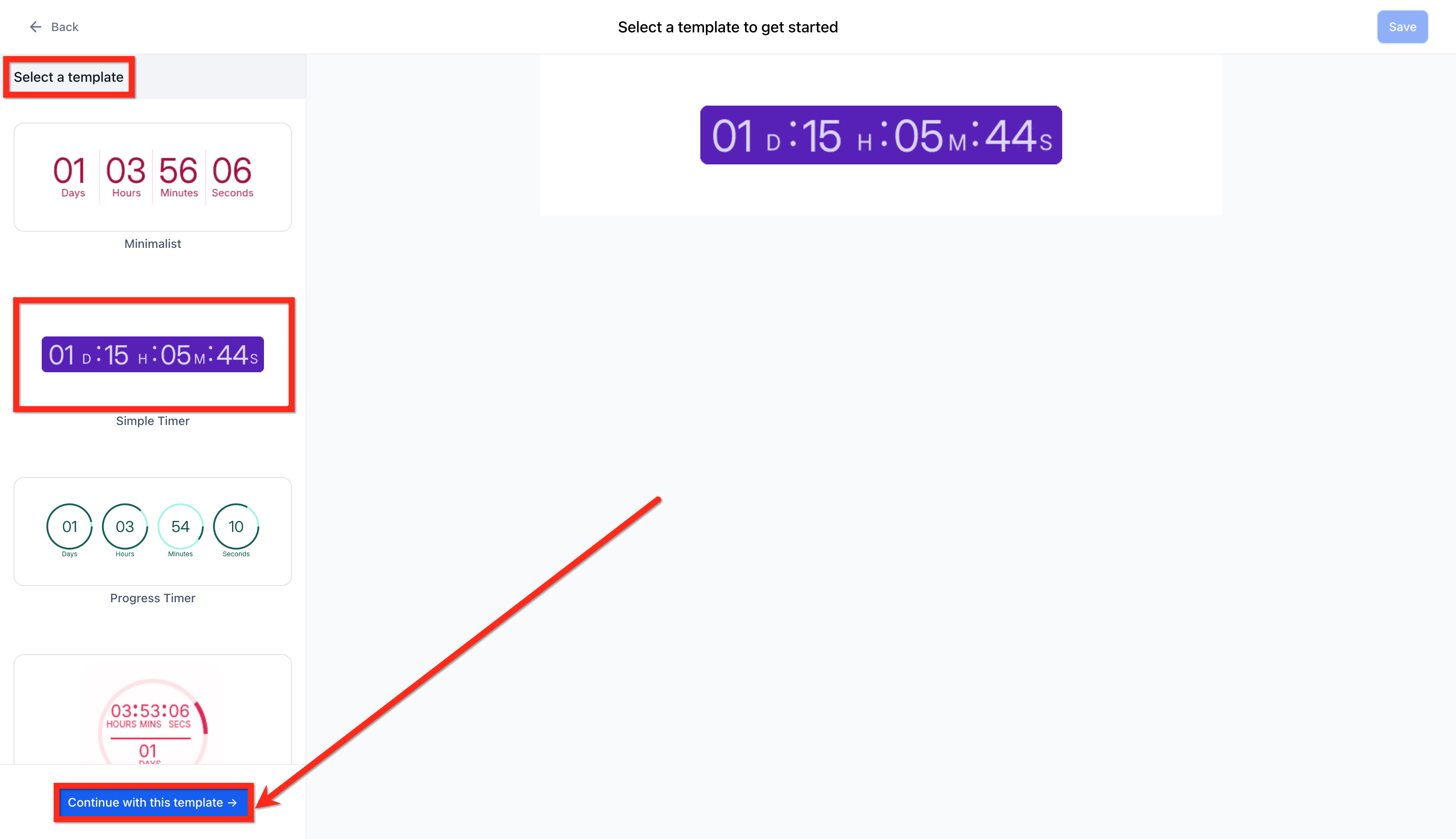
- Pick a timer template and click Continue with this template.
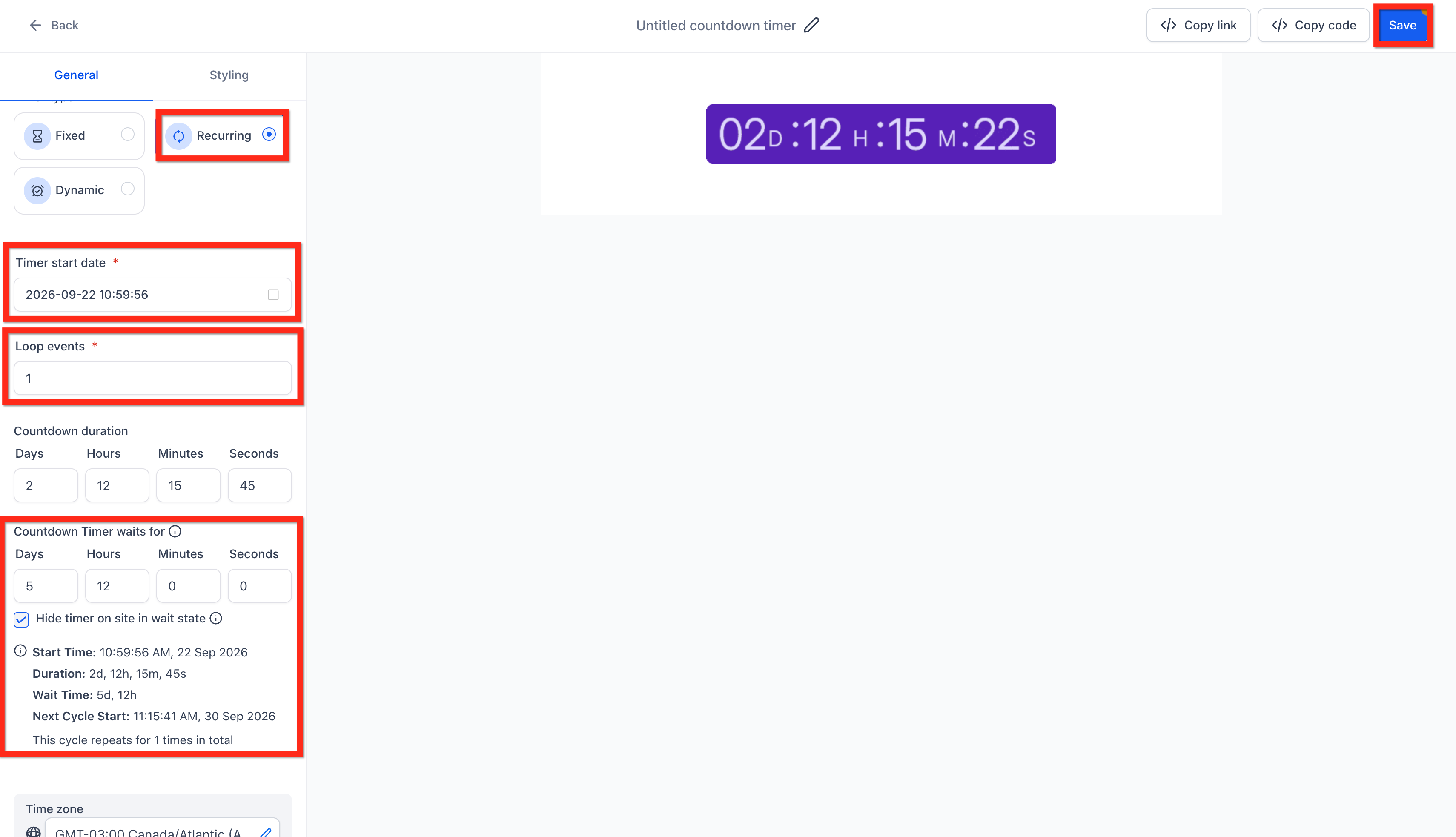
- Select Recurring for Time Type and enter the start and end offsets.
- Enter the total number of Loop Events for the timer.
- Specify the Custom Wait Time duration, such as 5 days 12 hours.
- Optionally enable Hide Timer in Wait State to hide the timer in funnels during the pause.
- Choose the Expiry Page or URL that visitors are sent to when they click the timer or refresh a funnel during Wait.
- Save the timer and add the timer block to your funnels or email templates.
06What it looks like in HighLevel
07Settings that matter
- Time Type. Determines whether the timer runs once or repeats; set to Recurring to enable wait periods.
- Start and End offsets. Define when each active cycle begins and ends relative to the timer start.
- Loop Events. The number of times the timer will repeat its cycle in total.
- Custom Wait Time. The length of the pause after the timer reaches zero before the next cycle starts.
- Hide Timer in Wait State. When turned on, the timer disappears from funnels during the wait period; emails always show the zero state.
- Expiry Page / URL. The destination users are sent to when they click the timer or refresh a funnel while the timer is in the Wait state.
08Things to know before you rely on it
- Custom wait time can be set from a minimum of 1 minute to a maximum of 365 days.
- Zero state styling in emails cannot be changed; it uses the default timer font and color.
- Hide Timer toggle only affects funnel display, not email display.
- A timer can run an unlimited number of cycles until it is archived or deleted.
09How it connects to the rest of HighLevel
- Set up a recurring countdown timer in HighLevel Recurring timer guide
- Use countdown timers in email campaigns Email timer guide
- Dynamic countdown timer overview Dynamic timer guide
Michael's take

Adding a custom wait time feels like a small convenience that can become a real shift for anyone who runs recurring promotions.
A boutique clothing brand that drops a new collection every month will love this. The timer can tick down to the launch, pause for the rest of the month, and then automatically start again for the next drop, keeping the audience in sync without extra work.