
01Who this is for
- Marketing managers can store frequently used headers and footers, ensuring brand consistency across campaigns.
- Email designers benefit from a library of reusable sections, reducing repetitive layout work.
- Small business owners can quickly assemble new newsletters by dragging saved components into fresh templates.
02Saved items, explained
Saved Items are reusable design pieces stored within the Email Design Editor. After you save an element, section, or layout, it appears in a panel on the left side of the editor. You can drag any saved piece into another email template in the same HighLevel location. The feature does not work in the AI Editor; you must be in the Design Editor to use it.
Saved items live only inside the location where they were created. They are available across all templates you build with the Design Editor in that location, but they do not transfer automatically to other locations. The system shows a confirmation when you successfully save an item and lets you search, rename, or delete entries from the same panel.
03How businesses use saved items
- Digital marketing agency. The agency saves a branded header once, then drags it into each client newsletter template, preserving the look without rebuilding the header each time.
- Ecommerce store. The store creates a promotional banner layout, saves it, and reuses the banner in multiple seasonal email campaigns by pulling it from the Saved Items panel.
- Fitness studio. The studio saves a footnote section with contact details and inserts it into every class schedule email, ensuring the information stays up to date.
04Before you start
- Be logged into your HighLevel account.
- Work inside the Design Editor, not the AI Editor.
- Stay within the same HighLevel location where the item will be saved.
05How to set up and use saved items in HighLevel
Save and reuse an item
- Log in to HighLevel.
- Navigate to Marketing > Emails > Templates and open a template in the Design Editor.
- Find the element, section, or layout you want to reuse.
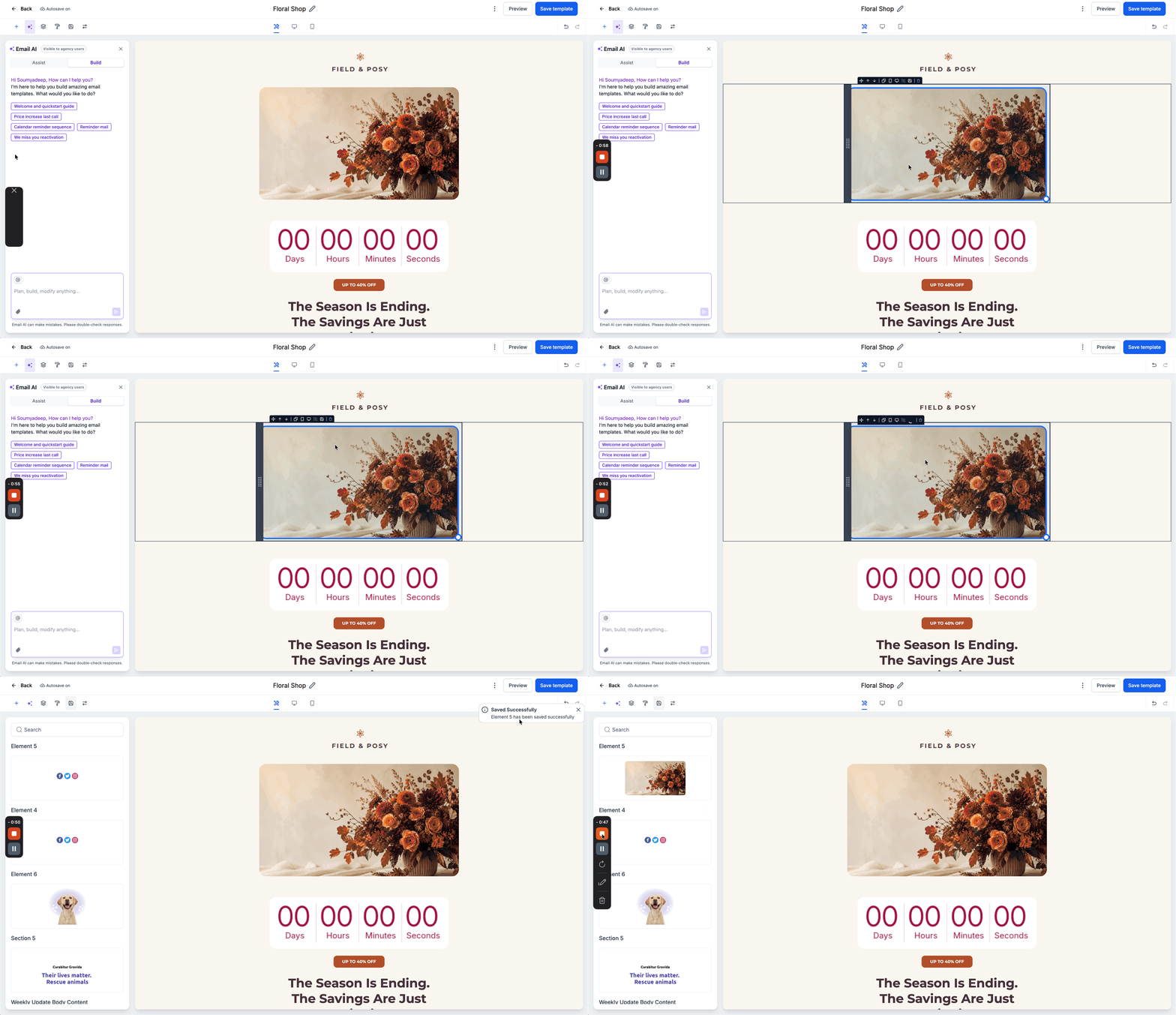
- Hover over the element to reveal its toolbar and click the Save icon.
- A confirmation message appears when the item is saved successfully.
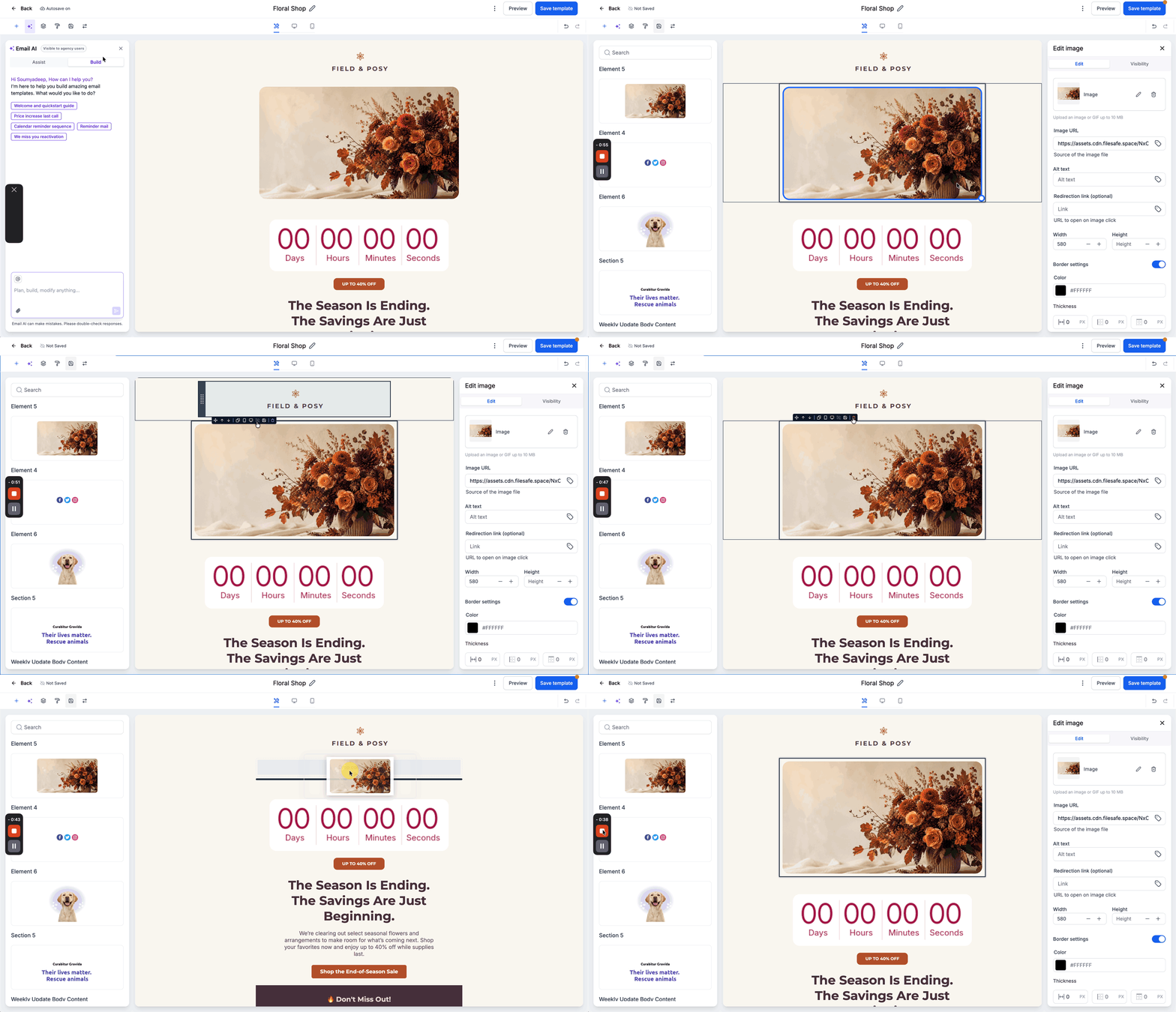
- Open the Saved Items panel from the left side toolbar.
- Locate the newly saved item in the panel.
- Drag the saved item onto the desired spot in your email template.
- Edit the content or styling of the inserted item as needed.
- Confirm the item appears correctly in the email.
Search, rename, and delete saved items
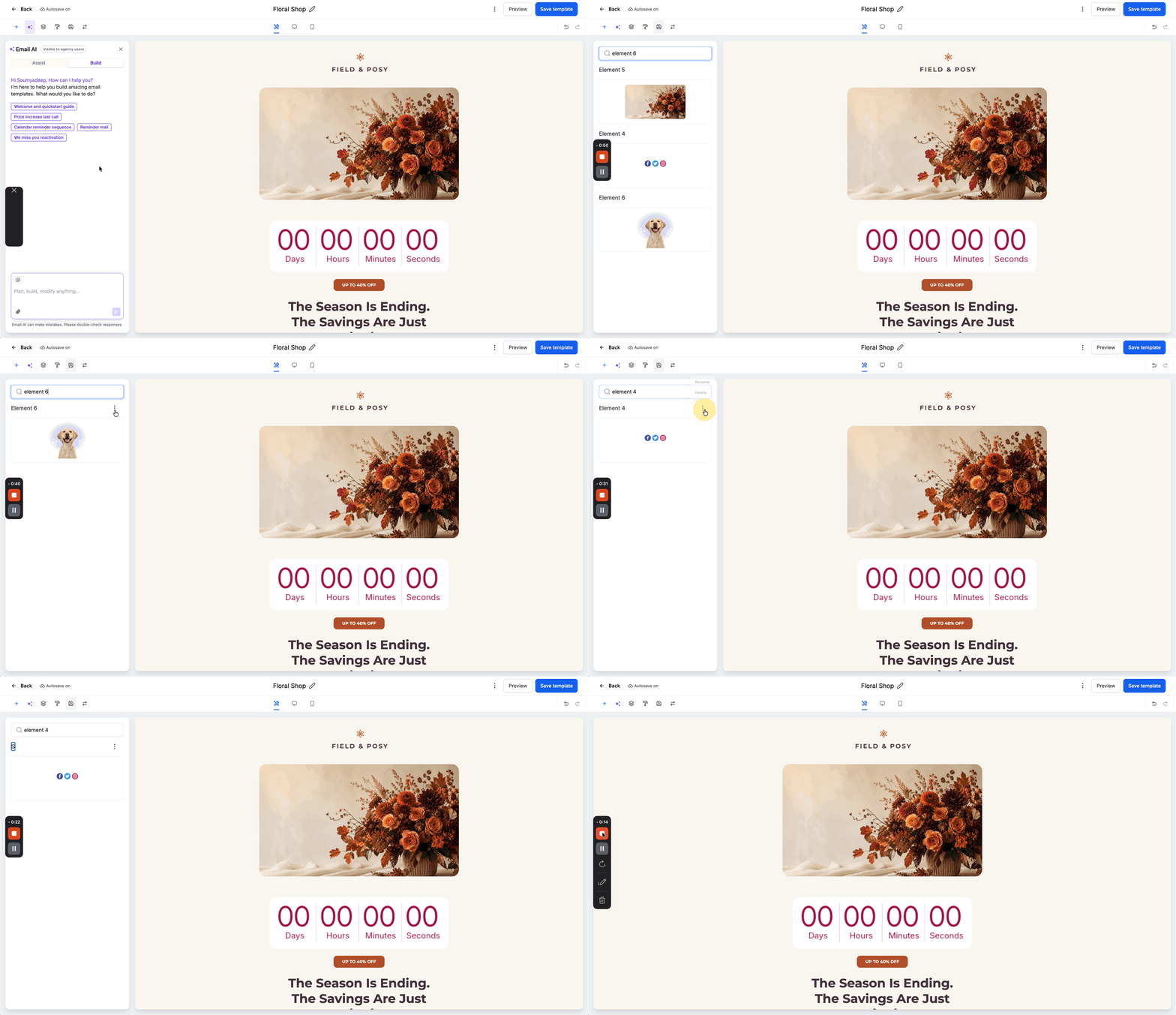
- Open the Saved Items panel.
- Enter the item name or keyword in the Search bar.
- Click the three dot menu (⋯) next to the item.
- Choose Rename to change the name or Delete to remove the item.
06What it looks like in HighLevel
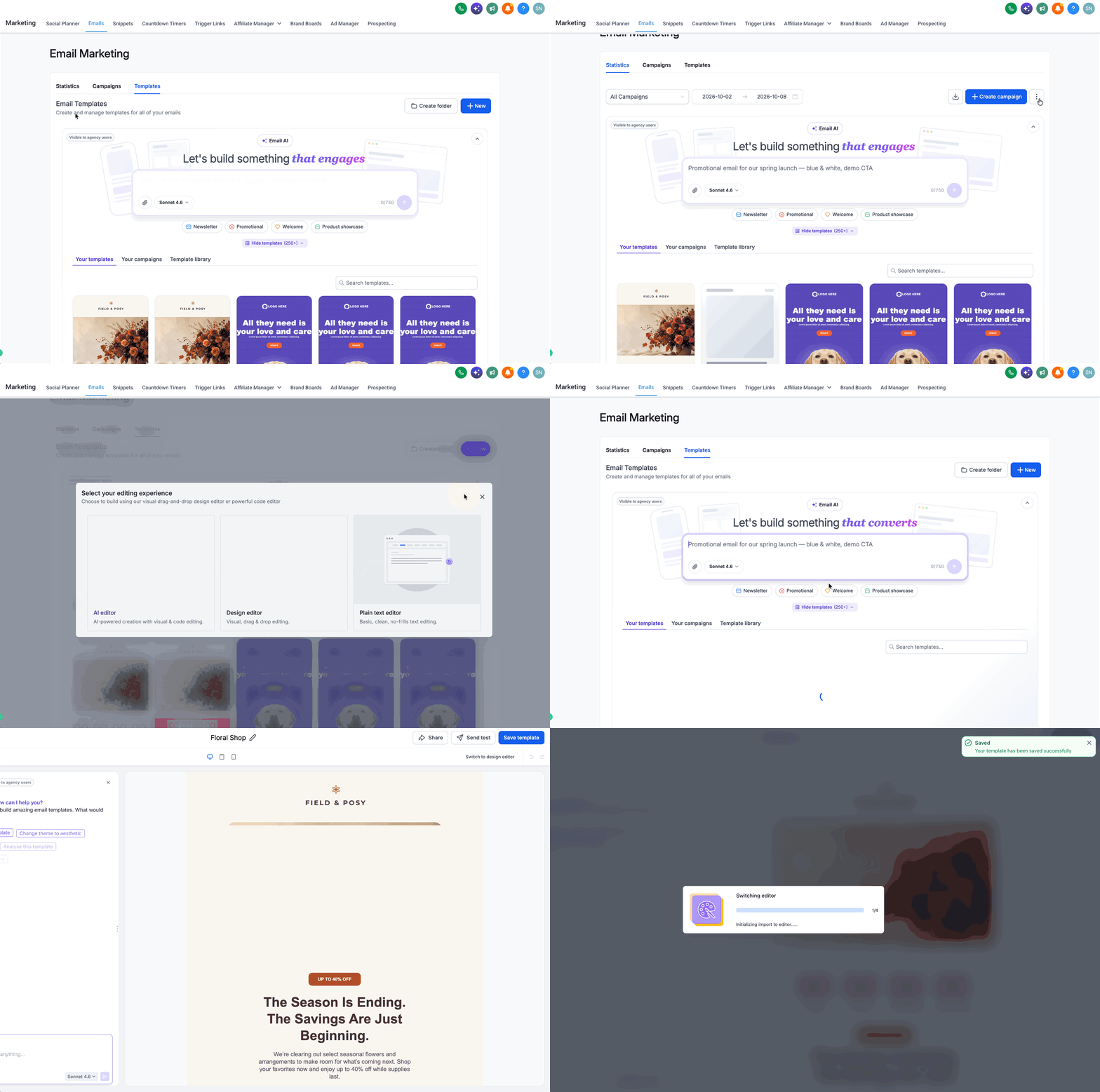
07Things to know before you rely on it
- Saved Items are only supported in the Design Editor; the AI Editor does not support them.
- Items are scoped to the HighLevel location where they are created and are not shared automatically with other locations.
- You can reuse the same saved item multiple times within that location.
08How it connects to the rest of HighLevel
- Learn how to move the email builder edit panel for better workflow. Edit panel guide
- Explore the template library to organize saved email designs. Template library
- Send or schedule a regular email campaign using saved components. Send email campaign
Michael's take

Saved items can feel like a double edged sword. If you forget that they live only in a single location, you might waste time hunting for a header that isn’t showing up in another agency account. The upside is big: Once you lock down a header, footer or promo block, you can drop it into any new email without restyling, keeping branding tight.
I’d start by saving the elements you reach for daily. The company logo header, the legal footer, and a standard call to action section. After that, the library becomes a quick pick menu for future use.