
01Who this is for
- Ecommerce owners can capture product satisfaction without sending a separate survey, making feedback collection faster.
- SaaS Founders can embed NPS style questions in newsletters to gauge customer loyalty directly from the email.
- Coaches and trainers can add simple Like Dislike buttons to webinar invites to see participant interest right away.
02Inline forms and surveys, explained
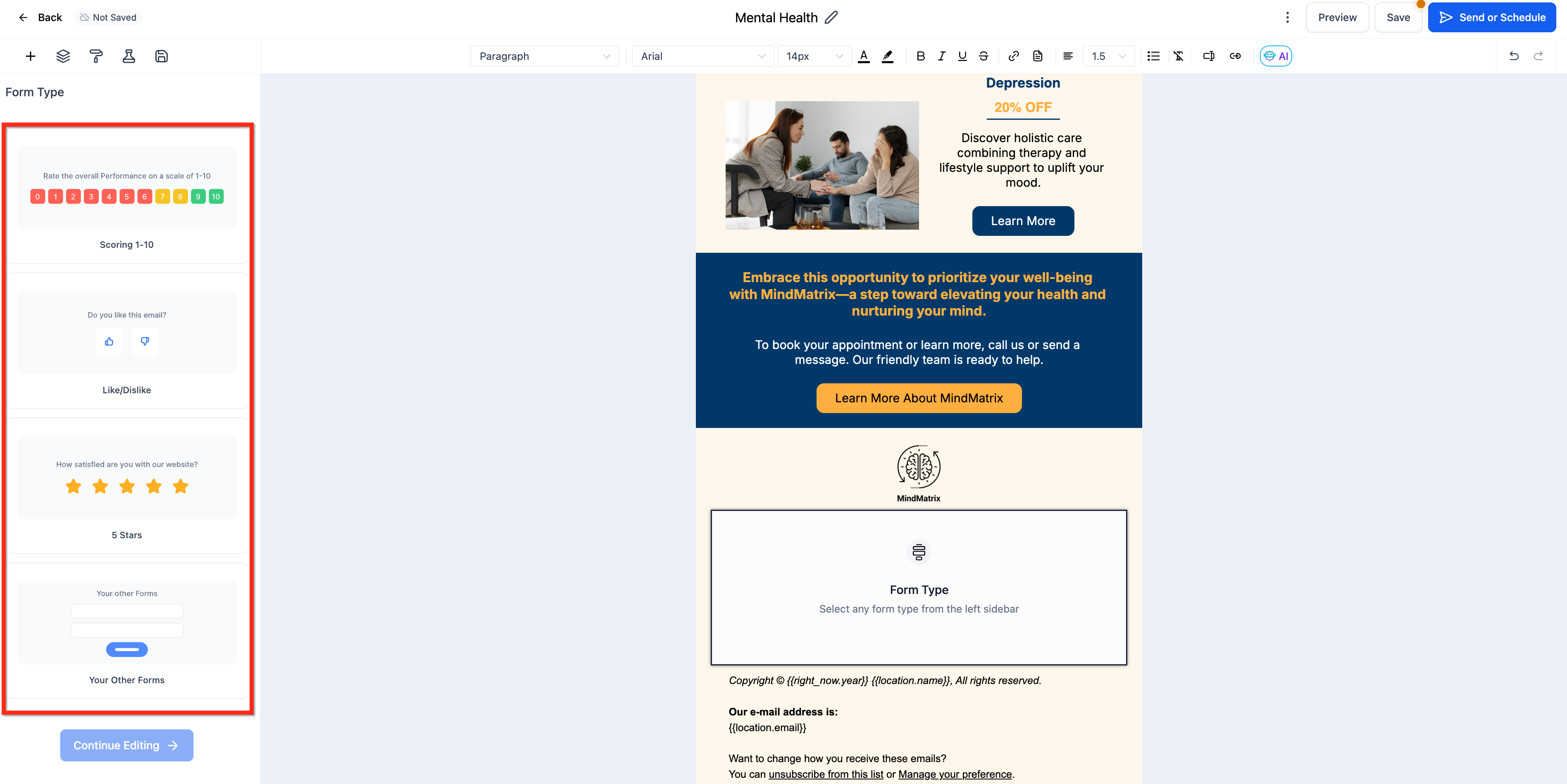
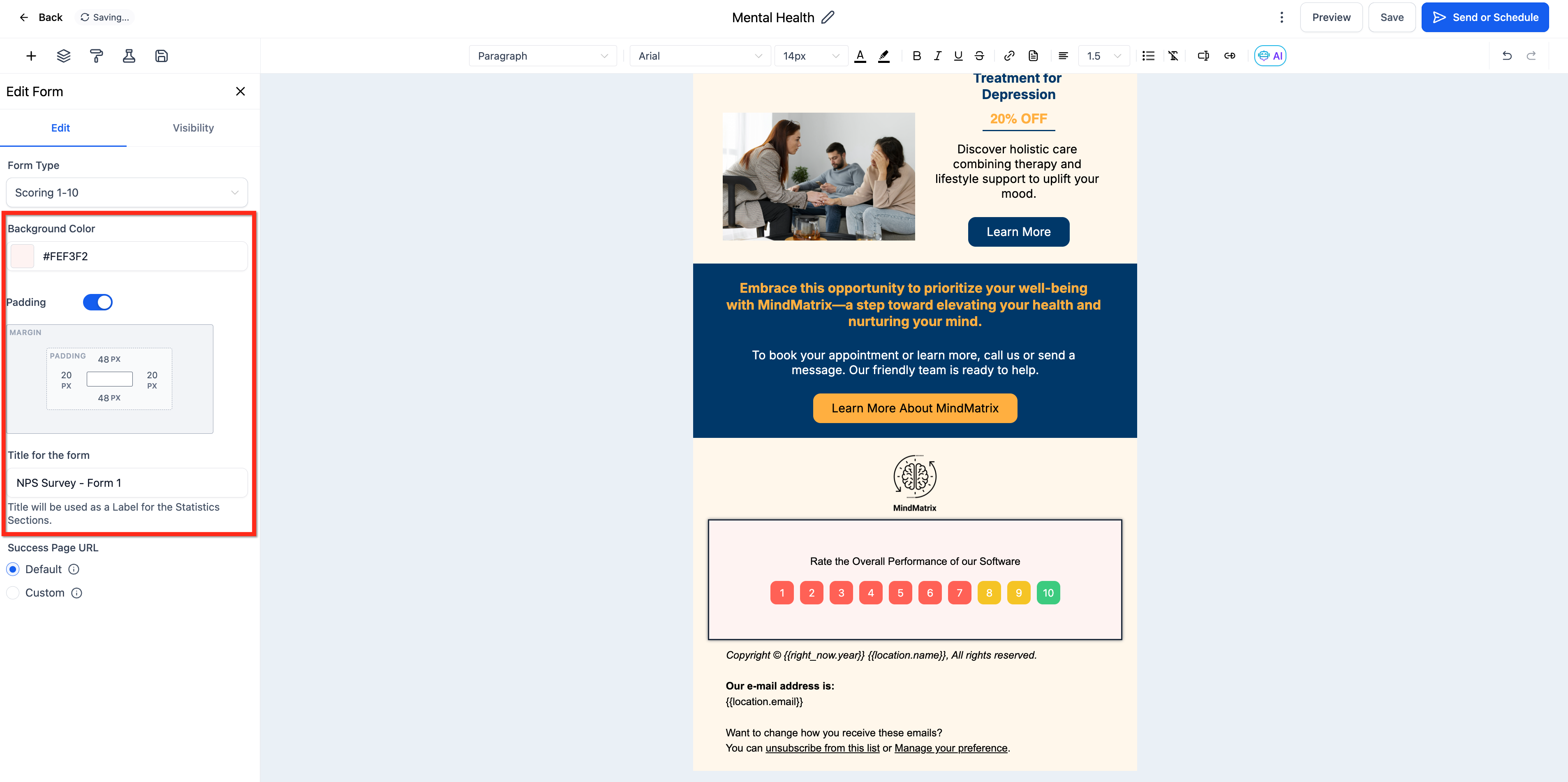
The Inline Forms and Surveys element is a block you add within the HighLevel email builder. It shows interactive options such as 1 to 10 scores, 5 star ratings, Like Dislike, or NPS style questions. When a contact clicks an option, HighLevel records that selection in the campaign’s submission data.
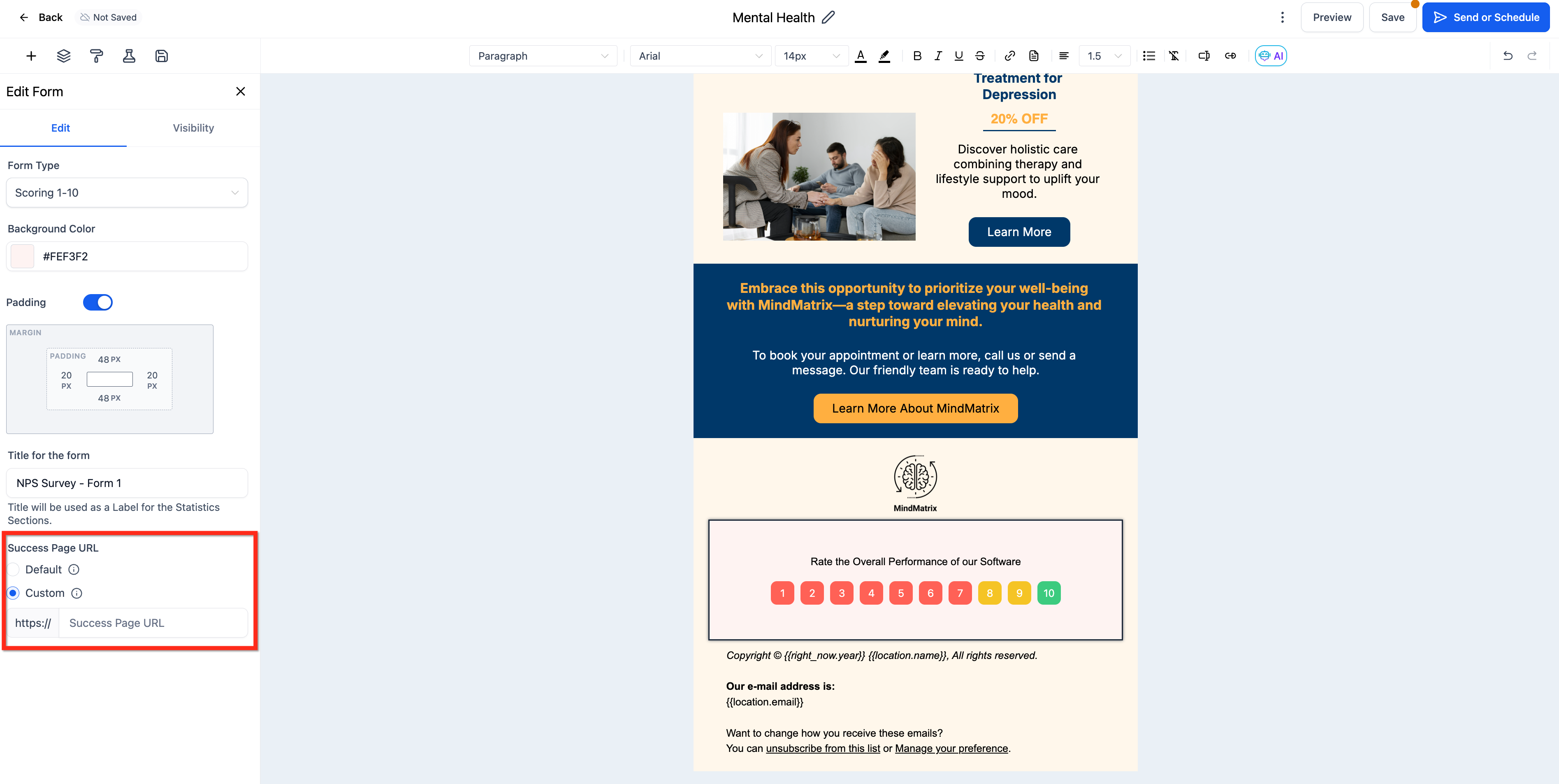
Responses are stored under the campaign’s Campaign Statistics > Submissions area, separate from standard Forms or Surveys. You can assign a unique Title to each element for easy identification and optionally set a Success URL that opens after the click. The redirect does not affect whether the answer is recorded.
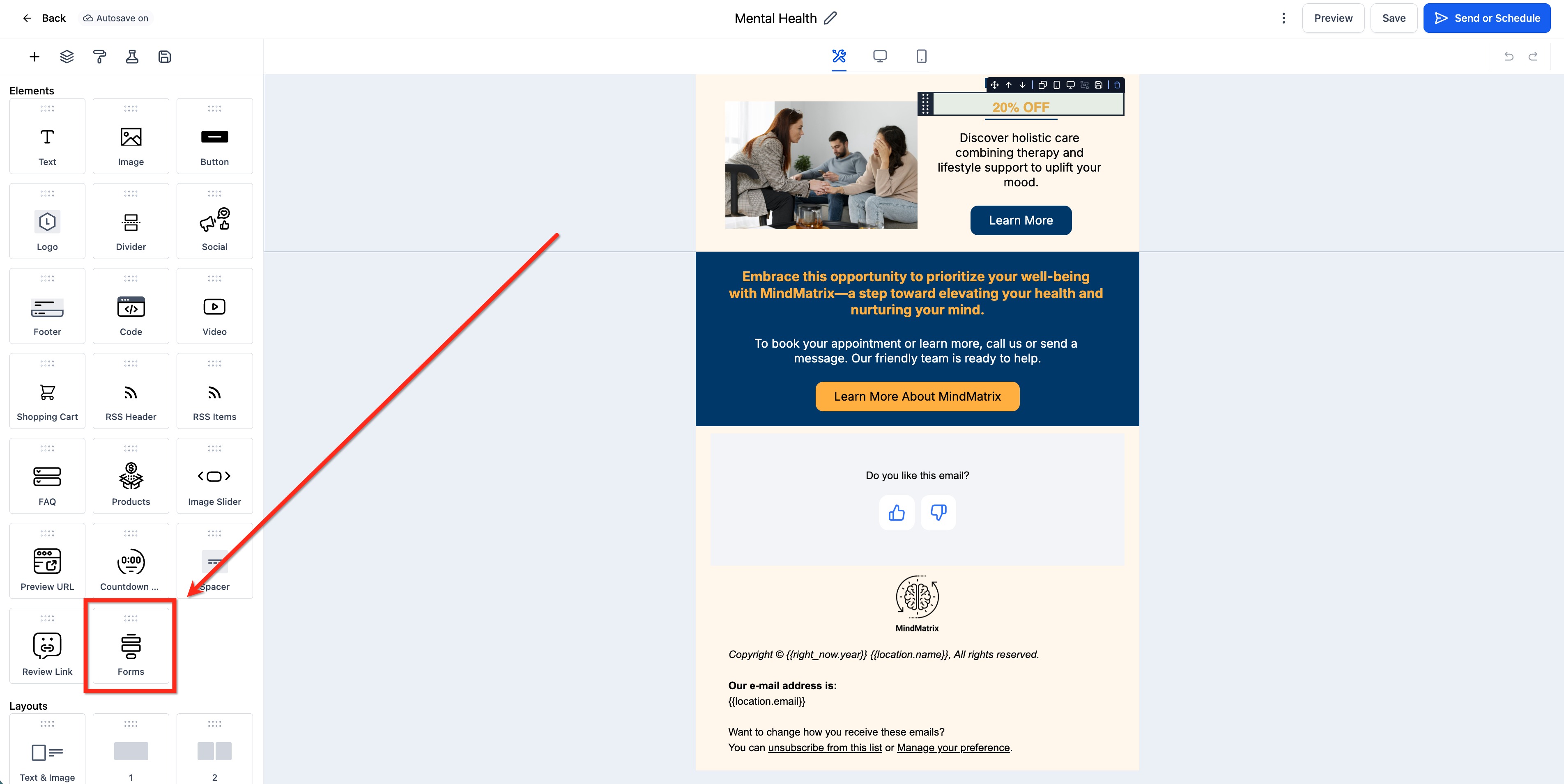
The element lives in the Email Builder under Marketing > Emails > Campaigns. It is accessed from the Elements panel as the Forms/Surveys component.
03How businesses use inline forms and surveys
- Ecommerce store. Insert a 5 star rating element in a product update email. Recipients click a star, the choice is logged, and you can view the scores in Campaign Statistics > Submissions.
- SaaS Founder. Add an NPS style feedback block to a monthly summary email. Optionally set a Success URL to a thank you page, then review the NPS scores in the campaign’s submission report.
- Online course provider. Place a Like Dislike element after a webinar invitation email to measure interest. Configure a Success URL to a resource page and monitor clicks in the campaign’s submissions.
04The numbers and rules that matter
- Supported feedback types: 1, 10 scoring, Like/Dislike, 5 star rating, NPS style feedback.
05How to set up and use inline forms and surveys in HighLevel
Add an inline form or survey to an email campaign
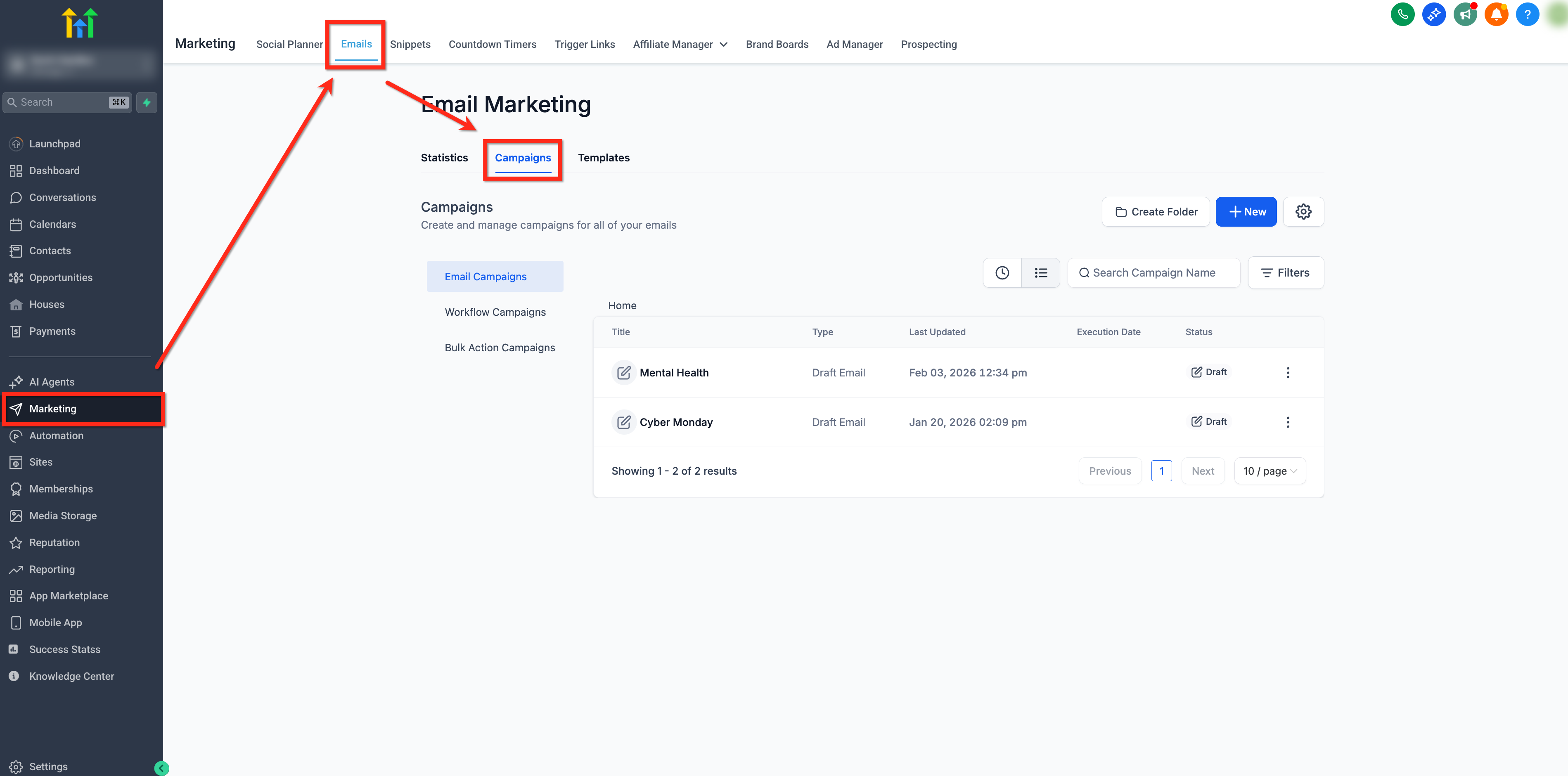
- Navigate to Marketing > Emails > Campaigns.
- Create a new campaign or open an existing one for editing.
- Open the selected campaign in the Email Builder.
- Find the Forms/Surveys element in the Elements panel.
- Drag the element to the desired spot within the email content.
- Choose the feedback type (1 to 10 scoring, Like Dislike, 5 star rating, or NPS style).
- Adjust the element’s visual appearance and available settings.
- Enter a unique Title to identify the element in reports.
- Optionally add a Success URL for post click redirection.
- Preview the element in the email view to confirm layout and that the options are visible.
- Save the campaign.
- Send a test email to yourself.
- Click a feedback option in the test email.
- Confirm the click works, the optional redirect opens, and the response appears under Campaign Statistics > Submissions.
- After successful testing, send the campaign to your audience.
06What it looks like in HighLevel
07Settings that matter
- Title. Sets the label used to identify this feedback element in campaign submission reports.
- Success URL. Specifies the page a contact is taken to after clicking a feedback option; it does not affect response recording.
- Feedback Type. Selects the format of the interactive options, such as 1 to 10 scoring, Like Dislike, 5 star rating, or NPS style.
08Things to know before you rely on it
- Inline feedback does not fire the standard Form Submitted workflow trigger.
- Inline feedback does not fire the standard Survey Submitted workflow trigger.
- Different email clients may render interactive elements inconsistently; testing across major clients is recommended.
- The behavior when a contact clicks multiple options is not defined; test before relying on repeat submissions.
- The element is officially supported only in Marketing > Emails > Campaigns; use in workflow or one to one emails is unverified.
09How it connects to the rest of HighLevel
- Send or schedule a regular email campaign in HighLevel Email campaign basics
- HighLevel pricing and plans Pricing overview
Michael's take

Inline forms and surveys let you ask a single question and get an answer directly in the email, with the data appearing in the campaign report.
Don’t assume the click will fire the regular Form Submitted trigger; that can break automation.