
01Who this is for
- Marketing managers can include video previews to make newsletters more engaging.
- ecommerce owners can link product demos while keeping the email lightweight.
- Event coordinators can drive registrations by pointing recipients to a promotional video.
02Video element in Email Builder, explained
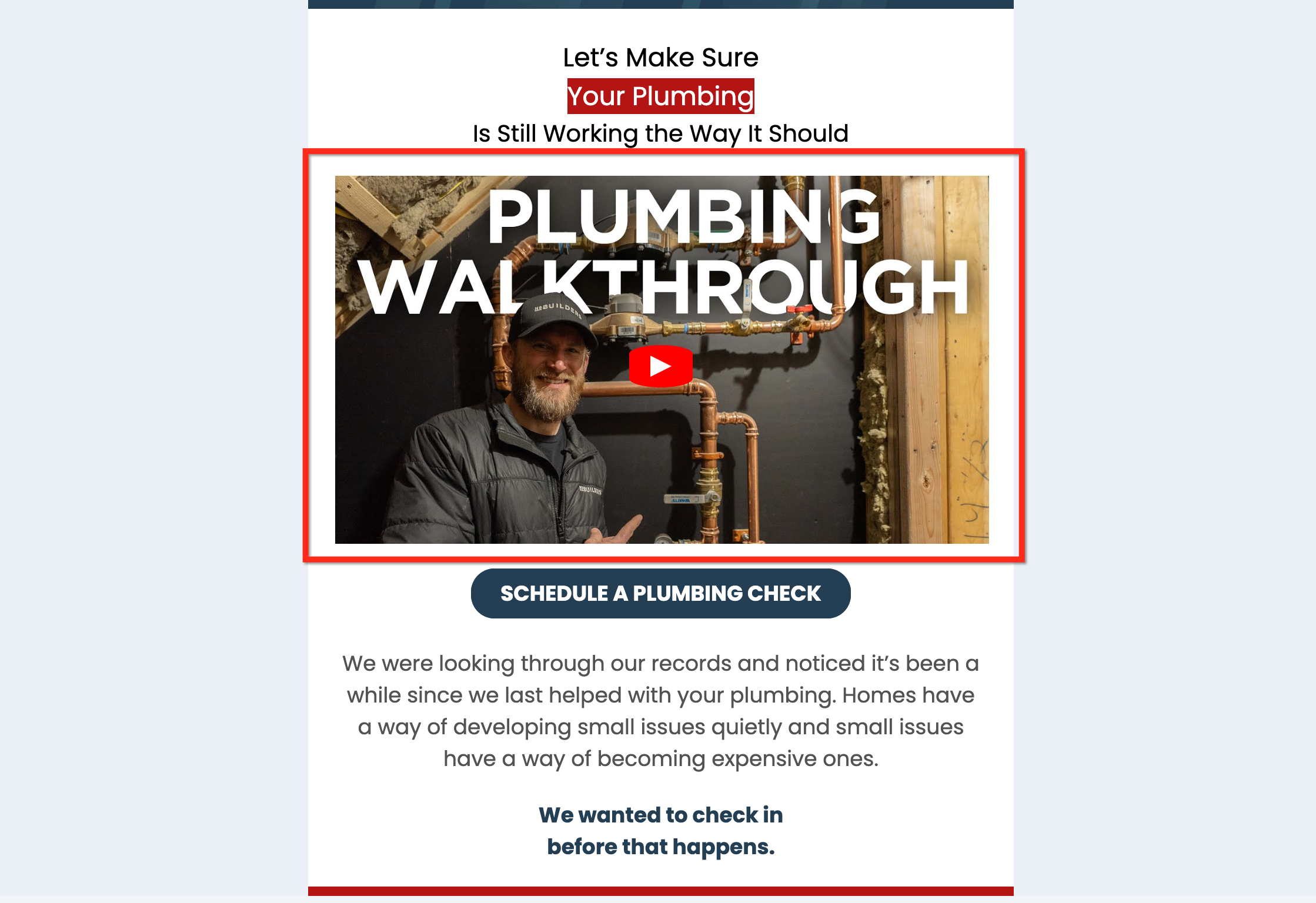
The Video element lives in the Design Editor of the Email Builder. It does not embed playable video; instead it shows a thumbnail with a play button that redirects to the video URL when clicked. The platform tries to fetch the thumbnail automatically based on the selected video type.
Users can replace the auto fetched image with any custom picture, set explicit width and height, and add padding for spacing. Alignment is limited to left hand side by default, but padding or column layouts can be used to reposition the element.
03How businesses use the video element in Email Builder
- ecommerce store. Add the Video element to a promotional email, select a YouTube product demo, and replace the thumbnail with a branded image. Adjust the width to match the email layout and add padding so the video sits nicely beside product details.
- Online course provider. Insert a Vimeo preview of a new lesson in a course update email. Set a custom thumbnail that matches the course branding, then define height and width to keep the email responsive.
- Conference organizer. Use the HTML5 option to link to a hosted keynote video. Provide a custom thumbnail, add padding, and configure dimensions so the preview fits within a three column email template.
04The numbers and rules that matter
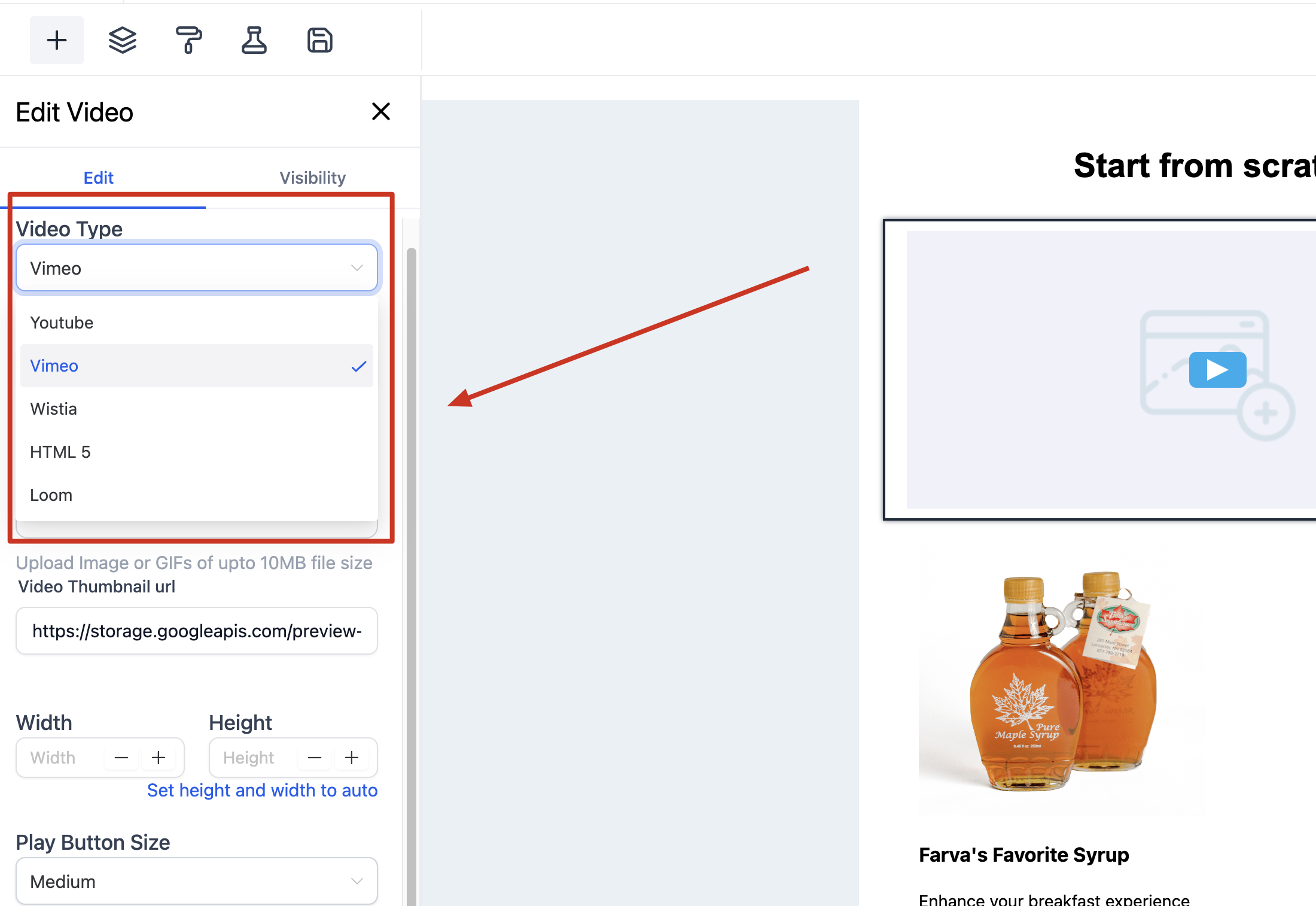
- Four video types are supported: YouTube, Vimeo, Wistia, and HTML5.
05Before you start
- Log into a subaccount that has access to the Email Builder.
- Open the Design Editor or an existing Email Template, as the Video element is only available there.
06How to set up and use the video element in Email Builder in HighLevel
Add the Video element to an email
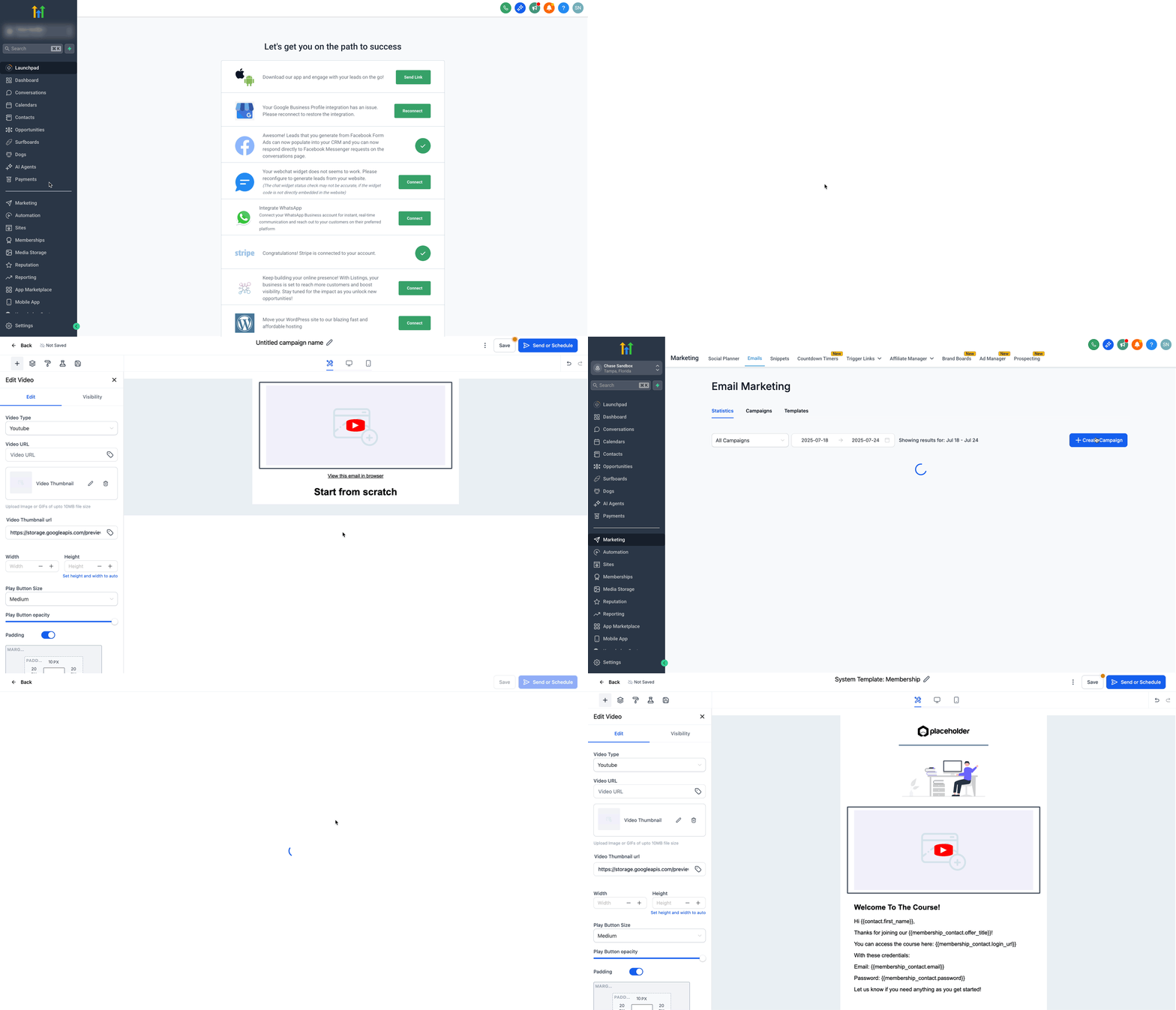
- Log into your subaccount.
- Navigate to Marketing > Emails.
- Click + Create Campaign, choose Blank, then select Design Editor or open an existing template.
- Find the Video element under the Elements panel on the left side.
- Drag the Video element into the desired spot in the email layout.
Configure the Video element settings
- Select the desired Video Type (YouTube, Vimeo, Wistia, or HTML5).
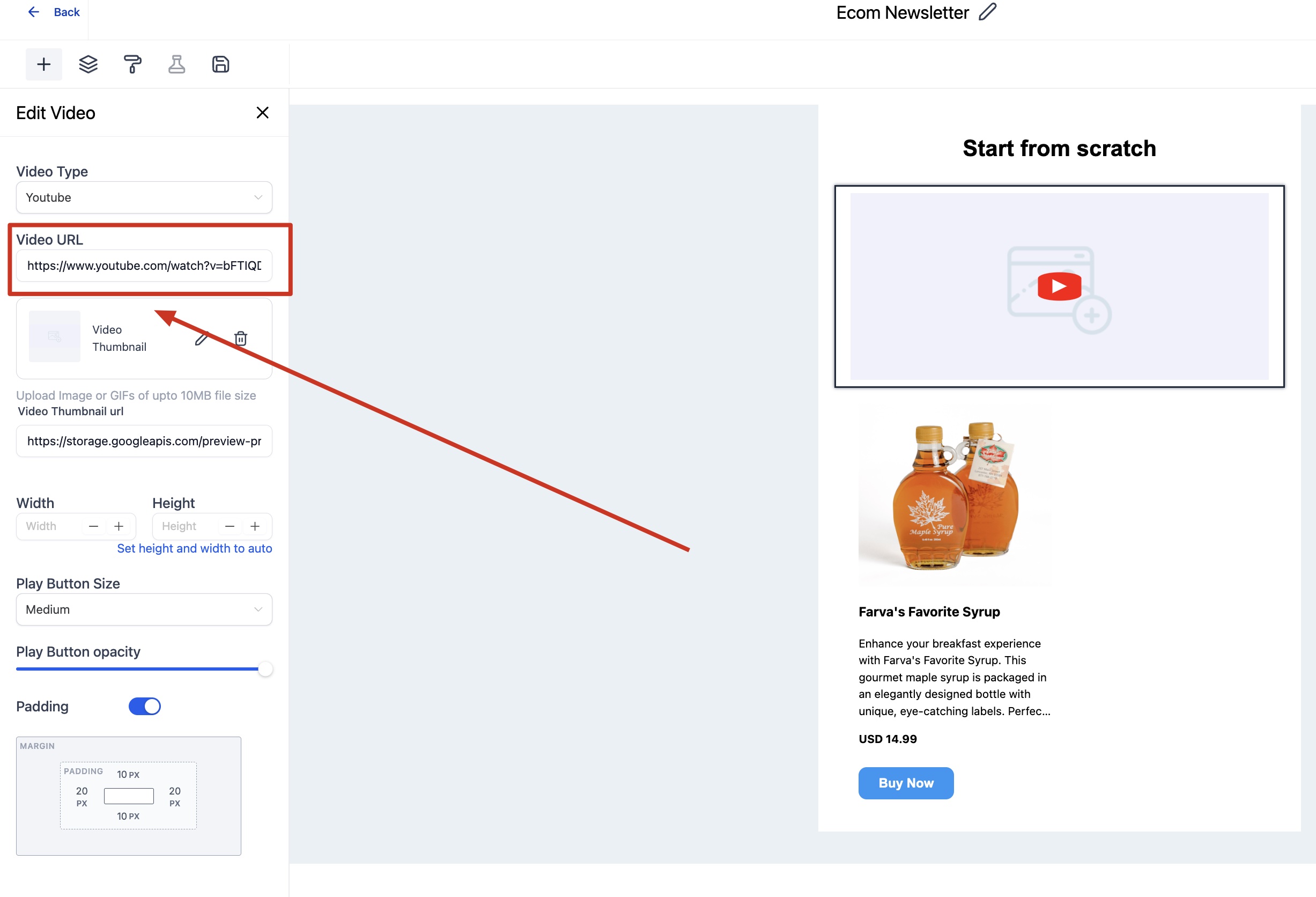
- Enter the video’s URL in the Video URL field.
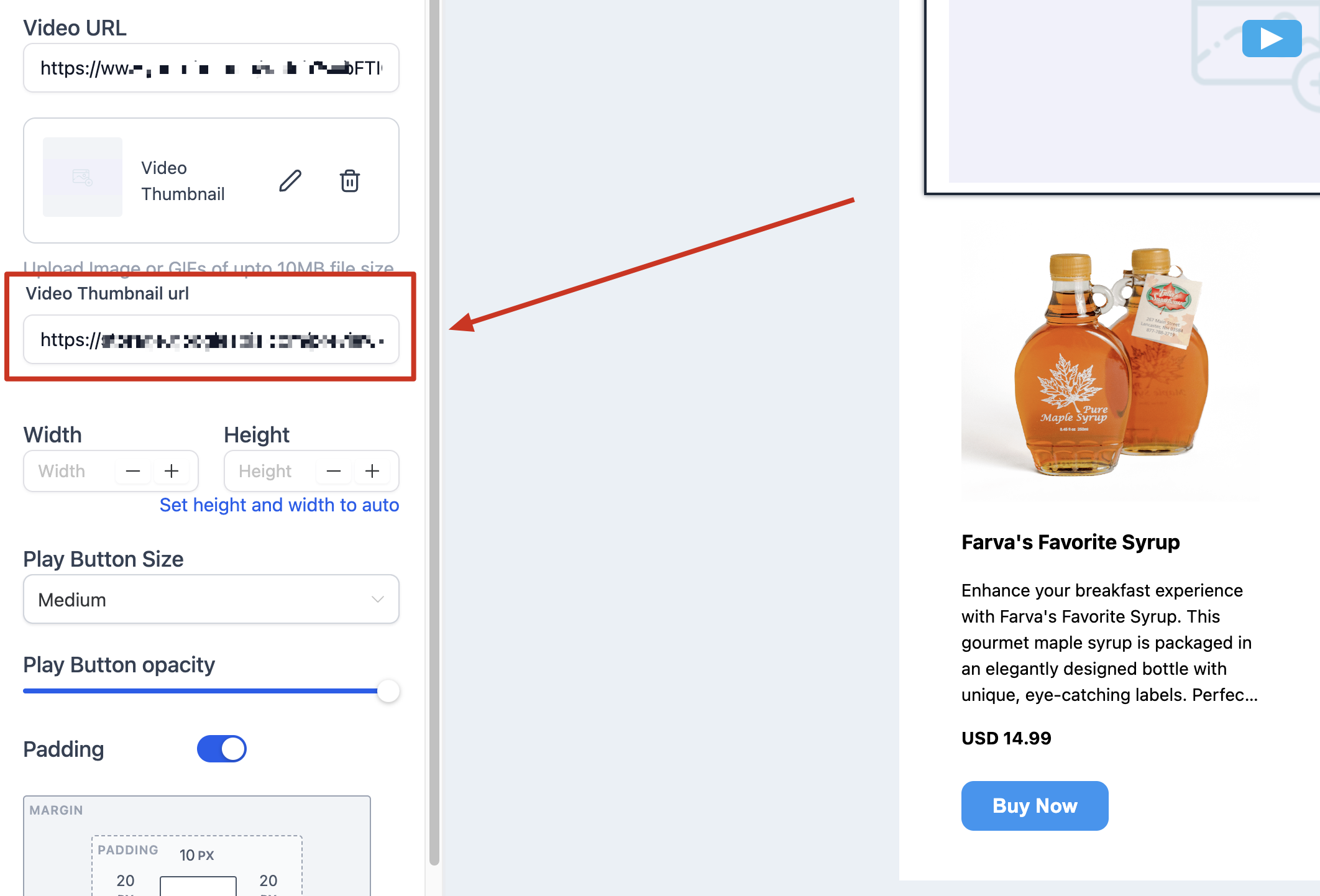
- If needed, click the Replace button and paste a custom thumbnail URL.
- Use the Remove button to delete the auto fetched thumbnail.
- Enter Width and Height values to set specific dimensions, or leave blank for full width.
- Add a value in the Padding field to control space around the video element.
07What it looks like in HighLevel
08Settings that matter
- Video Type. Chooses the video provider; determines how the platform fetches the thumbnail and styles the play button.
- Video URL. The web address of the video that the thumbnail will link to.
- Video Thumbnail URL. The image shown as the preview; can be auto filled or replaced with a custom URL.
- Width & Height. Controls the pixel dimensions of the thumbnail; leaving them blank lets the element use full width and automatic height.
- Padding. Adds space around the thumbnail to adjust its visual placement within the email.
09Things to know before you rely on it
- Email clients cannot play video directly; the element only creates a clickable thumbnail.
- The Video element appears only inside the Design Editor and Email Templates.
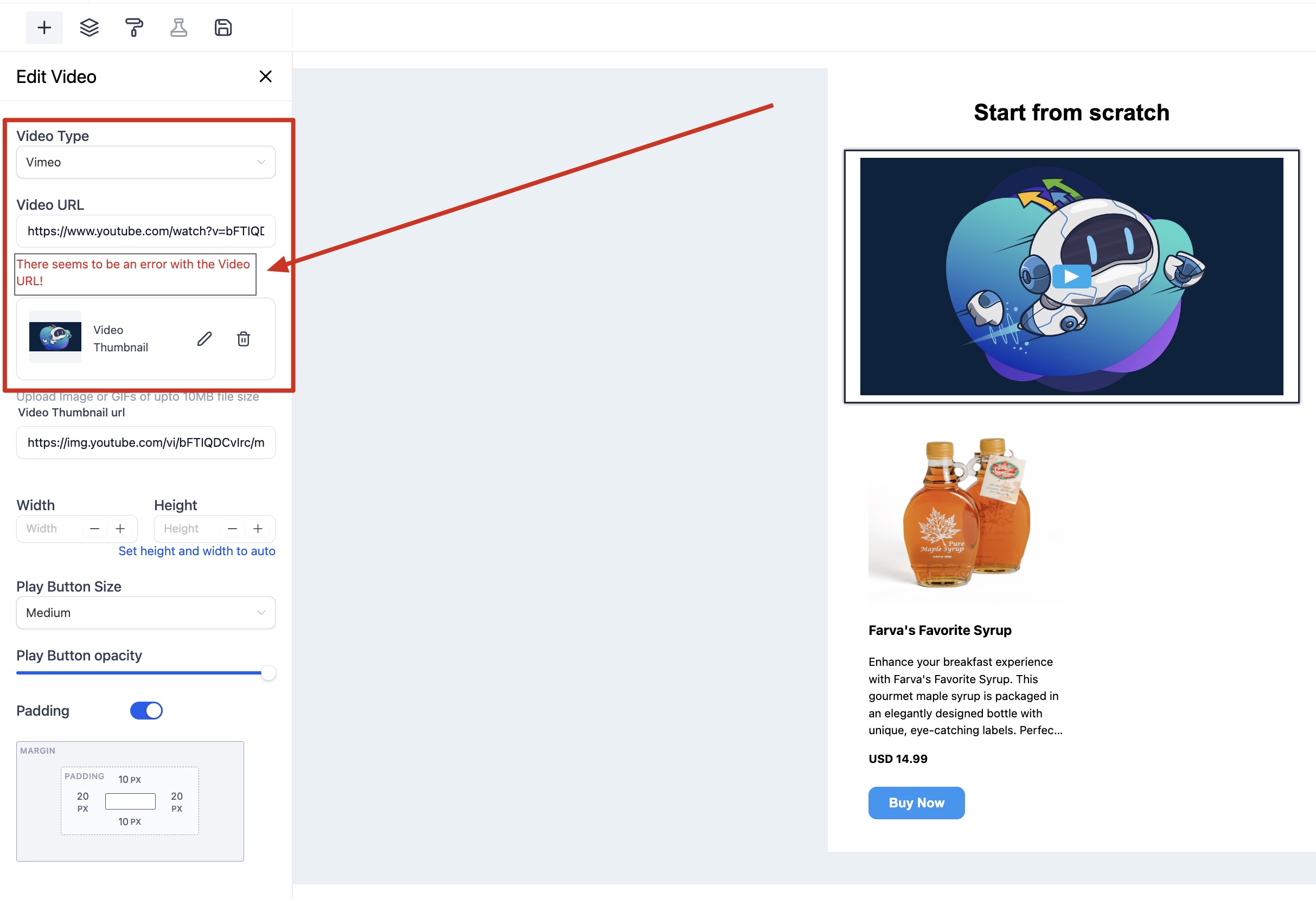
- If the system cannot fetch a thumbnail for the chosen video type, it shows a warning.
- The element always aligns left when custom dimensions are set; alignment must be handled with padding or column layouts.
10If something goes wrong
- Thumbnail fails to load and a warning appears. Verify that the selected Video Type matches the video URL, or provide a custom image using the Replace button.
- Previous thumbnail remains after a failed fetch. First add a video that has a satisfactory thumbnail, then change the Video URL; the earlier thumbnail will stay until you replace it.
11How it connects to the rest of HighLevel
- Adjust the Email Builder edit panel for easier element placement Edit panel guide
- Apply custom fonts to match your brand in the same email Custom fonts
Michael's take

The video element is a cheap way for a small business to give email recipients a visual cue that leads directly to a hosted video, turning bland links into eye catching calls to action without extra software.
Avoid assuming the thumbnail will always autoload; always verify the image or supply your own.