
01Who this is for
- Marketing managers who need data driven decisions on subject lines to improve open rates.
- Small business owners looking to validate copy changes before committing to a full send.
- Email strategists who want to test multiple content variations while keeping the subject consistent.
02A/B testing, explained
The feature creates up to six separate versions of either the email subject or the email body. Each version is sent to an equal share of a pre defined test audience, and performance is measured using either unique open rate or unique click rate.
A/B testing lives inside the Email Builder. After enabling it, you choose the test type, set duration, decide what percentage of contacts will receive the test, and specify the metric that decides the winner. Once the test window closes, HighLevel automatically forwards the winning version to the rest of the list.
03How businesses use a/B testing
- Ecommerce retailer. The retailer creates two subject lines, activates A/B testing, and lets HighLevel split the test audience. After the 2 hour window, the version with the higher unique open rate is sent to the remaining shoppers.
- Real estate agency. The agency keeps the subject line steady and drafts two email bodies describing a property. Using A/B testing, they compare click rates on the call to action button and send the better performing copy to the rest of their contacts.
- SaaS startup. The startup tests six variations of a product announcement email body while holding the subject line constant. HighLevel evaluates unique click rates and automatically distributes the top performing version to the full subscriber list.
04The numbers and rules that matter
- The campaign must contain at least 40 contacts before you can send an A/B test.
- Set the test duration between 30 minutes and 24 hours.
- Select the number of variations you want to test, up to six.
05Before you start
- Ensure the campaign contains at least 40 contacts.
- Decide whether to test the subject line or the email content; both cannot be tested together.
- Plan to send the campaign using the Send Now or Schedule options; batch or RSS schedules are not supported.
06How to set up and use a/B testing in HighLevel
Configure A/B testing for an email campaign
- From the Subaccount view, navigate to Marketing > Email > Campaigns.
- Select the campaign you intend to test.
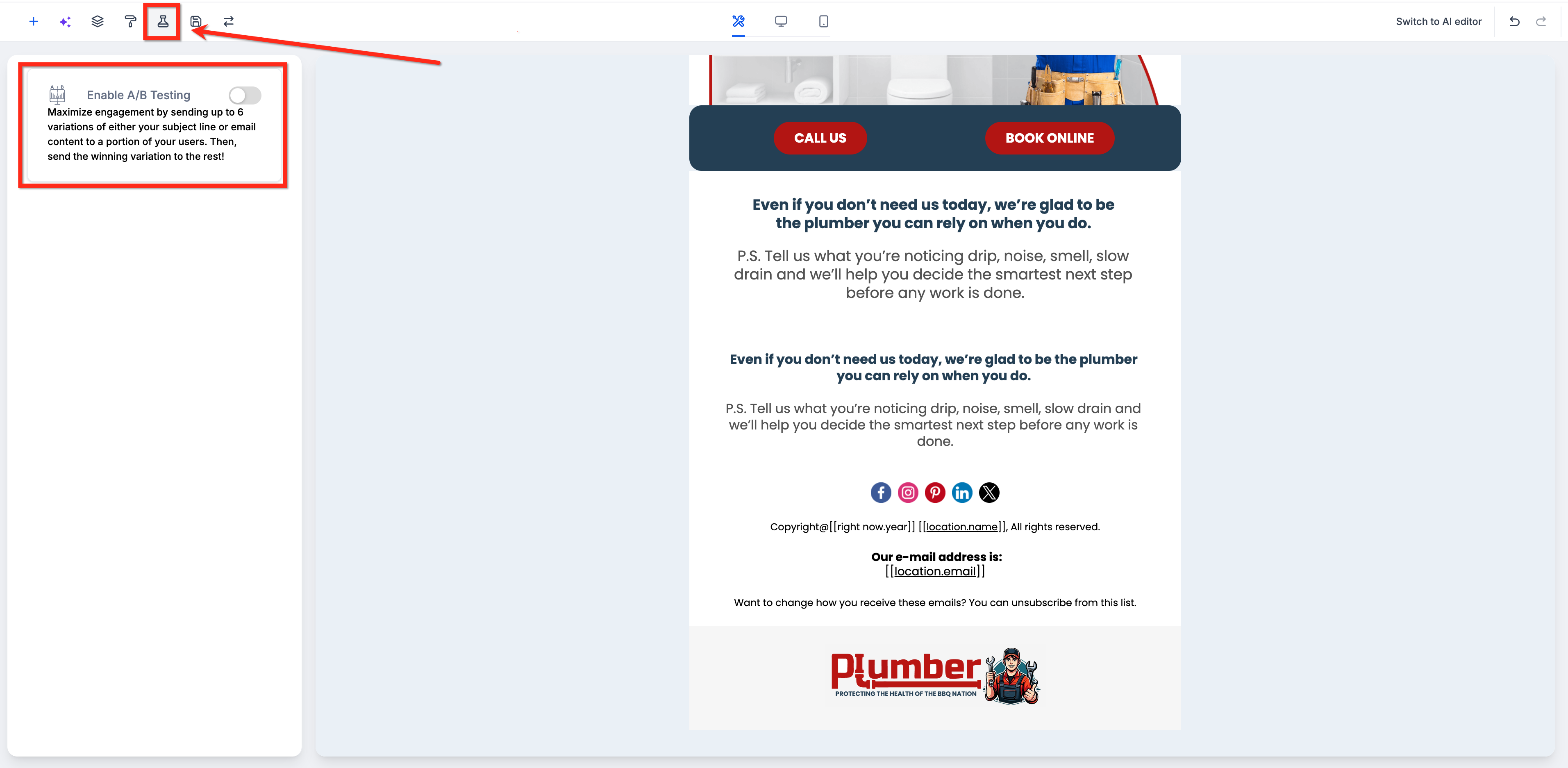
- Inside the Email Builder, click the A/B testing tab.
- Turn on the Enable A/B testing toggle.
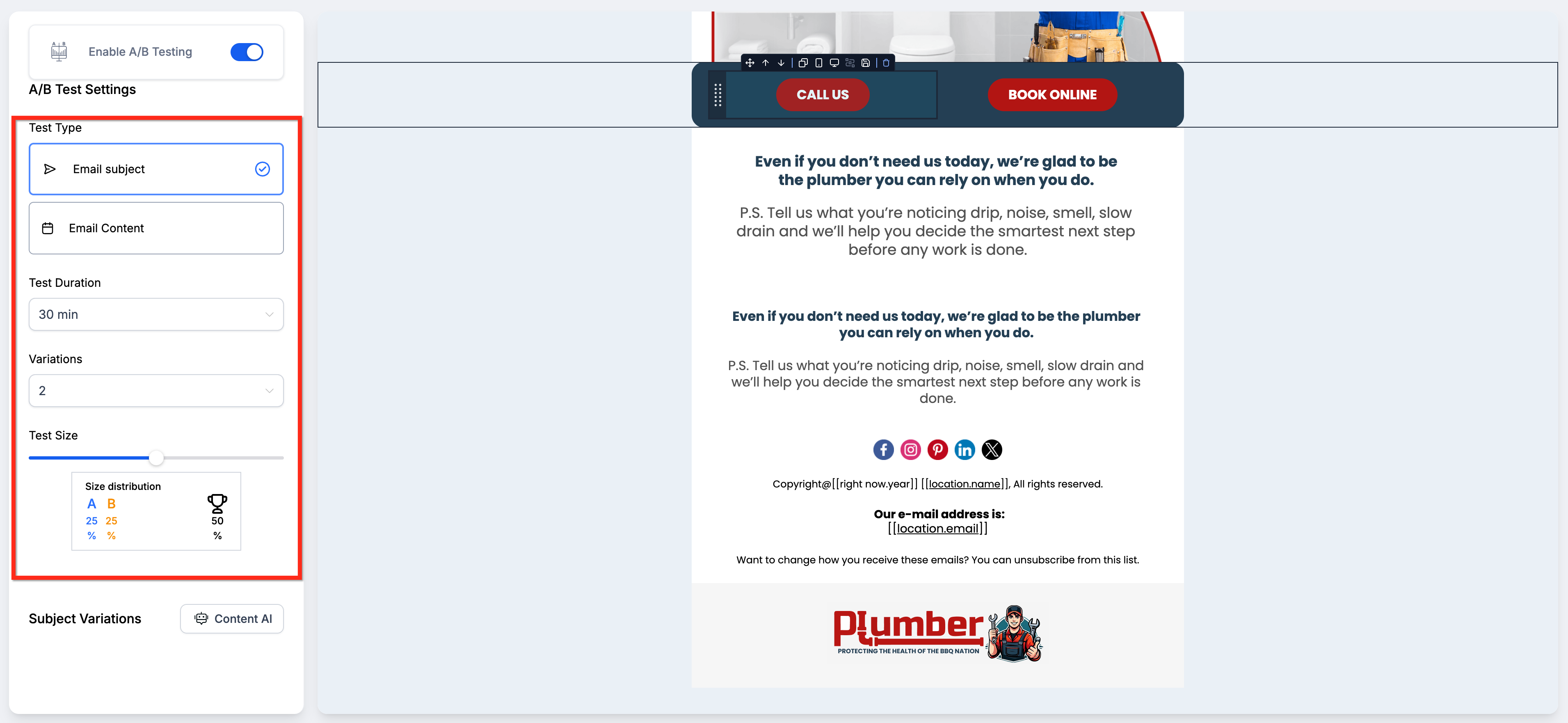
- Pick the test type, either Email Subject or Email Content.
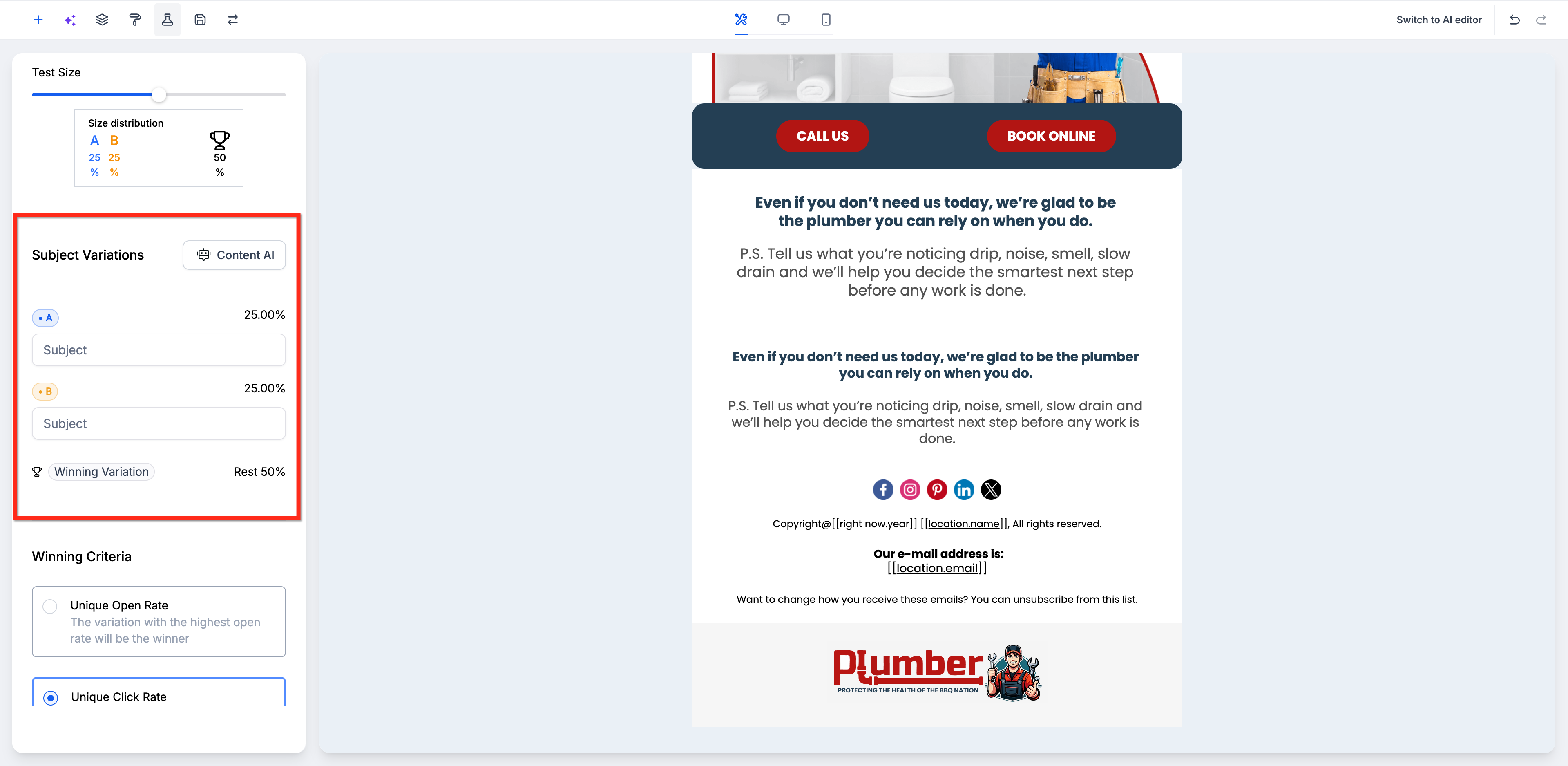
- Create each variation by entering different subjects or editing the email body as needed.
- Set the test duration to a value between 30 minutes and 24 hours.
- Choose the number of variations you want, up to a maximum of six.
- Adjust the test size slider to define the portion of the audience that will receive the test.
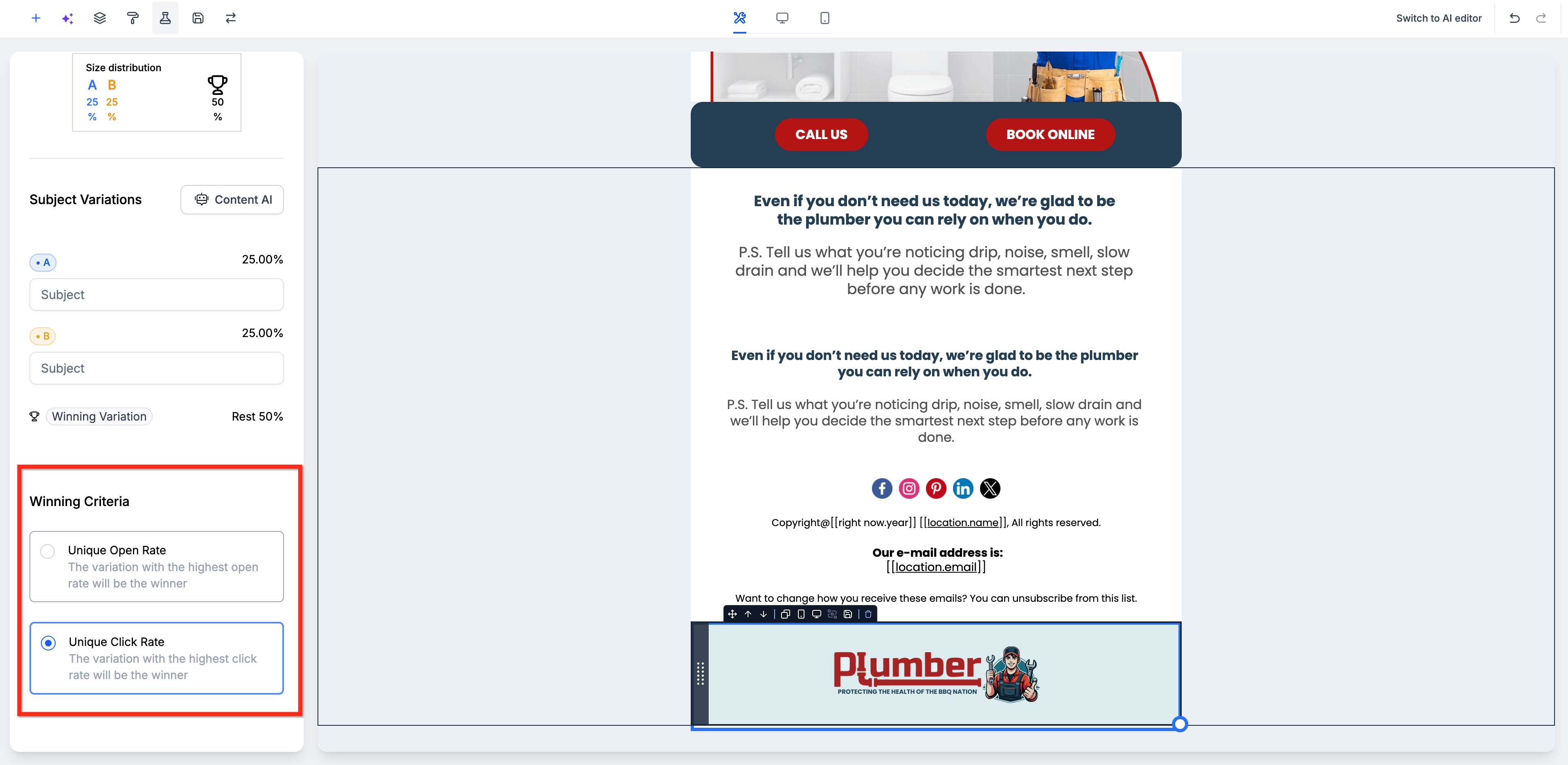
- Select the winning criterion (Unique Open Rate or Unique Click Rate), then click Save followed by Send and Schedule.
07What it looks like in HighLevel
08Settings that matter
- Enable A/B testing. Activates split testing for the current email campaign.
- Test type. Determines whether the comparison will be based on subject lines or on email body content.
- Test duration. Specifies how long the test runs, with a minimum of 30 minutes and a maximum of 24 hours.
- Number of variations. Sets how many different versions will be created, up to six.
- Test size slider. Controls the percentage of the campaign audience that participates in the initial test.
- Winning criterion. Chooses the metric (Unique Open Rate or Unique Click Rate) that decides which variation wins.
09Things to know before you rely on it
- A campaign must have at least 40 contacts before an A/B test can be launched.
- Only one test type, subject or content, can be selected per campaign.
- A/B testing works only with Send Now or Schedule; batch and RSS schedules are not supported.
- Test duration is limited to a range of 30 minutes to 24 hours.
- Up to six variations are allowed in a single test.
- If the chosen metric records no activity during the test, the first variation is automatically selected as the winner.
10How it connects to the rest of HighLevel
- Send or schedule a regular email campaign in HighLevel Send or schedule email
- How to move the Email Builder edit panel in HighLevel Move Email Builder panel
- HighLevel pricing and plans Pricing
Michael's take

Michael ReimerFounder of CRM Pros, HighLevel Commander and Certified Admin
A/B testing is useful, but not every small list needs it.
If you have fewer than 40 contacts, skip this feature.
Get More InformationOpens on HighLevelPublished November 2, 2026 · Updated November 16, 2026