
01Who this is for
- Marketing managers benefit because the panel switch lets them view AI suggestions while editing, keeping workflow smooth.
- Agency owners gain efficiency when working on multiple client templates, as the split view reduces navigation steps.
- Founders can produce polished email drafts faster, allowing more time for strategy and outreach.
02Email Builder inline editor, explained
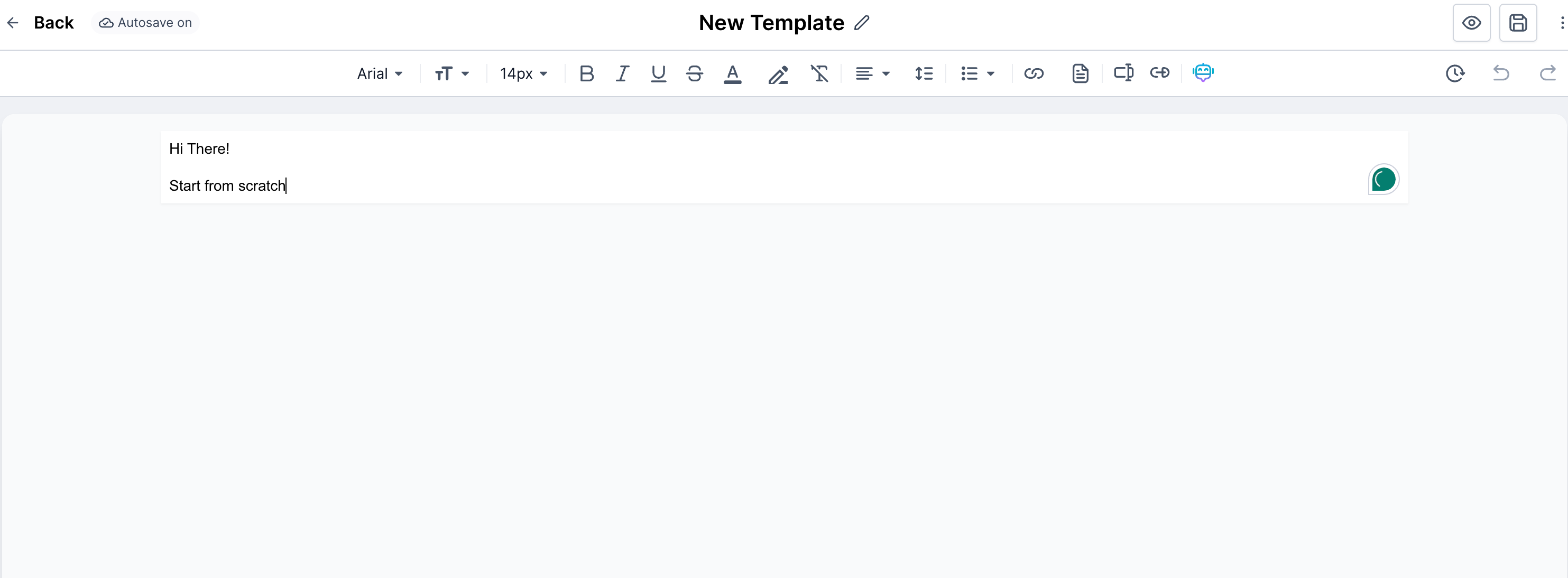
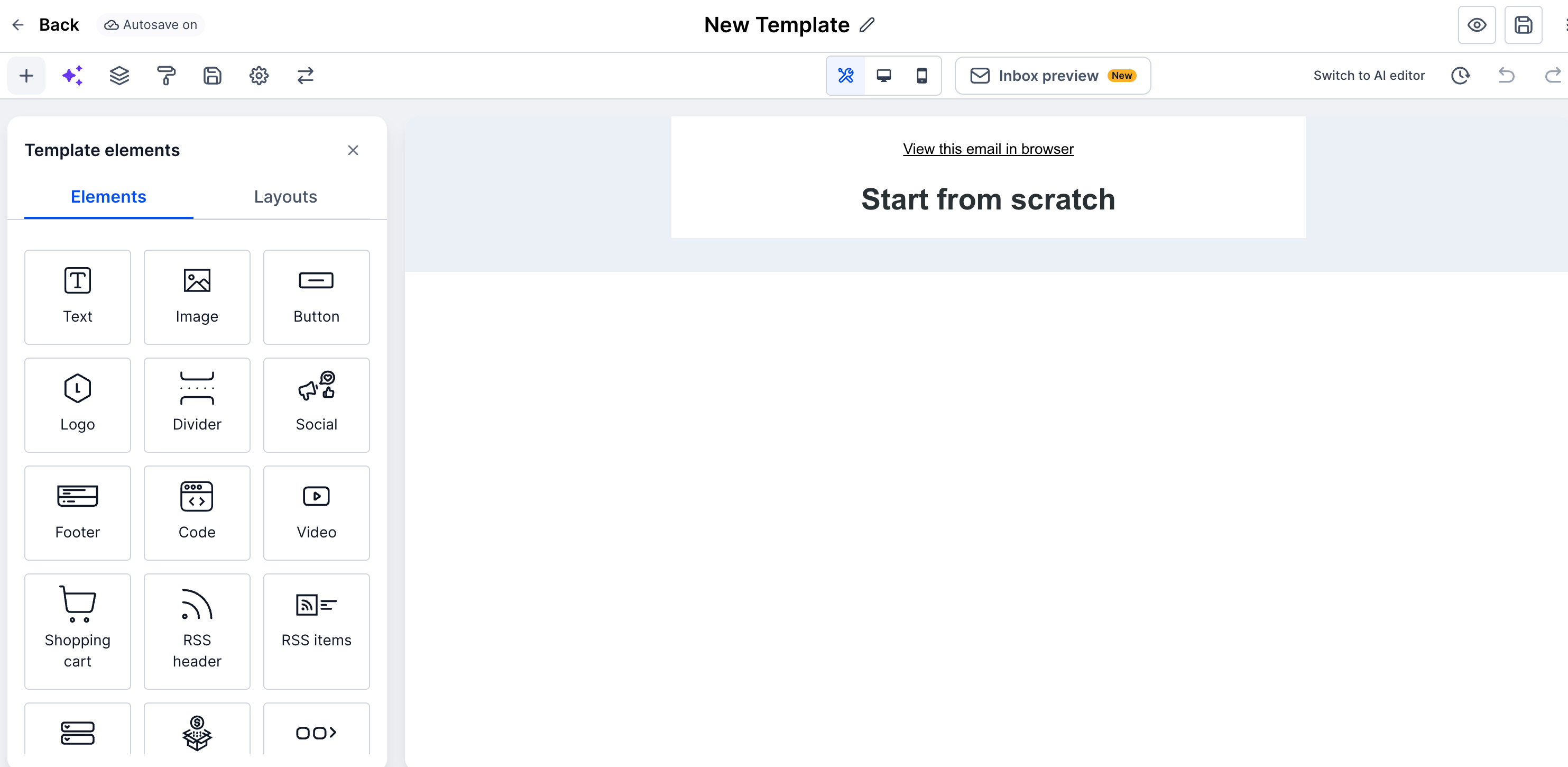
The Email Builder is a drag and drop design area inside HighLevel where you create email templates and campaigns without coding. The Inline Editor supplies a WYSIWYG toolbar that appears when you select text or an element, letting you change fonts, colors, links and other styles directly on the canvas.
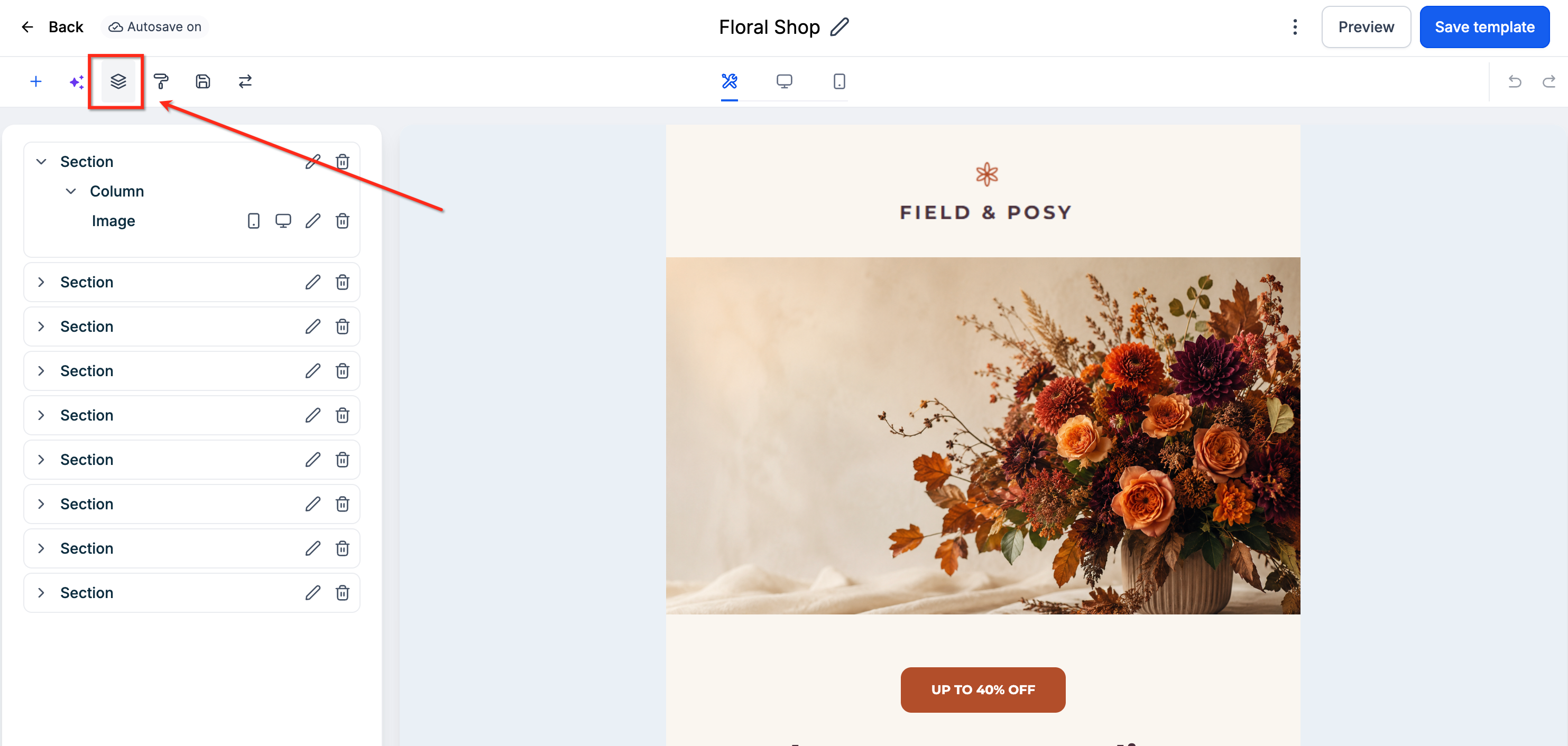
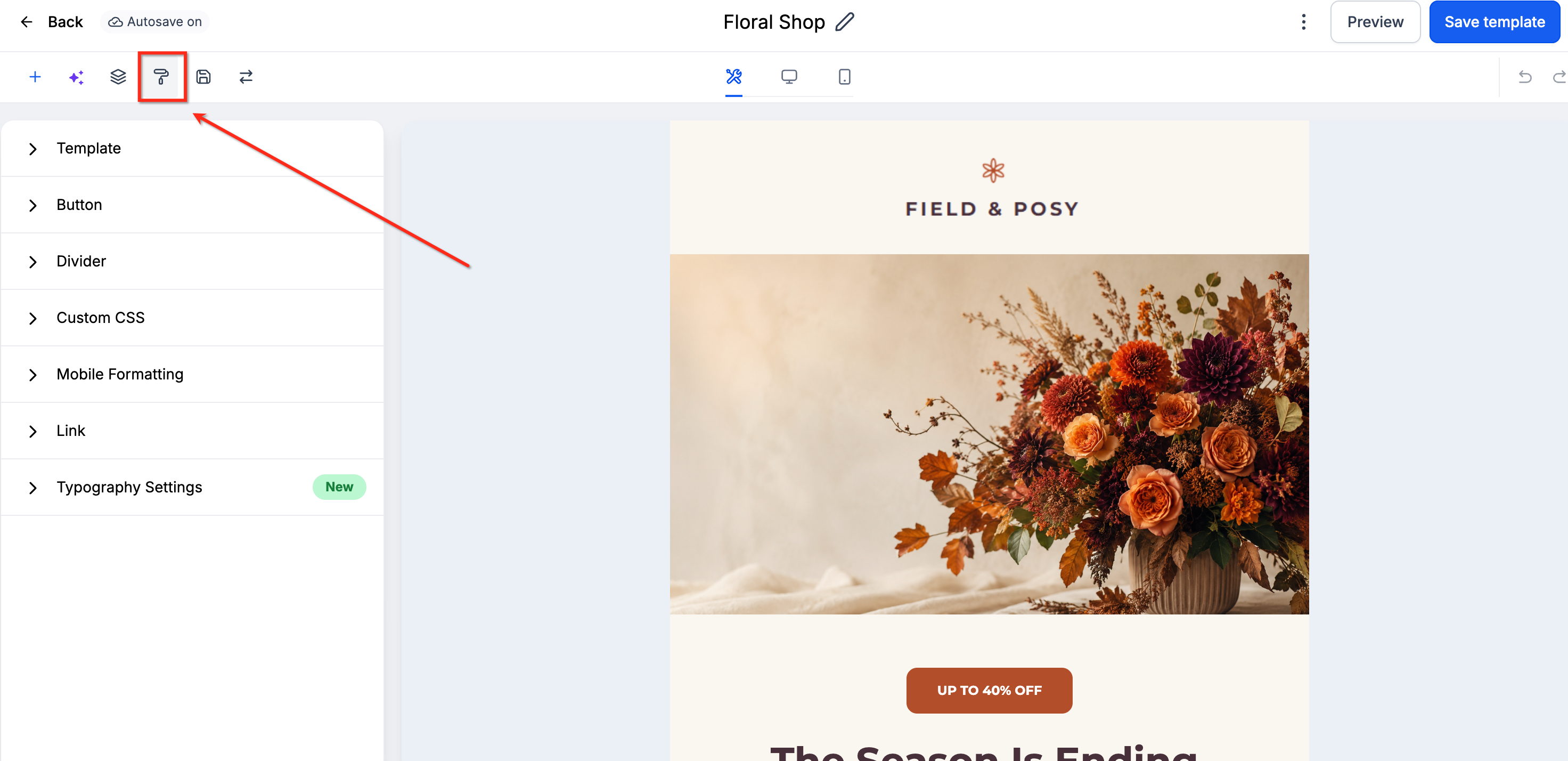
A panel switch icon appears in the editor toolbar. Clicking it moves the edit pane from the left side of the screen to the right side, or back again. This layout places the Email AI tool next to the canvas, so you can generate content with AI while seeing the email design at the same time.
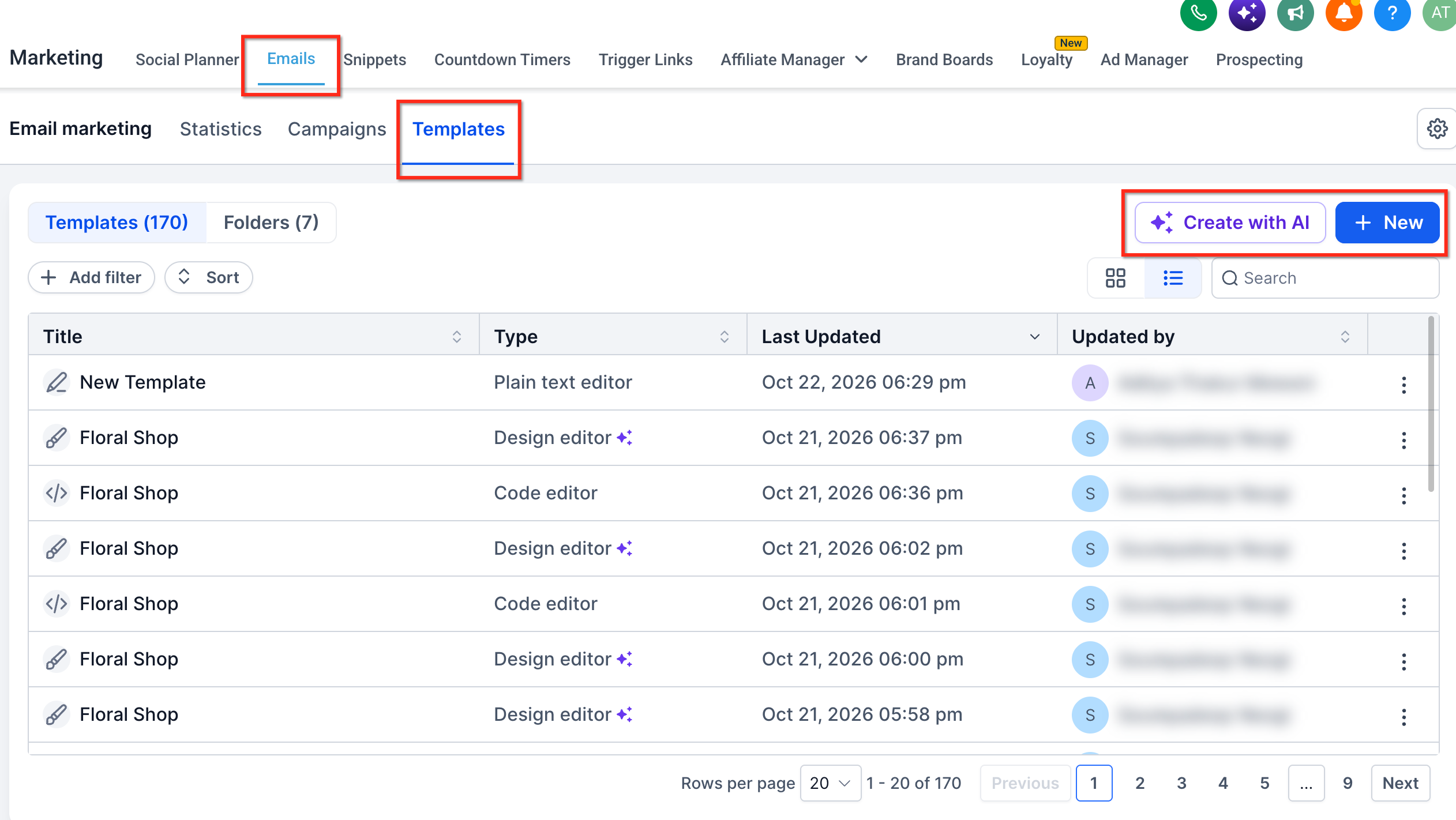
The feature is accessed by opening a campaign or template under Marketing > Emails, then entering edit mode. The panel can be toggled at any time while editing.
03How businesses use Email Builder inline editor
- Digital marketing agency. The agency opens a client email template, enables Email AI, and moves the edit panel to the right. This lets the designer watch AI generated copy appear while adjusting layout, keeping both views visible.
- Ecommerce store. The store manager edits a promotional email, switches the panel to the left, and works on the design while the AI suggests product descriptions on the opposite side, streamlining content creation.
- Coaching business. The coach accesses a webinar invitation template, docks the panel on the right, and simultaneously refines the email text and reviews AI generated subject line suggestions.
04The numbers and rules that matter
- Top Padding: 12.
- Bottom Padding: 12.
- Left Padding: 24.
- Right Padding: 24.
- Image upload maximum size: 10 MB.
- Video thumbnail maximum size: 10 MB.
- Button corner radius example: 75.
- Button border radius default example: 9.
- Content width default: 600 pixels.
- Minimum touch friendly button size: 44 px by 44 px.
- Supported fonts include Arial, Georgia, Verdana.
05Before you start
- Enable Email AI in Agency Labs Settings > subaccount feature.
06How to set up and use Email Builder inline editor in HighLevel
Switch the edit panel side
- Open Marketing > Emails and select a campaign or template to edit.
- Turn on Email AI if you want to use AI alongside the canvas.
- Click the panel switch control in the editor to dock the panel on the right or move it back to the left.
- Continue editing while the Email AI panel and canvas are both visible.
07What it looks like in HighLevel
08Settings that matter
- Top Padding. Controls the space above the content inside the email.
- Bottom Padding. Controls the space below the content inside the email.
- Left Padding. Controls the space to the left of the content inside the email.
- Right Padding. Controls the space to the right of the content inside the email.
09Things to know before you rely on it
- Default padding values are Top 12, Bottom 12, Left 24, Right 24 and can be changed in the Appearance settings.
- Image uploads are limited to files no larger than 10MB.
- The panel switch works only when Email AI is enabled in the Agency Labs settings.
10How it connects to the rest of HighLevel
- Send or schedule a regular email campaign after designing your template. email campaign
- Add brand fonts to your email design using the custom font options. custom fonts
Michael's take

If you’re only sending a handful of internal updates or you prefer a fully coded approach, the builder can feel heavyweight. The many options. Custom CSS, RSS feeds, shopping cart blocks. Add complexity that may not be needed for simple messages.