
01Who this is for
- Marketing teams that need brand consistent email designs and want to control typography across campaigns.
- Design focused agencies that must match client brand guidelines using Google or Brand Board fonts.
- Advanced users or developers who require custom HTML/CSS for unique email layouts.
02Custom fonts, explained
The Email Builder offers three ways to change typography. Built in fonts are always available, while Brand Board fonts appear when a default Brand Board is set. Google Fonts can be added directly from the builder without writing code. For situations where native options fall short, the Code Element lets you paste HTML or CSS that defines custom fonts.
These options live inside the Email Builder accessed via Marketing > Emails. Fonts added through the Google Font picker become part of the font selector for the current email. Brand Board fonts are listed under a separate Brand Fonts section. The Code Element is a drag and drop component that opens a code editor where you can place any HTML or CSS you need.
Because email clients differ in how they render external fonts, HighLevel recommends always testing on desktop and mobile previews and sending test emails to verify both the preferred font and a suitable fallback.
03How businesses use custom fonts
- Ecommerce store. The store selects a Google Font that matches its website branding, adds it to the email builder, and applies it to product description text. This keeps the look consistent between the online shop and promotional emails.
- Real estate agency. Agents use the Brand Board feature to pull the agency's official font into email newsletters. They open the design editor, choose the text, and pick the font from the Brand Fonts list, ensuring every message reflects the agency’s visual identity.
- Software startup. Developers insert a Code Element into a drip campaign email and paste custom CSS that loads a web font not available through Google or Brand Boards. They preview the email and send test messages to confirm rendering before launch.
04The numbers and rules that matter
- Google Fonts may not work consistently in Gmail, Outlook on several platforms, Outlook.com, Yahoo Mail.
05Before you start
- A default Brand Board must be configured if you plan to use Brand Board fonts.
- Open the email campaign or template in the Email Builder before adding fonts.
06How to set up and use custom fonts in HighLevel
Add a Google Font to an email
- Go to Marketing > Emails.
- Open an existing campaign or template, or start a new one.
- Click a text element that you want to style.
- Open the Font selector menu.
- Press the Add fonts button.
- Choose the Google Font you need from the list.
- Confirm the selection by clicking Add font.
- Return to the Font selector and apply the new font to the chosen text.
- Review the email in both desktop and mobile preview modes.
- Send a test email and verify how the font appears in target email clients.
Apply a Brand Board font
- Open the email in the Design Editor.
- Select the text you wish to change.
- Open the Font dropdown list.
- Pick the desired font from the Brand Fonts section.
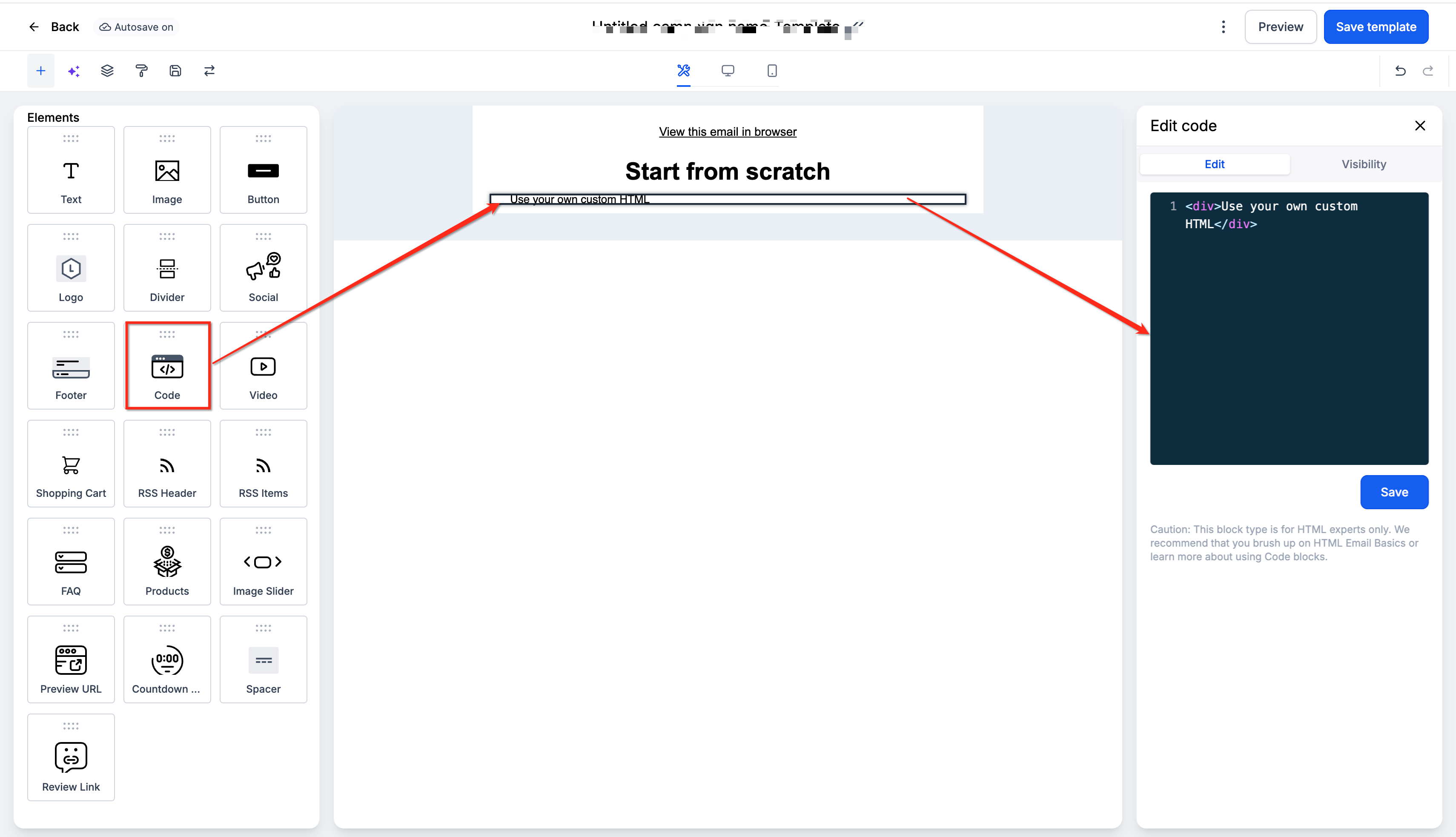
Add custom HTML or CSS via Code Element
- Navigate to Marketing > Emails > Templates.
- Open an existing template or create a new one.
- Click the Add Elements (+) icon.
- Drag the Code Element onto the email canvas.
- Select the Code Element to open its editing panel.
- Paste the required HTML or CSS code.
- Preview the email and run a test send before publishing.
07What it looks like in HighLevel
08Settings that matter
- Add fonts. Opens the Google Font picker so you can select and import a new font into the builder.
- Font selector. Displays all available fonts, including built in, Brand Board, and added Google fonts, for you to assign to text elements.
- Brand Fonts. Shows fonts that are stored on the default Brand Board, allowing quick selection without external sources.
09Things to know before you rely on it
- Google Fonts may not load in Gmail, Outlook (various platforms), Outlook.com, and Yahoo Mail, causing a fallback font to appear.
- Only fonts from the current default Brand Board appear in the Brand Fonts list; other Brand Boards are not shown.
- Custom HTML or CSS can affect surrounding elements if not kept self contained, and email client support for custom code varies.
- Direct font file uploads are not supported in the Email Builder, unlike other HighLevel products.
10If something goes wrong
- Custom font appears different or not at all in Gmail or Outlook. Understand that those clients may fall back to a default font; test with a fallback that has similar proportions.
- Brand Board font does not show in the Email Builder. Verify that the correct Brand Board is set as the default so its fonts appear under Brand Fonts.
11How it connects to the rest of HighLevel
- Move the Email Builder edit panel to customize your workspace Edit panel placement
- Set up A/B testing for email campaigns to compare font performance A/B testing guide
- Adjust mobile view settings to ensure custom fonts render correctly on phones Mobile view controls
Michael's take

Beware that not every email client will honor the font you add. Gmail and Outlook, for example, often fall back to a system typeface, so you could end up with a different look than you designed. That risk means you need a solid fallback stack to keep the message readable.
When the font does work, having a brand consistent typeface can make your emails feel more polished and aligned with the rest of your marketing. I would begin with using the native Google Font option or a Brand Board font before jumping into custom code, and then run a few test sends to see how the fonts render across the most common clients.