
01Who this is for
- Founders who run regular email newsletters and need a way to capture missed opens without spamming subscribers.
- Marketing managers at small agencies who want to improve open rates by targeting non openers with a single follow up.
- Ecommerce store owners seeking an extra chance to promote a sale to contacts who ignored the first announcement.
02Resend to unopened, explained
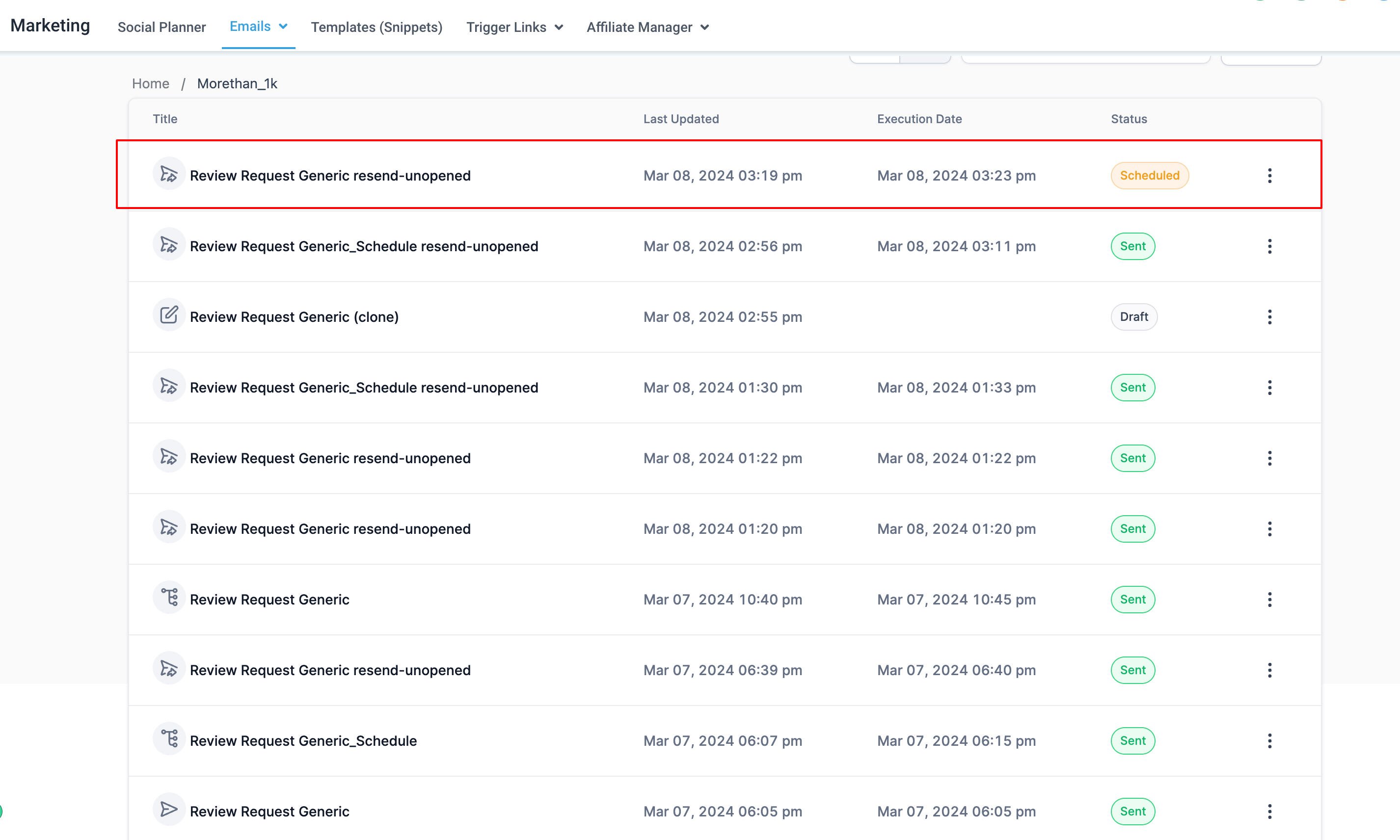
The resend to unopened option appears in the Email Marketing area of HighLevel. After selecting an existing campaign, a three dot menu offers the "Resend email to Unopened" action. Choosing it opens a form where the user sets a new send time and writes a fresh subject line. Once confirmed, HighLevel creates a duplicate campaign that retains the original content but schedules it for the specified window.
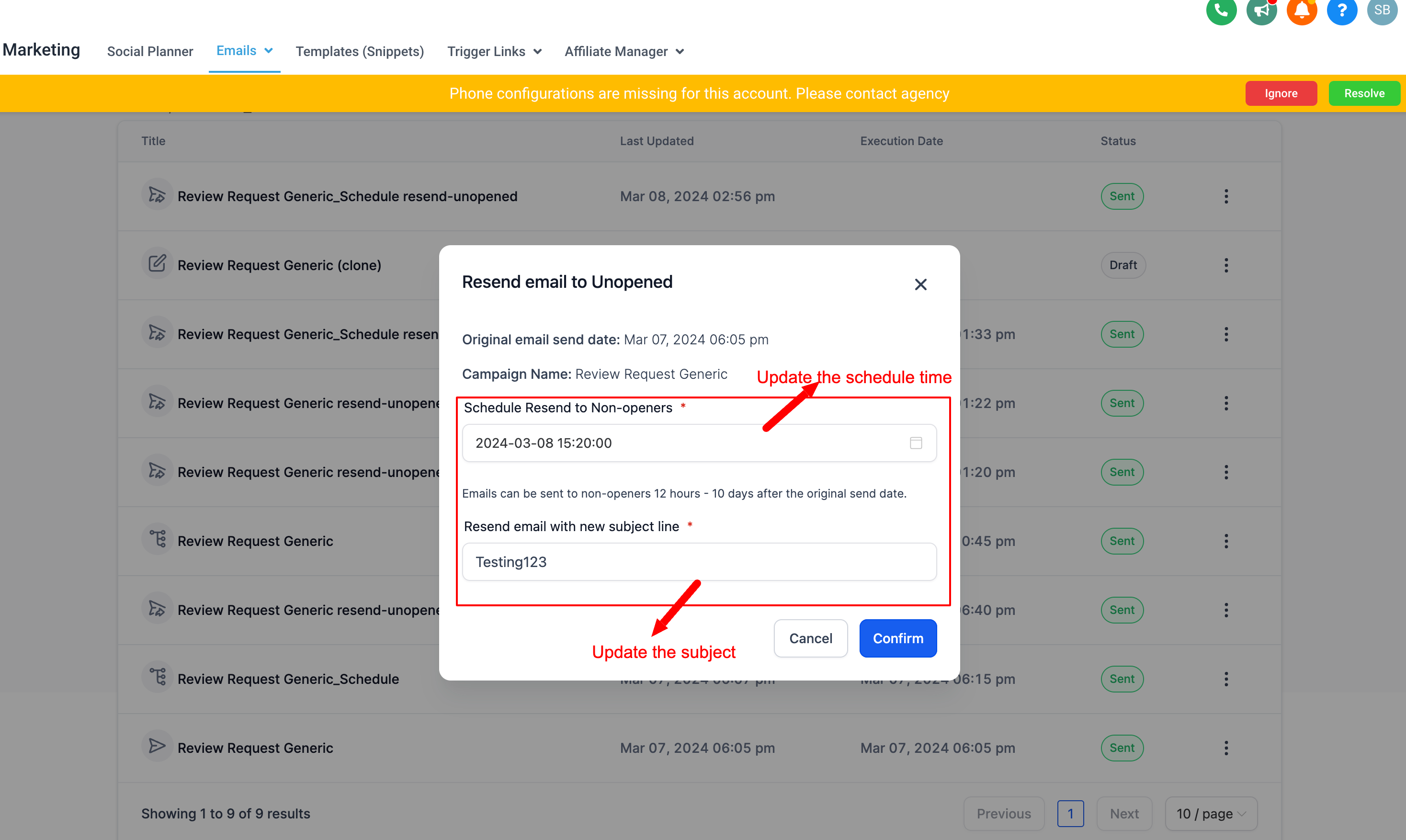
This feature works only for standard email campaigns. It cannot be used with batch schedule, RSS, or A/B test campaigns in the current release. The resend window must fall between 12 hours and 10 days after the original send, and each campaign can be resent only once. The platform does not allow rescheduling a resend; the user must delete and recreate it if changes are needed.
03How businesses use resend to unopened
- SaaS startup. The team creates a product update email, then uses the resend feature to target contacts who did not open it. They adjust the subject line to highlight a new benefit and schedule the resend within 24 hours, keeping the content unchanged.
- Local service provider. After an appointment reminder campaign, the provider selects the original reminder and resends it to the small group that never opened the first message. They set a new subject line mentioning a limited time discount and schedule the resend for the next day.
- Online retailer. The retailer launches a flash sale email, then uses the resend option to reach shoppers who missed the first send. They change the subject to "Last chance for 30% off" and schedule the resend three days later, staying within the 12 hour to 10 day window.
04The numbers and rules that matter
- Resend window of 12 hours to 10 days.
- Limit resending to once.
05Before you start
- An email campaign must already exist in the Email Marketing section.
06How to set up and use resend to unopened in HighLevel
Resend a campaign to contacts who did not open the original email
- Open the Email Marketing section in HighLevel.
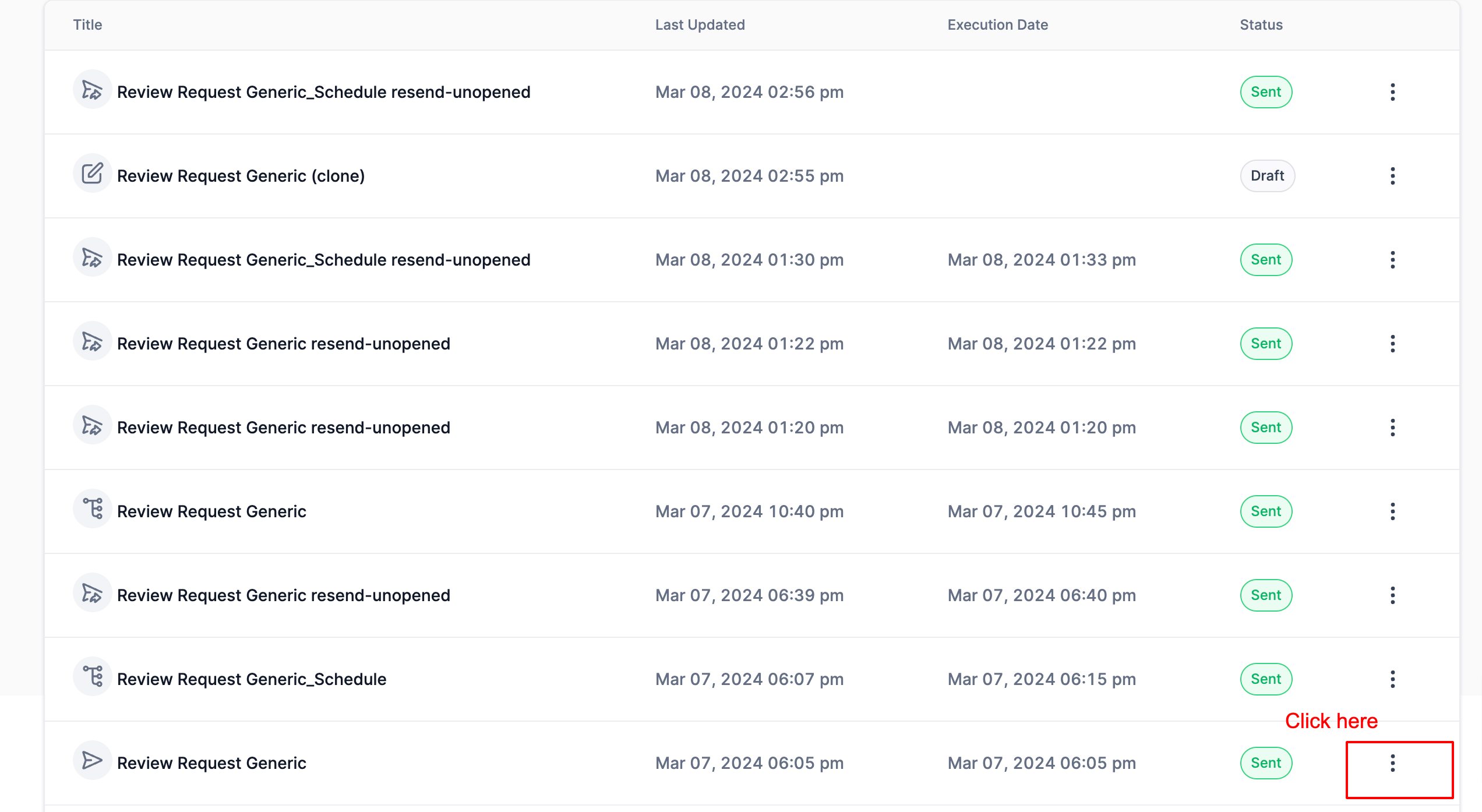
- Find the campaign to resend and click the three dot options menu.
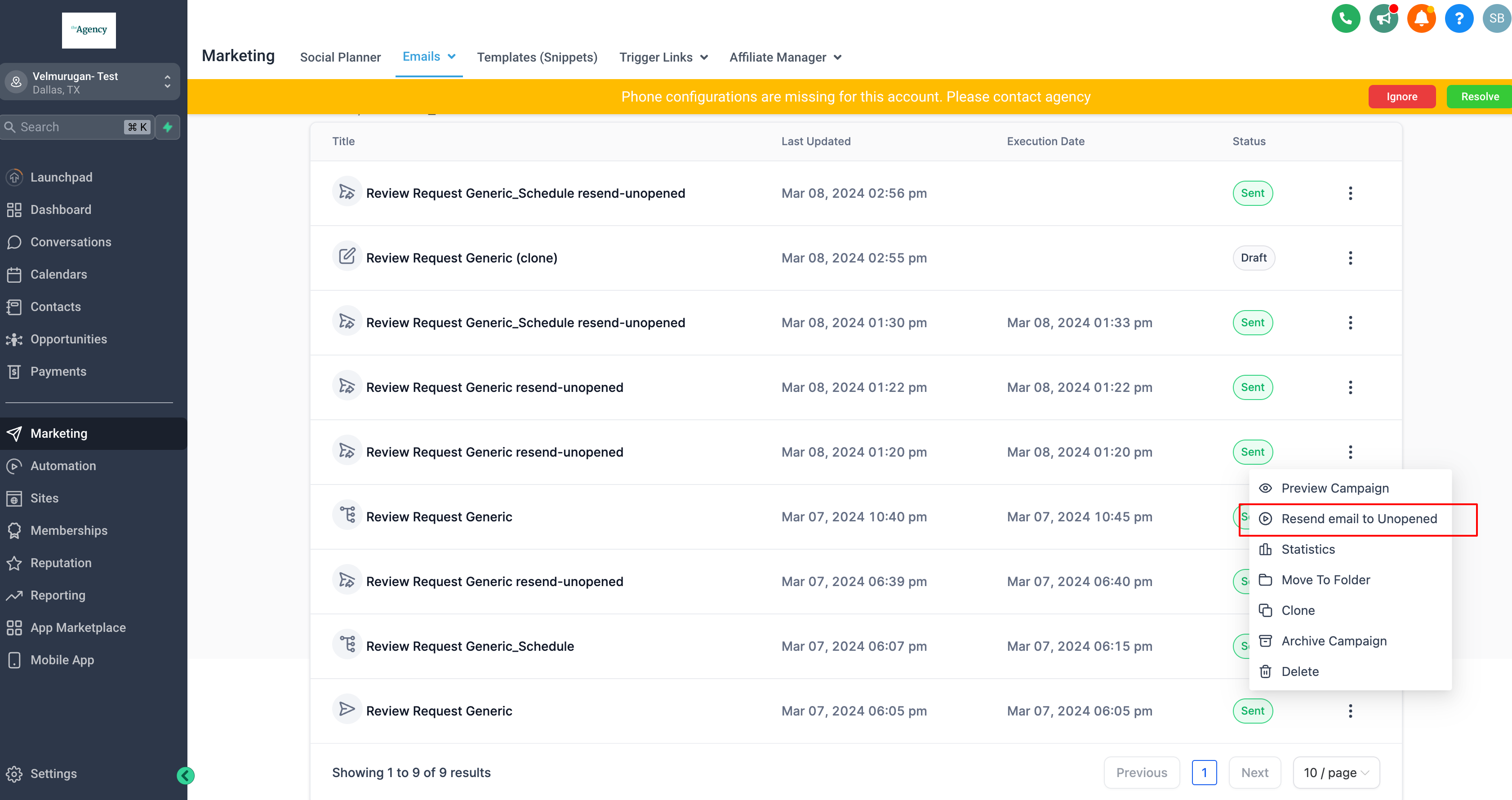
- Select the "Resend email to Unopened" command.
- Enter the desired send time and a new subject line for the resend.
- Confirm the settings; HighLevel will schedule a new campaign with the same email content.
07What it looks like in HighLevel
08Settings that matter
- Resend email to Unopened. Enables creation of a one time resend campaign that targets only contacts who did not open the original send.
09Things to know before you rely on it
- Resend can be scheduled only between 12 hours and 10 days after the initial send.
- Each campaign may be resent only once; multiple attempts are not allowed.
- The feature is unavailable for batch schedule, RSS, and A/B test campaigns.
- Rescheduling a resend is not possible; the resend must be deleted and recreated to change timing.
- SMTP integrations may not provide accurate metrics for this feature in the current release.
10How it connects to the rest of HighLevel
- Send or schedule a regular email campaign in HighLevel Send or schedule email
- How to edit draft and scheduled email campaigns in HighLevel Edit email campaigns
- Understanding email statistics in HighLevel Email statistics
Michael's take

Resend to unopened can be useful, but only if you’re comfortable managing the timing and limits.
Businesses that already have high open rates or that risk many complaints should skip it.