
01Who this is for
- Marketing agencies benefit because they can pace large client lists to avoid overwhelming landing pages.
- Ecommerce owners gain control over peak traffic spikes during promotions by sending emails in smaller batches.
- SaaS Founders can protect their application servers from sudden load by scheduling deliveries over a chosen period.
02Batch schedule email campaigns, explained
Batch scheduling is an email delivery mode that divides the audience into groups and sends each group at a defined interval. The platform sends the specified number of messages, waits the repeat interval, then sends the next batch, continuing until all recipients have received the email.
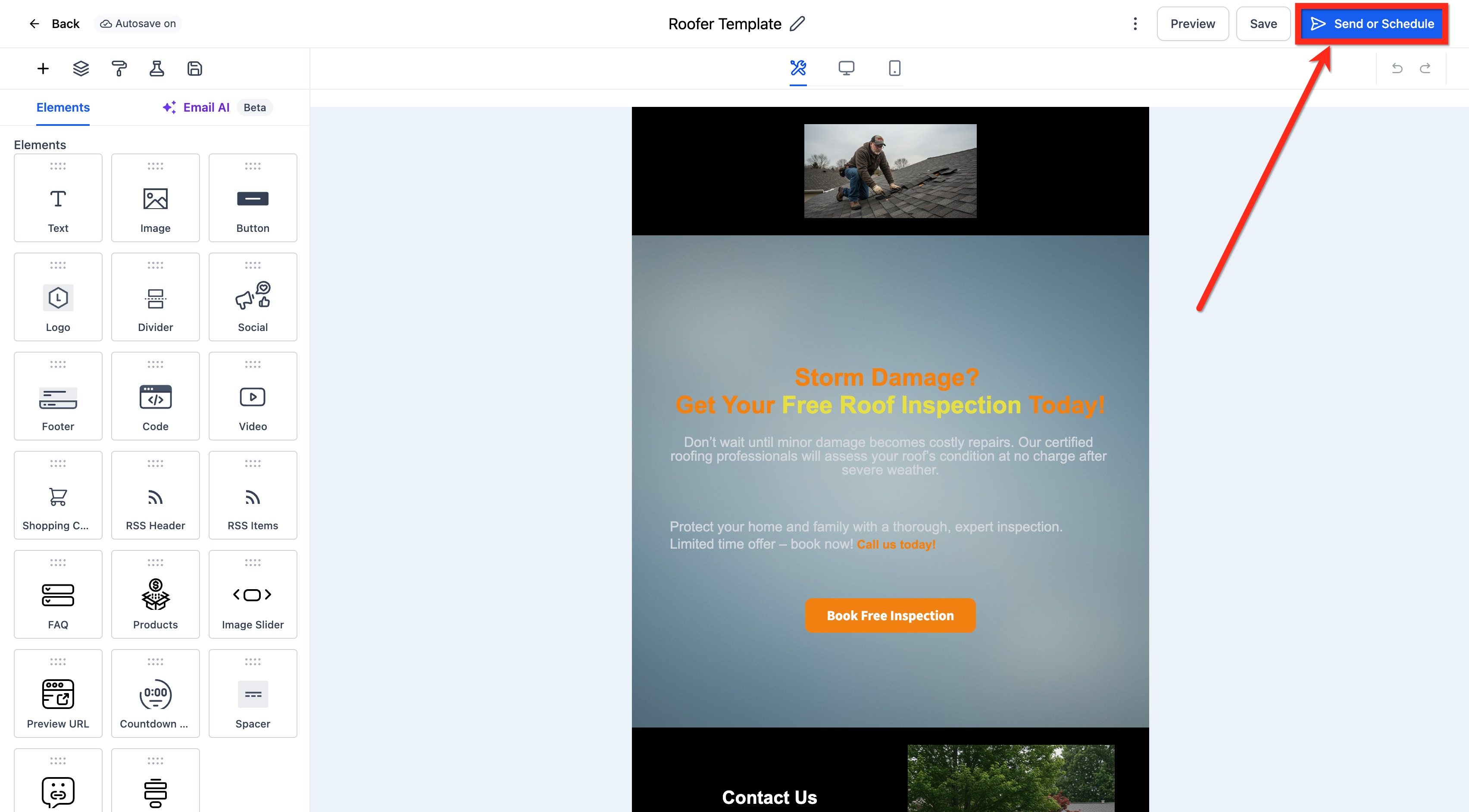
The feature lives inside the Email Builder. After creating a campaign, you select the Batch Schedule option from the Send or Schedule button and fill out fields for start time, batch quantity, repeat interval, days of the week, and sender details. Validation ensures the end time is later than the start time and that required fields are completed before the schedule can be saved.
03How businesses use batch schedule email campaigns
- Digital marketing agency. The agency creates a campaign for a client, chooses a batch size of 2,000 contacts, sets a 5 minute repeat interval, and selects Monday through Friday. The platform then releases the emails in controlled bursts, keeping the client’s website stable.
- Online retailer. Before a flash sale, the retailer builds a promotional email, sets the batch quantity to 500, repeats every hour, and restricts delivery to the evening hours. This spreads traffic to the product page throughout the sale window.
- SaaS startup. The startup drafts a new feature announcement, configures a batch schedule of 1,000 emails every 10 minutes, and selects only business days. Recipients receive the email gradually, reducing the chance of server overload.
04The numbers and rules that matter
- Frequencies of 30 sec, 1 min: 1,000 messages per minute.
- Frequencies of 5 min: 4,999 messages per minute.
- Frequencies of 6 min, 10 min: 5,000 messages per minute.
- Frequencies of Above 10 min: 10,000 messages per minute.
- Less than 10k, we process, 15k contacts per hour.
- More than 10k but less than 50k, we process, 6k contacts per hour.
- More than 50k but less than 70k, we process, 3k contacts per hour.
- More than 70k, we process, 1.5k contacts per hour.
05Before you start
- Create the email template you plan to send.
- Verify the domain you will use for sending emails.
06How to set up and use batch schedule email campaigns in HighLevel
Batch schedule an email campaign
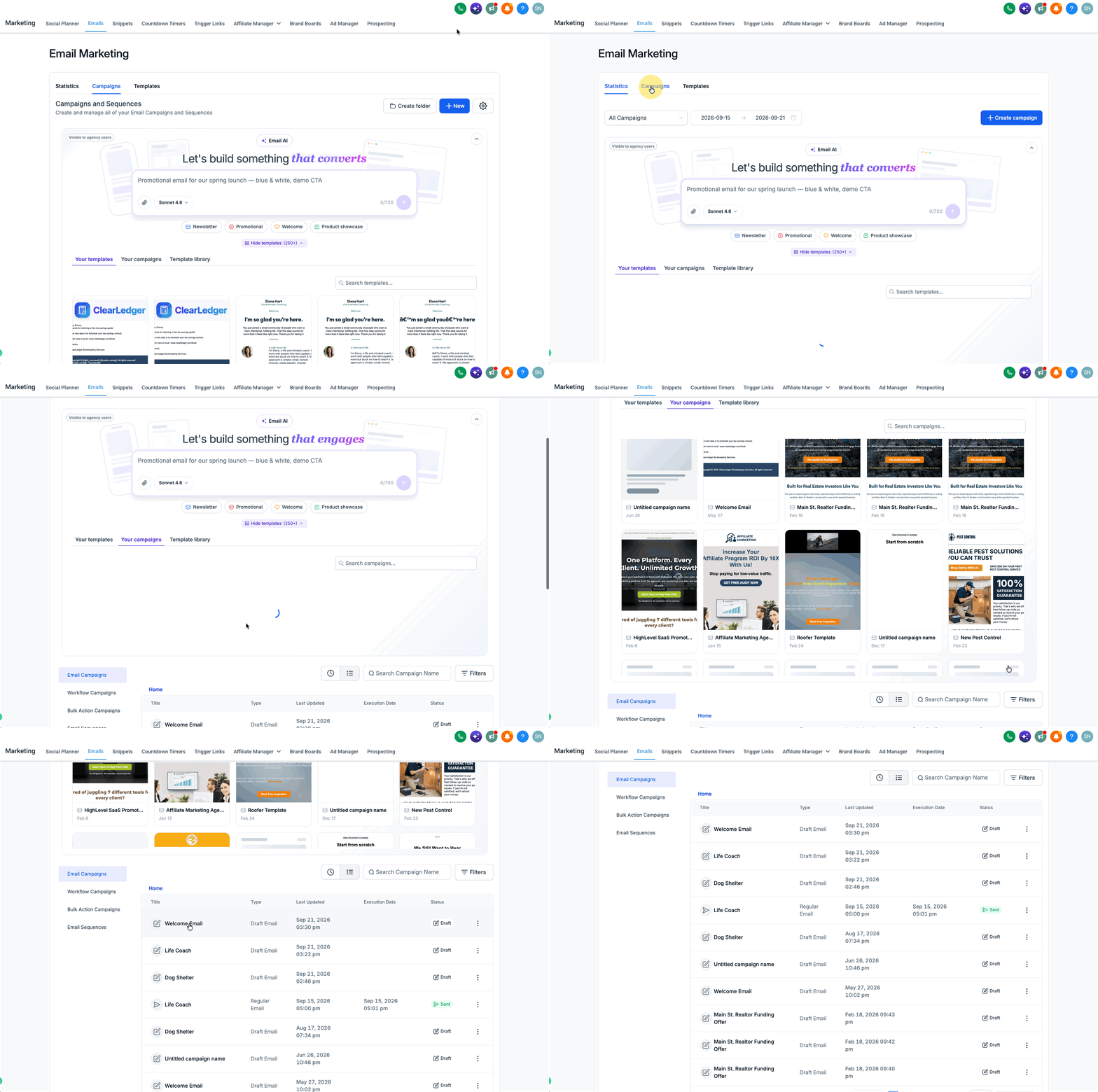
- Open Marketing > Email > Campaigns.
- Start a new campaign or edit an existing one.
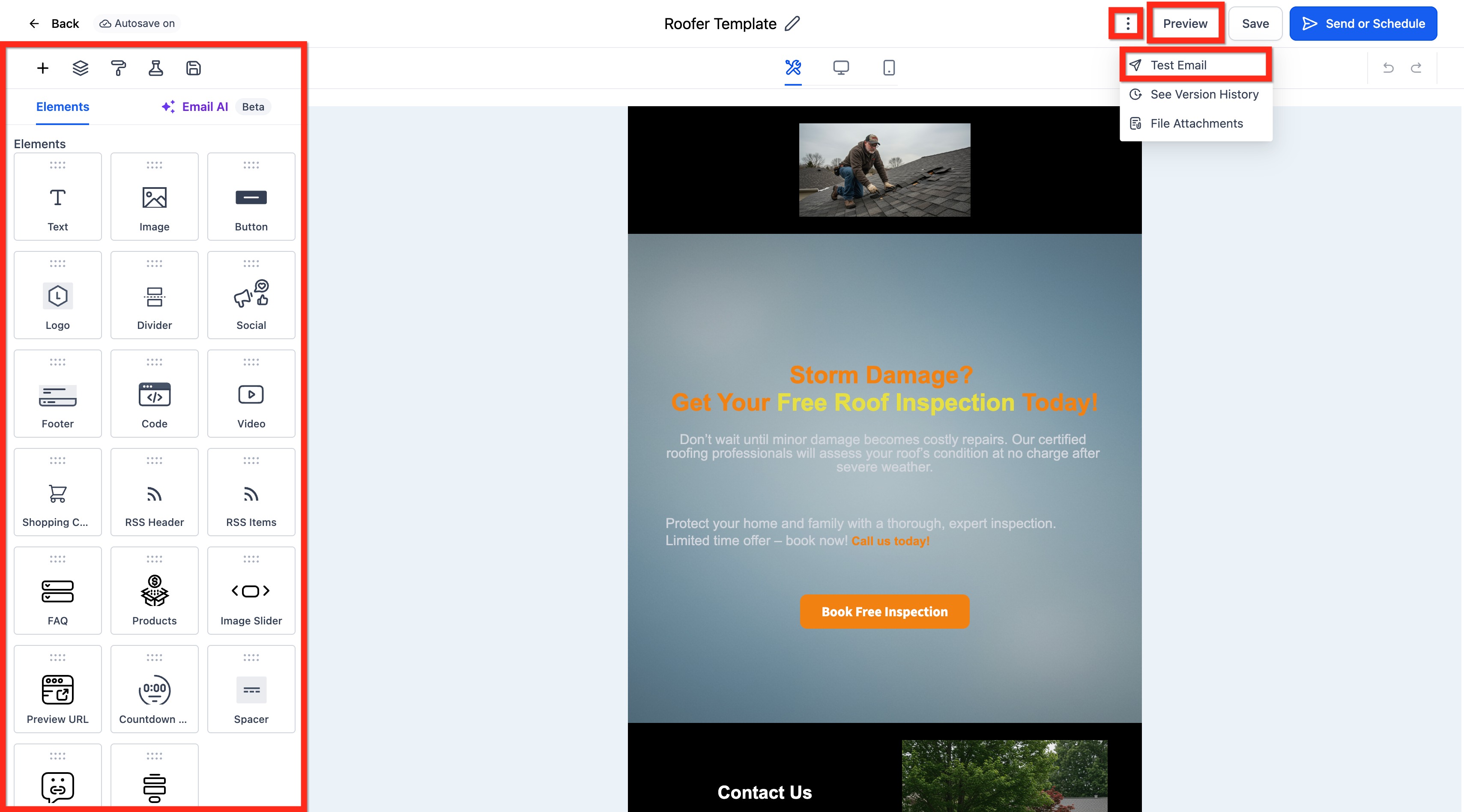
- Build a new template or pick one from the library.
- Add the desired content, images, and links to the template.
- Preview and test the email on desktop and mobile devices.
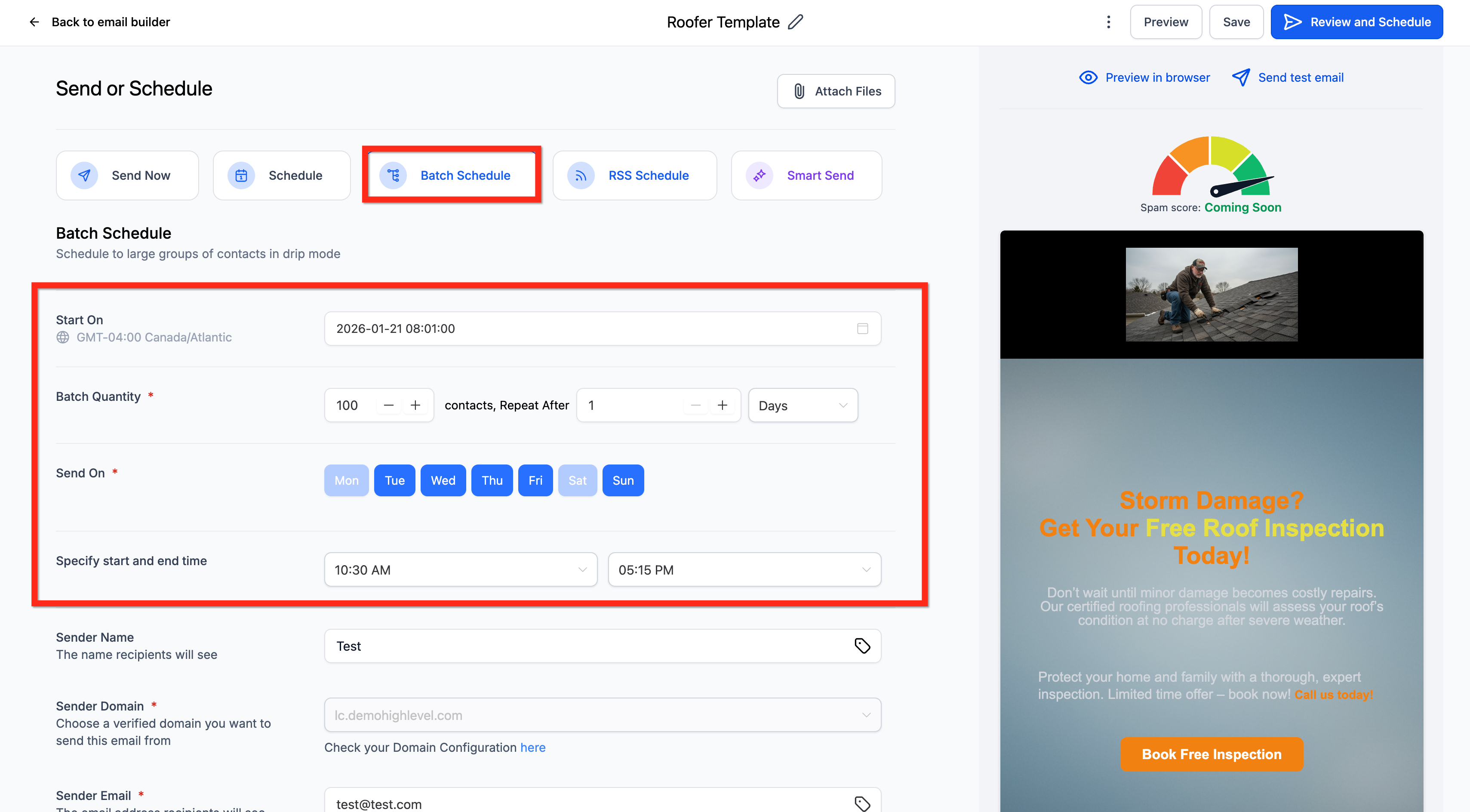
- Click the Send or Schedule button and choose Batch Schedule.
- Set the campaign’s start date and time.
- Enter the batch quantity, the number of emails per batch.
- Define the repeat interval using days, hours, minutes, or seconds; if a draft previously used seconds, the seconds field clears automatically.
- Uncheck any days of the week when the batch should not run.
- Provide start and end times for each batch window.
- If the end time is earlier than the start time, an inline error appears under End time: “End time can’t be before start time.”
- If a start time is earlier than the end time, an inline prompt appears under Start time: “Please enter a valid start time.”
- Send and Schedule remain disabled until the errors are corrected.
- Editing the start time confirms with a single OK button.
- Midnight (12:00 AM) boundaries are handled without false errors.
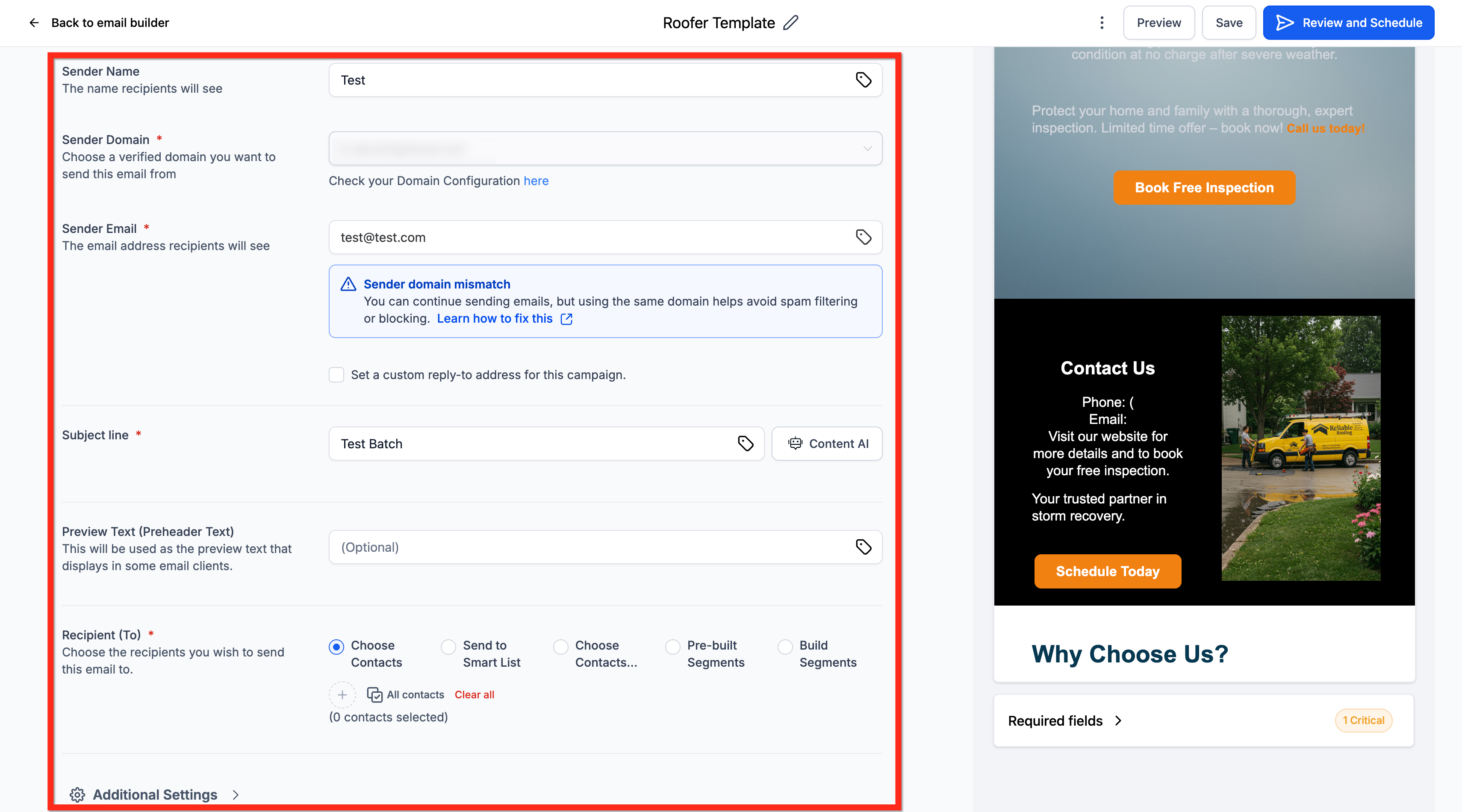
- Add sender details, name (optional), domain, and email address.
- Add a subject line and optional preview text.
- Select recipients by adding individual emails or smart lists.
- Before scheduling, check the execution date, time, and time zone.
- You can delete or reschedule the campaign; rescheduling is allowed up to one hour before the original send time.
07What it looks like in HighLevel
08Settings that matter
- Batch Quantity. Controls how many emails are sent in each batch.
- Repeat after. Sets the interval between batches in days, hours, minutes, or seconds.
- Start date and time. Marks when the first batch will be delivered.
- End time. Marks when deliveries stop each day; must be later than the start time.
- Days of week. Lets you exclude specific weekdays from batch delivery.
- Sender Name. Optional name displayed as the email sender.
- Sender Domain. Domain used for the sending email address.
- Sender Email. Email address that appears in the From field.
- Subject Line. The email’s subject heading.
- Preview text. Optional snippet shown in the inbox preview.
09Things to know before you rely on it
- Frequencies of 30 sec, 1 min allow up to 1,000 messages per minute.
- A 5 minute frequency permits up to 4,999 messages per minute.
- Intervals of 6 min, 10 min allow up to 5,000 messages per minute.
- Intervals above 10 min support up to 10,000 messages per minute.
- When sending all at once, contacts are processed at decreasing rates: up to 15,000 contacts per hour for lists under 10 k; 6,000 contacts per hour for 10 k, 50 k; 3,000 contacts per hour for 50 k, 70 k; and 1,500 contacts per hour for more than 70 k.
- The Repeat after dropdown does not include seconds; choose a minute or longer interval if seconds were previously used.
10How it connects to the rest of HighLevel
- Compare batch scheduling with other email delivery methods. Different Email Sending Methods
- Learn how to reschedule a campaign before it starts. Reschedule Email Campaign
- Understand how to preview and test email templates before sending. Preview and Test Emails
Michael's take

Staggering sends keeps your site fast and your email provider happy, especially when you need to stay within the minute by minute limits.
If your audience is small or you’re already sending at a low volume, the extra setup steps may not add much value. In those cases a simple schedule or send now option can be more straightforward.