
01Who this is for
- Founders who manage marketing calendars and need flexibility when launch times shift.
- Marketing managers of small agencies that schedule batch email blasts and may need to adjust timing.
- Content creators who use RSS email campaigns and want to move send dates without rebuilding content.
02Email campaign rescheduling, explained
Rescheduling changes the delivery date or time of a campaign that has not yet been sent. It keeps the original campaign intact while updating its schedule. The option appears for Simple Schedule, Batch Schedule, and RSS Schedule campaigns.
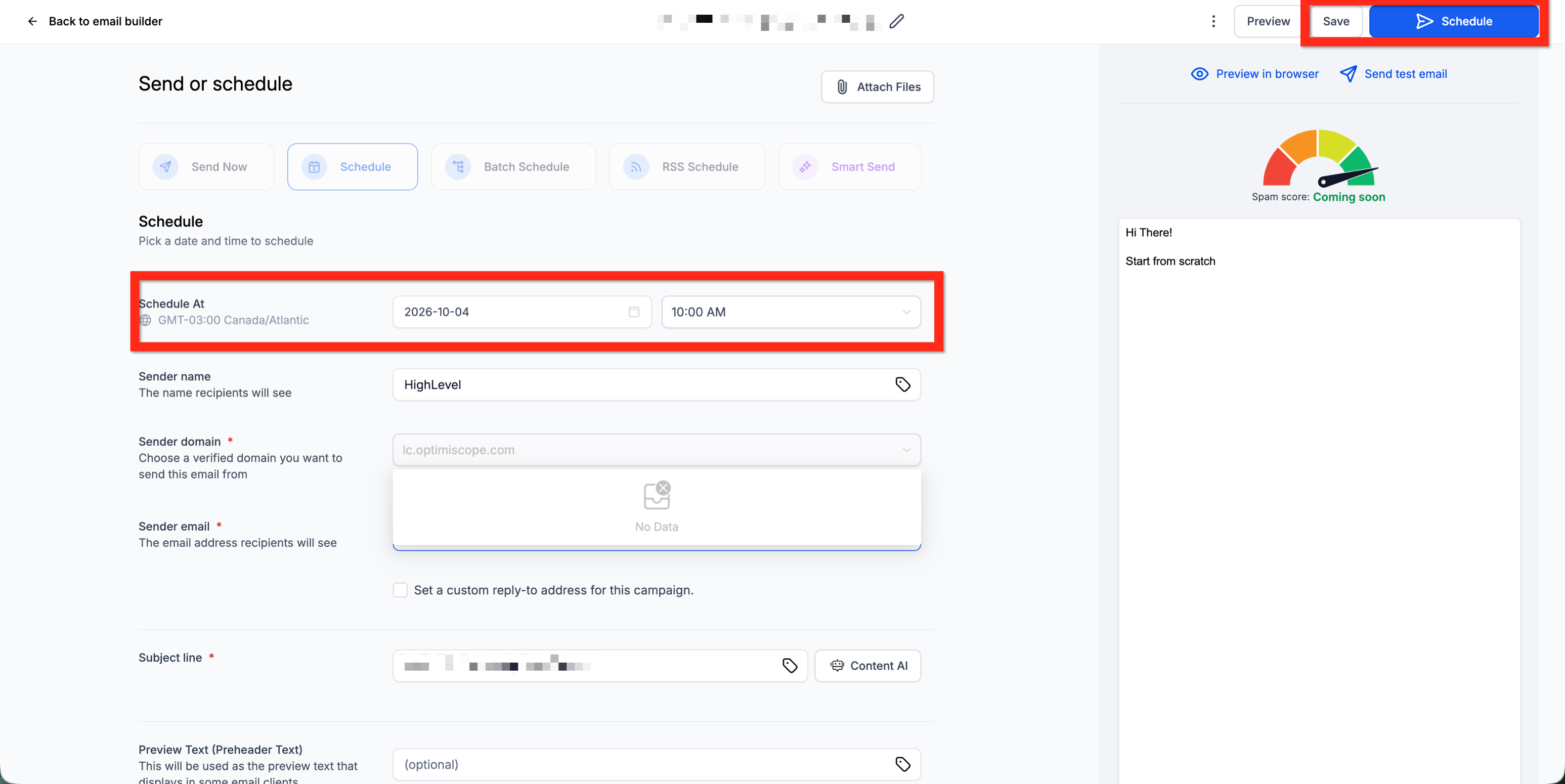
The feature is reachable from the Email Campaigns page under Marketing > Emails > Campaigns, or from within the campaign editor by clicking the Send or Schedule button. After adjusting the schedule, you must click Save and then Schedule to generate the new bulk actions.
03How businesses use email campaign rescheduling
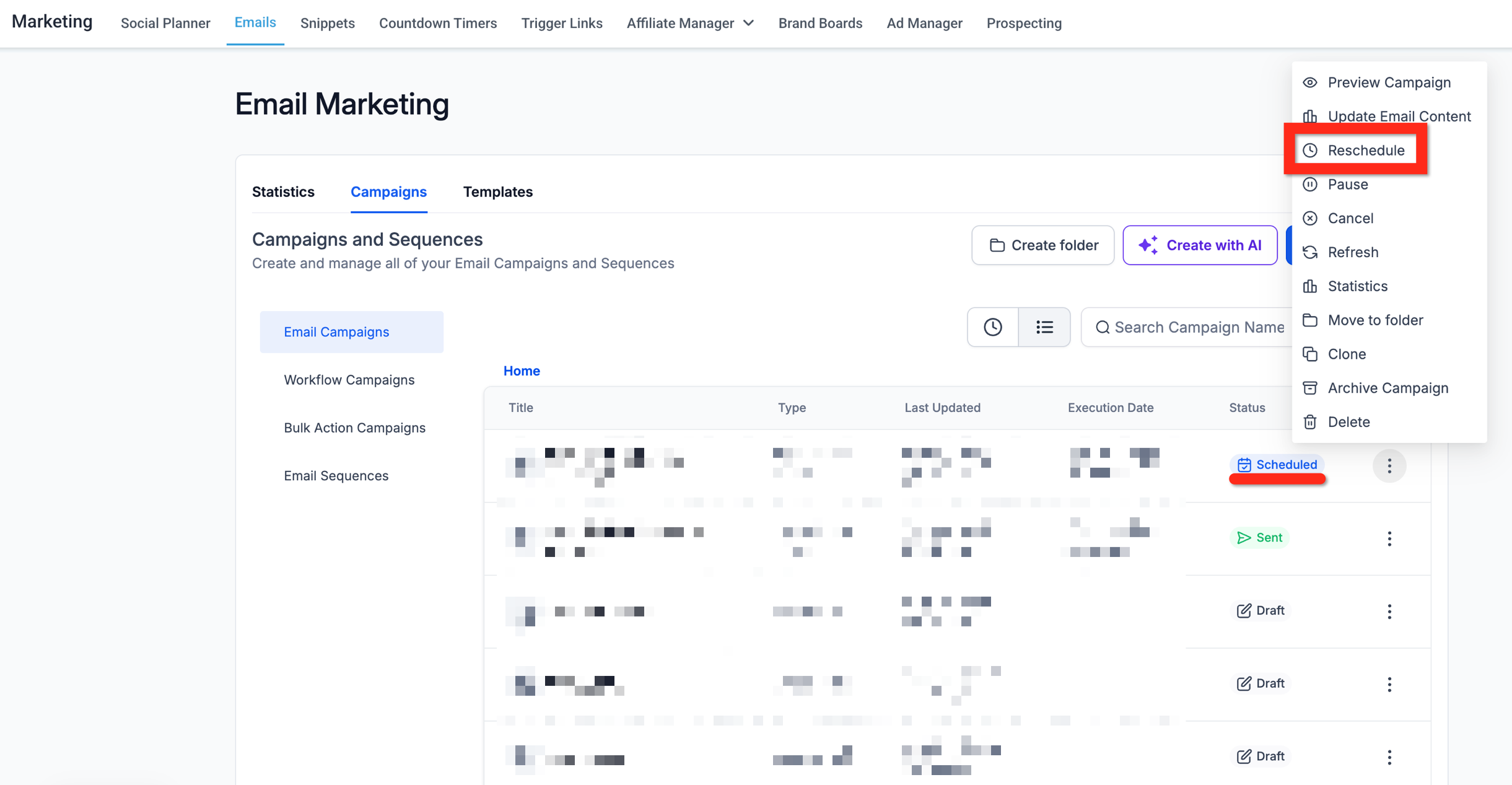
- Digital marketing agency. The agency opens the Email Campaigns list, selects a scheduled client blast, and uses the action menu to choose Reschedule. It updates the send date, saves, and clicks Schedule so the new timing is applied without recreating the campaign.
- Ecommerce store. When a promotional batch email needs to be pushed to a later hour, the store edits the campaign, clicks Send or Schedule, changes the timing, saves, and then clicks Schedule to confirm the new bulk actions.
- Blog publisher. For an RSS email campaign, the publisher accesses the campaign editor, selects Send or Schedule, adjusts the RSS schedule to a later time, saves, and clicks Schedule to complete the reschedule.
04The numbers and rules that matter
- Rescheduling is supported for Simple Schedule, Batch Schedule, and RSS Schedule campaigns.
- Complete the reschedule at least 60 minutes before the campaign's execution time.
05Before you start
- The campaign must already be scheduled for the Reschedule option to appear.
- Complete the reschedule at least 60 minutes before the campaign’s execution time.
- Allow enough time for the system to process the updated schedule.
06How to set up and use email campaign rescheduling in HighLevel
Reschedule from the Email Campaigns page
- In the Subaccount view, select Marketing from the left navigation.
- Select Emails.
- Select Campaigns.
- Open Email Campaigns.
- Locate the scheduled campaign you want to change.
- Open the campaign’s action menu.
- Select Reschedule.
- Update the campaign’s schedule as needed.
- Click Save to store the changes.
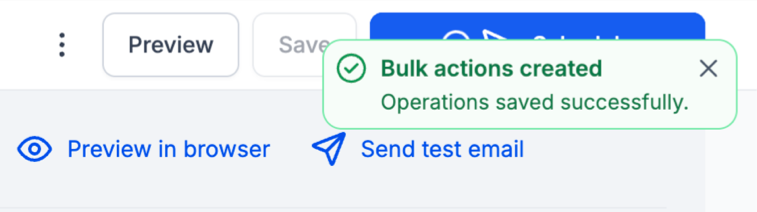
- Click Schedule to create the new bulk actions.
Reschedule from the campaign editor
- In the campaign editor, click Send or Schedule.
- Update the scheduling details.
- Click Save.
- Click Schedule to generate the new bulk actions.
07What it looks like in HighLevel
08Things to know before you rely on it
- Reschedule is shown only for campaigns that are still scheduled.
- The reschedule must be finished at least 60 minutes before the original send time.
- The system needs processing time, so last minute changes are not recommended.
- Clicking Save alone does not finish the reschedule; you must also click Schedule.
09If something goes wrong
- New schedule did not take effect after clicking Save. After saving, click the Schedule button so HighLevel creates the bulk actions for the revised schedule.
10How it connects to the rest of HighLevel
- Send or schedule a regular email campaign Send or schedule email
- Batch schedule email campaigns Batch scheduling
- How HighLevel handles email delivery: instant, timed, batched, and RSS RSS schedule
Michael's take

Most people think clicking Save is enough to move a send, and they end up with the original timing still in place. The extra Schedule step is easy to miss, and the system won’t generate the new bulk actions until you hit it.
If I were adjusting a send, I’d open the campaign, make the timing change, click Save, and then immediately click Schedule before walking away. That guarantees the new schedule is live and avoids a last minute scramble.