
01Who this is for
- Founders who need to correct email copy quickly before a launch.
- Marketing managers handling multiple client campaigns and want to avoid creating new drafts.
- Small business owners running regular newsletters and need to adjust scheduled messages.
02Email campaign content, explained
The feature allows changes to an email campaign after it has been created. If the email is still a draft, you can open it directly from the campaign list and edit any element. When the email has already been scheduled or is currently sending, you must use the Update Email Content action to modify the message.
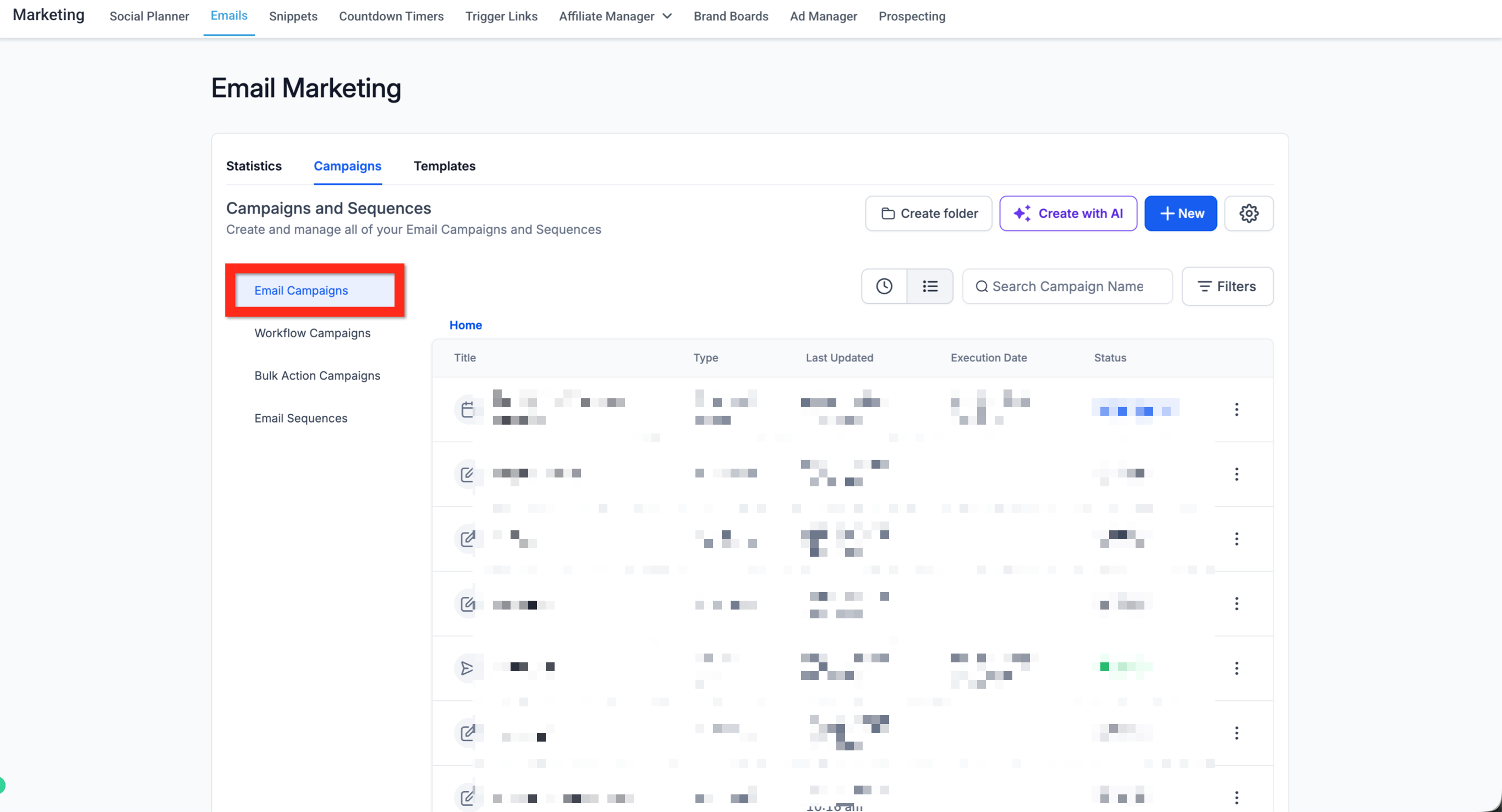
All editing actions are performed inside the Marketing section of a subaccount: Marketing > Emails > Campaigns > Email Campaigns. After making changes, you click Save. The platform does not guarantee that a change will be reflected in the next outbound mail if the update occurs too close to the scheduled send time, because processing and caching may already be underway.
03How businesses use the email campaign content
- Ecommerce store. When a promotional email draft needs updated product links, the store owner opens the draft from Marketing > Emails > Campaigns > Email Campaigns, edits the content, and saves. If the promotion has already been scheduled, the owner selects the email’s Actions menu, chooses Update Email Content, makes the edits, and saves them well before the send time.
- Coaching business. A coach prepares a webinar invitation draft, discovers a new Zoom link, and clicks the draft in the campaign list to replace the old link. For an invitation already scheduled, the coach uses the Actions > Update Email Content flow to adjust the link and saves the changes ahead of the scheduled delivery.
- Non profit organization. The nonprofit’s communications lead edits the body of a fundraising email draft by opening it directly from the campaign view. If the email has been queued for a future send, the lead accesses the Actions menu, selects Update Email Content, revises the donation URL, and saves the update with sufficient lead time.
04Before you start
- User must be viewing the appropriate subaccount.
- The email to be edited must exist as either a draft or a scheduled/ongoing campaign.
- For scheduled or ongoing emails, plan to make changes well before the next send.
05How to set up and use the email campaign content in HighLevel
Edit a draft email
- In the subaccount view, click Marketing in the left navigation.
- Select Emails from the Marketing submenu.
- Choose Campaigns.
- Open Email Campaigns.
- Find the draft email you wish to modify.
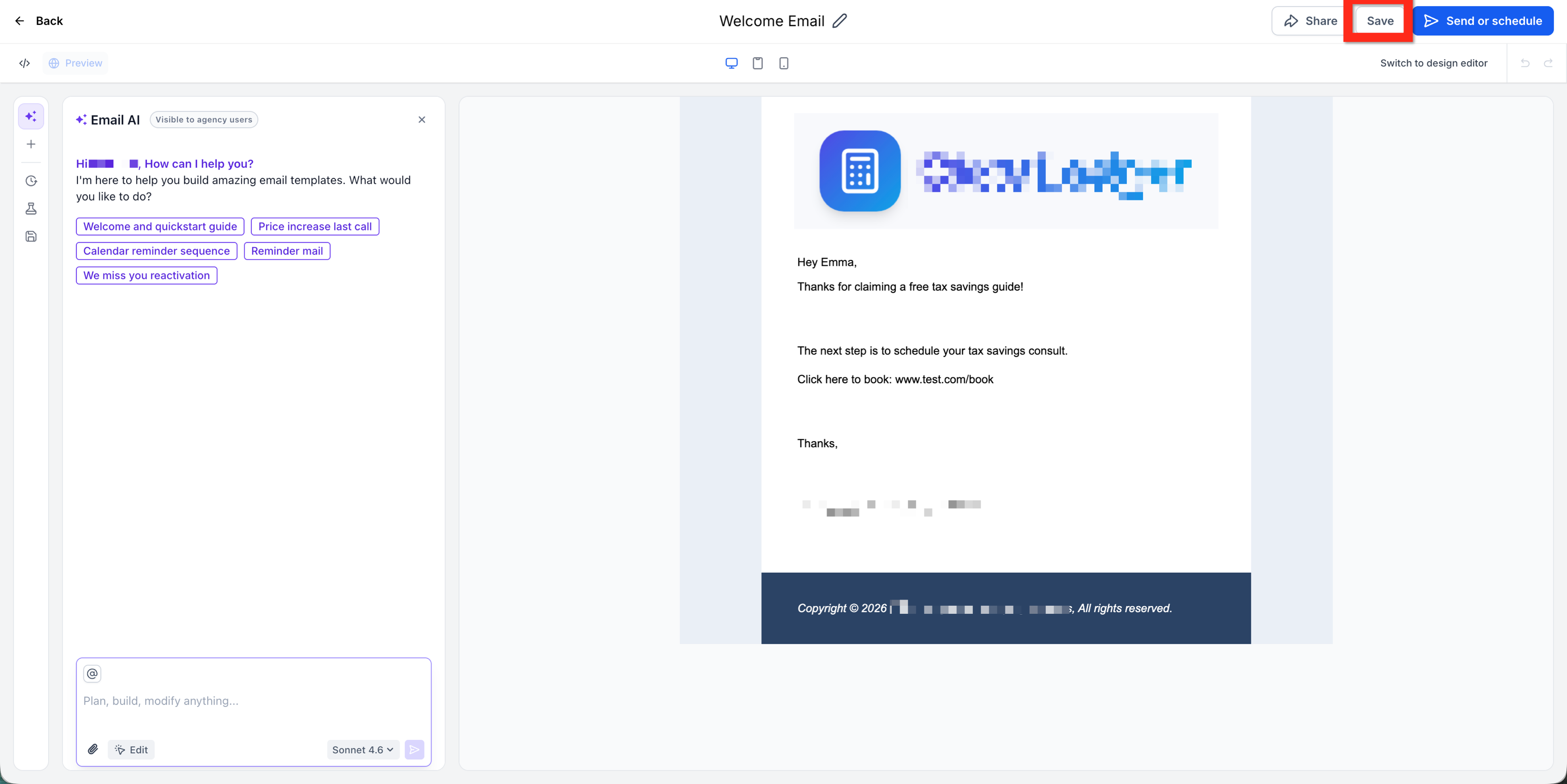
- Click the draft to launch the editor.
- Adjust the email content as needed.
- Press Save to store the changes.
Edit a scheduled or ongoing email
- In the subaccount view, click Marketing in the left navigation.
- Select Emails from the Marketing submenu.
- Choose Campaigns.
- Open Email Campaigns.
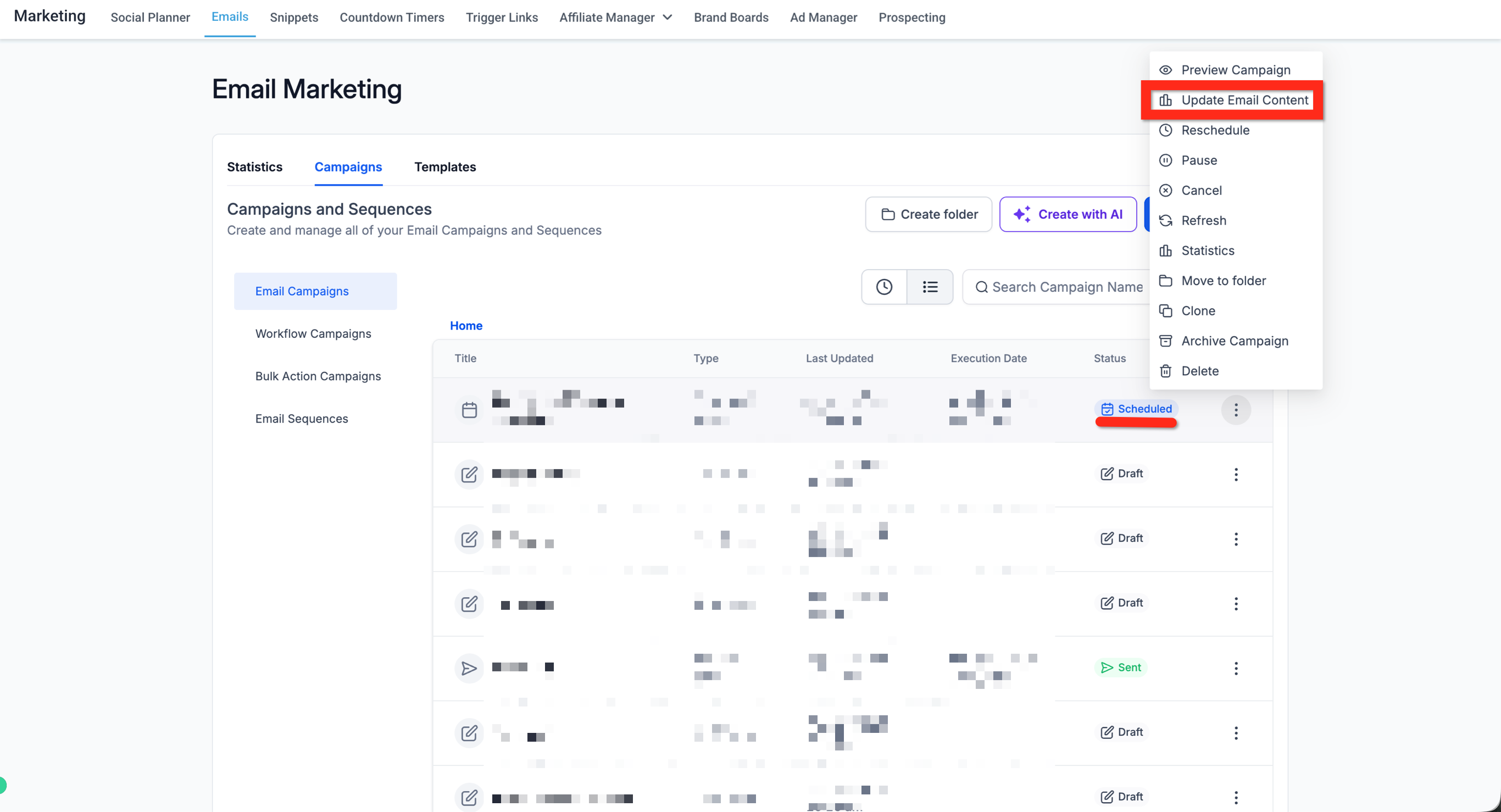
- Locate the scheduled or ongoing email you want to change.
- Open the Actions menu for that email.
- Click Update Email Content.
- Make the necessary edits in the editor.
- Press Save to apply the updates.
- Note: Saving does not guarantee the change will appear if the update is close to the send time; make changes well in advance.
06What it looks like in HighLevel
07Things to know before you rely on it
- Draft emails can be opened directly; scheduled or ongoing emails must be edited via the Update Email Content action.
- Saving changes does not guarantee they appear in the next outgoing email.
- Processing and caching may prevent late updates from being used.
- No verified minimum lead time for updating a scheduled email; make changes as early as possible.
08If something goes wrong
- Saved changes do not appear in the next outgoing email. Make updates well before the scheduled send time; timing and caching can block changes made close to the send.
09How it connects to the rest of HighLevel
- Send or schedule a regular email campaign in HighLevel Send or schedule email
- How to preview and test email campaigns in HighLevel Preview and test
- Understanding UTM parameters for email campaigns UTM parameters
Michael's take

When a campaign is already live or scheduled, a quick content tweak can help avoid sending out a mistake.