
01Who this is for
- Founders who need consistent branding across automated messages can control which edits affect all workflows.
- Marketing managers can reuse approved layouts while customizing individual emails for specific campaigns.
- Agencies handling multiple client automations benefit from a single source template that can stay independent or stay synchronized.
02Email templates, explained
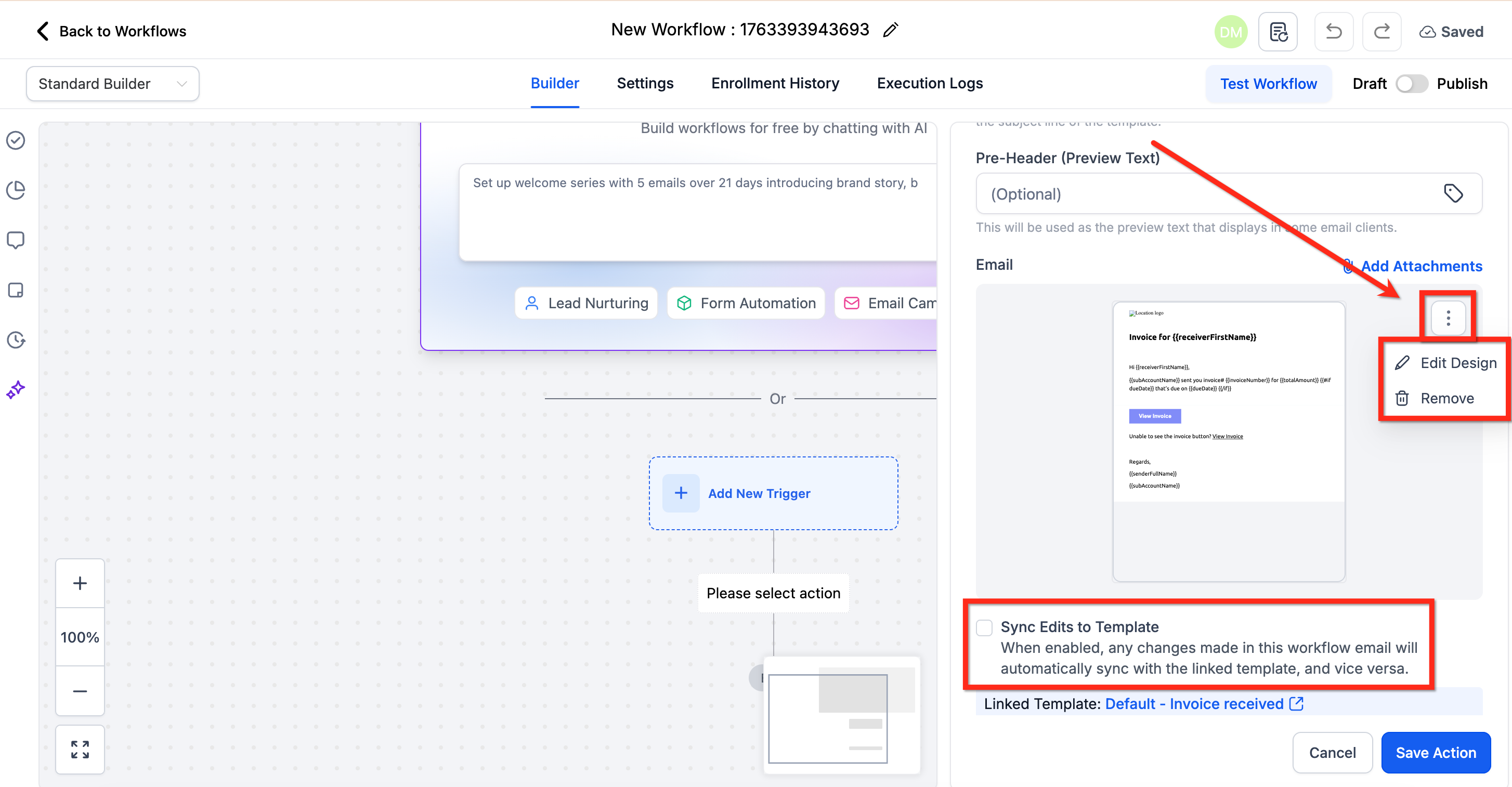
HighLevel lets a Send Email action start from a saved email template. The action pulls the template’s content, then you decide whether the workflow email stays linked to the source template. The Sync Edits to Template setting controls this link. When sync is ON, changes flow both ways; when OFF they stay separate; Sync Once copies the current template into selected emails a single time.
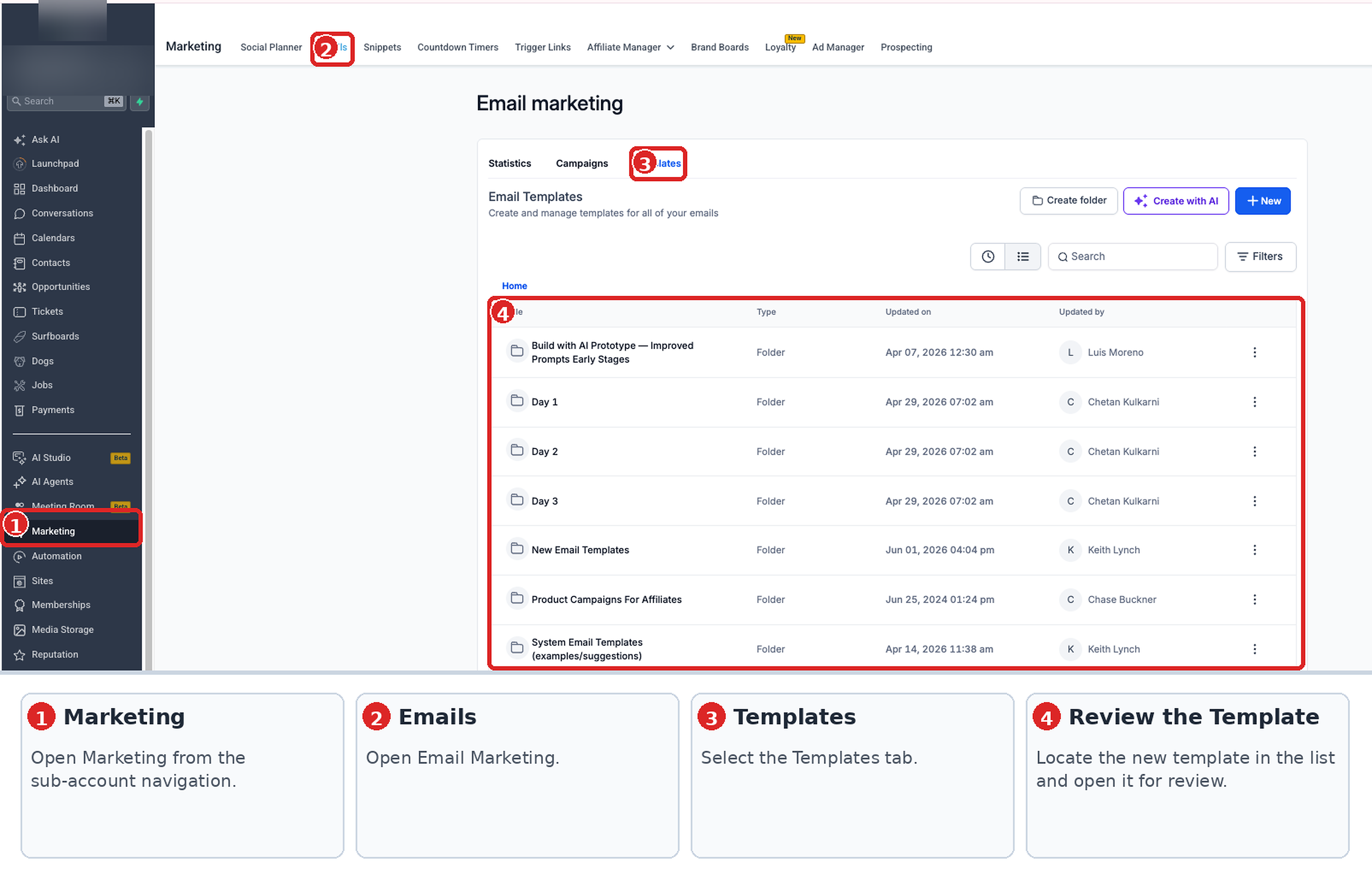
The template library lives under Marketing > Emails > Templates. From a workflow you add or edit a Send Email action, choose an existing template, and set the sync option. New actions default to sync OFF, so they begin as independent copies unless you turn sync on. You can also create a new template from a customized workflow email.
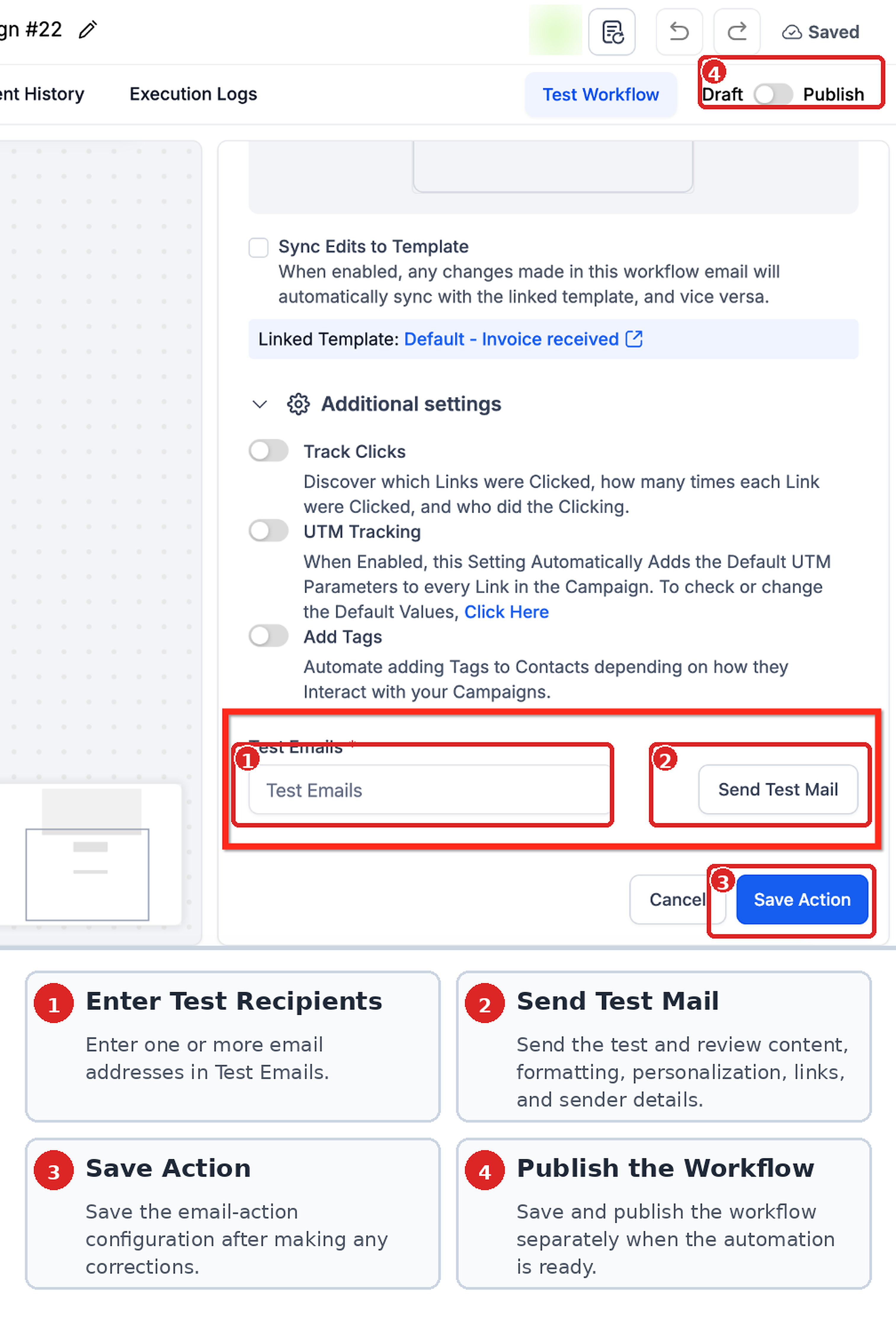
Testing is done inside the Send Email action by entering test addresses and sending a preview. Saving the action records the configuration but does not publish the workflow; you must publish the workflow separately.
03How businesses use email templates
- Real estate agency. The agency selects a saved property listing template for its nurture workflow, keeps sync OFF, and edits the email body to add a local market report. It saves the edited email as a new template to reuse for future listings.
- SaaS startup. The startup uses a welcome series template across several onboarding workflows. It enables Sync Edits to Template so any branding change in the source template updates all welcome emails automatically.
- Health clinic. The clinic applies Sync Once to push a revised appointment reminder template into specific workflow emails while leaving other personalized messages unchanged.
04Before you start
- Check the current Sync Edits to Template setting on a workflow email before making edits.
- Ensure the source template exists in Marketing > Emails > Templates when using Sync Once.
05How to set up and use email templates in HighLevel
Add or edit a Send Email action
- Navigate to Automation > Workflows and open or create a workflow.
- Add a new Send Email action or edit an existing one.
- Enter the desired From Name and From Email values.
- Choose Select Existing Template and pick the saved template.
- Review the Sync Edits to Template setting.
- Leave sync OFF and edit the email via the preview to keep changes workflow specific.
- Turn on sync and confirm with Turn On Sync to keep changes linked to the source template.
- If sync is ON, remember editing may also update the shared source template.
- Save the email action.
Save a customized email as a new template
- Open the workflow email in the email editor.
- Confirm that Sync Edits to Template is turned OFF.
- Modify the content as needed.
- Select the option to save the email as a new template.
- Provide a name and complete the save process.
- View the new template under Marketing > Emails > Templates.
Use Sync Once
- Go to Marketing > Emails > Templates.
- Locate the source template you want to copy.
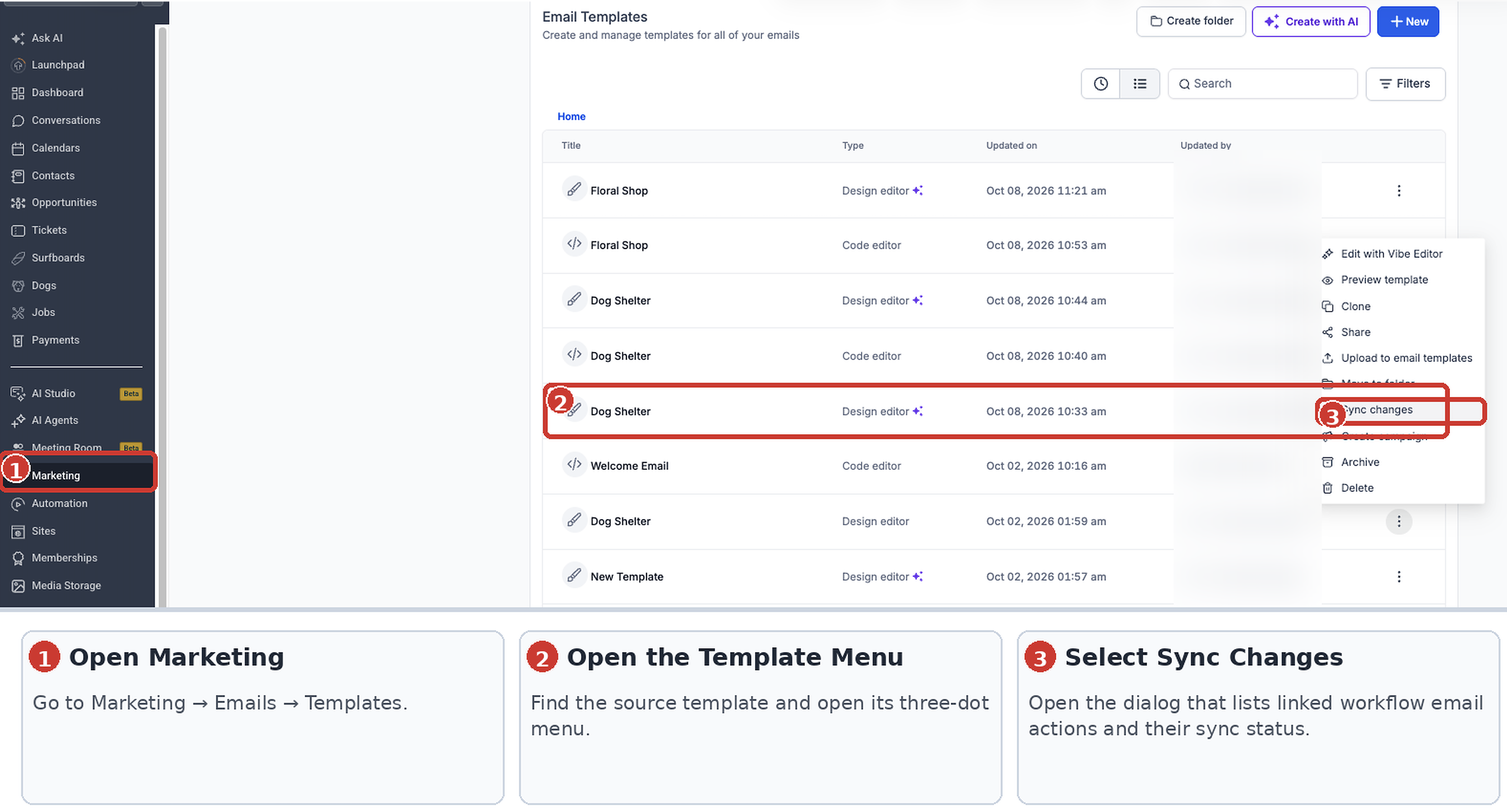
- Open the three dot menu on the template and choose Sync Changes.
- Examine the listed workflow email actions and their Continuous Sync status.
- Select the actions that have continuous sync disabled.
- Click Sync Once.
- Review the workflow email actions to confirm the update.
Test and save a workflow email
- Open the relevant Send Email action.
- Enter one or more email addresses in the Test Emails field.
- Click Send Test Mail.
- Check the received email and adjust any content as required.
- Click Save Action.
- Save and publish the workflow when it is ready.
06What it looks like in HighLevel
07Settings that matter
- Sync Edits to Template. Controls whether a workflow email stays linked to its source template, allowing continuous updates, staying independent, or applying a one time copy.
08Things to know before you rely on it
- New Send Email actions created from a template start with continuous sync OFF.
- Sync Once updates only the selected workflow emails and may overwrite custom changes.
- When sync is enabled, editing a workflow email can also modify the shared source template.
09How it connects to the rest of HighLevel
- How to set up and use the HighLevel template library Template library overview
- New UI for Email Actions in HighLevel Workflows Email actions UI
- Send or schedule a regular email campaign in HighLevel Email campaign guide
Michael's take

Wondering if you really need to bother with template syncing in your automations? The short answer is yes when you have multiple workflows that share the same branding and copy. Sync lets you keep everything aligned with a single edit, while turning it off protects a special offer or a localized message from being overwritten.
If I were setting up a new campaign, I’d start by linking the core template, leave sync OFF, and customize the email for that funnel. Then I’d save the version as its own template so I can reuse it elsewhere without risking accidental changes to the master copy.