
01Who this is for
- Agency managers who need to deploy the same email automation across multiple client subaccounts.
- Founders running several subaccounts and wanting to keep email content consistent while avoiding template clutter.
- Marketing teams that maintain versioned workflows and must push updates without recreating each automation.
02Snapshot workflow email actions, explained
A Snapshot copies selected configuration assets from one subaccount to another. When the copied workflow includes a saved email template, HighLevel creates a hidden supporting copy for the email action while keeping the original template visible in the destination library. This preserves the link between workflow and template without adding extra items to the visible template list. The process is accessed in Agency View under Account Snapshots for creation and Subaccounts for loading. Workflows appear under Automation > Workflows and templates are found in the Email Template library.
03How businesses use snapshot workflow email action
- Digital marketing agency. The agency creates a Snapshot that includes a client onboarding workflow and its welcome email template. They load the Snapshot into each new client subaccount, then test the Send Email action to confirm the email content and mapping before the workflow goes live.
- Real estate brokerage. The brokerage updates a property alert workflow and the associated email template in its master subaccount. Using Refresh and Push Update, it pushes the changes to all regional office subaccounts, then verifies the email action in each office to ensure the latest template is used.
- Dental practice. The practice transfers a patient reminder workflow and its reminder email template to a newly opened location’s subaccount. After loading the Snapshot, they inspect the Send Email action, send a test reminder, and activate the workflow for the new clinic.
04Before you start
- Access to Agency View for both source and destination subaccounts.
- Identify the email template linked to each workflow’s Send Email action in the source account.
- Confirm that the original template will be included in the Snapshot before loading.
05How to set up and use snapshot workflow email action in HighLevel
Transfer workflow emails and templates
- Open each workflow in the source account, locate its Send Email action and note the saved template it uses.
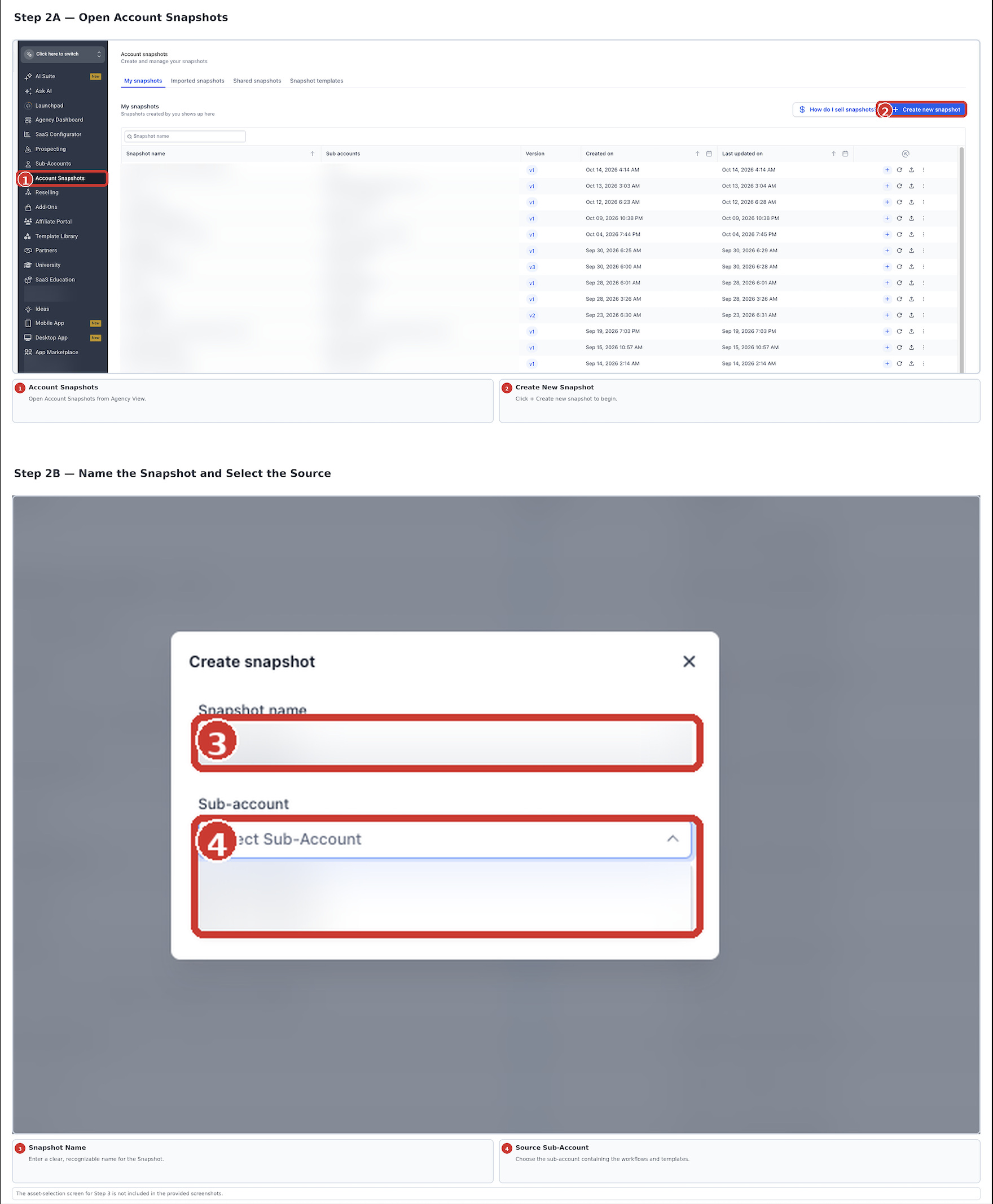
- In Agency View > Account Snapshots click the plus Create New Snapshot button.
- Enter a name for the Snapshot and select the source subaccount.
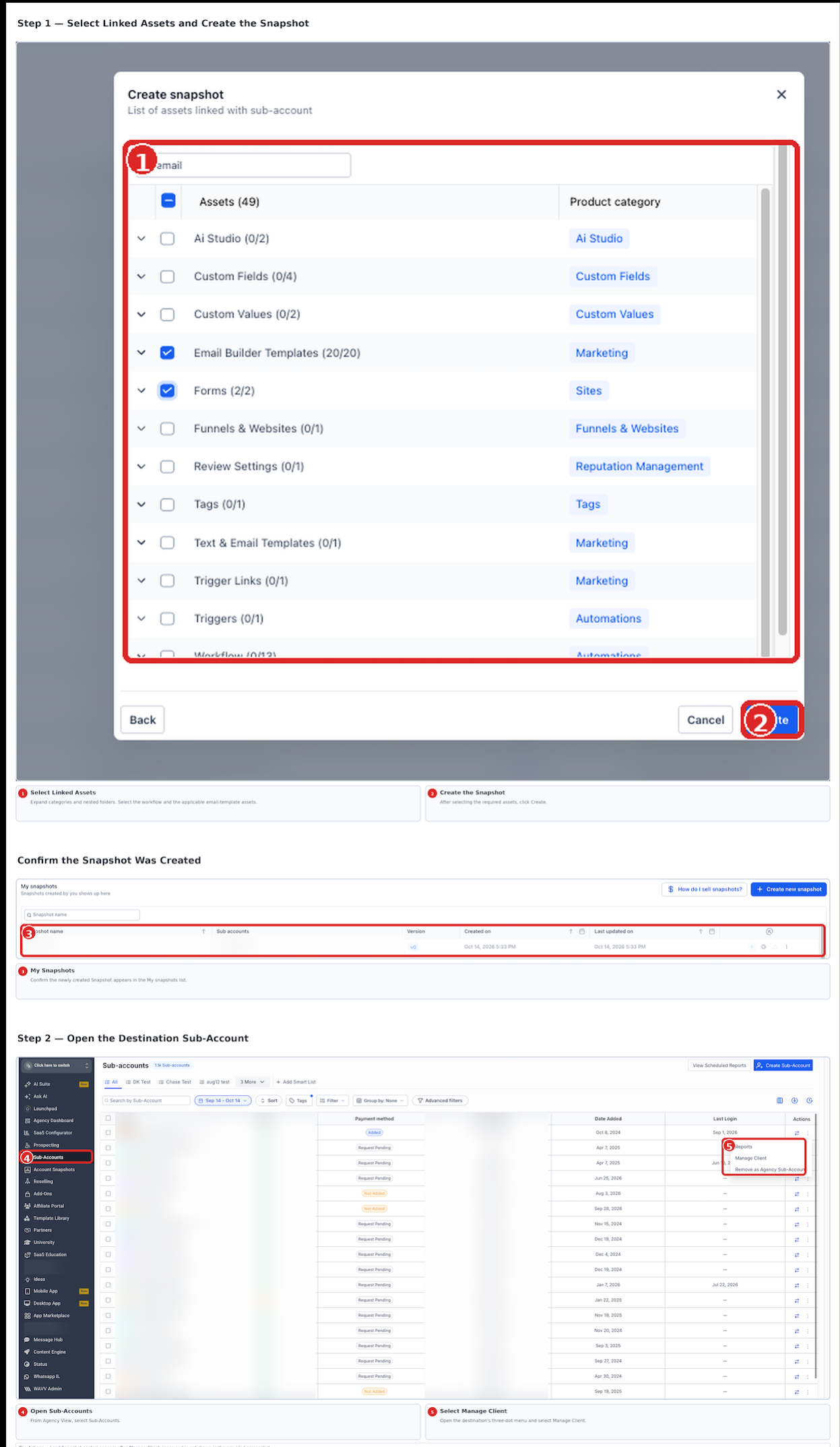
- Expand the asset categories, find the workflow and the related email template assets, select them and click Create.
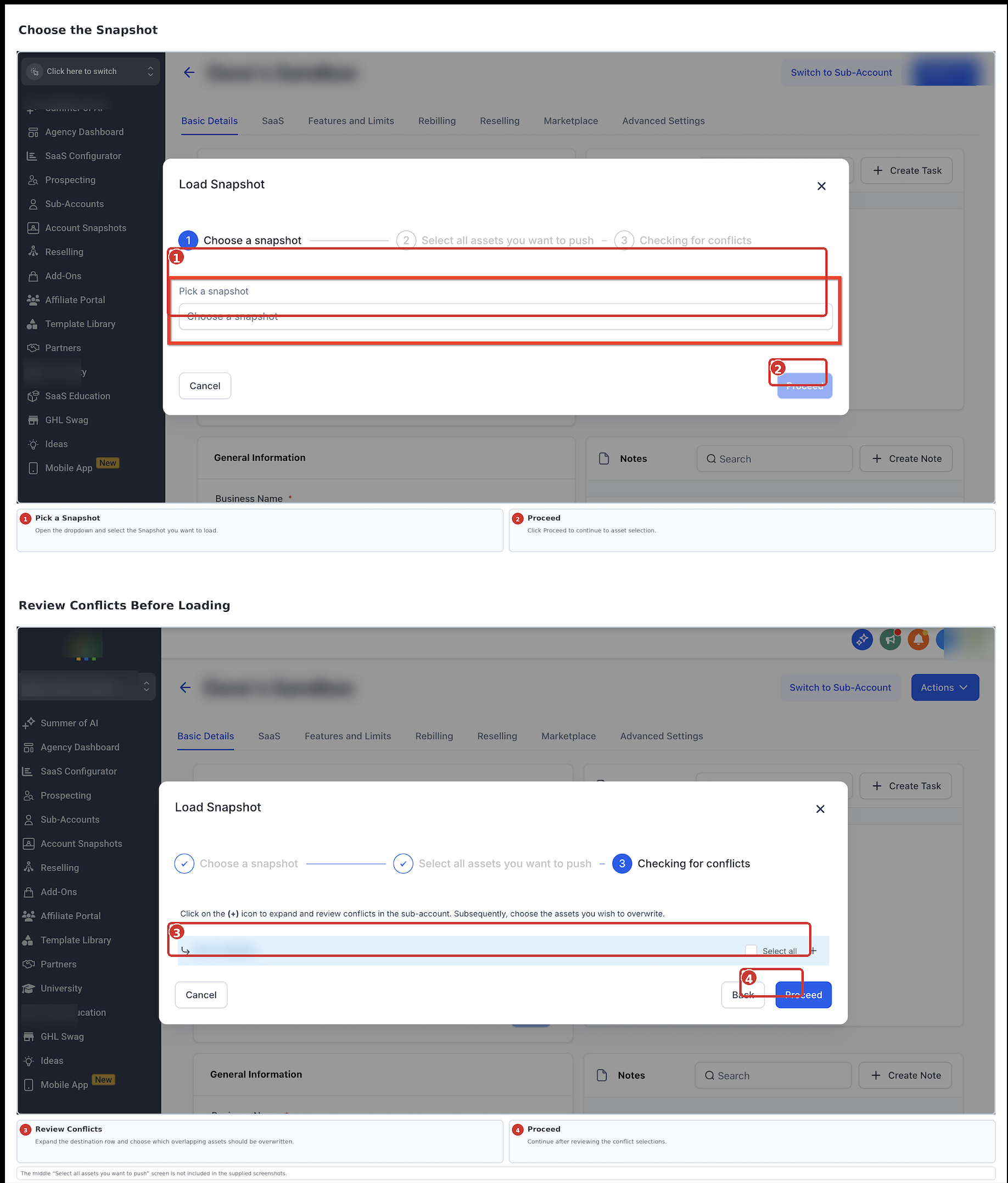
- In Agency View > Subaccounts open the destination subaccount’s three dot menu, choose Manage Client and then Actions > Load Snapshot.
- Select Pick a Snapshot, choose the Snapshot you just created and click Proceed.
- Review the asset list, ensure both the template and workflow are checked, then click Proceed.
- If any conflicts appear, choose Override to replace an existing item or Skip to keep the current one, then click Proceed.
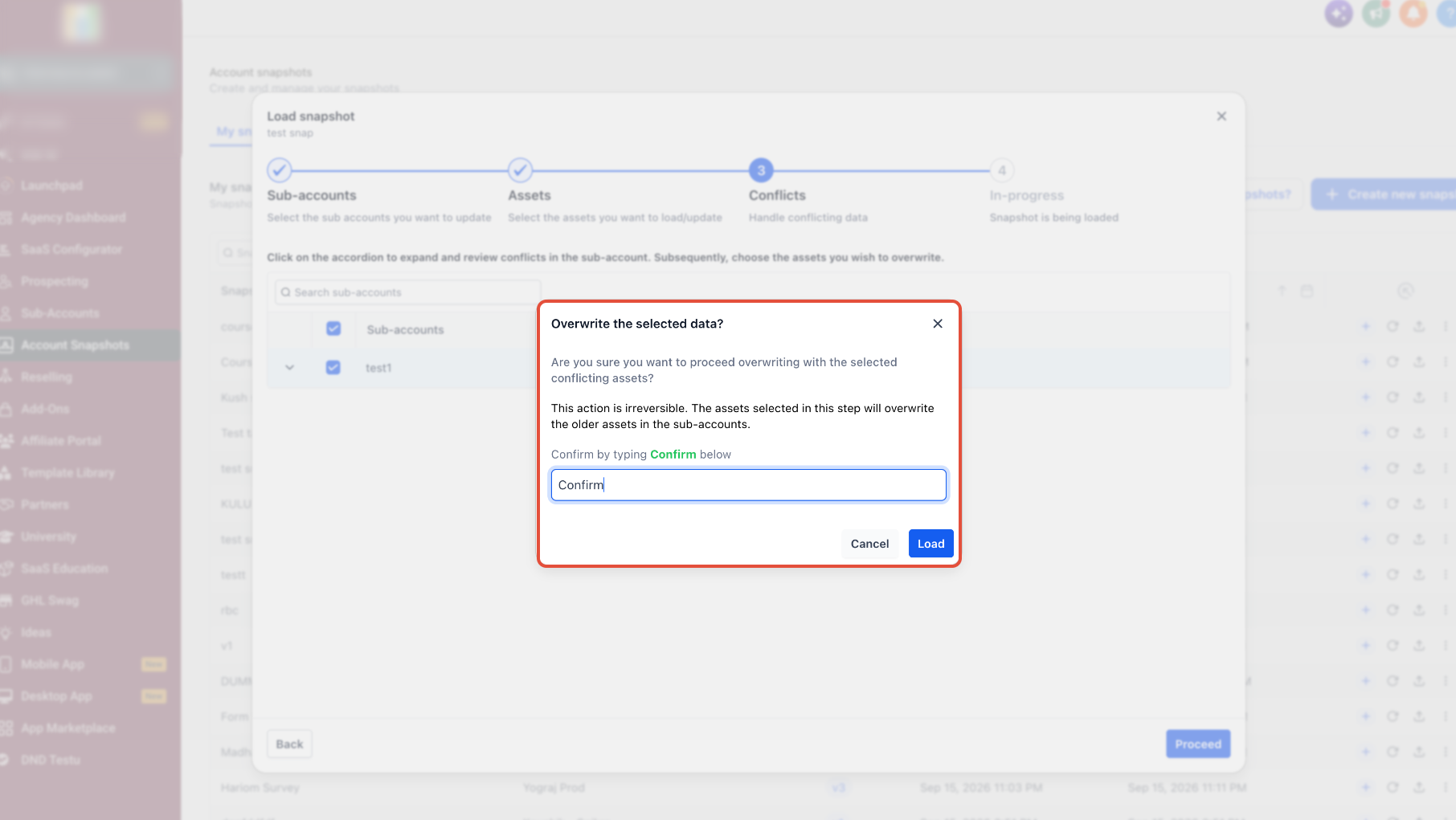
- When prompted, type confirm and click Proceed to start loading the Snapshot.
- After the load finishes, locate the original templates in the destination’s Email Template library and open Automation > Workflows.
- Inspect each imported Send Email action, verify the content and template connection, send a test email and only then activate the workflow.
- Important: Choosing Override replaces an existing destination asset and cannot be undone through the Snapshot load. Review conflicts and active workflows before continuing.
Update existing Snapshot workflows
- Modify the workflow and any linked email templates in the source subaccount.
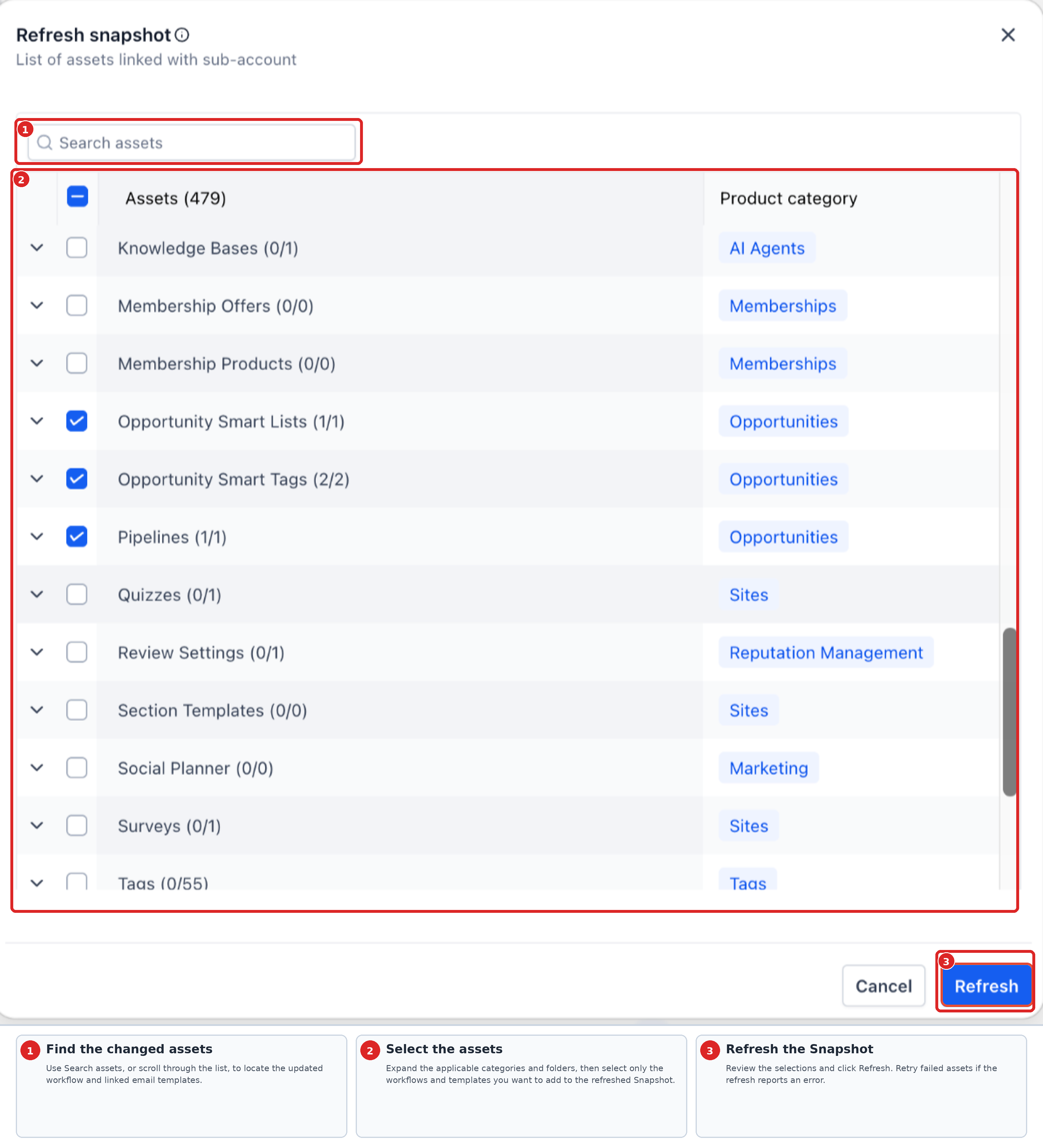
- In Agency View > Account Snapshots find the relevant Snapshot and click Refresh, select the changed workflows and templates, confirm the refresh and retry any assets that failed.
- Click Push Update, choose the destination subaccounts that previously received the Snapshot and select the assets to push.
- After the push, open Automation > Workflows in each destination, check the Send Email actions for correct content and mapping, and send a test email if needed.
- Important: Do not routinely delete live workflows to apply an update. Removing steps can affect contacts waiting on those steps. Push Update applies only to subaccounts within your agency; external agencies must re import an updated Snapshot.
06What it looks like in HighLevel
07Settings that matter
- Sync Edits to Template. Controls whether changes made to a template are automatically reflected in all workflows that use that template when a Snapshot is transferred.
08Things to know before you rely on it
- If a workflow is transferred without its original template, the email action may be missing or unmapped and cannot be repaired by loading the template afterward.
- Choosing Override replaces an existing asset and cannot be undone through the Snapshot load process.
- Snapshots do not copy contacts, conversations, appointments or any live account history.
- Updates should not rely on deleting live workflows; removing steps can affect contacts waiting on those steps.
09If something goes wrong
- Send Email action is missing or not mapped after loading a Snapshot. Verify that the original email template was included before or together with the workflow in the Snapshot, then review the loaded assets and mapping.
- An asset fails during a Snapshot refresh. Use the retry option provided for eligible failed assets without restarting the entire refresh.
10How it connects to the rest of HighLevel
- Learn how to analyze workflow campaigns for performance insights Analyze workflow campaigns
- Manage email templates used in workflow steps Email template management
- Explore the new UI for workflow email actions New email action UI
Michael's take

The enhanced Snapshot workflow email action is a handy shortcut for agencies that move automations between subaccounts. Teams that rarely use Snapshots or have static email templates can skip it.