
01Who this is for
- Founders of SaaS companies can reach new users quickly while ensuring compliance with email consent.
- Marketing managers at small agencies can draft campaigns with templates and send them to filtered contact groups.
- Sales leaders in real estate firms can notify leads about listings using quick compose messages.
02Bulk Email Builder, explained
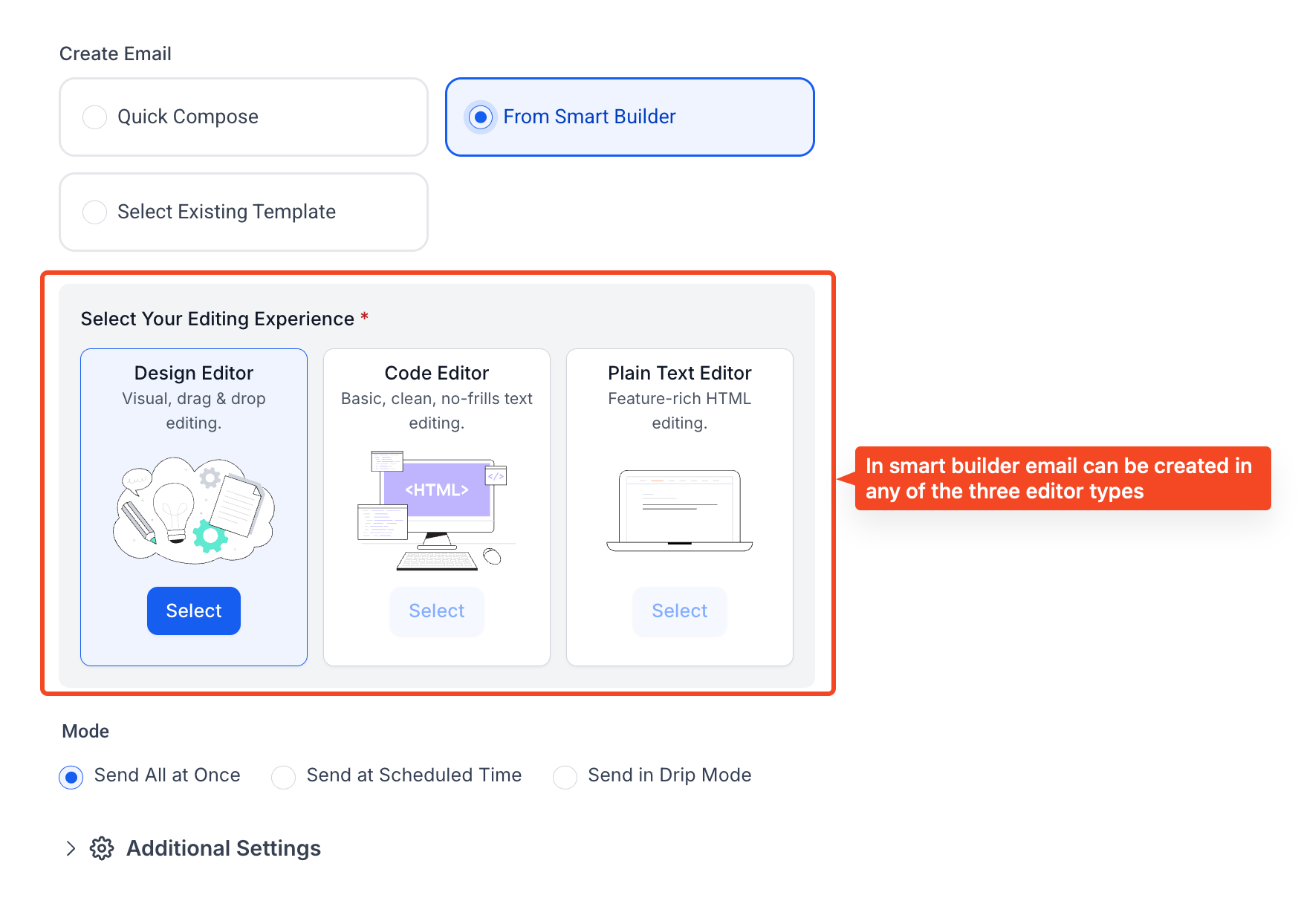
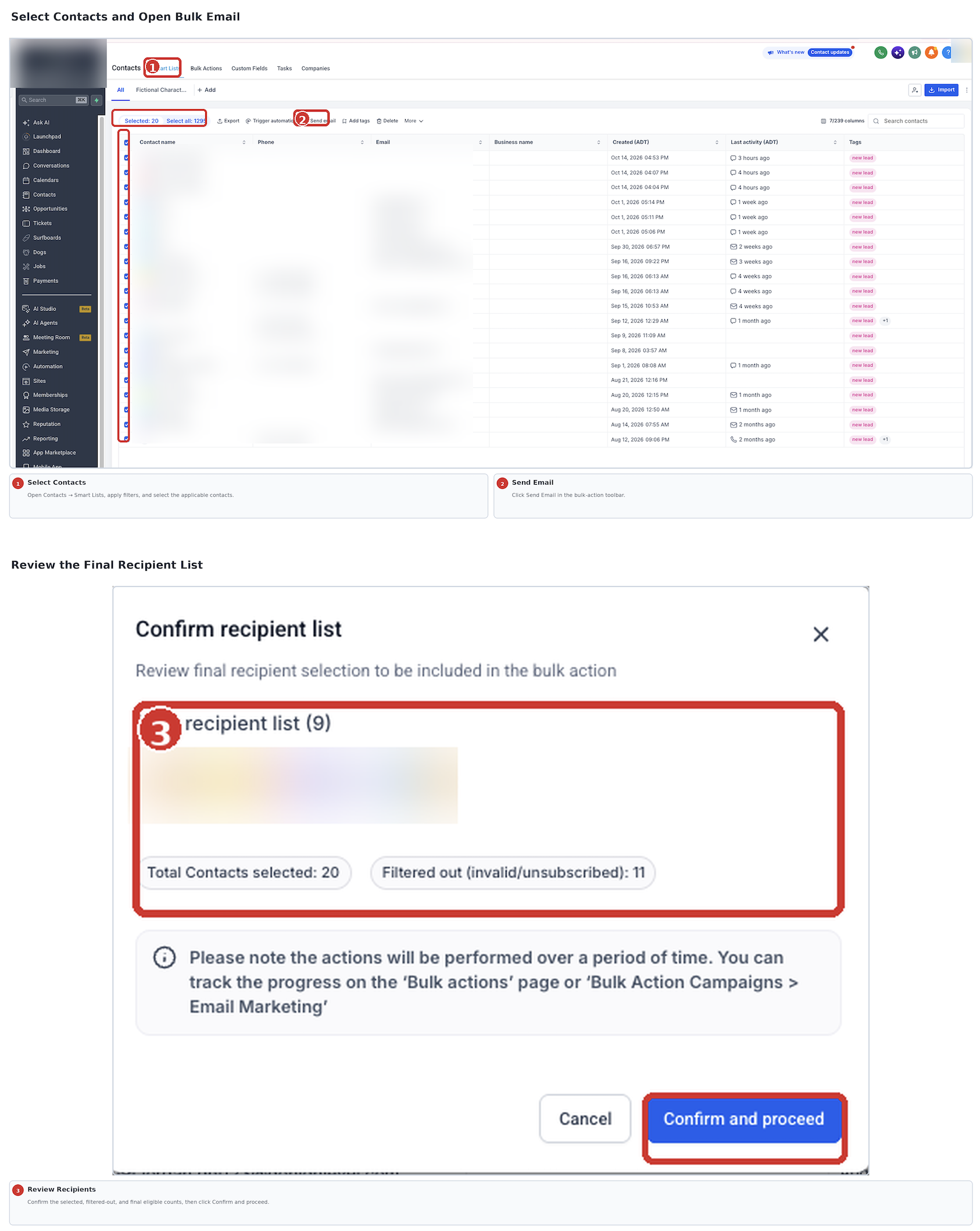
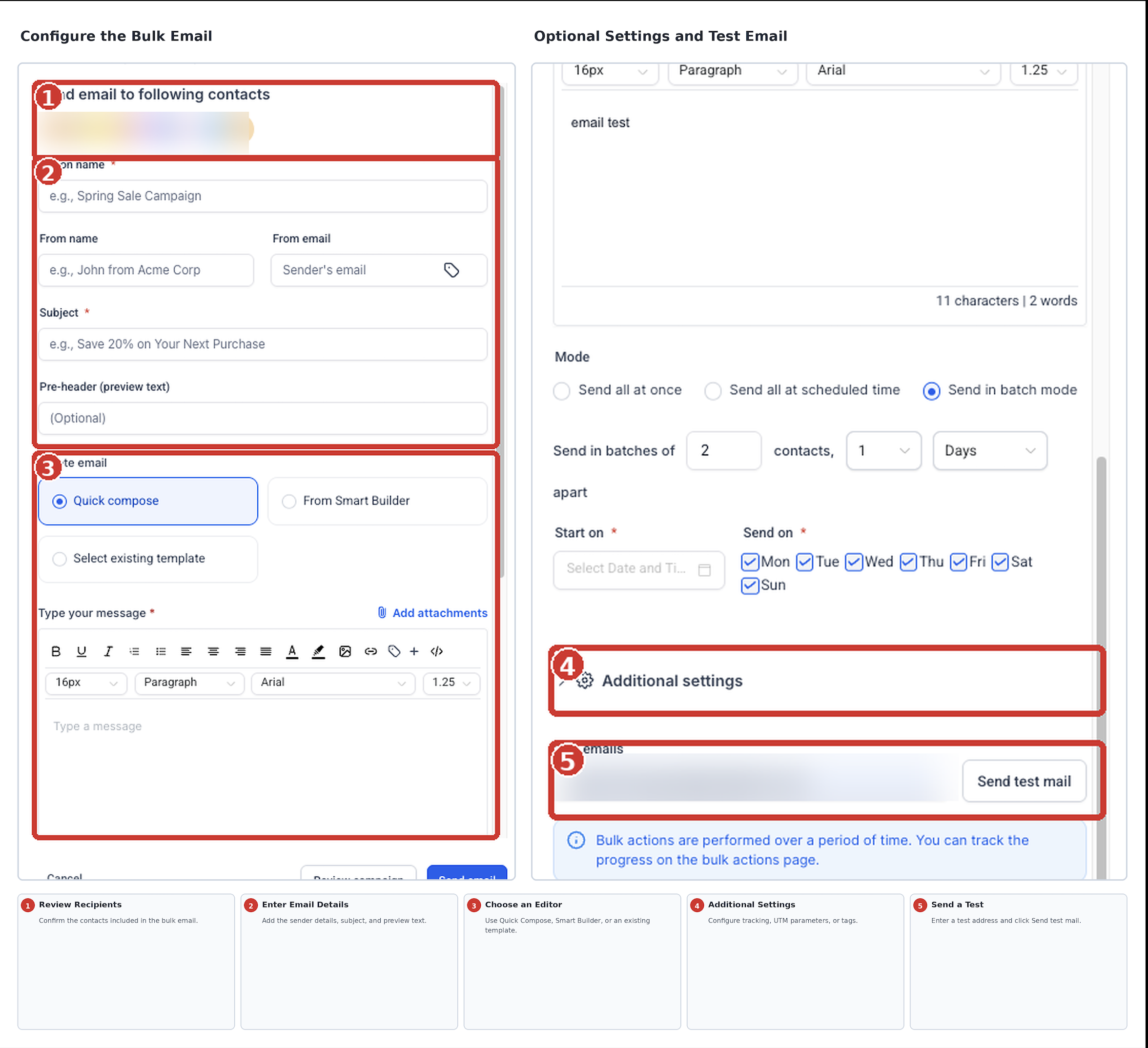
The Bulk Email Builder appears after you pick contacts in Contacts > Smart Lists and click Send Email in the bulk action toolbar. It offers three ways to craft the message: Quick Compose for simple text, Smart Builder for design, code or plain text editing, and Select Existing Template for saved layouts.
After you write the email, the interface shows a recipient summary that separates selected, filtered out and eligible contacts. You can then set sender details, enable click tracking, add UTM tags, or apply tags before choosing to send immediately, schedule, or run the email in Drip Mode. Once submitted, the job shows up under Contacts > Bulk Actions where you can view statistics and download error reports.
All email performance data is also available in the unified Email Statistics dashboard under Marketing > Emails > Statistics, where you can filter for bulk action campaigns and see metrics such as delivered, opened, clicked, bounced and failed.
03How businesses use Bulk Email Builder
- SaaS startup. The Founder creates a Quick Compose email to announce a new feature release, selects recent trial users from a Smart List, enables click tracking, and schedules the send for the following morning. The bulk action job then processes the eligible contacts and records engagement metrics.
- Dental practice. The office manager picks patients with upcoming appointments from a Smart List, chooses an existing reminder template, adds a tag for “Appointment_Reminder”, and sends the email immediately. The bulk action logs delivery and click data for follow up calls.
- Real estate agency. An agent selects leads interested in a neighborhood, uses Smart Builder’s Design Editor to customize a property showcase email, applies UTM parameters to track ad traffic, and runs Drip Mode to space out sends over several hours. The agent reviews the batch statistics afterwards.
04The numbers and rules that matter
- Recipient summary includes selected contacts, filtered out contacts, eligible recipients.
05Before you start
- Contacts must be grouped in a Smart List or filtered view before opening the bulk email dialog.
06How to set up and use Bulk Email Builder in HighLevel
Create and send a bulk email
- Go to Contacts > Smart Lists and check the boxes for the contacts you want to email.
- Click Send Email in the bulk action toolbar and confirm the initial selection if prompted.
- Review the recipient summary showing selected, filtered out and eligible counts.
- Enter the From Name, From Email and Subject fields, and add any preview text or action name.
- Choose Quick Compose, From Smart Builder, or Select Existing Template to build the message.
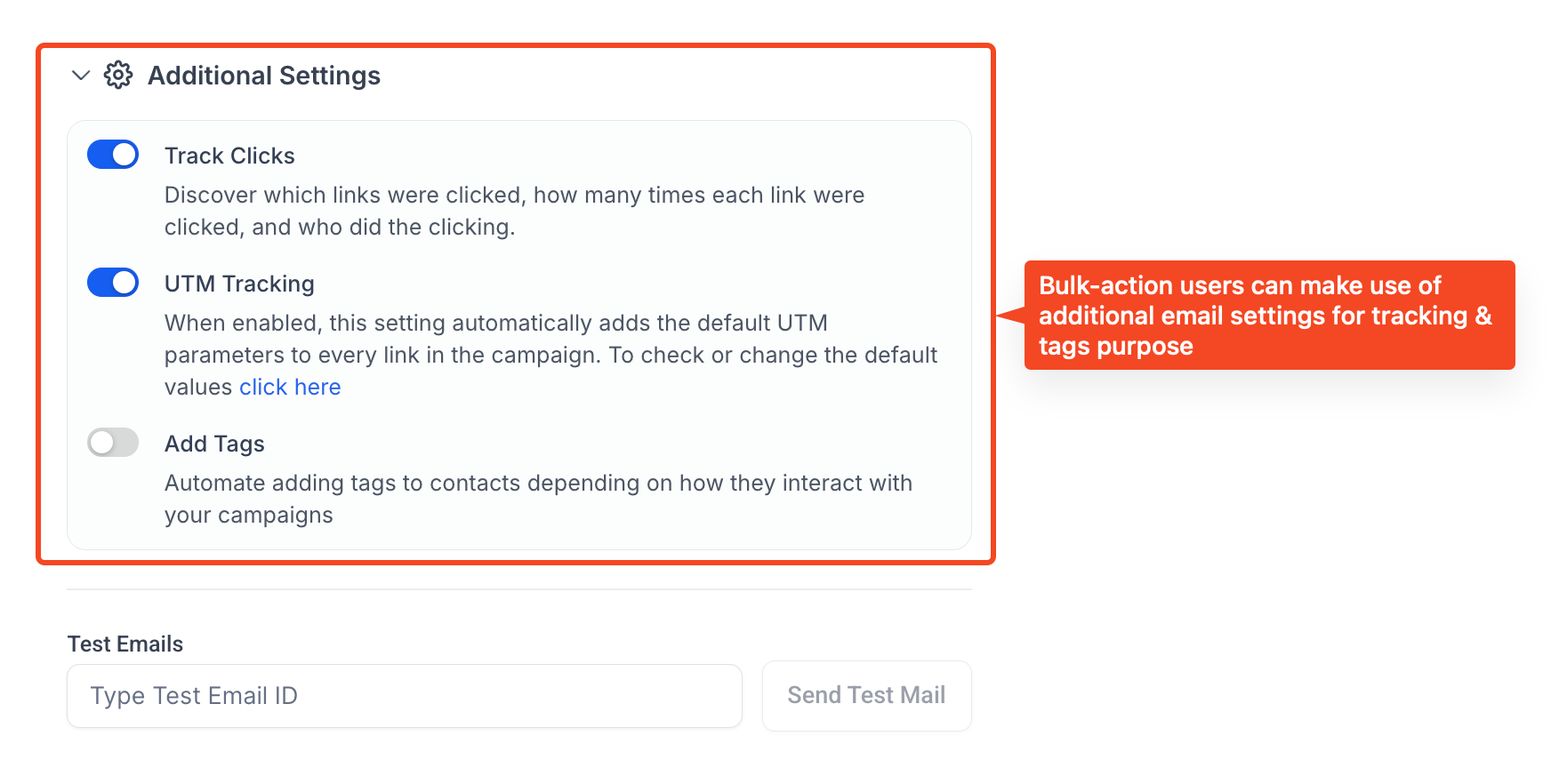
- Open Additional Settings and enable click tracking, UTM parameters, or add tags as needed.
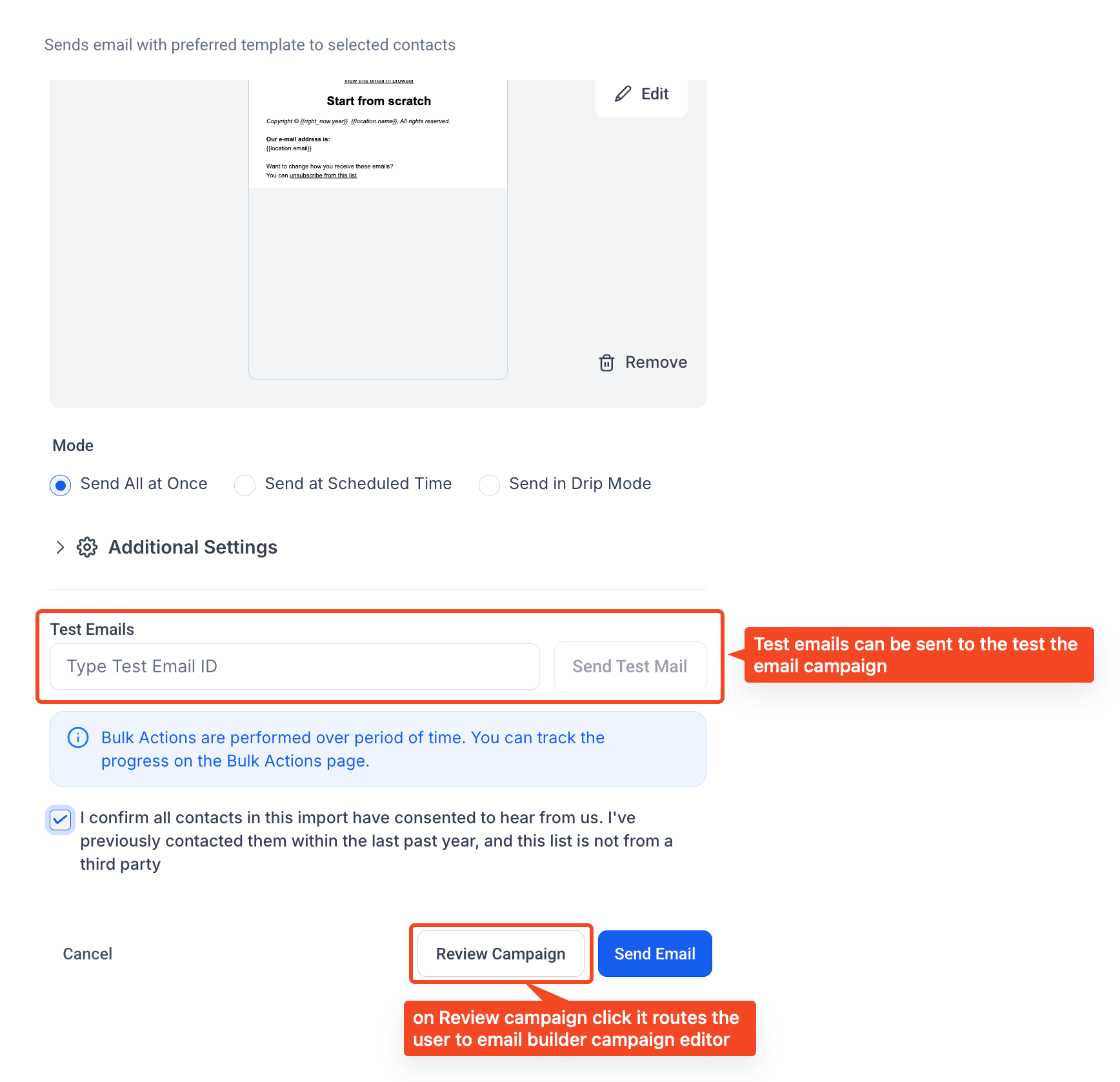
- Enter a test email address, click Send Test Mail and verify the email’s content and links.
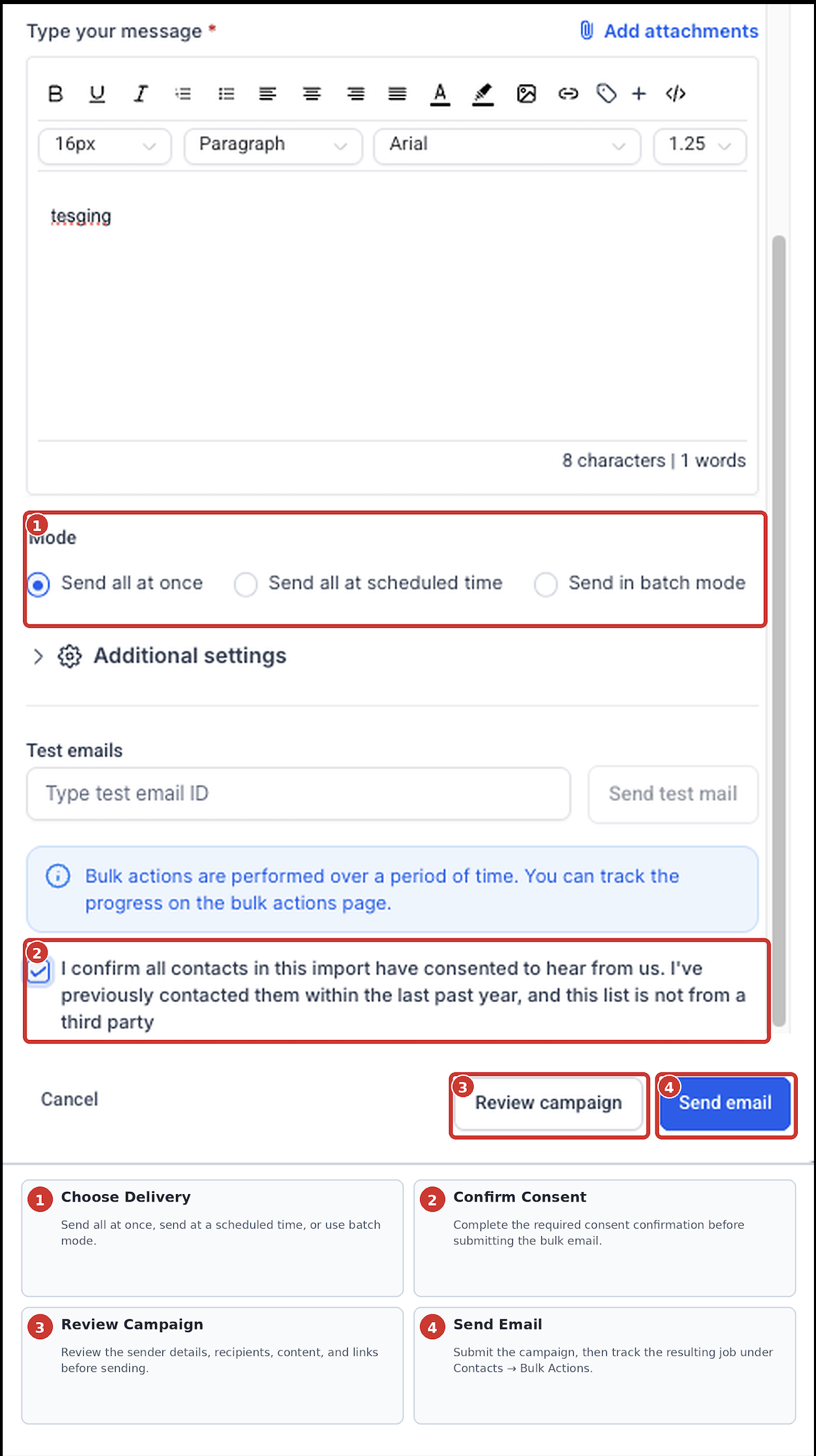
- Click Review Campaign to double check sender details, content, links and recipient data.
- Select Send Immediately, schedule the send, or configure Drip Mode with batch settings.
- Complete any required sending or consent confirmation shown in the interface.
- Click Send Email, then view the bulk action job later under Contacts > Bulk Actions.
07What it looks like in HighLevel
08Settings that matter
- Track Clicks. Enables recording of supported link clicks so the activity appears in email reporting.
- UTM Tracking. Appends configured UTM parameters to supported links for external campaign analytics.
- Add Tags. Applies chosen tags to contacts after the bulk email is processed, based on engagement options.
09Things to know before you rely on it
- Emails that have already been processed cannot be recalled through Bulk Actions.
- Drip Mode controls the pacing of batch sends but does not guarantee inbox placement or deliverability.
- Recipient filtering does not replace the need to follow consent, compliance and email sending regulations.
10If something goes wrong
- Eligible recipient count is lower than the number of contacts selected.. Check the filtered out list for contacts with invalid emails, unsubscribe status, or DND restrictions and adjust the selection if needed.
- Unable to pause or cancel a bulk email after submission.. Review the bulk action job under Contacts > Bulk Actions; if controls are unavailable, the job is already processing and cannot be stopped.
11How it connects to the rest of HighLevel
- Manage email templates used in the Bulk Email Builder Email template management
- Explore the new UI for email actions in workflows Email actions UI
- Send or schedule a regular email campaign in HighLevel Regular email campaigns
Michael's take

Jumping into bulk email without confirming who will actually get the message can backfire. The builder shows filtered out contacts, but you still need to verify that every address is valid and that you have the right consent before you hit send.
The builder lets you draft a quick note, pull a polished template or build a full featured design, then schedule or drip it out at your own pace.