
01Who this is for
- Marketing managers benefit because they can create and test automated emails without leaving the workflow builder.
- Founders of small businesses gain control over template synchronization, preventing accidental changes to shared assets.
- Agency owners appreciate the ability to apply engagement tracking and tags directly in the workflow step.
02Email actions, explained
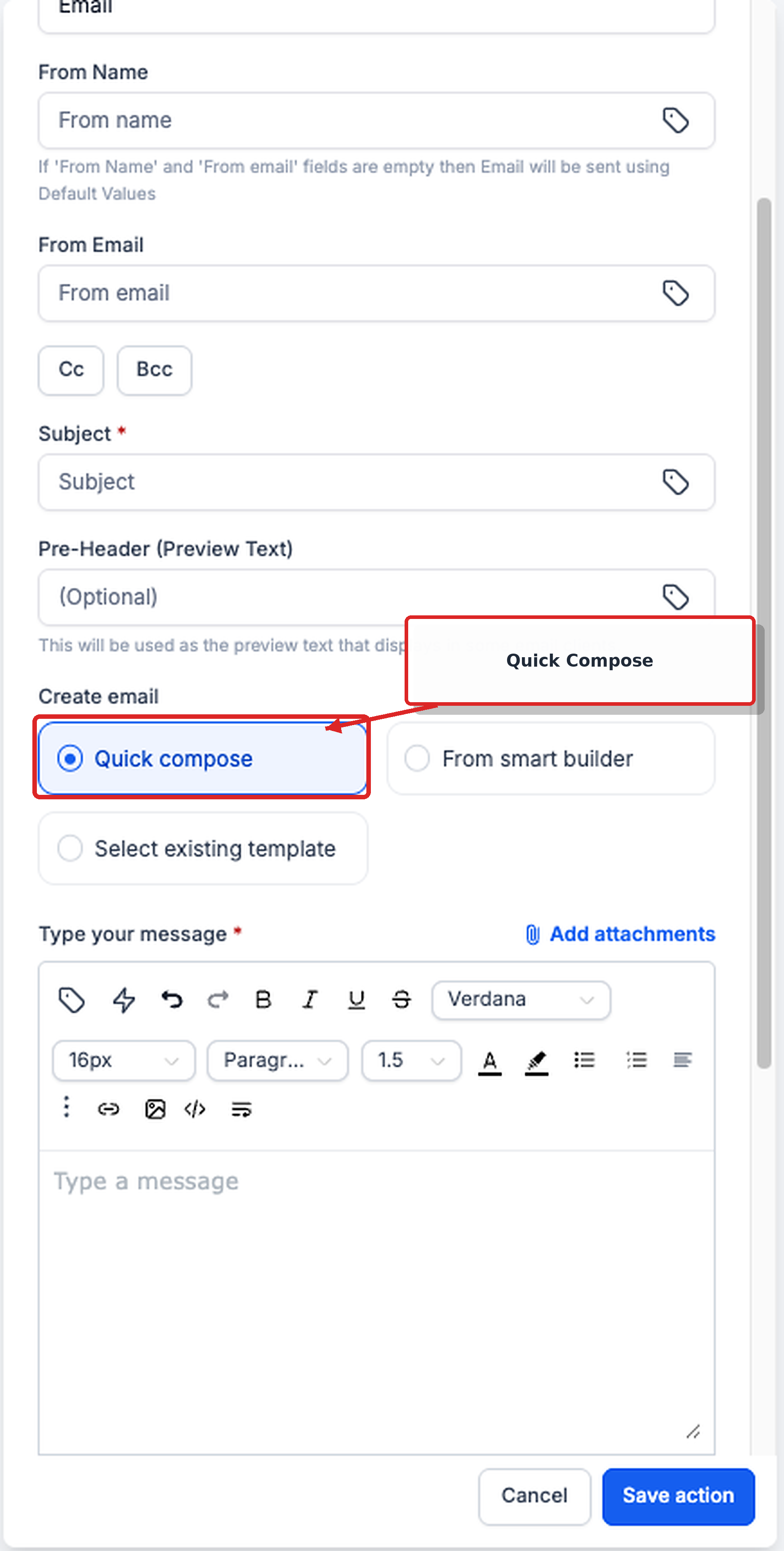
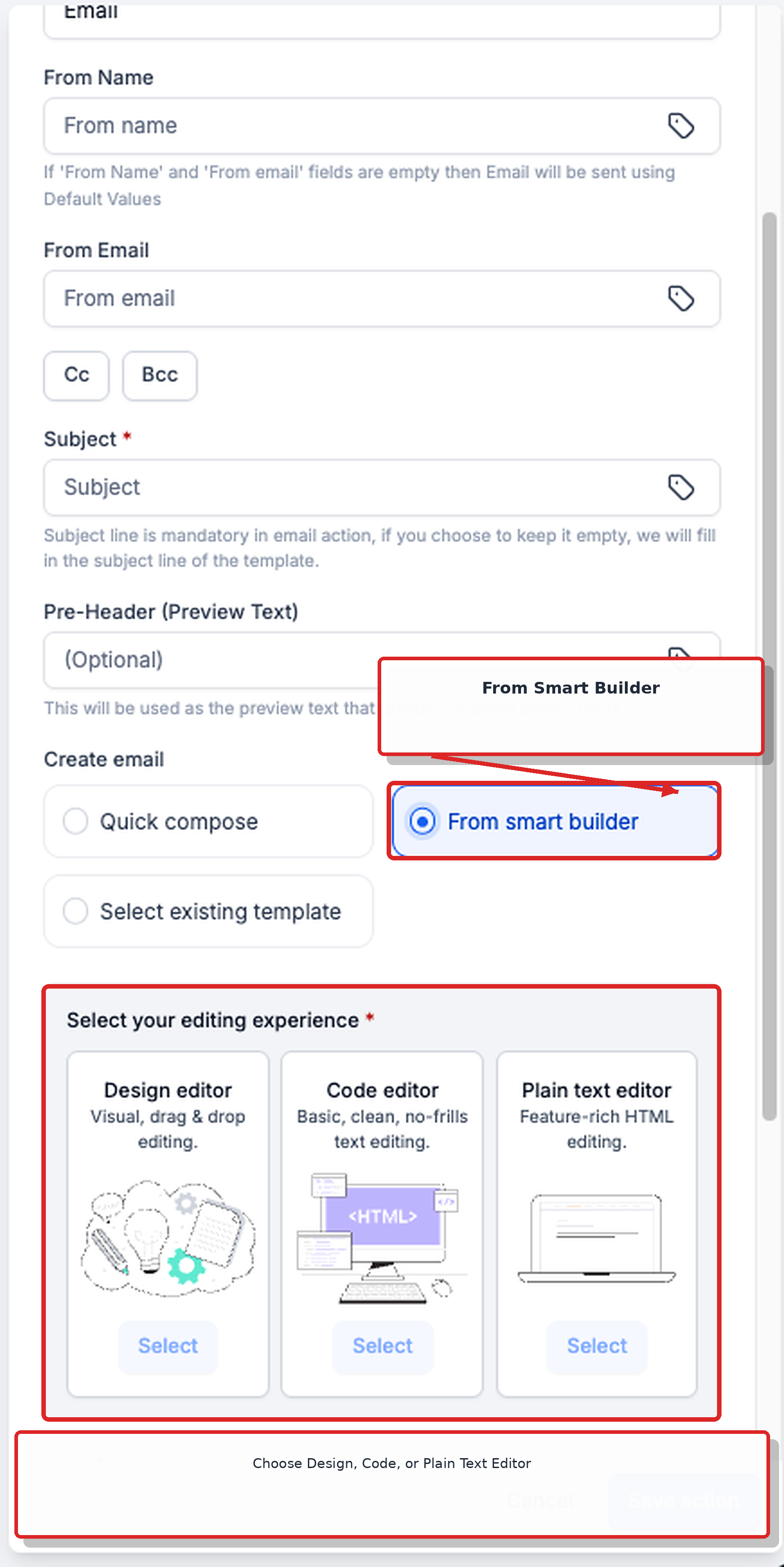
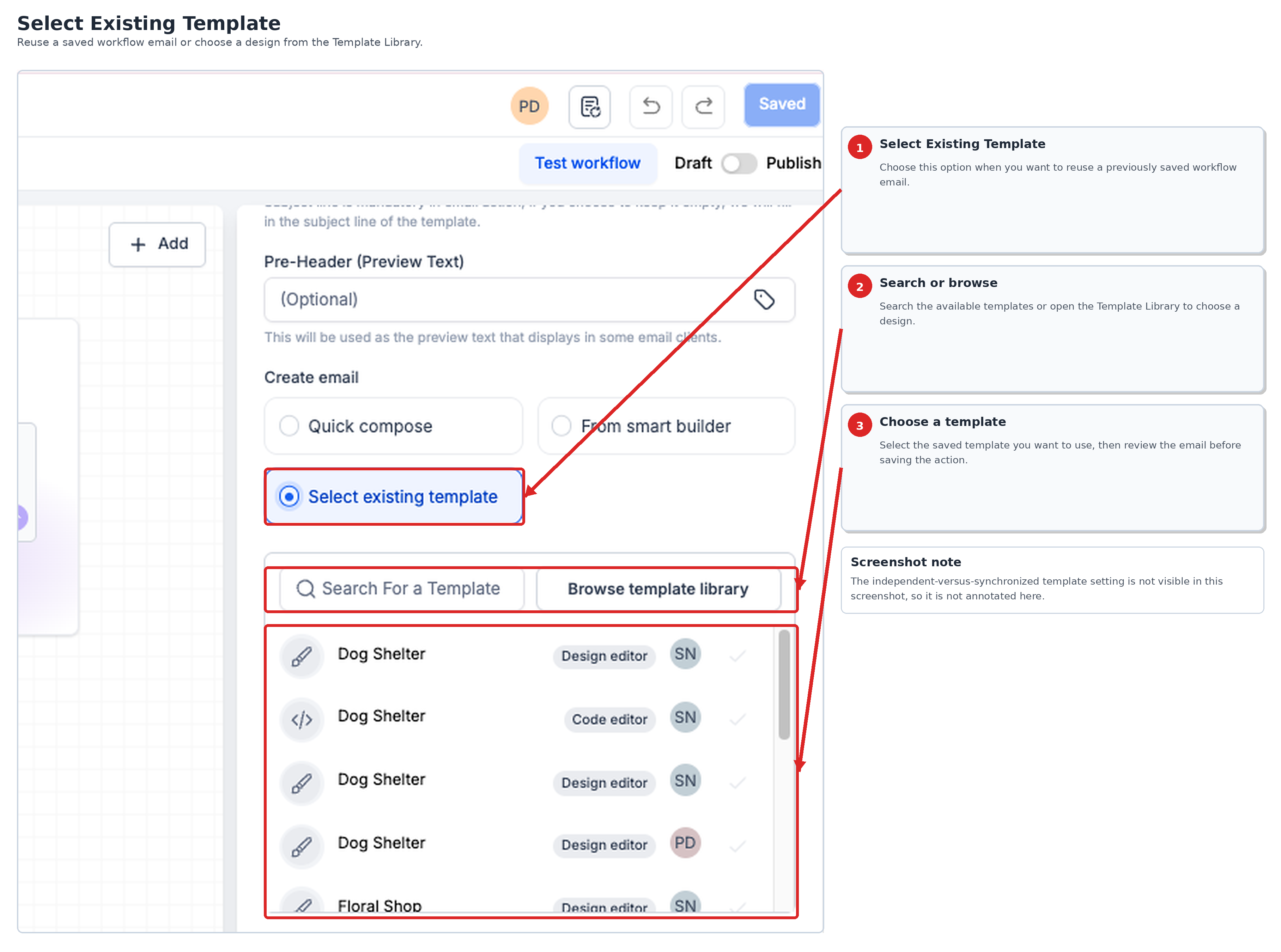
The new Send Email action combines composition, template selection, and engagement options into one step inside the workflow editor. It offers three creation modes: Quick Compose for short messages, Smart Builder for full design, code or plain text editing, and the ability to start from an existing template.
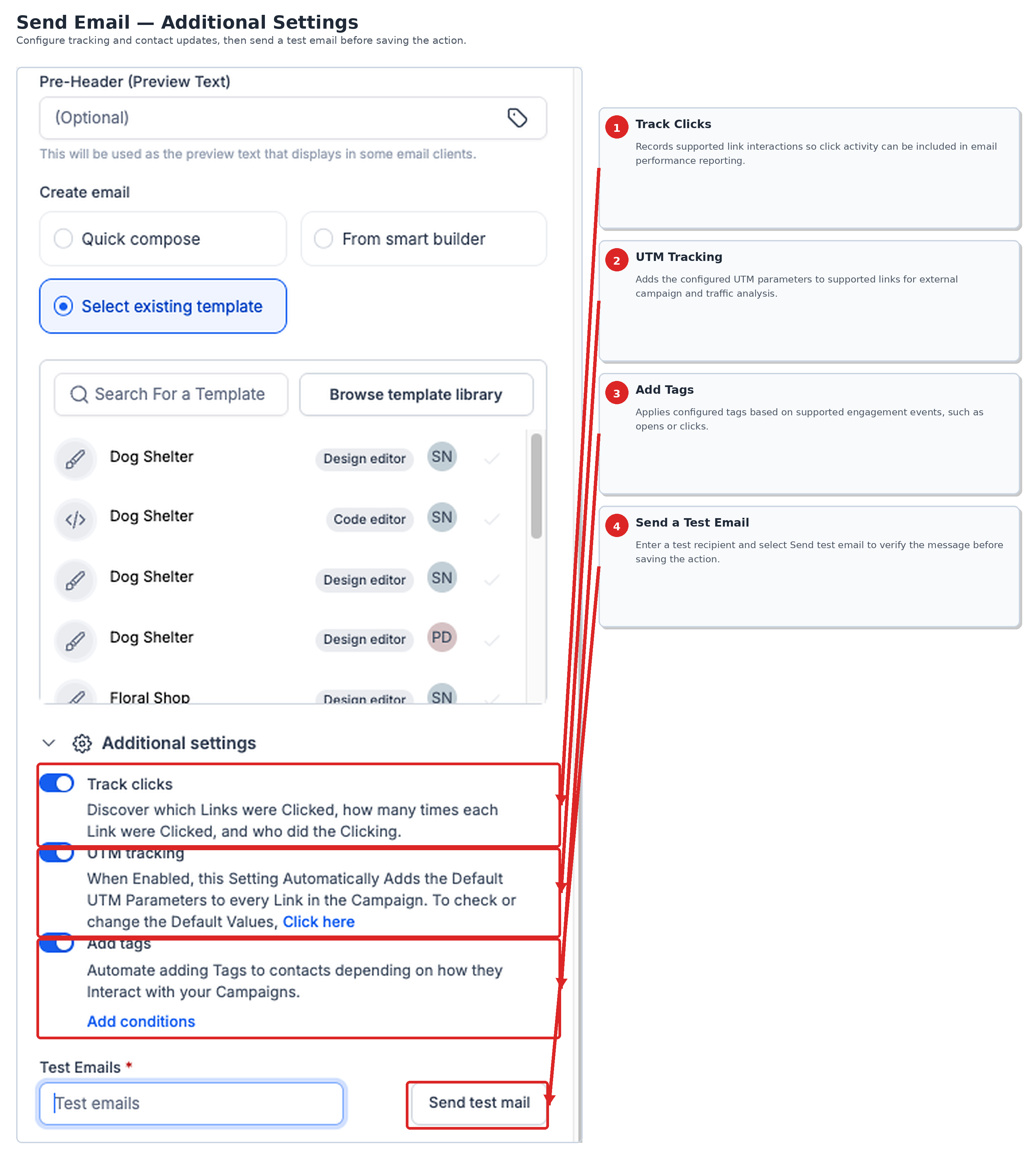
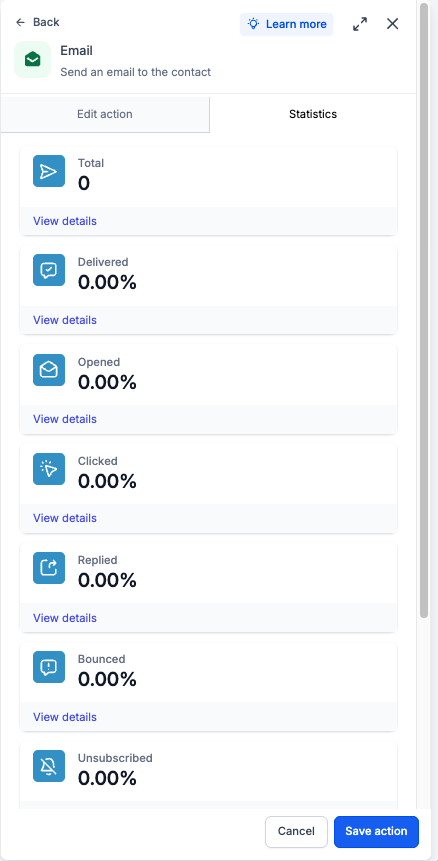
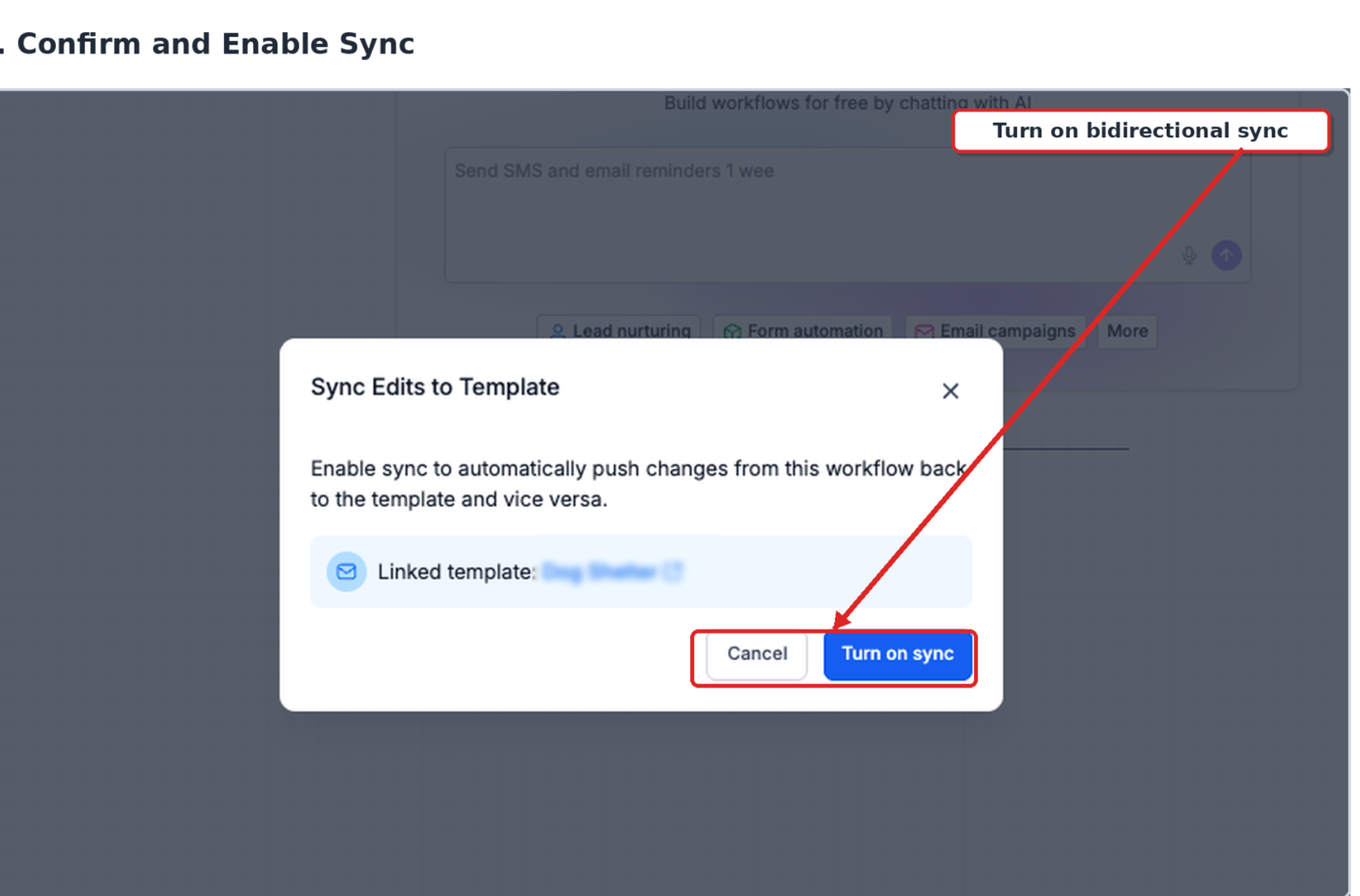
When a template is chosen you can decide whether edits stay linked to the source via the Sync Edits to Template switch. Additional toggles let you record link clicks, add UTM parameters to URLs, and apply tags based on opens or clicks. After the email runs, you can reopen the action to view basic statistics.
This feature lives under Automation > Workflows in the HighLevel platform. All configuration happens while building the workflow; publishing the workflow is a separate final step.
03How businesses use email actions
- Consulting firm. The firm selects an existing proposal template, disables synchronization, and adds a personalized Quick Compose note for each client. They set tag rules so that a "proposal_sent" tag is applied when the email is opened. The workflow then triggers follow up tasks based on those tags.
- Ecommerce store. The store uses Smart Builder to design a promotional email with product images. They enable click tracking and add UTM parameters so that traffic from the email appears in their analytics. A test email is sent before the workflow goes live.
- Fitness club. The club creates a welcome series using the Template Library, keeps synchronization off, and configures the Add Tags option to assign a "new_member" tag after the first email is opened. The workflow sends the series automatically when a new contact joins.
04How to set up and use email actions in HighLevel
Create and configure a Send Email action in a workflow
- Open Automation > Workflows, then start a new workflow or edit an existing one.
- Insert a Send Email action and give it a clear name.
- Enter the From Name, From Email, Subject, and any optional CC, BCC or preview text.
- Pick Quick Compose, From Smart Builder, or Select Existing Template as the creation method.
- Adjust Sync Edits to Template, click tracking, UTM settings, and tag rules as required.
- Use Test Emails and Send Test Mail to preview and verify the message.
- Click Save Action, then save and publish the workflow.
05What it looks like in HighLevel
06Settings that matter
- Sync Edits to Template. Controls whether changes made to the workflow email update the source template and vice versa.
- Track Clicks. Enables recording of supported link clicks for inclusion in email performance reports.
- UTM Tracking. Appends predefined UTM parameters to email links for external campaign analysis.
- Add Tags. Applies specified contact tags when defined engagement events, such as opens or clicks, occur.
07Things to know before you rely on it
- Sync Edits to Template is turned off by default for new actions created from a template.
- Click tracking records only supported link interactions; unsupported links will not appear in reports.
- Saving the action does not publish the workflow; the workflow must be saved and published separately.
- Quick Compose is a lightweight editor and is not the same as the Plain Text Editor available through Smart Builder.
08If something goes wrong
- Click results are not appearing in reports.. Verify that the Track Clicks option is enabled and that recipients have performed supported link clicks, then check the email Statistics or Workflow Campaigns reporting.
- Editing the workflow email changed the original template.. Review the Sync Edits to Template setting; disable it if the workflow email should stay independent from the source template.
09How it connects to the rest of HighLevel
- Learn how to manage email templates used in workflow steps. Managing email templates
- Explore reporting options for workflow email performance. Workflow campaign analysis
- Detailed guide on the Sync Edits to Template feature. Sync Edits to Template
- Set up and browse the Template Library for reusable designs. Template Library
- Start a 30 day trial to test workflow email actions. 30 day trial
Michael's take

When I need to send automated follow ups or campaign messages, the new email action UI keeps everything in one place, so I don’t have to switch between the Workflow Builder and the classic email editor.