
01Who this is for
- Marketing managers can see which automated messages drive the most opens and clicks, helping them refine campaign content.
- Sales teams can monitor follow up email performance within their lead nurturing workflows to improve outreach effectiveness.
- Customer support leaders can track automated receipt confirmations and support messages to ensure reliable delivery.
02Workflow campaigns, explained
Workflow Campaigns capture email activity from every email action placed inside a HighLevel workflow. Each email is logged as a separate entry, allowing the platform to report on delivery, opens, clicks, replies, bounces and other engagement events.
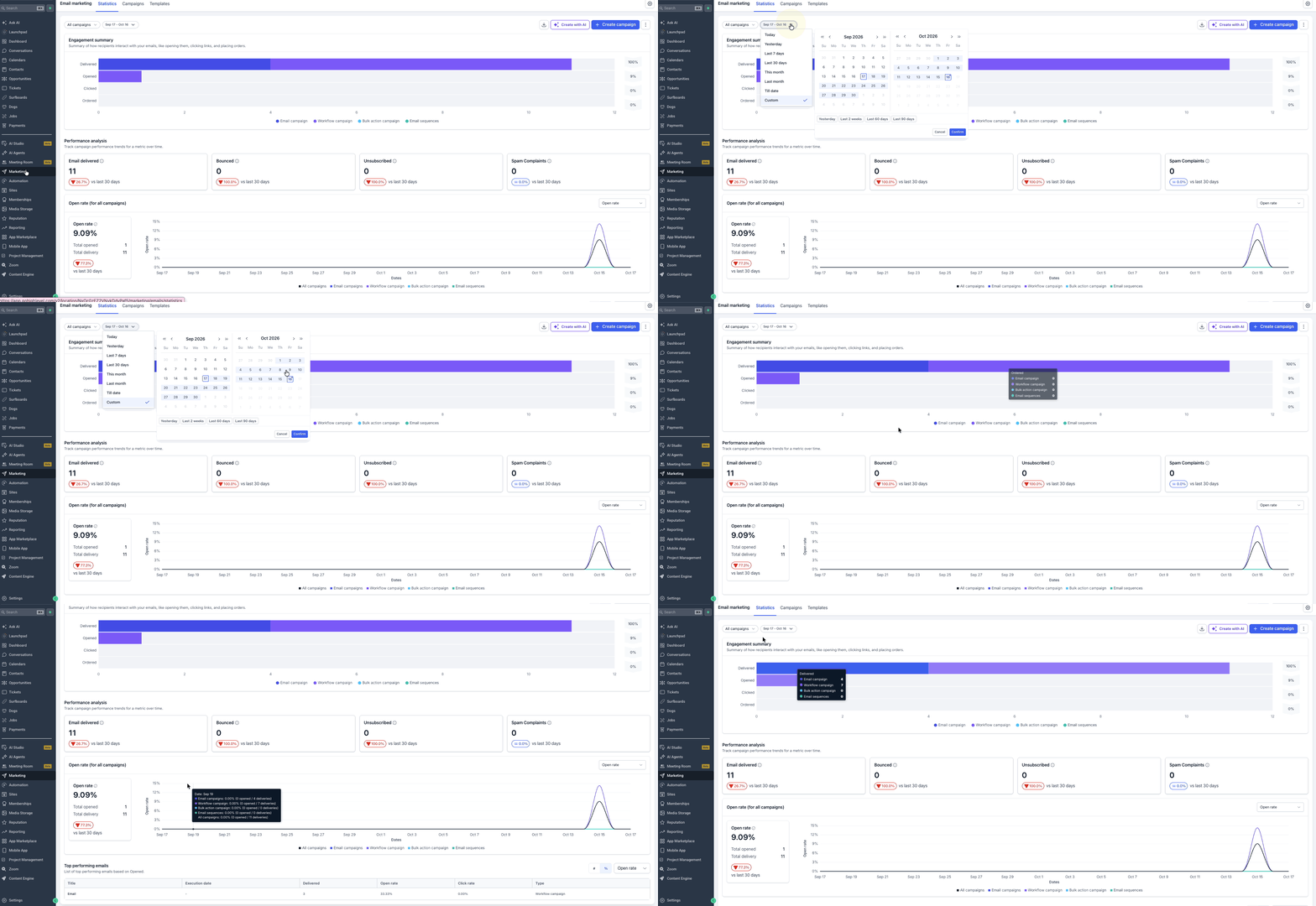
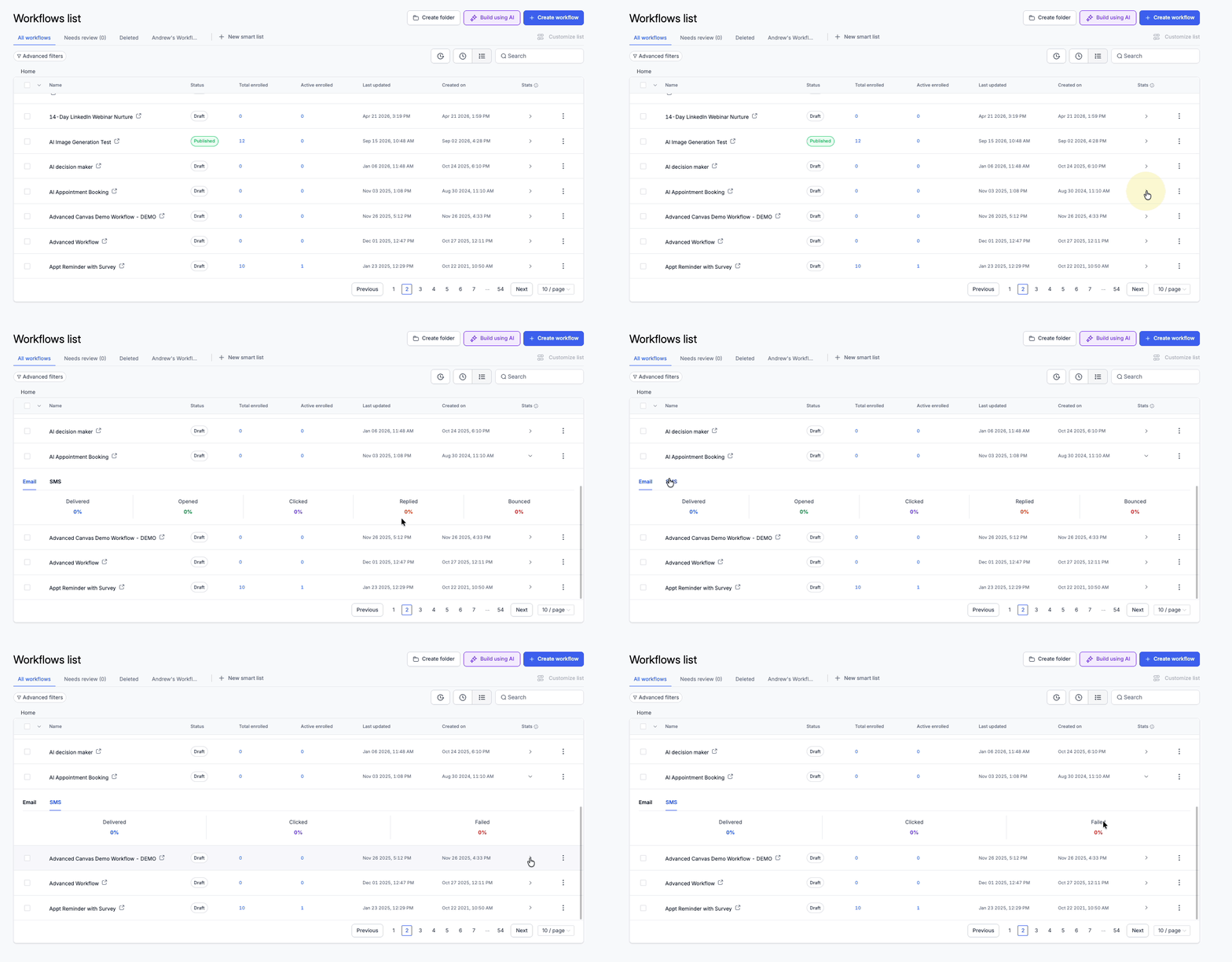
The statistics are available in three places: the unified Email Statistics dashboard, the individual email action view inside the Workflow Builder, and the workflow level Stats view that also includes SMS data. Users can filter by source and date range, review summaries, performance trends, and top performing emails, or drill into a single action’s metrics.
All reports reside under the Automation or Marketing sections of the platform. The Email Statistics dashboard is reached via Marketing > Emails > Statistics, while workflow specific views are accessed from Automation > Workflows, either by opening a workflow or expanding its row to see Stats.
03How businesses use workflow campaigns
- Real estate brokerage. The brokerage opens the Email Statistics dashboard, filters for Workflow Campaigns, and selects a date range to see which property alert emails generate the most clicks. It then edits low performing email actions directly in the workflow builder to improve engagement.
- SaaS startup. The startup reviews individual email action statistics for its onboarding sequence, identifying a welcome email with high opens but low clicks. Using the Stats View on the workflow canvas, it inspects the click data, exits Stats View, and updates the call to action link in the email.
- Fitness studio. The studio exports workflow email statistics for its class reminder workflow, receives a CSV file via email, and analyzes the data in a spreadsheet to compare open rates across different class types before adjusting the reminder content.
04The numbers and rules that matter
- Email statistics view defaults to Last 30 days.
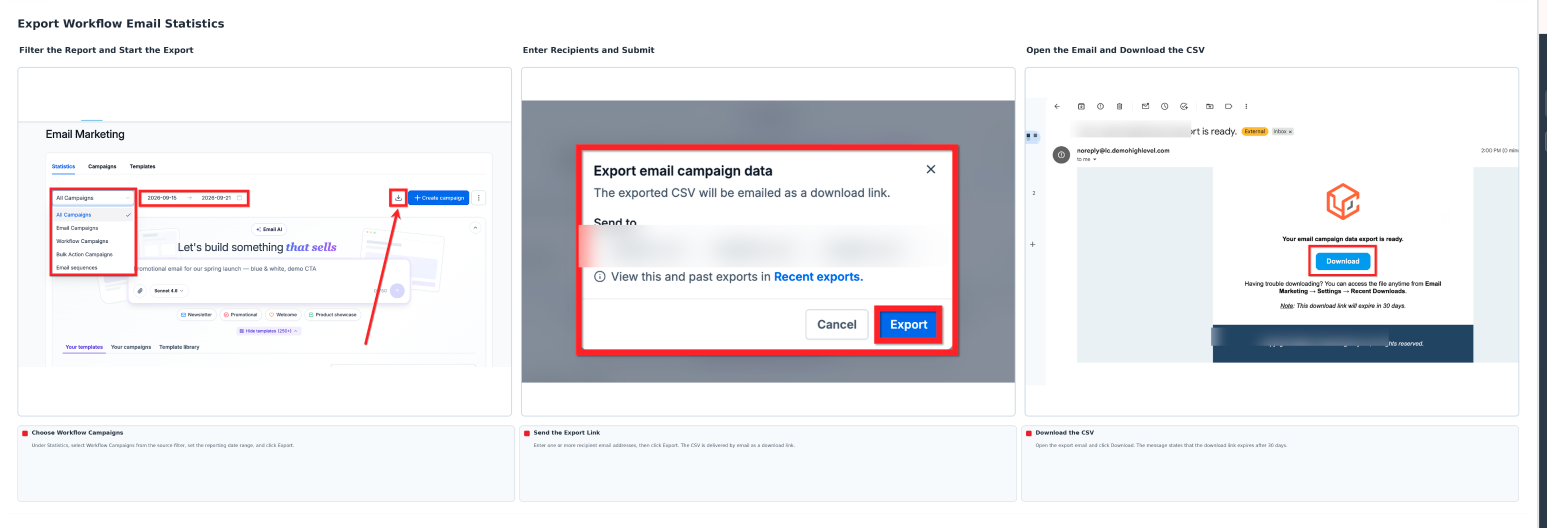
- Export download links remain valid for 30 days.
- Historical activity can include data from January 1, 2023 onward.
05How to set up and use workflow campaigns in HighLevel
Access workflow campaigns from the unified Email Statistics dashboard
- Navigate to Marketing > Emails > Statistics.
- Open the source filter and choose Workflow Campaigns.
- Select the desired reporting date range.
- Review the Engagement Summary, Performance Analysis, and Top Performing Emails sections.
View statistics for an individual email action
- Go to Automation > Workflows.
- Open the workflow that contains the email you want to examine.
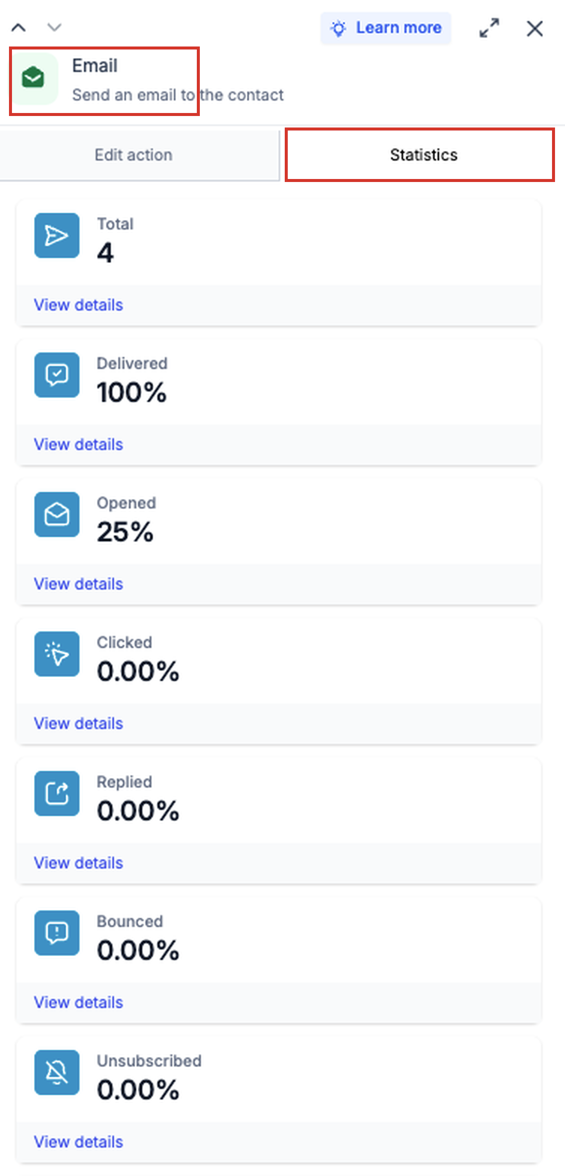
- Click the Email action you wish to review.
- In the right hand panel, select Statistics.
- Examine the delivery and engagement metrics displayed.
- Adjust the reporting controls to view a different date range if needed.
View workflow level statistics
- Navigate to Automation > Workflows.
- Find the workflow you intend to analyze.
- Click the expand arrow beside the workflow’s name.
- Select Stats to open the communication statistics view.
- Read the email and SMS performance data presented.
Analyze email actions using Workflow Builder Stats View
- Go to Automation > Workflows.
- Open the relevant workflow.
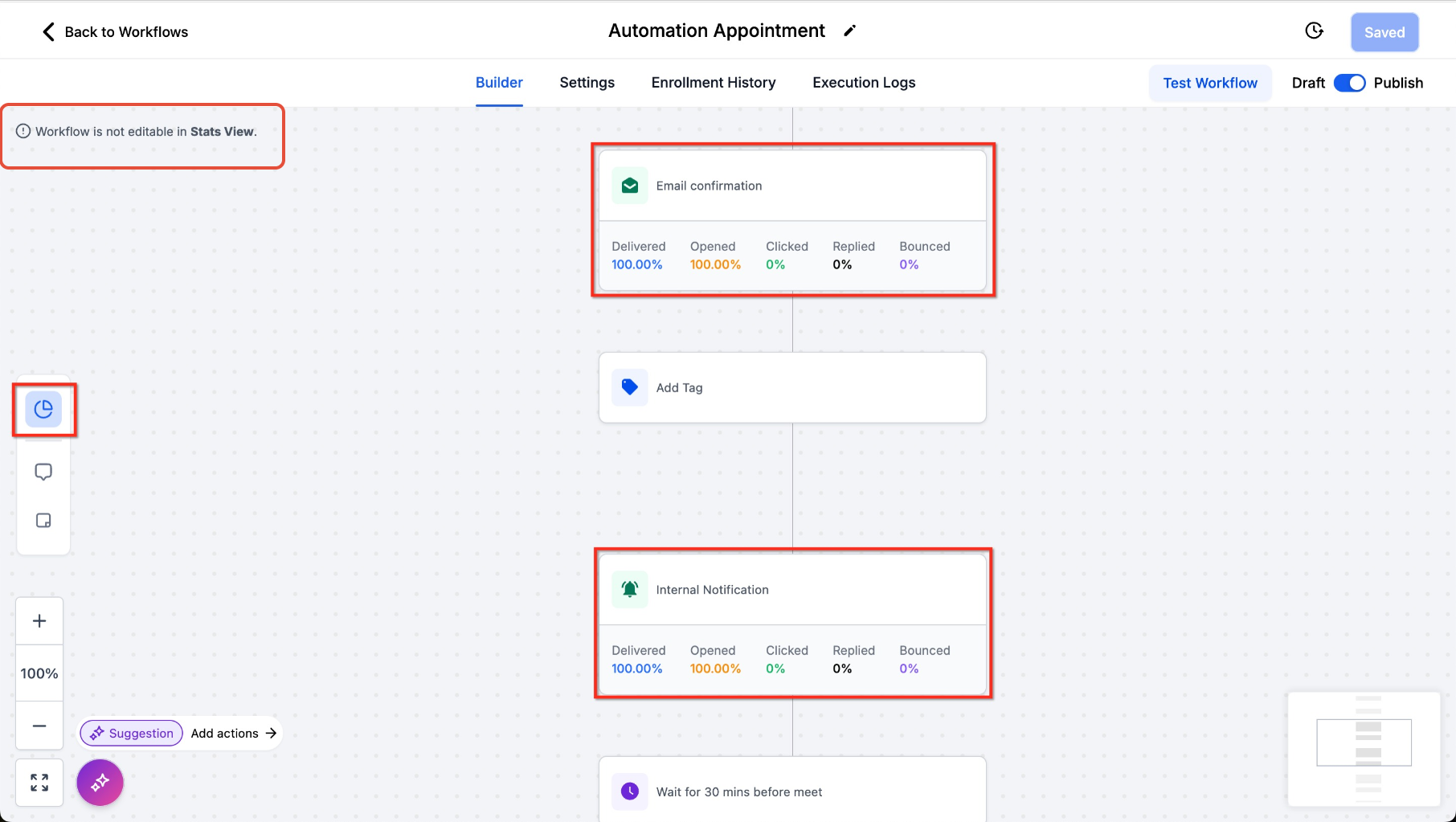
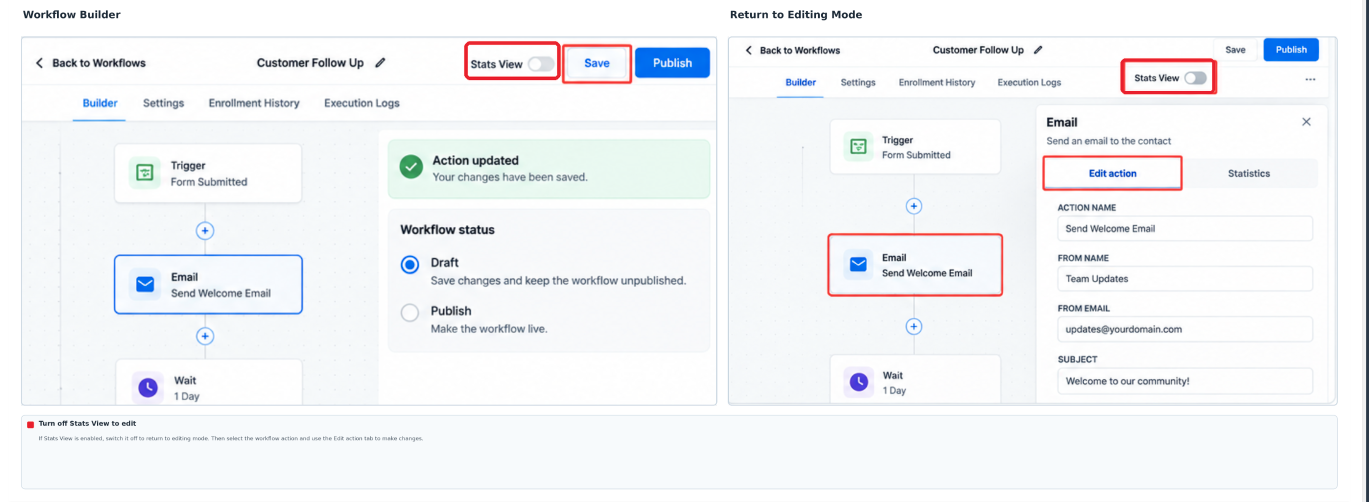
- Activate Stats View from the top left corner.
- Click the Email action you want to assess.
- Observe its delivery and engagement statistics.
- Tap a specific metric to open the detailed report when available.
- Deactivate Stats View before making any workflow changes.
Edit workflow emails after reviewing statistics
- Open the workflow via Automation > Workflows.
- If Stats View is on, turn it off to return to edit mode.
- Select the Email action you plan to modify.
- Review the current content, settings, and tracking options.
- Apply the desired edits to the email.
- Save the changes and verify the workflow’s publication status.
Export workflow email statistics
- Navigate to Marketing > Emails > Statistics.
- Choose Workflow Campaigns in the source filter and set the date range.
- Click Export; if prompted, select Workflows Only.
- Enter the email addresses that should receive the export and submit the request.
- Open the received email and download the CSV file from the provided link.
06What it looks like in HighLevel
07Settings that matter
- Source filter. Determines which email source, such as Workflow Campaigns, appears in the Email Statistics dashboard.
- Date Range filter. Limits the displayed statistics to the chosen reporting period.
- Stats View. Shows a reporting overlay on the workflow canvas with engagement data for actions; it disables editing while active.
08Things to know before you rely on it
- Exported CSV download links are valid for 30 days.
- Workflow level statistics are provided only for individual workflows, not for entire workflow folders.
- Historical reporting can include data starting January 1 2023.
- Stats View prevents any edits to the workflow until the view is closed.
- Top Performing Emails ranks each email action separately rather than aggregating the whole workflow.
- An accepted event does not guarantee delivery; open and click metrics rely on tracking availability.
09If something goes wrong
- Some workflow email statistics are missing. Confirm that the email was sent, verify the selected date range includes the send date, and check that tracking settings are correctly configured.
- Cannot edit an Email action while viewing workflow statistics. Exit Stats View before attempting to modify the email or other workflow components.
10How it connects to the rest of HighLevel
- Learn how to manage email templates used in workflow steps. Email templates in workflows
- Explore the new UI for creating email actions within HighLevel workflows. New email actions UI
- Review HighLevel pricing and plan options. Pricing and plans
Michael's take

The first thing I do is set the source filter on the Email Statistics dashboard to Workflow Campaigns so every automated send shows up in one place.
If an email has a high accepted count but low delivered numbers, it may indicate a delivery problem that warrants investigation.