
01Who this is for
- Support managers who need to alert customers when a ticket moves to a resolved state, ensuring the right contact receives the update.
- Product development teams that want to automatically create a Jira issue when a new bug report is submitted through a HighLevel form.
- Customer success directors looking to prevent duplicate work by searching for existing issues before opening new ones
02Jira actions and triggers, explained
The integration attaches Jira Cloud to the Automation > Workflows area. Triggers fire when a Jira issue is created or modified, and actions can search for users, projects, or issues, as well as create, update, comment, attach files, add watchers, log work, link issues, or move them into sprints. Each step requires selecting the appropriate Cloud Site and any relevant Jira resources.
When a trigger runs, the workflow can use a shared reference such as an email address or ticket ID to locate the corresponding HighLevel contact. If a match is found, the contact can receive messages; otherwise a fallback path can handle the missing record. All steps must be saved, tested, and then published, with execution details available in the workflow’s logs.
03How businesses use jira actions and triggers
- Software development agency. The agency creates a workflow that starts on a new Jira issue, uses Find Project to select the right development board, then creates a sub task linked to the original issue. The workflow adds a comment with the client’s contact information pulled from HighLevel.
- Customer support team. A support team sets an Updated Issue trigger that watches for the status changing to Done. The workflow finds the matching contact by email, then sends a follow up email confirming resolution. If no contact matches, the workflow follows a Contact Not Found branch.
- Marketing consultancy. The consultancy configures a workflow that runs when a HighLevel form submission occurs. It uses Find User to locate the appropriate Jira project manager, then creates a new issue containing the campaign request details. An attachment action adds a brief PDF stored in HighLevel.
04Before you start
- Access Automation > Workflows in a HighLevel subaccount.
- An Atlassian account with the email address and permissions for the desired Jira Cloud Site.
- A common identifier stored in both platforms when contact specific actions are required.
05How to set up and use jira actions and triggers in HighLevel
Set up a workflow with Jira
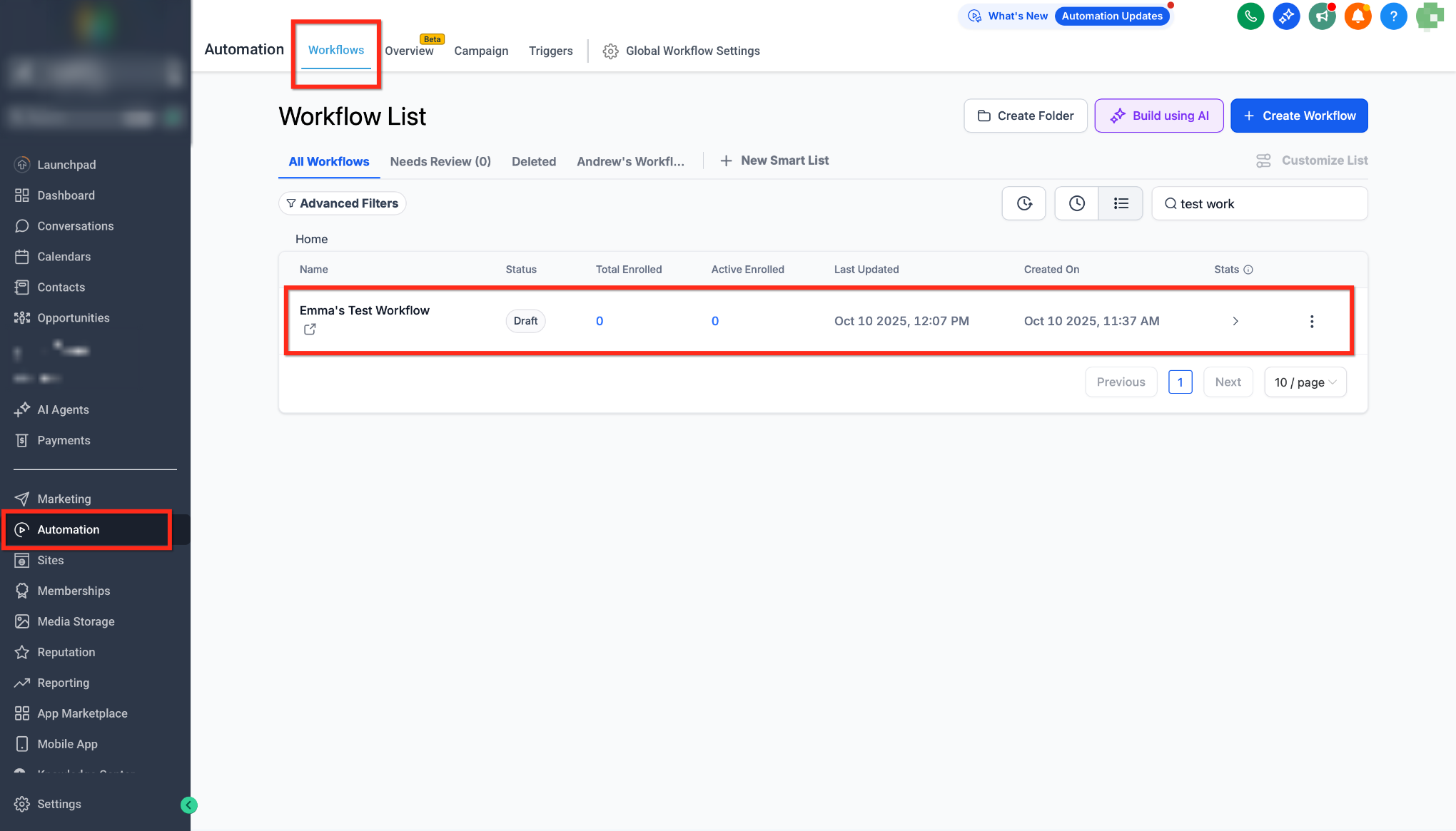
- Open Automation > Workflows, create a new workflow or edit an existing one, and give it a name.
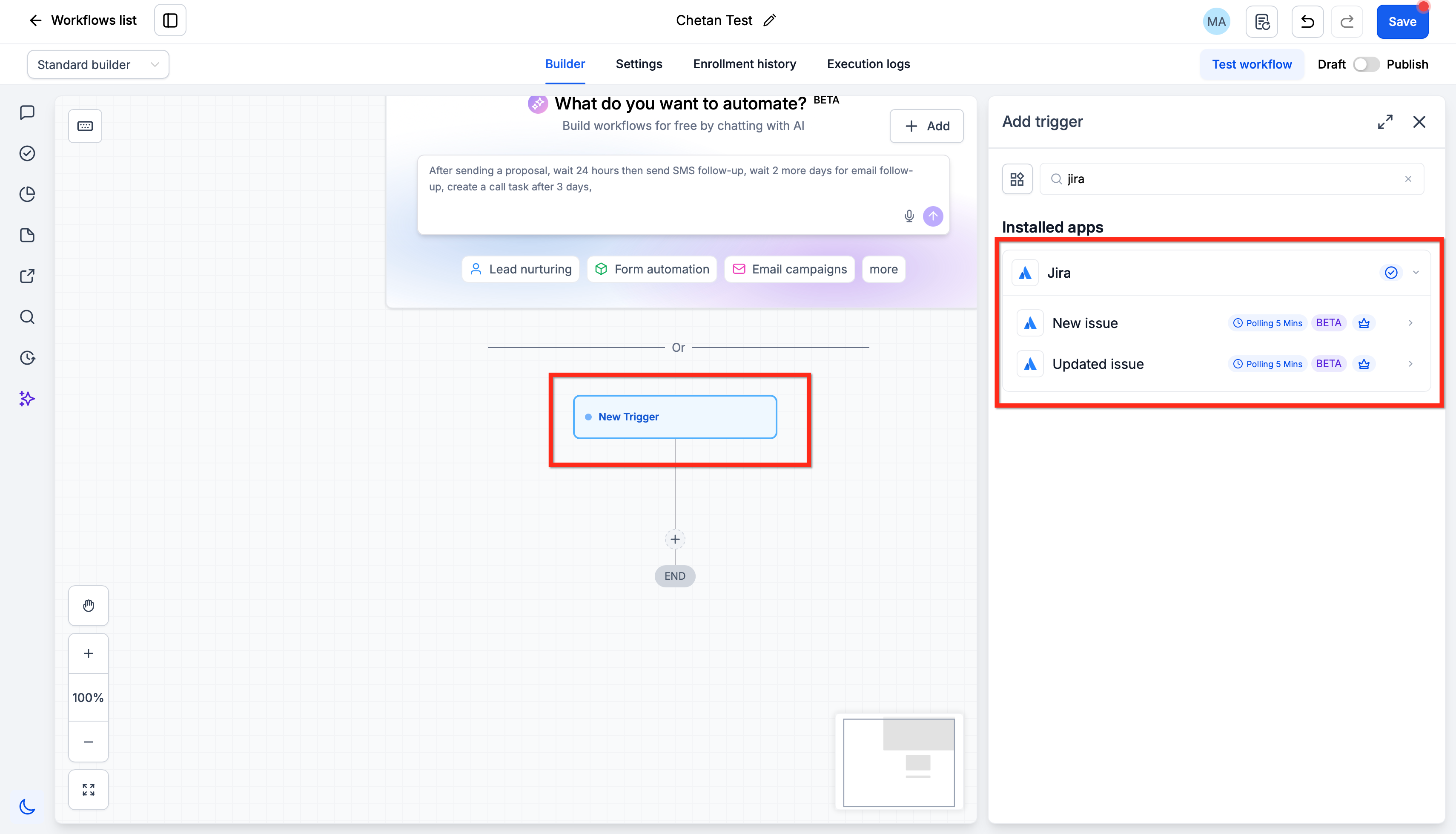
- Add a Jira trigger such as New issue or Updated issue, and pick the Cloud Site and any issue filter you need.
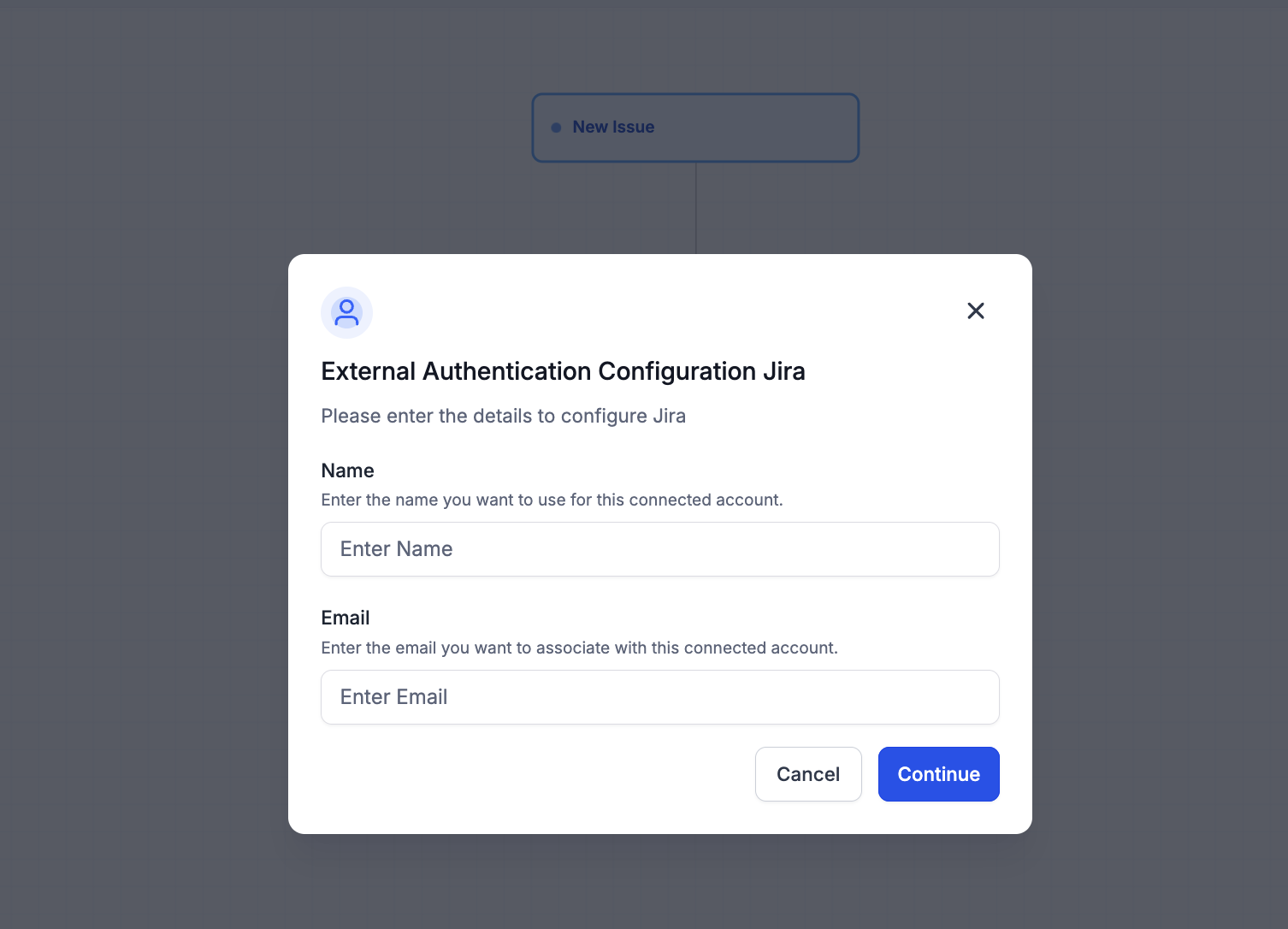
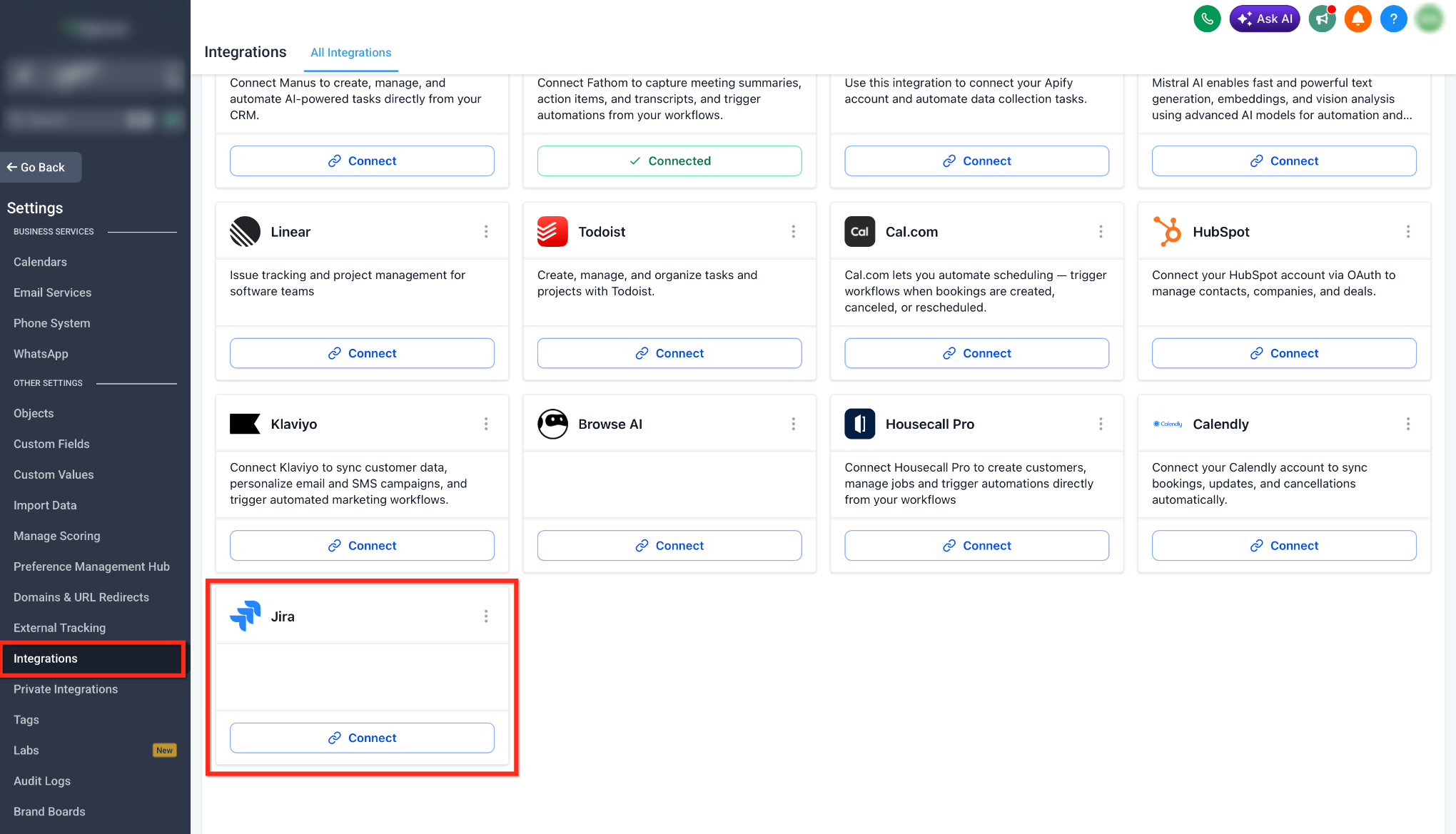
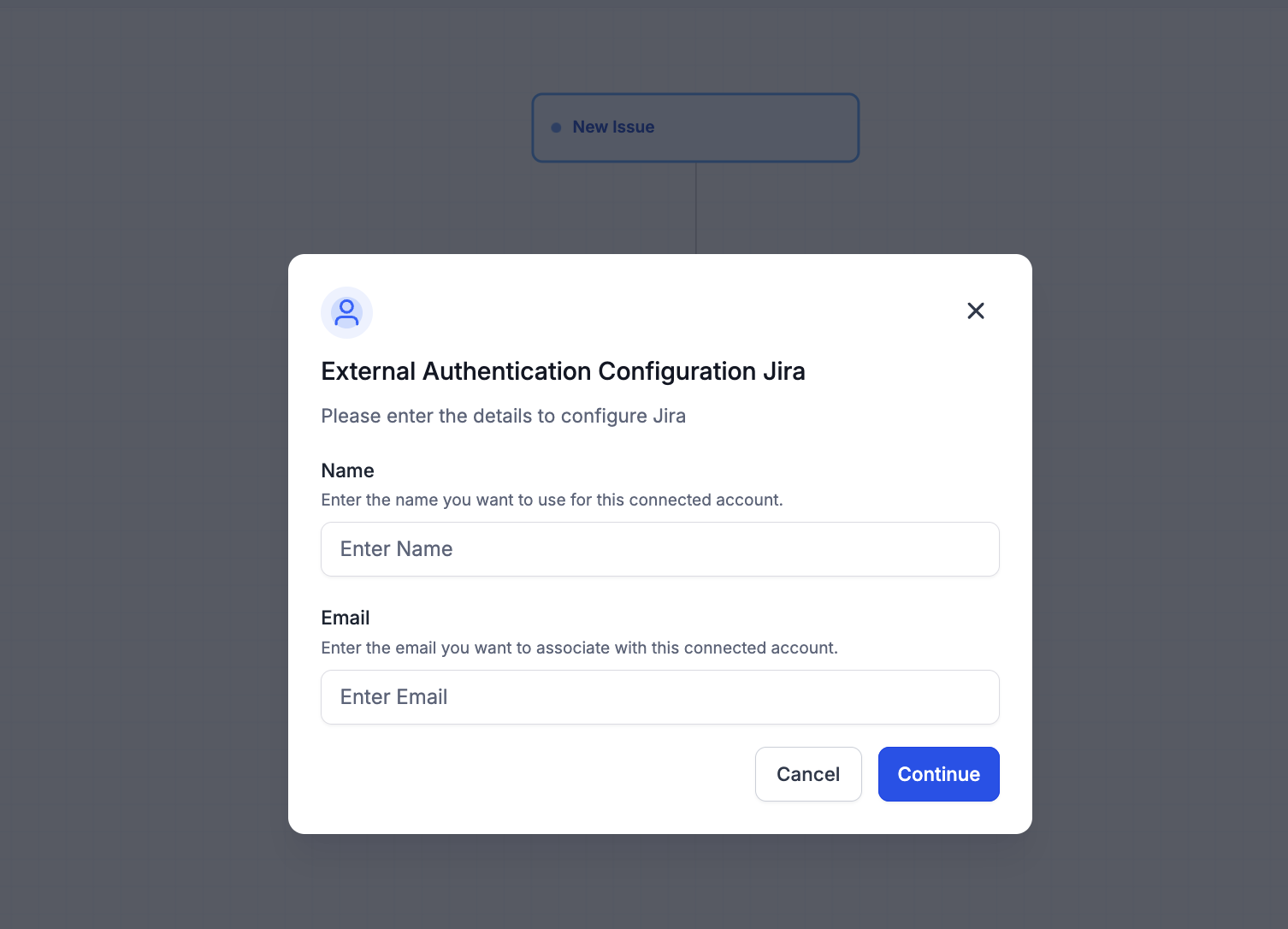
- If no Jira connection appears, click Connect your account and enter a name and your Atlassian email in the External Authentication Configuration panel.
- Approve the permission request in the Atlassian popup that follows.
- Select the authorized connection and the appropriate Cloud Site for the trigger step.
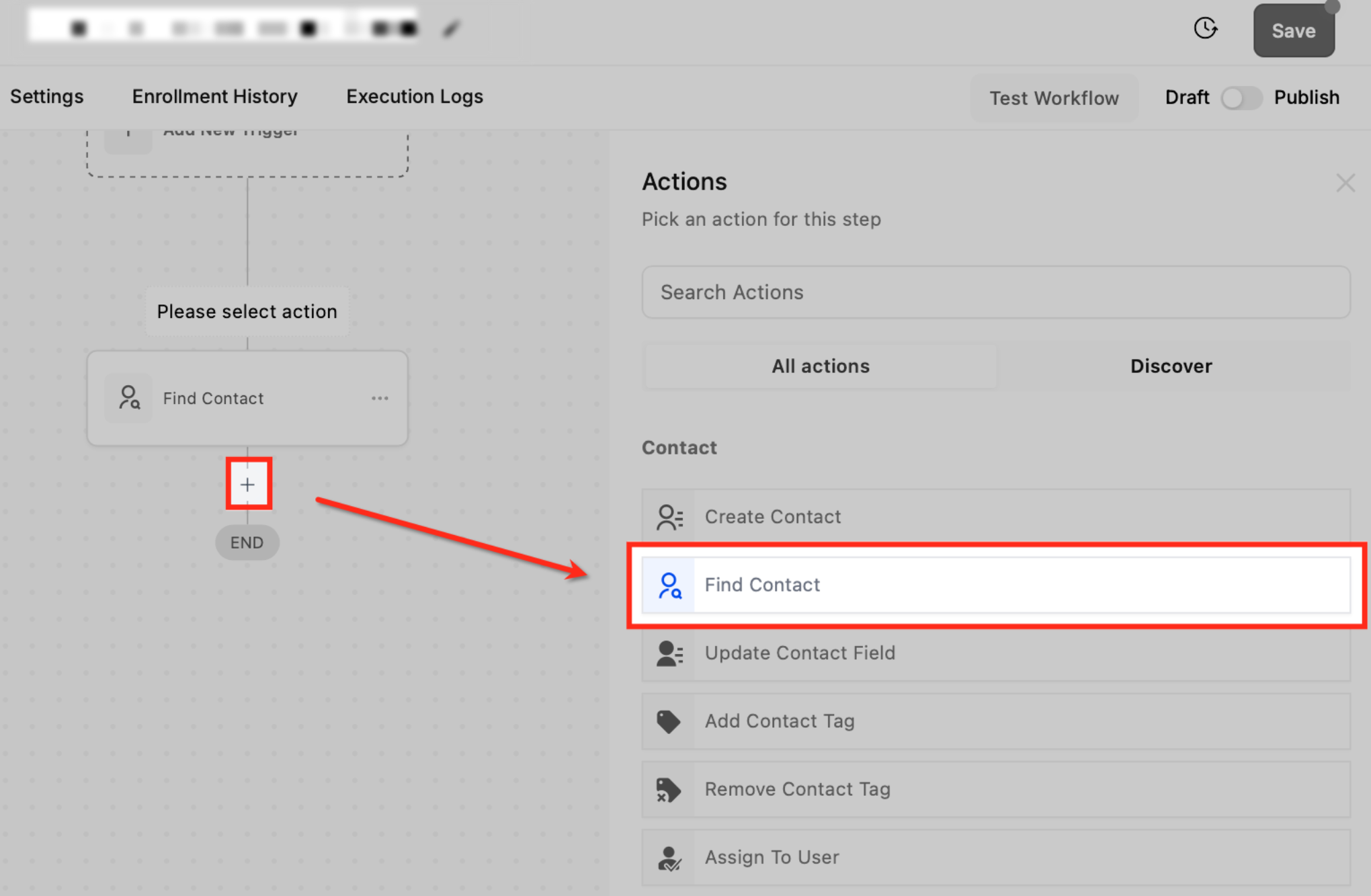
- Configure additional Jira actions, choosing the account, Cloud Site, and specific project, issue, user, or sprint fields required for each action.
- Test the workflow, save the changes, and publish it; then review Execution Logs > View Details for confirmation.
06What it looks like in HighLevel
07Settings that matter
- External Authentication Configuration. Stores the connection name and the Atlassian email used to authorize access to Jira Cloud.
- Cloud Site. Specifies which Jira Cloud instance the trigger or action will interact with; each step can select its own site.
08Things to know before you rely on it
- Creating an issue requires a selected Cloud Site; without it the action cannot run.
- Only file types supported by the Add attachment to issue action can be attached.
- Filters like Status = Done may also fire on subsequent updates to an issue already marked Done, so safeguards are advisable.
- The list of projects, users, issues, and sprints shown depends on the permissions of the connected Atlassian account.
09If something goes wrong
- Unable to locate a Jira project, user, or sprint in the action list. Verify that the correct Cloud Site is chosen and that the connected Atlassian account has the necessary permissions in Jira.
- A Jira action fails during workflow execution. Open the workflow's Execution Logs, select View Details, and examine the site, input values, status, and any error information provided.
10How it connects to the rest of HighLevel
- Guide to managing email templates used in workflow actions Email templates
- Overview of custom value trigger links for dynamic inputs Custom trigger links
- HighLevel pricing and plan details, including access to integrations Pricing
Michael's take

Beware of relying on status filters alone; they can fire on updates that don’t actually change the state, leading to unnecessary customer notifications. Make sure you add a safeguard or verify the transition before sending a message.
When you lock in the right trigger and keep the contact matching tight, the integration can cut duplicate work and keep support and engineering teams in sync without manual hand offs.