
01Who this is for
- Users can keep workflow emails aligned with a shared template when continuous sync is enabled.
- Users can customize a workflow email without affecting the original template by disabling sync.
02Sync edits to template, explained
The Sync Edits to Template option appears in a Send Email action when you select an existing saved template and determines whether the workflow email and the original template remain linked.
When continuous sync is on, edits to either the workflow email or the source template automatically update the other; turning it off makes the two copies independent, and Sync Once copies the template’s current content into the workflow email a single time without creating an ongoing link.
You find the setting inside a workflow under Automation > Workflows, within the Send Email step, and you access the one time copy feature from Marketing > Emails > Templates via the three dot menu.
03How businesses use sync edits to template
- Digital marketing agency. The agency disables continuous sync for a client specific campaign and uses Sync Once to pull the latest brand copy into the workflow email before launch.
- Real estate brokerage. Agents enable continuous sync on a template used for property listings so any brand update automatically refreshes every listing email sent from different workflows.
- Fitness studio. The studio creates a promotional email template, leaves sync off, and later uses Sync Once to update a single class reminder workflow with the newest design without affecting other class emails.
04Before you start
- A saved email template must exist in Marketing > Emails > Templates.
- A workflow with a Send Email action that uses the selected template must be open.
05How to set up and use sync edits to template in HighLevel
Enable or disable continuous sync for a workflow email
- Navigate to Automation > Workflows and open or create the desired workflow.
- Add a new Send Email action or edit an existing one.
- Choose Select Existing Template and pick the saved email template.
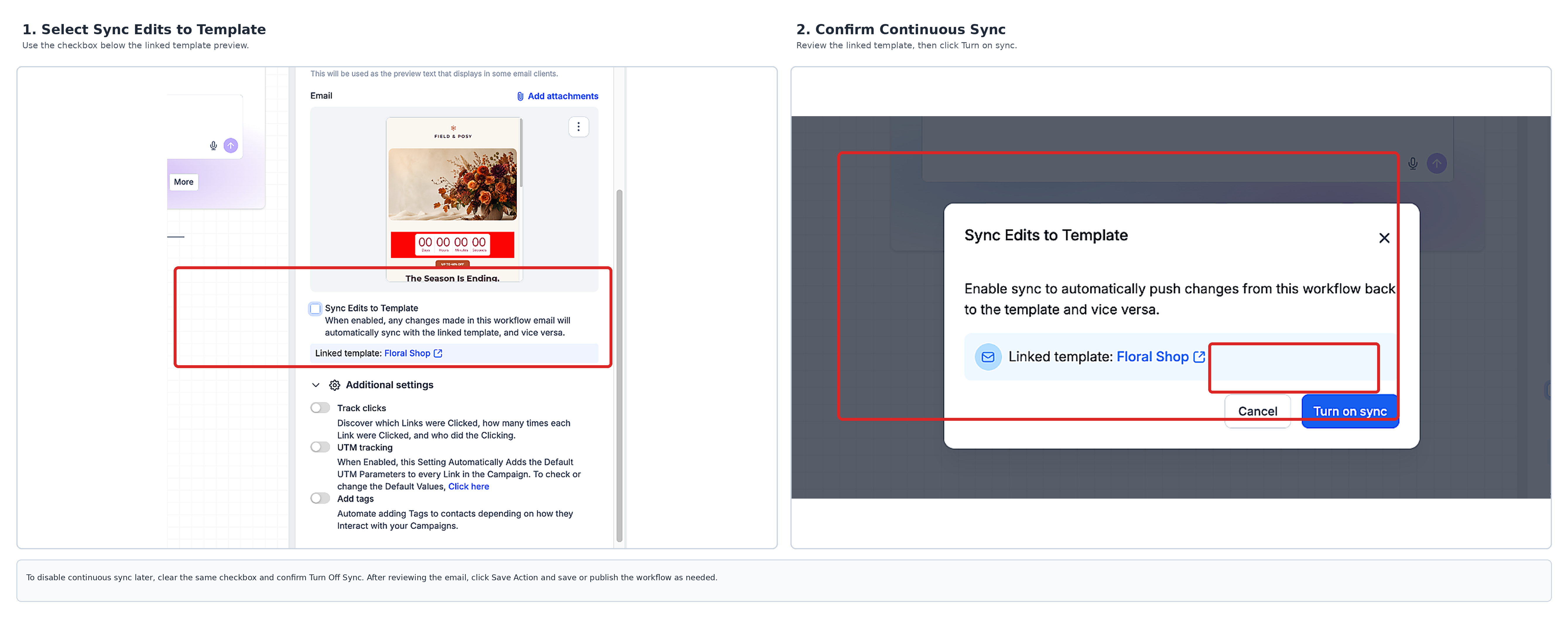
- Locate the Sync Edits to Template option beneath the template preview and note its current state.
- To turn on continuous sync, check the box and confirm the Turn On Sync prompt.
- To turn off continuous sync, clear the box and confirm the Turn Off Sync prompt.
- Important: With continuous sync enabled, editing the workflow email also updates the shared source template.
- Review the email content and click Save Action.
- Save or publish the workflow as required.
Apply Sync Once to copy a template into selected workflow emails
- Go to Marketing > Emails > Templates.
- Find the source template you want to copy.
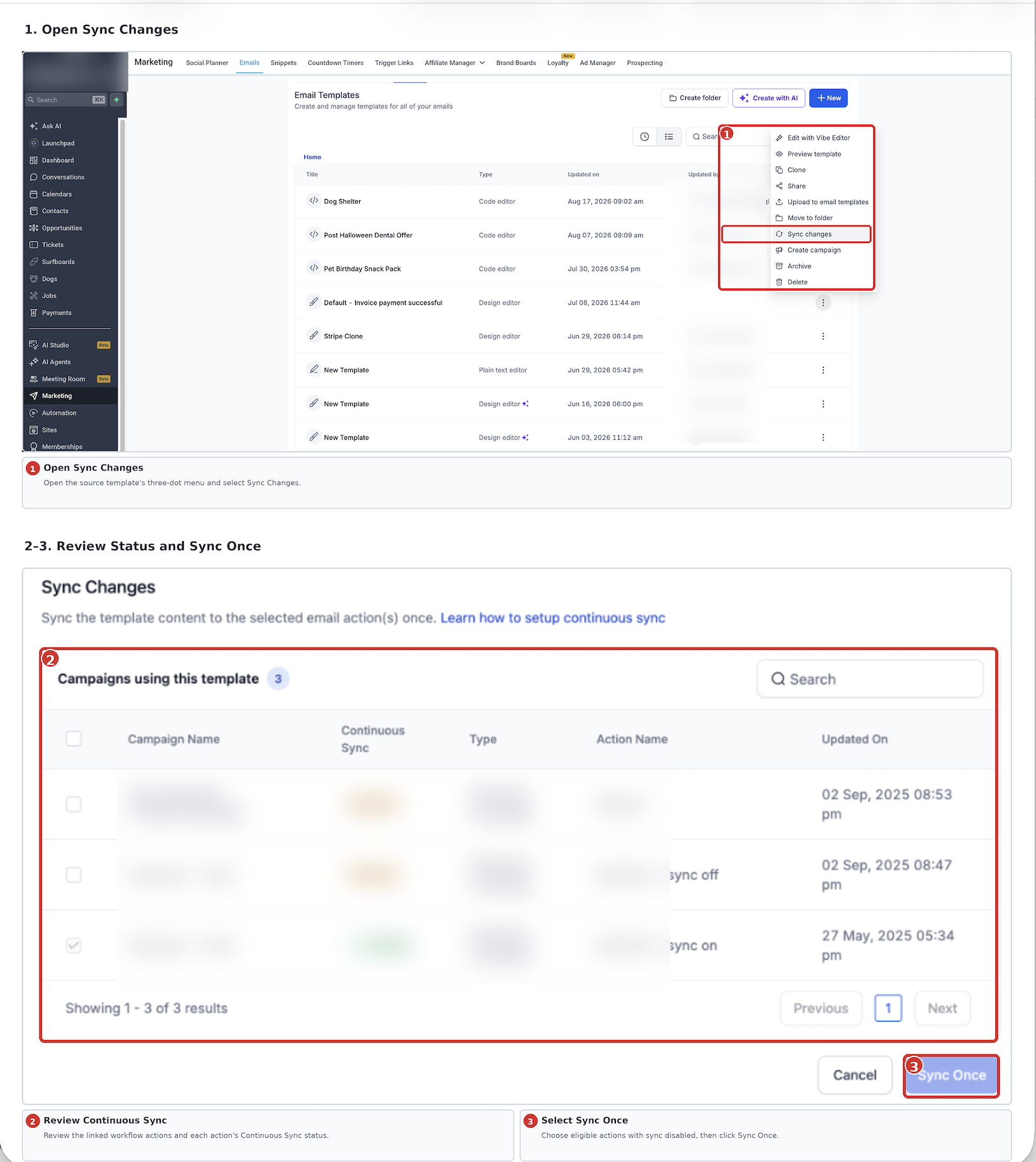
- Open the template’s three dot menu (…) and select Sync Changes.
- Examine each linked workflow email action and its Continuous Sync status.
- Choose the actions that have continuous sync disabled.
- Click Sync Once to copy the template’s current content into the chosen actions.
- Important: Sync Once does not enable continuous sync; you must edit the Send Email action separately if you want to change that setting.
- After the success message, open the related workflows to verify the updated email actions.
06What it looks like in HighLevel
07Settings that matter
- Sync Edits to Template. Controls whether edits made to the workflow email and its source template automatically propagate to each other.
08Things to know before you rely on it
- The setting only appears for email actions that use an existing template; it is not available for other email creation methods.
- New Send Email actions that select a template start with continuous sync turned OFF.
- Sync Once copies content once and does not enable continuous sync.
- Continuous sync cannot be disabled from the Sync Changes dialog; you must edit the workflow email action directly.
09How it connects to the rest of HighLevel
- Managing email templates in HighLevel workflow actions Template management
- New UI for Email Actions in HighLevel Workflows Email action UI
- How to set up and use the HighLevel template library Template library
Michael's take

People often think the default on a new Send Email action is to keep everything synced, but HighLevel actually sets continuous sync to OFF. That can lead to unexpected changes when you later edit the template expecting all linked emails to follow.
I would begin with checking the Sync Edits to Template status on any workflow email that uses a template. If I need a shared message, I turn the checkbox on and confirm Turn On Sync.