
01Who this is for
- Founders who need a consistent tone for all marketing copy without writing it from scratch.
- Marketing agencies that manage multiple client brands and require separate voice profiles for each campaign.
- Small business owners who want a quick way to capture brand personality using existing website copy.
02Brand voices, explained
The Brand Voice tool generates a complete messaging profile based on a brief text description or a reference website URL. After you provide the input, the AI creates fields for tone, values, mission and promise. The generated voice lives inside the Brand Boards section of the platform.
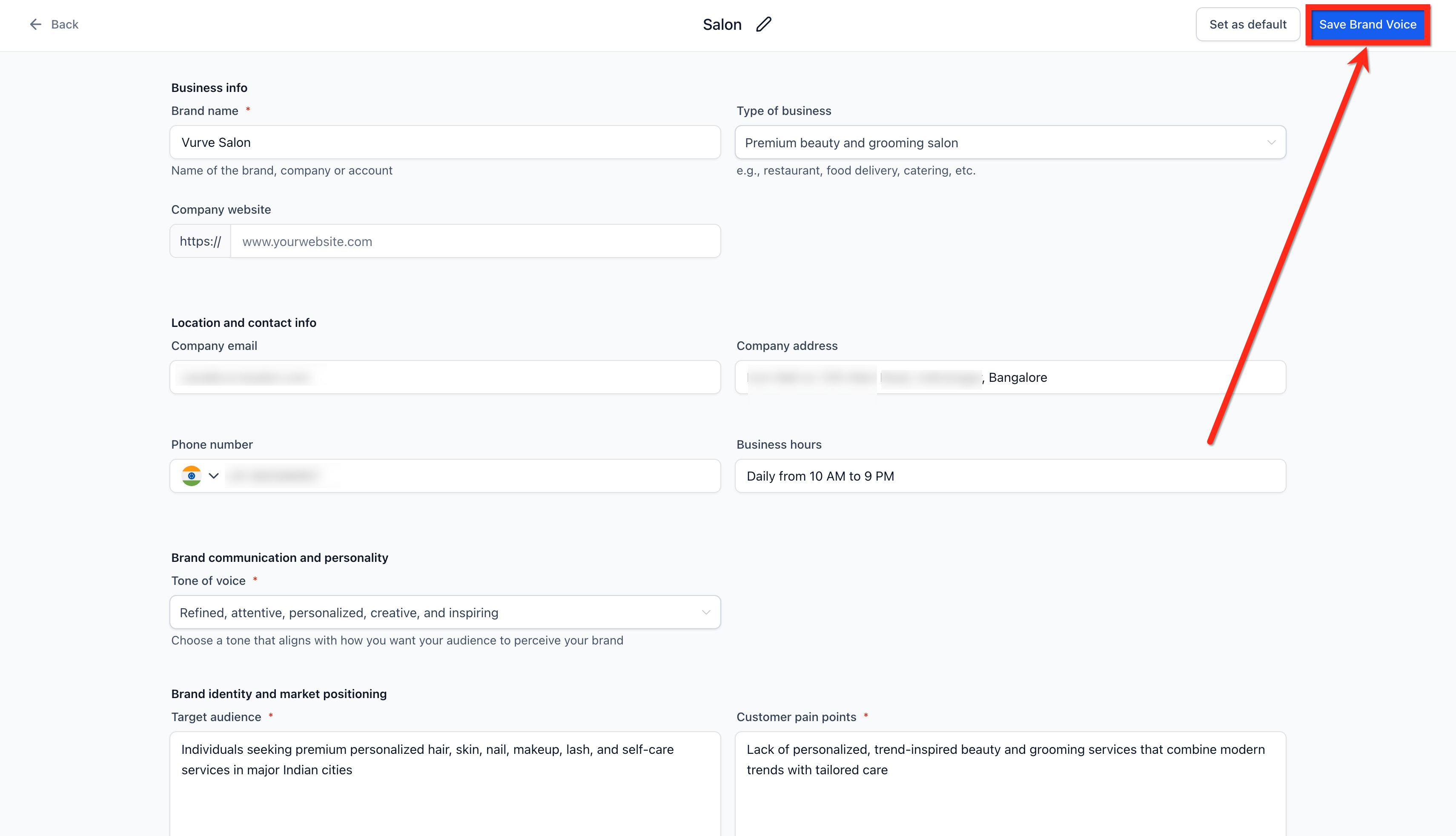
You can edit any field after generation, ensuring the final voice reflects your exact style. The saved voice can be set as default or switched as needed, and multiple voices can be stored for different products, audiences or clients.
This feature is accessed through Marketing > Brand Boards > Brand Voice and integrates with other AI content tools, allowing the same voice to be used in emails, funnels, and website copy.
03How businesses use brand voices
- Digital marketing agency. The agency creates a distinct Brand Voice for each client by entering a short description or a client website URL. After reviewing the AI output, they edit the values and tone to match the client’s brand guidelines, then save the voice for use in campaign content.
- Ecommerce store owner. The store owner inputs the URL of the home page, lets HighLevel generate a voice that captures product messaging, and fine tunes the mission statement. The saved voice is then applied to product descriptions and email newsletters.
- SaaS startup Founder. The Founder writes a concise brand overview, generates a voice, and edits the promise field to align with the startup’s vision. The voice becomes the default for all AI assisted copy across the platform.
04The numbers and rules that matter
- Provide either a 50, 100 word description or a reference URL.
05Before you start
- Have a website URL or a brand description of at least 50 words ready.
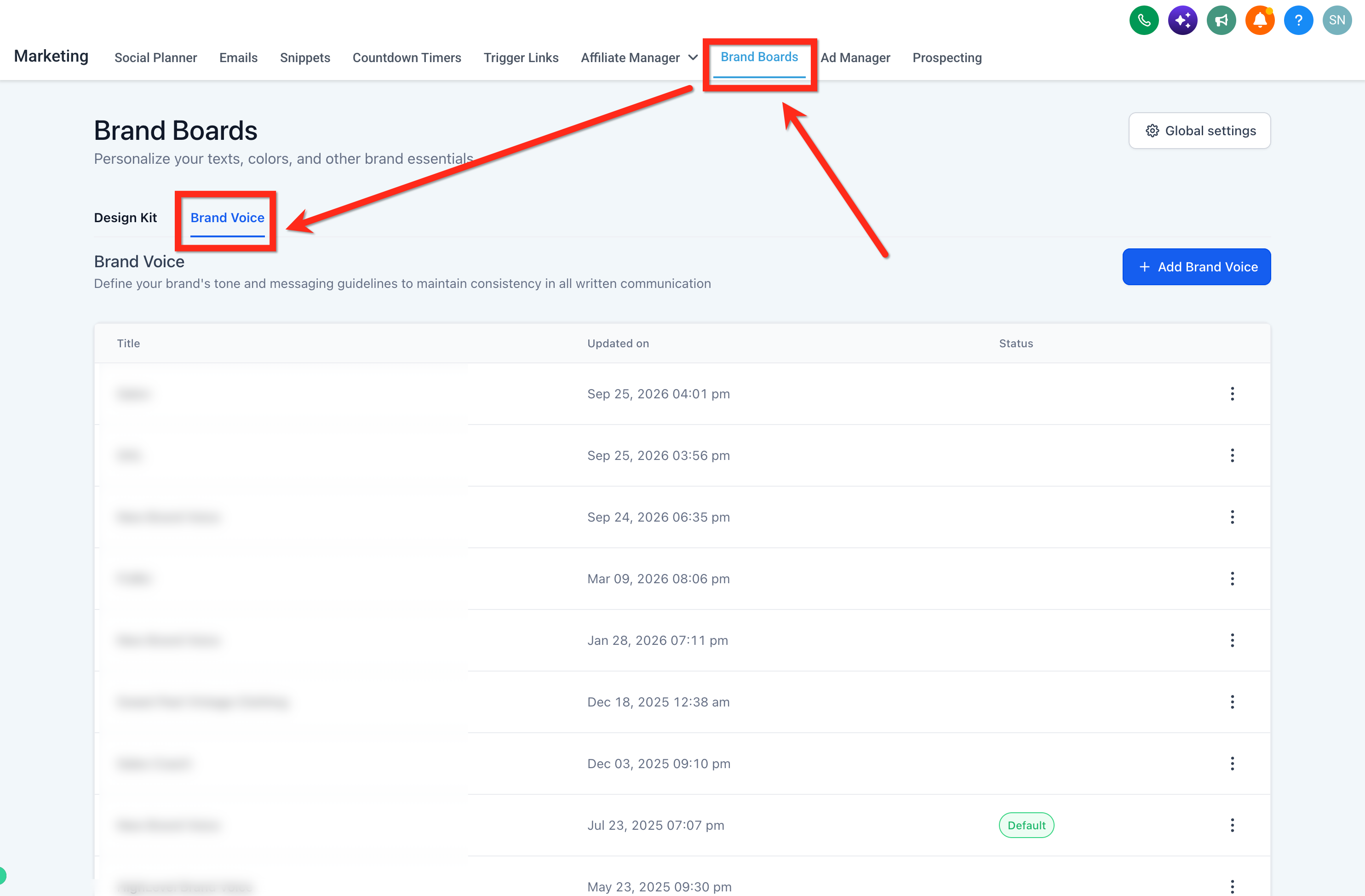
- Be able to navigate to Marketing > Brand Boards > Brand Voice within HighLevel.
06How to set up and use brand voices in HighLevel
Create a brand voice from text or URL
- Navigate to Marketing > Brand Boards > Brand Voice.
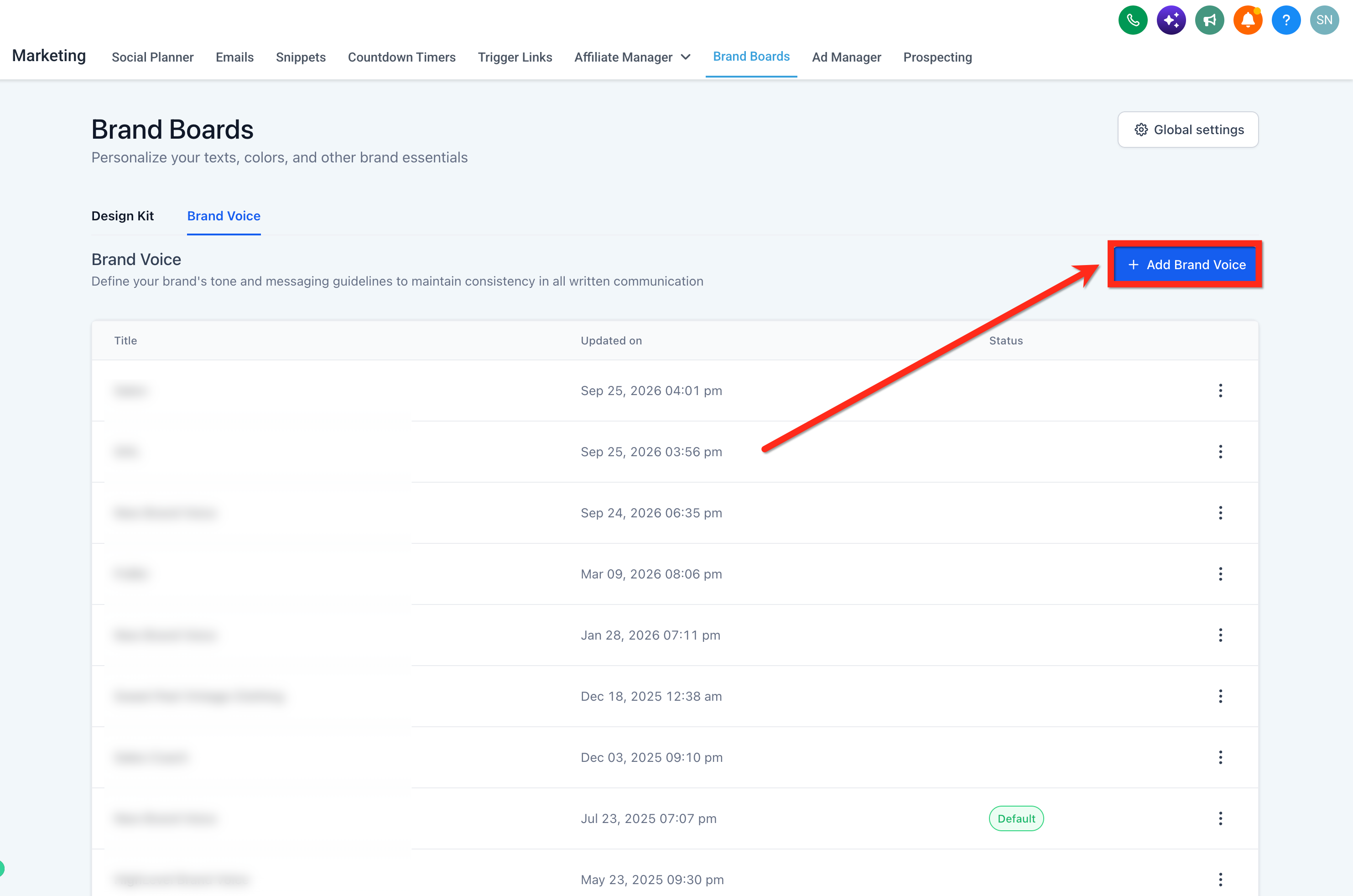
- Click the + Add Brand Voice button.
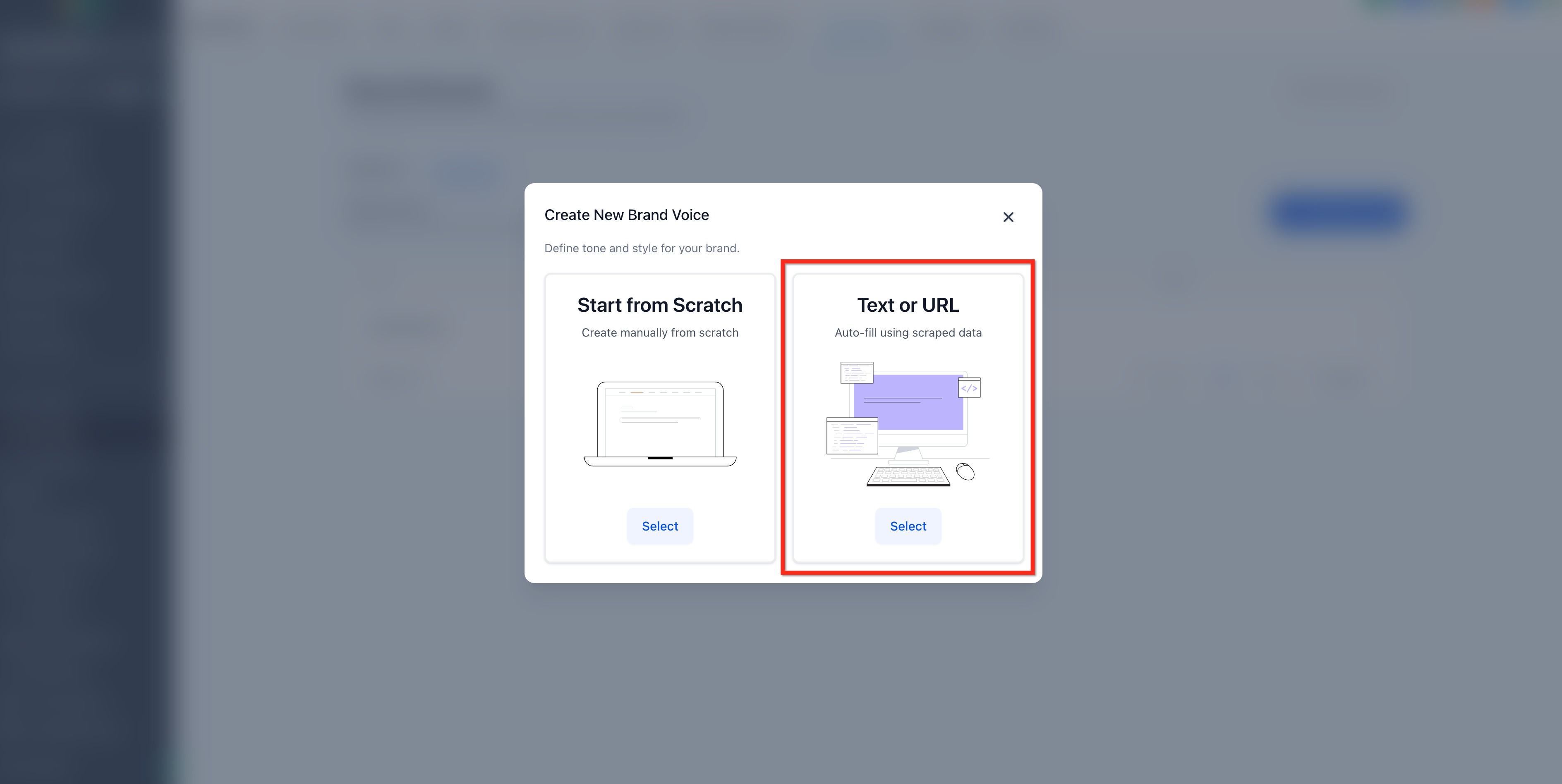
- Select the Text or URL option.
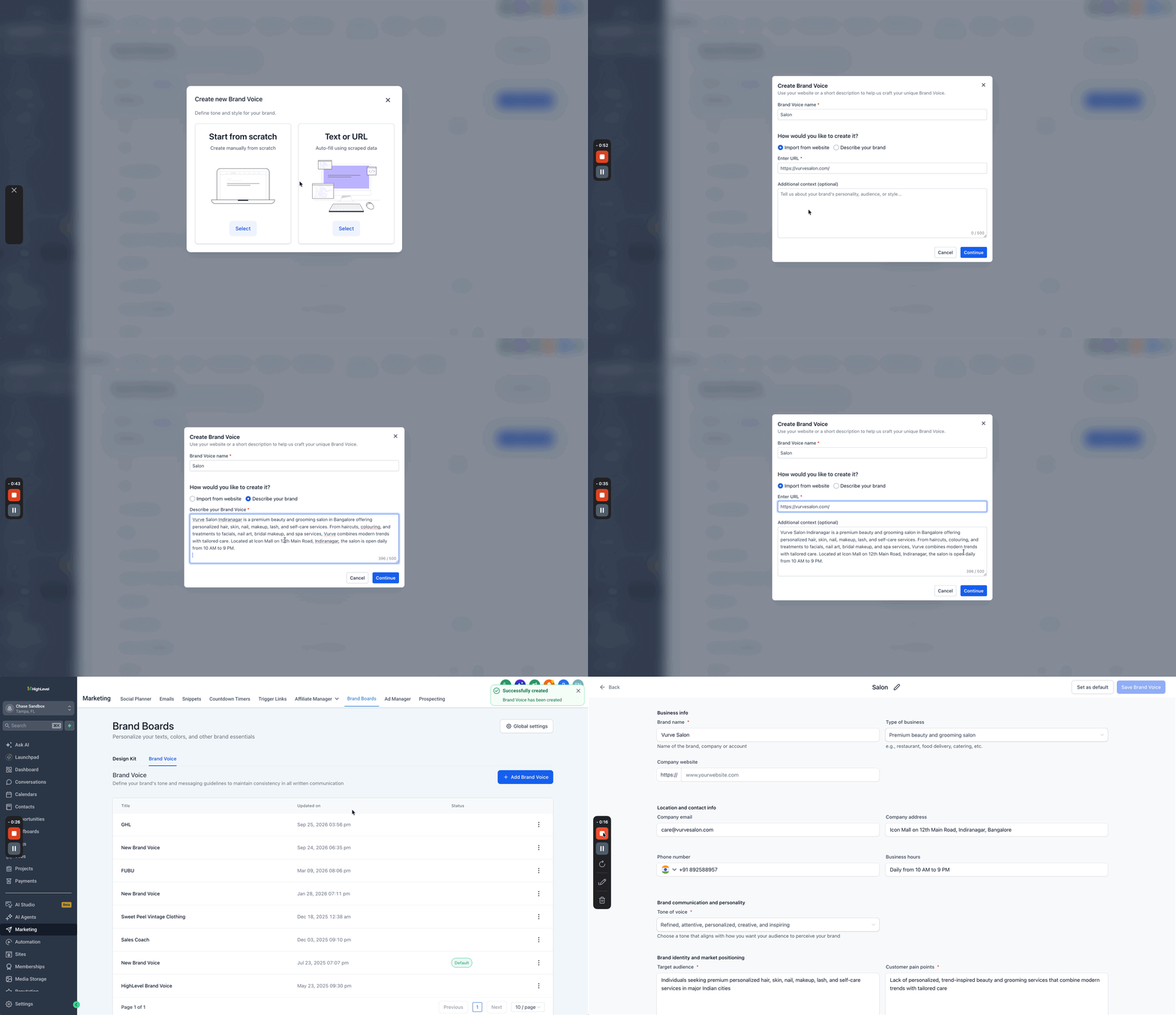
- Enter a name and provide either a URL or a description of 50 to 100 words.
- Review the generated tone, values and messaging, then click Save Brand Voice.
Edit a generated brand voice
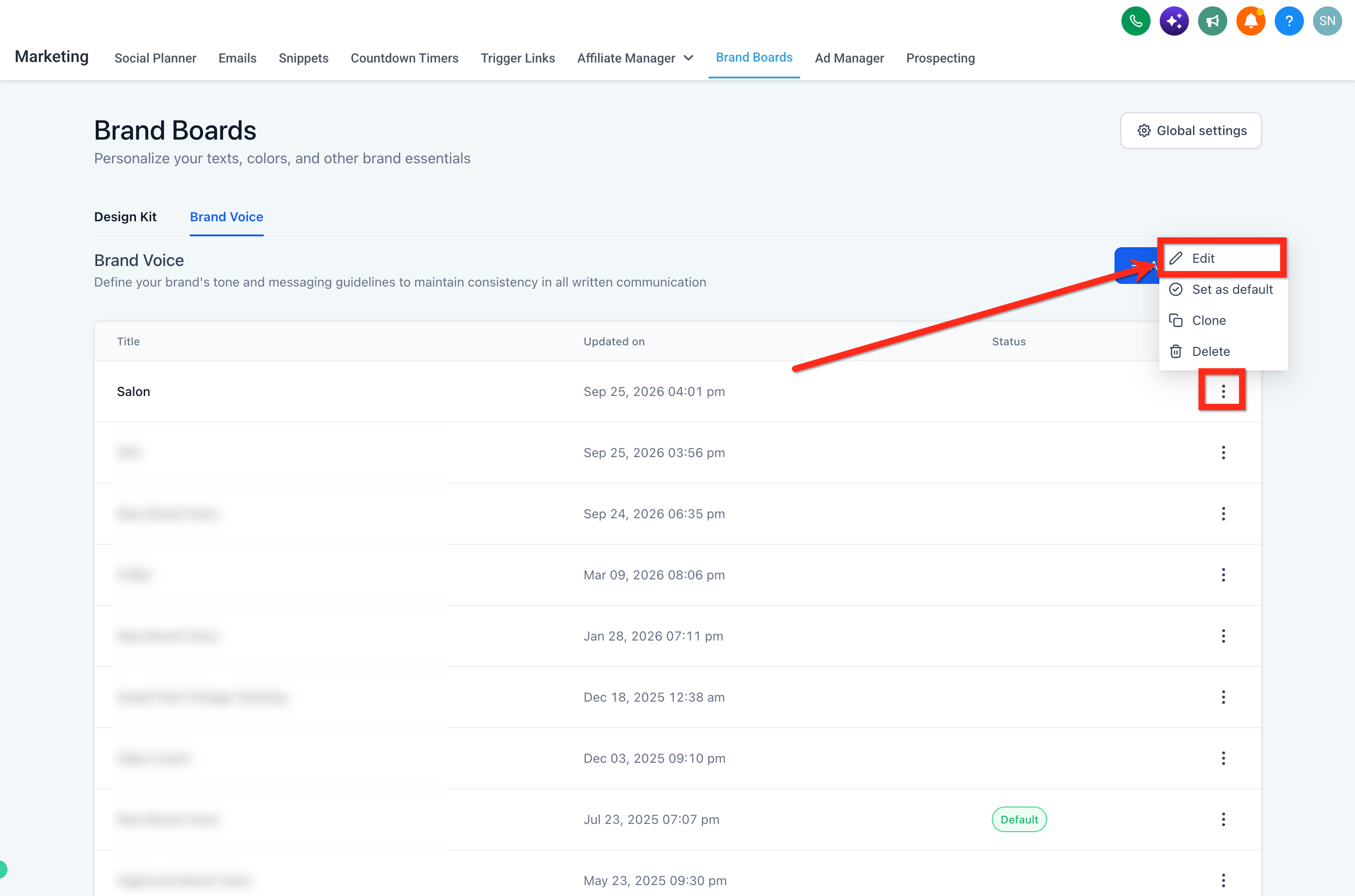
- Locate the Brand Voice you wish to modify in the Brand Voice list.
- Click the three dot icon next to that voice.
- Choose Edit from the menu.
- Update any fields as needed and click Save Brand Voice.
07What it looks like in HighLevel
08Settings that matter
- Brand Voice Settings. Controls where brand voices are created, stored and managed within the platform.
09Things to know before you rely on it
- The description must contain between 50 and 100 words.
- A reference URL should be a page with rich, representative copy about the brand.
- Multiple Brand Voices can be created, and one can be set as the default.
10How it connects to the rest of HighLevel
- Learn how to build a full brand board that can include your voice. Create a brand board
- Apply your brand voice to funnels and website pages. Use brand boards in funnels
- Review plan options and trial availability for HighLevel. HighLevel pricing
Michael's take

When you have a clear, concise description of your brand or a well written website page, the autogenerated voice can provide a useful starting point for tone guidelines.
If your brand’s messaging is still in flux or you don’t have a page with strong copy, the generated voice may need extensive rework.