
01Who this is for
- Marketers who create reusable email templates can keep product layout consistent across multiple sends.
- Ecommerce owners can embed product details in automated workflow emails without switching to separate campaign builds.
- Small business Founders can save time by dragging a pre configured product block into any new template.
02Products, explained
The Product Element is a draggable block for the Email Builder. It pulls product information, title, description, image, from the product record you set up under Payments > Products. Inside a template you can replace the auto filled data, add a custom redirect URL and edit the call to action button text.
The element lives inside the template editor, not in the campaign composer. When the template is used in a campaign, the block shows the same product details, but direct checkout links only function in Campaign Mode. In templates you must provide a custom URL to guide users to your checkout page.
03How businesses use products
- Online retailer. Add the Product Element to a promotional email template, select a product from the Payments catalog, customize the description and button text, then set a redirect link to the store's checkout page. Use the template in automated cart abandonment workflows.
- Fitness studio. Create a template for a class package offer, drag in a Product Element, choose the membership product, edit the title and image, and add a custom link to the sign up form. Insert the template into a welcome series for new leads.
- Software SaaS provider. Design a template announcing a new subscription tier, drop a Product Element, select the tier product, adjust the button label to "Upgrade Now", and point the redirect to the pricing page. Deploy the template in a drip campaign to existing users.
04The numbers and rules that matter
- Product setup in Payments > Products must include name, price, image.
05Before you start
- Create product records with name, price and image in Payments > Products before adding the Product Element.
06How to set up and use products in HighLevel
Add product element to email template
- Open Marketing > Emails > Templates.
- Click the + New button.
- Choose a layout or start with a blank canvas.
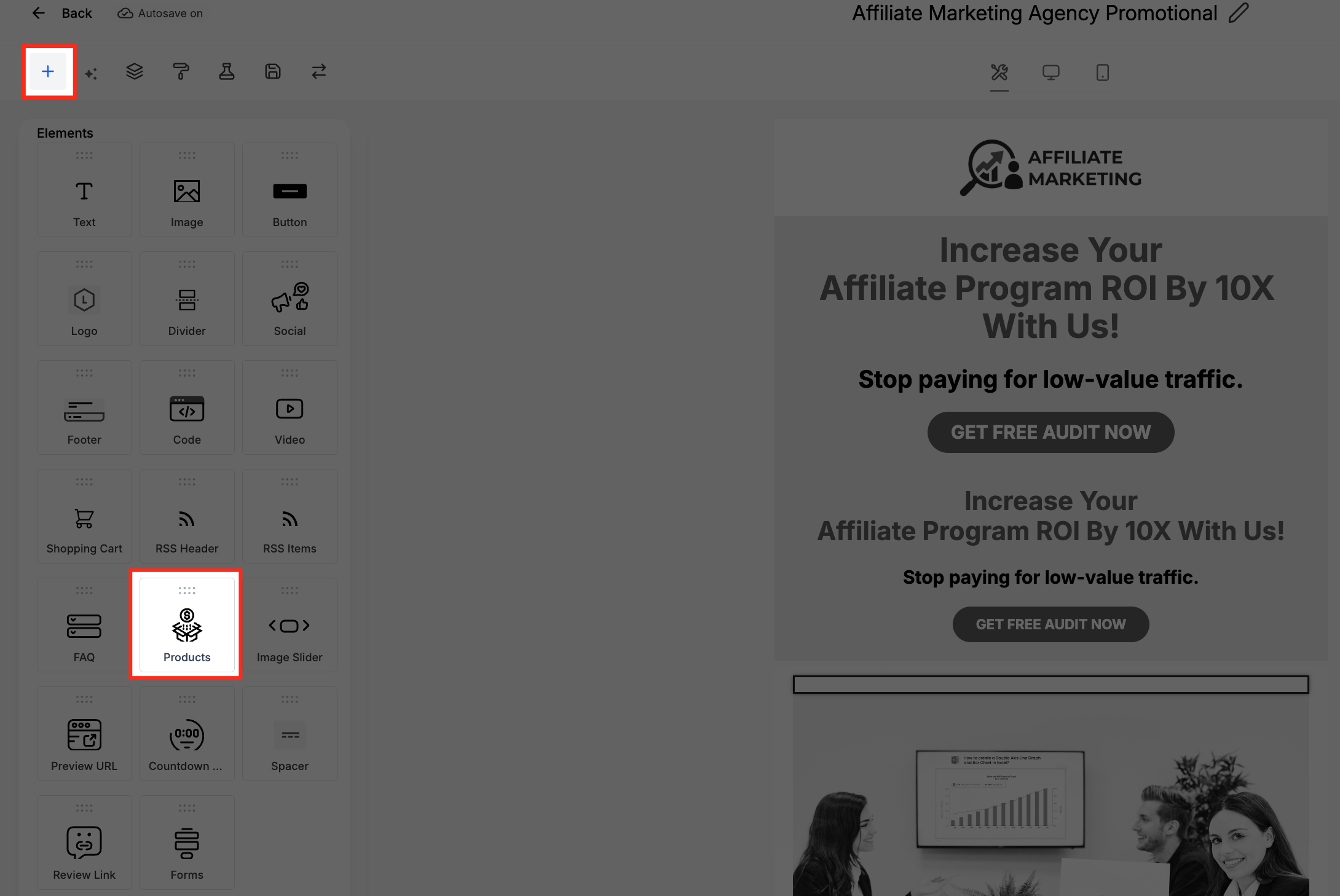
- Drag the Product element onto the email body.
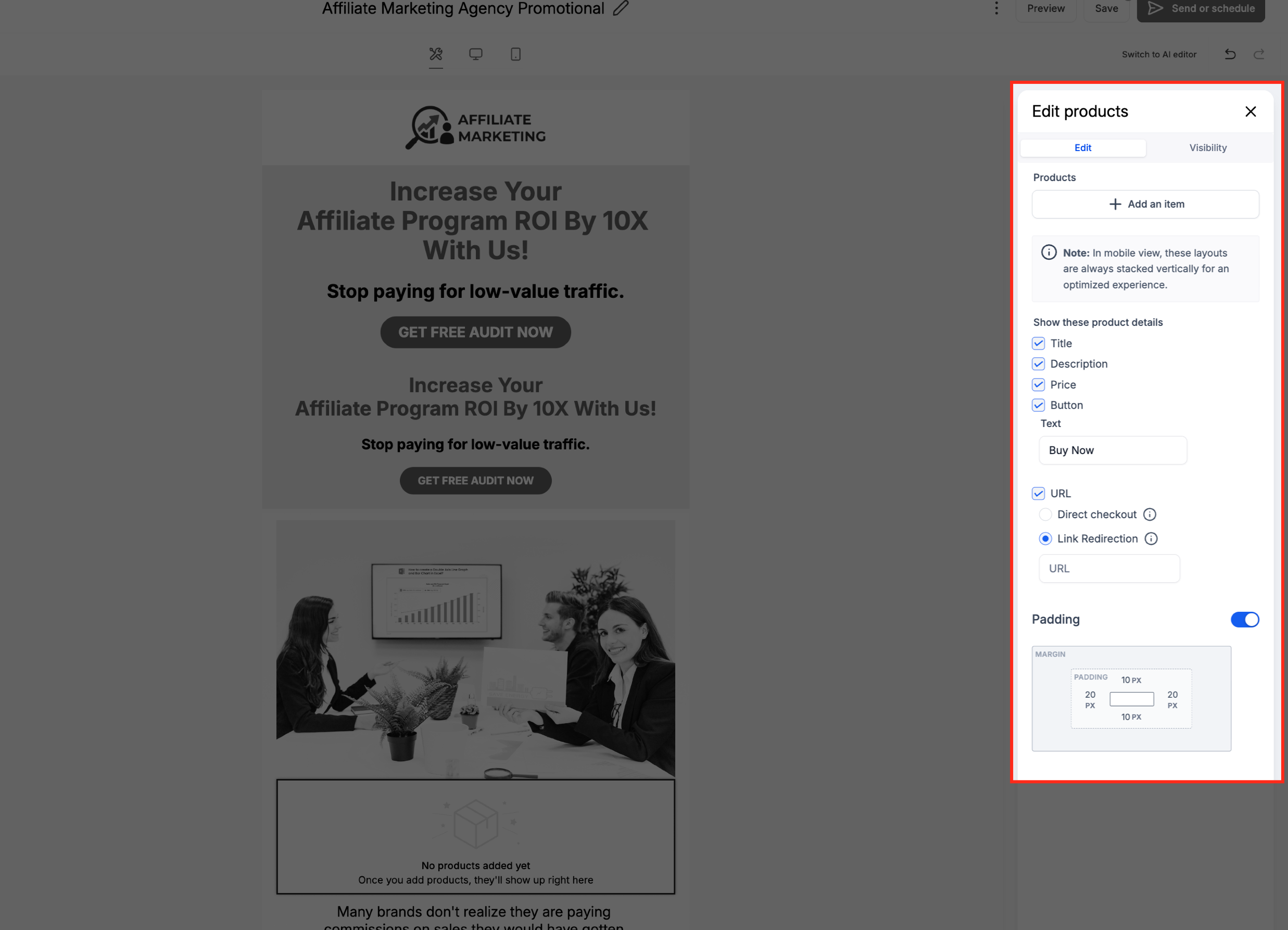
- Select the Product block to open its editor.
- Pick a product from the list.
- Edit the title, description and image (pulled automatically).
- Enter a custom redirection link.
- Change the button text if desired.
- Save the template.
- Warning: Direct checkout links only work when the email is sent in Campaign Mode; in templates you must use a custom redirection link.
07What it looks like in HighLevel
08Settings that matter
- Select a product. Chooses which product record supplies the title, description and image.
- Title. Overrides the product’s default name shown in the email.
- Description. Provides a custom paragraph that appears below the product title.
- Image. Sets the visual that represents the product; defaults to the image on the product record.
- Custom redirection link. Specifies the URL users are sent to when they click the product’s CTA button.
- Button text. Customizes the call to action label on the product’s button.
09Things to know before you rely on it
- Direct checkout links work only when the email is sent in Campaign Mode; they do not function in templates.
- Templates require a custom redirection link for the product button.
- Each product must have name, price and image defined in Payments > Products to display correctly.
- Multiple Product Elements can be added to a single email template.
10If something goes wrong
- Direct checkout link does not open in a template email. Replace the direct checkout link with a custom redirection URL in the Product Element settings.
- Product image is missing from the email. Verify that the product record in Payments > Products includes an image.
11How it connects to the rest of HighLevel
- Store and reuse the new template in the HighLevel template library Template library
- Send or schedule a campaign using the template you just created Send or schedule campaign
- Review HighLevel pricing and plans if you need access to the Email Builder features Pricing
Michael's take

Adding a Product Element to an email template feels like a modest convenience that can change how you build sales emails. It provides a ready made product card you can drop into any template, streamlining the design process.