
01Who this is for
- Email marketers who send campaigns to Apple Mail users, to avoid showing outdated timers.
- Marketers managing time sensitive offers, to keep messaging consistent across clients.
02Hide timer in Apple Mail, explained
The Hide Timer in Apple Mail option controls whether the countdown visual appears for recipients using Apple Mail. When enabled, the timer image is omitted, preventing users from seeing a stale countdown caused by image caching.
Apple Mail can cache animated images, so a timer may not update when the email is reopened. The setting solves this by simply not rendering the image for that client, while all other supported email clients continue to display the timer as usual.
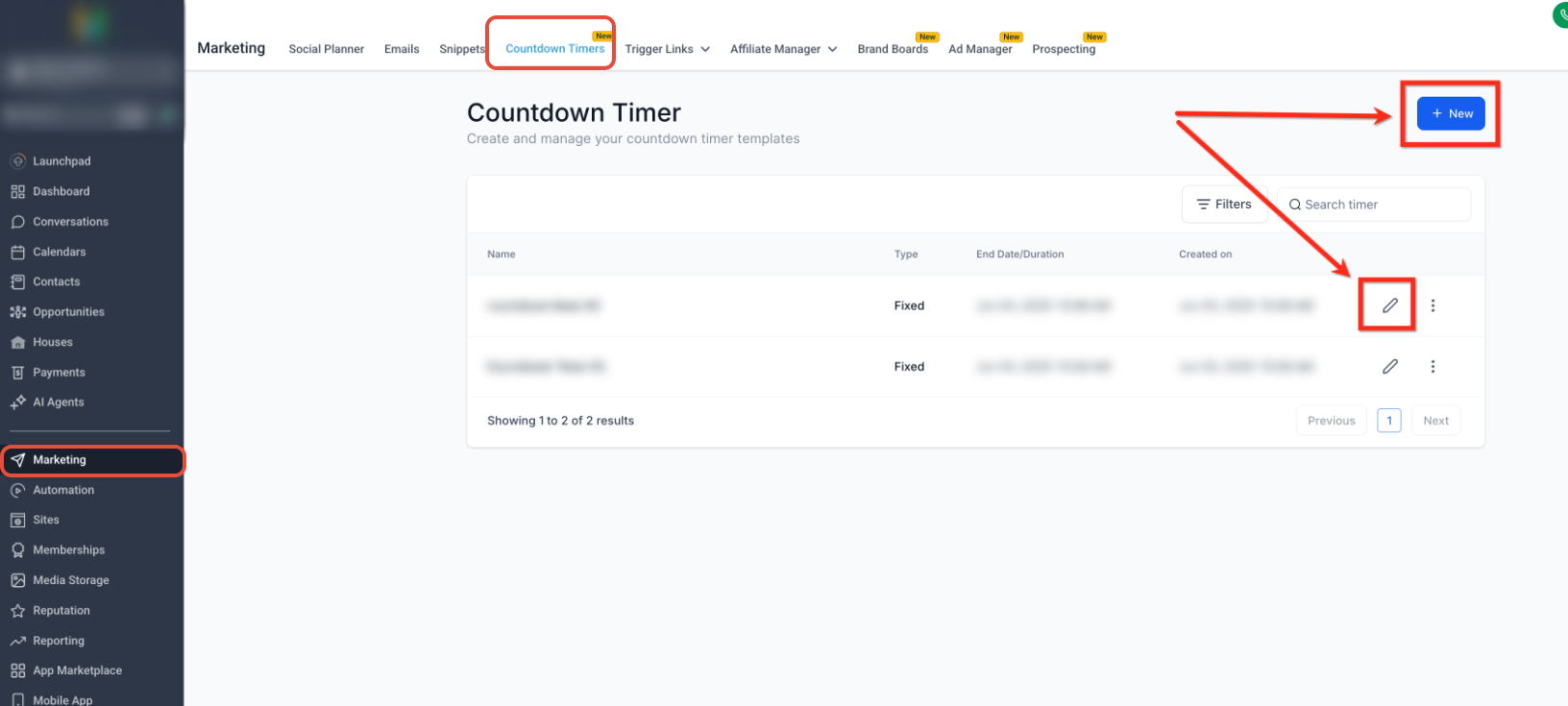
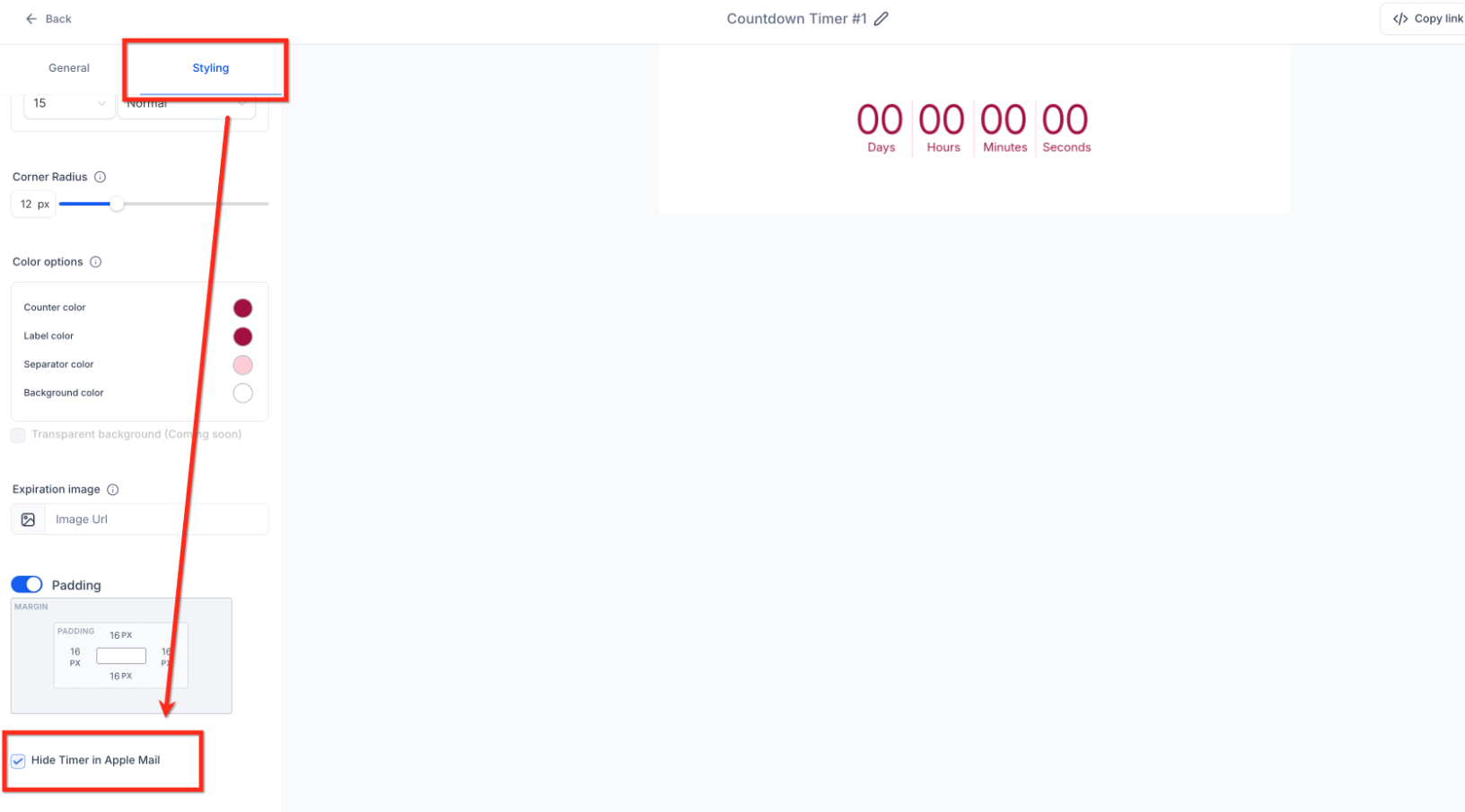
The feature is found under the Marketing section. Navigate to Marketing > Countdown Timers, open a timer, go to the Styling settings, and locate the Apple Mail toggle to turn Hide Timer on.
03How businesses use hide timer in Apple Mail
- Ecommerce store. Create a promotional countdown timer, enable Hide Timer in Apple Mail, and embed the timer in a checkout reminder email. Apple Mail recipients will not see the timer image, avoiding outdated discounts.
- Online coaching business. Set up a limited time enrollment countdown, activate Hide Timer for Apple Mail, and send the email to prospective students. The timer remains visible in most inboxes while Apple Mail users see no image.
- Real estate agency. Build a timer for an open house RSVP deadline, turn on Hide Timer in Apple Mail, and include the timer in the invitation email. Apple Mail users receive a clean email without a stale countdown graphic.
04How to set up and use hide timer in Apple Mail in HighLevel
Hide a countdown timer in Apple Mail
- Open the Marketing > Countdown Timers menu.
- Select an existing timer or create a new one with the + New button.
- Enter the timer’s Styling settings.
- Scroll down to find the Apple Mail option.
- Switch on Hide Timer in Apple Mail.
- Save the timer changes.
- Preview the email and test it before sending to your list.
05What it looks like in HighLevel
06Settings that matter
- Hide Timer in Apple Mail. Controls whether the countdown image is shown to recipients using Apple Mail; when on, the image is hidden.
07Things to know before you rely on it
- The setting only affects image visibility in Apple Mail and does not alter the timer’s deadline.
- CTA redirection links continue to work based on the timer’s active or expired state.
- All other supported email clients will still display the countdown normally.
08How it connects to the rest of HighLevel
- Learn how to add a countdown timer to email campaigns. Using Countdown Timers in Emails
- Set up a new countdown timer and customize its appearance. Getting Started with Countdown Timer
- Explore timer redirection links that route contacts based on timer state. Custom Value Trigger Links
Michael's take

Good for campaigns where Apple Mail’s caching would mislead recipients.
Skip it if you don’t use countdown timers or your audience isn’t on Apple Mail.