
01Who this is for
- Email marketers who want to streamline mobile messages by removing large desktop only banners.
- Design teams that need separate desktop and mobile layouts without creating separate campaigns.
- Compliance officers who must keep legal text visible while hiding decorative elements on small screens.
02Device visibility, explained
Device Visibility is a presentation option inside the Email Builder. It lets you mark an element or a layout as visible on desktop, mobile, or both. When a device is disabled, the content does not render for that device but remains in the editor for future changes. The setting lives under the Visibility tab for elements and as icons for layouts.
The feature works by adding a flag to the selected item. HighLevel then includes or excludes that item when generating the HTML for the chosen device view. Parent layout visibility overrides any child element settings, ensuring that hidden layouts keep all inner content hidden as well.
03How businesses use device visibility
- Real estate agency. The agency adds a large property collage that looks good on desktop but clutters mobile. Using Device Visibility, they hide the collage on mobile while keeping the text description visible. They save the email and preview both views to ensure the mobile version stays clean.
- Online retailer. The retailer creates a separate promotional banner for mobile only coupons. They place the banner in its own layout, set the layout to show only on mobile, and hide the desktop version. The change is saved and previewed before sending the campaign.
- Legal services firm. The firm keeps mandatory disclaimer text in the email but wants to hide a decorative icon on mobile. They select the icon element, disable mobile visibility, and confirm the disclaimer stays visible on all devices.
04The numbers and rules that matter
- Supported element types: Text, Images, Buttons, Dividers, Icons, other supported Email Builder elements.
05Before you start
- An email campaign or template must exist in Marketing > Emails before opening the Email Builder.
06How to set up and use device visibility in HighLevel
Hide an email element on mobile or desktop
- Go to Marketing > Emails.
- Open an existing campaign or template, or start a new one.
- Launch the Email Builder for the selected email.
- Click the element you want to modify.
- Open the Visibility tab in the right hand panel.
- Find the Device Based Visibility controls.
- Select the devices on which the element should appear (Desktop, Mobile, or Both).
- Turn off the device where the element must be hidden.
- Save the email.
- Preview both Desktop and Mobile views to verify the change.
Hide an entire layout
- Select the layout you wish to adjust.
- Open its Visibility settings or click the device icons attached to the layout.
- Choose Desktop, Mobile, or Both for the layout’s visibility.
- Make sure the icon for the hidden device shows as inactive.
- Save the email.
- Preview both Desktop and Mobile views to confirm the layout is hidden as expected.
07What it looks like in HighLevel
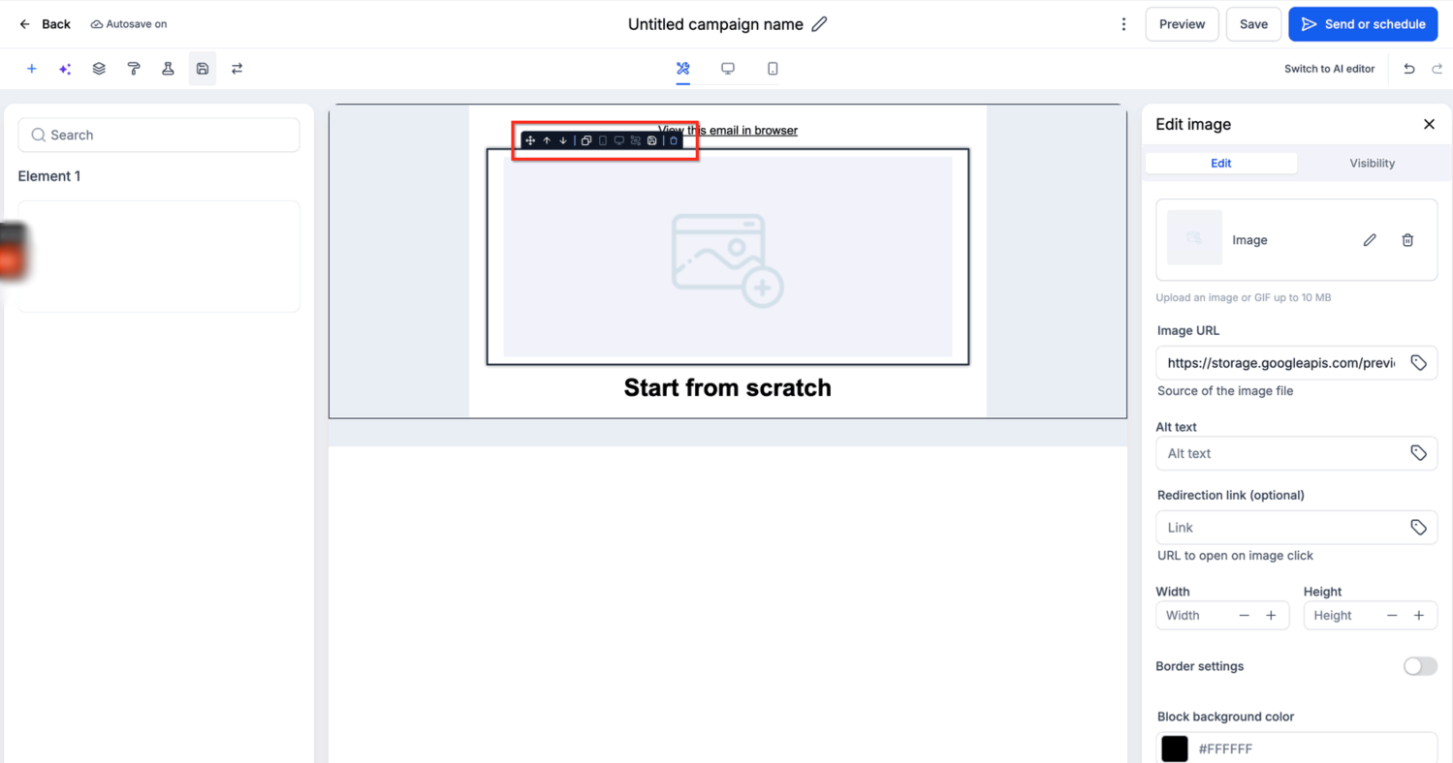
08Settings that matter
- Device, Based Visibility. Controls whether a single element appears on desktop, mobile, or both.
- Layout visibility icons. Indicates and sets the visibility of an entire layout for desktop, mobile, or both.
09Things to know before you rely on it
- Device Visibility should be used only when content truly needs to be omitted; normal responsive behavior handles most cases.
- Do not hide required legal or compliance information unless an equivalent version remains visible.
- The effect on blank space after hiding an element is not defined for all element types; test to see the result.
- Hidden linked elements may have uncertain click tracking behavior; verify with a test send.
10If something goes wrong
- An element stays hidden even though its own visibility is enabled.. Check the visibility setting of the parent layout; a hidden parent overrides child settings.
11How it connects to the rest of HighLevel
- Adjust mobile formatting for visible elements Mobile formatting guide
- Combine Device Visibility with Conditional Elements Conditional elements
- Preview and test email campaigns Send or schedule email
Michael's take

Device visibility is useful when you truly need different content for desktop and mobile.
If you rely on responsive design and only need minor tweaks, you can skip this feature.