
01Who this is for
- Marketers who need a single source of truth for brand colors, so they can update a hue once and have it reflected across all campaigns.
- Agencies that clone client assets and want to rebrand quickly by adjusting only the global palette.
- Design teams that create templates for multiple locations and require consistent color updates without editing each file individually.
02Global custom colors, explained
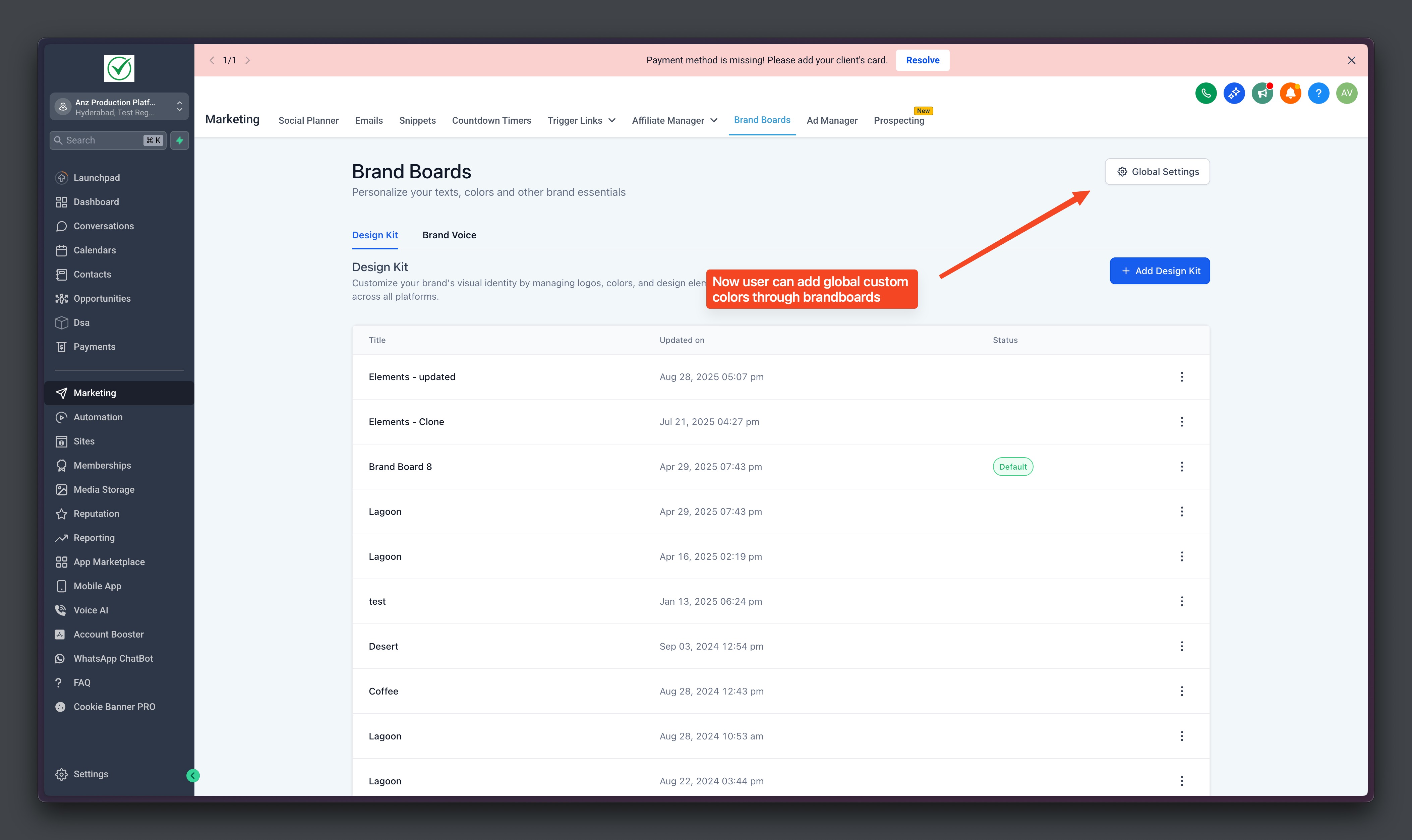
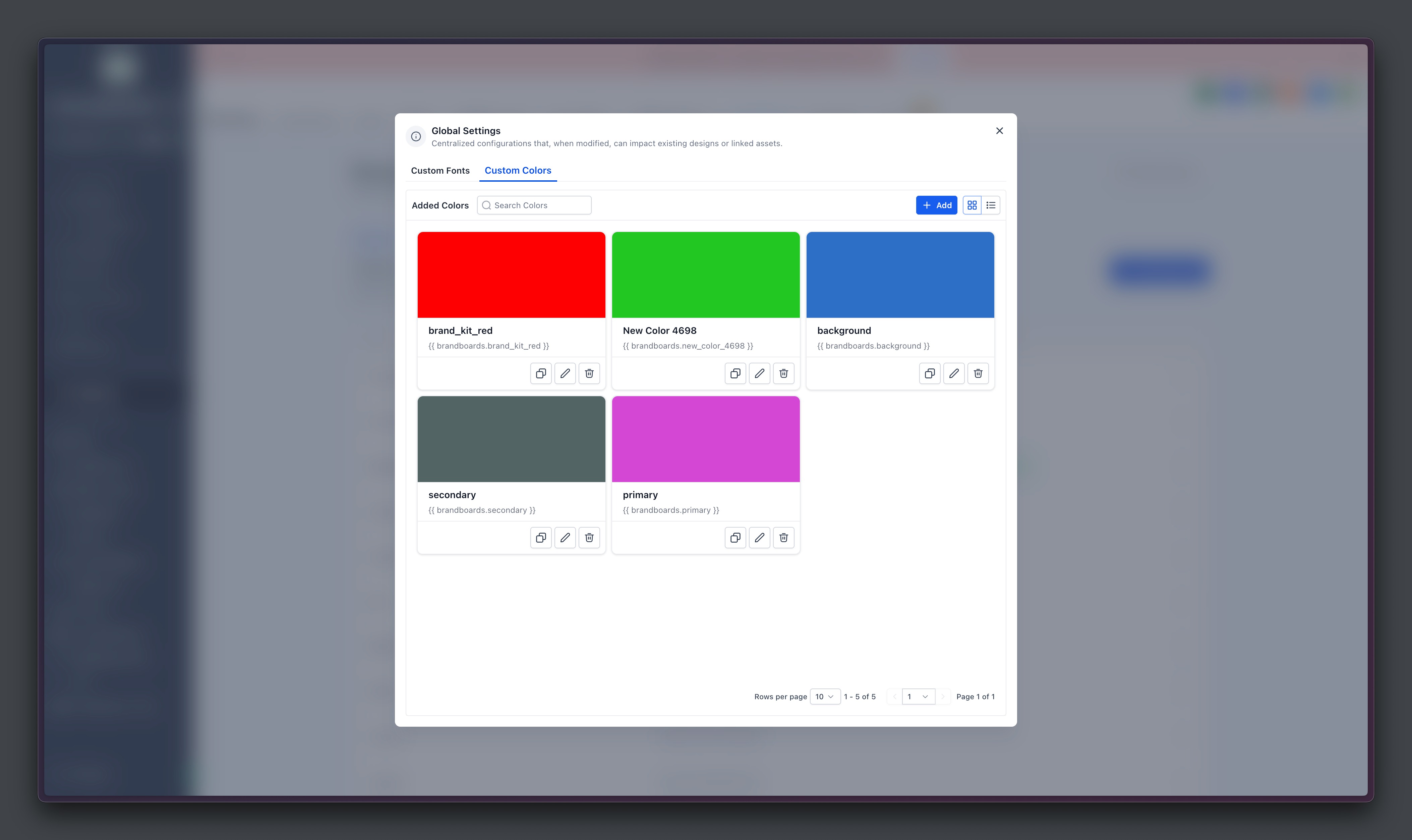
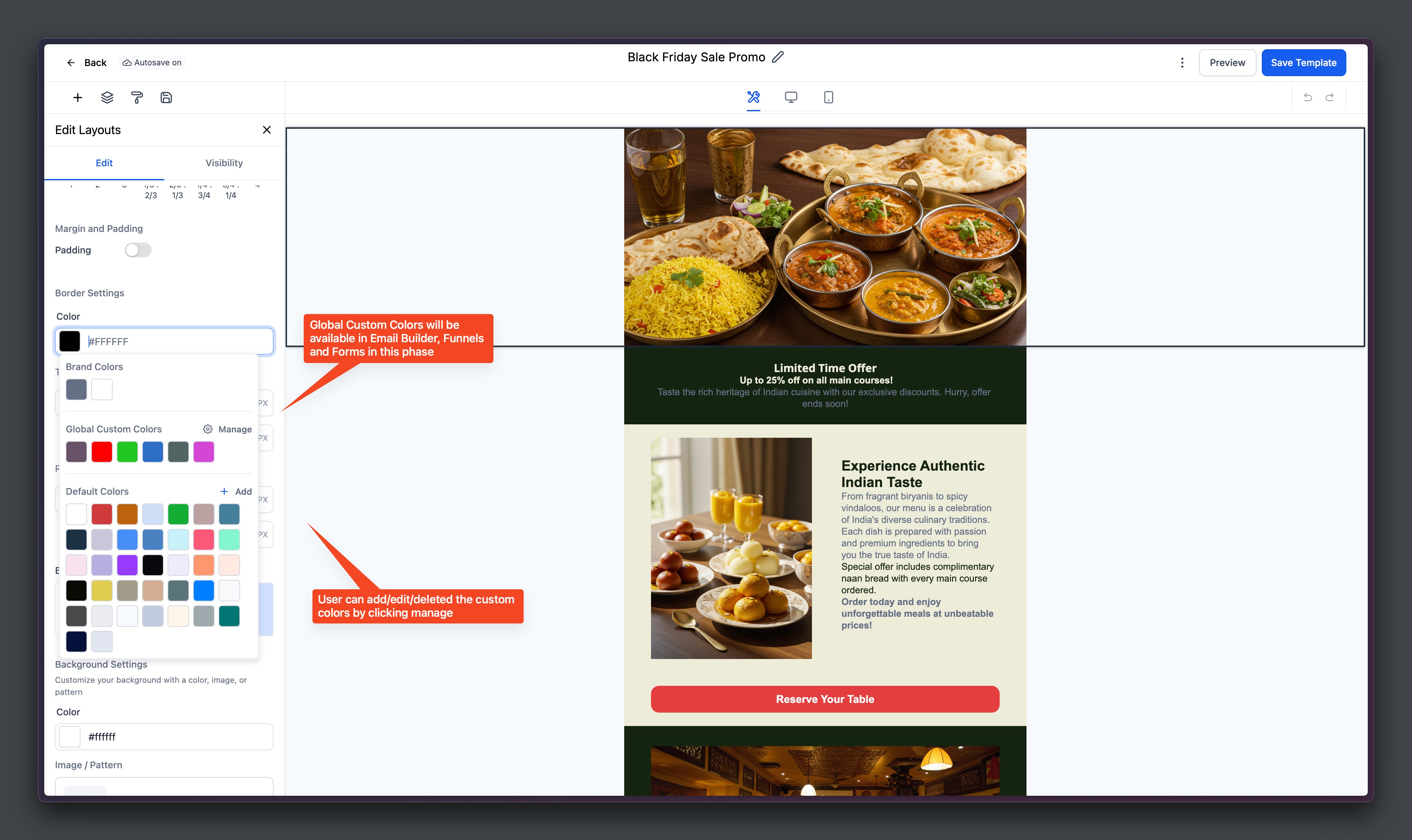
Global Custom Colors are stored under the Brand Boards section in Global Settings. They appear automatically in every color picker inside the platform. Because they use two way sync, any edit to a color immediately updates every asset where that color was applied.
The colors differ from Design Kit colors, which are static shortcuts inside builders. Design Kit colors do not sync, so changing them will not affect existing designs. Global Custom Colors provide dynamic, brand wide consistency.
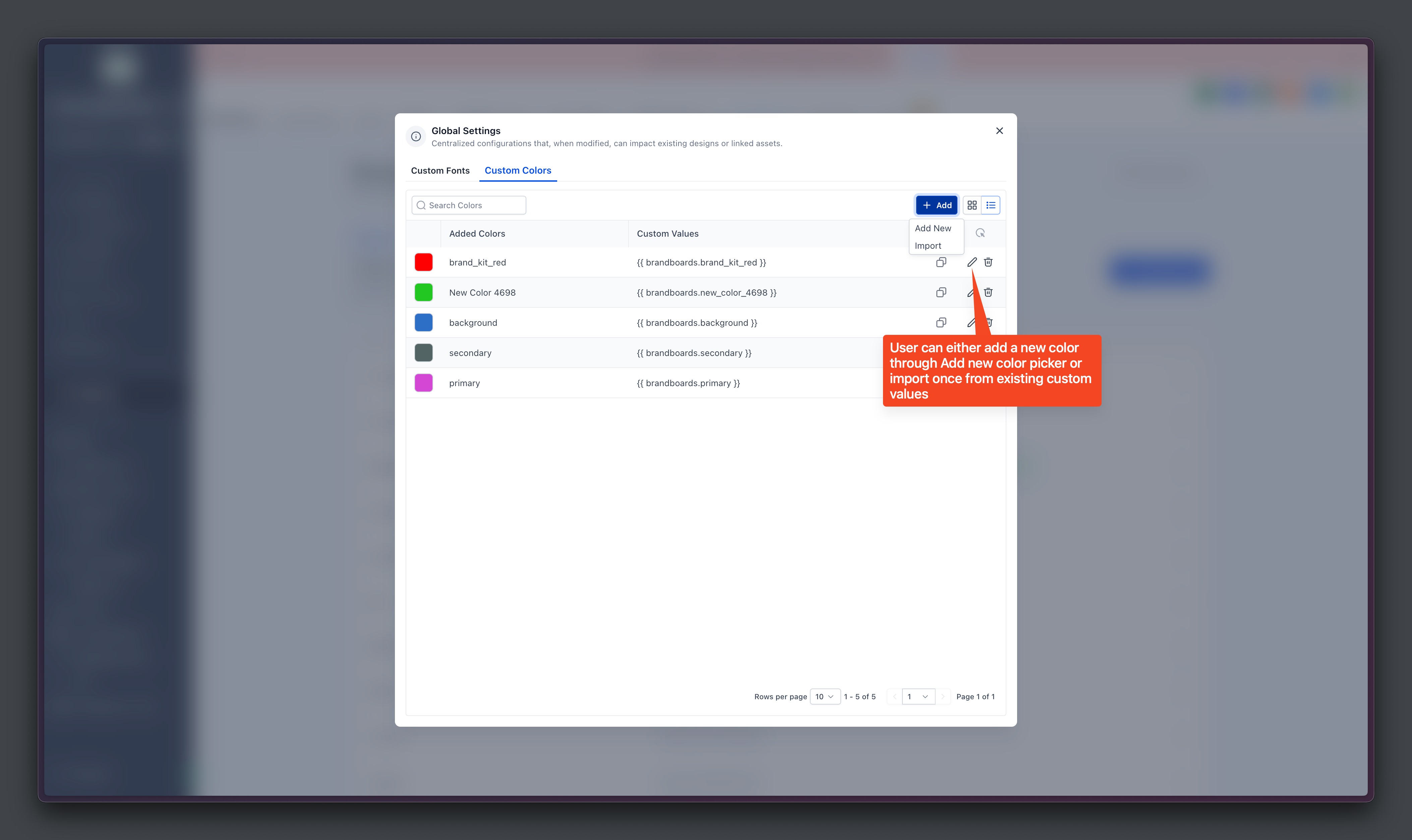
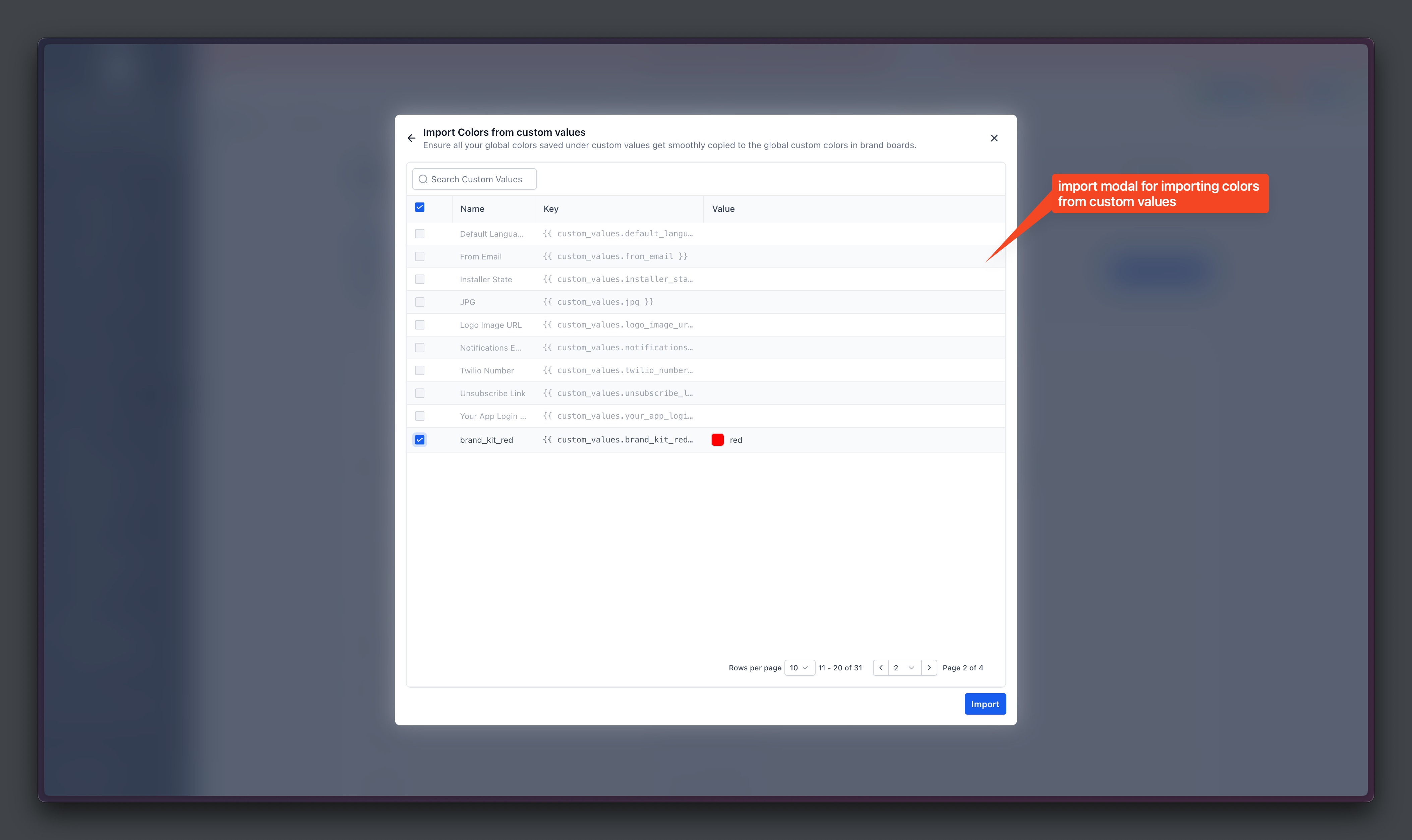
You can add new colors, edit existing ones, delete unused entries, and import colors from the Custom Values list. Imported colors become copies in the global palette and do not replace the original custom values.
03How businesses use global custom colors
- Digital marketing agency. The agency adds its brand palette in Global Settings. When a client’s campaign needs a new color, the agency updates the global entry and all client emails, funnels, and pages change right away.
- Local restaurant chain. The owner defines the restaurant’s signature red and gold in Global Settings. When a seasonal promotion requires a shade adjustment, the owner edits the color once and every existing menu page and newsletter updates automatically.
- SaaS startup. The product team imports its existing custom values into Global Settings. They then select those colors directly in the email and landing page builders, ensuring every outbound material matches the brand guidelines.
04Before you start
- Add at least one Global Custom Color in Global Settings before expecting to see the palette in a color picker.
05How to set up and use global custom colors in HighLevel
Set up and manage global custom colors
- Navigate to Marketing > Brand Boards > Global Settings.
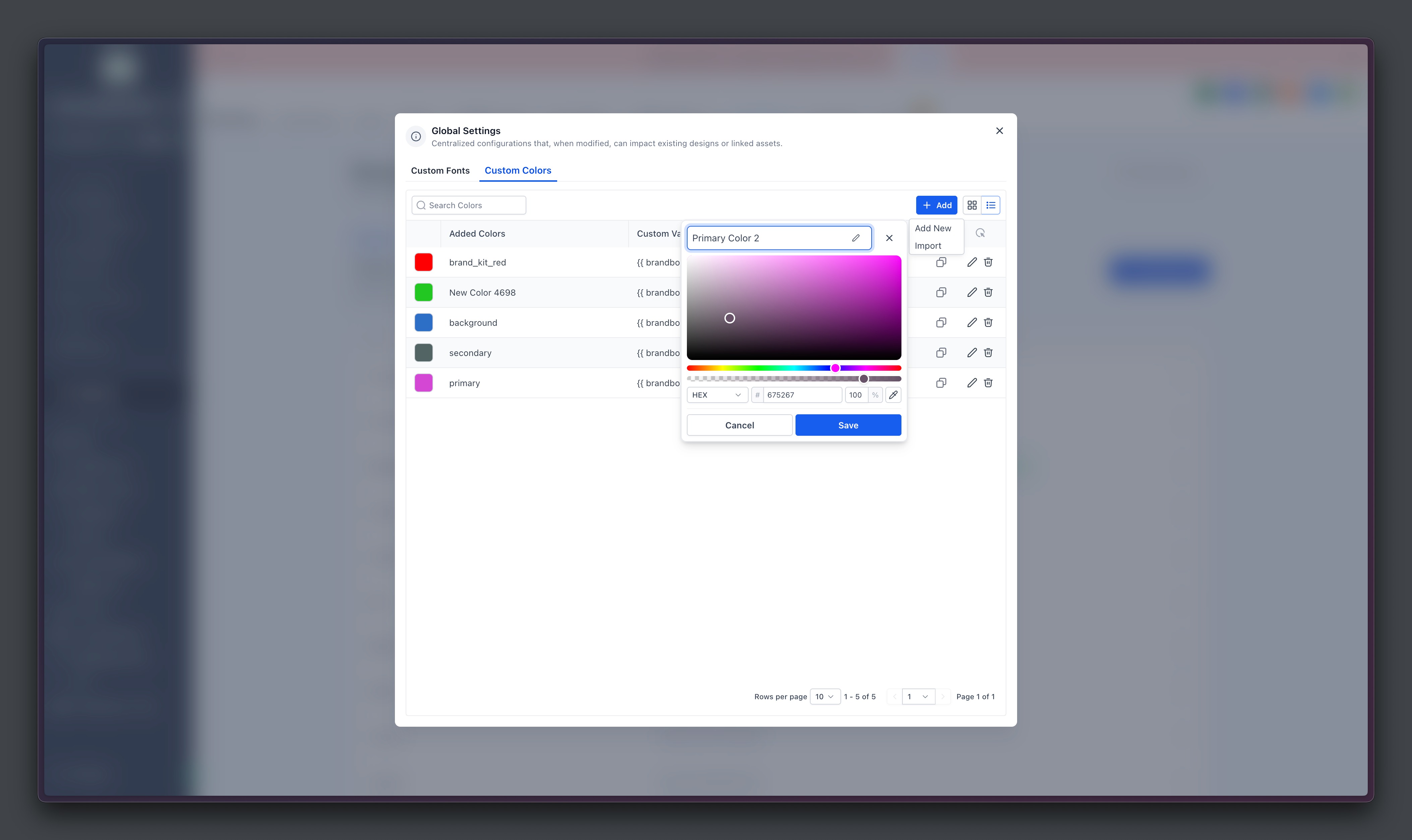
- Click Add New Color.
- Enter a descriptive name for the color.
- Enter the hex code for the color.
- Save the new color.
- Use the Manage option in any picker later to edit or delete colors.
Use global custom colors in builders
- Open a builder (email, funnel, form, page) and launch the color picker.
- Select a Global Custom Color that appears automatically.
- Click Manage inside the picker to add or edit a color without leaving the builder.
06What it looks like in HighLevel
07Settings that matter
- Global Custom Colors. Controls the set of brand colors that sync across every design element in the platform.
08Things to know before you rely on it
- Design Kit colors are static and do not sync; they only provide quick access inside builders.
- The Global Colors section appears in a picker only after at least one color has been added.
- Importing colors creates copies; it does not replace the original custom value colors.
09If something goes wrong
- Global Colors do not show in the color picker.. Add at least one color in Global Settings; the palette will then appear in the picker.
10How it connects to the rest of HighLevel
- Create brand boards to organize colors and fonts. Create brand boards
- Apply brand boards, including global colors, in funnels and websites. Brand boards in funnels
- Edit Design Kit colors, which are separate from global colors. Edit Design Kit
Michael's take

Global custom colors feel like a convenient tool for anyone managing many client assets. Defining a brand palette once and seeing it applied throughout emails, pages and forms reduces the need for repetitive manual edits.