
01Who this is for
- Marketing managers who need to present common support topics without cluttering newsletters.
- Founders of SaaS companies looking to embed onboarding FAQs directly in welcome emails.
- Small business owners who want to reduce reply volume by answering frequent questions in promotional blasts.
02FAQ elements, explained
The FAQ element lives in the Design Editor of the Email Builder. It lets you add a list of question and answer pairs that can expand or collapse when the receiving client supports interactive content. When the client does not support interaction, the answers stay fully visible.
You can edit each item, format the text, choose the expand/collapse icon, adjust padding, and set visibility rules. Visibility can be limited to desktop or mobile devices or hidden based on contact conditions. The element inherits visibility from any parent layout, so a hidden layout also conceals the FAQ.
Because email clients render interactive blocks differently, you should preview the template on desktop, tablet, and mobile views and send a test email to verify real world appearance.
03How businesses use the FAQ element
- Ecommerce store. Add the FAQ element to a post purchase email to list return policies and shipping FAQs. Use text formatting to match brand style and set device visibility so mobile shoppers see the full answers.
- Online coaching business. Insert an FAQ block in onboarding emails to answer scheduling and payment questions. Apply Conditional Sending so the FAQ appears only for leads who have not yet booked a session.
- Health clinic. Place a FAQ element in a newsletter to explain insurance acceptance and appointment prep. Choose icon controls that match the clinic’s visual language and hide the block on desktop if a separate web page provides the details.
04How to set up and use the FAQ element in HighLevel
Add and test the FAQ element in an email template
- Open Marketing > Emails > Templates.
- Create a new template or edit an existing one, then launch the Design Editor.
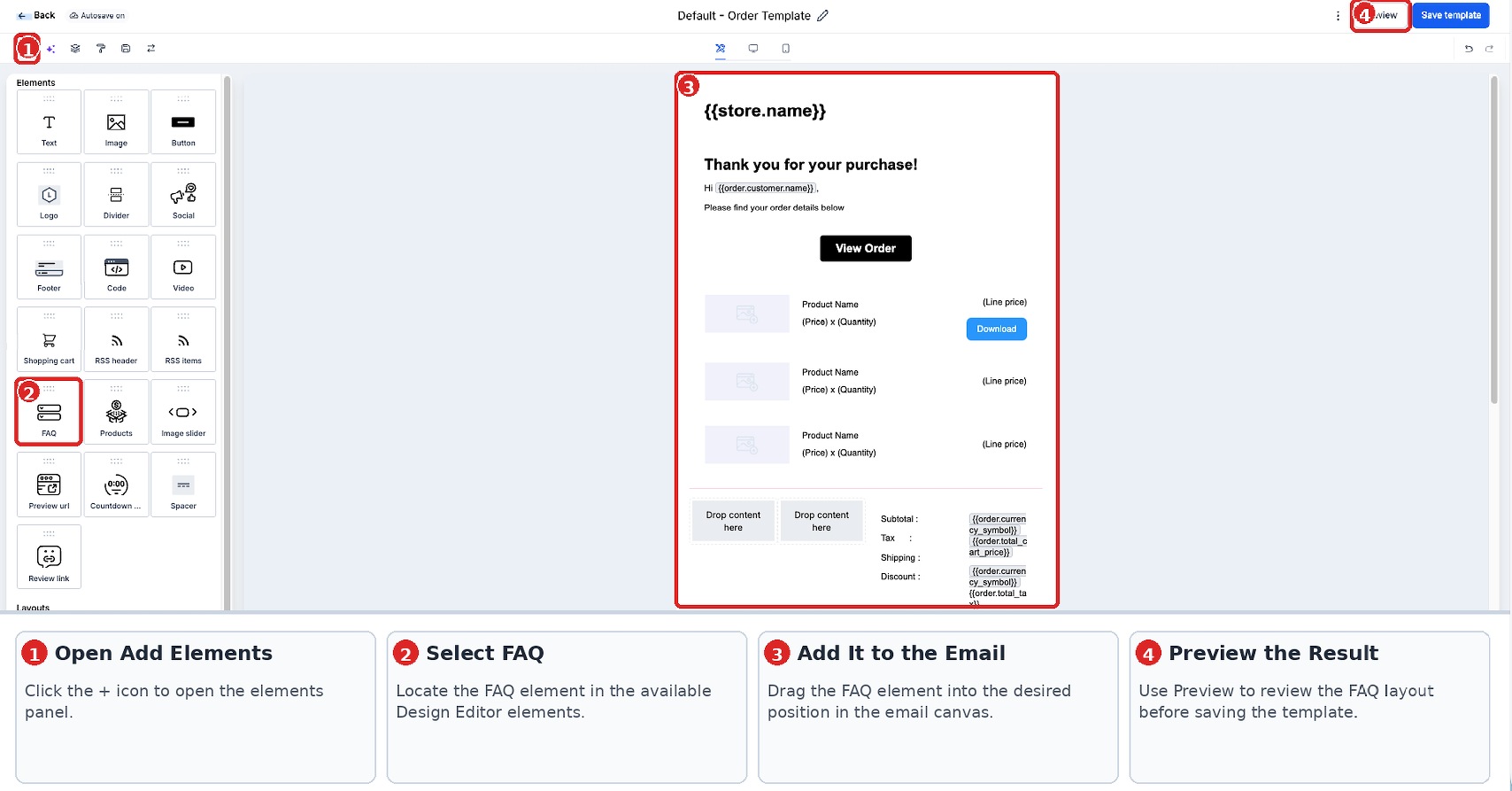
- Click the Add Elements (+) button and find the FAQ element, then drag it into the email layout.
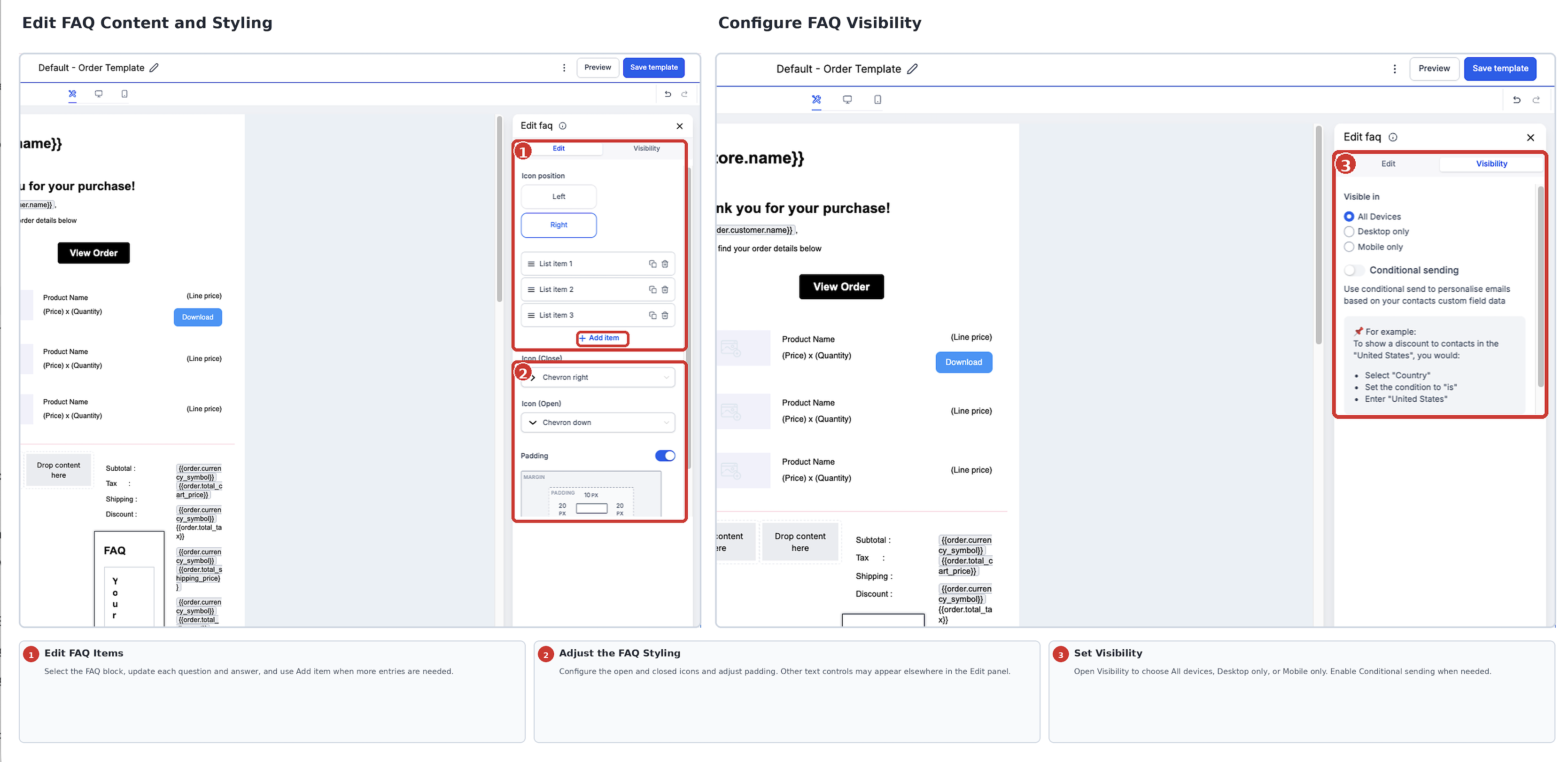
- Select the placed FAQ block and edit the question and answer text, adding more items as needed.
- Apply text formatting, choose an expand/collapse icon, and set padding around the FAQ content.
- Open the Visibility settings and define device based visibility or Conditional Sending rules if required.
- Make sure the parent layout is not hidden, because a hidden parent will also hide the FAQ block.
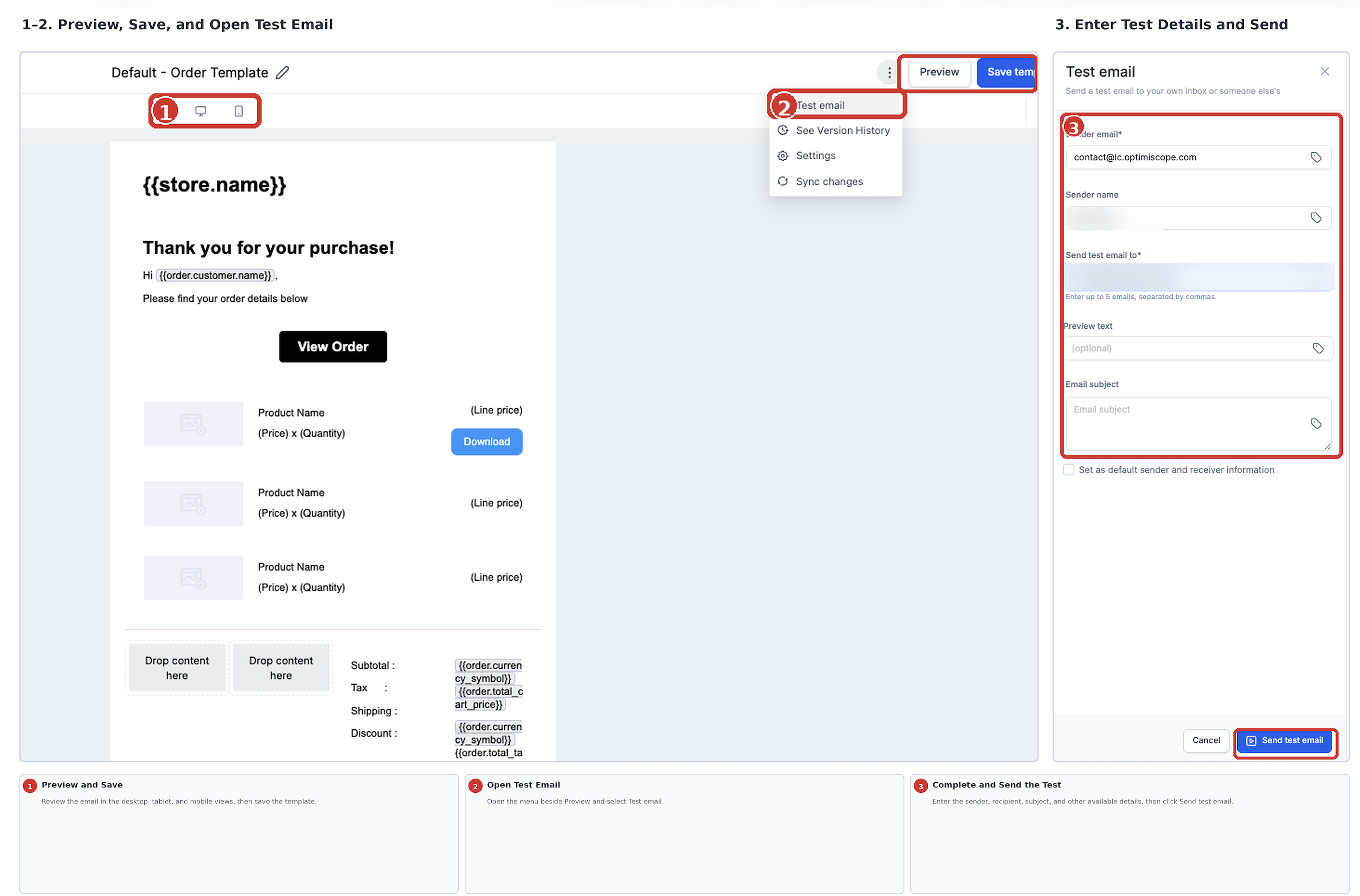
- Save the template and preview it using the desktop, tablet, and mobile view options.
- Use the Test Email button beside Preview, fill in sender, recipient, and subject fields, send the test, and review the FAQ in an actual inbox.
05What it looks like in HighLevel
06Settings that matter
- Questions and Answers. Controls the list of question answer pairs displayed in the FAQ block.
- Text Formatting. Provides inline controls for styling supported question and answer text.
- Icon Controls. Sets the expand/collapse indicator and its position within the FAQ element.
- Padding. Adjusts the spacing around the FAQ content to integrate with surrounding layout.
- Visibility. Determines when the FAQ appears based on device or contact conditions.
- Device Based Visibility. Shows or hides the FAQ on desktop or mobile views.
- Conditional Sending. Enables showing or hiding the FAQ using contact related conditions such as Is, Is Not, Is Empty, and Is Present.
07Things to know before you rely on it
- The documentation does not define a fixed maximum number of FAQ items; large lists should be tested for readability.
- FAQ blocks saved in the Design Editor are limited to the location where they were created and do not automatically appear in other HighLevel locations.
- Saved Items are supported only in the Design Editor; they are unavailable in the AI Editor.
- Interactive expand/collapse behavior depends on the email client; Outlook versions may display all answers expanded.
- If a parent layout is hidden, the FAQ element inside it will also be hidden regardless of its own visibility settings.
08If something goes wrong
- FAQ missing for some recipients. Check the element’s desktop/mobile visibility settings, Conditional Sending rules, and ensure the parent layout is not hidden.
- FAQ appears different in preview than in a received email. Send a test email to a real inbox and compare; email clients may render interactive and responsive content differently.
09How it connects to the rest of HighLevel
- Add conditional elements to personalize email content Conditional elements guide
- Send or schedule a regular email campaign Email campaign setup
Michael's take

The FAQ element lets a small business keep repetitive answers in one tidy place without turning an email into a wall of text.
Don’t forget to test in the actual inboxes your customers use.