
01Who this is for
- Conference organizers benefit because they can give speakers and attendees a single place for tickets, agendas and real time alerts.
- Trade show hosts gain tools to showcase exhibitors, capture leads and run sponsor ads within the same app.
- Nonprofit event planners can simplify registration and keep volunteers informed with targeted notifications.
02Events attendee app, explained
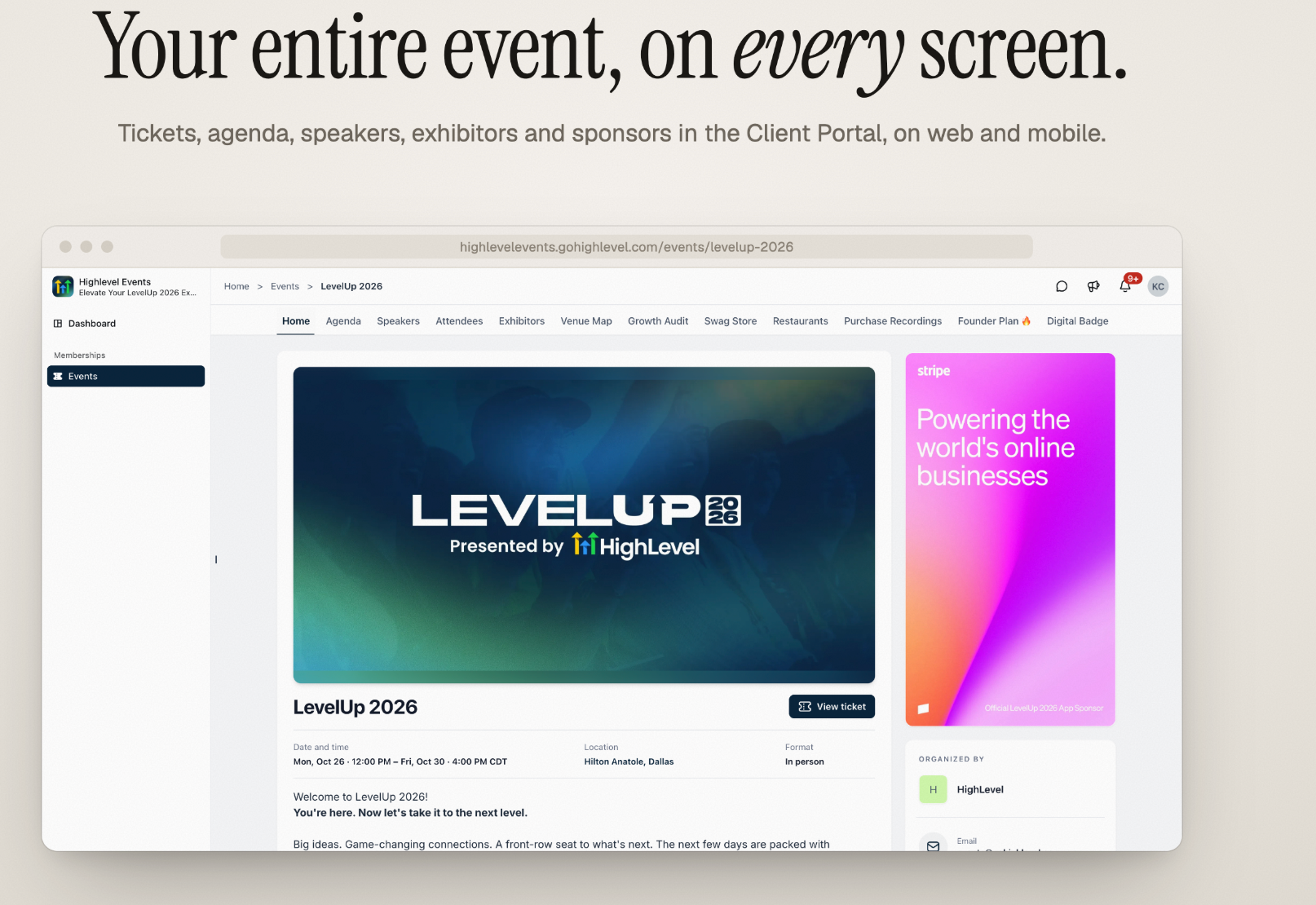
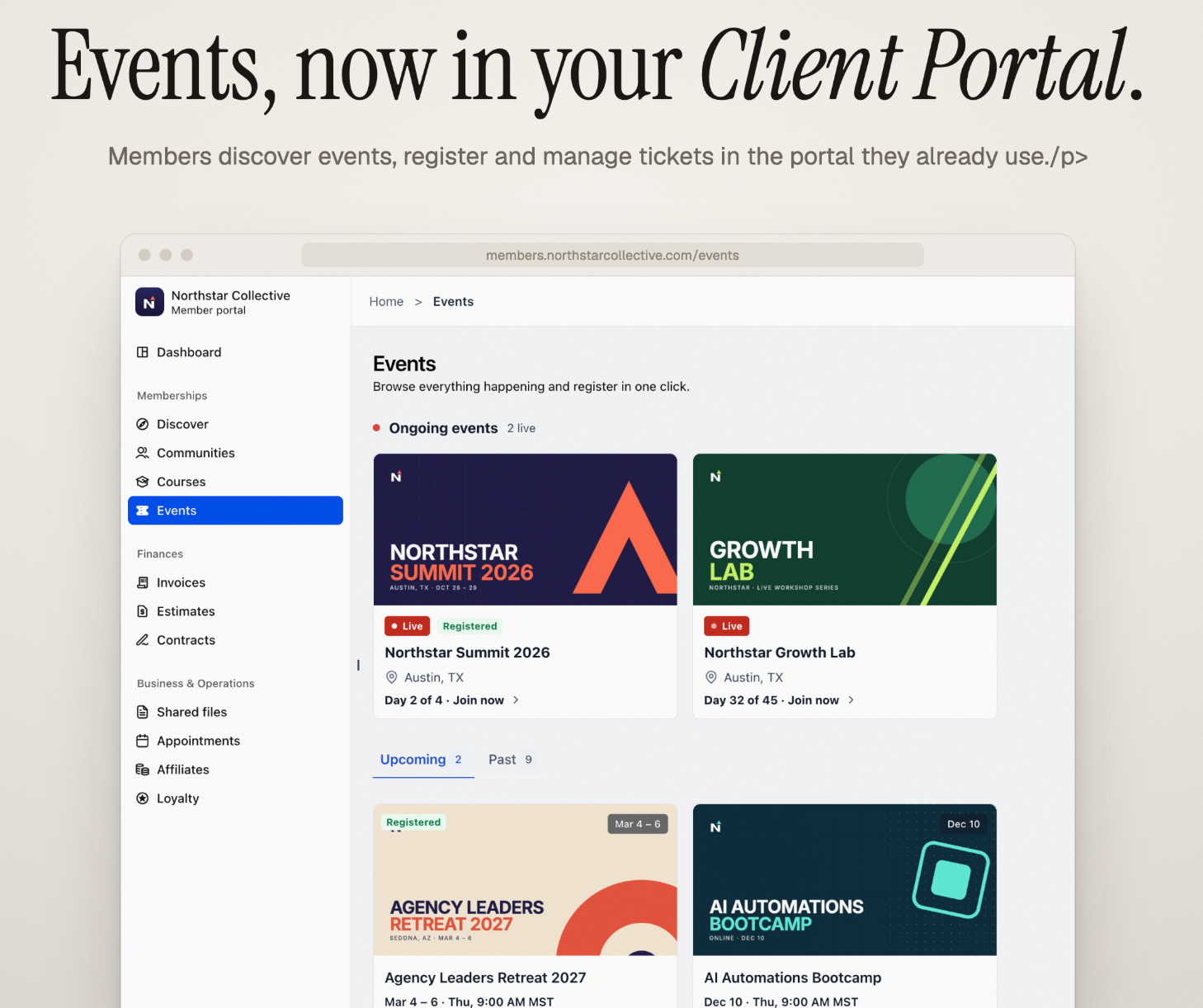
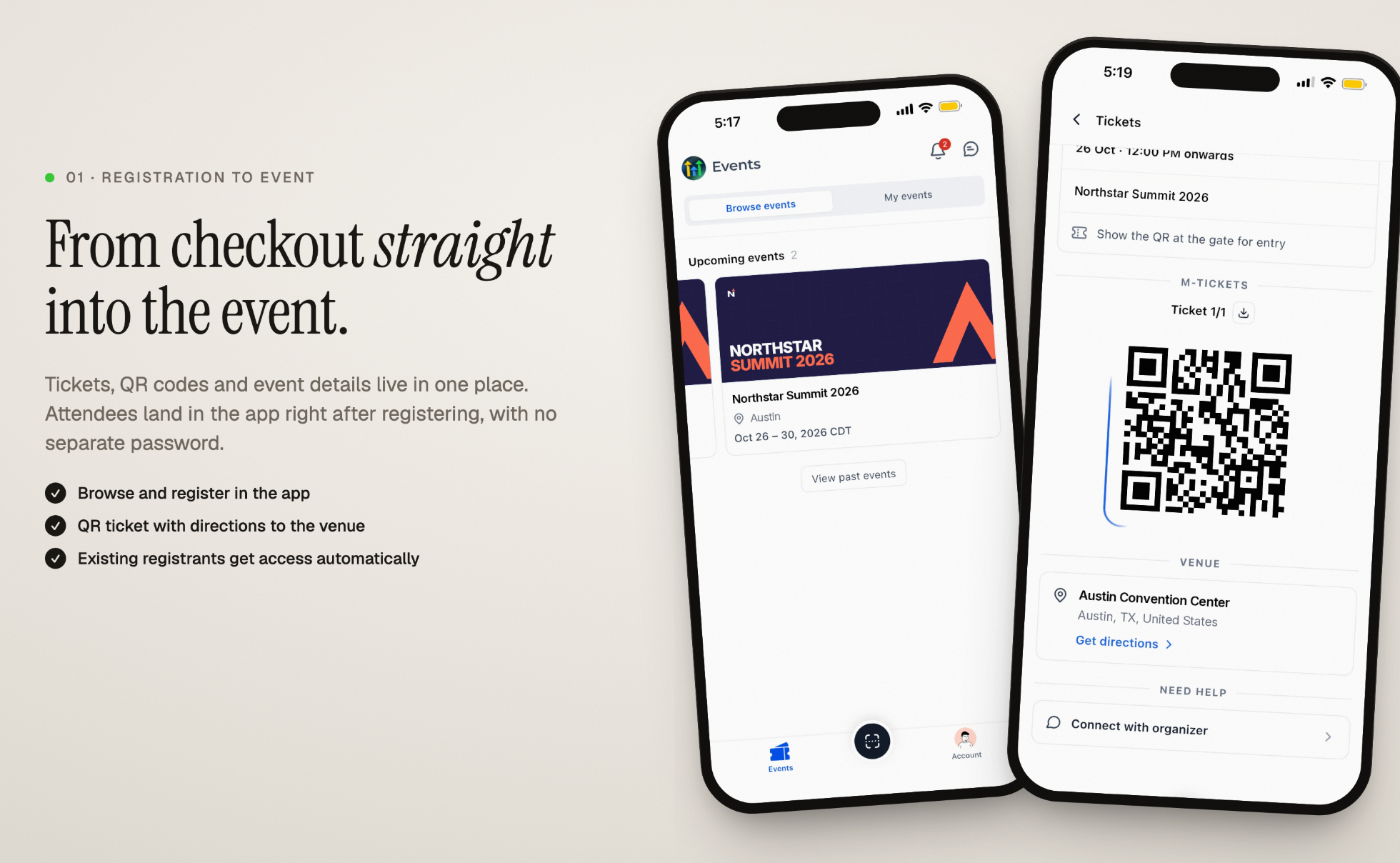
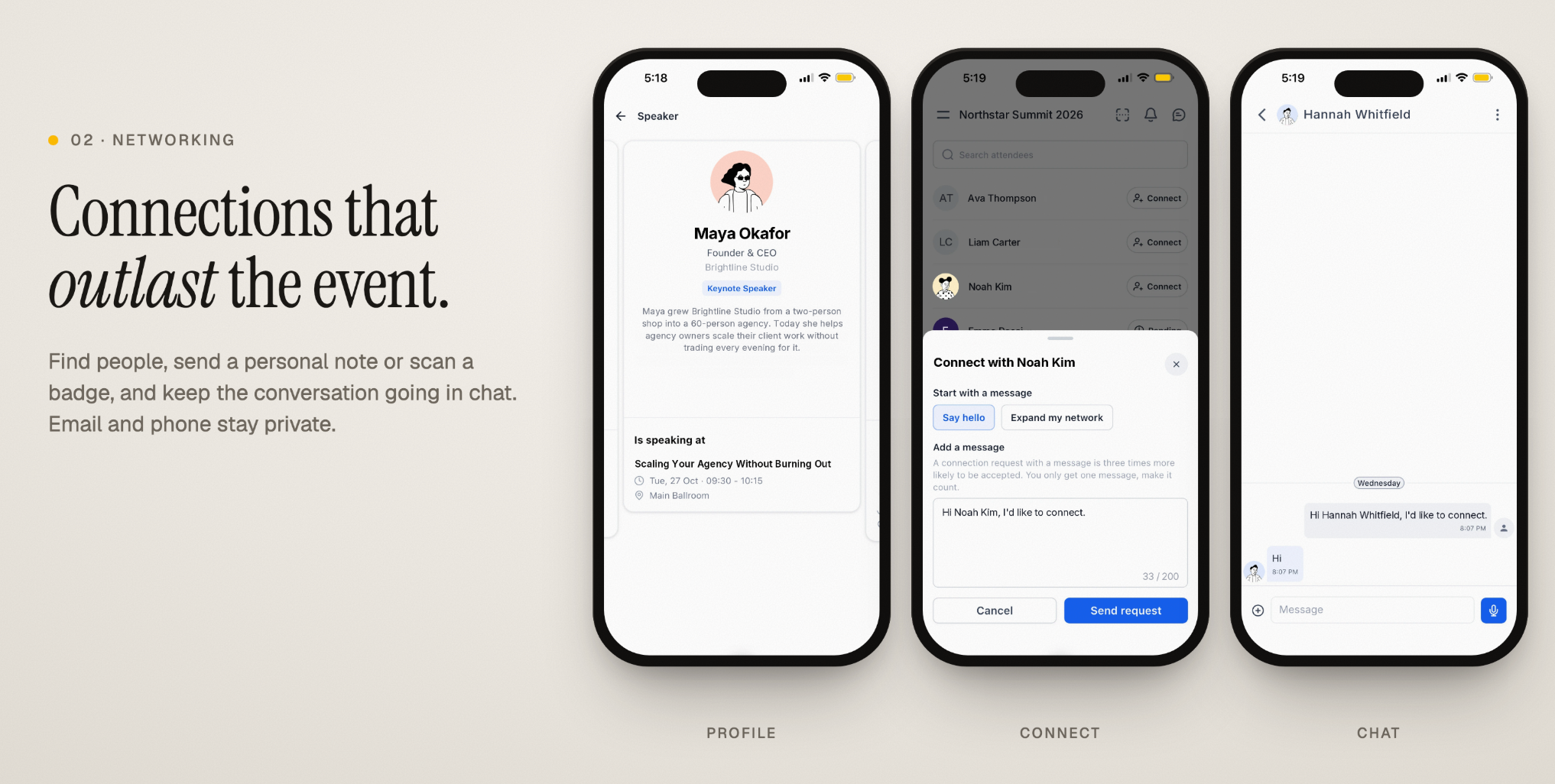
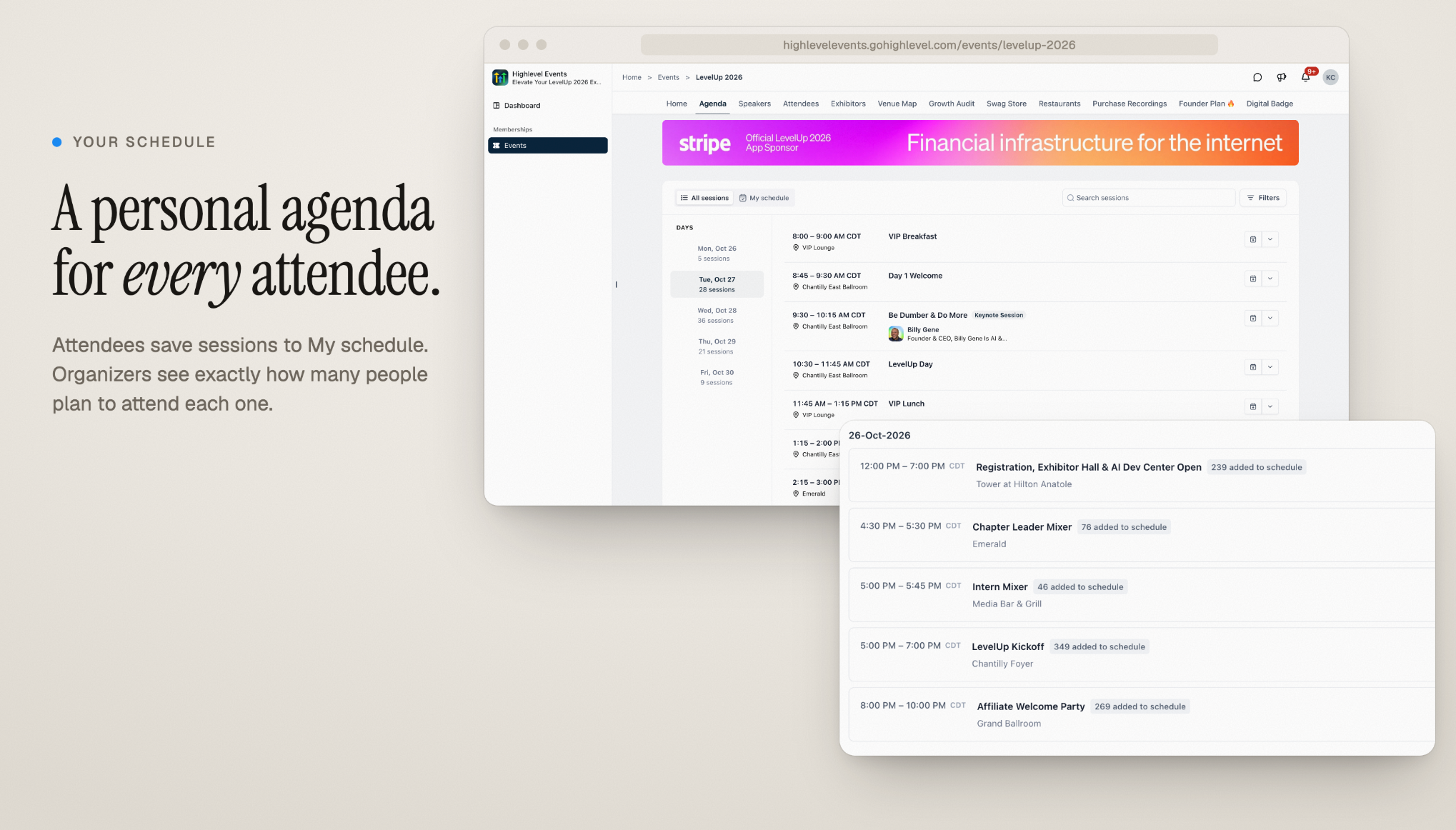
The Attendee App expands the core Events feature beyond sign up and ticket sales. It presents a portal page where members can browse upcoming events, purchase tickets, save sessions to a personal agenda and connect with other participants. Organizers control what appears in the app, add sponsor content, and send reminders or announcements.
The app lives inside the Client Portal, which is reachable on desktop browsers and supported mobile browsers. When the app is turned on, any person already registered for the event right away gets access without needing a new account. All interaction, such as networking requests, QR badge scans and lead capture, occurs inside the portal interface.
Settings let you decide whether the event shows up in the portal’s discovery list, which sections are shown, and how notifications are delivered. You can also upgrade the portal to a version that supports these extra capabilities.
03How businesses use events attendee app
- Conference organizer. Create an event, enable the Attendee App and turn on the discoverable option so all members can see the conference. Add session details, allow attendees to save favorite talks to their personal schedule, and schedule reminder notifications that appear in the portal.
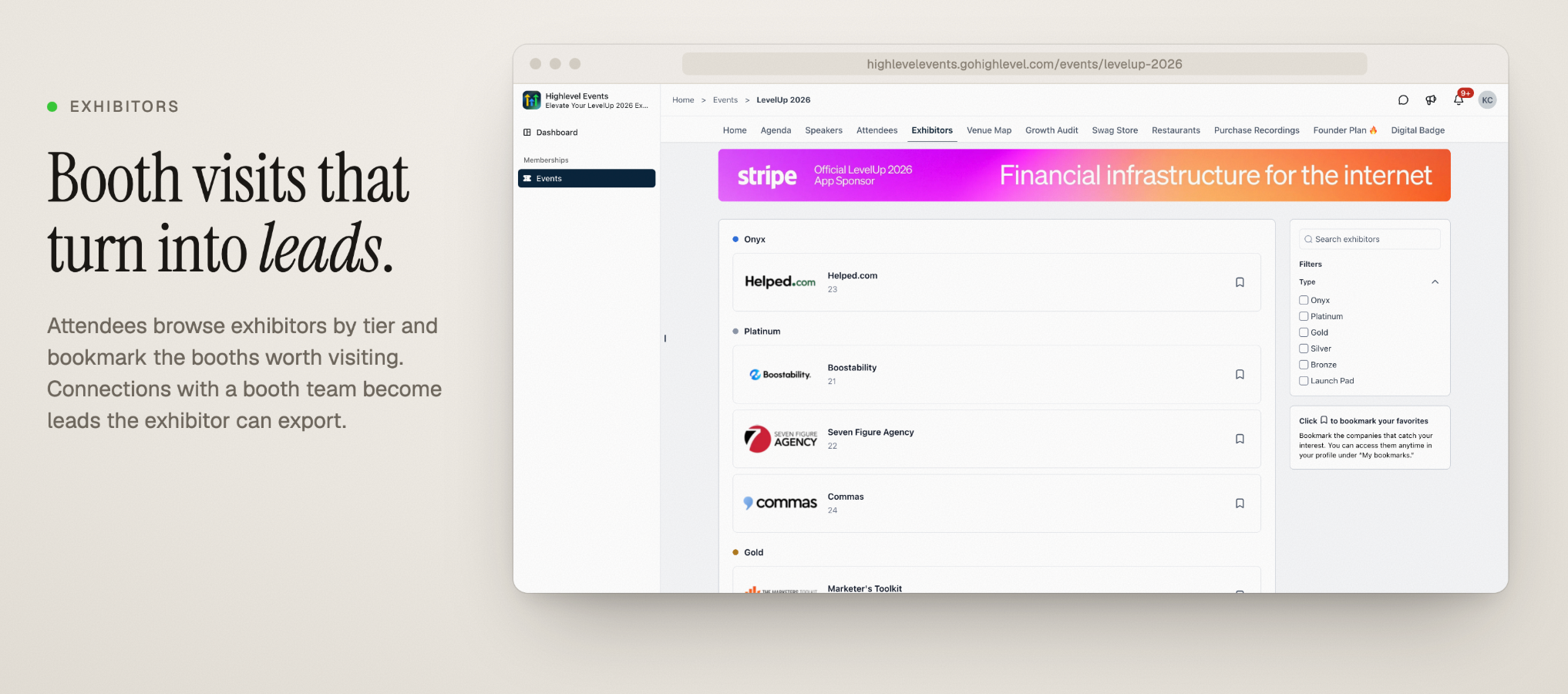
- Trade show exhibitor manager. Activate the Attendee App for the trade show, enable exhibitor browsing, and set up booth tiers. Attendees can bookmark booths and scan QR badges, which feeds lead information into the Exhibitor Center for export.
- Sponsor driven fundraiser. Turn on sponsor sections within the Attendee App, assign sponsors to tiers, and create banner advertisements that rotate on the event home page. Target these ads to specific attendee roles so donors see relevant sponsor messages.
04How to set up and use events attendee app in HighLevel
Enable the Events Attendee App
- Open the navigation and select Memberships > Events or Client Apps > Events.
- Pick the event you wish to configure.
- Click the Attendee App tab.
- Switch on the toggle for Attendee app access.
- If a prompt appears, choose Upgrade Client Portal and finish the upgrade process.
- Activate Make this event discoverable if you want all portal members to find the event.
- Review the event sections, notifications and other available options.
- Open the Client Portal to confirm the attendee view.
- Note that existing registrants automatically receive access when the Attendee App is enabled.
05What it looks like in HighLevel
06Settings that matter
- Enable Attendee app access. Turns on the app for the selected event, allowing participants to view event details through the portal.
- Upgrade Client Portal. Switches the portal to a version that supports the Attendee App features.
- Make this event discoverable. Controls whether the event appears in the portal's public event list for all members.
07How it connects to the rest of HighLevel
- Create and manage events in HighLevel Event creation guide
- Manually add attendees to events Add attendees manually
Michael's take

Want to know if you really need a separate mobile app to give attendees everything they need? The Events Attendee App lets you bundle registration, tickets, schedules and networking into the Client Portal, so your guests can simply log in and get the full experience on any device.
If I were setting up a conference, I’d flip the Attendee App switch, upgrade the portal if needed, and then test a few tickets and a connection request before sending out the first invite.