
01Who this is for
- Event organizers can verify arrivals right away.
- Event staff can keep an accurate count of guests for safety compliance.
02Check in experience, explained
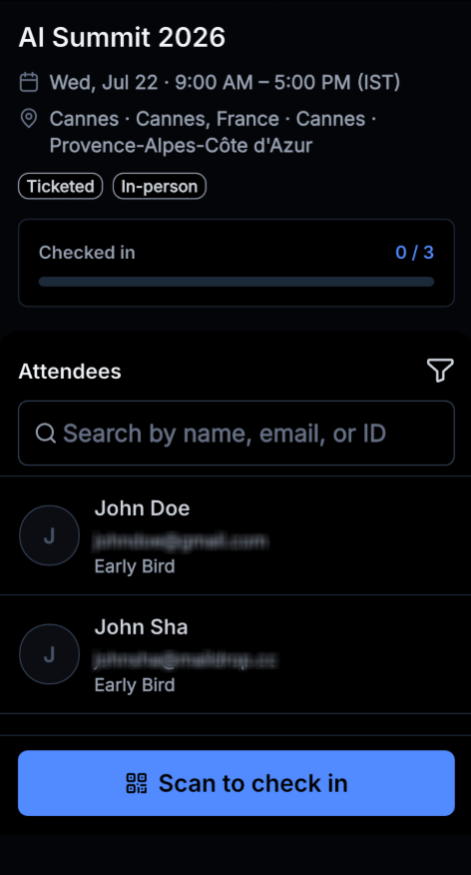
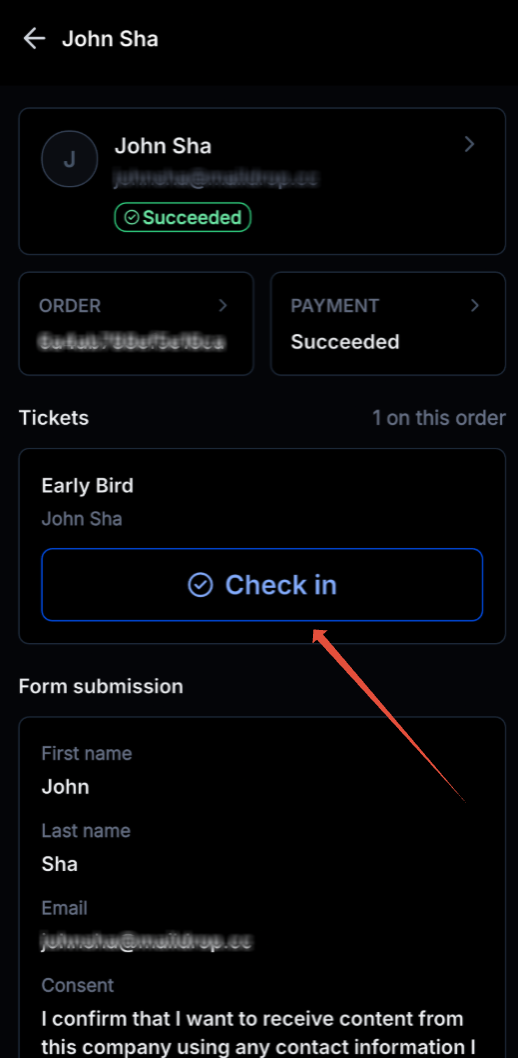
The check in feature is part of the Events app on the HighLevel mobile platform. When an attendee purchases a ticket or registers, they receive a ticket with a QR code. The organizer opens the mobile app, selects the event, and chooses either a QR scan or a manual option to mark the attendee as present. Scanning uses the device camera; the app reads the QR code and records the check in. Manual check in requires locating the attendee in the list, opening their record, and pressing a button to flag them as arrived. The same view also displays any form data the attendee submitted during registration.
03How businesses use check in experience
- Conference organizer. Staff scan each QR ticket with the mobile app as guests arrive. If a ticket cannot be scanned, they open the attendee list, find the person, and tap the check in button to log the arrival.
- Wedding venue. The coordinator scans QR invitations as guests enter the reception. For guests without an invitation, the coordinator searches the RSVP list, selects the name, and manually checks them in.
- Community workshop host. The host opens the event in the mobile app and selects “Scan to check in” for each participant. When a participant arrives without a printed ticket, the host taps the attendee’s entry in the list and uses the “Check in” button to confirm attendance.
04How to set up and use check in experience in HighLevel
QR code check in
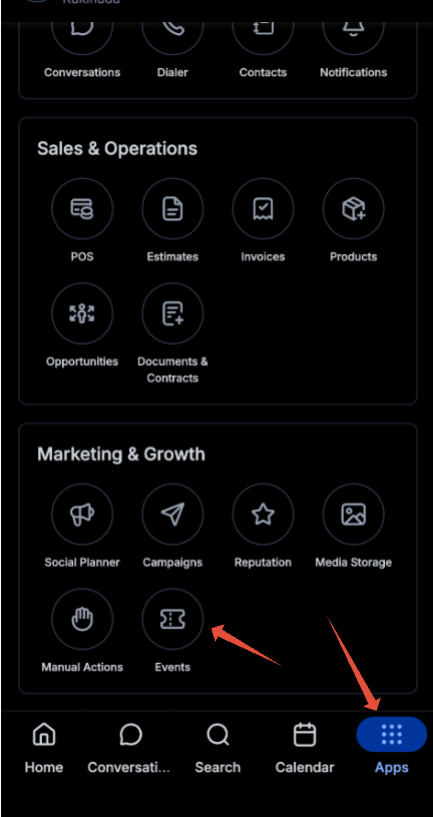
- Open the mobile app and go to Apps Section in Mobile > Select the Events App.
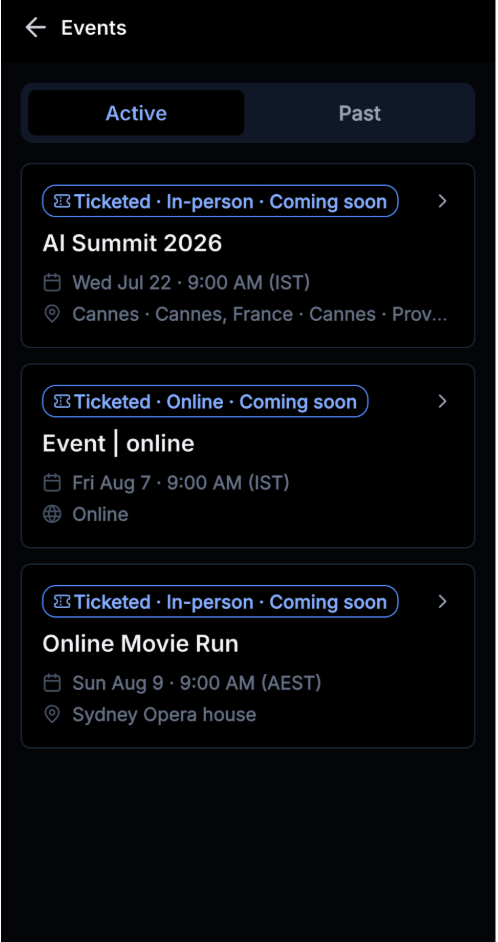
- Choose the event you want to check in attendees for.
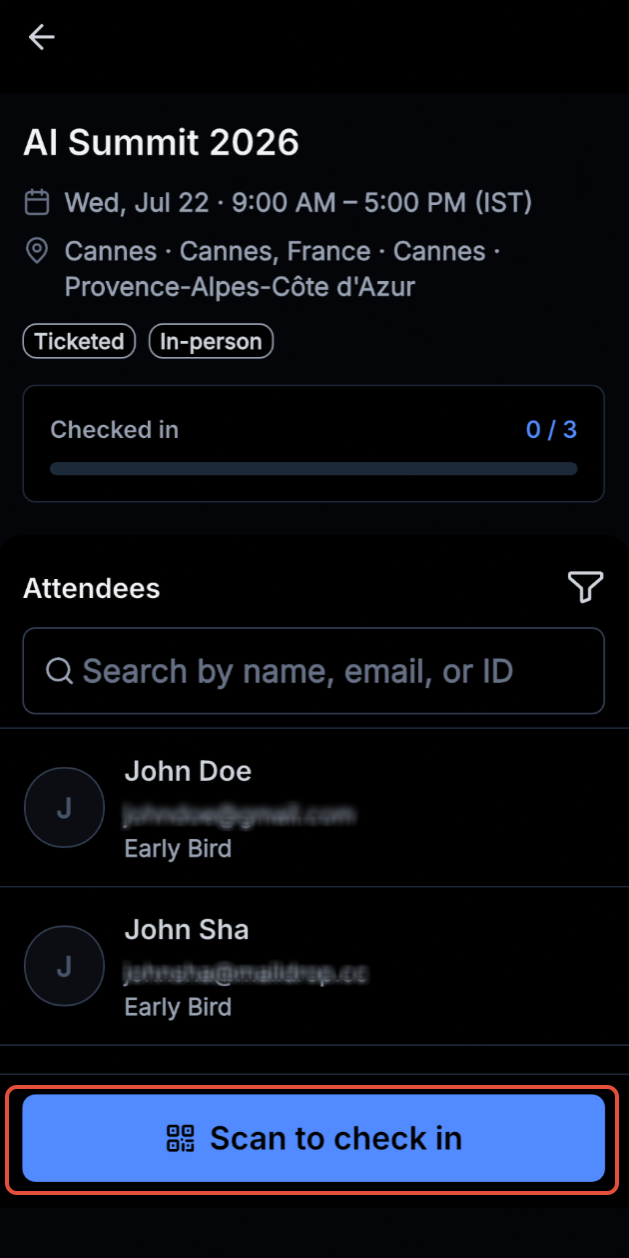
- Tap the “Scan to check in” button.
- Aim the camera at the attendee’s QR code and scan it.
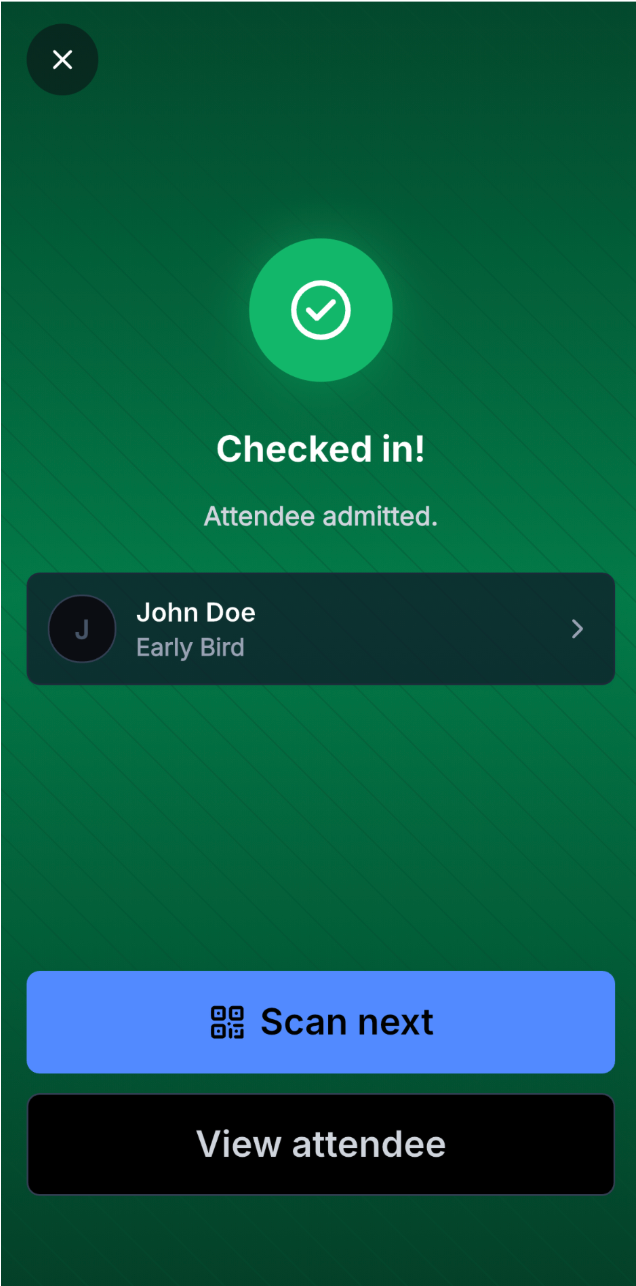
- The app records the attendee as checked in.
Manual check in
- Open the Attendees tab for the event and tap the attendee’s name.
- Press the “Check in” button to mark the attendee as arrived.
- View the attendee’s form submission details from the same screen if needed.
05What it looks like in HighLevel
06Things to know before you rely on it
- Check in works only for in person events; online events do not support check in.
- Scanning the same ticket twice will show a message that the attendee is already checked in.
- Scanning a ticket that belongs to a different event will display an invalid ticket warning.
07How it connects to the rest of HighLevel
- Create and manage events in HighLevel event creation guide
- Integrate events with workflows workflow integration
- Manage refunds, cancellations, and check in eligibility refund and cancellation policies
Michael's take

Michael ReimerFounder of CRM Pros, HighLevel Commander and Certified Admin
The check in experience feels like a helpful convenience for a busy live event.
Get More InformationOpens on HighLevelPublished November 2, 2026 · Updated November 17, 2026