
01Who this is for
- Marketing managers who need event pages to match their brand guidelines, because the editor lets them style every public page.
- Web designers building multiple events for a client, since CSS settings travel with duplicated events.
- Small business owners who want simple visual tweaks without writing code, using the quick style presets.
02Custom CSS editor, explained
The Custom CSS editor lives inside each event record. It adds a stylesheet that runs on every public facing event page, such as Details, Schedule, Checkout, Payment, Confirmation, Leave Checkout, and Online Event pages.
You open the editor from the event’s Pages & design section, click elements in a live preview to capture their selectors, and then write or generate CSS rules. A side pane shows the page update in real time, and saving the code applies the styles globally to that event’s pages.
03How businesses use custom CSS editor
- Fitness studio. The studio opens its event, clicks the button element in the checkout preview, inserts the Button Color preset, adjusts the colors to match its logo, and saves. The new button style appears on the checkout and confirmation pages for that class.
- Conference organizer. The organizer selects the schedule table, uses the Border preset to add a thicker border, tweaks the CSS values, and saves. All schedule pages for that conference now display the updated borders without changing other events.
- Online course creator. After duplicating a past webinar event, the creator opens the duplicated event, edits the Typography preset for the headline, changes the font family, and saves. The new font shows on the online event page while the original event remains unchanged.
04The numbers and rules that matter
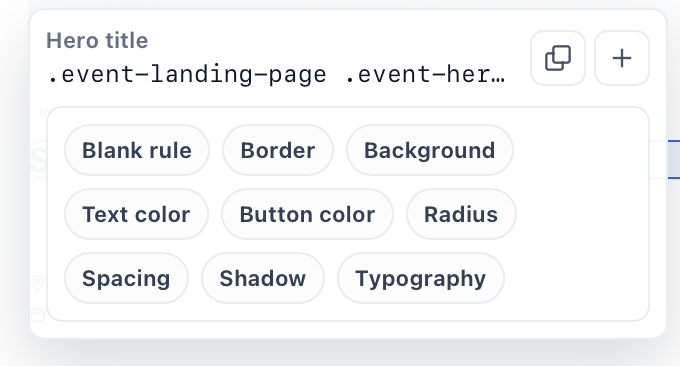
- Quick style presets available: Border, Background, Text Color, Button Color, Border Radius, Spacing, Shadow, Typography.
05How to set up and use custom CSS editor in HighLevel
Apply custom CSS to an event
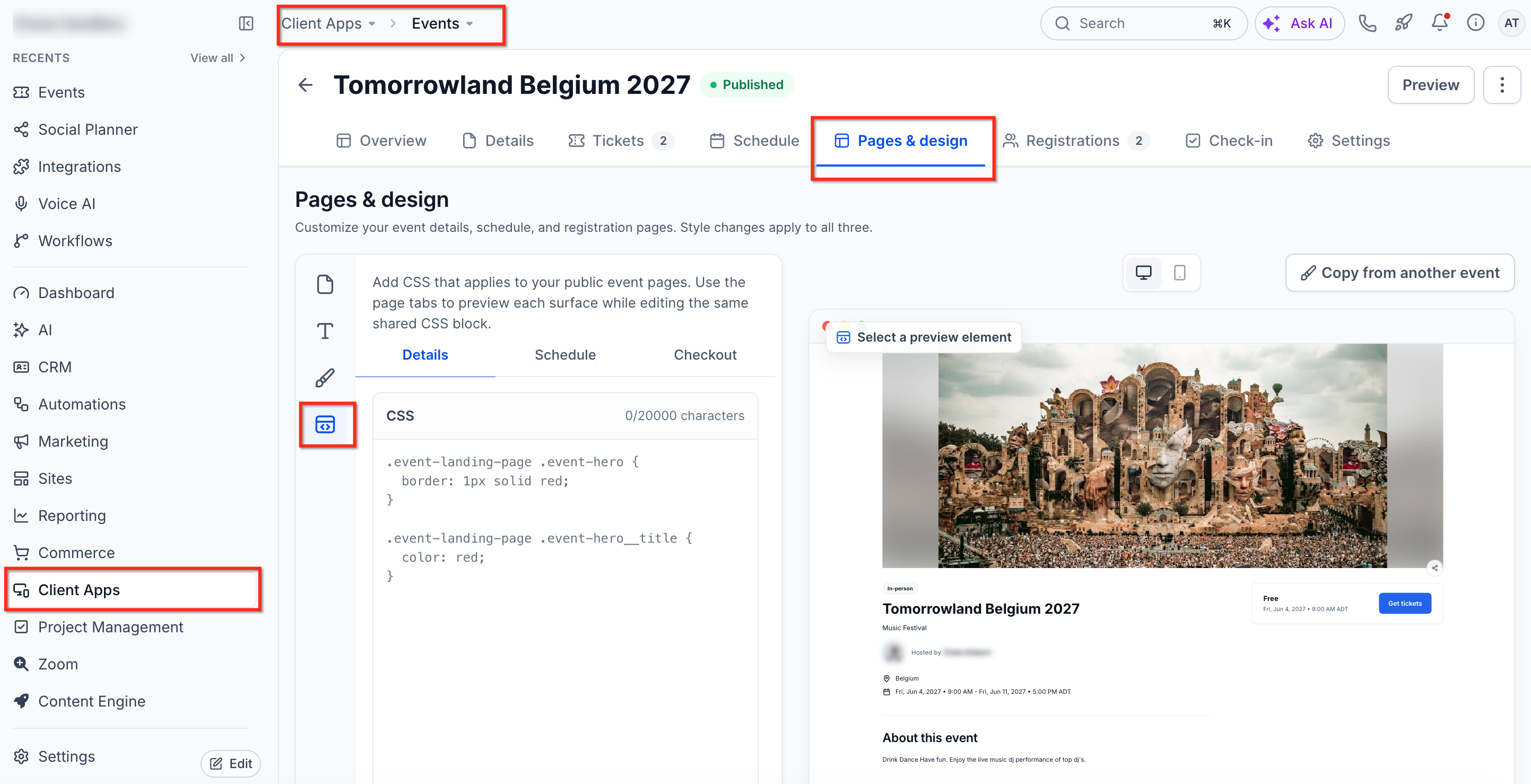
- Open Client Apps, select Events, and choose the event you want to edit.
- Click Pages & design in the left navigation.
- Press the Custom CSS icon in the toolbar to open the editor.
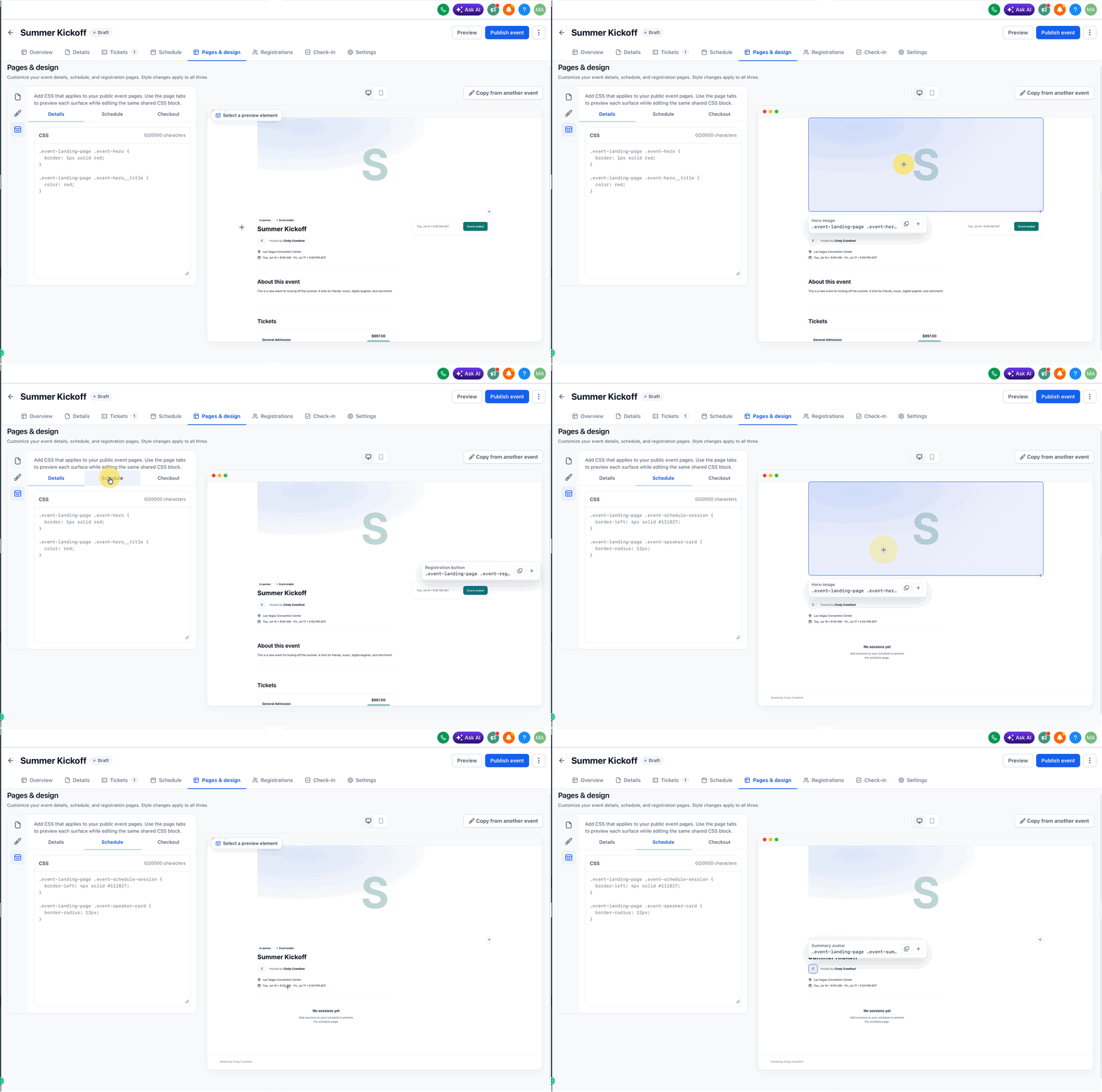
- In the preview pane, click the element whose style you wish to change.
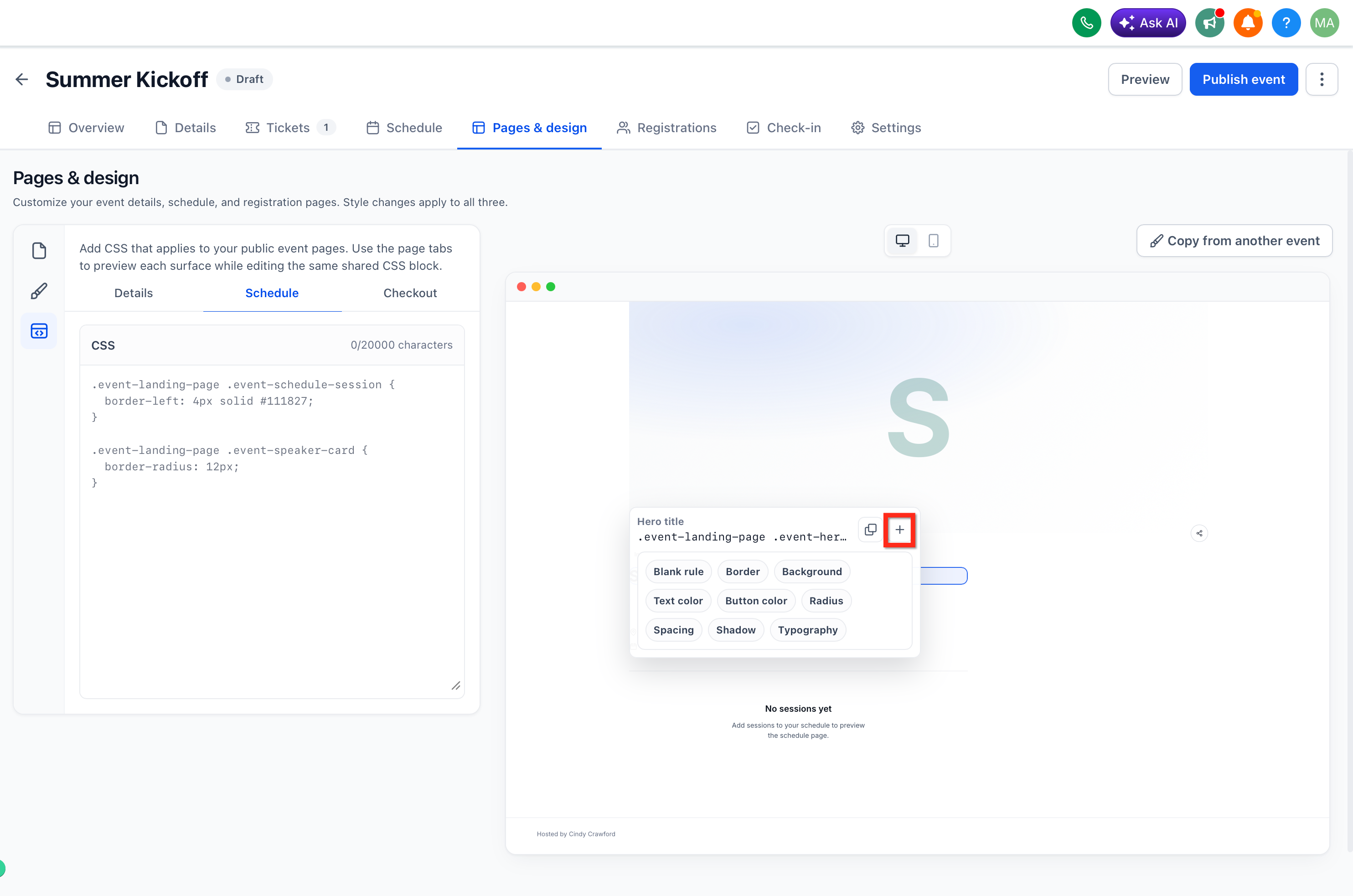
- When the selector popup appears, copy the selector or click to insert a starter rule.
- Add or adjust CSS rules in the editor, using quick style presets if needed.
- Observe the live preview, then click Save to apply the CSS to all public event pages.
06What it looks like in HighLevel
07Settings that matter
- Custom CSS. Adds a stylesheet that runs on every public page of the selected event.
- Border. Generates CSS to set width, style, and color of an element’s border.
- Background. Creates code to change an element’s background color or image.
- Text Color. Provides a rule to modify the color of text inside the chosen element.
- Button Color. Generates CSS for button background and text colors.
- Border Radius. Adds CSS to round the corners of the selected element.
- Spacing. Creates rules for padding and margin adjustments.
- Shadow. Generates a box shadow rule for the element.
- Typography. Produces CSS to set font family, size, weight, and line height for text elements.
08Things to know before you rely on it
- Custom CSS is event specific and does not affect other events.
- The stylesheet runs on all public event page types, including Details, Schedule, Checkout, Payment, Confirmation, Leave Checkout, and Online Event pages.
- Styles apply to both desktop and mobile layouts; use media queries for device specific adjustments.
- If a rule does not take effect, increase selector specificity or add .important flags.
- When an event is duplicated or settings are copied, the custom CSS is retained automatically.
09How it connects to the rest of HighLevel
- Create and manage events in HighLevel Create events
- Integrate events with workflows Event workflow integration
- Embed HighLevel event pages on any site Embed event pages
Michael's take

Adding a custom CSS editor to event pages feels like a small convenience that quickly becomes a real shift for anyone who wants brand consistent event experiences. The live element selector and instant preview cut out the guesswork and let you see results as you type.
A boutique conference company that runs multiple in person workshops benefits most. They can style the header, buttons and schedule layout once, duplicate the event, and keep the look consistent without rewriting code each time.