
01Who this is for
- Event marketers who need insight into which ad clicks turn into RSVPs or ticket sales.
- Small businesses running ticketed webinars and want to attribute revenue to Meta campaigns.
- Community organizers seeking to see how promotional posts drive completed registrations.
02Meta Pixel tracking for events, explained
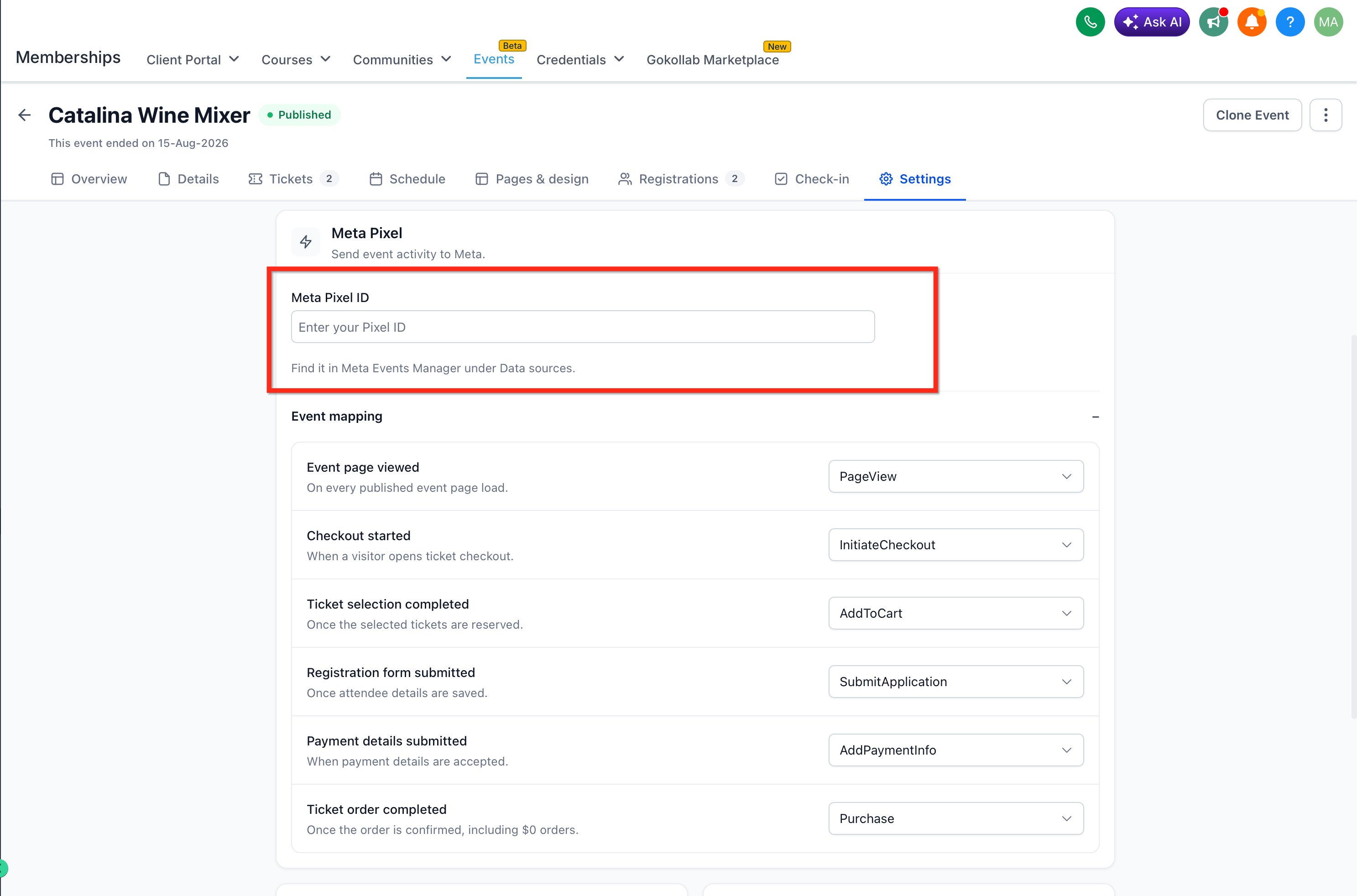
Meta Pixel tracking for events ties attendee behavior in a HighLevel event to Meta conversion events. Each event can have its own Pixel ID and mapping, so you decide which Meta event fires when a visitor views the page, starts an RSVP, completes registration, or purchases tickets. The feature also passes purchase details such as order value, currency, ticket quantities and identifiers for completed orders, including $0 tickets (per HighLevel's help center, checked November 2026).
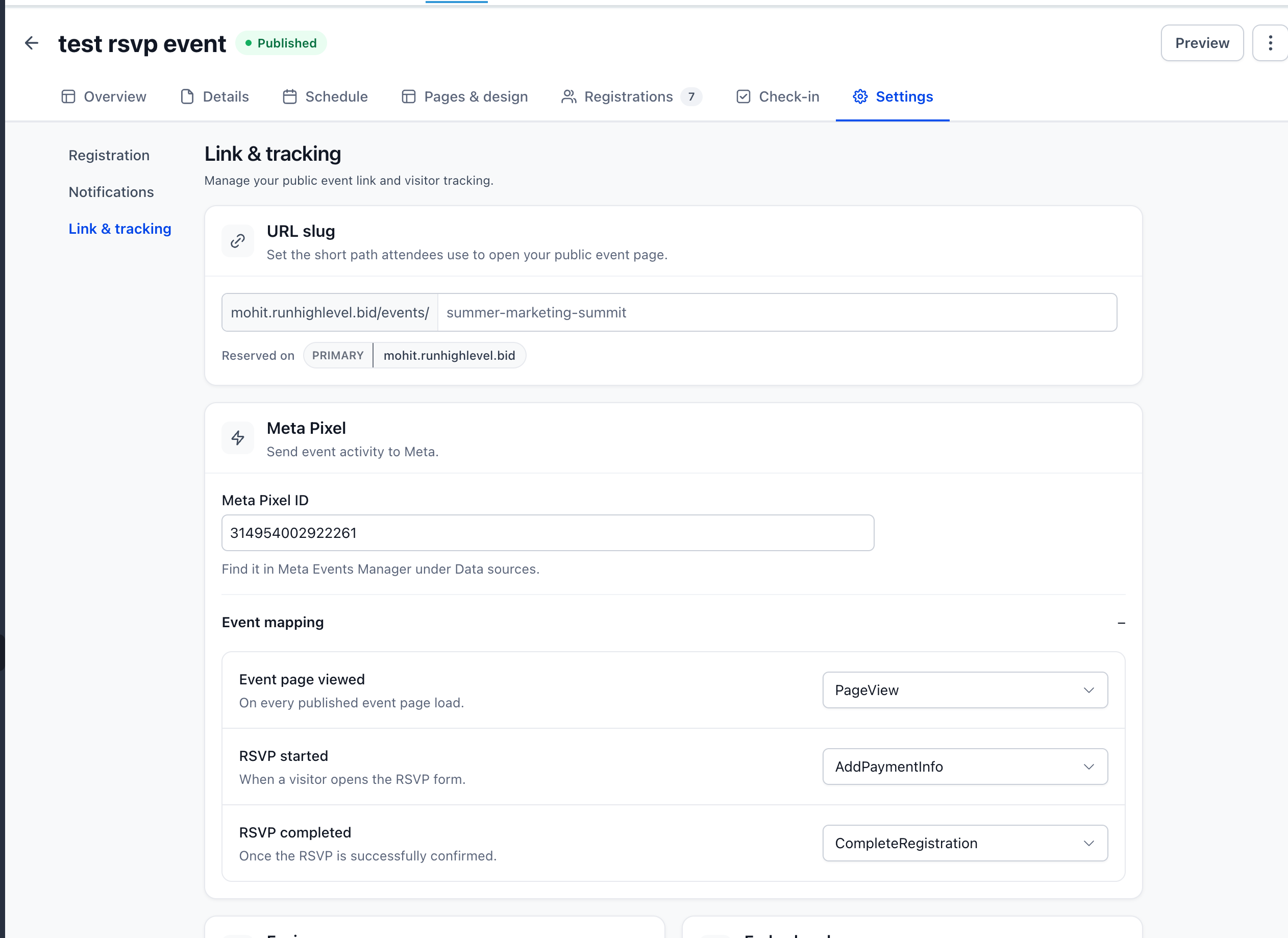
The configuration lives under Settings > Link & tracking for each event. After entering the Pixel ID you select Meta events for every supported attendee action. HighLevel applies session based deduplication, so repeated clicks or page refreshes do not generate duplicate signals. Only published event pages trigger the "Event page viewed" action.
03How businesses use Meta Pixel tracking for events
- Fitness studio. The studio adds its Meta Pixel ID to each class event, then maps the "RSVP completed" action to a Meta "Lead" event. When members sign up through the event page, the studio can see which ads produced new class registrations.
- Conference organizer. The organizer configures the Pixel for a ticketed conference, mapping checkout stages and the final "Ticket order completed" to a Meta "Purchase" event. Completed orders, including free tickets, send order value and ticket identifiers to Meta for revenue reporting (per HighLevel's help center, checked November 2026).
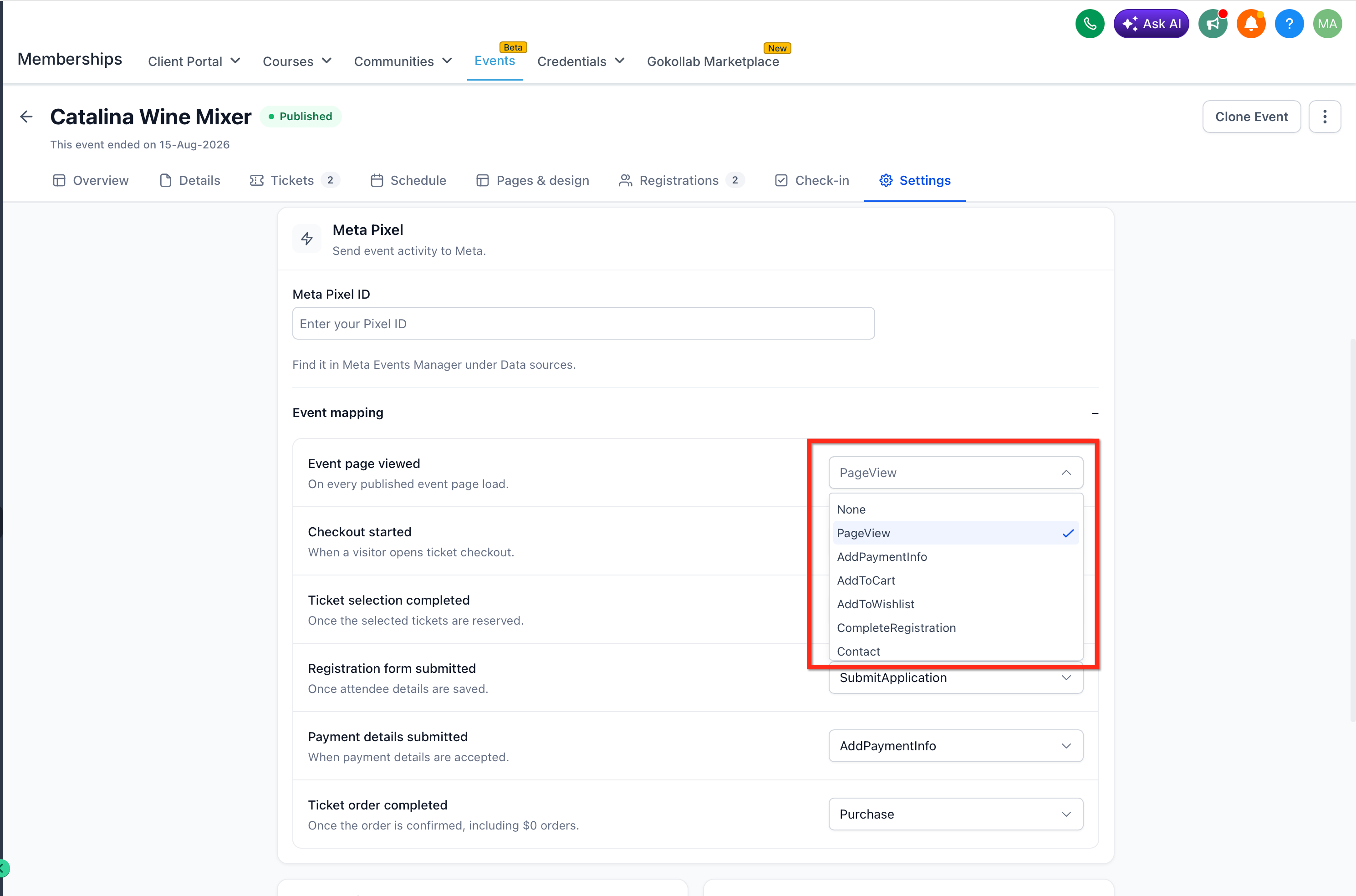
- Online education platform. The platform links a Meta Pixel to webinar events, assigning the "Registration form submitted" action to a Meta "CompleteRegistration" event. This lets the platform track how social campaigns drive webinar sign ups without needing separate funnel tracking code.
04The numbers and rules that matter
- Supported RSVP actions: Event page viewed, RSVP started, RSVP completed.
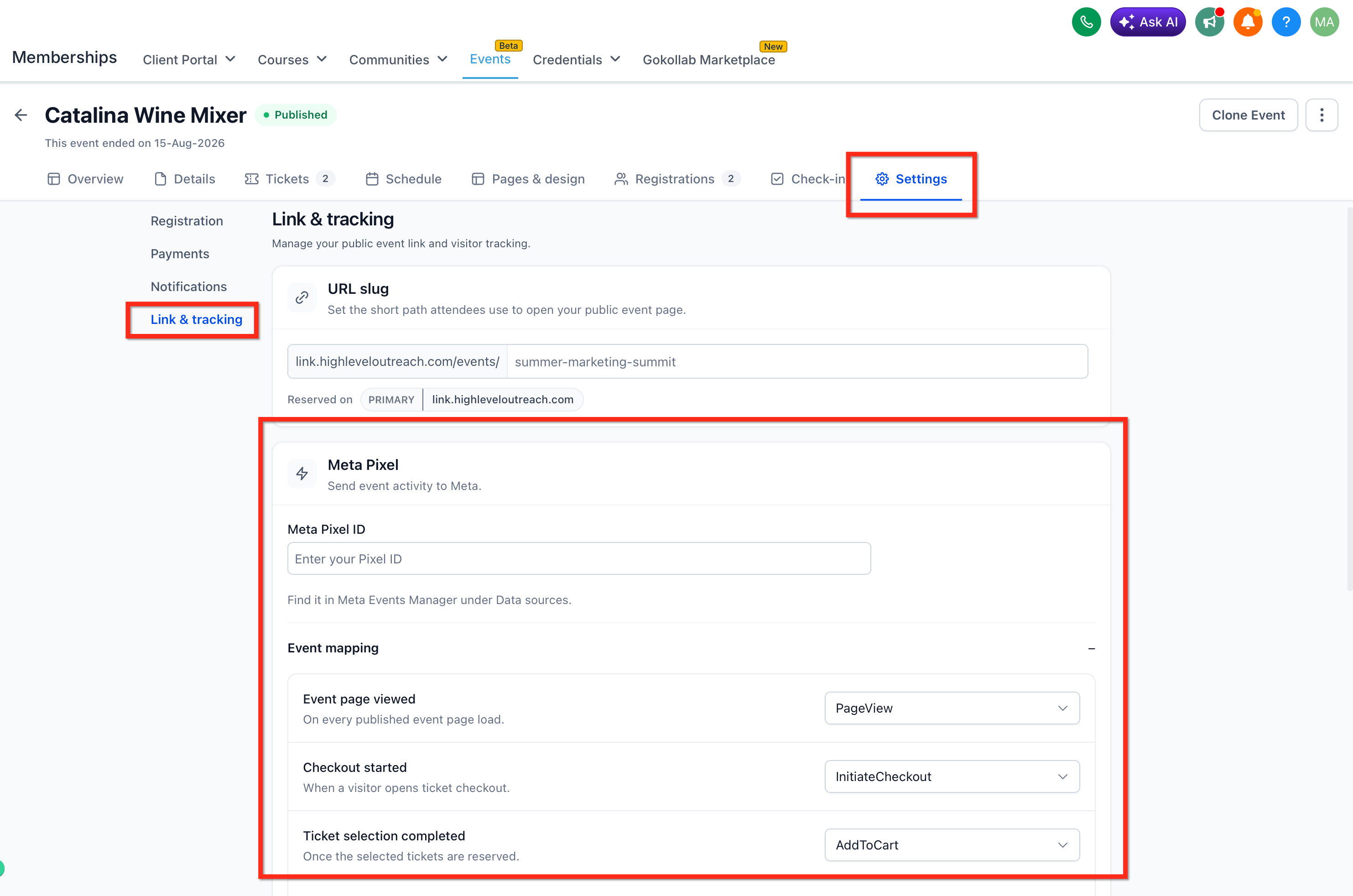
- Supported Ticketed actions: Event page viewed, Checkout started, Ticket selection completed, Registration form submitted, Payment details submitted, Ticket order completed.
- Completed ticket orders are tracked for both paid tickets and $0 orders (per HighLevel's help center, checked November 2026).
05Before you start
- A HighLevel subaccount with the target event already created.
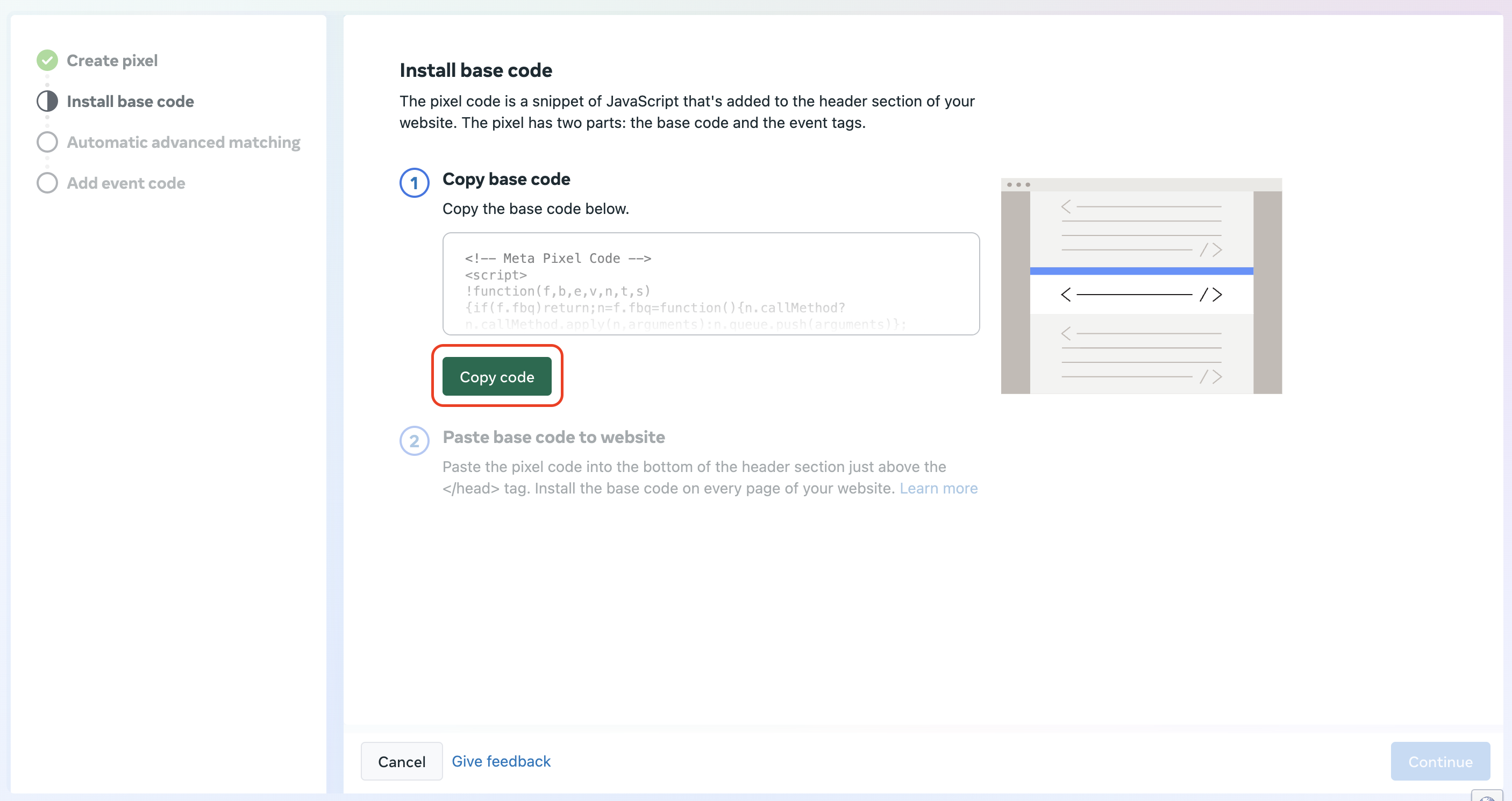
- The Meta Pixel ID for the Meta data source you want to use.
06How to set up and use Meta Pixel tracking for events in HighLevel
Set up Meta Pixel tracking for an event
- Locate the Pixel ID for the Meta data source in Meta Events Manager.
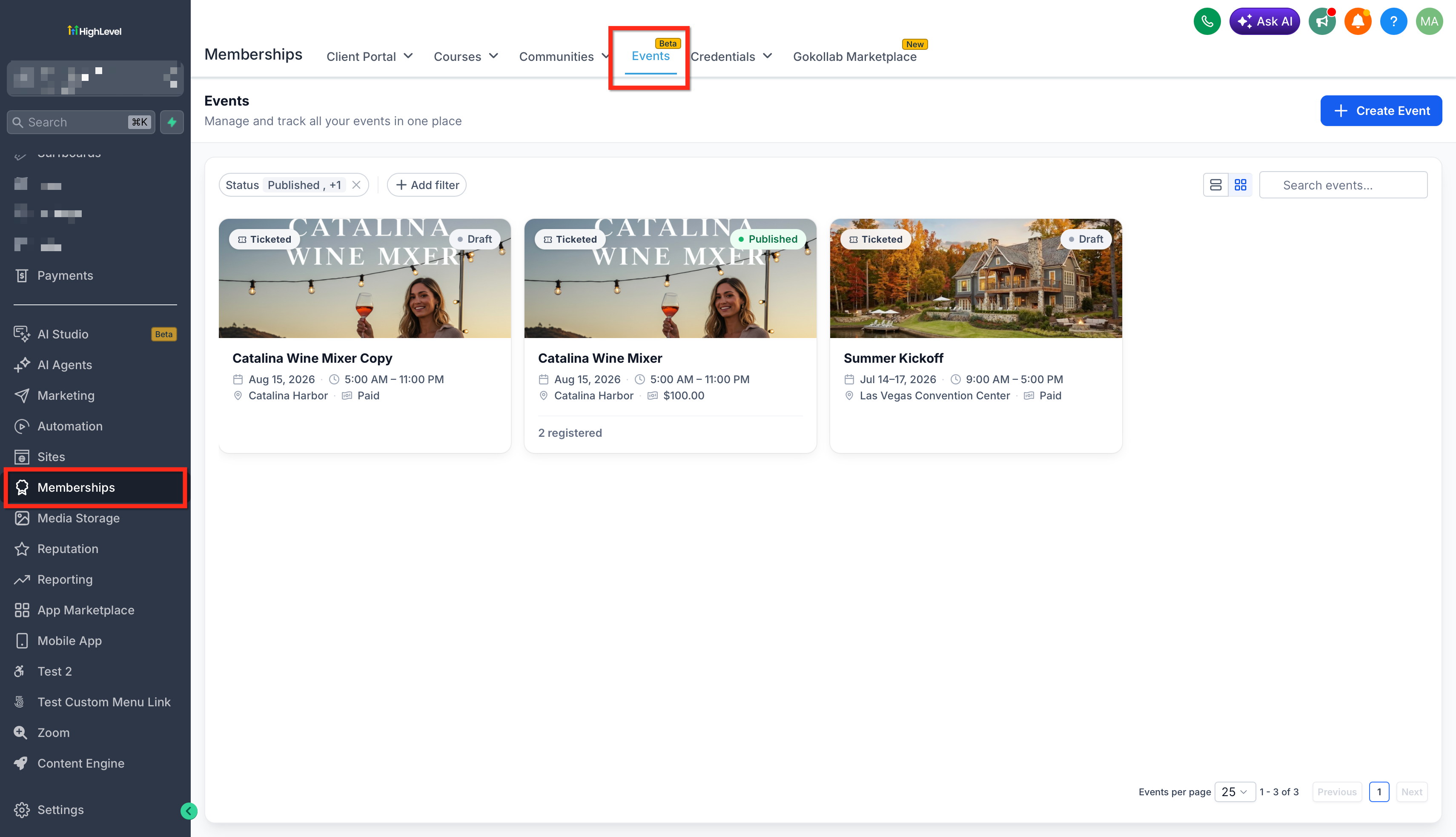
- In HighLevel, open Memberships > Events.
- Select the desired event, open Settings, and choose Link & tracking.
- Locate the Meta Pixel section within the Link & tracking page.
- Enter the retrieved Meta Pixel ID in the field provided.
- Use the Event mapping options to assign Meta events to each attendee action relevant to the event type.
- Confirm you are editing the correct event before saving the mappings.
- Test the published event page by completing the RSVP or ticket purchase steps to verify the mappings.
07What it looks like in HighLevel
08Settings that matter
- Meta Pixel ID. Specifies which Meta Pixel receives the conversion data for the selected event.
- Event mapping options. Determines which Meta event is fired for each supported attendee action, such as page view or ticket order completed.
09Things to know before you rely on it
- Only published event pages trigger the "Event page viewed" action; previewing an unpublished event does not fire this event.
- $0 ticket orders are tracked in the same way as paid orders (per HighLevel's help center, checked November 2026).
- Check in actions are not included in the list of supported Meta Pixel tracking actions.
- Session based deduplication reduces duplicate signals caused by back navigation, page refreshes, or payment redirects.
10How it connects to the rest of HighLevel
- Create and manage events in HighLevel Create events
- Integrate events with workflows Events workflow integration
- Embed events using a code snippet Embed events
Michael's take

If your events are low volume or you’re not using Meta advertising, the extra setup may not deliver a clear return. The feature adds another layer of configuration and testing, so without a clear need for granular conversion data it can become more effort than value.