
01Who this is for
- Users who create email templates and campaigns in HighLevel and want protection against accidental loss.
- Support team members who may need to disable autosave while troubleshooting.
02Email Builder autosave, explained
The autosave function records every edit made in the HighLevel email builder without requiring a manual save. A small indicator updates with the time of the most recent snapshot, and hovering over it reveals the exact timestamp. Version History stores each snapshot, lists them with timestamps, and lets you restore any earlier state from the email builder.
03How businesses use Email Builder autosave
- Ecommerce store. Turn on autosave before designing newsletters; if a draft is overwritten, open Version History, select the prior snapshot, and restore it.
- SaaS startup. Enable autosave while building onboarding emails, use the timestamps to confirm changes are saved, and revert to a previous version if a new edit causes an error.
- Real estate agency. Activate autosave for agents drafting property showcase emails; after a browser crash, the autosave badge shows the last preserved time and the agent can retrieve the last version via Version History.
04The numbers and rules that matter
- Autosave will be enabled by default for all locations after June 1.
05Before you start
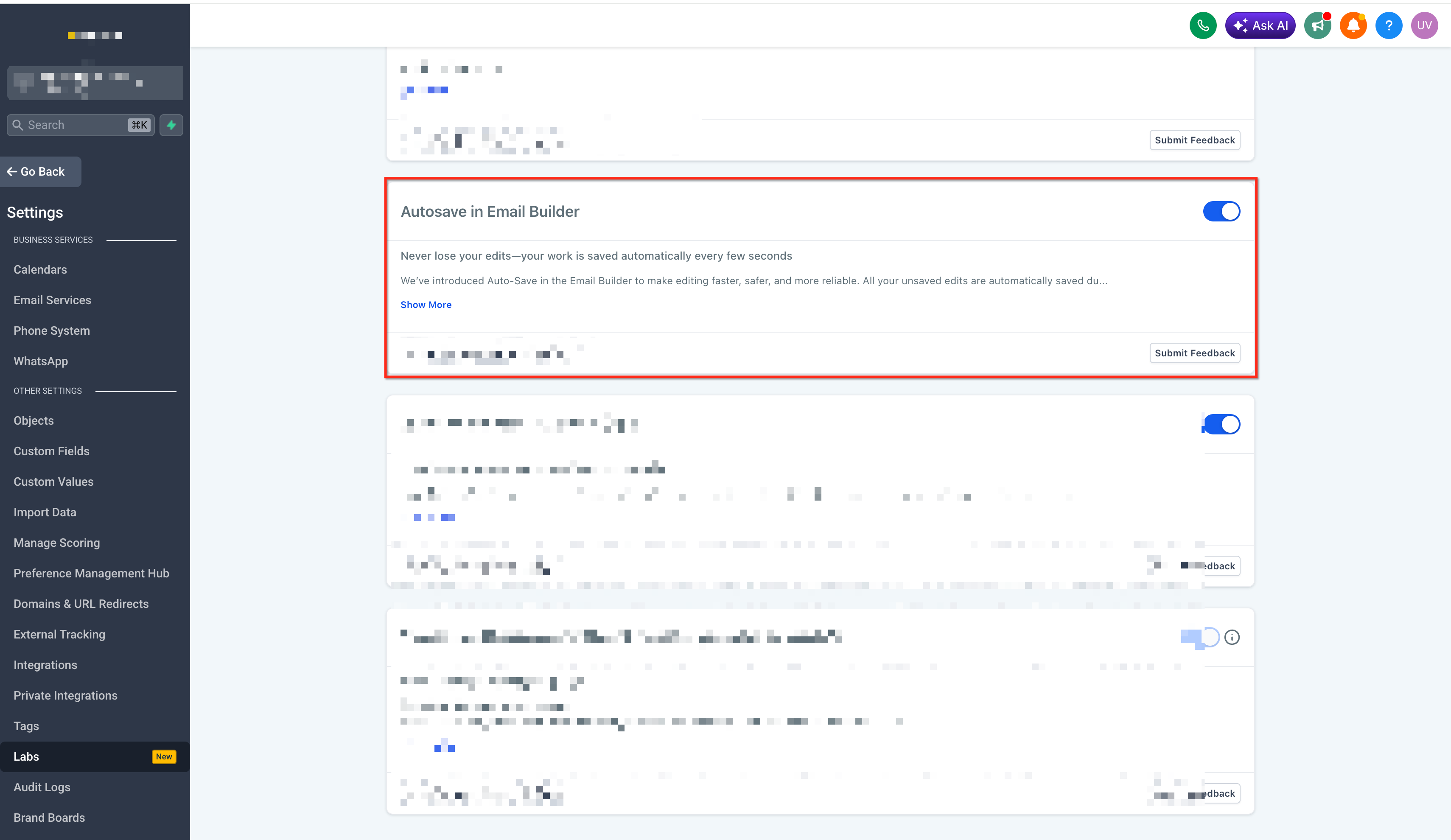
- You must have access to Beta Labs in your HighLevel account settings.
06How to set up and use Email Builder autosave in HighLevel
Enable autosave
- Open account settings and select Beta Labs.
- Toggle the autosave option for the email builder to on.
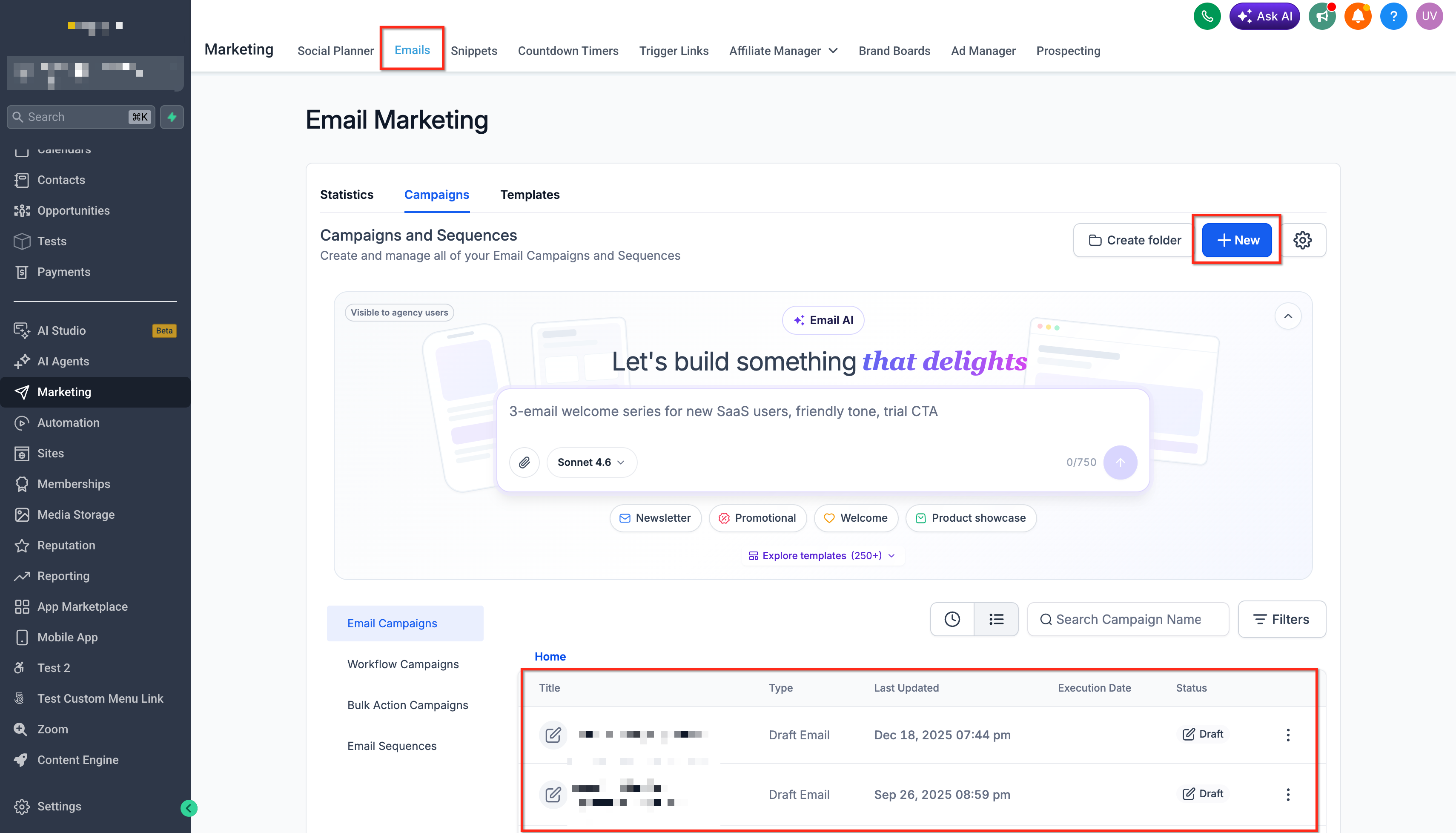
- Navigate to the Email Marketing section.
- Open an existing email template or start a new campaign.
- Hover over the autosave badge to verify the timestamp updates.
Use version history
- Launch the email builder for the targeted template or campaign.
- Click the Version History control.
- Examine the list of saved snapshots with their timestamps.
- Select a desired version and restore it.
07What it looks like in HighLevel
08Settings that matter
- Autosave. Controls whether the email builder creates automatic snapshots of your edits during a session.
- Autosave toggle (support). Allows support level users to disable autosave for the current editing session only.
09Things to know before you rely on it
- The feature is currently available only through Beta Labs.
- Autosave will become the default setting for all locations after June 1.
- Support users can disable the feature for an individual session without affecting other users.
10How it connects to the rest of HighLevel
- Learn how to add conditional elements to emails for more dynamic content. Conditional elements
- Find out how to send or schedule a regular email campaign after drafting with autosave. Send or schedule campaign
- Review HighLevel pricing and plan options if you need to upgrade to access Beta Labs. Pricing
Michael's take

Michael ReimerFounder of CRM Pros, HighLevel Commander and Certified Admin
Autosave can feel like a safety net, but remember it only works when you’ve turned the Beta Labs flag on. Until that’s set, a simple browser slip can still wipe out hours of design work.
Once it’s on, you get a quiet backup of every change. I’d let it run while building a campaign and use Version History to tip toe back to an earlier layout if something looks off.
Get More InformationOpens on HighLevelPublished November 3, 2026 · Updated November 17, 2026