
01Who this is for
- Founders of agencies that manage multiple client subaccounts need to keep countdown timers functional after sharing templates.
- Marketing managers of ecommerce stores use shared email templates for flash sale campaigns and must link the correct timer in each account.
- Coaches who run enrollment periods across several subaccounts rely on placeholders to quickly activate timers after copying templates.
02Countdown timer placeholders, explained
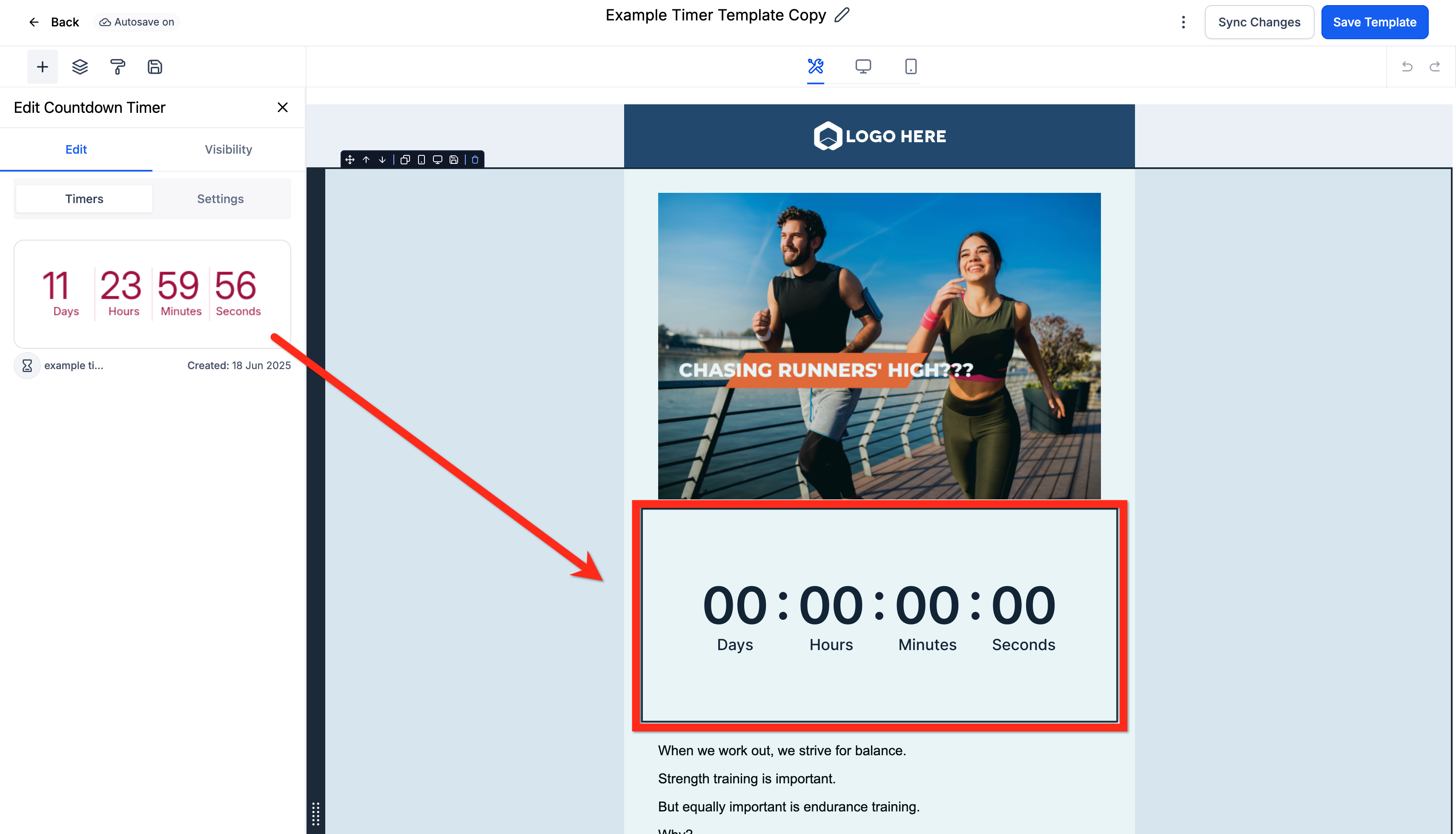
The platform treats a countdown timer inside a shared email template as a placeholder when the template moves to another subaccount. The placeholder shows where the timer should appear but does not run. To make the timer work, you must select a timer that exists in the target subaccount or create a new one.
Placeholders are only documented for shared email templates. They do not automatically adopt the original timer’s settings. The process involves copying the template, then linking a timer from the destination account before the email can be sent.
03How businesses use countdown timer placeholders
- Ecommerce store. The store copies a flash sale email template from its main account to a regional subaccount. After copying, it selects a region specific countdown timer to reflect the local time zone before launching the campaign.
- Real estate agency. An agent duplicates a template that advertises a limited time property offer. In the new office subaccount, the agent attaches a newly created countdown timer that matches the office’s marketing calendar.
- Online coaching business. The coach shares an enrollment deadline email with a partner subaccount. The partner selects a timer that aligns with its own enrollment period, ensuring the countdown displays correctly for its audience.
04Before you start
- A source subaccount that holds an email template containing a countdown timer.
- A destination subaccount where the template will be copied.
05How to set up and use countdown timer placeholders in HighLevel
Copy an email template with a countdown timer
- Navigate to Marketing > Emails > Templates.
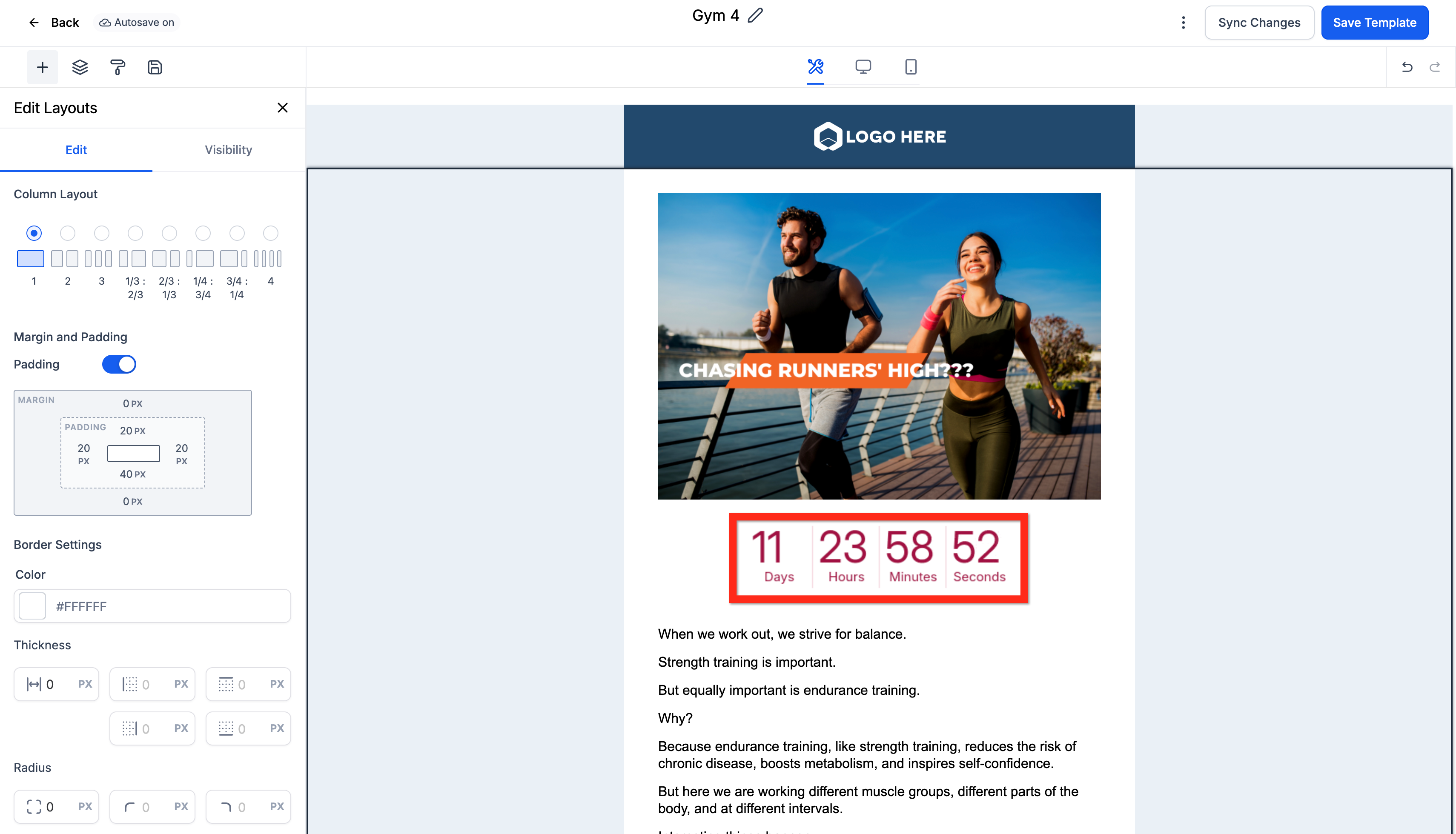
- Open or create an email template that includes a countdown timer.
- Return to the list of templates.
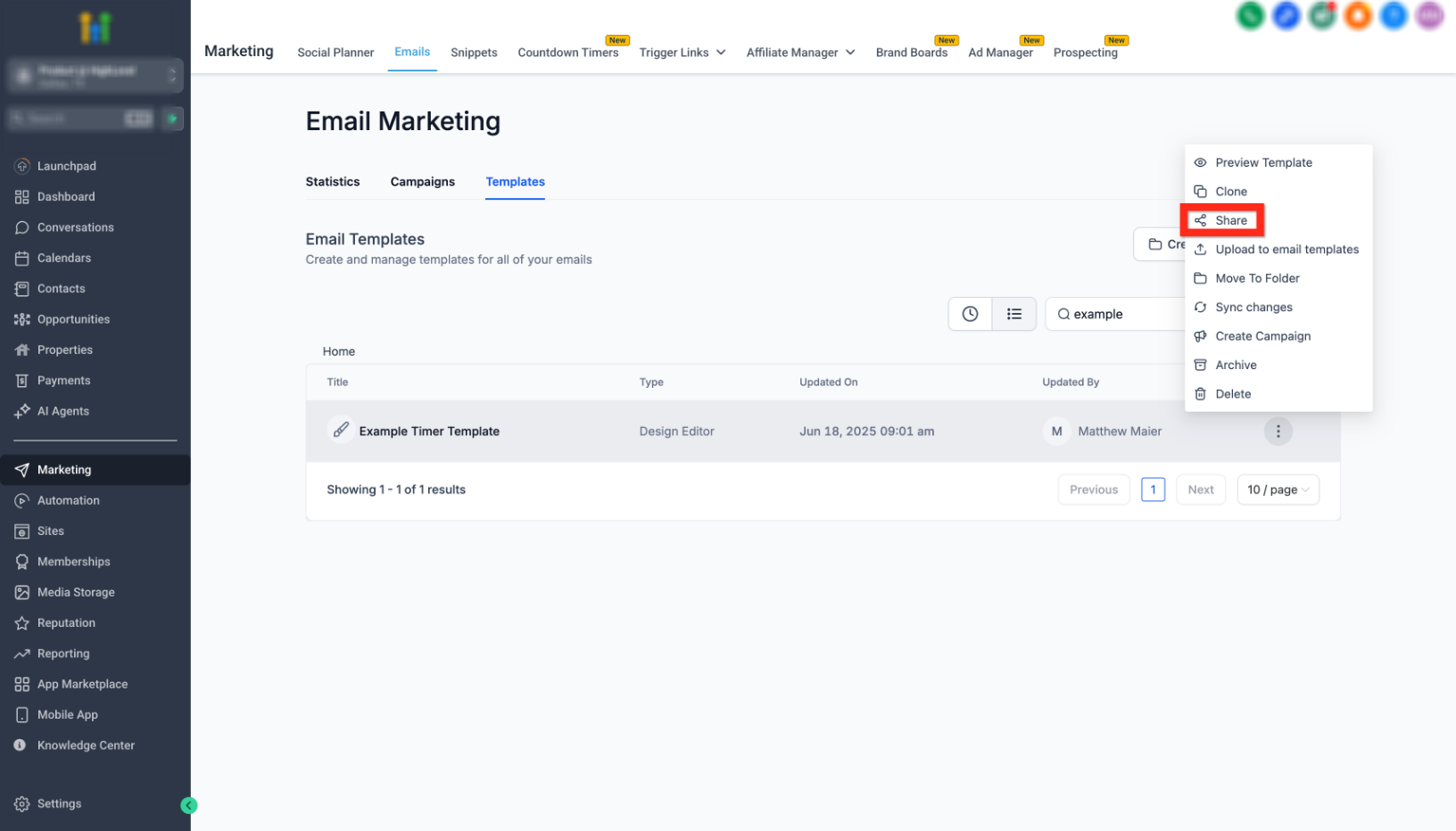
- Click the three dot menu on the template and choose Share.
- Set the sharing permissions and copy the generated template link.
- Paste the link in a new browser tab and click Add Template.
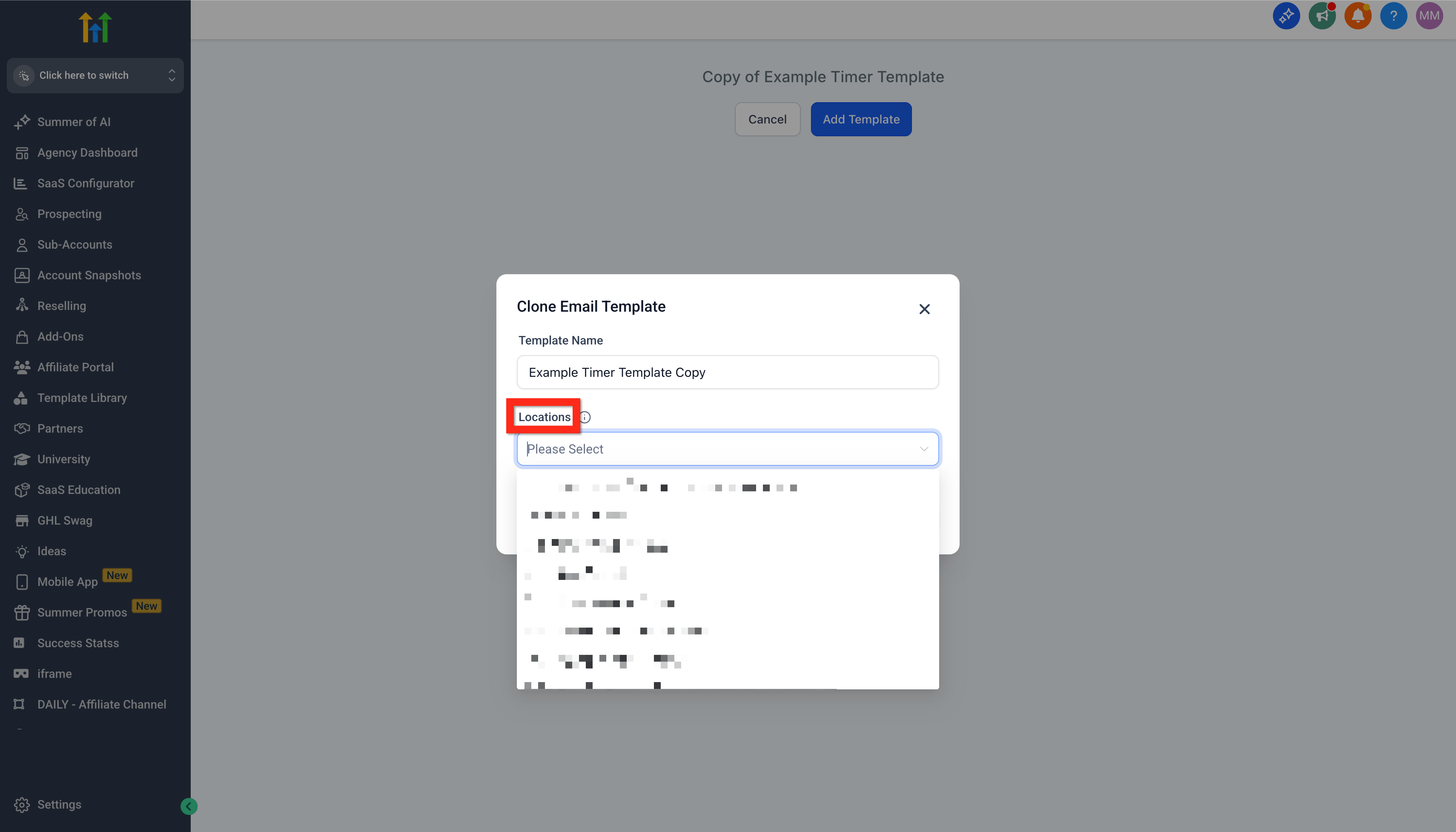
- Choose the destination subaccount, rename if desired, and clone the template.
Replace the countdown timer placeholder
- In the destination subaccount, go to Marketing > Emails > Templates.
- Open the newly cloned email template.
- Click on the Countdown Timer Placeholder shown in the editor.
- Select an existing countdown timer from the destination subaccount’s list.
- If no timer fits, go to Marketing > Countdown Timers and create a new one.
- Return to the email template and pick the newly created timer.
- Save the template and run a test email to confirm the timer works.
06What it looks like in HighLevel
07Things to know before you rely on it
- Placeholders are only documented for shared email templates, not for funnels or websites.
- A placeholder does not function as a countdown until a timer from the destination subaccount is attached.
08How it connects to the rest of HighLevel
- Create a countdown timer in the destination subaccount Create timer guide
- General usage of countdown timers in email campaigns Using timers in emails
- Share email templates across agencies Template sharing overview
Michael's take

The placeholder feature is a small convenience. It lets you move a nicely designed email to another subaccount without breaking layout, but you still need to hook up a real timer before the email goes live.
A marketing agency that runs limited time offers for multiple clients will find this useful. Clone a promotion email, swap in each client’s countdown, and you keep the visual branding consistent while tailoring the deadline.