
01Who this is for
- Marketing managers can package brochures and price sheets with a single email, removing the need for external links.
- Sales directors can send proposals and contracts as attachments, ensuring prospects receive the exact version intended.
- Agency owners can share client assets like mockups or reporting PDFs directly from campaign sends.
02Email attachments, explained
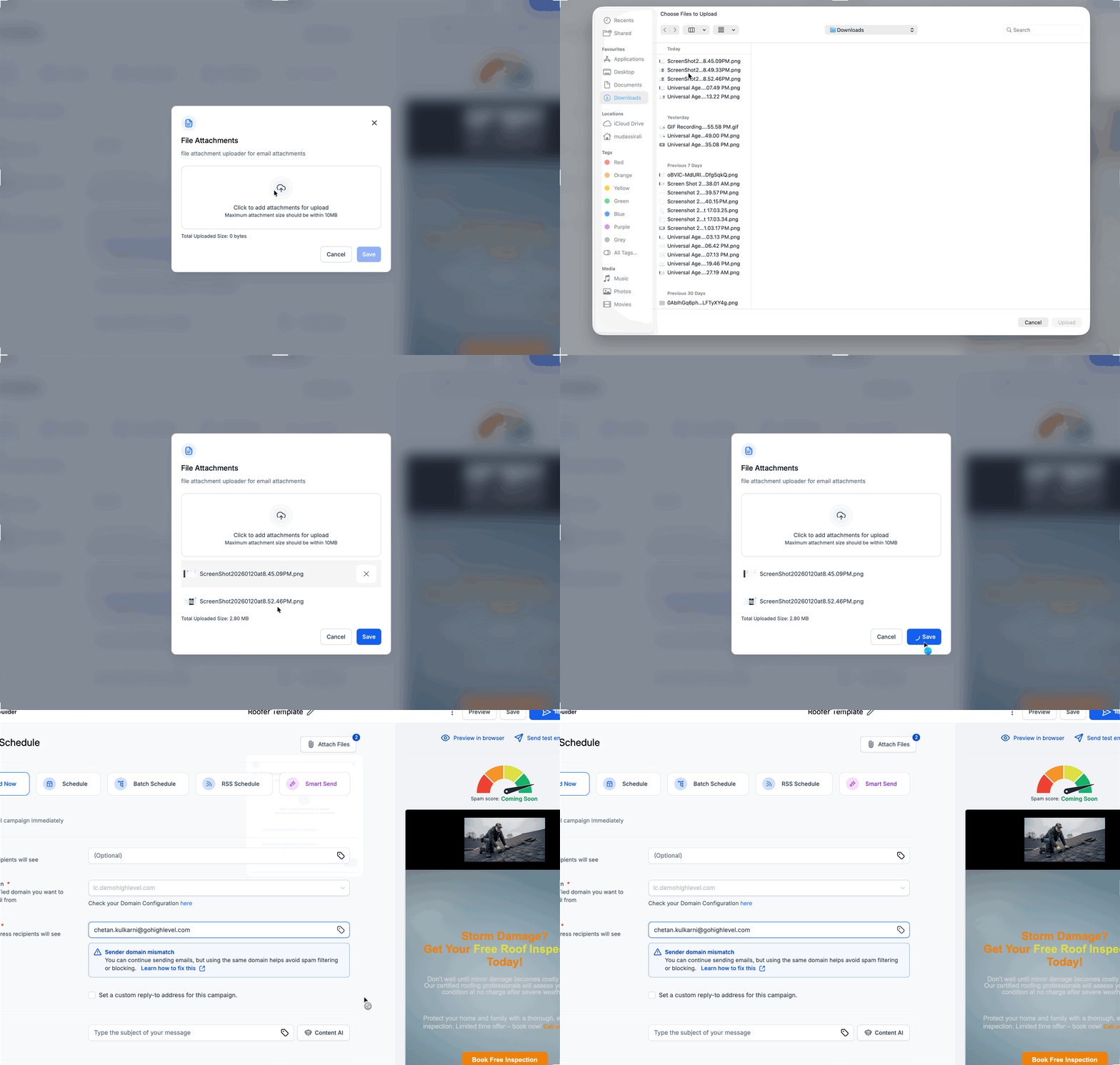
The Email Builder lets you attach files when you are ready to send or schedule a campaign. After finishing the email design, you click the Send or Schedule button and open the attachment pane. From there you upload one or more files, as long as the combined size does not exceed 10 MB. The attachments travel with the email and appear in the recipient’s inbox as separate files.
Attachments are not rendered inside the email content. They are delivered by the email client as standard files, which means the preview you see while designing the email will not show them. The 10 MB limit applies only to the Email Builder workflow; other HighLevel areas such as Conversations have their own restrictions.
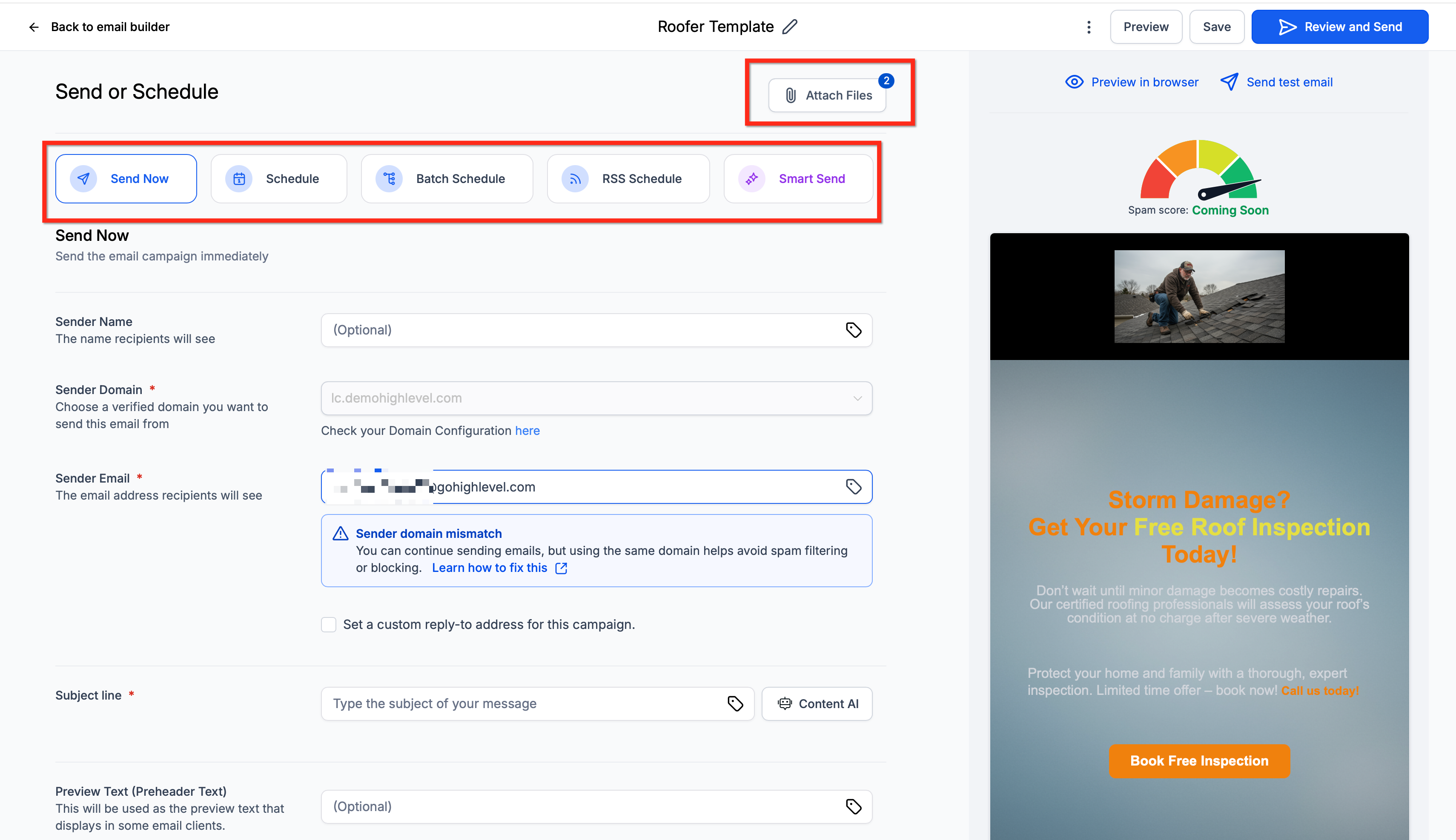
You can send the campaign immediately, schedule it for a future date, batch schedule, use an RSS feed, or let Smart Send choose the optimal time when eligible. The attachment step must be completed before confirming the delivery method.
03How businesses use email attachments
- Real estate brokerage. The broker uploads property brochures and floor plan PDFs while scheduling a drip email. The files appear as attachments so agents and prospects can open them directly from their inboxes.
- Restaurant group. The marketing team adds a seasonal menu PDF and a catering guide to a promotional email. Recipients receive the documents as attachments, eliminating the need to click external links.
- Consulting firm. A consultant attaches a proposal document and a pricing sheet during the send flow of a client outreach email. The client receives both files together with the email message.
04The numbers and rules that matter
- Combined attachment size limit of 10 MB.
- The 10 MB limit applies only to Email Builder campaign workflow.
05Before you start
- Create a new email campaign or open an existing one in the Email Builder.
06How to set up and use email attachments in HighLevel
Attach files to an email campaign
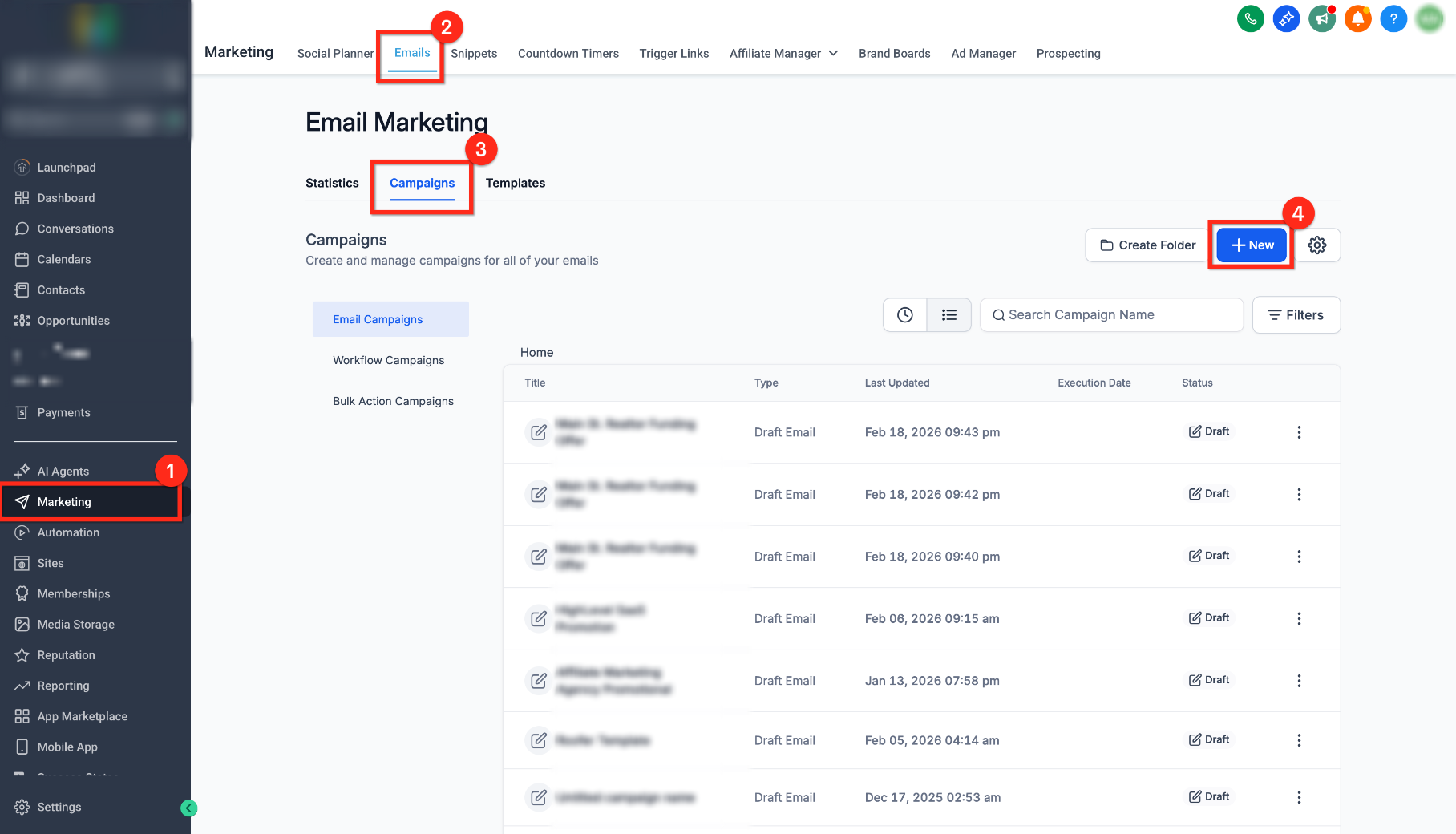
- Navigate to Marketing > Emails > Campaigns > + New, or open the campaign you want to edit.
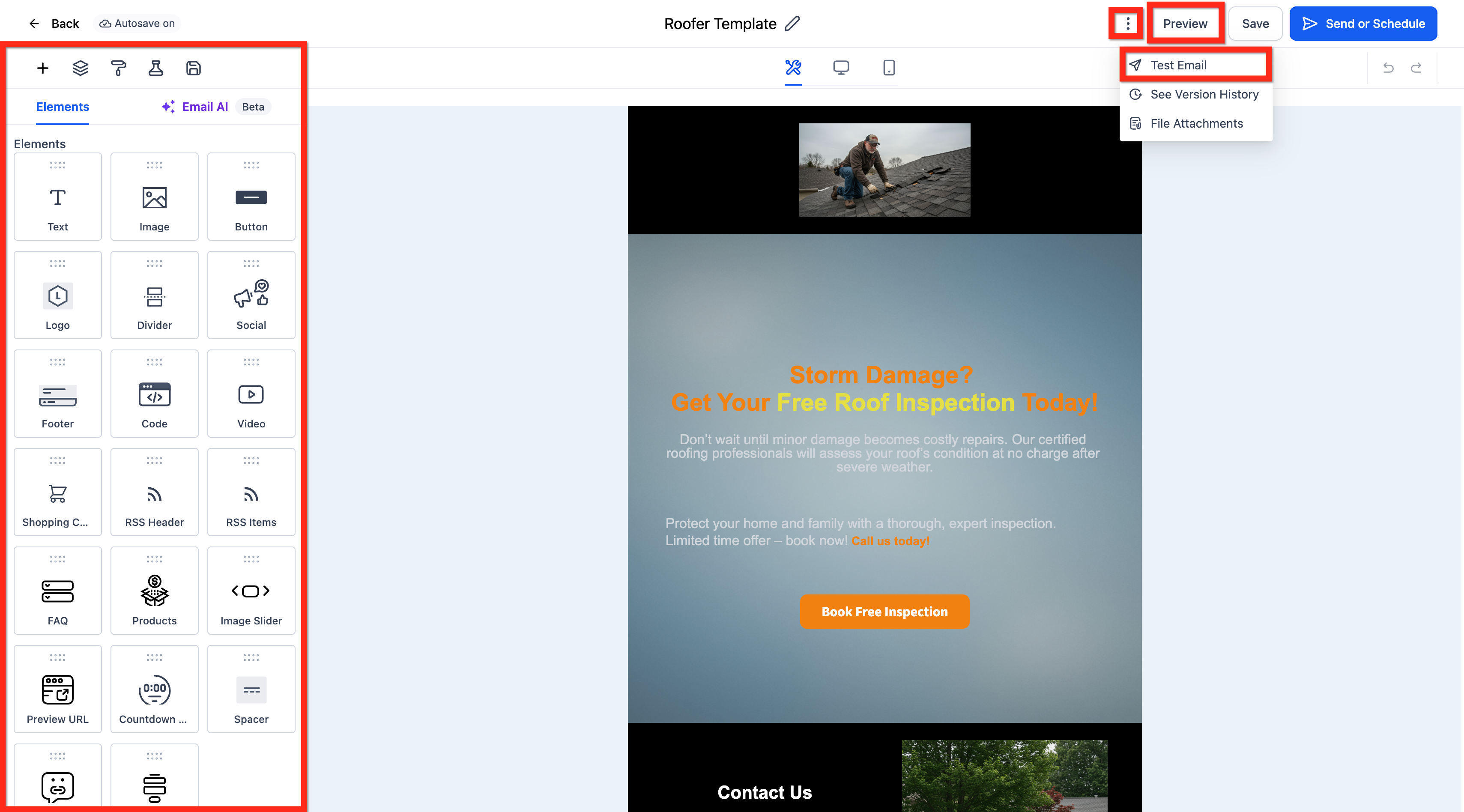
- Open the campaign in the Email Builder and finish designing the email content.
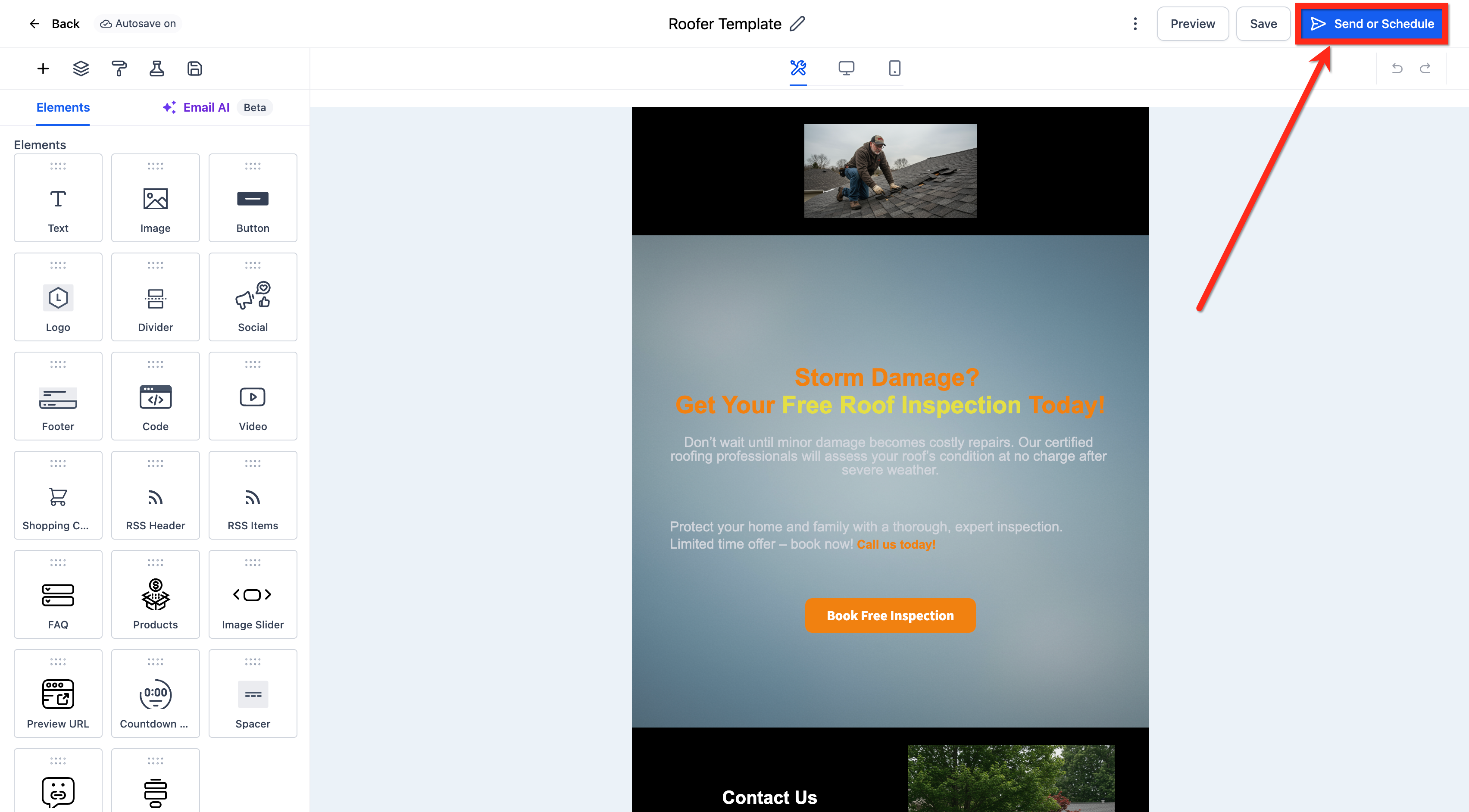
- Click the Send or Schedule button to open the delivery screen.
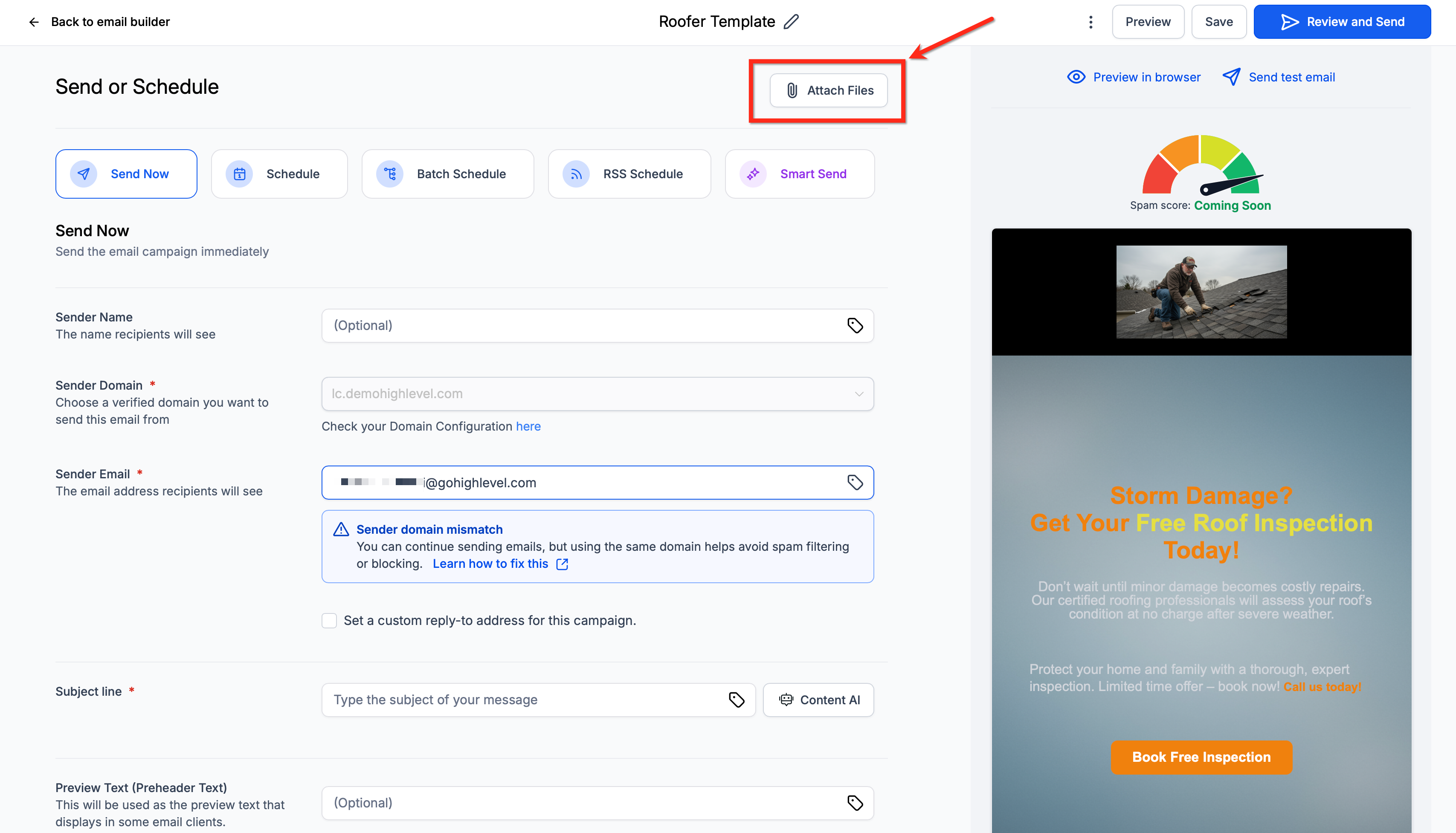
- Select the Attach Files button located at the top of the Send or Schedule screen.
- Upload or choose the files you wish to attach, ensuring the total does not exceed 10 MB.
- Verify the attachments appear in the list, then choose a delivery option and confirm the send.
07What it looks like in HighLevel
08Things to know before you rely on it
- All attached files combined must be under 10 MB.
- Attachments are sent as separate files and do not display inside the email body.
- Attachment limits are specific to the Email Builder; other HighLevel features have their own limits.
- Very large or uncommon file types may increase the chance of email filtering.
09How it connects to the rest of HighLevel
- Learn how to send or schedule the email after adding attachments. Send or schedule an email campaign
- Explore the template library to reuse email designs that can include attachments. Template library overview
- Check HighLevel pricing and plans if you need access to the Email Builder features. HighLevel pricing
Michael's take

Because attachments add extra weight to your messages, it’s easy to overlook how they can push a campaign over spam filters. Large or unusual file types may cause deliverability hiccups, so keep an eye on size and format.
When you need to send a brochure, a proposal, or a quick onboarding packet, attaching the file directly saves the recipient a click and guarantees they see the exact version you intended. It’s a straightforward way to make your email feel complete without relying on external links.